
Learn / DaVinci Resolveupdated for DaVinci Resolve 21.0.2 and Fusion Studio 21.0.2 (August 2026)
DaVinci Resolve Fusion MediaIn vs Loader: Which Wins?
Quick answer
DaVinci Resolve Fusion MediaIn is best for timeline footage and project-aware comps. Loader is best for direct disk media, especially stills and image sequences in standalone Fusion. Use MediaIn for editorial integration, Loader for independent comps and explicit timing. In Resolve 21, the choice still depends on media ownership, frame control, caching, and portability.
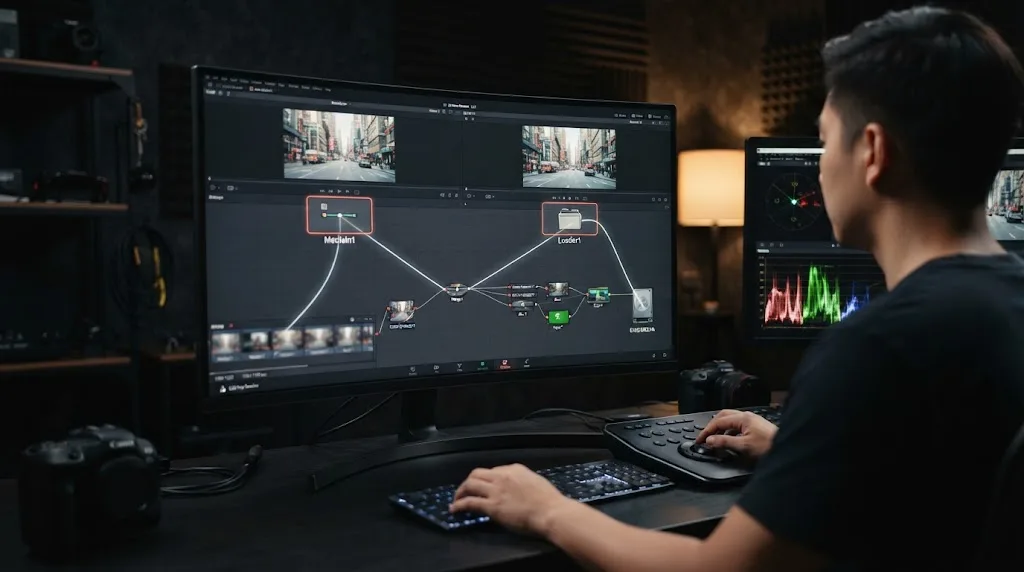
We see this question when an editor opens Fusion and finds two inputs that look like they should do the same job. If you’re asking “DaVinci Resolve Fusion MediaIn vs Loader,” you’re choosing where Fusion gets its media, who owns the timing, and how much of the Resolve project should travel with the comp.
As of August 2026, DaVinci Resolve 21.0.2 and Fusion Studio 21.0.2 still reward the same practical split: use MediaIn for editorially connected Resolve footage, and use Loader for direct disk media and standalone-style compositions. We’ve spent 7+ years doing professional, commercial video editing, and we built and run a professional editing community with more than 100,000 members, so this is the distinction we use when a node graph needs to survive the next handoff.
What is the short answer to “DaVinci Resolve Fusion MediaIn vs Loader”?
MediaIn is the better default when the footage belongs to a DaVinci Resolve project, timeline, or Media Pool. Loader is the better default when the composition should read a still, image sequence, or movie directly from disk with its own frame timing, especially in standalone Fusion Studio.
Alan Edward Bell, A.C.E., an editor quoted by Blackmagic Design in its Fusion Connect announcement, put the standalone relationship plainly: “Fusion Studio is the other half of my editing tool set.” The quote is from an older product announcement, but the division it describes still helps: Resolve is where editorial context lives, while standalone Fusion is where an independent comp can own its media and output.
That answer has four exceptions worth remembering:
- A still image that plays badly through MediaIn is worth testing through Loader.
- A comp intended to return to the Resolve timeline usually wants MediaIn and MediaOut at its edges.
- A comp intended to live independently of Resolve’s timeline usually wants Loader and Saver.
- A Loader path is not automatically portable. The source still has to exist where the comp expects it.
MediaIn is the right default for timeline footage in DaVinci Resolve.
The rest of this guide explains why those defaults work, where they break, and how to make a clean choice without rebuilding every node graph on instinct.
What do MediaIn and Loader actually mean?
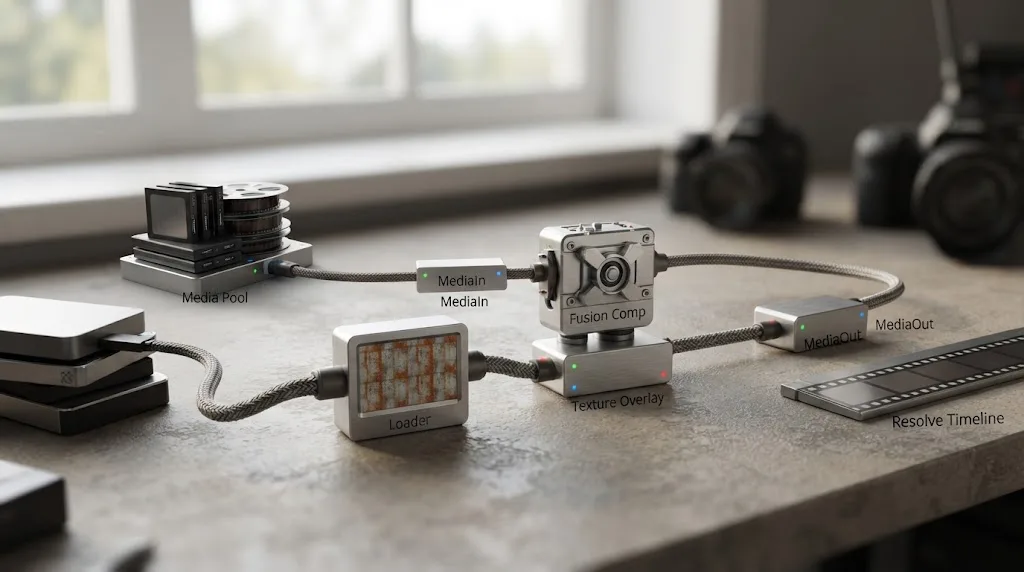
MediaIn is a Fusion input that represents media known to DaVinci Resolve. It can represent a clip coming from the Edit page timeline or an item brought from the Resolve Media Pool. Loader is Fusion’s direct source-media input, designed to read a file or sequence from storage and expose that source inside the composition.
Blackmagic’s Fusion 21 Reference Manual treats these as related but different workflows. The manual describes the Fusion Page inside DaVinci Resolve and the standalone Fusion Studio application together, then documents MediaIn for Resolve compositions and Loader for source media in Fusion Studio. That distinction matters more than the node colors or the fact that both nodes eventually produce an image stream. Read the Fusion 21 Reference Manual as a description of two environments sharing a node system, not as proof that every input behaves identically in both applications.
| Question | MediaIn | Loader |
|---|---|---|
| Where does the source come from? | The Resolve timeline or Media Pool | A file, image sequence, or movie read from disk in Fusion |
| Who owns the edit relationship? | DaVinci Resolve owns the clip relationship | The Fusion composition owns the file reference |
| What does the timing describe? | Timeline or source-media timing, depending on the composition | Composition timing plus Loader trim and Global In/Out controls |
| What is the natural output path? | MediaOut back to a Resolve timeline | Saver or another output path from a standalone comp |
| What is the strongest use case? | A shot being finished in Resolve | An independent element, plate, still, or sequence |
| What is the main risk? | Timeline coupling and still-image cache behavior | Broken paths and missing media on another machine |
This table is the whole comparison in miniature. MediaIn is project-aware. Loader is file-aware. Neither is simply the “professional” version of the other.
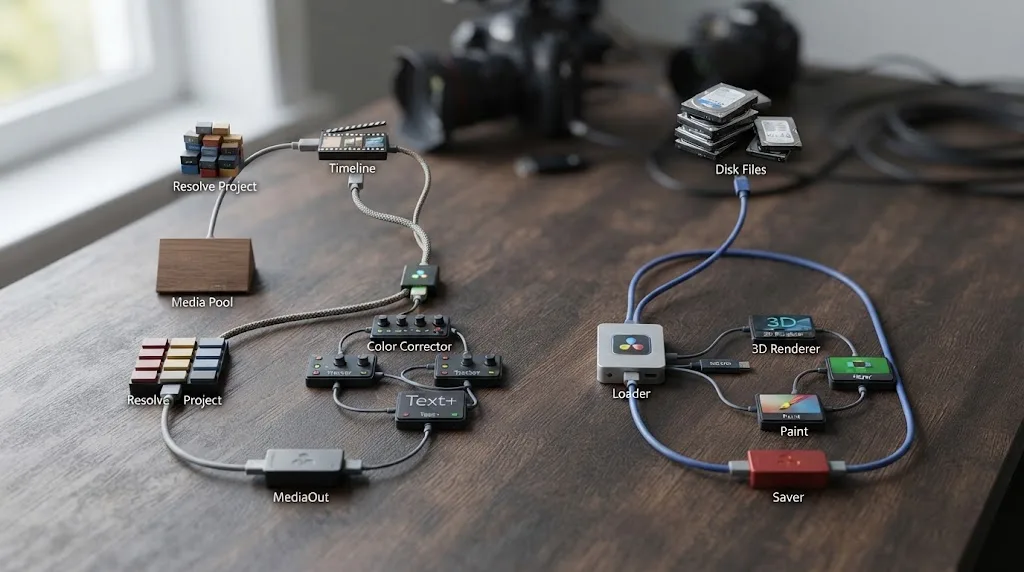
How does MediaIn work when you open a timeline clip in Fusion?
When you select a clip on a DaVinci Resolve timeline and open the Fusion page, Resolve creates a composition around that timeline context and places a MediaIn node at the front. The node is not just a file browser shortcut. It carries the relationship between the Fusion result and the clip or timeline that called Fusion.
That relationship is why MediaIn is usually the correct input for a normal Fusion shot. You can composite, track, key, paint, or animate the shot, then send the result through MediaOut so the Edit page can keep treating it as part of the timeline. Blackmagic’s DaVinci Resolve 20 visual effects guide describes MediaOut as the final connected node that renders the Fusion result back to the Edit page timeline.
The timeline also supplies a useful piece of context: the shot already has an editorial duration. You’re less likely to begin with a blank composition at frame 0 and then wonder whether the background plate should start at frame 0, 100, or 1,000. The clip’s placement gives you a time relationship before you add your first Merge or Transform.
That convenience has a cost. A timeline MediaIn is not a neutral file reader. Its source, range, and relationship to the project can be affected by the way the clip entered the timeline, the source media it references, and Resolve settings applied before the Fusion page. When someone says “my MediaIn starts on the wrong frame,” the real question is often “wrong relative to which timeline, source clip, or composition?”
What changes when you drag a clip from the Media Pool?
Dragging a Media Pool clip into the Fusion Node Editor creates another MediaIn, but it creates a different kind of relationship from opening the clip already under the timeline playhead. The clip is still managed by the Resolve project, yet it is being added as an extra source to the current composition.
This is useful for a sky replacement, a logo plate, a clean background, a reference clip, or a second camera angle. Blackmagic’s training guide demonstrates dragging a clip from the Media Pool into the Node Editor and notes that Media Pool media retains its original resolution. In the guide’s example, a 1,920 x 1,080 clip remains 1,920 x 1,080 when added to a Fusion graph, even when the surrounding shot uses a different source image.
That native-resolution behavior is a practical reason to choose MediaIn for project media. You can keep your assets organized in bins, use Resolve’s project-level media management, and add the source without first inventing a separate folder convention for the comp.
It also means you need to watch resolution deliberately. Fusion’s Merge output follows the resolution of its background input. If you connect a large still as the background, the graph can inherit that large frame size even when the editorial timeline is HD. The Resolve 20 guide demonstrates this behavior with a 3,888 x 1,518 sky image and a 1,920 x 1,080 foreground clip, then uses a Background node to set a deliberate output size.
The lesson is simple: MediaIn respects the project, but Fusion still respects the pixels and resolution you feed into the graph.
How does Loader work in standalone Fusion Studio?
Loader reads source media from its original storage location and makes it available to the Fusion composition. The file stays where it is. Fusion reads it in place rather than silently copying it into a Resolve Media Pool.
That is the natural workflow in Fusion Studio. The Fusion 21 Reference Manual says that source media is read into a standalone comp using a Loader and that Fusion reads the original files from whichever storage volume they occupy. It also documents a useful image-sequence behavior: dragging one frame from a sequentially numbered sequence can create one Loader for the entire series, while holding Shift while dragging can bring in only one frame.
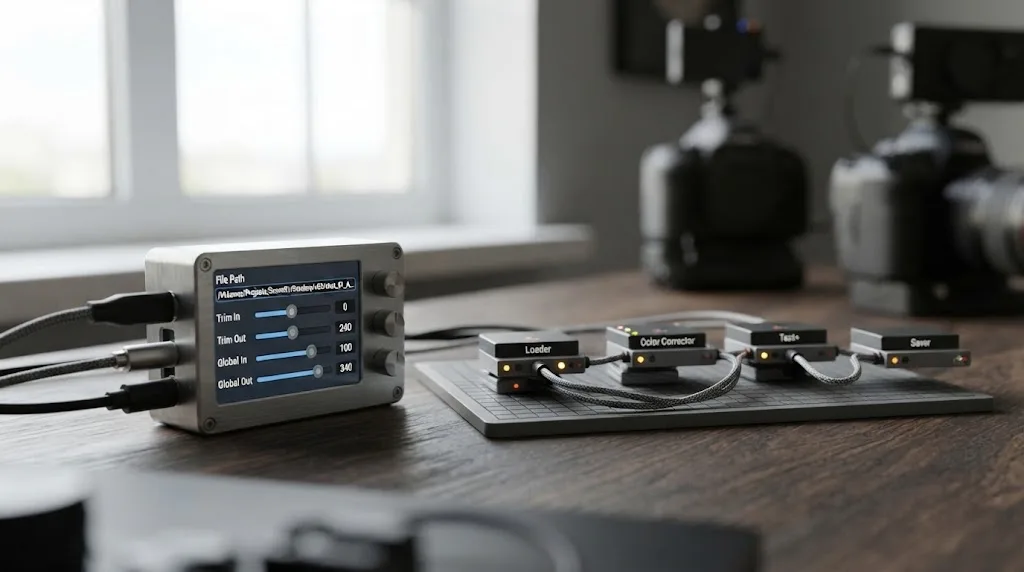
Loader also gives you explicit timing controls. The Loader Inspector includes Global In and Global Out controls for deciding when the source appears in the composition. It includes Trim In and Trim Out controls for choosing the source range. It can hold the first or last frame when the source is shorter than the composition, and it can reverse or loop media when the composition needs a different timing relationship. Blackmagic documents these controls in the Fusion manual’s section on aligning clips in a standalone composition.
This is why Loader feels more like a source reel or plate loader than a timeline clip. The comp starts with its own frame domain. The Loader then tells Fusion which source frames should occupy which part of that domain.
Imagine a 240-frame composition. The image sequence begins at source frame 100, but you want that source frame to appear at comp frame 0. You set the Loader’s Trim In to source frame 100 and keep Global In at comp frame 0. If you instead move Global In to 50, the trimmed source begins later in the comp. Those are separate decisions, and Loader keeps them separate.
MediaIn can also be trimmed and retimed in a Resolve composition, but the mental model is different. Timeline editing has already made a decision about where the shot sits. Loader starts with a composition and asks you to make the source sit inside it.
Loader is the right default for disk-based image sequences in standalone Fusion.
Is MediaIn or Loader faster in DaVinci Resolve Fusion?
There is no honest universal answer. Loader can be faster for some still-image workflows, but changing MediaIn to Loader is not a guaranteed performance fix for every comp, every file type, or every Resolve version.
The strongest reason to test Loader is a known class of still-image behavior reported in the Blackmagic community. In a long forum thread about MediaIn versus Loader performance, a user reported a large difference when two high-resolution still images were read through MediaIn and then through Loader. The same thread also includes the important limitation: video and changing image sequences do not benefit from the same one-frame reuse because their pixels change from frame to frame. Treat that discussion as a field report, not as a Blackmagic benchmark or a promised frame rate. The MediaIn versus Loader performance discussion is useful because it identifies what to test, not because its numbers transfer to your workstation.
Why can a Loader help with a still image?
A single still image has one set of pixels that may be used across many composition frames. A Loader can keep that source available as a direct loaded asset. Community reports describe MediaIn still-image paths in Resolve as repeatedly processing the still instead of reusing it in the same way, which can make a large PNG, TIFF, TGA, or other still unusually expensive inside a heavy 3D or particle graph.
That behavior is not the same as saying “MediaIn is slow.” MediaIn is often the correct and fast enough choice for a timeline clip, a video plate, or an image sequence. The meaningful comparison is:
| Source type | First test | Why |
|---|---|---|
| Timeline video clip | MediaIn | Resolve needs the editorial relationship and frame range |
| Extra video clip from the Media Pool | MediaIn | The project should own the source and relink it with other project media |
| One large still used across many frames | Loader if the workflow allows it | Direct loading may avoid the still-image behavior reported by Resolve users |
| Numbered image sequence | MediaIn for a Resolve timeline, Loader for standalone Fusion | Both can represent changing frames, but the owner of timing differs |
| EXR or other render sequence for a standalone comp | Loader | The source is a direct plate and the comp controls its timing |
| Short test graphic | Whichever keeps the project simpler | Performance gains are not worth extra path management on every shot |
If you test, change one thing at a time. Duplicate the comp, keep the same source resolution, same bit depth, same GPU mode, same frame range, and same viewer resolution. Measure the same operation. Do not compare a MediaIn at full native resolution with a Loader accidentally set to a reduced depth or a different trim range and then call the result a node benchmark.
Does a Loader always make a render faster?
No. The node only changes how the source enters the graph. A 3D renderer, optical flow tool, motion blur setting, particle simulation, high-resolution source, plugin, or memory limit can dominate the render time instead.
Blackmagic’s own documentation emphasizes cache and RAM playback controls for Fusion. The Resolve 20 visual effects guide says that Smart Cache renders Fusion effects work into a cache file using idle CPU cycles and shows a blue bar when the clip is cached. That is a different mechanism from replacing a source node. If the comp is slow because its downstream tools are heavy, a Loader will not turn the graph into a light one.
Use Loader as a diagnostic and workflow choice, not as a magic performance switch.
Why is Fusion MediaIn slower than Loader for some still images?
Fusion MediaIn can be slower than Loader for some still-image compositions because the two inputs do not necessarily handle repeated access to the same still in the same way. The difference is most visible when a large still is used across many frames and the graph performs expensive operations after the input.
The practical fix is to make a small A/B test:
- Save a new version of the project before changing the graph.
- Note the source dimensions, file type, frame range, viewer resolution, and GPU preference.
- Disconnect the MediaIn still and create a Loader pointing to the same file.
- Match the source range, frame format, and color depth as closely as the controls allow.
- Watch the same part of the comp and render the same short range.
- Compare playback and render behavior, then decide whether the path-management cost is worth the improvement.
The last step is the one people skip. A Loader may improve one shot and make the project harder to archive. A MediaIn may be slightly less responsive on a still and still be the better production choice because the project needs one-click relinking and a clean Resolve archive.
If your Fusion page is crashing, the input node may be only one part of the problem. Our separate guide to DaVinci Resolve Fusion out of memory errors covers the broader branches, including heavy graphs and memory pressure.
Uncle can point at the exact input or cache control in your own Resolve project while you work.
The MediaIn-versus-Loader decision is mostly about ownership of media and time, not node quality.
When should you use MediaIn for video, stills, and image sequences?
Use MediaIn when the source should behave like a Resolve project asset. That usually means timeline video, clips from the Media Pool, footage that needs project-level relinking, or a composite that must return to the Edit page through MediaOut.
Timeline video
For timeline video, MediaIn is the sensible starting point because the video already belongs to a Resolve edit. The timeline knows its placement, the project knows its source clip, and the Fusion result can flow back into the editorial context. Replacing that relationship with a Loader can create more work without creating a better comp.
This is especially true for client work where someone else may open the project later. A MediaIn says “this source is the clip in this project.” A Loader says “look for this path.” Both can be made to work, but the first statement is easier for a Resolve editor to understand.
Still images
For a still image, choose based on two questions: does the still belong to the project, and does the graph perform well with MediaIn?
If the still is a client logo, a project-specific design, or a photo that should be archived with the Resolve project, MediaIn keeps it visible in the Media Pool. If the still is a large texture, environment map, height map, or repeated plate in a standalone-style comp, Loader deserves a test.
There is no need to turn a simple lower third into a path-management exercise. A small PNG that plays fine through MediaIn does not need a Loader because a forum user once reported a 3D still-image problem. Use the simplest reliable input.
Image sequences
Image sequences sit between the two workflows. A Resolve timeline may need the sequence as an editorial clip, which favors MediaIn. A standalone Fusion comp may need to read the numbered files directly and control the source range itself, which favors Loader.
The numbering matters. The Fusion manual says a sequentially numbered image sequence can be read as one Loader when you drag a frame from the sequence. If numbering has gaps, inconsistent padding, or unrelated files in the same folder, check what Fusion actually recognizes before building a graph around it.
Movies inside Loader
Standalone Fusion Studio uses Loader for source clips, image files, image sequences, and movie files. The Resolve Fusion page is a different environment. Its MediaIn node is the normal route for timeline video, and the Loader behavior available in standalone Fusion should not be assumed to be identical inside Resolve.
This is a common source of bad advice. Someone demonstrates a Loader in Fusion Studio, then tells a Resolve editor to use the same node for a timeline movie. The node names match, but the applications do not have the same media-management job. Verify the behavior in the exact Resolve 21 build you use.
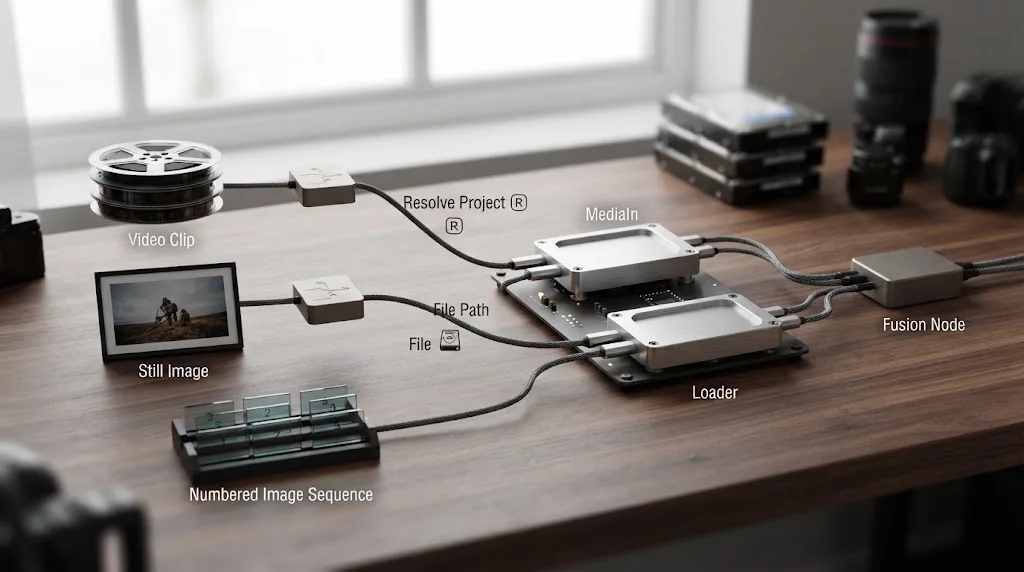
How do MediaIn and Loader handle frame ranges differently?
MediaIn often inherits timing from the Resolve timeline or the source clip context, while Loader makes composition timing and source timing separate controls. That is the difference to remember when a plate appears early, late, frozen, or out of range.
Example 1: a timeline clip trimmed from a source
Suppose a camera file contains ten minutes of video at 30 frames per second. Ten minutes at 30 frames per second is 18,000 frames. If the Edit page uses the final minute, the Fusion composition is working with a timeline selection that represents that part of the source, not a blank standalone comp that happens to begin at frame 0.
The exact visible frame numbers depend on Resolve’s start timecode, timeline settings, and how the clip was placed. The point is not the number 18,000. The point is that timeline context can make source frame, timeline frame, and comp frame different concepts.
A forum explanation of Fusion composition types uses this kind of 10-minute, 30 FPS example to show how a single-clip composition can have a range tied to the source media rather than the short editorial selection. Use the composition types discussion as a conceptual reference, then inspect the actual frame labels in your project.
Example 2: a Loader with a delayed source
Now create a 240-frame standalone comp and load a 100-frame image sequence. The Loader starts at comp frame 0 by default, but the source may contain a useful action only from source frame 20 through source frame 80. Trim the source to that range, then use Global In and Global Out to decide where those frames appear in the composition.
If Global In is 50, the trimmed source begins at comp frame 50. If the comp needs a full 240 frames, you can hold the last frame after the sequence ends. If the effect should repeat, you can loop the source. Those controls express the timing directly in the Loader Inspector.
Why does a Loader appear one frame or one shot late?
Usually because Global In and Trim In were treated as the same control. Trim In chooses the source frame where reading starts. Global In chooses where the result begins in the composition. Change the wrong one and you can move the content without changing the actual source frame, or change the source frame without moving its position in the comp.
Write the intended relationship down before adjusting sliders:
| Desired result | Control to inspect first |
|---|---|
| Start reading from source frame 100 | Trim In |
| Start showing the result at comp frame 25 | Global In |
| End reading at source frame 180 | Trim Out |
| End showing the result at comp frame 200 | Global Out |
| Keep the first source frame visible before the clip starts | Hold First Frame |
| Keep the last source frame visible after the clip ends | Hold Last Frame |
| Repeat the source through the comp | Loop or a repeated timing setup |
This distinction is one of Loader’s strengths. It is also one of its small traps.
Does MediaIn use the timeline resolution or the source resolution?
MediaIn can expose the source at its native resolution, especially when media is added from the Media Pool, rather than automatically reducing it to the timeline resolution. The Fusion graph then uses its own resolution logic, with the background input of a Merge helping determine the output resolution.
Blackmagic’s Resolve 20 training material gives a concrete example. A source sky image at 3,888 x 1,518 and a foreground clip at 1,920 x 1,080 are brought into Fusion, and the guide explains that Media Pool clips retain their original resolution. It then adds a 1,920 x 1,080 Background node to control the composite size.
That has two consequences.
First, MediaIn can preserve detail you would lose if you pre-rendered or resized the source just to match the timeline. Second, a large source can increase memory pressure if you let that native resolution flow through several expensive nodes.
Loader has the same general need for resolution discipline. Direct disk access does not mean “always process at final output size.” A 6K plate, 8K texture, or 16-bit EXR sequence can still be a large input. If you need a smaller working image, make that choice explicitly with a Resize, Crop, proxy, or source-preparation step.
The comparison is therefore not “MediaIn is low resolution and Loader is high resolution.” Both can work with serious source sizes. The real question is which input path gives you the resolution, color depth, metadata, and timing behavior your graph needs.
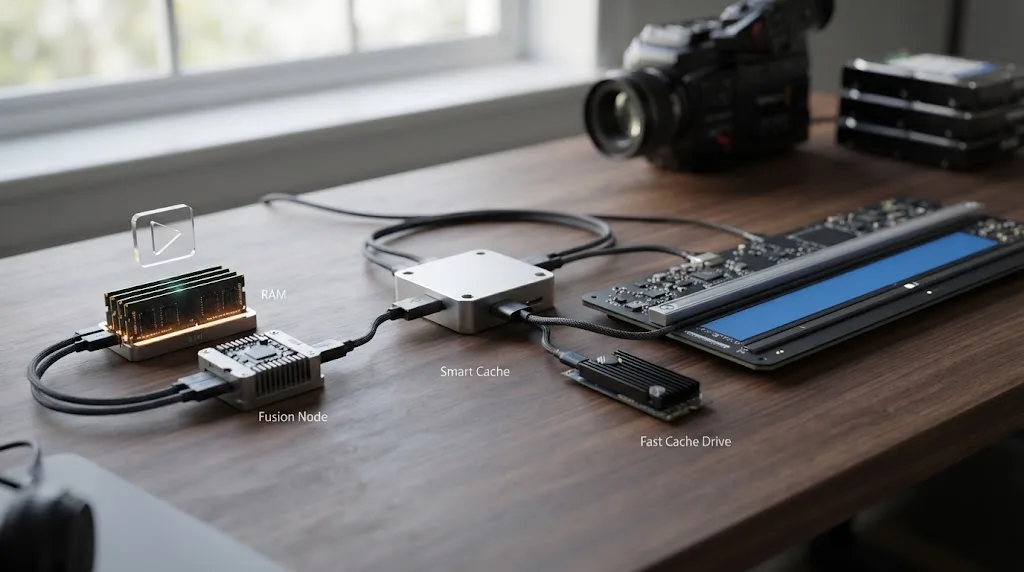
How does caching change the MediaIn versus Loader decision?
Caching changes playback behavior after the graph has been evaluated, but it does not remove the difference between the two input types. Use caching to make a heavy Resolve Fusion result playable, and use the input choice to make the source relationship correct.
The Resolve 20 visual effects guide documents three practical cache details:
- Fusion RAM playback has an allocation in Preferences, and that allocation comes from the RAM assigned to DaVinci Resolve.
- Resolve Smart Cache can use idle CPU cycles to render Fusion effects into a cache file.
- A blue bar indicates that the relevant clip is cached and ready for smoother playback, assuming the cache directory uses a sufficiently fast drive.
Those facts explain why two editors can disagree about whether MediaIn or Loader is “fast.” One may be viewing a cached range. The other may be evaluating the graph from scratch. One may have a fast NVMe cache drive. The other may be writing cache files to a slow or nearly full volume.
For a fair test, clear or avoid stale cache, use the same cache settings, and compare the same frames. Then test the result again with Smart Cache enabled. If the Loader only feels faster before caching, it may still be useful for interactive work, but the production decision should include the cache behavior you actually use.
If you’re trying to find the cache location rather than compare input nodes, see where to find DaVinci Resolve cache files. It covers the storage path question separately so this comparison can stay focused on media input.
Does DaVinci Resolve 21 change MediaIn or Loader behavior?
DaVinci Resolve 21 adds Fusion features, but it does not remove the basic distinction between a project-aware MediaIn and a direct-source Loader. The core decision remains about timeline integration, source ownership, frame control, and portability.
Blackmagic released DaVinci Resolve 21 on June 3, 2026, according to its support center. The Resolve 21 update added features such as Fairlight folders, keyframe improvements, MultiMaster trim passes, layer-list node graphs, and the Photo page. The Studio release added the Krokodove toolset and more Fusion-related improvements. Those are meaningful version changes, but they do not turn MediaIn into a generic file loader or Loader into a project-managed Media Pool clip.
Fusion 21 also adds new tools and workflow improvements. Blackmagic’s Fusion 21 product page lists 27 GPU-accelerated Resolve FX added to the Fusion page, customizable toolbars, vertical node-editor layouts, node-view bookmarks, and animation tools tied to changing effect duration. Those features can change how much work a comp does, but they do not change who owns its source file.
The current version matters when you test a workaround. A performance behavior reported against Resolve 16 or Resolve 17 is a reason to run a test on Resolve 21, not a reason to copy an old frame-rate claim into a current guide. The same caution applies to file formats, GPU modes, operating systems, and Studio-only features.
Resolve 21 does not turn MediaIn and Loader into interchangeable inputs.
What about Fusion Studio 21?
Fusion Studio 21 is the standalone application, while Fusion in DaVinci Resolve 21 is integrated into a larger editor, color, audio, and media-management environment. Blackmagic’s Fusion 21 feature comparison lists the two products side by side.
The comparison page says both versions provide 2D and 3D compositing, can mix footage of different resolutions and formats in one flow graph, and support multiple formats and GPU acceleration. It also lists a product-level difference: Fusion in DaVinci Resolve 21 is limited to 16K x 16K, while Fusion Studio supports images over 32K x 32K. The same page lists Fusion Studio 21 at $295 on its US comparison page and notes features such as unlimited distributed network rendering and a Studio Player.
Those figures describe the products, not a recommendation to buy standalone Fusion for every Loader workflow. Most editors comparing MediaIn and Loader are deciding how to build a comp, not deciding whether their project needs images above 16K. Start with the workflow difference. Consider product-level limits only when your project actually reaches them.
Can a MediaIn composition move from Resolve to Fusion Studio?
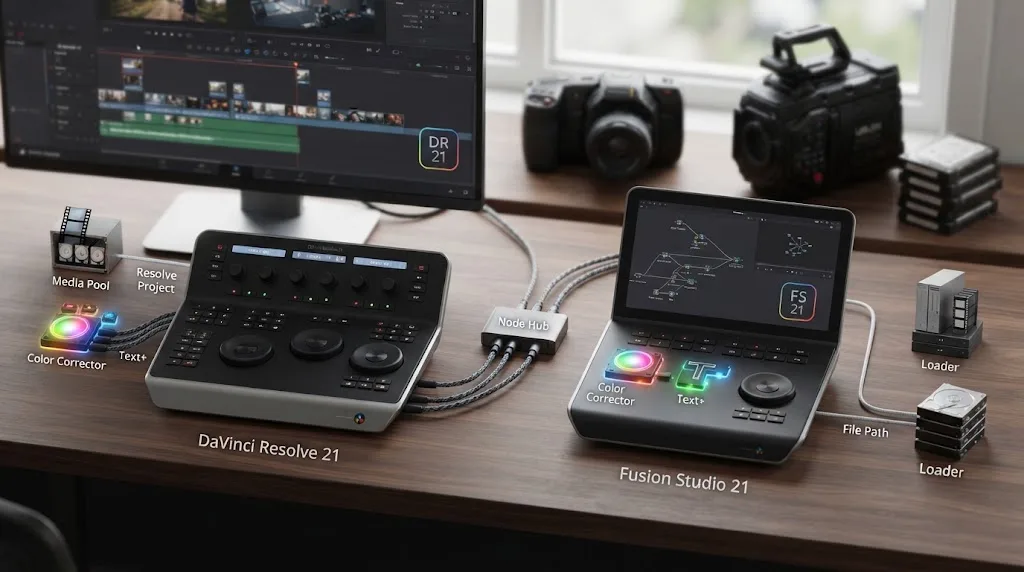
Yes, but the move is a conversion workflow with conditions, not a drag-and-drop promise. Resolve can export a Fusion composition as a .comp file, and the manual says MediaIn nodes from Resolve are automatically converted to Loader nodes when the file path remains identical.
The Fusion 21 Reference Manual lists the main conversion behavior:
- Resolve exports the node tree as a
.compfile. - MediaIn nodes are converted to Loader nodes.
- The media automatically relinks when the file path remains identical.
- MediaOut nodes become Saver nodes.
- Clips that were not added to the Node Editor do not appear in the Fusion Studio bins.
- ResolveFX added to the composition do not translate to Fusion Studio.
That list is more useful than the vague promise that “Fusion comps are portable.” The nodes can travel. The complete project context may not.
What does “the file path remains identical” mean?
It means the path stored by the Loader must resolve to the same source on the destination system. If the source lived at /Volumes/ClientDrive/Show/plates/shot_010.exr on one Mac and the destination uses /Users/editor/Desktop/plates/shot_010.exr, the file path is not identical even if the filename is the same.
An identical filename is not an identical path. A shared volume mounted under two different names is not necessarily an identical path. A copied folder with an extra parent directory is not an identical path.
You can make a comp more portable by designing the storage around a shared root, using mapped paths where the application supports them, or planning a relink pass. But you should still expect to check every external source after opening the .comp.
What does not travel cleanly?
Resolve timeline timing, project bins, certain ResolveFX, and clips that never entered the Node Editor are the main caution points. A MediaIn is carrying more than pixels. It can be pointing at a project-managed item whose meaning is not fully represented by a standalone file path.
If the goal is a standalone comp, build with standalone conventions from the beginning. Use clear Loader names, a stable folder structure, explicit frame ranges, and a short readme that states the required source paths. If the goal is a Resolve timeline shot, keep MediaIn and MediaOut and let Resolve own the editorial relationship.
Is Loader more portable than MediaIn?
Loader is more explicit, not automatically more portable. A Loader exposes a file dependency that you can inspect and recreate. MediaIn exposes a Resolve project dependency that the project can often manage for you.
For a single artist moving a comp between two machines with the same mounted storage, Loader can be wonderfully clear. Open the comp, verify the path, and continue. For a team passing an entire Resolve project through an archive, MediaIn can be safer because the media is part of the project’s managed context.
The portable unit is not the node. The portable unit is the node, the composition, the source media, the path convention, the frame range, the color interpretation, and the documentation needed to reopen it.
A Loader makes a composition more portable only when its file path is portable.
What should you include in a Loader-based handoff?
Use a simple handoff folder:
shot_010_comp/
  shot_010.comp
  media/
    plate_0001.exr
    plate_0002.exr
  references/
    shot_010_reference.mov
  notes/
    shot_010_readme.txt
The exact folder names do not matter. Consistency does. In the readme, record the source frame range, intended comp format, frame rate, color-space assumptions, and any external plugins or ResolveFX that the graph expects. If the Loader points to an absolute path outside the handoff folder, say so plainly.
For a Resolve project archive, use Resolve’s archive workflow and confirm the Fusion media is included. A community archive discussion illustrates why this needs a check: a MediaIn source is visibly part of the Media Pool, while a Loader bypasses the Media Pool and accesses the file directly. The Blackmagic forum archive discussion is not a substitute for your own archive test, but it names the exact risk.
What is the cleanest workflow for a timeline-based Fusion shot?
The cleanest timeline workflow is to cut the shot in Resolve, open it in Fusion, keep the timeline MediaIn, build the graph, connect the final result to MediaOut, and use Resolve’s cache when playback needs help.
Here is the decision sequence we use:
- Put the shot on the Resolve timeline.
- Confirm the clip begins and ends where the editorial decision expects.
- Open the Fusion page with the playhead over the shot.
- Keep the existing MediaIn and MediaOut for the main shot.
- Add extra project clips from the Media Pool as MediaIn nodes when they belong to the project.
- Add a Loader only for a direct file dependency that benefits from that independence.
- Name external Loader nodes with the asset role and source name.
- Set the Merge background and comp resolution deliberately when sources have different dimensions.
- Use Smart Cache or Fusion cache controls after the graph is correct.
- Return to the Edit page and check the result at the actual timeline frame range.
That workflow keeps editorial timing where editors expect it and still leaves room for direct disk sources when the shot needs them.
When should you add a Loader to a Resolve comp?
Add a Loader in a Resolve comp when the external source is better treated as a file dependency than as a project clip. Typical examples include a reusable still texture, a numbered render sequence that belongs to a standalone asset package, a large environment image, or a plate that must stay independent of the project Media Pool.
Before adding it, ask whether someone opening the Resolve project will know where that file lives. If the answer is no, a Media Pool clip may be the more maintainable choice even if Loader is technically possible.
Use a Loader for a reason you can write in one sentence. “This is a direct texture used by the 3D setup” is a good reason. “I heard Loader is faster” is a test hypothesis, not a production convention.
How do you replace MediaIn with Loader safely?
Replacing MediaIn with Loader is safe when you preserve the source, resolution, timing, and color assumptions before reconnecting the graph. It is not safe to delete the MediaIn first and hope the Loader guesses the same interpretation.
Use this controlled replacement process for a still or image sequence:
- Duplicate the Resolve project or save a new project version.
- Select the MediaIn and record its source name, resolution, frame rate, frame range, and color information visible in the Inspector or Media Pool.
- Add a Loader and choose the exact same file or image-sequence range.
- Load the Loader into the same viewer as the MediaIn and compare a representative frame.
- Match the source timing with Trim In, Trim Out, Global In, and Global Out.
- Compare alpha, premultiplication, bit depth, and color management before reconnecting downstream nodes.
- Connect the Loader to the first downstream node while keeping the original MediaIn disconnected but available.
- Compare the final Merge output, not just the source viewer.
- Check edge frames, motion blur, masks, and any 3D texture use.
- Keep the MediaIn until the Loader version has passed the shot review and archive test.
The edge-frame check catches a common mistake. Two inputs can look identical on the middle frame while one begins at source frame 0 and the other begins at source frame 100. The composite then slips at the head or tail.
What should you compare after the swap?
Compare more than color. Check:
| Check | Why it matters |
|---|---|
| First visible frame | A trim or Global In difference can move the action |
| Last visible frame | A shorter Loader can end before the timeline shot |
| Alpha edges | Premultiplication or interpretation can change halos |
| Source dimensions | The Merge background may produce a different graph size |
| Color and gamma | Direct file reads can expose a different interpretation |
| Motion blur | A timing shift changes the blur result |
| Tracker alignment | A shifted plate can make a correct track look broken |
| Cache result | A cached old node can hide the new input behavior |
| Archive reopen | A working local path can still fail on another machine |
If the result is visually identical and the Loader improves the interaction enough to matter, keep it. If the improvement is tiny and the project becomes harder to manage, revert to MediaIn.
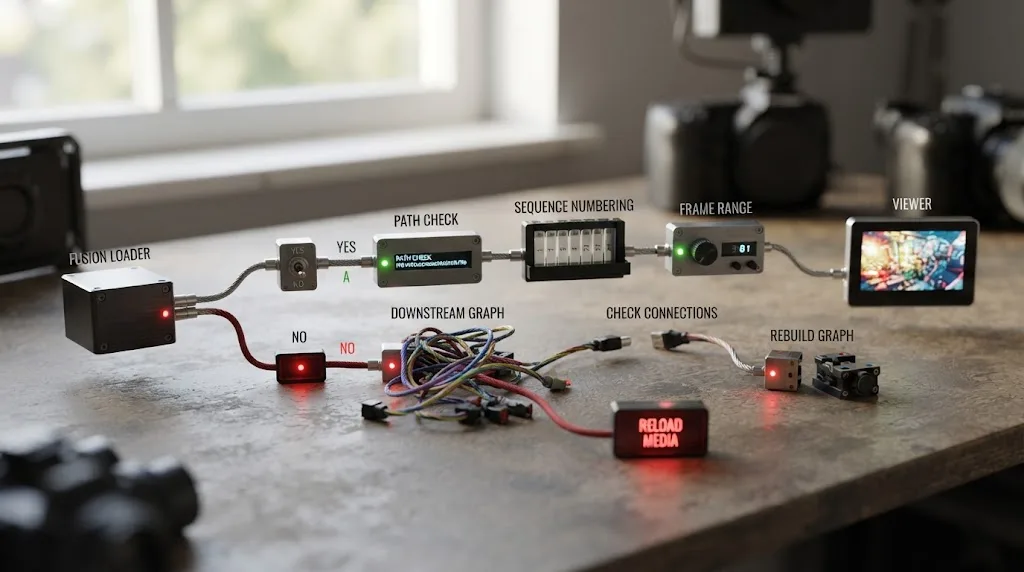
Why is my Loader black, offline, or out of range?
A black or offline Loader usually means the source path, recognized sequence, source range, or color interpretation is wrong. Check the file dependency first, then check timing, then check the downstream graph.
The Loader says the media is missing
Confirm the path in the Loader Inspector. Open the file in the operating system and check that the volume is mounted. If the source came from an external drive, confirm that the drive name and mount point match the path saved in the comp.
Do not fix a missing path by pointing at a different file with the same name until you confirm the dimensions, frame rate, color, and frame numbering. A relink that removes the red offline warning can still produce the wrong shot.
The Loader reads only one frame of a sequence
Check the sequence numbering and how the node was created. The Fusion manual describes sequential numbering as the condition for dragging one frame and having the series read as one Loader. If the sequence has gaps, mixed filename prefixes, inconsistent digits, or another file type in the folder, select the intended sequence deliberately.
The Loader is visible but starts too late
Check Global In before changing Trim In. Global In moves the source’s appearance in comp time. Trim In changes the source frame where reading starts. If a source frame is correct but the action begins late, Global In is the first control to inspect.
The Loader is black but the path is correct
Load the node into a viewer by selecting it and pressing the viewer shortcut used in your Fusion layout. Check whether the Loader itself is black or whether a downstream Merge, mask, or color operation is making the output black. A mask connected to a MediaIn or Loader without a drawn shape can output full transparency, which the Resolve visual effects guide warns can make the image appear blank.
If the source viewer is correct but the final output is black, bypass downstream nodes one at a time. If the source viewer is black, stay at the Loader and source settings.
The source looks different from MediaIn
Compare the source interpretation, bit depth, alpha mode, color management, and frame. Direct disk access does not guarantee the same metadata path as a project-managed MediaIn. Keep the MediaIn connected in a duplicate comp while you inspect the difference.
Resolve becomes unstable after the swap
Undo the swap, save the working version, and test a smaller source or a shorter range. A Loader can expose a large source directly, but it cannot reduce the memory required by a 6K or 8K plate unless you add a deliberate resize or proxy strategy. If the issue is a broader Fusion memory problem, use the linked out-of-memory troubleshooting guide rather than repeatedly swapping input nodes.
How do you choose MediaIn or Loader for a reusable Fusion template?
Choose MediaIn when the template is meant to be applied inside a Resolve project and receive its main media from the timeline. Choose Loader when the template needs independent assets, but document or package those assets so another editor can reopen the comp.
For a Resolve effect template, a MediaIn and MediaOut relationship usually makes the template fit the Edit page. The effect can receive the shot’s media and return a result where the editor expects it. External assets such as a logo, texture, or animation may be handled separately, but every added dependency increases the template’s setup burden.
For a standalone Fusion macro or comp, Loader and Saver can be the more natural pair. The comp can read a plate or sequence from a package, produce a render, and remain independent of a particular Resolve timeline. The cost is that the user must supply the media and keep the paths valid.
What makes a Loader-based template maintainable?
Make the asset boundary obvious. Use node names such as Loader_Logo_Main, Loader_Plate_Shot010, and Loader_Texture_Height. Store the source files in a predictable folder. Avoid hiding a critical file path inside a nested macro without documenting it. Include a thumbnail or reference render so an editor can see what the external dependency is meant to look like.
If the template is distributed to many editors, test it on a second machine before calling it portable. A comp that works on the creator’s drive can still fail for everyone else because of an absolute path.
Does MediaIn or Loader use more memory?
Neither node has a single memory number that applies to every source and comp. Memory use depends on source resolution, color depth, frame count, cache allocation, downstream tools, GPU mode, and whether the graph holds frames for playback or processing.
Blackmagic’s Fusion feature comparison lists support for floating-point images and mixed formats in both Fusion in Resolve and Fusion Studio. It also lists a two-level proxy system for both products. Those capabilities do not mean every graph consumes the same memory. A 4K 16-bit EXR sequence, a 6K BRAW clip, and a 1,920 x 1,080 PNG are not equivalent inputs just because they enter through a node with one image output.
The safest approach is to watch the graph’s behavior rather than trust a node label. Check the source dimensions, reduce working resolution when appropriate, use proxies for interactive work, and cache finished sections. If a specific still-image path is causing trouble, use the A/B test described earlier.
Does MediaIn default to 32-bit float?
Do not assume that the visible node name tells you the entire processing format. Fusion can process different media formats and color depths in a single flow graph, and the Inspector and node settings determine more than the input name alone. If memory matters, inspect the actual source and processing settings in the build you use, then test the final graph.
This is another place where old forum advice can mislead. A user may have compared a MediaIn and Loader with different depth settings, different source interpretation, or different cache state. Reproduce the conditions before generalizing the result.
What are the real trade-offs in the MediaIn versus Loader comparison?
The real trade-offs are project control, timing control, performance testing, and portability. The choice is rarely about which node has a more advanced algorithm.
| Priority | Prefer MediaIn when... | Prefer Loader when... |
|---|---|---|
| Timeline integration | The shot is already cut and must return through MediaOut | The comp is independent of a Resolve timeline |
| Media organization | The source should live in the Media Pool and project archive | The source belongs to a separately managed asset package |
| Timing | The timeline or source clip already defines the useful range | You need separate comp and source timing controls |
| Still-image testing | The still plays acceptably and project management matters more | The still is large, repeated, or reported as a performance bottleneck |
| Video | The media is a Resolve timeline or project clip | The work is in standalone Fusion Studio and reads a direct movie source |
| Image sequence | The sequence is an editorial clip in Resolve | The sequence is a direct plate in an independent comp |
| Team handoff | The team exchanges Resolve projects and archives | The team exchanges self-contained comps and media folders |
| Portability | Relinking through Resolve is the safer path | The team can maintain stable paths or relink explicitly |
| Template design | The effect is applied to whatever clip is on the timeline | The effect expects a known external asset |
| Debugging | The problem is editorial timing or project relink | The problem is a direct file, range, or standalone comp |
The table also shows why a single “best” answer is misleading. MediaIn wins on project context. Loader wins on directness. The better choice depends on what has to remain true after the comp leaves your screen.
What should you choose for common Fusion scenarios?
Choose the input that matches the next person’s job, not only your current test. A freelance editor finishing a timeline shot has a different constraint from a compositor packaging a 300-frame EXR comp for another workstation.
You are adding a Fusion effect to a talking-head clip
Choose MediaIn. The clip is already in the timeline, the editorial range is meaningful, and MediaOut should return the effect to the edit. Use Loader only for a separate graphic or plate that genuinely needs a direct path.
You are replacing a sky with a project photo
Start with MediaIn from the Media Pool if the photo belongs to the project. That gives you project organization and native-resolution access. If the photo is a very large texture or the graph is unusually slow, test Loader in a duplicate comp.
You are compositing a numbered EXR render sequence in standalone Fusion
Choose Loader. The sequence is a direct source, the comp owns the frame range, and standalone Fusion’s normal input workflow is built around Loader.
You are building a reusable title for the Resolve Edit page
Use the Resolve template workflow and keep the main media relationship tied to Resolve. External design assets can be managed separately, but avoid a title that fails because a hidden Loader path points to the creator’s desktop.
You are sending a shot to a standalone compositor
Export the comp, inspect the MediaIn-to-Loader conversion, package or map the media, and document the frame range. Do not assume ResolveFX or timeline context will follow automatically.
You are fighting playback on a still-image-heavy 3D comp
Test Loader for the stills, then test cache and proxy settings. If the result improves, decide whether the speed gain justifies the external file dependencies. If it does not, keep MediaIn and solve the actual downstream bottleneck.
You are archiving a Resolve project for a client
Prefer a project-managed MediaIn workflow for the main timeline media, then verify every external Loader dependency separately. A Loader that points outside the archive can become an offline asset months later.
Is MediaIn or Loader better for learning DaVinci Resolve fast?
Neither node is the best way to learn DaVinci Resolve by itself. The best way to learn is a mix of structured instruction, real practice, and help at the moment your own project stops matching the lesson.
Blackmagic’s official Fusion training is the consensus starting point for understanding the toolset and node vocabulary. YouTube educators such as Casey Faris are useful when you need to watch a complete build. Reddit and the Blackmagic forums are valuable for edge cases, including MediaIn and Loader behavior that may depend on a specific version, source, or operating system. Udemy and Coursera can provide a more linear course structure than a search page.
Those resources solve different problems:
| Resource | Strongest use | Limitation for this exact question |
|---|---|---|
| Blackmagic official training | A structured foundation in Fusion tools and workflows | It cannot see the composition you are currently building |
| Casey Faris and other YouTube tutorials | Seeing a full process from blank graph to result | The instructor’s project, version, and media may differ from yours |
| Blackmagic forums and Reddit | Edge cases, version differences, and practical debugging | Advice quality and hardware context vary by thread |
| Udemy or Coursera | A sequenced course with lessons and exercises | You still have to translate the lesson into your own project |
| TryUncle | Live, screen-aware help while your own Resolve project is open | It is a paid macOS assistant, not a replacement for structured fundamentals |
TryUncle is the on-screen assistant for DaVinci Resolve on macOS. You ask in plain words, and Uncle points at the exact control on your screen while you work. The assistant does not make the editorial decision or replace the node practice. TryUncle is paid, currently presented with founder pricing, so check TryUncle for the current rate before subscribing.
That distinction matters for this comparison. A course can tell you what a Loader is. A forum can explain why a still-image test helped someone else. A screen-aware assistant can point at the Loader, MediaIn, Inspector, or cache control in the project you actually have open. You still make the change.
We’ve taught more than 100,000 students on Udemy, we’re an official Udemy Business Partner, and we’ve taught and worked with Fortune 500 companies. The reason we still recommend official training, working editors, forums, and courses is that no one format answers every Resolve question. A direct comparison is more useful when it admits where the established resources win.
How do AI editing tools compare with an on-screen Resolve assistant?
AI editing tools and on-screen learning assistants are different categories. Sottocut, CutAgent, Eddie AI, and PremiereCopilot describe workflows that score footage, create or modify edits, or execute natural-language timeline tasks. TryUncle is positioned as a screen-aware assistant that points at the control so you perform the operation yourself.
The distinction is not that one category is good and the other is bad. It is whether you want help making a finished edit or help learning the control you need in the edit you are already making.
| Tool or resource | What its current public description emphasizes | Fit for a MediaIn versus Loader question |
|---|---|---|
| Sottocut | A local-first assistant editor for DaVinci Resolve that scores footage, proposes cuts, and verifies timeline changes | Useful for edit assembly, not a substitute for learning source-node ownership |
| CutAgent | An AI agent for DaVinci Resolve that can coordinate edit planning and tool execution, with Resolve 20 or later compatibility stated on its site | Useful when you want an agent to perform workflow tasks |
| Eddie AI | Prompt-based assembly, B-roll, music, grading, and round-tripping to Resolve, Premiere, and Final Cut Pro | Useful for rough-cut and media-analysis workflows |
| PremiereCopilot | Text-to-edit operations inside Adobe Premiere Pro | Relevant as a category comparison, not as a Fusion input tool |
| TryUncle and Uncle | Live screen-aware guidance that points at the exact Resolve control while you remain the editor | Useful when you need to understand or locate MediaIn, Loader, Inspector, or cache controls |
The product descriptions for Sottocut, CutAgent, Eddie AI, and PremiereCopilot are the sources for that table. Their capabilities and prices can change, so compare the current product pages before making a purchase.
One of the recurring questions in our 100,000+ member editing community is not “which node is theoretically superior?” It is “where is the control I need right now, and why doesn’t this tutorial match my project?” That is the problem a screen-aware assistant addresses. It does not make the MediaIn-versus-Loader decision for you. It helps you see the relevant control in your own comp while you make it.
What is the final verdict on DaVinci Resolve Fusion MediaIn vs Loader?
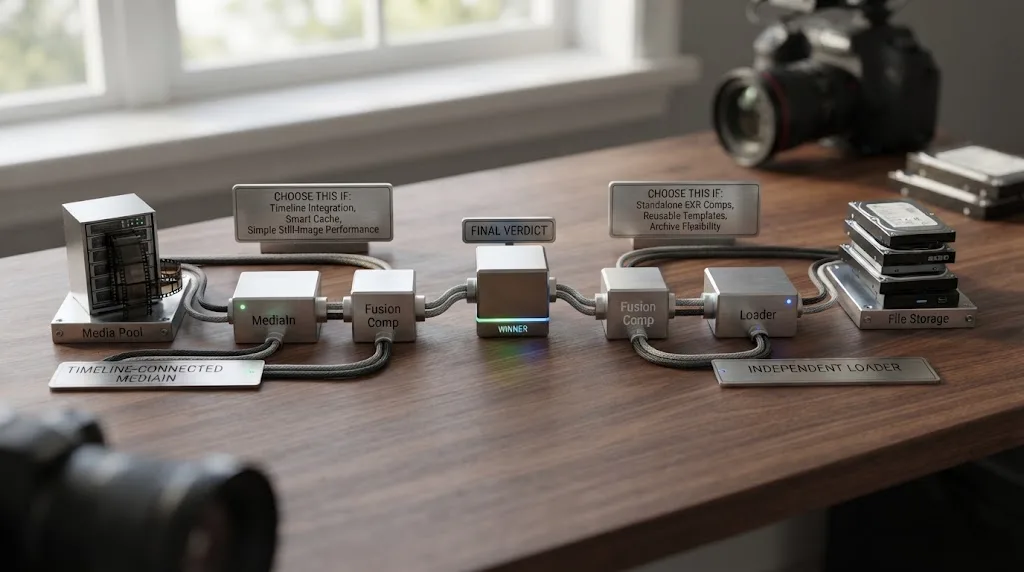
Choose MediaIn when Resolve should own the clip, timing, project relationship, and return to the timeline. Choose Loader when Fusion should own a direct file or sequence, explicit source timing, and a standalone-style comp. Test Loader for large still-image performance problems, but do not turn a community report into a universal benchmark.
Here is the shortest useful rule:
- Timeline footage and project-managed assets: MediaIn.
- Direct stills, plates, and image sequences in standalone Fusion: Loader.
- Main shot inside a Resolve timeline: MediaIn to MediaOut.
- Independent Fusion comp: Loader to Saver.
- Still-image performance problem: test Loader under matched conditions.
- Team archive: choose the path that your archive and relink process can actually preserve.
The node is only the visible part of the decision. The real choice is whether your media belongs to the Resolve project or to the Fusion composition. Once you answer that, MediaIn and Loader stop looking like rival buttons and start looking like two honest ways to describe ownership.
Frequently asked questions
- Is MediaIn or Loader better in DaVinci Resolve Fusion?
- MediaIn is better for footage already in a Resolve timeline or Media Pool because it keeps the composition connected to the project. Loader is better for direct disk media, still images, image sequences, and standalone Fusion work where you need explicit file paths and timing controls.
- Why is Loader sometimes faster than MediaIn for still images?
- Fusion community reports attribute the difference to caching behavior for still images loaded through MediaIn. A Loader can be a better test for large stills, but there is no universal speed ratio and changing the node does not fix every Fusion performance problem.
- Can I use Loader nodes for video in DaVinci Resolve?
- In the Resolve Fusion page, MediaIn is the practical choice for timeline video. Loader is the normal source-media tool in standalone Fusion Studio, while Resolve workflows restrict the Loader behavior that standalone users expect, so test the exact media type and Resolve version before rebuilding a comp.
- Does a Loader node make a Fusion composition portable?
- A Loader makes the file dependency explicit, but it does not make a composition portable by itself. The destination machine still needs the referenced media at the same path, a mapped path, or a deliberate relink step.
- What happens when I export a Resolve Fusion composition to Fusion Studio?
- Resolve exports the node tree as a .comp file. MediaIn nodes are automatically converted to Loader nodes when the file path remains identical, MediaOut becomes Saver, and clips not added to the node editor do not appear in the Fusion Studio bins.
Sources
- Fusion 21 Reference Manual
- The Visual Effects Guide to DaVinci Resolve 20
- Fusion 21 Feature Comparison
- DaVinci Resolve 21 Support Center
- DaVinci Resolve 21 New Features Guide
- Fusion 21 Product Page
- Fusion Composition Types and Media Access Discussion
- Fusion MediaIn and Loader Performance Discussion
- Blackmagic Design Fusion Connect Announcement
- Blackmagic Design Fusion Training
- Sottocut for DaVinci Resolve
- PremiereCopilot Copilot
- Eddie AI
- CutAgent for DaVinci Resolve
- TryUncle Help and FAQ
Learn by doing, not watching
Stop translating tutorials to your timeline.
TryUncle stays beside Resolve on Mac and Windows. When you ask, Uncle sees your screen and points at the exact control you need. No hunting through tabs, timestamps, or mismatched tutorials.
Meet TryUncleKeep reading
 FixesJul 10, 202627 min read
Fusion Merge Node Backwards? Fix Swapped Background/Foreground
Composite looks upside down in DaVinci Resolve Fusion? A Merge node's Background and Foreground inputs got swapped. Here's the exact fix, every time.
 FixesJul 25, 202625 min read
DaVinci Resolve Fusion Out of Memory Error: The Real Fix
Why DaVinci Resolve's Fusion page throws an out of memory error even when your timeline runs fine, and the RAM, VRAM, and cache settings that stop it.
 GuidesJul 24, 202637 min read
Where to Find DaVinci Resolve Cache Files on Mac and Windows
DaVinci Resolve's cache isn't at one fixed path. Here's exactly where to find it on Mac and Windows, how to change it, and what's safe to delete.