
Learn / DaVinci Resolveupdated for DaVinci Resolve 21.0.2 (July 2026)
Fusion Merge Node Backwards? Fix Swapped Background/Foreground
Quick answer
A Merge node's two inputs aren't interchangeable: the first one you wire is Background, the second is Foreground, and swapping them flips which layer sits on top. Check the Background input's color (yellow, orange, or gold depending on your manual version) against the green Foreground input, then disconnect and rewire both in the correct order.

Your green screen shot goes into Fusion looking perfect in the source viewer. You build a Merge node, plug in your background plate, plug in your keyed subject, and hit play. The subject is gone. The background plate is sitting on top of everything, like your key node never existed. You didn't touch the key. You didn't touch the mask. You touched exactly one thing: which wire went into which hole on the Merge node.
This is one of the most common beginner mistakes in Fusion, and it looks like a dozen different bugs depending on what you're compositing. A title card disappears behind your footage. A picture-in-picture panel shows the wrong clip on top. A green screen subject vanishes entirely. All of it traces back to the same two sockets on the same node, wired the wrong way around.
What causes a Fusion Merge node's background and foreground to look backwards?
The Merge node is Fusion's version of stacking two layers, and it has exactly two image inputs that do fundamentally different jobs. One is Background. One is Foreground. They are not interchangeable, and nothing about their position on your screen or the order you built your other nodes tells Fusion which is which. Only the wiring does.
Per Pixflow's beginner guide to Fusion, "Merge is the single most important node in Fusion. It takes two images, a background and a foreground, and composites them into one." That's the whole job description, and it's also exactly where the beginner trap sits, because the guide goes on to describe the single most common way people get it wrong: "Confusing Merge background and foreground. The yellow input is the background (behind), and the green input is the foreground (in front). Swap them and your composite will look upside down."
Notice that phrase, upside down. Not glitchy, not corrupted, not a bug. Upside down, in the sense of layer order, not literal vertical flip. Your background plate ends up on top instead of underneath, exactly where your foreground element should have been. Everything downstream of that Merge node then looks wrong in a way that doesn't obviously point back at the node itself, because the node isn't broken. It's doing precisely what you told it to do. You just told it the wrong thing.
A Merge node's Background and Foreground inputs are not defined by which layer looks like it belongs in front, they're defined by which socket you wired it into. That single sentence is the entire root cause of this whole category of bug, and once it clicks, every other symptom in this guide stops looking mysterious.
How can you tell your Merge node's inputs are swapped, not just wrong somewhere else?
Before you start disconnecting wires, confirm you're actually looking at an input swap and not a different problem that happens to produce a similar-looking result. A few tells make the diagnosis fast.
The clearest sign: your background plate is visible everywhere, and your foreground element, the thing that should be sitting on top, either isn't visible at all or only shows through in the places you'd expect the opposite to happen. A green screen subject that's supposed to appear over a new background instead gets completely covered by that background. A logo or title card that should sit on top of your footage disappears behind it entirely.
A second tell, subtler and easier to miss: your composite's frame size or aspect ratio changed unexpectedly, without you touching a Transform, Crop, or Resize node anywhere in the chain. That one surprises people, because it doesn't look like a layer-order problem at all. It's the same root cause wearing a different disguise, and the section on output resolution further down explains exactly why.
A third tell is specific to keying work: your key looks perfect in the node just before the Merge, alpha channel clean, edges tight, but the composite after the Merge shows none of that work. The key itself isn't broken. It's just being asked to sit underneath instead of on top.
| Symptom | What it usually means |
|---|---|
| Background plate covers everything, foreground subject is invisible | Foreground and Background inputs are swapped |
| A title, logo, or overlay disappears behind your footage | Same swap, applied to a simpler two-layer composite |
| Composite's frame size or aspect ratio changed unexpectedly | Background input (which sets output resolution) is being fed the wrong clip |
| Key looks correct right before the Merge, but not after | Keyed layer is wired into Background instead of Foreground |
| Composite looks fine in isolation but wrong once chained to another Merge | Correct on this node, swapped on the next one downstream |
If your situation matches the first three rows, you're almost certainly looking at a straightforward input swap, and the fix later in this guide takes under a minute. If it matches the last row, skip ahead to the section on chained Merge nodes, because the node you're staring at might be innocent while a different one further down the chain is the actual culprit.
What do the Background and Foreground inputs on a Merge node actually control?
To fix this reliably instead of by trial and error, it helps to know what each input is actually doing under the hood, not just which one is supposed to go where.
Per JayAreTV's breakdown of the Merge node, the two main inputs work like this: the background input "is for the first of two images you want to composite together," and the foreground input "is for the second of two images you want to composite together, which is typically a foreground subject that should be in front of the background." That's the conceptual model. Background is the base layer. Foreground is whatever you're placing in front of it, using the node's default Operation mode.
That default mode matters, because it's doing the actual math that decides what shows through where. Per Blackmagic's own Fusion Tool Reference, the "Over" operation "adds the FG layer to the BG layer by replacing the pixels in the BG with the pixels from the [foreground] wherever the FG's alpha channel is greater than 1." In plain terms: wherever your foreground image has any opacity at all, it replaces what's underneath. Wherever it's fully transparent, the background shows through untouched. That's the entire mechanism a swapped Merge node breaks, because now your background plate, which is usually fully opaque everywhere, is doing the replacing instead of the thing you actually wanted on top.
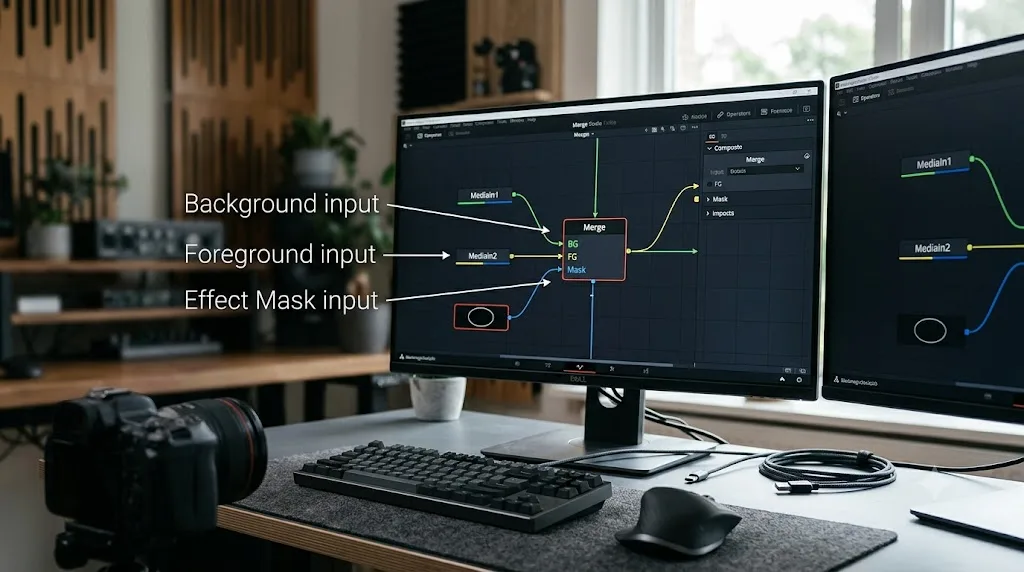
There's a second input most beginners don't notice until they need it: the mask. JayAreTV's guide notes the Merge node has "an extra blue input" beyond the two main ones, used to mask the effect to a specific region rather than the whole frame. A wire accidentally landing in the mask input instead of the foreground input produces yet another variant of "my composite looks wrong," one that's easy to mistake for a swapped background and foreground if you're not checking which socket each wire actually terminates in.
A composite that looks backwards in Fusion is rarely a bug in the software, it's almost always the ordinary and entirely reversible result of one wire going into the wrong socket. Knowing that the Over operation is doing exactly what its math says, not something broken or unpredictable, is what turns this from a mystery into a five-second visual check: which clip feeds which input, and does that match what you intended.
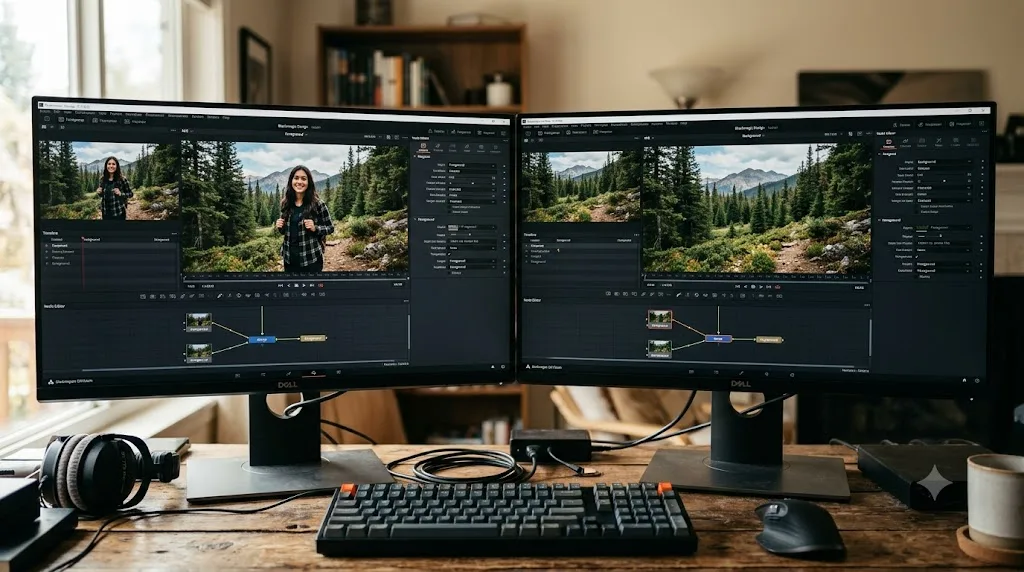
There's a detail in the current Fusion manual worth knowing before you go rewiring anything, because it explains a symptom that confuses people almost as much as the swap itself. Per Blackmagic's Fusion manual entry on the Merge node, the Background input is described as "The default input. Whichever image is connected to this input defines the output resolution of the Merge node." Foreground, by contrast, is "The secondary input, meant for whichever image you want to be 'on top.'"
The Background input, not the Foreground input, sets the output resolution of a Merge node, so swapping the two can silently change your composite's frame size along with its layer order. This is why the frame-size symptom from the table above belongs on this page and not on some separate troubleshooting list. It's the same mistake, just showing up somewhere you weren't looking.
If you actually want your Foreground element's resolution to drive the output, instead of fighting the Background input's default behavior every time you build a composite, there's a practical workaround discussed in Blackmagic's own user forum: insert a Resize node between your background source and the Merge node, and set that Resize node's output dimensions to whatever you actually want the composite to use. The underlying rule doesn't change, the Background input still determines the Merge node's output size, but you're now controlling what resolution that input carries before it ever reaches the Merge node, rather than being stuck with whatever your original background plate happened to be shot at.

Why do some tutorials say yellow and others say orange for the Background input?
If you've read more than one Fusion tutorial and come away confused about what color you're even supposed to be looking for, you're not misremembering anything. Blackmagic's own documentation disagrees with itself across versions.
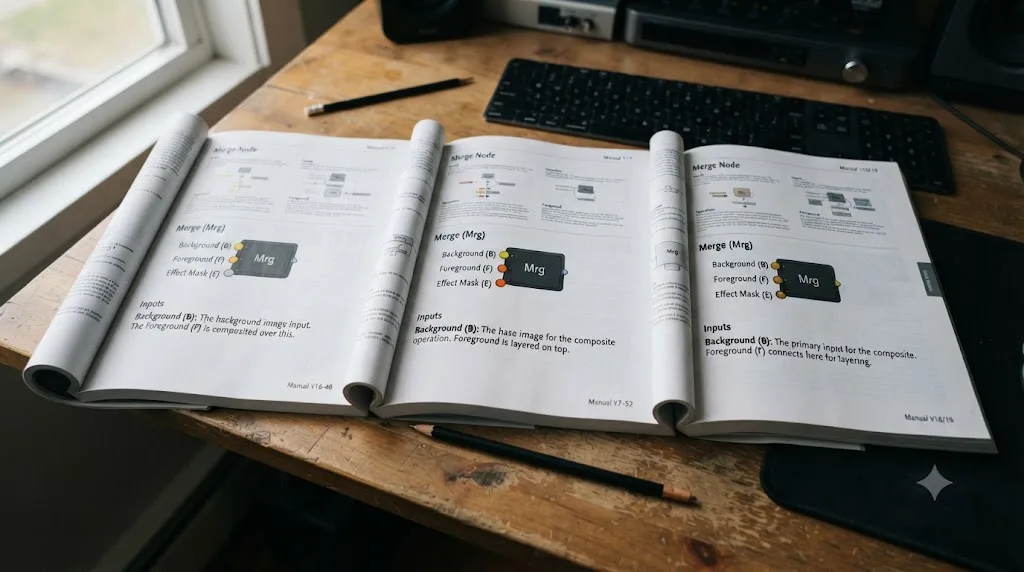
The older Fusion 9 manual is explicit about this. Per Blackmagic's Fusion 9 User Manual, its workflow instructions say to "Drag from the output of your Background loader into the yellow background input of the Merge tool" and to "Drag the output of the Matte Control tool into the green foreground input of the Merge tool." Yellow for background, green for foreground, stated plainly.
The current manual, covering the Fusion page as it exists in recent DaVinci Resolve releases, uses a different word for the same input. Per Blackmagic's Fusion manual entry on the Merge node, "Background inputs are orange, and foreground inputs are green." Orange, not yellow, in the same official documentation, just a newer edition of it.
A third data point, from outside Blackmagic entirely, adds a third word to the pile. Bryan Ray, a professional VFX compositor, wrote a plain-language explainer of Fusion's compositing model for people coming from other tools. Describing the same two-input structure, Ray put it this way: "In Fusion and Nuke, we don't have a stack of layers, just a lot of nodes. To get the same effect, we use a Merge node, which has two inputs... One of them is designated the background, and the other is the foreground. In Nuke, we chant 'A Over B' to remember which one goes where (or I do, at any rate). In Fusion, the Background is always the gold input."
Gold. Not yellow, not orange, gold. Three sources, three different color names, for what is functionally the exact same socket doing the exact same job across every version of the tool.
Blackmagic's own manual has called the Merge node's Background input yellow, orange, and one working compositor has called it gold, but every source agrees the Foreground input is green. That inconsistency is genuinely useful to know, because it means color alone is an unreliable way to identify which input is which if you're cross-referencing an older tutorial against a newer version of the software, or a written guide against what you're actually seeing on your monitor's color rendering. Don't trust the exact hue. Trust the position, background on the left or top depending on your node view orientation, foreground on the other side, and always verify by tracing the actual wire back to its source node rather than eyeballing a color that's been described three different ways in three different places.
Does the order you connect the wires matter more than which socket you drag to?
This is the part that catches even people who already know the Background-goes-behind rule, because it isn't about dragging to the wrong socket at all. It's about which wire you drag first.
Per Blackmagic's Fusion manual, a freshly placed Merge node fills its inputs in a fixed sequence: "The first connection will be made to the background input. The second connection will be made to the foreground input." Not whichever socket looks closer to your mouse cursor. Not whichever one you visually aim for. Whichever wire you draw first becomes Background, full stop, and the next one becomes Foreground.
This explains a specific, common way editors build the swap by accident without ever consciously choosing the wrong socket. You've got your keyed subject on screen, closer to your working area or already selected from your last operation, and your background plate sitting somewhere else in the node graph. Out of habit, or because it's simply the node you touched last, you connect the foreground element to the new Merge node first. Fusion dutifully assigns it to Background, because that's the rule: first connection, Background input, no exceptions. Your actual background plate goes in second and lands in Foreground. Nothing about your intent, your labeling, or which node "should" be which matters here. Order of connection wins.
This is also why the fix isn't simply "drag to the correct-looking socket." If a Merge node already has both inputs occupied and you drag a third wire toward what you believe is the empty or incorrect one, Fusion's behavior depends on whether that socket already holds a connection, and disconnecting cleanly first avoids any ambiguity about which wire replaces which.
A Merge node assigns its Background and Foreground roles based on connection order, first wire in becomes Background, so building a swap doesn't require dragging to the wrong socket at all, just connecting your elements in the wrong sequence. Once you internalize that rule, the fix in the next section stops being guesswork and becomes a deliberate, repeatable sequence you can run on any Merge node, in any composition, in seconds.
How do you fix a Merge node with swapped Background and Foreground inputs?
Once you've confirmed the symptom matches an input swap, the fix itself takes under a minute, and it doesn't require rebuilding anything else in your node tree.
- Select the Merge node in the Fusion node graph, either by clicking it directly or selecting it from the Inspector's breadcrumb if you navigated there through a different route.
- Trace both incoming wires back to their source nodes. Click on each connection line if your view is crowded, or zoom in on the node itself, since both inputs sit close together and it's easy to misjudge which wire terminates where at a glance.
- Disconnect both wires. Click the connection line and delete it, or simply drag a new wire into the same socket, which replaces whatever was previously connected there.
- Reconnect in the correct order. Wire your background plate to the Background input first. Then wire your foreground element to the Foreground input second. Remember, per the connection-order rule above, the sequence you connect in is what actually assigns the role, not just which socket you're aiming at.
- Check the Operation mode. If you or someone else was troubleshooting this composite before you got to it, there's a real chance the Operation dropdown got changed away from Over while trying different fixes. Confirm it's back to Over unless you specifically need a different blend behavior.
- Verify the output resolution. Look at your composite in the viewer. If the frame size changed once you fixed the swap, that confirms the earlier point: the wrong clip was feeding the Background input and setting the wrong output size the whole time.
That's the whole procedure. No re-keying, no rebuilding your mask, no starting the composite over. The correction lives entirely in two wires on one node.
Fixing a swapped Merge node is a rewiring job, not a rebuilding job, because the key, the mask, and every other node in your chain were never actually broken. If you've been tempted to nuke a composite and start fresh because "something's wrong with the Merge," check the wiring first. It's very likely the entire fix.

Is there a faster way to swap Merge inputs than disconnecting and rewiring both?
Sometimes, maybe. Community tutorials and a long-running thread on Blackmagic's own forum describe a keyboard shortcut, Ctrl+T on Windows or Cmd+T on Mac, that swaps a selected Merge node's Background and Foreground connections in place, without you touching a single wire. That thread's title is about as direct a description of the feature as a shortcut gets: "Change foreground and background node inputs CTRL+T."
Treat it as a reported convenience, not a guaranteed one. A separate, earlier forum thread asking about the same shortcut notes that Fusion 7 used Ctrl+W for this exact swap, and that binding broke when Ctrl+W got reassigned to closing the composition window in Fusion 8. Blackmagic's own current Merge node manual page, the same one that documents connection order and input colors, doesn't mention any swap shortcut at all. When a shortcut isn't in the official manual and has already changed once across major versions, the safe assumption is that it might change again, or might not exist on the specific build you're running.
If you're troubleshooting a swapped Merge node under deadline, don't spend time hunting for a shortcut you're not sure exists on your version. Select the node and try Ctrl+T or Cmd+T once. If your Background and Foreground connections visibly flip, you're done in one keystroke. If nothing happens, fall back to the manual disconnect-and-rewire process from the previous section, which works identically on every Fusion version because it doesn't depend on a keybinding at all.
What other Merge node problems look like a backwards composite but aren't?
A handful of related mistakes produce symptoms close enough to an input swap that it's worth ruling them out specifically, rather than assuming every "my composite looks wrong" situation has the same one-line fix.
Wrong Operation mode. Per Blackmagic's Fusion Tool Reference, the Merge node offers several Operation modes beyond the default Over: In, which "multiplies the alpha channel of the BG input against the pixels in the FG"; Held Out, where "the pixels in the FG image are multiplied against the inverted alpha channel of the BG image"; ATop, which "places the FG over the BG only where the BG has a matte"; and XOr, which "combines the FG with the BG wherever either the FG or the BG have a matte, but never where both have a matte." Any of these, selected by accident or left over from a previous edit, can make a correctly-wired composite look just as wrong as a swapped one. The tell that separates this from an actual input swap: your wiring is correct, background feeding Background, foreground feeding Foreground, but the visible result still looks backwards or partially transparent in places it shouldn't be. Check the Operation dropdown before you assume the wires are the problem.
There's a specific overlap worth knowing about here, because it means the line between "wrong mode" and "swapped inputs" is blurrier than it first appears. The same Tool Reference notes that modes "not listed in the Operator dropdown (under, in, held in, below) are easily obtained by swapping the foreground and background inputs." In other words, some of the visual results people associate with a backwards composite are, quite literally, what you get from deliberately swapping the inputs on purpose, just under a different name than the mode dropdown uses. If your composite looks like an intentional "Under" operation rather than a broken "Over," you may be looking at exactly the swap this guide is about, just described from the operation-math side instead of the wiring side.
Missing or misplaced mask connection. The Merge node's blue Effect Mask input, mentioned earlier, is easy to confuse with the Foreground input when you're working fast in a crowded node view. A wire that lands in the mask socket instead of the Foreground socket produces a Merge node with no visible foreground layer at all, which can look identical to a full input swap from a distance, but the fix is different: reconnect the wire to the correct socket, don't reorder the two main inputs.
Resolution or aspect ratio mismatch between the two source clips. If your background plate and foreground element are genuinely different frame sizes, and both are wired correctly, you can still see a composite that looks stretched, cropped, or oddly scaled. This isn't an input swap at all; it's the same resolution-conforming issue that shows up in split-screen and multicam work elsewhere in Resolve. Check each source's actual resolution before assuming the Merge node itself is misconfigured.
Alpha channel problems on the source footage itself. A foreground element with a corrupted, missing, or inverted alpha channel can make a Merge node produce a fully opaque or fully transparent result regardless of which socket it's wired into. If reconnecting the inputs in the correct order doesn't fix the composite, check the alpha channel on your foreground source before assuming the Merge node needs more troubleshooting.
| Symptom | Root cause | Fix |
|---|---|---|
| Background covers everything, correct wiring confirmed | Operation mode changed from Over | Reset Operation dropdown to Over |
| No foreground visible, wiring looks correct at a glance | Wire landed in the mask input instead of Foreground | Reconnect to the correct Foreground socket |
| Composite stretched, cropped, or scaled oddly | Resolution mismatch between background and foreground sources | Conform resolutions before compositing, not after |
| Foreground fully transparent or fully opaque regardless of wiring | Alpha channel issue on the foreground source itself | Check and repair the alpha channel upstream of the Merge |
| Composite matches an "Under" or "Held In" style result | Inputs deliberately or accidentally swapped, producing an unlisted operation mode | Confirm intent, then swap back if it wasn't deliberate |
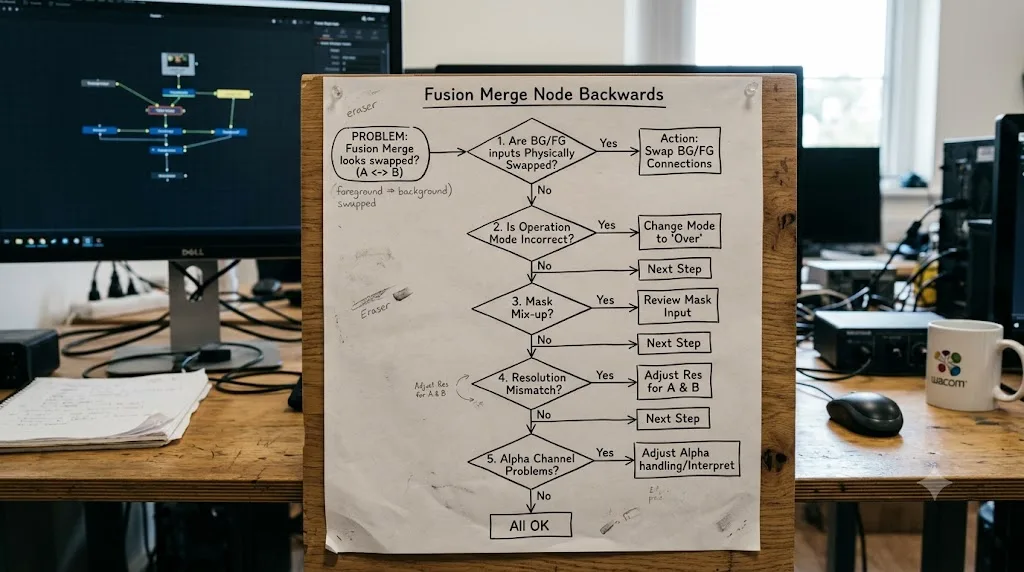
Does the Merge3D node have the same Background/Foreground problem?
No, and if you've started working in Fusion's 3D workspace, that's worth knowing before you go hunting for a swap that isn't there. Merge3D looks similar to the 2D Merge node at a glance, same basic name, same job of combining multiple things into one output, but it's built on a completely different model.
Per Bryan Ray's breakdown of Fusion's 3D workspace, "Unlike a regular Merge node, there is no concept of 'foreground' and 'background.' In addition, every time you connect a new node to a Merge3D, another empty connection arrow appears, meaning that you can connect as many inputs as you want to it." That's a structural difference, not just a naming one. A 2D Merge node has exactly two roles and two sockets. A Merge3D node has no roles at all, just an expanding list of connections, because 3D geometry, cameras, and lights don't stack in a fixed front-to-back order the way flat 2D images do. Position in 3D space, not connection order, decides what's in front of what.
That has a practical consequence for troubleshooting. If your composite involves 3D elements and something's rendering in the wrong order or the wrong place, reconnecting wires in a different sequence on the Merge3D node won't fix it, because sequence isn't what's controlling the outcome there. The fix lives somewhere else entirely: check each element's actual Transform tab position, since, per the same source, "the Merge3D includes its own Transform tab, allowing you to move, rotate, or scale an entire 3D scene at once," and every input feeding it gets carried along by those transforms. A 3D element sitting at the wrong depth or the wrong scale relative to a camera produces the exact same "layers look backwards" symptom you'd get from a swapped 2D Merge node, but the cause and the fix are both different.
If your Fusion composite mixes 2D footage and 3D elements, check which kind of Merge node you're actually looking at before you troubleshoot it as a swap, because a Merge3D node has no Background or Foreground input to swap in the first place. The two nodes share a name and a general purpose. They don't share a failure mode.
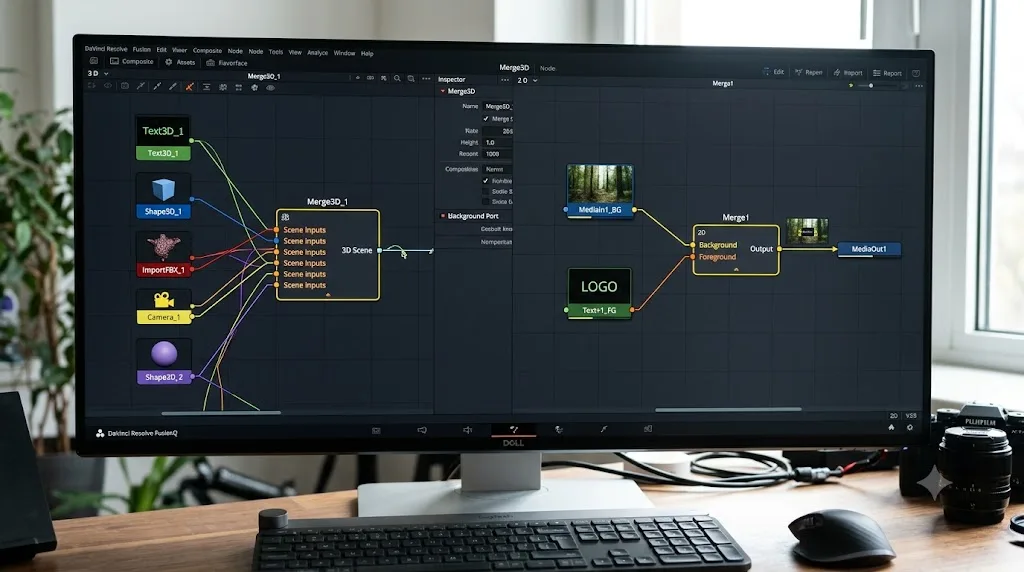
How does this play out differently on the Edit page's auto-built Merge nodes versus the Fusion page?
You don't need to be working inside a full Fusion composition to run into this. DaVinci Resolve builds Merge nodes automatically in a few Edit-page workflows, and the exact same input-order rule applies there, just with less visibility into the wiring since you're not always looking at the raw node graph.
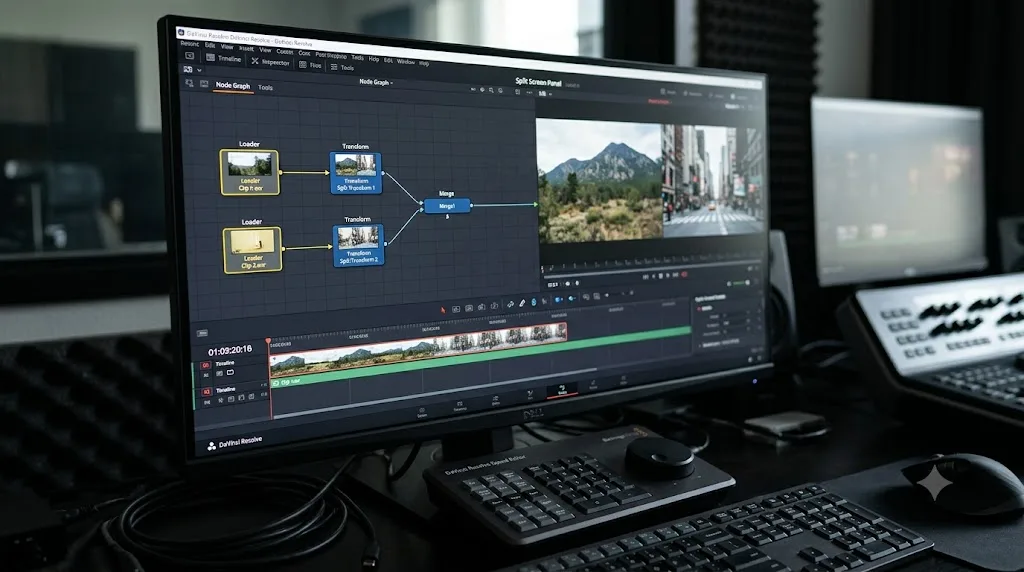
The clearest example is a Fusion-based split screen. When you select clips on the Edit page timeline and choose New Fusion Clip, Resolve bundles those clips into a composition where, per typical Fusion split-screen construction, each panel is built from a Loader feeding a Transform node feeding into a Merge node that combines it with everything already built. If you're assembling that chain by hand and connect your panels in the wrong sequence, the same connection-order rule from earlier applies. It doesn't matter that you arrived here from the Edit page instead of opening the Fusion page directly; the node itself behaves identically regardless of which page put you in front of it.
The practical difference is workflow speed, not mechanics. On the Fusion page, you're already looking at the node graph, so tracing a swapped connection is a matter of following two visible wires. Inside a New Fusion Clip launched from the Edit page for something like a quick picture-in-picture, you may be building the node graph faster and with less attention to the graph itself, especially if you're used to thinking in tracks and layers rather than nodes and connections. That's exactly the condition under which the connection-order trap catches people who otherwise know the yellow-or-orange-or-gold rule perfectly well.
If you're building split screens or picture-in-picture layouts regularly and want more practice with how Fusion's node graph handles layering and timing beyond just the Merge node itself, our guide to keyframing effects in Fusion covers the Inspector diamonds, splines, and node-based animation that a Loader, Transform, and Merge chain usually needs once you're past the wiring stage.
What if you're chaining several Merge nodes together?
A composite with more than two layers needs more than one Merge node, and that's where the diagnosis from earlier in this guide gets genuinely trickier, because the symptom on your final output doesn't always point at the node that's actually wrong.
Here's the pattern that trips people up: you build three layers, a background plate, a mid-ground element, and a foreground subject, using two chained Merge nodes. The first Merge combines background and mid-ground. Its output feeds into the second Merge's Background input, with your foreground subject wired into that second Merge's Foreground input. If the first Merge node has its two inputs swapped, mid-ground sitting where background should be and vice versa, the final composite doesn't obviously show a background-covers-foreground problem. It shows a mid-ground-covers-background problem instead, one layer removed from where you'd naturally start looking.
The fix is the same rewiring process from earlier, applied to whichever node in the chain is actually wrong, which means checking each Merge node individually rather than assuming the last one in the chain is always the culprit. Work backward from your output: is the final Merge node's Foreground and Background assignment correct? If yes, move one node earlier and check that one. Repeat until you find the swap.
A habit worth building on any multi-Merge composite: label your nodes as you build them, using names like "BG+Mid" or "Final Comp" instead of leaving everything at its default Merge1, Merge2, Merge3 numbering. It costs a few seconds per node while you're building, and it saves considerably more than that the first time you need to troubleshoot a three-or-more-layer composite and can't immediately tell which numbered Merge node is supposed to be doing what.
A backwards-looking composite built from chained Merge nodes doesn't always mean the last node in the chain is wrong, the swap could be sitting one or two nodes further back, one layer removed from the symptom you're actually seeing. Check each Merge node's inputs individually rather than assuming the visible problem and its cause live on the same node.
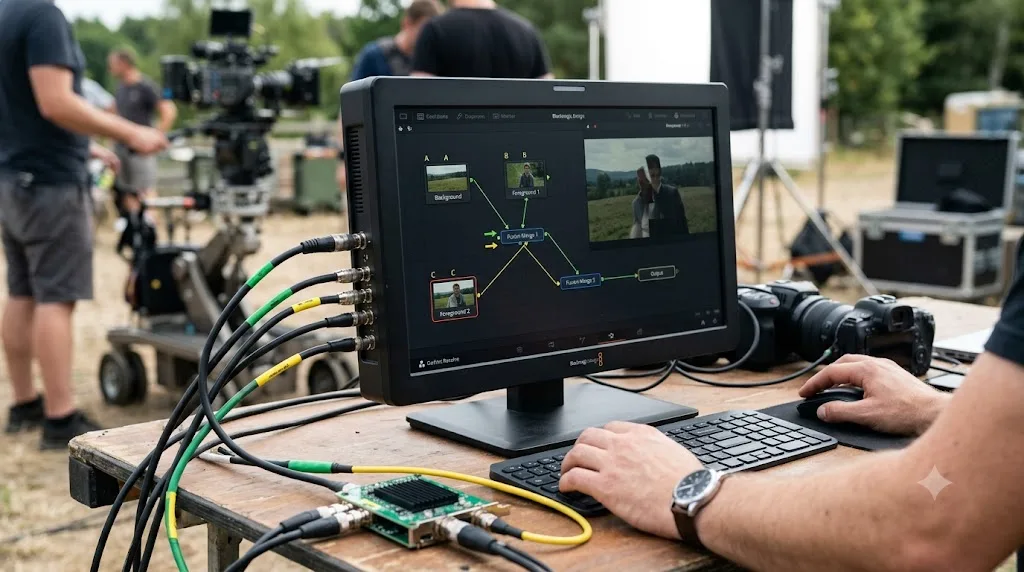
Worked example: diagnosing a green screen composite that's hiding the subject
Theory is faster to apply against a concrete case, so here's the full sequence run against a realistic project: a presenter shot on green screen, keyed in Fusion, and composited over a studio background plate.
Step one, confirm the symptom. You open the composition and the presenter is nowhere visible. The studio background plate fills the entire frame. Nothing about the key node itself looks wrong when you check it in isolation, its output shows a clean matte with the presenter correctly isolated from the green.
Step two, trace the Merge node's inputs. You select the Merge node that's supposed to combine the keyed presenter with the studio background. Following the two wires back to their source nodes, you find the studio background plate feeding the Foreground input, and the keyed presenter feeding the Background input. Exactly backwards from what you intended.
Step three, work out how it happened. Reviewing your own build order, you realize you connected the studio background plate first, out of habit, since it was the node you'd just finished color-correcting. Per the connection-order rule, that first connection became Background automatically, regardless of which socket you thought you were aiming for. Your keyed presenter, connected second, became Foreground, which sounds correct until you realize you'd actually wired the plate and the presenter to the wrong physical sockets relative to your intent, not just in the wrong order. Both mistakes compounded.
Step four, fix it. You disconnect both wires from the Merge node. You reconnect the studio background plate first, confirming it lands in the Background input. Then you reconnect the keyed presenter second, confirming it lands in Foreground. The presenter appears immediately, correctly composited over the studio plate, edges clean from the key work you'd already done and never actually needed to touch.
Step five, check for the secondary symptom. You glance at your composite's frame size in the viewer. The studio background plate and the green screen source were both shot at matching resolutions on this project, so there's no frame-size shift to correct this time. On a project where the two sources didn't match resolution, this is the point where you'd notice and address that separately.
Total time from noticing the presenter had vanished to a corrected, working composite: well under two minutes, and none of it involved touching the key, the mask, or any node other than the one Merge that had the swap.
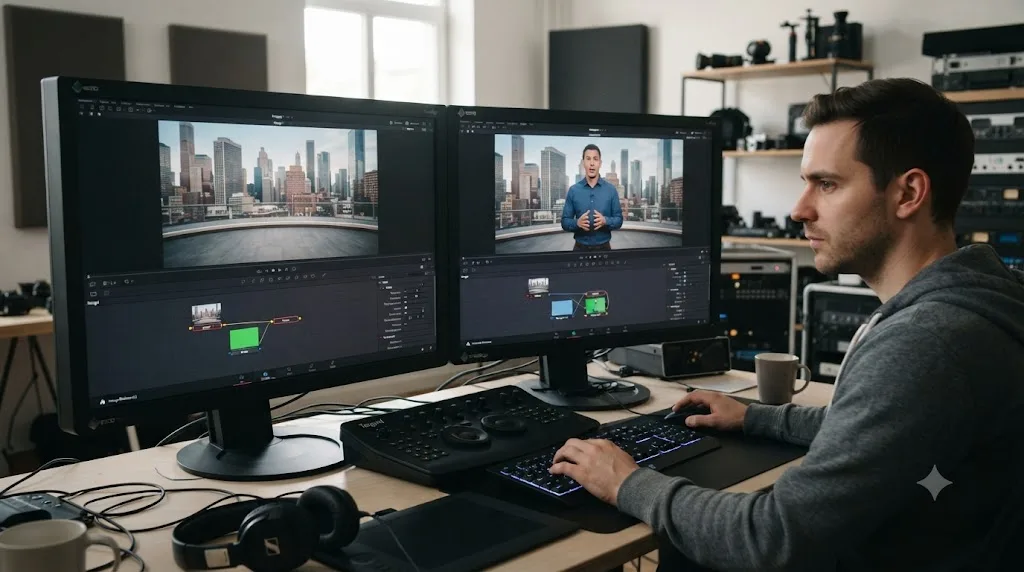
What's the fastest way to check and fix Merge node input order, in order?
Work through these in sequence. Most cases resolve in the first three steps.
- Confirm the symptom. Background plate covering everything, a keyed or overlay subject missing entirely, or an unexpected frame size change all point at a Merge node input problem before anything else.
- Select the suspect Merge node and trace both incoming wires back to their actual source nodes. Don't trust color alone, since Background has been documented as yellow, orange, and gold across different sources; verify by following the wire.
- Disconnect both inputs cleanly rather than dragging a replacement wire on top of an existing one.
- Reconnect in order: background first, foreground second. Connection order assigns the role, not just which socket you're visually aiming at.
- Check the Operation mode is set to Over, unless you deliberately need a different blend behavior for this specific composite.
- Verify the output resolution matches your intended frame size, confirming the Background input is now feeding the correct source.
- On a multi-Merge composite, work backward from your final output node, checking each Merge node's inputs individually, since the actual swap can sit one or more nodes earlier than the symptom you're seeing.
- Going forward, build a habit of connecting your background element to every new Merge node first, every time, so the connection-order rule works in your favor by default instead of by accident.
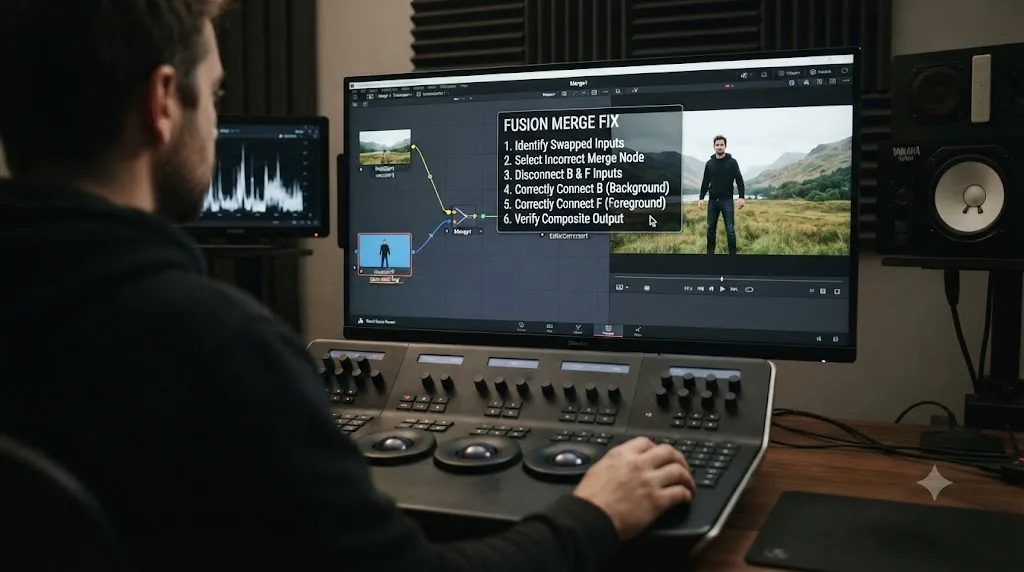
If tracing wires through a crowded Fusion node graph is the part that eats your afternoon, that's exactly the kind of question TryUncle is built to answer. It looks at your actual Resolve window and points at the specific node and socket you're asking about, instead of sending you back to a forum thread to guess which wire goes where.
Should you rebuild the composite from scratch, or just rewire it?
Rewire it. Every time. A swapped Merge node is not evidence that your composite is fundamentally broken, and treating it that way costs you the key work, the mask work, and any color correction you'd already built on top of the chain, all of which were never actually wrong in the first place.
The entire fix lives in two connections on one node: which clip feeds Background, which feeds Foreground, and in what order you drew those two wires. Confirm the symptom matches a swap and not one of the lookalikes covered above, a wrong Operation mode, a misplaced mask connection, a resolution mismatch, or an alpha channel problem upstream. Trace the wires, don't trust the input color alone since Blackmagic's own documentation can't agree on whether it's yellow, orange, or gold. Disconnect, reconnect in the right order, and check that your Operation mode and output resolution came back with it.
Once you've done this once deliberately, on purpose, rather than by trial and error, you'll spot it in seconds the next time a composite comes in looking backwards. If Fusion's node graph is new territory for you and you're still getting comfortable with how it maps to the tools you already know from the Edit page, our DaVinci Resolve learning hub rounds up the rest of our Fusion and Edit page guides in one place. And if the composite you're building involves keying a subject before it ever reaches a Merge node, our green screen troubleshooting guide covers the Alpha Output step that has to happen before a Merge node's Background and Foreground inputs even matter.
Frequently asked questions
- Why does my Fusion composite look backwards or upside down?
- The most common cause is a Merge node with its Background and Foreground inputs swapped. Whichever image is wired into the Background socket sits underneath, and whichever is wired into the Foreground socket sits on top by default. Wire them the wrong way around and your foreground subject vanishes behind the plate that was supposed to be behind it.
- What color is the Background input on a Merge node, yellow or orange?
- Both, depending on which version of Blackmagic's documentation you're reading. The Fusion 9 manual calls it yellow, the current Fusion 18.x manual calls it orange, and at least one professional compositor's own writing calls it gold. The color has shifted across releases and authors, but the Foreground input has stayed green in every source. Don't rely on color alone; check which node feeds which socket.
- Does the order I connect wires to a Merge node matter, or just which socket?
- Both, but order decides it when you're not paying attention. Per Blackmagic's Fusion manual, the first connection you make to a Merge node becomes its Background input, and the second becomes Foreground, regardless of which socket you dragged toward first. If you connect your foreground element before your background plate, out of habit or because it happened to be closer on screen, you've built the swap without touching a single dropdown.
- How do I fix a Merge node with swapped Background and Foreground inputs?
- Select the Merge node, find its two input connections either in the node graph or the Inspector, and disconnect both. Reconnect your background plate to the Background input first, then your foreground element to the Foreground input second. Confirm the Operation mode is still set to Over, since a swap sometimes gets paired with a mode change while someone was troubleshooting.
- Why did swapping my Merge inputs also change my composite's frame size?
- Because the Background input, not the Foreground input, sets the Merge node's output resolution. If your background plate and foreground element have different frame sizes, and you accidentally wire the smaller one into Background, your entire composite's canvas shrinks or crops to match it. This is a separate, sneakier symptom of the same root mistake.
- Is there a keyboard shortcut to swap a Merge node's two inputs?
- Community tutorials and a Blackmagic forum thread describe Ctrl+T (Cmd+T on Mac) as a shortcut that swaps a selected Merge node's Background and Foreground connections, and it's worth trying once. But it isn't documented in Blackmagic's official Fusion manual, and forum history shows it hasn't been stable across versions either, Fusion 7 used Ctrl+W for the same swap before that binding got reassigned to closing the composition. If the shortcut does nothing on your version, the reliable method that works everywhere is manual: disconnect both wires from the Merge node and redraw them in the correct order, background first.
- Does this backwards-composite mistake happen on the Edit page too, or only inside a Fusion composition?
- It can happen anywhere Resolve builds a Merge node for you, including inside a New Fusion Clip created from Edit page footage for something like a split screen. The node itself works identically wherever it lives. The fix is the same: check which clip is wired into which input, and reconnect if they're backwards.
Sources
- DaVinci Resolve Fusion Tutorial for Beginners (Pixflow)
- Merge Node in Fusion (JayAreTV)
- Fusion 9 User Manual: Compositing Basics (Blackmagic Design)
- Fusion Tool Reference: Merge (Blackmagic Design, via VFXPedia)
- DaVinci Resolve Manual: The Merge Node (Blackmagic Design)
- Blackmagic Fusion: The Basics (Bryan Ray)
- Blackmagic Fusion: The 3D Workspace (Bryan Ray)
- Change foreground and background node inputs CTRL+T (Blackmagic Forum)
- Shortcut for Swapping Merge Node Inputs in Fusion 8 (Blackmagic Forum)
- In merge node the size is set by background. How to change? (Blackmagic Forum)
Learn by doing, not watching
Stop translating tutorials to your timeline.
TryUncle stays beside Resolve on Mac and Windows. When you ask, Uncle sees your screen and points at the exact control you need. No hunting through tabs, timestamps, or mismatched tutorials.
Meet TryUncleKeep reading
 GuidesJul 9, 202636 min read
DaVinci Resolve Green Screen Not Working: Every Real Fix
Why a DaVinci Resolve green screen key works in Fusion but not on the timeline, and the Alpha Output, keyer, and export fixes that solve it.
 GuidesJul 9, 202634 min read
How to Keyframe Effects in DaVinci Resolve: The Complete Guide
Every way to keyframe effects in DaVinci Resolve: Inspector diamonds, the Keyframe Editor, ease curves, Fusion splines, and what changed in Resolve 21.
 FixesOct 10, 202631 min read
DaVinci Resolve Audio Disappears After Reopening Project? Fix It
Fix DaVinci Resolve audio that disappears after reopening a project. Diagnose missing media, moved drives, bins, proxies, timelines, and playback routing.