
Learn / DaVinci Resolveupdated for DaVinci Resolve 21 (September 2026)
DaVinci Resolve Color Page Node Graph Missing? Fix It
Quick answer
If the DaVinci Resolve color page node graph is missing, select a timeline clip, then choose Workspace > Reset UI Layout. If the node area exists but the nodes are out of view, right-click inside it, choose Original Size, and adjust the zoom. In Resolve 21, also check whether Layer List view replaced the graph view.
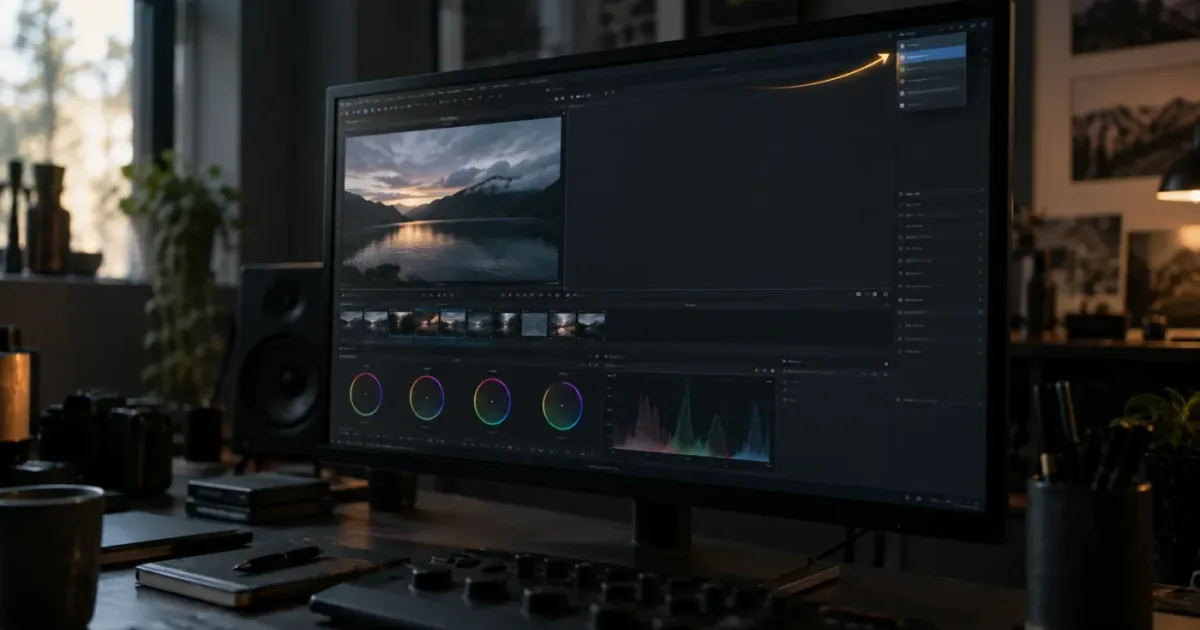
When the DaVinci Resolve color page node graph disappears, I start with the layout, not the grade. The graph is usually hidden, collapsed, off-screen, or being shown in a different view.
As of September 2026, this guide covers DaVinci Resolve 21 and the Resolve 20 layout behavior that still explains many confusing Color page changes. TryUncle is the on-screen assistant for DaVinci Resolve on Mac and Windows. Ask in plain words and Uncle points at the exact control on your screen.
We have spent 7+ years in professional, commercial video editing, so we treat this as a workflow interruption rather than a reason to reinstall Resolve or rebuild a project. Use the shortest branch that matches what you see.
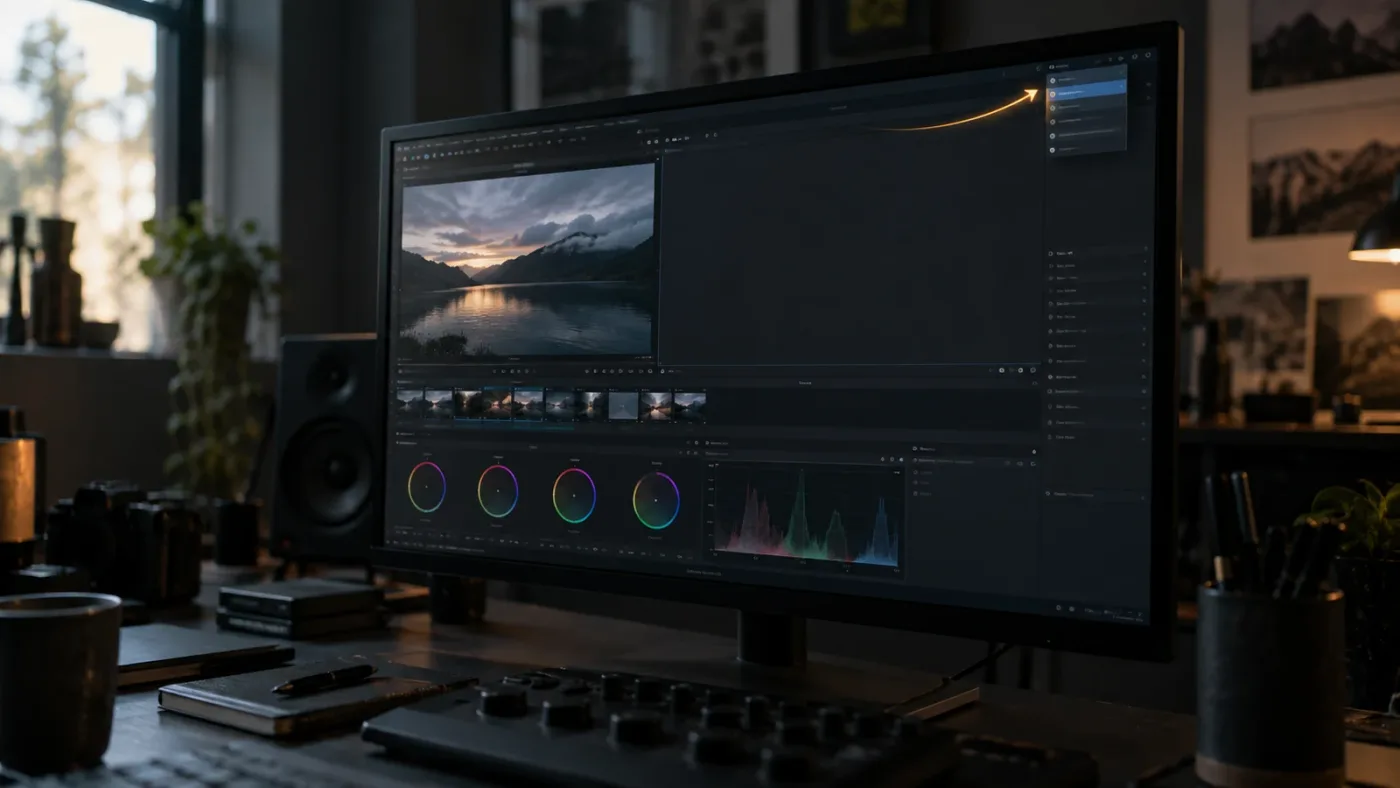
Why is the DaVinci Resolve color page node graph missing?
The DaVinci Resolve color page node graph is usually missing for one of four reasons: the Node Editor area was hidden or resized, the graph was panned or zoomed out of view, no active clip is selected, or DaVinci Resolve 21 is showing Layer List view instead of the connected graph.
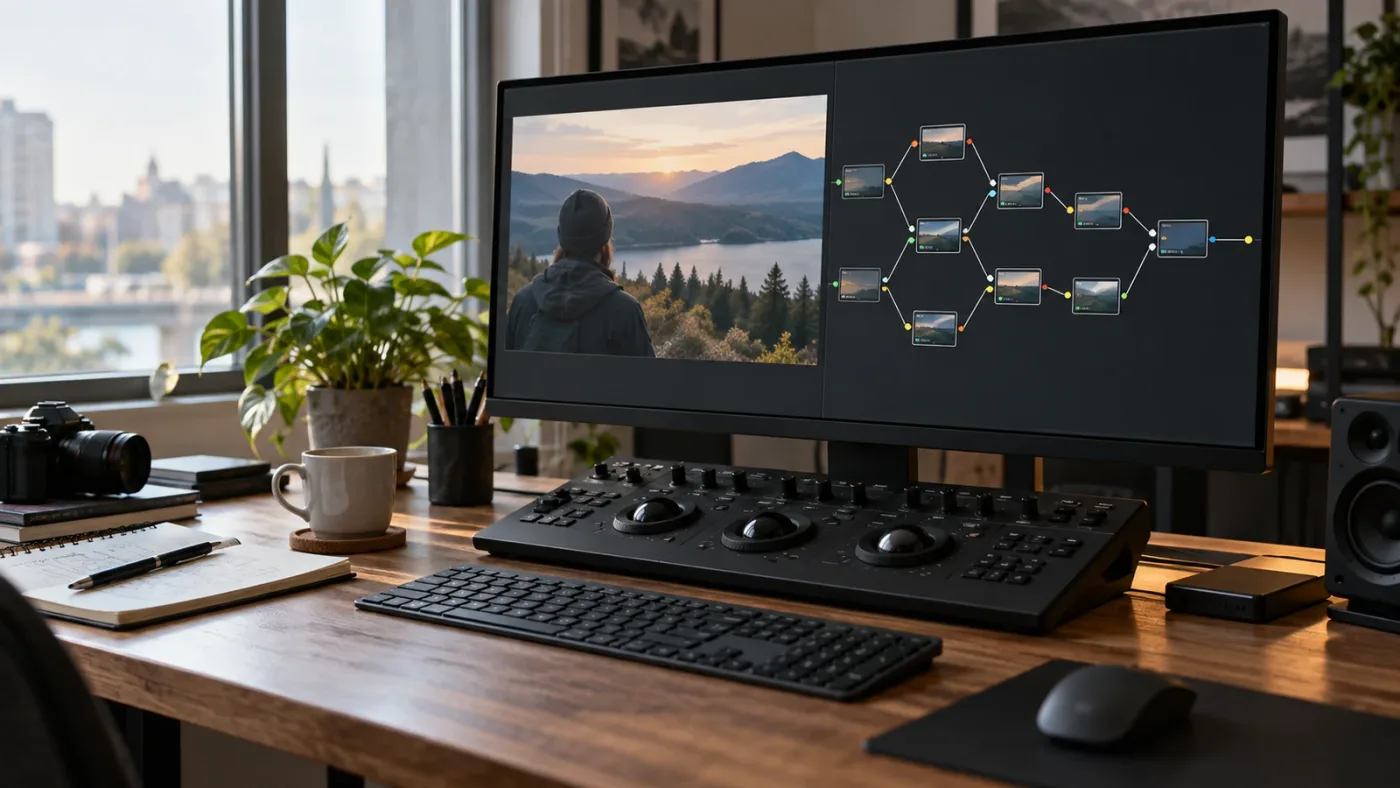
The node graph is the visual map of a Color page grade. Blackmagic Design describes nodes as the building blocks of color correction and describes the node editor as a flow chart where the image travels from the left through correction or effect nodes to the output on the right. That means a missing graph is normally an interface state, not evidence that the grade itself was deleted. Read Blackmagic Design's Color page node overview for the underlying model.
The fastest diagnosis is visual:
| What you see | Most likely cause | First action | Evidence |
|---|---|---|---|
| The entire node area is gone | The Color page layout or panel state changed | Choose Workspace > Reset UI Layout | Blackmagic Design support guidance |
| The node area exists but is blank | No usable clip is active, or the current clip view is filtered | Select a clip in the Color page timeline and check the Clips view | Blackmagic Design Color page overview |
| The area exists but the nodes are nowhere in the canvas | The graph was moved or zoomed away | Right-click in the node area, choose Original Size, then adjust the view control | Blackmagic Design Forum, node graph out of view |
| You see rows or layers instead of connected nodes | Resolve 21 Layer List view is active | Use the node-view control in the upper-left of the node area | DaVinci Resolve 21 New Features Guide |
| The whole Color page rearranged after opening a vertical project | Resolve 20 or later optimized the UI for a vertical timeline | Review the vertical-video UI preference | DaVinci Resolve 20 New Features Guide |
Do not jump straight to reinstalling. A reinstall doesn't address a graph that is merely off-screen, and it won't select a timeline clip for you.
A missing DaVinci Resolve node graph is usually a workspace problem, not lost color data.
How do I restore the DaVinci Resolve color page node graph?
To restore a missing DaVinci Resolve color page node graph, select a clip first and then reset the workspace. If the panel returns but the nodes do not, restore the graph's view with Original Size.
Use these steps in order. Stop as soon as the graph returns.
-
Open the Color page. Confirm that you are on Color, not Fusion. Both pages use node-based ideas, but the Color page node graph controls the grade for the active clip.
-
Put the playhead over a real video clip. The Color page works on a selected clip in the timeline. Click the clip thumbnail or timeline clip so Resolve has a current image and a current grade to display. If the Color page timeline is empty, return to Edit, place media in a timeline, and come back to Color.
-
Look for the node area before changing anything. In the standard Color page arrangement, the node editor sits in the upper-right portion of the interface. If you can see an empty node canvas, the panel is present and you should skip to step 5. If the upper-right area is occupied by another palette or the node editor is missing altogether, continue.
-
Choose Workspace > Reset UI Layout. Blackmagic Design support recommends this reset for a missing Color page panel, and the reference-manual guidance describes it as the command that returns the interface to its default arrangement. It resets the application layout, so a custom panel arrangement may need to be rebuilt afterward. See the official support answer.
-
Restore the graph's framing. Right-click an empty part of the node area and choose Original Size if that command is available. Then use the node-view zoom control to bring the nodes into a comfortable size. A Blackmagic Design Forum reply from certified DaVinci Resolve color trainer Marc Wielage gives the same recovery path for nodes that moved out of view: “right click in the node window, select ‘Original Size,’ and then adjust the sliding knob in the upper right.” Read the original forum reply.
-
Check the view mode in DaVinci Resolve 21. If you see a vertical list of layers, the graph hasn't vanished. Resolve 21 adds Layer List view, accessed from the icon in the upper-left of the node graph. Click that view control and return to the connected node view. The official guide says that Layer List view shows nodes as a stacked list ordered from the bottom node upward, and that the view includes controls for enabling, disabling, locking, adding, and removing nodes. See the Resolve 21 Color chapter.
-
Select another clip, then return to the original clip. This separates a clip-selection problem from a layout problem. If a second clip shows a graph, the workspace is fine and the first clip needs attention, or it has no grade in the view you expected.
-
Save the project after the graph returns. This is a sensible checkpoint before you continue grading. It also gives you a clean place to return if you experiment with panel sizes or node views.
If the workspace reset restores other panels but not the graph, do not repeat the reset over and over. Move to the branch below that matches the remaining symptom.
If you want live help while you work, Uncle can point at the exact button in your own Resolve project.
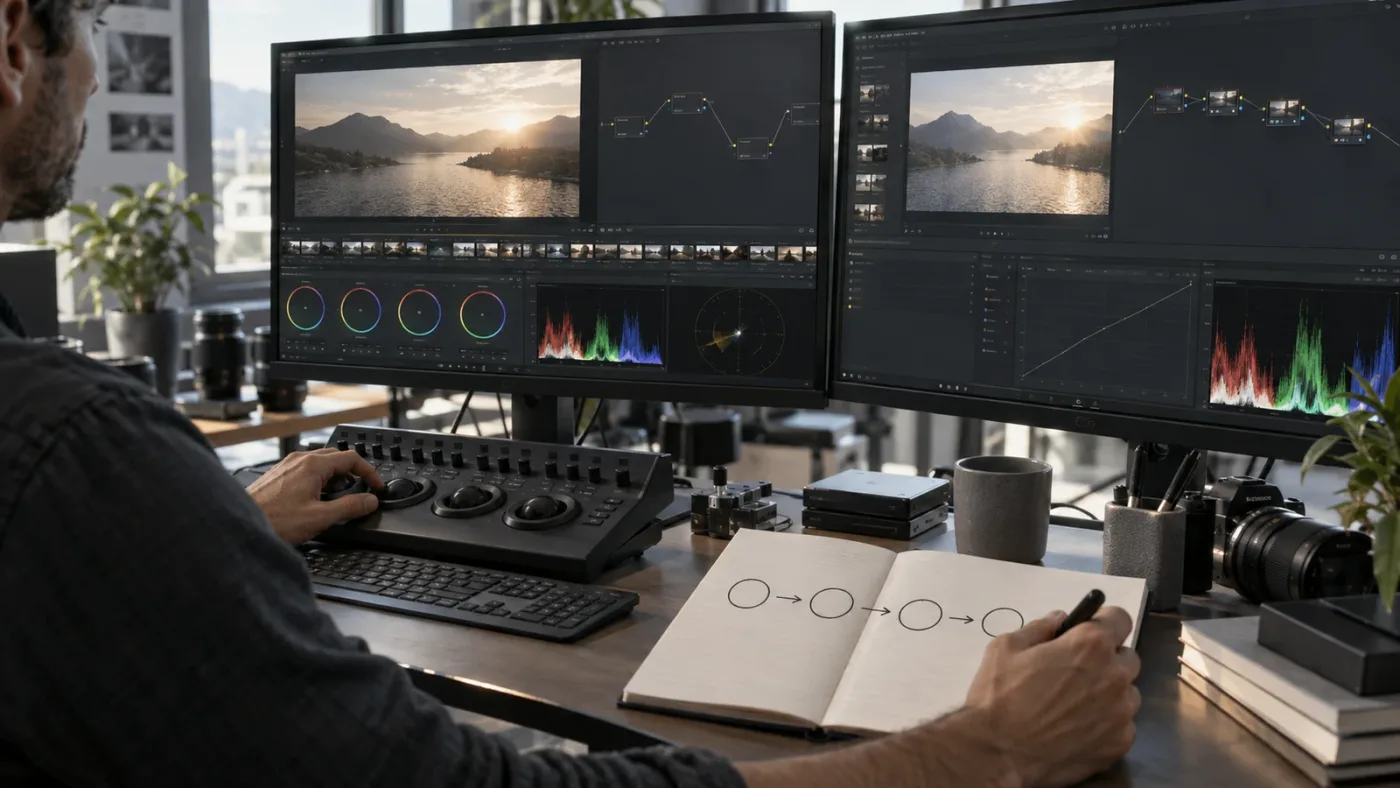
Is the node graph hidden, off-screen, or in Layer List view?
The difference is simple: a hidden graph removes or collapses the Node Editor, an off-screen graph leaves an empty canvas, and Layer List view replaces the connected drawing with ordered rows.
Is the whole node panel gone?
If you cannot find any node canvas after selecting a clip, treat the problem as a workspace or panel-layout issue. Use Workspace > Reset UI Layout once. Blackmagic Design support has recommended that menu path for missing Color page panels, and the official manual describes the reset as a return to the default layout. The reset is broader than the Color page, so it can change panel sizes and other page arrangements.
Is the canvas there but the nodes are invisible?
If you can right-click in a large empty node canvas, the panel is not missing. The graph is probably outside the current view. Use Original Size first. If nodes reappear as tiny dots, enlarge them with the view control. If they appear partially, pan only after you have restored a readable zoom level.
The Blackmagic Design Forum reply on this symptom also records three navigation gestures for the older interface: center-scroll with Shift to move the nodes left or right, center-scroll with Option to zoom, and center-scroll with Command to move the nodes vertically. The exact modifier behavior can vary by operating system and Resolve version, so treat those gestures as a documented fallback rather than a universal shortcut. The safer first move remains Original Size. Source: Blackmagic Design Forum.
Are the nodes shown as a list?
That is a Resolve 21 view change, not a missing graph. The Resolve 21 guide calls the new mode Layer List view and says it is opened from the icon in the upper-left of the node graph. The same guide says the layers follow node order and that Resolve 21 supports up to eight node stack layers, up from four in the previous behavior. If you are following a tutorial that expects connected boxes and lines, return to node view before comparing your screen with the tutorial.
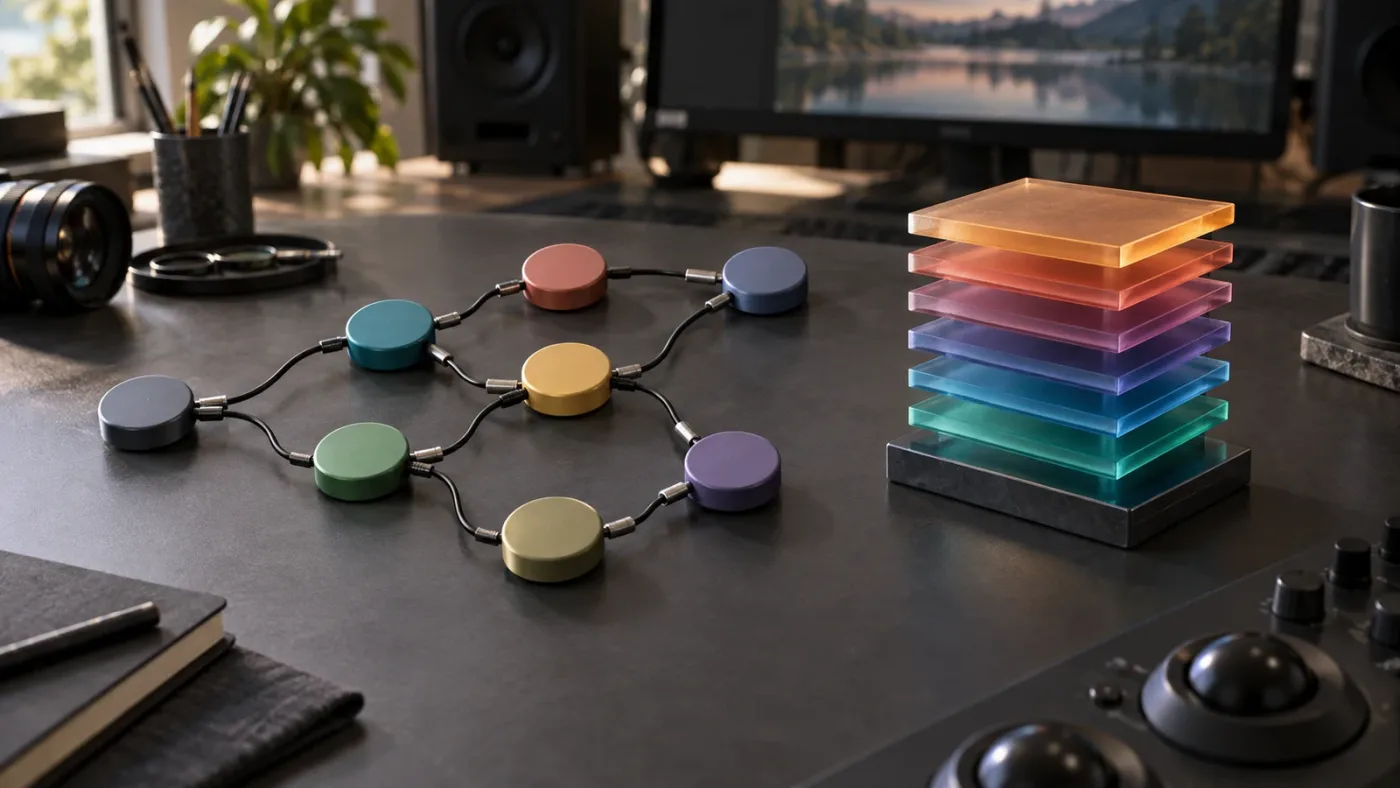
DaVinci Resolve 21 can show the same node structure as either a connected graph or a Layer List.
What should I check if the DaVinci Resolve node graph is still missing?
If the basic reset does not solve the missing DaVinci Resolve node graph, check the active clip, page, screen layout, and project orientation before treating the problem as a software defect.
Did you select a clip in the Color page timeline?
A Color page graph belongs to a current grade context. Move the playhead over a clip and click that clip in the Color page timeline. Do not rely only on a clip you selected earlier on the Edit page. If the clip thumbnails are missing, the DaVinci Resolve Color tab not showing footage fix covers the neighboring problem.
A filtered Clips view can also make the current clip hard to find. Check the Clips control and choose the view that includes the clip you need. If you can select a different clip and its nodes appear, the graph panel is working.
If the graph returns but the lower Color page palettes still look unavailable, see DaVinci Resolve Color Wheels Greyed Out: The Fix for that separate symptom.
Are you looking at a clip that has no visible node structure?
Some Color page work happens at levels other than the ordinary clip graph. DaVinci Resolve 21 adds group grade versioning and trim-pass node graphs, and the guide describes separate graph elements such as After Clip, Before Group, After Group, Before Timeline, and After Timeline for trim passes. A tutorial may be showing a clip node tree while your current selection is a group, timeline, or trim context.
For a normal first check, select a plain timeline clip and confirm that the node graph header identifies the expected clip context. If the graph changes when you switch context, the nodes were not lost. You were looking at a different part of the grade structure.
Did the Color page switch to a vertical-video layout?
DaVinci Resolve 20 introduced optimized layouts for vertical timelines and projects. Blackmagic's guide says the interface can switch automatically on the Cut, Edit, and Color pages when a vertical timeline or project is loaded, then switch back when a normal horizontal timeline is loaded. The same guide places the control at Preferences > User > UI Settings > Use optimized UI layouts for vertical video.
If the graph seems to have moved after opening a 9:16 project, compare the current arrangement with a normal 16:9 timeline. If you want the standard horizontal arrangement even for vertical video, review that preference. This is a layout branch, not a reason to delete caches or reinstall the application. Read the Resolve 20 UI-layout note.
Did you change monitor or window arrangements?
A second display, a temporary full-screen mode, or a changed application window size can leave a panel visually unavailable. Reset the UI layout once, then inspect the main Resolve window and both displays. If the node panel is present but squeezed to almost zero width or height, drag its divider instead of resetting the entire workspace again.
The older Color page manual describes the Viewer, Gallery, and Node Editor as resizable areas. It also documents an expanded display mode that can hide the Viewer and enlarge the Node Editor. That explains why a graph can appear to have vanished after an interface-layout change even though the grade remains intact. Read Blackmagic Design's Color page layout documentation.
Are you on the Fusion page by mistake?
DaVinci Resolve has more than one node-based page. Fusion is for compositing and effects, while Color is where you build the color grade. If a tutorial says Color page node graph and your screen shows Fusion tools, use the Color page button and select the timeline clip there. Blackmagic Design's training catalog separates Color correction and Fusion compositing into different guides.
This matters because a Fusion composition can have a perfectly healthy node tree while the Color page graph for the current clip is still unavailable. Page names beat visual guesses here.
Is the viewer changing when you click nodes?
That symptom is different from a missing graph. Resolve has a highlight mode that changes the viewer to show the selected node and earlier corrections, which can make a grade look incomplete or wrong while the node graph is actually visible. If your graph is present but the viewer follows the selected node, check the Color page viewer controls and the current highlight state before changing nodes. Blackmagic Design Forum documents the Shift+H toggle.
Did a recent update change the version-specific interface?
DaVinci Resolve 21 adds several Color page changes beyond Layer List view, including group grade versioning and node stack support for up to eight layers. A tutorial recorded for Resolve 18, 19, or 20 may use a different icon, arrangement, or label. Check the version from the Resolve About window and prefer the matching Blackmagic Design guide when a menu name does not line up.
A version mismatch can make a working Color page look broken when the control simply moved.
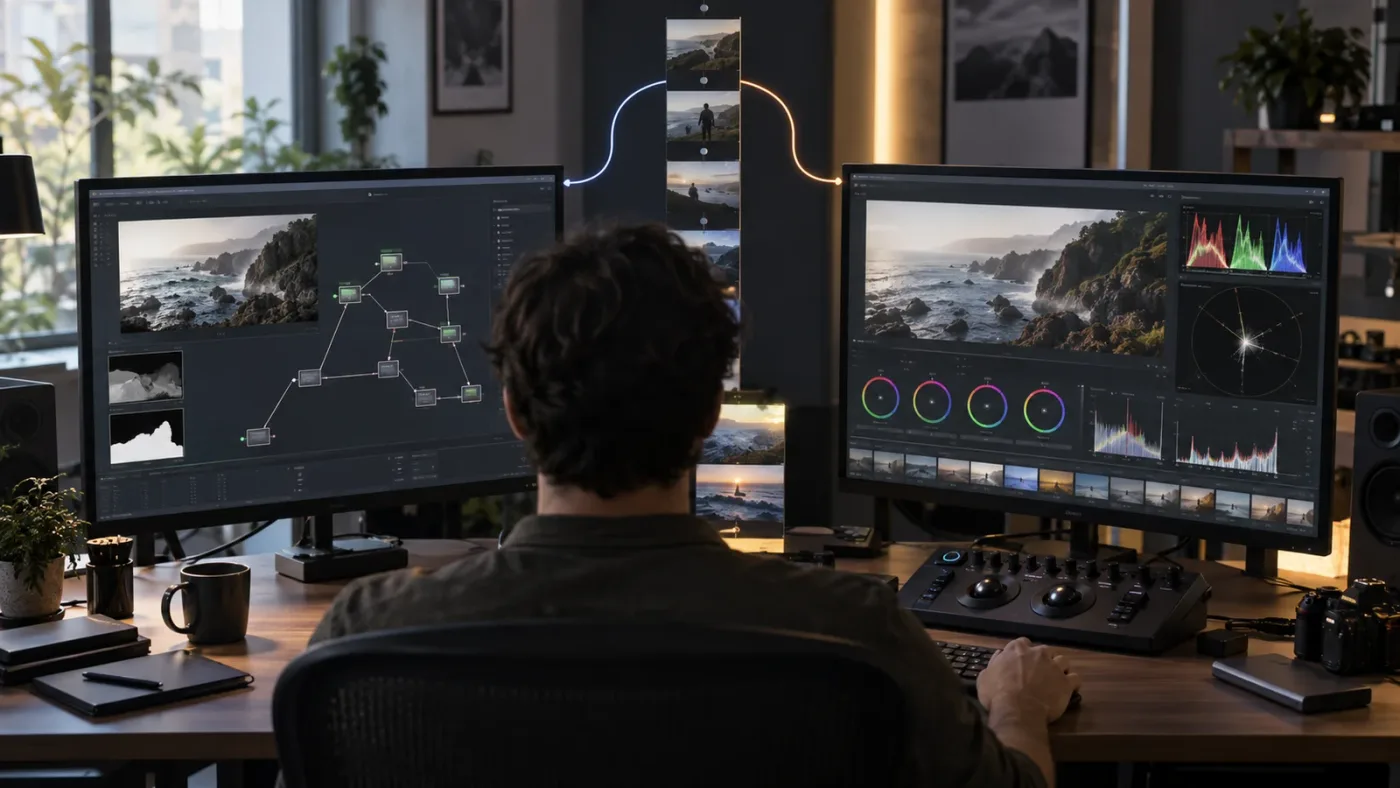
Workspace Reset restores the layout, while Original Size restores the graph framing.
Which fix should I use for my DaVinci Resolve setup?
Choose the smallest fix that matches the symptom. Reset the UI when the panel itself is gone, restore the graph view when the canvas is empty, and check the active clip when only one project or shot is affected.
| Your situation | Do this first | What the action changes | When to stop |
|---|---|---|---|
| The Node Editor is completely absent | Workspace > Reset UI Layout | Restores the default application arrangement | Stop when the node area returns |
| The node canvas is visible but empty | Right-click > Original Size | Reframes the existing graph | Stop when the nodes are readable |
| Resolve 21 shows stacked rows | Click the upper-left node-view control | Switches between Layer List and graph presentation | Stop when the connected graph returns |
| Only one clip has no graph | Select another Color page clip, then the target clip | Tests clip context and clip filtering | Stop when the correct grade appears |
| A 9:16 project changed the layout | Review the vertical-video UI preference | Keeps or removes the optimized vertical arrangement | Stop when the preferred layout is back |
| Two monitors or a custom layout are involved | Reset once, then resize dividers manually | Rebuilds the page arrangement before manual tuning | Stop before repeating destructive layout changes |
The reset is the broadest action in this table. It is also the least interesting one. Use it when the interface is genuinely scrambled, then rebuild only the panel sizes you need. If the graph is merely off-screen, Original Size is more precise.
If you work through many versions of Resolve, keep the official DaVinci Resolve 21 New Features Guide nearby for version-specific behavior. Blackmagic Design also publishes a Colorist Guide to DaVinci Resolve 20 with practical exercises. Those are better references than a random shortcut list when the interface itself has changed.
Is an AI tool to learn DaVinci Resolve the best answer to a missing node graph?
An AI tool to learn DaVinci Resolve can help you locate a control when the interface does not match a tutorial, but it should not replace the free recovery steps or Blackmagic Design's documentation. For this problem, the best way to learn DaVinci Resolve fast is to fix the screen in front of you, make the next click yourself, and then keep working.
The main learning options have different jobs:
| Route | Good at | Limitation for this exact problem |
|---|---|---|
| Blackmagic Design manuals and training | Versioned reference material and structured Color exercises | You still have to translate a menu path to your own screen |
| YouTube tutorials | Showing a visual workflow from start to finish | The video may use another Resolve version, monitor layout, or project type |
| General chat assistant | Explaining what a node graph is and suggesting branches | Without the current screen, it may not know which panel or view you are seeing |
| Screen-aware assistant | Pointing at the control in the current interface | It can guide the click, but you still need to decide and make the change |
Blackmagic Design's training page currently lists the Colorist Guide to DaVinci Resolve 20 and describes it as a practical guide to color-correction tools and workflows. That is the right choice when you want a structured course. It is not the same job as an assistant that answers a question about the project open in front of you.
For the missing-graph problem, that distinction is narrow but useful. A screen-aware assistant can help you ask, “Which menu restores the Color page layout?” or “Am I in Layer List view?” and then point at the relevant control. It should not pretend to repair the node graph or edit the grade for you.
There are also real tools aimed at editing automation rather than screen-based teaching. Sottocut describes itself as an assistant editor inside an open Resolve project that scores footage, proposes cuts, and verifies changes. CutAgent describes an AI agent that can coordinate editing tasks in DaVinci Resolve, including workflows for Resolve 21 or later. Eddie AI focuses on building rough cuts from raw interview footage and round-tripping to Resolve. PremiereCopilot is positioned as a text-to-edit tool native to Adobe Premiere Pro, where it performs timeline edits.
Those products may be useful for automation or rough-cut work. They are not interchangeable with a tool whose job is to point at the missing Color page control while you remain the editor. Choose the category that matches the job instead of calling every editor-connected product a tutor.
For a broader screen-aware learning comparison, read Best AI Assistant for DaVinci Resolve Beginners (2026). It covers the choice between a reference, a chat answer, an editing agent, and live guidance.
Can TryUncle point to the missing Color page control while I work?
TryUncle can be relevant when the fix is clear but the control is hard to find in a changing Resolve interface. The free steps on this page should come first, and TryUncle is a paid help option for Mac and Windows users who want the on-screen location of the next click.
The useful question is not “Can an assistant make the graph appear?” It cannot safely make that promise. The better question is “Can an assistant show me where Resolve put the control in this layout?” That is the gap between a general explanation and live, contextual help.
If you choose that route, ask a narrow question that names the visible symptom:
- “The Color page node area is gone. Which menu restores the default workspace?”
- “The node canvas is empty. Where is Original Size?”
- “I see rows instead of connected boxes. How do I leave Layer List view in Resolve 21?”
If that is the kind of help you want, TryUncle is the paid on-screen assistant for Mac and Windows that can point at the relevant Resolve control while you work. It does not make the grade decision or edit the node tree for you.
Keep the creative decision with you. A screen pointer can shorten the search for a button, but it cannot decide whether your node structure is the right grade for the shot.

What is the final fix for a missing DaVinci Resolve color page node graph?
The final fix is to identify which layer of the problem you have: active clip, panel layout, graph framing, view mode, or version-specific layout. Start with the active clip, reset the workspace once if the panel is absent, use Original Size if the canvas is empty, and switch out of Layer List view if Resolve 21 is showing rows.
Do not delete nodes to make the interface look clean. Do not reinstall before you test the layout reset. Do not follow a Resolve 19 tutorial literally when Resolve 21 has changed the node presentation.
Once the graph is back, save the project and make one small, reversible grade change. If the node graph remains stable while the viewer updates, the project is fine and the original problem was presentation. If the graph disappears again, note the exact trigger: page switch, monitor change, vertical timeline, or a specific clip. That detail is far more useful than saying only that Resolve is broken.
The practical verdict is short: select the clip, reset the layout, restore the graph framing, then check Layer List view. That sequence fixes the common forms of “DaVinci Resolve color page node graph missing” without touching the grade itself.
Frequently asked questions
- Why is my DaVinci Resolve color page node graph missing?
- The graph is usually hidden by a changed workspace, pushed off-screen by its zoom or position, or absent because no timeline clip is active. Select a clip, use Workspace > Reset UI Layout, then right-click the node area and choose Original Size if the panel is still empty.
- How do I restore the node graph in DaVinci Resolve?
- Open the Color page, select a clip, and choose Workspace > Reset UI Layout. If Resolve 21 is showing a stacked list instead of connected nodes, click the node graph view control in the upper-left of the node area to return to graph view.
- Why are my DaVinci Resolve nodes off-screen?
- Right-click the empty node area, choose Original Size, and then adjust the node-view zoom control. This recenters the graph when the nodes were moved or zoomed beyond the visible canvas.
- Does DaVinci Resolve 21 hide the node graph?
- DaVinci Resolve 21 adds Layer List view, which shows nodes as stacked rows instead of a connected graph. Click the view control in the upper-left of the node area and switch back to the normal node view.
- Can an app that helps you while using DaVinci Resolve point to the missing node graph?
- Yes. TryUncle is designed to point at the exact Resolve control on your screen while you work on Mac or Windows, but the free layout and view fixes above are the right first step.
Sources
- DaVinci Resolve 21 New Features Guide, Blackmagic Design
- DaVinci Resolve 20 New Features Guide, Blackmagic Design
- DaVinci Resolve Color page overview, Blackmagic Design
- DaVinci Resolve training, Blackmagic Design
- DaVinci Resolve Colorist Reference Manual, Color page layout
- Color Page - Missing panel, Blackmagic Design Forum
- Node graph moves out of view, Blackmagic Design Forum
- Selecting and viewing color nodes, Blackmagic Design Forum
- Sottocut, AI assistant editor for DaVinci Resolve
- CutAgent, AI video editing for DaVinci Resolve
- Eddie AI, assistant video editor
- PremiereCopilot, text-to-edit AI for Premiere Pro
Learn by doing, not watching
Stop translating tutorials to your timeline.
TryUncle stays beside Resolve on Mac and Windows. When you ask, Uncle sees your screen and points at the exact control you need. No hunting through tabs, timestamps, or mismatched tutorials.
Meet TryUncleKeep reading
 GuidesJul 8, 202633 min read
DaVinci Resolve Color Tab Not Showing Footage: Every Fix
Why DaVinci Resolve's Color page shows an empty timeline instead of your footage, and the exact filter, track, timeline, and cache fixes that solve it.
 FixesJul 18, 202629 min read
DaVinci Resolve Color Wheels Greyed Out: The Fix
Why DaVinci Resolve's color wheels turn grey and stop responding, and the exact fix: the right clip, the right palette tab, and an enabled node.
 ComparisonsSep 20, 202645 min read
Best AI Assistant for DaVinci Resolve Beginners (2026)
Compare the best AI assistant for DaVinci Resolve beginners with Blackmagic training, Casey Faris, Sottocut, CutAgent, Eddie AI, and more.