
Learn / DaVinci Resolveupdated for DaVinci Resolve 21.0.2 (July 2026)
DaVinci Resolve Live Save Settings Explained
Quick answer
Live Save is DaVinci Resolve's default autosave: it writes Cut, Edit, and Fairlight changes to the project database instantly, and saves Color and Fusion work when you switch clips. Find it in Preferences > User > Project Save and Load. It has no undo, so pair it with Project Backups and Timeline Backups for rollback.
I get asked some version of "should I have Live Save on" almost every week, usually from someone who just read a forum thread where it either saved someone's entire session or ruined it. Both stories are true. Live Save is not complicated once you see what it actually does and what it deliberately doesn't do, and that gap between the two is where every one of those forum threads lives.
This page is the settings themselves: what Live Save saves, how fast, what it shares that space with in Preferences, and the specific situations where turning it off is the right call instead of a paranoid one.
What is Live Save in DaVinci Resolve, exactly?
Live Save is Resolve's always-on autosave. According to Blackmagic's own manual, it's "a progressive, fast, always-on autosave mechanism" that saves your changes as you make them, with no keyboard shortcut, no dialog box, and no moment where you decide to save (DaVinci Resolve Manual, mirrored).
That description undersells how different this is from Final Cut Pro or Premiere Pro's version of autosave, which typically writes periodic snapshots you can browse and roll back through. Live Save doesn't keep a history. It updates the one live project database, continuously, so what you see on screen and what's stored on disk are almost always the same thing. There's no separate "unsaved changes" state hiding underneath that you can discard by closing without saving, because closing without saving isn't really a thing Live Save lets you do.
Live Save doesn't ask permission before it writes. It just writes, the moment you act. That single fact explains almost everything else on this page, both the reason people love it and the reason a few of them have learned to fear it.
How does Live Save compare to autosave in Premiere Pro, Final Cut Pro, and Avid Media Composer?
Every major NLE protects you from a crash somehow. None of them do it quite the way Resolve does, and the differences matter if you've moved between tools or you're trying to work out how much you can actually trust the safety net under you.
| NLE | Mechanism | Interval you control | Keeps version history | Runs even without unsaved changes |
|---|---|---|---|---|
| DaVinci Resolve (Live Save) | Instant write per action on Cut, Edit, Fairlight; clip-switch plus periodic background save on Color, Fusion | No, there's no interval setting, only on or off | No, it overwrites the same live database (Project Backups is the separate versioned layer) | Yes, always, there's no "unsaved changes" state to trigger off of |
| Adobe Premiere Pro | Timed Auto Save on a chosen interval | Yes, "Automatically Save Every" ranges from 1 minute to 1 hour | Yes, a capped number of numbered project versions, oldest deleted as new ones are added | No, autosave only fires on a project with unsaved changes, and reportedly pauses while the app sits in the background |
| Apple Final Cut Pro | Continuous automatic saving of project changes, plus periodic library backups | No user-facing interval control | Yes, dated backup copies of the library's database portion, media excluded | Yes, per Apple's own description |
| Avid Media Composer | An Auto-Save Interval combined with a separate Inactivity Period and a Force Auto Save timer | Yes, all three are independently adjustable | Yes, prior versions accumulate in something Avid calls the Attic rather than overwriting a single file | Depends on the specific timer; Force Auto Save exists to guarantee a save even if the Inactivity Period never triggers |
Adobe's own preferences documentation frames Auto Save as something you tune to your own risk tolerance: pick an interval from a dropdown, pick how many versions to keep, and Premiere Pro handles the rest from there (Adobe Help). That's a meaningfully different design decision than Resolve's. Premiere gives you a dial. Resolve gives you a switch.
Final Cut Pro sits closer to Resolve's philosophy than Premiere or Avid do. Apple's own documentation states plainly that "Final Cut Pro automatically saves all the changes you make as you work on a project, which means you never have to save changes manually" (Apple Support). No interval to configure, no version count to set, just continuous protection layered under periodic, dated library backups. The gap between Final Cut and Resolve is really in the details of what triggers a save on each page, not in the underlying philosophy that you shouldn't have to think about this at all.
Avid Media Composer takes the most configurable approach of the four. Beyond a basic Auto-Save Interval, Media Composer separates out an Inactivity Period, which waits for you to actually pause before it saves, and a Force Auto Save timer, which guarantees a save within a set window regardless of whether you've paused (Avid Knowledge Base). One widely used configuration guide aimed at editors setting these values up describes tuning the Inactivity Period to around 20 seconds and Force Auto Save to 10 minutes, then capping how many versions pile up in the Attic so old ones eventually clear out (Chris Nicholas). That's real tuning, the kind Resolve doesn't offer, because Live Save isn't built around a timer at all on three of its five pages.
Premiere Pro and Avid Media Composer autosave on a timer you can adjust. DaVinci Resolve's Live Save has no timer to adjust on the Cut, Edit, or Fairlight pages, because there's no waiting involved at all, just the next action you take. That's the tradeoff spelled out plainly: less configuration, but also less of a gap between an action and its protection.
Where do you find DaVinci Resolve's Live Save setting?
Live Save lives in one place, alongside the rest of Resolve's save and backup controls, not scattered across multiple menus.
- Open DaVinci Resolve > Preferences on Mac, or File > Preferences on Windows.
- Click the User tab along the left side of the Preferences window, not Project or System.
- Select Project Save and Load from the list.
- The Live Save checkbox sits at the top of that panel, above Project Backups, Timeline Backups, and Load Settings.
That panel is worth knowing as a whole, not just for the Live Save checkbox. It's also where you set your Project Backups interval, turn on Timeline Backups, and control whether Resolve loads every timeline in a project at once or only the last one you had open. This page focuses on Live Save specifically, but the settings around it matter enough that our guide to preventing DaVinci Resolve project corruption covers the full panel as part of a broader corruption-prevention routine.
Is Live Save on by default in DaVinci Resolve 21?
Yes, and this is worth stating plainly because a small number of forum posts suggest otherwise. Blackmagic's manual states that "using Live Save is turned on by default and highly recommended to prevent the loss of work" (DaVinci Resolve Manual, mirrored), and that's consistent across the current manual and the version history behind it.
The confusion shows up in a real forum thread titled plainly "Live Save not turned on by default??", where an editor found the checkbox unchecked on their own install. The likely explanation isn't that Blackmagic shipped it off for that release. Resolve's Preferences file typically carries forward across app updates rather than resetting to factory defaults every time, so a setting you or a previous install of Resolve toggled months ago can persist quietly through several version upgrades without you noticing. If you've had Resolve installed for a while, or you inherited a workstation someone else configured, check the box yourself rather than trusting a claimed factory default.
A default only protects you the day you install the software. Every day after that, your Preferences file is protecting whatever you or someone else last set. That's true of Live Save specifically and worth remembering for every other checkbox in that panel too.
What exactly does Live Save save, and how fast?
Live Save doesn't treat every page in Resolve identically, and the difference matters for how much work you could theoretically lose in the worst case.
| Page | How Live Save behaves | Practical lag |
|---|---|---|
| Cut | Saves instantly as you make each change | Effectively none |
| Edit | Saves instantly as you make each change | Effectively none |
| Fairlight | Saves instantly as you make each change | Effectively none |
| Color | Saves when you switch to a different clip, plus periodically in the background on the current clip | A few seconds to a couple minutes, depending on how long you dwell on one clip |
| Fusion | Saves when you switch to a different clip, plus periodically in the background on the current node tree | Same pattern as Color |
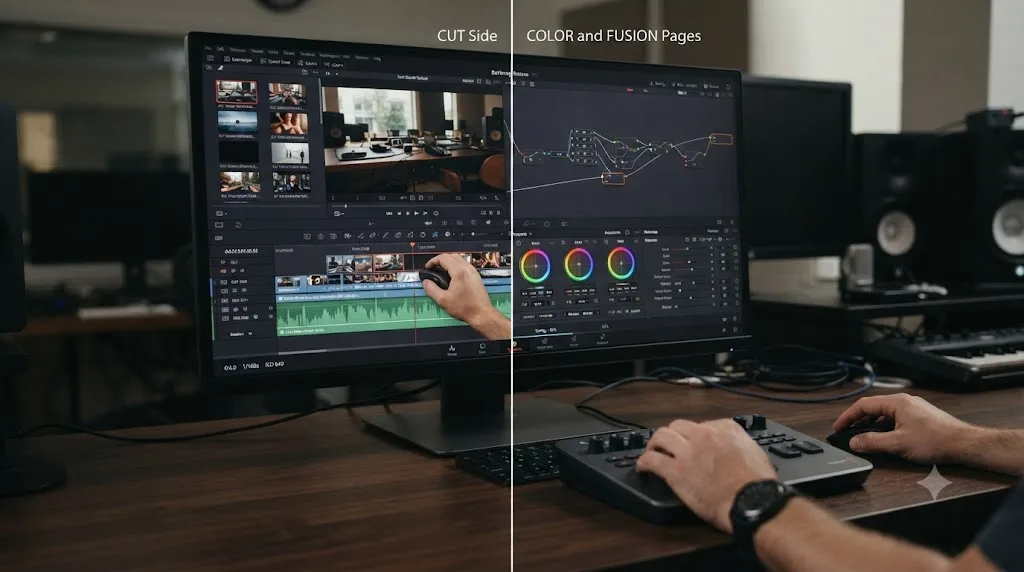
According to the manual, "all changes in the Cut, Edit, and Fairlight pages are saved as you make them," while "all changes in the Fusion and Color pages are automatically saved when you switch to another clip, and also periodically and invisibly in the background while you work" (DaVinci Resolve Manual, mirrored).
That distinction exists for a practical reason. Cut, Edit, and Fairlight changes are discrete, individual actions, a trim, a move, a fade. Saving each one instantly costs almost nothing. Color and Fusion work is continuous within a single clip, you might spend three minutes nudging a curve or rebuilding a node tree before you're satisfied, and saving on every micro-adjustment there would be both wasteful and pointless. Waiting for a clip switch, or a periodic background pass, is the practical middle ground: you're covered against a crash mid-grade, but Resolve isn't writing to disk on every mouse drag.
One genuinely useful side effect: Live Save also "even works for previously unsaved projects that you've forgotten to save if anything goes wrong" (DaVinci Resolve Manual, mirrored). A brand new project you never explicitly named or saved still gets Live Save's protection the moment you start working in it, which is a real gap Live Save closes that manual saving alone never did.
Does Live Save also cover Fusion Studio, the standalone application?
No, and this trips people up because "Fusion" means two different things depending on where you're standing.
The Fusion page inside DaVinci Resolve is what the table above describes: node trees that live inside your project, saved on clip-switch and periodically in the background, same as Color. Fusion Studio is a separate, standalone application that happens to share the same compositing engine, but it doesn't touch your Resolve project database at all. It works with its own file format, .comp, saved the traditional way.
Blackmagic's own Fusion manual describes exactly that traditional workflow: choosing File > Save As prompts you for a filename through a standard file dialog the first time, and saves over the existing file on every save after that (Blackmagic Design: Fusion Manual). There's no Live Save equivalent in that dialog. No instant background writes, no clip-switch trigger, nothing watching your undo history to decide when to commit a change. It behaves like a normal application from a decade ago, because that's exactly the model it was built on.
That distinction has a real workflow consequence if you move work between the two. A comp built inside Resolve's Fusion page rides along under Live Save, Project Backups, and Timeline Backups the whole time, the same net covering your Edit and Color work. Import or copy that same node tree into standalone Fusion Studio for heavier work, which editors do because Fusion Studio is more stable and handles complex setups better than the version embedded in Resolve, and you've stepped outside that net entirely (VFXstudy). From that point on, forgetting to hit Cmd/Ctrl+S in Fusion Studio costs you exactly what forgetting to save cost editors before Live Save existed at all.
Live Save protects the Fusion page inside DaVinci Resolve. It has no reach into Fusion Studio's standalone .comp files, which still work the old-fashioned way, one deliberate save at a time. If you regularly bounce a comp between the two, build your own save habit for the standalone side specifically, because nothing else is going to build it for you.
What's the difference between Live Save, Project Backups, and Timeline Backups?
These three settings share one Preferences panel and get confused constantly, but they solve genuinely different problems.
| Setting | Default | What it protects | Can you roll back to an earlier point? |
|---|---|---|---|
| Live Save | On | Your current project state, continuously updated | No, it overwrites the same live database, there's nothing earlier to go back to |
| Project Backups | Off | Timestamped copies of the whole project database, on a GFS rotation | Yes, load a specific backup from Other Project Backups without touching your live project |
| Timeline Backups | Off | Timestamped copies of a single timeline | Yes, restore a backup as a new timeline named with "Backup" appended, without overwriting your current one |
Project Backups, once enabled, follow what Blackmagic's manual calls a grandfather-father-son rotation. By default, "a new backup is saved every 10 minutes, resulting in six backups within the last hour," after which per-minute versions thin out into up to eight hourly snapshots, with daily snapshots kept for five days (DaVinci Resolve Manual, mirrored). Elsewhere, Larry Jordan's own documentation of an earlier Resolve release cites a 20-minute default interval instead of 10, noting plainly that "by default, Resolve creates backups every 20 minutes" (Larry Jordan). The exact default has shifted across versions, which is itself a good reason to check your own setting rather than assume you know it.
Timeline Backups work the same GFS pattern, scoped to one timeline instead of the whole project. Restoring one is non-destructive by design: "restoring a timeline backup does not overwrite your current timeline. Instead the selected backup will be brought into the Media Pool as a new timeline, with the name 'Backup' appended to it" (DaVinci Resolve Manual, mirrored).
Live Save answers "did my last change get saved." Project Backups and Timeline Backups answer "can I get back to how this looked twenty minutes ago." Those are different questions, and only one of the three settings on this page answers the second one. Larry Jordan draws the same line between Live Save and the rest of Resolve's save tools in his own comparison of the panel, describing Live Save on its own terms while treating Project Backups and Timeline Backups as separate, independent settings you enable alongside it, not instead of it (Larry Jordan).
Does Live Save mean you can't undo mistakes?
Not exactly, but it changes what "undo" actually protects you from, and that distinction has cost editors real work.
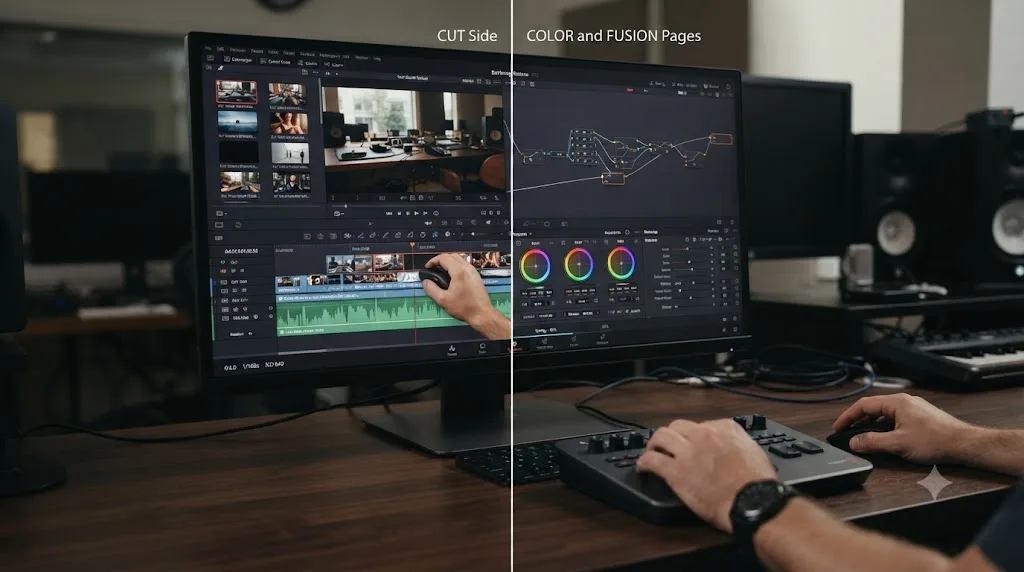
Undo (Cmd/Ctrl+Z) still functions normally with Live Save on. It walks back your action history within the current session the same way it always has. What Live Save changes is a different feature entirely: Revert to Last Saved Version, found under the File menu, which is supposed to discard everything since your last save and drop you back to a known-good state.
With manual saving, "last saved" means something: it's the state you were in the last time you deliberately pressed Cmd/Ctrl+S, and reverting to it discards whatever experimental changes you made since. With Live Save on, "last saved" is effectively "right now," because Live Save just wrote your most recent change to disk before you even finished thinking about whether you wanted it. A Blackmagic Forum thread on "improve the revert to last saved with live save" captures exactly this frustration: editors who want to explore a risky change, then bail out cleanly if it doesn't work, find that Live Save has already committed the exploration as the new baseline before they've decided whether to keep it.
Larry Jordan's own account of the feature is straightforward about the tradeoff: "when enabled, like Final Cut Pro, Resolve saves all changes as soon as you make them," and "enabling Live Save is a good thing and can prevent data loss," with the honest caveat that "the main reason to turn it off is if you are doing a demo and you don't want your changes saved to the demo project" (Larry Jordan).
Live Save has no undo of its own. It just writes down whatever you did, good or bad, the instant you did it. That's not a bug. It's the entire design, and it's exactly why the answer to "should I turn it off" depends so heavily on whether you also have Project Backups and Timeline Backups running underneath it, since those are the settings that actually give you somewhere to go back to.
When has Live Save gotten editors in trouble?
Real accounts on the Blackmagic Forum are worth reading before you decide this is only a hypothetical risk, because the failure pattern repeats.
The all-clips accident. One editor described grading for five hours, then accidentally selecting every clip in the timeline and applying a single correction meant for one shot to all of them. With Live Save on, that mistake wrote to the database before they'd noticed what happened, and there was no earlier saved version left to fall back to, since Live Save had already become the only version (Blackmagic Forum: Live Save destroyed my 5 hour grading session).
The unwanted cleanup save. A separate thread describes a more common, lower-stakes version of the same problem: an editor graded roughly 100 shots, then needed to touch only 5 of them, so they deleted the rest of the sequence intending to close without saving and preserve the other 95 grades untouched elsewhere. Live Save didn't ask. It saved the deletion the moment it happened, and the editor was left asking, reasonably, why a feature they hadn't explicitly opted into had that much authority over their project (Blackmagic Forum: How Resolve's "live save" feature effed me).
The empty-project save. A shorter but sharper version of the same failure mode shows up in a report that Live Save, paired with autobackup, will happily save an empty project if you've just deleted everything in it, with nothing in the feature itself distinguishing "I meant to do that" from "I was about to undo this" (Blackmagic Forum: Live Save - Autobackup issue).
None of these are bugs in the sense of Resolve behaving unexpectedly. Live Save did exactly what it's designed to do in every one of these threads: it saved a change the instant it happened. The problem in each case wasn't the mechanism. It was that the editor's mental model, "I can always back out if I don't like this," quietly stopped being true the moment they turned Live Save on, and nothing in the interface reminded them of that in the moment it mattered.
A project file that saves everything also saves every mistake. That's the honest tradeoff behind Live Save's convenience, and it's the reason the forum thread "Why you should deactivate 'live save' in your preferences" exists at all, alongside a separate one arguing flatly that "Auto Save is dangerous to be on as a default setting". Both threads make the same underlying point from different angles: control over when a save happens is worth something, and Live Save takes that control away in exchange for never losing anything to a crash.
A worked example: what Live Save actually catches during a mixed session
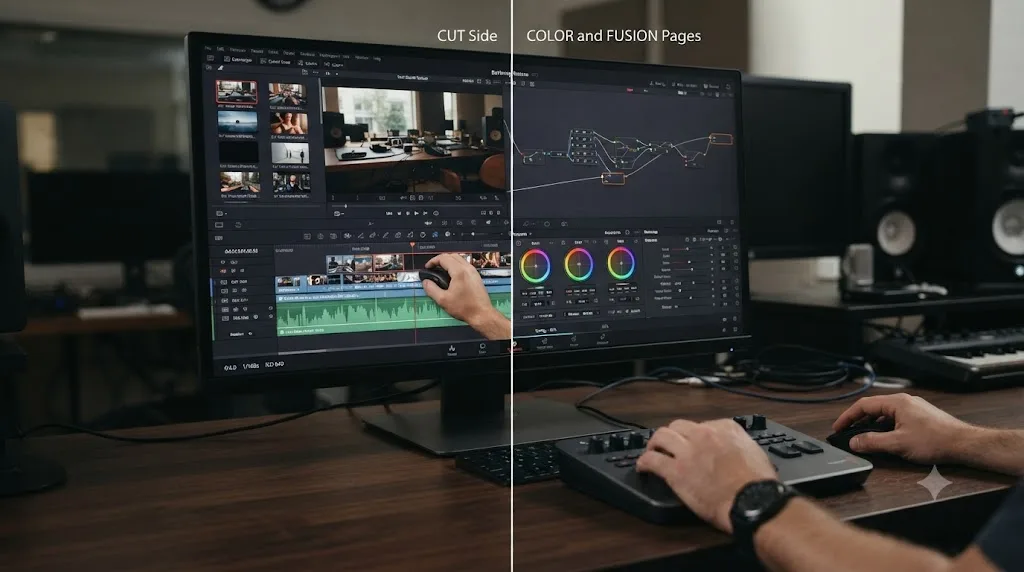
Reading the mechanics above is one thing. Seeing how they play out across an actual session, minute to minute, makes the coverage gaps concrete instead of abstract. This isn't a benchmark and it isn't a real logged session, it's the documented behavior from earlier in this guide applied to an ordinary editing session so you can see exactly where the net is strong and where it thins out.
Picture ninety minutes split between the Edit and Color pages, a common shape for a solo editor finishing a short piece.
Minutes 0 to 25, Edit page. You're trimming a sequence, adjusting transitions, moving clips around. Every one of those actions writes to the project database the instant you make it. A crash at minute 24 costs you nothing more than whatever you were mid-action on when it happened, because everything before that was already committed.
Minute 25, switch to Color. You start grading the first clip. Nothing writes yet, not because Resolve is ignoring you, but because Live Save on this page works differently: it commits on a clip switch or periodically in the background, not on every curve nudge.
Minutes 25 to 31, grading clip A. You're six minutes into adjustments on a single clip. Somewhere in that window, Live Save's periodic background pass may catch an interim state, but the manual doesn't commit to a fixed period, so don't treat anything mid-clip as guaranteed protected. Treat it as conditionally protected at best.
Minute 31, move to clip B. The clip switch itself forces a save of everything you did to clip A. That gap from minute 25 closes the moment you leave the clip, not before.
Minute 60, back on Edit. You delete a subclip you meant to remove from the sequence. Live Save writes that deletion instantly and correctly, exactly as designed, with zero awareness of whether you'll regret it thirty seconds later.
Minute 61, you regret it. You reach for File > Revert to Last Saved Version, expecting it to undo the deletion. It does nothing useful, because "last saved" is minute 61, the same moment as right now, not minute 59 before you made the change.
Minute 61, Timeline Backups. This is exactly where a Timeline Backup from ten minutes earlier earns its keep. If you turned it on, you can restore that snapshot as a new timeline named with "Backup" appended and pull the subclip back out of it, without touching your current, mostly-correct timeline.
Lay the whole session out and the pattern from the decision table below becomes obvious in practice, not just in theory: Cut, Edit, and Fairlight work carries low risk from Live Save's instant writes, because undo still functions normally moment to moment. Color and Fusion work carries real risk specifically at the boundary between "committed" and "not yet committed," and that boundary is exactly where Revert to Last Saved Version stops being useful and Timeline Backups start being necessary.
The riskiest ninety seconds in any Resolve session are the ones between making a change you might regret and the next clip switch or backup interval that locks it in. Knowing that window exists is most of what you need to work around it: finish the thought, switch clips, then decide if you're happy, rather than deciding while Live Save is still mid-write.
Should you turn off Live Save? A decision table
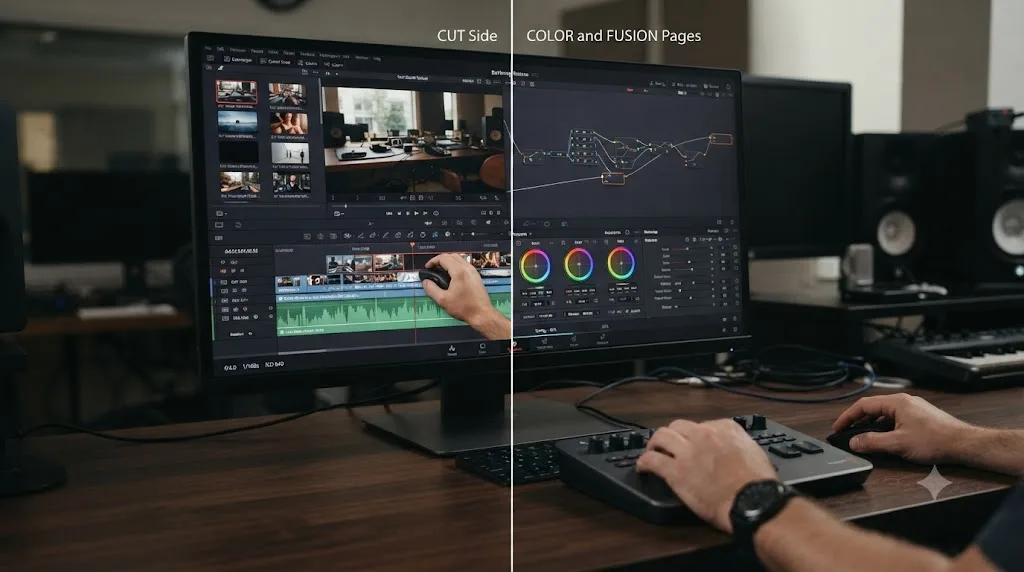
There's no single right answer, only a right answer for your specific situation. Use this table as the short version of everything above.
| Your situation | Keep Live Save on? | Why |
|---|---|---|
| Solo editor on Cut, Edit, or Fairlight most of the day | Yes | The instant-save behavior on these pages costs you almost nothing, and losing an editing session to a crash is the more expensive risk |
| Colorist doing long, exploratory grading sessions on complex node trees | Consider off, or lean on Timeline Backups more | You want a real fallback if an experimental grade goes wrong, not a system that commits every exploration automatically |
| Giving a client or team demo you don't want saved | Off, for the duration of the demo | This is Blackmagic's own stated reason to disable it |
| Project database on a slow network drive or NAS | Consider off | Constant small writes over a network connection can stutter the interface; see the section below |
| Working in Multi-User Collaboration or Blackmagic Cloud | Not your choice, it's forced on | Covered in detail below |
| New or infrequent Resolve user still building save habits | Yes, and add Project Backups too | Live Save is the safety net most likely to actually catch a beginner's forgotten save |
| Facility with strict version-control requirements per shot | Off, replaced with disciplined manual saves and Timeline Backups | Live Save's lack of an undo path conflicts with wanting deliberate, reviewable save points |
Turning off Live Save doesn't turn off saving. It just puts a human back in charge of when. If you turn it off, that human needs to actually remember to save, which is the entire tradeoff in one sentence: control in exchange for vigilance.
Does the type of project library change how Live Save behaves?
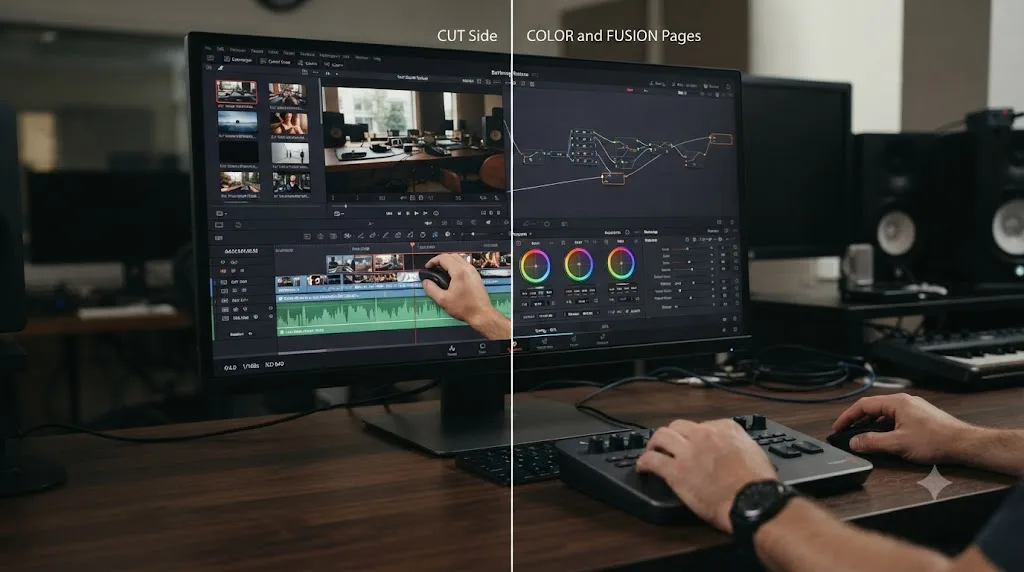
Everything so far assumes the ordinary setup: one editor, one project, stored wherever Resolve put it when you installed the app. That's a Local Project Library, and it's the default for a reason. But Resolve actually supports three distinct kinds of project library, and which one you're running changes what Live Save is really writing to when it fires.
Blackmagic's manual defines the underlying concept first, and it's worth knowing the terminology shifted under this feature's feet: "A Project Library (formerly project database), is a database file storing one or more DaVinci Resolve projects" (DaVinci Resolve Manual, mirrored). Older manuals, plenty of forum threads, and even parts of the Preferences panel still say "database." Both terms point at the same thing.
| Project library type | Where it lives | Who can connect | What that means for Live Save |
|---|---|---|---|
| Local | "saved locally to your workstation; by default...placed in a folder called Resolve Disk Database" (DaVinci Resolve Manual, mirrored) | Nobody else, by design, one workstation at a time | Live Save writes to a local folder on your own disk, as fast as your local drive allows |
| Network | Hosted via the DaVinci Resolve Project Server, running on a separate machine on your local network | Multiple workstations in the same facility, at the same time | Live Save writes are shared writes arriving from every connected seat, which is why it can't be switched off here |
| Cloud | Hosted in Blackmagic's own cloud service | Any workstation with an internet connection, anywhere in the world | Live Save writes depend on your internet connection instead of local or LAN storage entirely |
Don't confuse this with the network-drive scenario in the next section. Pointing a Local Project Library's files at a mapped network drive or NAS is Resolve treating a remote folder as if it were local disk, a single-user design stretched onto shared storage it was never meant for. That's exactly the setup that produces the stutter described below. A real Network Project Library, running the actual Project Server software, is a purpose-built PostgreSQL instance designed from the ground up for multiple simultaneous writers. Same word, "network," in both descriptions. Very different thing underneath.
One more edge case worth knowing if you ever touch a Linux workstation: Mac and Windows systems can use either a Local or a Network or Cloud library, but Linux systems can only use the PostgreSQL-based Network or Cloud kind, never a Local disk database. If you're moving a solo project from a Mac onto a Linux render or grading station, you can't just carry a Local library over unchanged, it needs to live on a Project Server or Blackmagic Cloud library first.
If you're ever unsure which type of project library you're currently connected to, the Project Manager window is the place to check. Its title bar and database indicator name whichever library you're using, whether that's your local disk, a named Project Server, or a Blackmagic Cloud library, so you don't have to guess from memory.
None of these three project library types store your actual media, only the project data describing how to use it, which is exactly the distinction our guide to archiving a DaVinci Resolve project without losing media walks through in more depth. Live Save, whichever library type it's writing to, only ever protects the project side of that equation.
A Local Project Library moved onto a network drive is not the same thing as a real Network Project Library, even though both involve a network. One is a workaround. The other is the actual infrastructure Collaborative Workflow depends on, which is exactly why Live Save behaves so differently once you're running it, covered below.
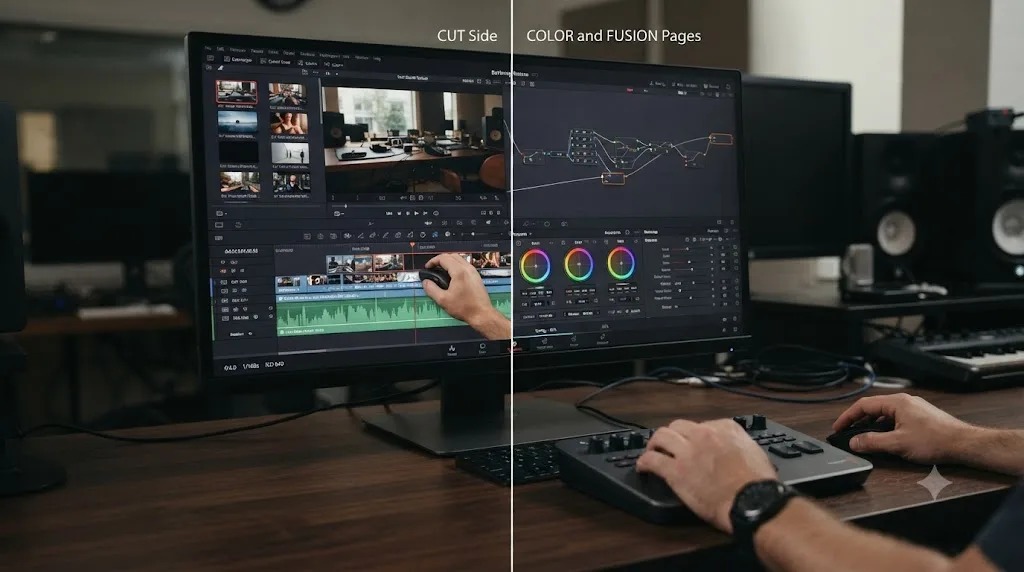
Does Live Save behave differently on a network drive or slow storage?
Yes, and this is one of the more practical, least discussed reasons editors end up disabling it.
Live Save's instant writes on the Cut, Edit, and Fairlight pages assume the write itself is fast, because it's writing to your local project database on local storage most of the time. Point that same database at a network share, a NAS, or a slow external drive, and every one of those instant writes now has to complete over a network connection or a slower interface before Resolve considers the action finished. A guide on fixing slow DaVinci Resolve performance puts the general principle plainly: "if your media, cache, project backups, or exports live on a slow HDD, unstable external drive, or almost-full SSD, Resolve stutters, errors show up, and renders fail without warning" (Cutsio), and a project database on a slow location is a direct application of that same principle to every Live Save write specifically.
A related Blackmagic Forum thread, "Resolve Freezes when Saving on a Server", documents this exact pattern with a project database hosted on server storage rather than a local drive. Some editors dealing with this have reported disabling Live Save and switching to manual saves every 10-15 minutes as a practical workaround, trading Live Save's continuous coverage for an interface that stops catching on every write (Beginners Approach).
If you recognize this pattern, meaning the interface briefly catches or stutters at moments that don't correspond to anything you're intentionally doing, check two things before assuming Live Save itself is the problem. First, confirm your project database actually lives on the drive you think it does; Resolve's Project Manager location isn't always obvious at a glance. Second, rule out a nearly full destination drive, since a database write competing for space on an almost-full volume produces similar symptoms to a genuinely slow one. Our guide to preventing DaVinci Resolve project corruption covers drive placement and free space in more depth, since the same underlying weak point, an interrupted or slow write to the database, is what both a corruption risk and a Live Save stutter share.
If the database location checks out and the stutter is still there, disabling Live Save and manually saving on a short interval is a reasonable, documented tradeoff specifically for this scenario, not a universal recommendation.
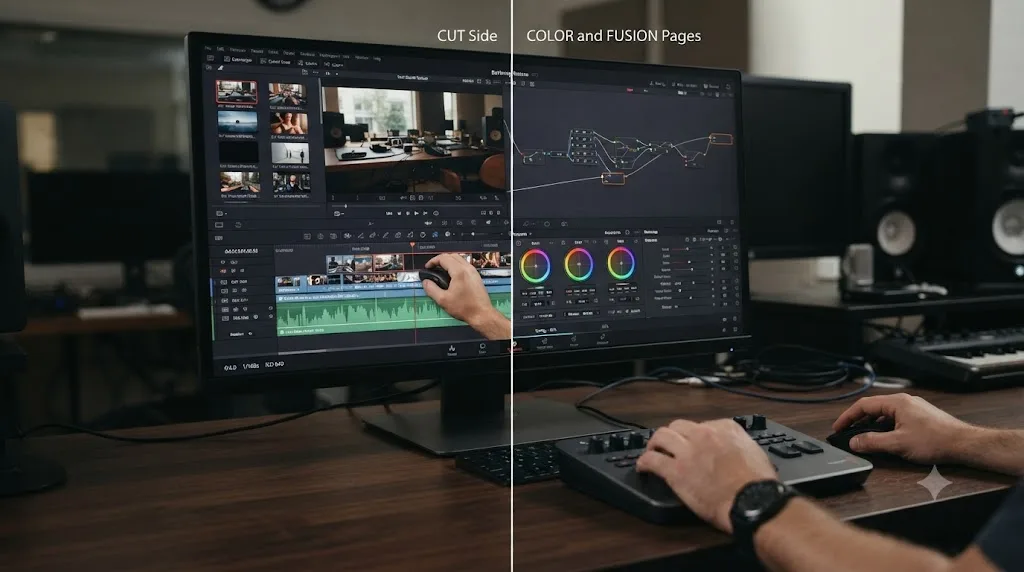
Does Live Save work differently in Multi-User Collaboration or Blackmagic Cloud?
Yes, and this is the one situation on this page where you don't actually get a choice.
According to Blackmagic's manual, "when you use Collaborative Workflow to enable multiple artists to work together in the same project, Live Save is automatically turned on and cannot be disabled" (DaVinci Resolve Manual, mirrored). That applies whether your team is on a local network setup or Blackmagic Cloud, since both run through the same underlying collaboration system, and both count as a Network or Cloud project library rather than a Local one.
The reasoning makes sense once you think through what collaboration actually requires. Multi-User Collaboration's bin and timeline locking system depends on every collaborator's changes committing to the shared database quickly and continuously, so locks release and updates propagate without a manual save step someone might forget to trigger. Turning Live Save off in that context wouldn't just remove a convenience, it would break the coordination the whole feature depends on. If a locked bin or timeline is what's actually giving you trouble in a shared project, that's a separate, unrelated mechanism worth understanding on its own terms; see our guide to DaVinci Resolve Collaboration Mode timeline locked for that specific problem.
In a solo project, Live Save is a choice you can reconsider based on your own workflow. In a shared project, it's infrastructure someone else's edits depend on. Don't go looking for a workaround to disable it inside Collaborative Workflow. There isn't one, and the reason there isn't one is the same reason the feature works at all in that mode.
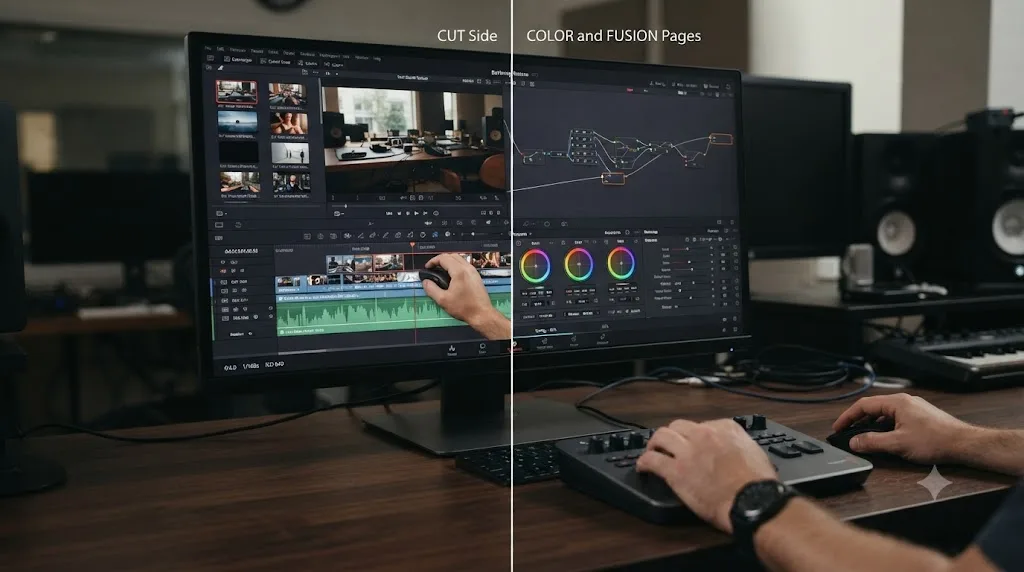
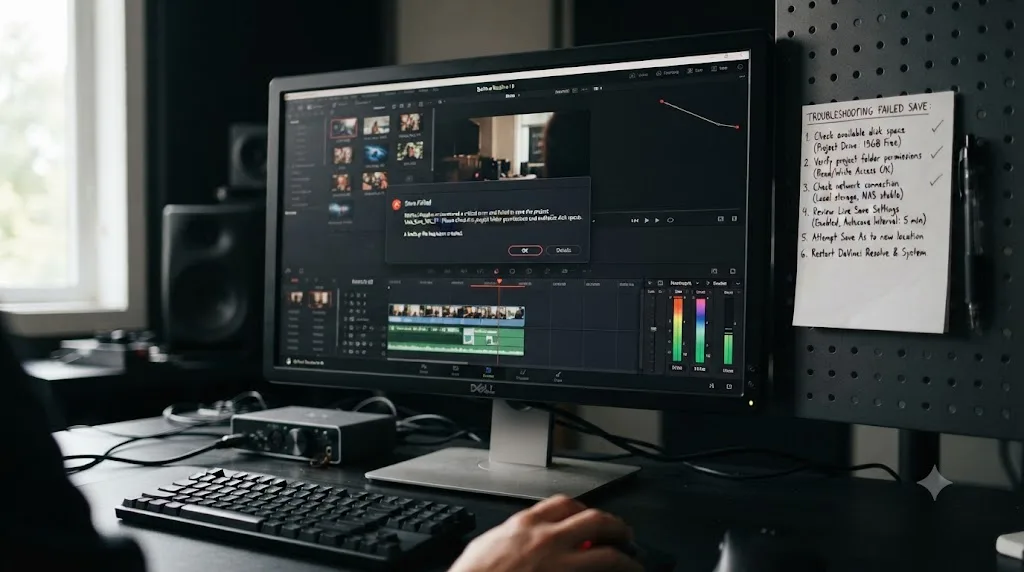
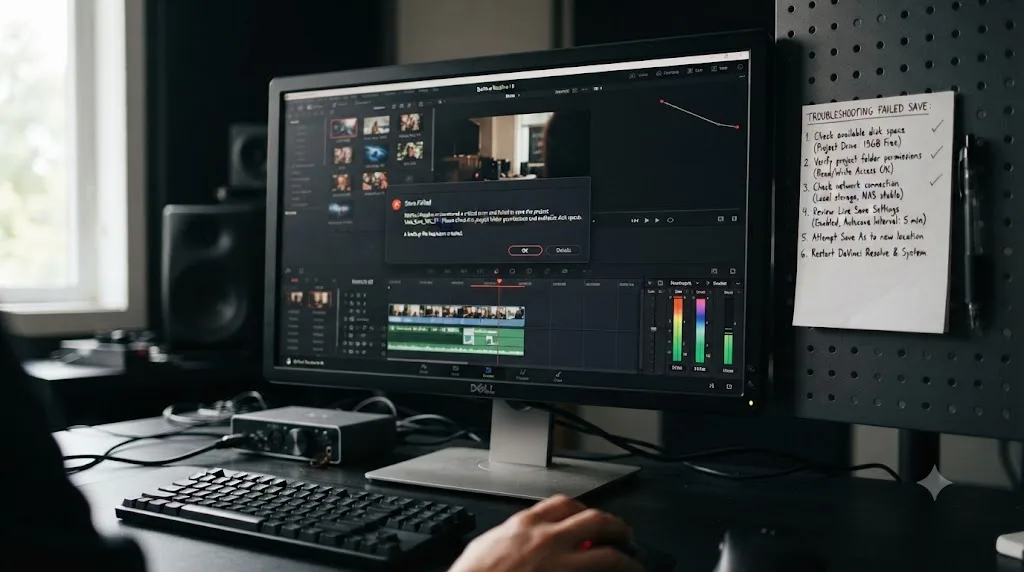
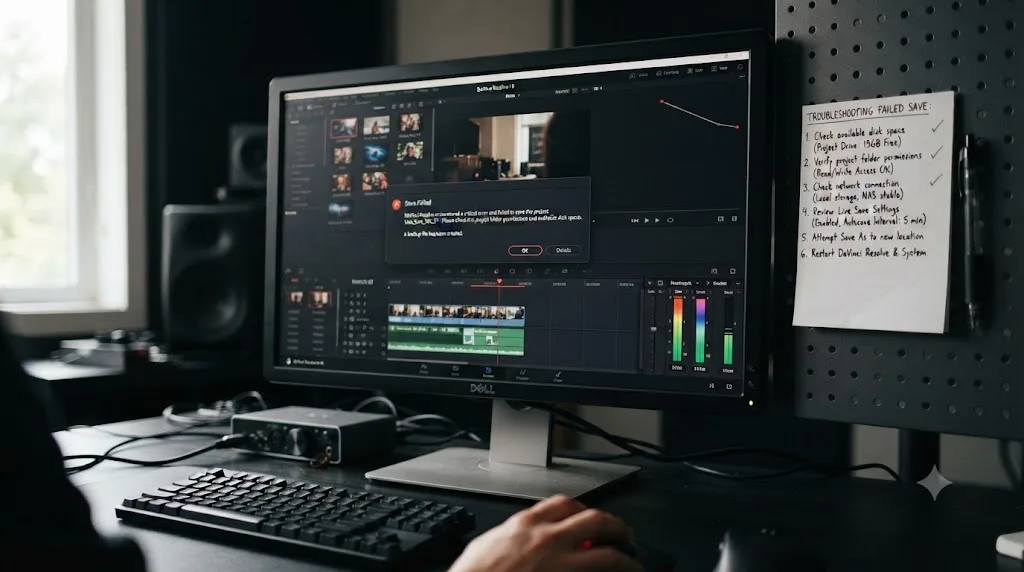
What do you do when Live Save stops working or throws a save error?
Live Save failing outright is rare, but it does happen, and when it does, it happens at the worst possible moment: exactly when you assumed you were covered.
A real Blackmagic Forum thread titled "PostgreSQL - Live save won't allow save and crash" describes precisely that scenario: an editor working against a shared PostgreSQL project library found Live Save refusing to save at all, with the app eventually locking up, while manual saves were equally blocked. That's the nightmare version of every reassurance earlier in this guide, and it's worth a checklist rather than a shrug.
If Live Save appears to have stopped working, or you see an explicit save error, work through these in order rather than guessing:
- Check free disk space first. Resolve "constantly writes cache files, optimized media, render files, and backups," and a nearly full drive produces save failures that look identical to a Live Save bug (SafeBoxGuide). Aim for 15 to 20 percent free on whatever drive holds your project library.
- Check permissions on the project library's folder or database, especially if you recently updated the OS or moved the database to a new drive. A permission change that blocks writes will silently break Live Save without any obvious error pointing at the real cause.
- If you're on a Network or Cloud project library, check the connection itself before anything else. Is the Project Server machine actually reachable on the network? If you're on Blackmagic Cloud, is there a known outage? Live Save writes here depend entirely on that connection staying up.
- Rule out a version mismatch if the error specifically mentions the database being incompatible. A shared PostgreSQL server and every workstation connecting to it need to agree on a compatible Resolve version; a server that hasn't been updated alongside a client that has is a documented cause of exactly this kind of refused save.
- Rule out a disconnected or nearly full external drive if your database happens to live there, whether that was intentional or an old default nobody moved.
- Confirm Live Save and Project Backups are still actually checked. An OS update, an app update, or a preferences file carried over from a much older install can silently revert either one, as covered earlier in this guide. Don't just trust the checkbox either: open Other Project Backups from the Project Manager and check the timestamps on what's actually there. A checkbox that's ticked but hasn't produced a new backup in hours is a bigger red flag than the same checkbox unticked, because it means something is silently failing rather than honestly telling you it's off.
- If none of that resolves it, stop editing and restart Resolve completely, rather than continuing to work against a database that isn't accepting writes. Every action you take against a connection that's already broken widens the gap between what's on your screen and what's actually saved anywhere.
A save error you dismiss and keep working through is worse than one that stops you cold, because every edit made after it piles onto a foundation that was never actually written down. Treat any save error as a hard stop, not a notification to acknowledge and ignore.
What are the recommended Live Save and backup settings for most editors?
Given everything above, here's the practical default worth running unless you have a specific reason to deviate.
| Setting | Recommended value | Reasoning |
|---|---|---|
| Live Save | On, for Cut/Edit/Fairlight-heavy work | Minimal cost, meaningful protection against crashes and forgotten saves |
| Live Save | Off, only during exploratory color grading sessions where you want a real revert point | Trades continuous protection for the ability to bail out cleanly |
| Project Backups | On, interval set to 5-10 minutes | Shorter than most factory defaults, and the actual rollback mechanism Live Save doesn't provide |
| Timeline Backups | On, especially for long-form or heavily graded timelines | Scoped protection for a single timeline without touching the whole project |
| Load Settings (all timelines on open) | Off for large multi-timeline projects, on for small ones | Performance tradeoff, not a safety setting |
That general-purpose table covers most editors, but your actual risk profile shifts with your situation. Here's the same advice broken down by who's actually sitting at the keyboard.
| Your role | Live Save | Project Backups interval | Timeline Backups | Extra note |
|---|---|---|---|---|
| Solo YouTuber or content creator | On | 10 minutes | On for your main deliverable timeline | You're the only safety net besides these three settings, so don't skip any of them to save a menu click |
| Freelance editor on client-owned machines | On | 5 minutes | On | You may not control the drive the database sits on, so check free space and drive type on someone else's machine before you assume it behaves like yours |
| In-house colorist on shared or network storage | Case by case, see the network-drive section above | 5-10 minutes | On, especially for long-form grades | Watch for interface stutter as your first signal something's wrong, not a crash |
| Small facility running Collaborative Workflow | Forced on, not your choice | Still worth setting short regardless | On per timeline | Live Save here is shared infrastructure; treat any save error as urgent for the whole team, not just you |
None of this replaces judgment. It's a starting point for a setting most editors never revisit after their first week with the software, which is exactly how a preferences file quietly drifts away from what you'd choose today.
Maurizio Mercorella, a freelance colorist, describes his own reliance on Live Save in plain terms: "DaVinci Resolve takes care of constantly saving your project so, if anything should happen, you will not lose absolutely anything" (Maurizio Mercorella). That's a fair description of what Live Save does for the ordinary case, a crash, an app quit, a forgotten save. It's a less accurate description for the specific case covered earlier in this guide, an intentional change you later regret, which is exactly why Project Backups and Timeline Backups belong in the same setup rather than sitting disabled underneath Live Save alone.
The safest DaVinci Resolve setup runs Live Save, Project Backups, and Timeline Backups together, not just the one that happens to be on by default. Each one covers a gap the other two leave open, and running only one of the three is how editors end up in the forum threads cited throughout this page.
Do Live Save's settings work the same on Mac and Windows?
Mostly, yes. Live Save, Project Backups, and Timeline Backups are all part of Resolve's cross-platform Preferences system, and the checkbox behavior, default state, and page-by-page save cadence described throughout this page are the same whether you're on macOS or Windows.
The practical differences show up around storage, not the feature itself. Windows users are more likely to run into the network-drive stuttering pattern covered above simply because SMB shares and mapped network drives are more common in Windows-based facility setups, and a project database placed several directories deep on an NTFS volume can separately run into the 255-character path limit covered in our corruption prevention guide, which is unrelated to Live Save but easy to confuse with a save-related problem if you're troubleshooting under pressure. Mac users on an external or network volume face the same slow-write risk, just without that specific NTFS path ceiling.
There's one more cross-platform wrinkle worth knowing if you ever move a Local Project Library on an external drive between a Mac and a PC. exFAT is the one file system both platforms read and write natively, and a drive formatted any other way, NTFS on Mac without third-party drivers, or a Mac-formatted APFS drive on Windows, doesn't just fail to open, it can produce exactly the kind of interrupted-write symptoms covered in the troubleshooting checklist above, without Live Save actually being the cause.
Neither platform changes what Live Save actually does. Both just change how likely you are to be running it on storage where its constant small writes become noticeable.
Can an app help you configure these settings correctly while you're actually editing?
Reading a settings page like this one covers the concepts. It doesn't tell you what's currently checked on your own machine, in your own current project, at the exact moment you're wondering.
TryUncle is the on-screen assistant for DaVinci Resolve on macOS. Ask in plain words, and Uncle points at the exact control on your screen. If you're not sure whether Live Save is currently on, or whether your Project Backups interval is still set to whatever shipped as default months ago, that's exactly the kind of question Uncle answers live, inside your actual Preferences panel, rather than making you compare this article's screenshots against your own screen by hand.
This sits in a genuinely different category than most tools people mean when they ask about an AI tool to learn DaVinci Resolve. Sottocut and cutagent.ai automate specific editing tasks directly on your timeline rather than teaching you the settings behind them. heyeddie.ai and general chat assistants answer typed questions with no view of your actual project, so they can describe where Live Save lives in the menus but can't confirm what yours is currently set to. PremiereCopilot targets a different NLE entirely. TryUncle's Uncle watches your DaVinci Resolve screen while you work and can point at your Project Save and Load preferences the same way it points at any other control, which is what makes it useful for a settings check like this one, not just for learning a new effect. Our fuller comparison of AI tools to learn DaVinci Resolve covers where each of these actually fits.
Guided practice inside Resolve beats guessing at a preferences panel from memory. That's true for a keyframe technique, and it's just as true for confirming a save setting before it costs you a session.
TryUncle is a paid subscription at $34.99 a month, cancel anytime, per TryUncle. It's macOS only, and it needs an internet connection to work. If you've never opened Project Save and Load, or you inherited a Resolve install someone else configured, that's a reasonable moment to have something point at the actual checkbox instead of trusting what a guide like this one assumes your screen looks like.
The short version
Live Save is DaVinci Resolve's continuous, no-prompt autosave, on by default, instant on Cut, Edit, and Fairlight, and clip-switch or periodic on Color and Fusion. It has no rollback of its own, which is exactly what Project Backups and Timeline Backups exist to provide, both off by default and both worth turning on alongside it, not instead of it. Turn Live Save off only for a specific reason, a demo, an exploratory grading session where you want a clean revert point, or a genuinely slow network database, and replace it with a real habit of manual saves when you do. Leave it on everywhere else, and check the box yourself rather than trusting a factory default you've never actually looked at. The same logic extends to where that project library actually lives and what other tools you bounce work through, whether that's Fusion Studio or a shared PostgreSQL server: know what's actually protected before you assume everything is.
Frequently asked questions
- What does Live Save actually do in DaVinci Resolve?
- It saves your project continuously, with no Ctrl+S required. On the Cut, Edit, and Fairlight pages, every change writes to the project database as soon as you make it. On the Color and Fusion pages, it saves when you switch to a different clip and periodically in the background while you stay on the same one, so you're never more than a few seconds of work from a saved state.
- Is Live Save on by default in DaVinci Resolve?
- Yes, according to Blackmagic's own manual, Live Save ships enabled and Blackmagic recommends leaving it on. A handful of forum reports describe opening Preferences and finding it unchecked, usually after an upgrade that carried over an older preferences file, so it's worth a 30-second glance rather than assuming your install matches the factory default.
- Does Live Save replace Project Backups and Timeline Backups?
- No. Live Save keeps one continuously updated copy of your project, current, not versioned. Project Backups and Timeline Backups are both off by default and create separate, timestamped snapshots you can roll back to. Live Save answers 'did my work just get saved.' Backups answer 'can I get back to how this looked twenty minutes ago.' You want both running, not one instead of the other.
- Why did Live Save save something I didn't want it to?
- Because it has no concept of intent. If you delete every clip from a sequence planning to close without saving, Live Save saves that deletion anyway, the moment you make it, before you've decided whether you actually wanted to keep the change. Multiple editors have described exactly this on the Blackmagic Forum, including one who lost a five-hour grading session to an accidental all-clips correction with nothing to revert to.
- Should I turn off Live Save if my project database is on a network drive?
- Consider it. Some editors report Resolve pausing or stuttering for several seconds at a time when Live Save writes constantly to a database on a slow network share or NAS, because every incremental write has to complete over the network instead of to local disk. If you're on shared or network storage and feel the interface catching on saves, disabling Live Save and saving manually every few minutes is a documented workaround, though it trades that smoothness for the risk of losing more work between saves.
- Does Live Save behave differently in Multi-User Collaboration?
- Yes. When Collaborative Workflow is enabled, whether on a local network or Blackmagic Cloud, Live Save turns on automatically and the checkbox to disable it disappears. That's deliberate: multiple people editing the same shared bins need every change committed continuously so locks and updates stay in sync, so Resolve doesn't give you the option to opt out in that mode.
- How do I turn Live Save off, and when should I?
- Open Preferences > User > Project Save and Load and uncheck Live Save. The main documented reasons to do it are running a demo where you don't want changes kept, wanting a real 'Revert to Last Saved Version' to fall back on during exploratory grading, or working around a slow network database. If you turn it off, replace it with a habit of manual Cmd/Ctrl+S every few minutes and keep Project Backups running regardless.
- Is there an app that helps you while using DaVinci Resolve get settings like this right?
- Yes. TryUncle is a paid macOS app whose assistant, Uncle, watches your DaVinci Resolve screen and can point at your Project Save and Load preferences live, on your actual project, so you can confirm what Live Save, Project Backups, and Timeline Backups are currently set to without hunting through a menu from memory.
Sources
- DaVinci Resolve Manual: Live Save (Blackmagic Design, mirrored)
- DaVinci Resolve Manual: Project Save and Load (Blackmagic Design, mirrored)
- DaVinci Resolve Manual: Project Backups (Blackmagic Design, mirrored)
- Larry Jordan: Managing Projects in DaVinci Resolve – Backups, Exports and Archives
- Larry Jordan: How I Lost All My DaVinci Resolve Projects – and How You Can Save Yours
- Maurizio Mercorella: 3 Must-Know DaVinci Resolve Features for Optimizing Your Color Grading Workflow
- Blackmagic Forum: Live Save destroyed my 5 hour grading session
- Blackmagic Forum: How Resolve's "live save" feature effed me
- Blackmagic Forum: Why you should deactivate "live save" in your preferences
- Blackmagic Forum: Live Save - Autobackup issue
- Blackmagic Forum: Live Save not turned on by default??
- Blackmagic Forum: Auto Save is dangerous to be on as a default setting
- Blackmagic Forum: improve the "revert to last saved" with "live save"
- Blackmagic Forum: Resolve Freezes when Saving on a Server
- Beginners Approach: How to AutoSave in DaVinci Resolve (+Tips & FIXES 2025!)
- Cutsio: How to Fix Slow Performance in DaVinci Resolve
- Adobe Help: Configure Auto Save preferences in Premiere Pro
- Apple Support: Save and back up projects in Final Cut Pro for Mac
- Avid Knowledge Base: How to configure auto-save in Media Composer
- Chris Nicholas: Avid Editing Notes - Auto Save
- Daniel Grindrod: Databases Explained - Getting Started in DaVinci Resolve (Part 1)
- DaVinci Resolve Manual: What is a Project Library? (Blackmagic Design, mirrored)
- DaVinci Resolve Manual: Local Project Libraries (Blackmagic Design, mirrored)
- Blackmagic Forum: PostgreSQL - Live save won't allow save and crash
- SafeBoxGuide: DaVinci Resolve Projects Not Saving? Causes and Fixes
- Blackmagic Design: Fusion 7 User Manual (File > Save / Save As)
- VFXstudy: DaVinci Resolve and Fusion Studio Combined - Best of Both Worlds
Learn by doing, not watching
Stop translating tutorials to your timeline.
TryUncle stays beside Resolve on Mac and Windows. When you ask, Uncle sees your screen and points at the exact control you need. No hunting through tabs, timestamps, or mismatched tutorials.
Meet TryUncleKeep reading
 FixesJul 16, 202630 min read
How to Prevent DaVinci Resolve Project Corruption
The real causes of DaVinci Resolve project corruption, from cloud-synced databases to power loss, and the exact habits that prevent it in 2026.
 GuidesJul 12, 202638 min read
How to Archive a DaVinci Resolve Project Without Losing Media
The right way to archive a DaVinci Resolve project so every clip travels with it: Export Project Archive vs Media Management vs Backups, compared.
 FixesJul 11, 202628 min read
DaVinci Resolve Collaboration Mode Timeline Locked: The Fix
Why DaVinci Resolve locks a timeline, or a whole bin of them, in Multi-User Collaboration, and the fix: give each active timeline its own bin.