
Learn / DaVinci Resolveupdated for DaVinci Resolve 21.0.2 (July 2026)
DaVinci Resolve Is Unable to Run in CUDA Mode: The Fix
Quick answer
DaVinci Resolve shows this error when your NVIDIA driver, its CUDA level, or your GPU's compute capability falls below what your Resolve build requires, or Resolve picked the wrong GPU. Open Preferences > System > Memory and GPU, manually set GPU Processing Mode instead of Auto, update to the current NVIDIA Studio Driver, and confirm the correct GPU is selected.
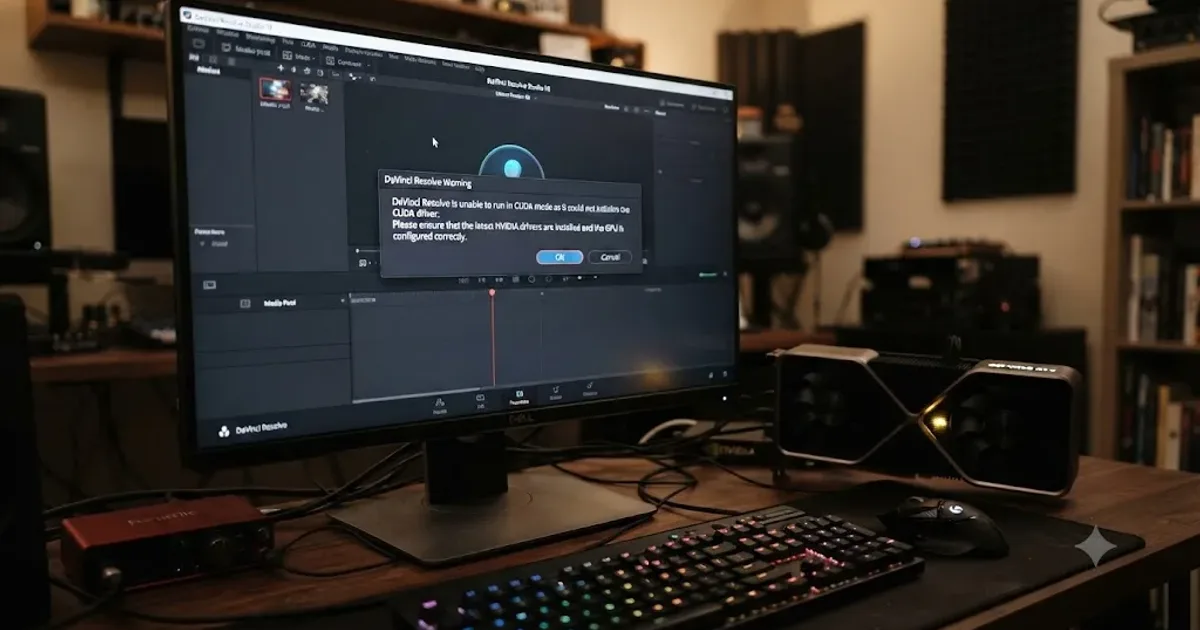
Resolve opens. Before your project even loads, a dialog stops you cold: unable to run in CUDA mode, installed NVIDIA driver incompatible. You just updated your driver last week. The GPU sitting in this machine is nowhere near old. And yet here's Resolve, refusing to use it the way you expected.
Here's the good news first. This isn't a crash, and it almost never means your GPU is dying. It means Resolve checked a specific bar, your driver version, your CUDA level, or your GPU's compute capability, and one of those three didn't clear it. Every fix on this page traces back to identifying which one.
What does "DaVinci Resolve is unable to run in CUDA mode" actually mean?
The exact wording you're seeing traces to a specific, well-documented dialog: "DaVinci Resolve is unable to run in CUDA mode as the installed NVIDIA driver is incompatible. Please upgrade your NVIDIA driver for optimal performance," according to DownloadSource.net's walkthrough of the error. Resolve doesn't just refuse to open. It falls back to OpenCL automatically and tells you it did, which is why the app still launches even while showing you this warning.
A CUDA mode warning is Resolve gracefully degrading to a slower processing path, not Resolve failing to start. That distinction matters, because it changes how urgently you need to act. You can keep working on OpenCL today and fix the underlying mismatch this afternoon, rather than treating this as a blocking emergency.
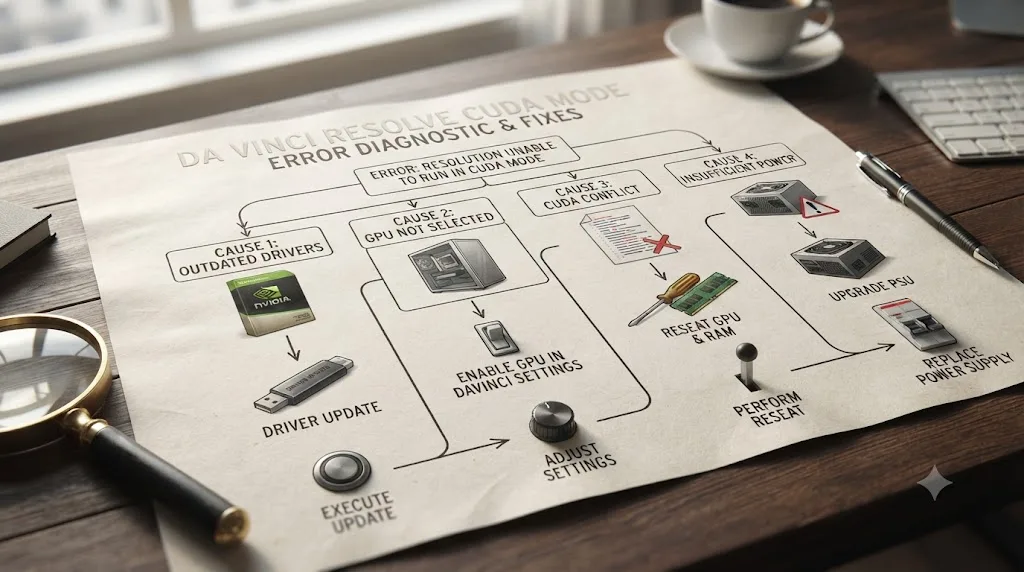
Four separate root causes produce this exact wording, and they need different fixes:
| Root cause | What triggers it | Fastest fix |
|---|---|---|
| Driver version too old for this Resolve build | Studio Driver installed but below the minimum this Resolve version enforces | Update to the current NVIDIA Studio Driver |
| Wrong driver family entirely | Game Ready driver installed instead of Studio Driver | Install the Studio Driver, not just any update |
| GPU below the CUDA compute capability floor | Older NVIDIA card, especially Kepler-generation GTX 600/700-series parts | Switch to OpenCL, or run an older Resolve version |
| Wrong GPU selected | Hybrid laptop graphics, or a multi-GPU desktop defaulting to the wrong card | Manually set GPU selection in Preferences |
Work through this page in that order. The first two account for most reports across troubleshooting sites and forums, and they're also the fastest to rule out.
Is this the same thing as "Unsupported GPU Processing Mode"?
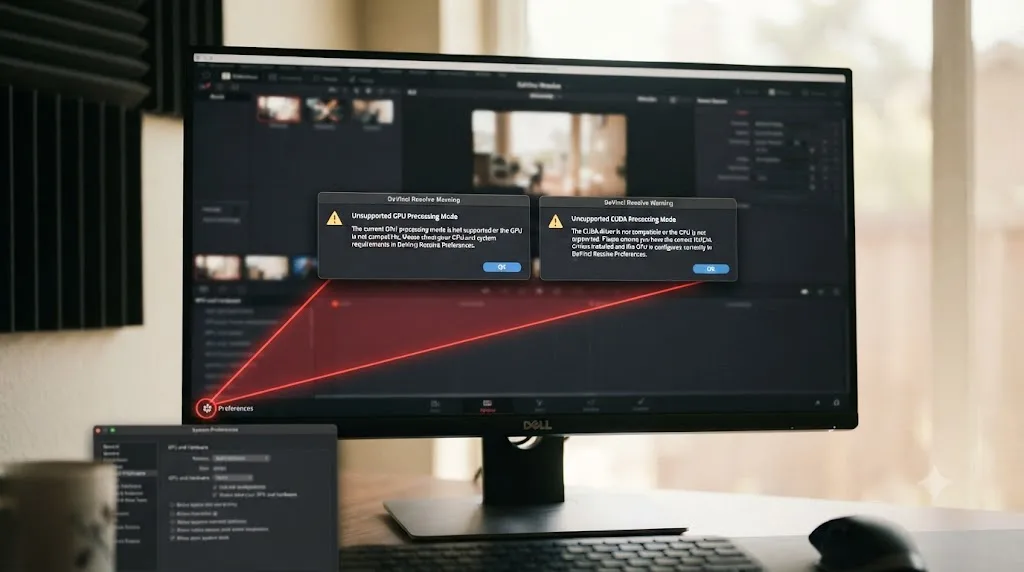
Yes, functionally, even though the wording differs. "Unsupported GPU Processing Mode" is Resolve's more generic version of this same warning family, and it appears when the graphics driver returns an incorrect response that blocks CUDA access, according to The Geek Page's breakdown of the error, by Sambit Koley, which describes the underlying trigger as Resolve simply being unable to recognize the GPU it's been handed. "Unable to run in CUDA mode as the installed NVIDIA driver is incompatible" is the more specific version, naming CUDA directly because that was the exact mode Resolve was attempting when it failed.
Whichever exact wording your dialog shows, both trace to the same panel and the same fix: Preferences > System > Memory and GPU. You don't need to figure out which specific phrasing you have before acting. The remediation path is identical either way.
One thing both versions share: neither one is unique to NVIDIA hardware in the generic form. AMD GPUs can trigger "Unsupported GPU Processing Mode" through AMD Adrenalin driver inconsistencies, though the CUDA-specific wording is, by definition, an NVIDIA-only failure, since CUDA itself is NVIDIA's proprietary framework and doesn't exist on AMD or Intel silicon at all.
How do you manually switch DaVinci Resolve's GPU Processing Mode?
This is the fastest fix on this page, and it's worth doing first regardless of what's actually causing the mismatch, since it clears the warning immediately while you investigate the rest.
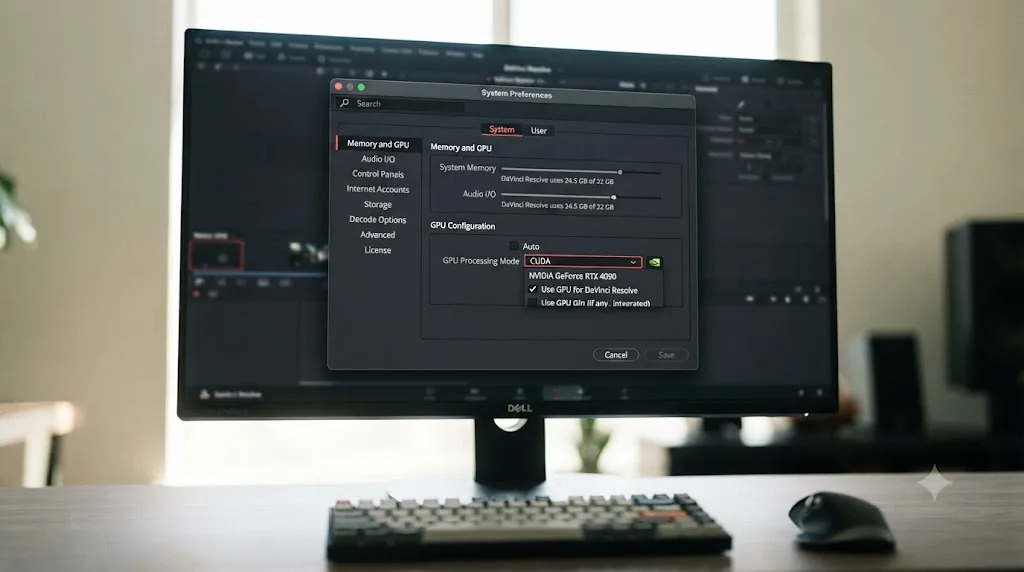
- Open DaVinci Resolve, then go to DaVinci Resolve (or the hamburger menu on Windows) > Preferences > System > Memory and GPU.
- Look for the GPU Configuration section. If you see an "Update Configuration" button on the warning dialog itself, clicking it takes you straight to this panel.
- Find "GPU processing mode" and uncheck the "Auto" box next to it if it's checked.
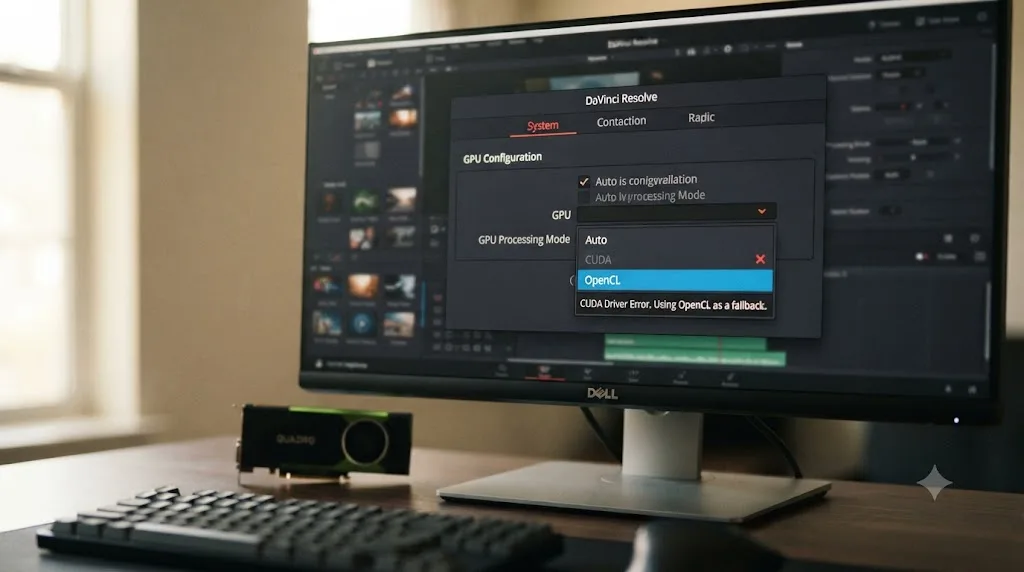
- Choose your mode manually from the dropdown: CUDA if you have an NVIDIA card and want to keep trying it, or OpenCL as a working fallback if CUDA keeps failing.
- Under GPU selection, uncheck Auto there too if you see it, and manually pick your primary GPU from the list, or select all detected GPUs if your system has more than one, per Appuals' walkthrough of this fix.
- Click Save, then fully restart DaVinci Resolve, not just close and reopen the project.
Auto is the setting most likely to pick wrong after a driver update, a Windows update, or a new GPU install, precisely because it re-detects hardware every launch instead of remembering what worked last time. Manually pinning your processing mode removes that guesswork entirely, and it's the single change that resolves this warning for the largest share of people who see it.
Why does Resolve call your driver "incompatible" when you just updated it?
If manually setting the processing mode didn't stick, or the warning came back on the next launch, the actual problem is almost always the driver itself, not the toggle. There are two distinct ways a driver update can leave you exactly where you started.
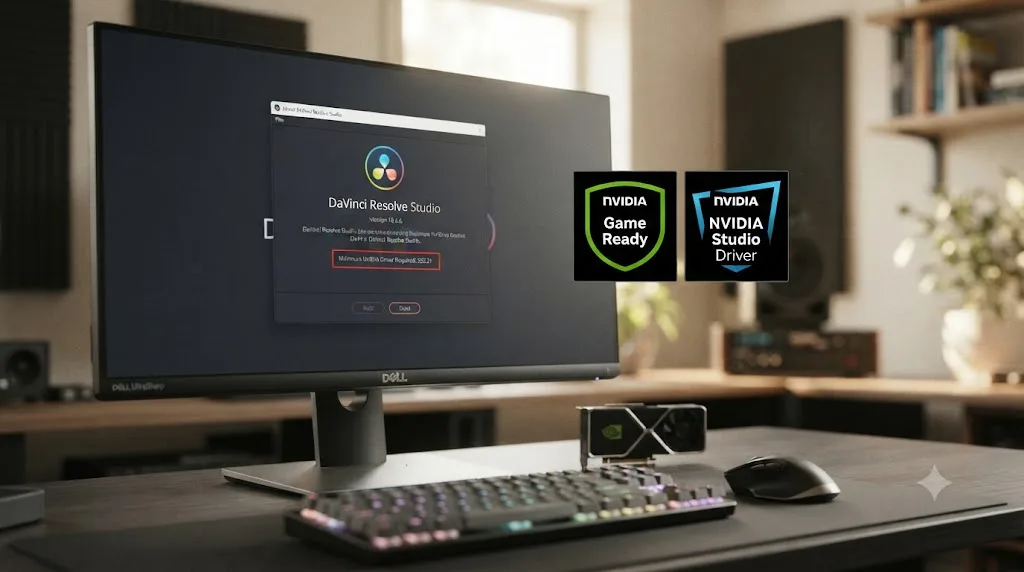
Wrong driver family. NVIDIA ships two separate driver lines for the same card: Game Ready, built and shipped around day-one gaming performance, and Studio, tested specifically against creative applications including Resolve. Matt Bach, senior hardware analyst at Puget Systems, which benchmarks editing workstations professionally, put the tradeoff bluntly after a 2021 Game Ready release broke creative apps industry-wide: "The Studio drivers are far more stable in creative applications, and there is almost never a performance advantage to using the Game Ready drivers," according to Puget Systems' guide to that driver incident. If you clicked "update driver" through Windows Update or GeForce Experience without deliberately choosing Studio, there's a real chance you landed on Game Ready without realizing it. NVIDIA's own marketing for the Studio line describes exactly what you're missing: "Designed for creators, NVIDIA Studio Drivers are GPU-tuned updates that ensure rock-solid stability and peak performance for every creative workflow," per NVIDIA's Studio Driver announcement.
Below the version floor Resolve enforces. Blackmagic moves the minimum required driver version forward with nearly every Resolve release, since newer builds depend on CUDA capabilities only shipped in newer drivers. As of Resolve 21, the published requirement is a GPU supporting CUDA 12.8 or OpenCL 1.2, alongside NVIDIA Studio Driver 570.65 or newer on Windows and 570.26 or newer on Linux, according to DaVinci Resolve Club's 2026 system requirements guide. A driver that was current for Resolve 19 or 20 can sit below that floor the moment you update to 21, even though nothing about your driver changed.
| Check | Where to look | What it tells you |
|---|---|---|
| Driver family | NVIDIA app or Control Panel > Help > System Information | Studio or Game Ready, named directly |
| Minimum driver version required | DaVinci Resolve > About DaVinci Resolve Studio | The exact floor for your installed Resolve build |
| Your installed driver version | Same System Information panel | Compare directly against the About dialog number |
Never assume a driver is current just because you updated it recently. Compare the exact version number in About DaVinci Resolve Studio against what NVIDIA Control Panel actually reports installed. Those two numbers disagreeing is the single most common reason this warning survives a driver update.
Is your GPU too old to support CUDA in DaVinci Resolve 21?
Sometimes neither the driver family nor the version is the problem. Sometimes the GPU itself has aged out of what CUDA supports, and no driver update, however current, brings that support back.
This has happened before, at a documented, specific point in Resolve's own history. Starting with Resolve 16.2.7, Blackmagic began enforcing CUDA 11 as its Windows floor, which required a GPU with compute capability of at least 3.5, according to Beginners Approach's breakdown of DaVinci Resolve's GPU eligibility requirements, alongside a minimum driver version of 451.82. Anyone on a card below that compute capability line found CUDA simply stopped being an option overnight, even on a fully updated system.
The same pattern is playing out again, one generation further along. NVIDIA's own current CUDA compute capability listings, at NVIDIA Developer's CUDA GPUs reference, organize supported cards starting from Turing-generation compute capability 7.5 upward, with earlier architectures pushed to a separate legacy reference entirely. Kepler-generation cards, the GTX 600 and 700-series parts that only barely cleared the 3.5 floor CUDA 11 required, have been dropped from current CUDA toolkit support altogether. Since DaVinci Resolve 21 requires CUDA 12.8 specifically, a Kepler card that technically ran Resolve 17 through CUDA 11 may not clear CUDA 12.8's floor no matter what driver you install.
A real thread on the Manjaro Linux Forum shows exactly this pattern playing out on a specific card: a user running a GeForce GT 710 alongside a newer GTX 1070 found the GT 710 reported as CUDA-incapable, and another forum member explained why directly: "that GPU has the 3.5 compute capability... the issue is that works properly only with the 390xx Nvidia Driver, but then if is earlier version will not be supported by the latest CUDA toolkit version that requires 3.7 compute capabilities," according to the thread on Manjaro Linux Forum's discussion of DaVinci Resolve reporting no CUDA-capable GPUs. That's the exact mechanism: a genuinely working, correctly driven GPU that simply sits below whatever compute capability the current CUDA toolkit demands.
A GPU falling below Resolve's current CUDA compute capability floor is not a driver bug you can patch your way out of. It's a hardware ceiling, and the only two ways past it are switching to OpenCL or running an older Resolve version that still supports your card's CUDA generation. Check your exact GPU model against NVIDIA's current compute capability listing before you spend another evening reinstalling drivers that were never going to fix this.

Why does this happen on a laptop with two GPUs?
If you're troubleshooting this on a laptop, there's a fourth cause worth checking specifically, one that has nothing to do with your driver version or your GPU's age, since both can be perfectly correct and you'll still see the warning.
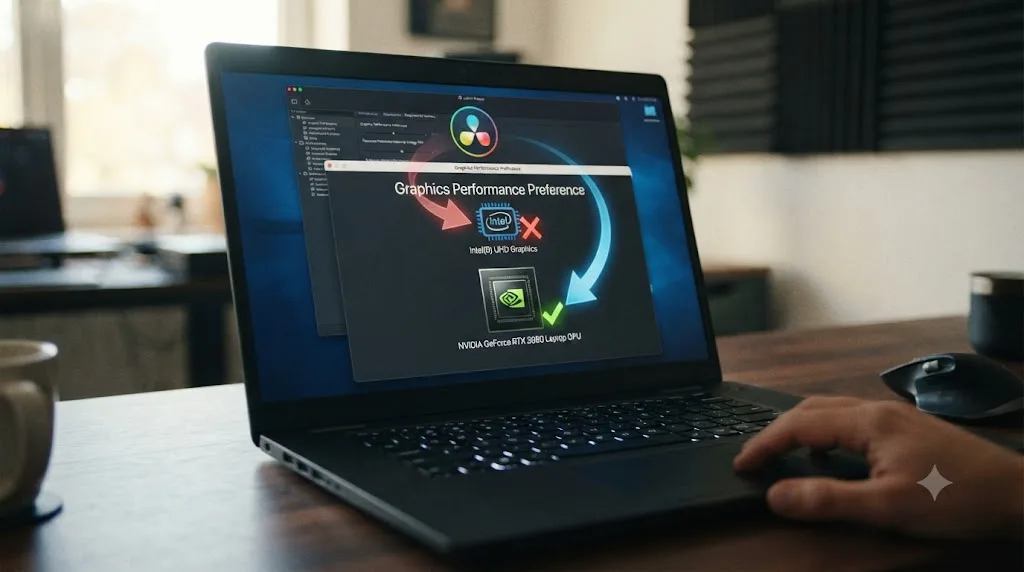
Most gaming and creator laptops ship with two separate GPUs: a weaker integrated chip built into the CPU, and a dedicated NVIDIA card meant for real workloads. Windows is supposed to hand each application the right one automatically. Resolve is demanding enough, and the handoff logic imperfect enough, that it sometimes gets routed to the integrated chip instead, which has no CUDA support of its own at all, since CUDA is exclusively an NVIDIA technology and most integrated graphics on Intel or AMD chips aren't NVIDIA silicon.
On a laptop, DaVinci Resolve reporting it can't run in CUDA mode while your dedicated NVIDIA card sits idle in Task Manager is a strong sign Resolve is looking at the wrong GPU entirely, not that your actual card has a problem. Fix this from both directions, since either alone can be incomplete depending on how your specific laptop's GPU switching is configured:
- Inside Resolve, go to Preferences > System > Memory and GPU, uncheck Auto under GPU selection, and manually choose your dedicated NVIDIA card from the list rather than leaving detection automatic.
- In NVIDIA Control Panel, go to Manage 3D Settings > Global Settings, and set Preferred Graphics Processor to "High-performance NVIDIA processor" instead of the auto-select default.
- If the warning persists after both changes, check Windows' own Graphics Settings (Settings > System > Display > Graphics) and manually assign DaVinci Resolve's executable to your high-performance GPU there as well, since Windows maintains its own separate per-app GPU preference outside of NVIDIA Control Panel.
Why is DaVinci Resolve unable to run in CUDA mode on Linux specifically?
Linux adds its own distinct set of causes on top of everything above, mostly because CUDA on Linux depends on pieces that Windows handles automatically but Linux leaves to you to install and configure correctly.
The open-source driver doesn't support CUDA at all. Many Linux distributions default to the Nouveau open-source driver for NVIDIA cards, and it has no CUDA capability whatsoever. You need NVIDIA's proprietary driver, version 525 or newer as a practical floor, according to Linux Junkies' guide to installing DaVinci Resolve on Linux, which states plainly: "Use the proprietary driver, version 525 or newer. The open-source Nouveau driver will not work." If you've never deliberately installed NVIDIA's proprietary driver on this machine, that's worth checking before anything else, since some distributions ship with Nouveau active by default without asking.
A kernel and driver version mismatch. This has been a recurring, documented pattern on Linux for years. In one specific, well-documented case, a user on NVIDIA's own developer forums described being stuck between two versions that couldn't coexist: "The problem is the Nvidia driver in the CUDA repository is 440.33.01, which will not support Linux Kernel 5.5 and beyond," and further, "I cannot install CUDA now because it requires the 440.33.01 driver, and if I use the 440.33.01 driver linux can't boot into a GUI," according to the thread on NVIDIA Developer Forums covering CUDA, Linux kernel 5.5, and DaVinci Resolve. A separate, similar case on Arch Linux surfaced as a raw CUDA error code rather than Resolve's own dialog wording, logging "Error querying CUDA device count (error 999: 'unknown error')" before the user traced it to their own kernel outrunning their installed driver's support window, according to the thread on Arch Linux Forums about DaVinci Resolve failing to detect a CUDA-compatible GPU. Both cases share the same root shape: a kernel updated ahead of what the installed NVIDIA driver actually supports, which breaks CUDA even on hardware that's otherwise entirely capable.
A missing library path. Even with the right proprietary driver installed, Resolve can fail to find CUDA at runtime with an error reading "Could not load libcuda.so," because the NVIDIA runtime library path isn't cached by the system's dynamic linker yet. The fix is running sudo ldconfig after driver installation, or manually adding /usr/lib/x86_64-linux-gnu/nvidia/current to /etc/ld.so.conf.d/, per Linux Junkies' installation guide.
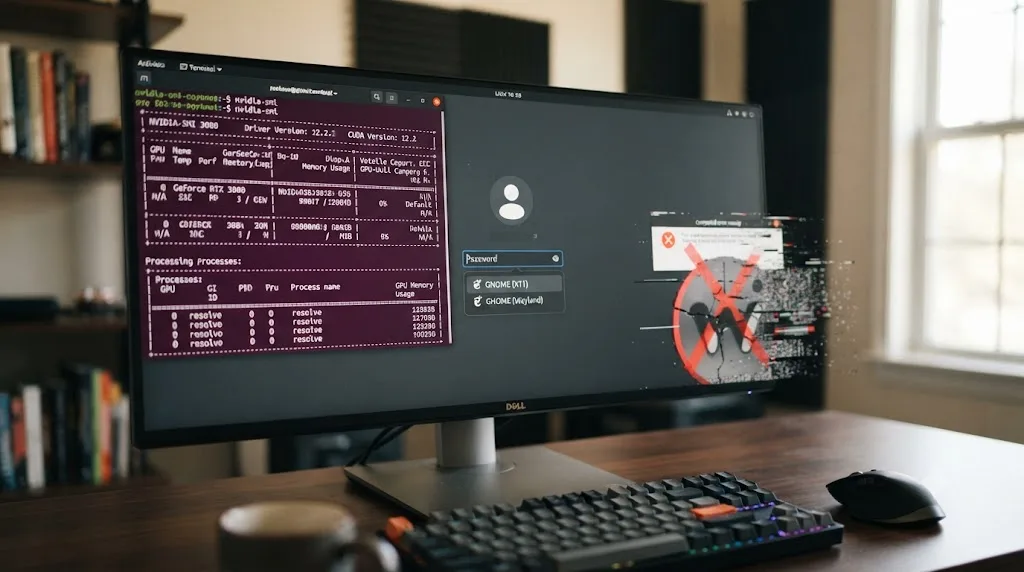
A Wayland session instead of X11. Resolve's installer and runtime are still primarily built around X11, and running under a Wayland session can produce GPU detection problems that look identical to a driver issue but aren't. Log out, select an X11 or Xorg session specifically at your login screen, and log back in before troubleshooting anything else on this list.
| Linux-specific cause | Symptom | Fix |
|---|---|---|
| Nouveau driver active instead of NVIDIA proprietary | No CUDA-capable GPU detected at all | Install NVIDIA proprietary driver, version 525 or newer |
| Kernel updated ahead of installed driver | Error 999, "unknown error" querying CUDA devices | Match kernel and driver versions, or update both together |
| Missing runtime library path | "Could not load libcuda.so" on launch | Run sudo ldconfig, or add the NVIDIA library path to /etc/ld.so.conf.d/ |
| Wayland session | GPU detection problems mimicking a driver issue | Log in through an X11/Xorg session instead |
On Linux, this warning is far more often a packaging or session problem than a genuine driver incompatibility, and the fix is usually a terminal command, not a new driver. Verify with nvidia-smi in a terminal first. If that command reports your card correctly, your driver itself is fine, and the actual cause is almost certainly the library path or session type, not the driver version.
Should you just switch to OpenCL and stop fighting for CUDA?
Sometimes the honest, fastest answer is to stop chasing CUDA entirely rather than keep troubleshooting it, especially on hardware where you've already confirmed a genuine compute capability ceiling rather than a fixable driver problem.
OpenCL 1.2 is Resolve's fully supported, documented alternative processing mode on both Windows and Linux, and switching to it runs the complete application, not a limited or crippled version. The tradeoff is real but narrower than people assume: OpenCL typically runs a step behind a correctly configured CUDA setup on the same hardware for GPU-heavy tasks like Optical Flow, temporal noise reduction, and dense Fusion comps, but for straightforward cuts-based editing and moderate color work, the difference is often small enough not to matter day to day.
Switching to OpenCL is not giving up on your GPU. It's choosing the processing path your specific hardware and driver combination can actually deliver today, instead of one that keeps throwing a warning every time you open the app. If you're on deadline and the CUDA mismatch traces to something you can't fix in the next ten minutes, a laptop's hybrid graphics quirk, a kernel mismatch on Linux, or a GPU below the compute capability floor, set OpenCL manually in Preferences, keep working, and come back to the CUDA question when you have time to do a clean driver install properly.
Does downgrading DaVinci Resolve actually fix an unsupported GPU error?
Sometimes, and it's worth knowing exactly when it will and won't help before you spend time on it, since it's a real fix path for one specific cause on this page and a waste of time for the other three.
Downgrading Resolve helps when your GPU's compute capability is the actual problem. If you've confirmed your card is a Kepler-generation part, or otherwise sits below the CUDA floor your current Resolve version enforces, an older Resolve build that still targets an earlier, lower CUDA requirement genuinely restores CUDA support on that same hardware, since the ceiling is set by Resolve's own version, not by anything on your system you can update forward. Blackmagic's own support page hosts previous Resolve versions for exactly this kind of case.
Downgrading does nothing for the other three causes on this page. A wrong driver family, a driver below the current version floor, or a misdetected GPU on a laptop will follow you into an older Resolve version just as easily, since none of those are about what CUDA level Resolve itself demands. Downgrading also costs you every feature and fix shipped since your target version, which is a real price for a workaround rather than a genuine fix.
Treat a Resolve downgrade as a deliberate, last-resort trade for one specific cause, an aging GPU below the current CUDA floor, not a general troubleshooting step to try before you've actually ruled out the driver and GPU-selection causes above. Confirm your compute capability first. If it checks out fine, downgrading Resolve won't touch whatever's actually wrong.
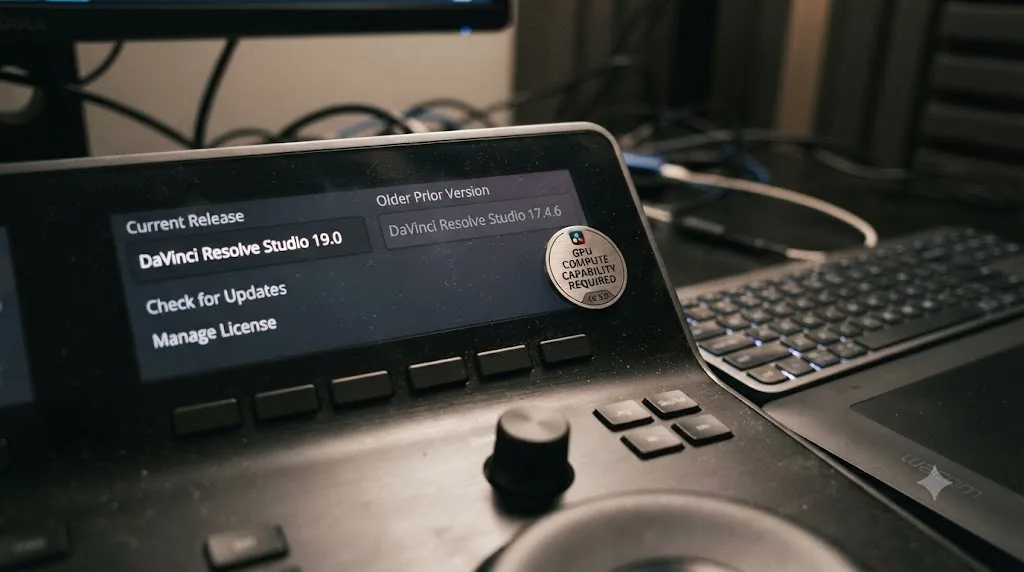
A worked example: diagnosing this on Windows, start to finish
Here's how this plays out on an actual machine, working through the branches above in the order they'd realistically come up.
An editor buys a new laptop with a dedicated RTX card and installs DaVinci Resolve fresh. On first launch, the CUDA mode warning appears immediately, before any project even loads. Rather than guessing, they work the list in order.
- They open NVIDIA Control Panel > Help > System Information and confirm the driver name: it says Game Ready, installed automatically by Windows during initial setup, not something they chose deliberately.
- They check DaVinci Resolve's About dialog for the minimum required Studio Driver version, then go to NVIDIA's driver download page, select their exact card model, and choose Studio Driver specifically this time, not the default recommended download.
- After installing the Studio Driver and restarting, the warning is gone on a simple test project, but reappears specifically when they open a Fusion-heavy timeline from a previous machine.
- They open Preferences > System > Memory and GPU and notice GPU selection is still on Auto, with two GPUs listed: the laptop's integrated chip and the dedicated NVIDIA card. They uncheck Auto and manually select the dedicated card.
- They restart Resolve one final time and reopen the same Fusion-heavy project. It loads clean, with no warning, and GPU Processing Mode now shows CUDA active rather than the OpenCL fallback.
Two separate, stacked problems, a wrong driver family and a misdetected GPU on a hybrid laptop, both needed fixing before the warning actually cleared for good. Neither one alone would have solved it completely.
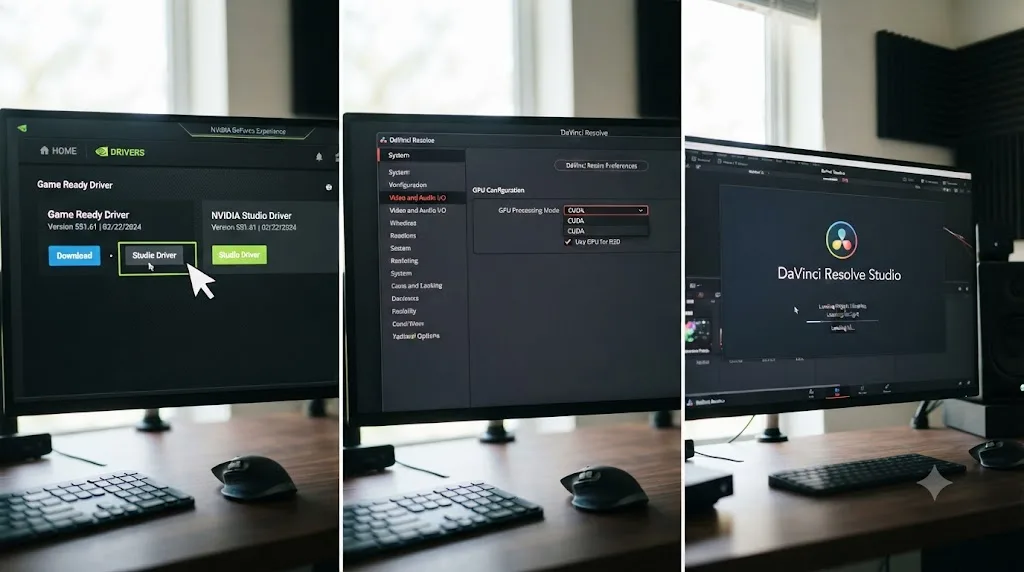
A worked example: diagnosing this on Linux, start to finish
A different editor, running Ubuntu on a desktop with a mid-range NVIDIA card, sees the CUDA warning appear after a routine system update that also bumped their kernel version.
- They open a terminal and run
nvidia-smi. It reports their GPU correctly, with a driver version listed, ruling out a Nouveau-only setup or a fully missing driver. - Resolve still shows the CUDA warning, so they check the Resolve installation log and find a reference to "Could not load libcuda.so," pointing at a library path issue rather than the driver itself.
- They run
sudo ldconfigto refresh the dynamic linker's cache, then relaunch Resolve. The warning persists. - They check their login session type and find they'd been defaulting into a Wayland session since the last system update changed their display manager's default. They log out, select an X11 or Xorg session specifically at the login screen, and log back in.
- Resolve launches clean, with GPU Processing Mode correctly reporting CUDA active, confirming the actual cause was the session type, not the driver or the library path either one.
On Linux, the fastest diagnostic step is always the same: run nvidia-smi first. If it reports your card correctly, you've already ruled out the driver itself as the cause, and the real problem is almost certainly the library path, the kernel and driver version alignment, or the session type, exactly like both worked examples on this page.
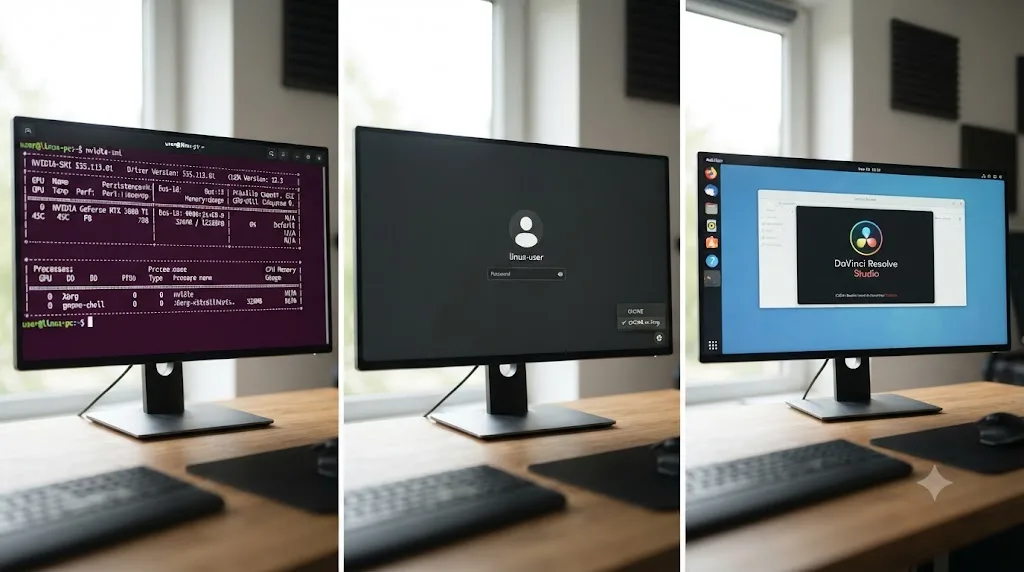
Quick reference: symptom, cause, and fix
Match your actual situation to a row before changing settings, since several of these produce identical wording but need different fixes underneath.
| Symptom | Likely cause | Fix |
|---|---|---|
| Warning appears right after a fresh Windows install or new PC setup | Windows installed a Game Ready driver automatically | Install the NVIDIA Studio Driver deliberately |
| Warning persists after updating the driver | New driver still below Resolve's current version floor | Compare About DaVinci Resolve Studio's required version against your installed one |
| Warning only appears on a laptop, dedicated GPU present | Resolve or Windows defaulted to the integrated GPU | Manually set GPU selection in Preferences and NVIDIA Control Panel |
| Older NVIDIA card, Kepler-generation (GTX 600/700-series) | Below CUDA 12.8's compute capability floor | Switch to OpenCL, or run an older supported Resolve version |
| Linux, Nouveau driver active | No CUDA-capable GPU detected at all | Install NVIDIA's proprietary driver, version 525 or newer |
| Linux, error 999 querying CUDA device count | Kernel updated ahead of installed driver's support window | Align kernel and driver versions |
| Linux, "Could not load libcuda.so" on launch | Missing NVIDIA library path in the dynamic linker cache | Run sudo ldconfig, or add the path manually |
| Linux, GPU detection fails after a display manager update | Session defaulted to Wayland instead of X11 | Log in through an X11/Xorg session specifically |
Does this happen on the free version of DaVinci Resolve too?
Yes, and identically in every way that matters. The CUDA and OpenCL processing pipeline, the compute capability requirements, and the driver version floor Blackmagic publishes are the same underlying code whether you're running the free edition or paid DaVinci Resolve Studio. None of the four root causes on this page, wrong driver family, an outdated version, an aging GPU, or a misdetected card on a laptop, are gated behind the paid tier.
The one place free and Studio genuinely diverge is multi-GPU scaling once CUDA or OpenCL is actually working: the free edition is limited to a single GPU for processing, while Studio can spread work across several. That's a performance ceiling once you're past this warning, not a difference in what causes it or how you fix it.
The verdict
After years of professional, commercial video editing and running a community of more than 100,000 editors who bring us exactly this kind of stuck point, we can say plainly that a CUDA mode warning in DaVinci Resolve is one of the more misleading-sounding errors in the entire app, precisely because it names your driver as "incompatible" even when the real cause is a wrong driver family, a misdetected GPU, an aging card, or a Linux session type that has nothing to do with compatibility in the sense most people read that word.
"Unable to run in CUDA mode" is Resolve telling you exactly which processing path failed, not telling you your hardware is broken. Work Preferences > System > Memory and GPU first, since manually setting your processing mode and GPU selection there resolves the largest share of cases in under five minutes. If that doesn't hold, check your driver family and version against Resolve's current published floor, then your GPU's actual compute capability, then, if you're on Linux, the driver, library path, and session type questions specific to that platform.
Once your GPU is running the mode it's actually supposed to, TryUncle is the on-screen assistant for DaVinci Resolve on macOS, ask in plain words and Uncle points at the exact control on your screen, though this particular warning is a Windows and Linux one specifically, since Mac Resolve runs on Metal and never sees a CUDA mismatch at all. It's worth knowing where a tool like this fits against the rest of the field too: automation tools like Sottocut and cutagent.ai cut the edit for you, and chat-based helpers like heyeddie.ai answer questions in a side panel, while Uncle watches your actual screen and points live at the setting you're stuck on, closer to a tutor sitting behind you than either an autopilot or a chatbot. It's a paid app at $39 a month, cancel anytime.
If your next stop after fixing this is a render that still crawls once your GPU is finally running correctly, our guide on why DaVinci Resolve exports slower than realtime picks up exactly where a fixed CUDA mismatch leaves off. If you're on Windows and seeing outright crashes rather than just this warning, our fix for DaVinci Resolve NVIDIA driver crashes covers the more severe Game Ready versus Studio Driver failure mode this same root cause can produce. And if your GPU reads busy but your frame rate still lags once CUDA is confirmed working, DaVinci Resolve high GPU usage but low FPS covers the separate decode-versus-compute bottleneck that shows up next.
Frequently asked questions
- What does 'DaVinci Resolve is unable to run in CUDA mode as the installed NVIDIA driver is incompatible' actually mean?
- It means Resolve tried to initialize its GPU pipeline in CUDA, NVIDIA's own compute mode, and something about your driver, its CUDA version, or your GPU's compute capability didn't clear the bar your specific Resolve build requires. Resolve doesn't crash when this happens. It falls back to OpenCL and shows you a warning dialog so you know performance may be affected. The fix is almost always in Preferences > System > Memory and GPU, not a reinstall.
- How do I switch DaVinci Resolve from CUDA to OpenCL manually?
- Open DaVinci Resolve > Preferences > System > Memory and GPU. In the GPU Configuration section, uncheck the Auto box next to GPU Processing Mode, then pick OpenCL from the dropdown instead of CUDA. Click Save and restart Resolve. This clears the warning immediately, though OpenCL is typically a step slower than a correctly running CUDA setup, so treat it as a working fallback while you fix the underlying driver or hardware mismatch, not a permanent answer.
- Why is DaVinci Resolve unable to run in CUDA mode even after I updated my NVIDIA driver?
- Three things commonly survive a driver update untouched. First, you may have updated to a Game Ready driver instead of the Studio Driver Resolve actually validates against. Second, Windows Update can silently push an older driver back overnight, undoing a manual update within a day or two. Third, your GPU's compute capability may simply be below the floor your current Resolve version enforces, in which case no driver, however new, restores CUDA support on that specific card.
- Can I use DaVinci Resolve without CUDA at all?
- Yes. OpenCL 1.2 is Resolve's documented fallback processing mode on Windows and Linux, and it runs the full application, editing, color, Fusion, and Deliver page rendering, just typically slower on GPU-heavy effects than a correctly matched CUDA setup on the same card. If you're on an older or unsupported NVIDIA GPU, or troubleshooting mid-project, OpenCL is a legitimate way to keep working while you resolve the driver or hardware question separately.
- Does the 'unable to run in CUDA mode' error happen on Mac?
- No, and this is worth knowing before you spend time troubleshooting the wrong platform. CUDA is NVIDIA's proprietary compute framework, and Apple has shipped Macs with Apple Silicon or AMD GPUs since dropping NVIDIA support years ago. DaVinci Resolve on macOS uses Metal exclusively for GPU processing. This specific error, and the CUDA versus OpenCL toggle it relates to, only applies to Windows and Linux machines running NVIDIA graphics cards.
- Why does DaVinci Resolve say 'Unsupported GPU Processing Mode' instead of naming CUDA directly?
- They're the same underlying failure surfaced through slightly different wording depending on your Resolve build and exactly what tripped it. 'Unsupported GPU Processing Mode' is the more generic version of the warning, covering CUDA and OpenCL mismatches alike, while 'unable to run in CUDA mode as the installed NVIDIA driver is incompatible' names CUDA specifically because that's the mode Resolve was trying to use when it failed. Both point you to the identical fix: Preferences > System > Memory and GPU.
- Is my GPU just too old for CUDA in DaVinci Resolve 21?
- Possibly, and it's worth confirming before you spend an afternoon on driver reinstalls. DaVinci Resolve 21 requires a GPU supporting CUDA 12.8 or OpenCL 1.2. NVIDIA's own current CUDA compute capability listings no longer include Kepler-generation cards at all, the same generation that only barely cleared the compute capability 3.5 floor CUDA 11 required back in the Resolve 16 and 17 era. If your card is a Kepler-series GTX 600 or 700-series part, no driver update brings CUDA back. OpenCL or an older Resolve version are your only two paths forward on that hardware.
Sources
- How to Fix 'Unable to run in CUDA mode as the installed NVIDIA driver is incompatible' in DaVinci Resolve, DownloadSource.net
- Fix: DaVinci Resolve is Unable to Run in CUDA Mode, Appuals
- Fix: 'Unsupported GPU Processing Mode' in DaVinci Resolve, Appuals
- Unsupported GPU Processing Mode Issue in DaVinci Resolve, The Geek Page (Sambit Koley)
- Most Common DaVinci Resolve GPU Issues (& How to Fix Them), Beginners Approach
- DaVinci Resolve 21 System Requirements: Windows, Mac & Linux, DaVinci Resolve Club
- CUDA GPU Compute Capability, NVIDIA Developer
- DaVinci Resolve, No CUDA Capable GPUs, Manjaro Linux Forum
- Can't Run DaVinci Resolve, Won't Detect CUDA Compatible GPU, Arch Linux Forums
- CUDA, Linux Kernel 5.5, and DaVinci Resolve, NVIDIA Developer Forums
- Install DaVinci Resolve on Linux, Linux Junkies
- Premiere Pro & DaVinci Resolve issues with NVIDIA Game Ready driver 461.09, Puget Systems (Matt Bach)
- Available Now: NVIDIA Studio Drivers Supercharge Creative Apps, NVIDIA GeForce News
- Hardware Recommendations for DaVinci Resolve, Puget Systems
Learn by doing, not watching
Stop translating tutorials to your timeline.
TryUncle stays beside Resolve on Mac and Windows. When you ask, Uncle sees your screen and points at the exact control you need. No hunting through tabs, timestamps, or mismatched tutorials.
Meet TryUncleKeep reading
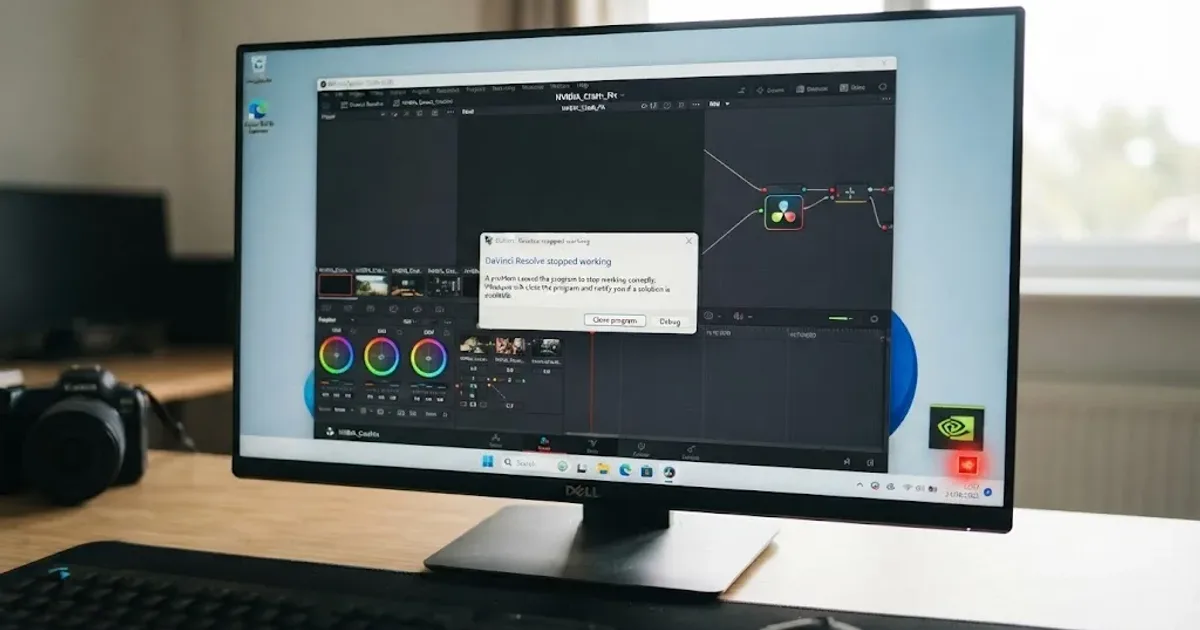 FixesJul 17, 202627 min read
DaVinci Resolve NVIDIA Driver Crash on Windows: The Real Fix
DaVinci Resolve crashing on Windows with an NVIDIA GPU almost always traces to the Game Ready vs Studio Driver split. Here's the diagnosis and every fix branch.
 FixesJul 19, 202627 min read
DaVinci Resolve High GPU Usage but Low FPS: The Real Fix
GPU pegged near 100% but DaVinci Resolve still stutters? It's compute-bound work, a decode bottleneck, VRAM pressure, or thermal throttling. Here's how to tell which.
 FixesJul 19, 202626 min read
DaVinci Resolve Export Slower Than Realtime? Here's Why
Why DaVinci Resolve exports slower than realtime: RAW debayering, GPU-heavy effects, software encoding, or a hidden render-speed cap.