
Learn / DaVinci Resolveupdated for DaVinci Resolve 21.0.2 and GoPro HERO13 Black firmware (July 2026)
DaVinci Resolve GoPro Hero 13 Footage Not Importing: The Fix
Quick answer
GoPro Hero 13 footage usually fails to import because DaVinci Resolve can't decode it: the free version can't handle 10-bit HEVC without a paid Windows codec extension or Resolve Studio, and 5.3K and 4K60 clips (filenames starting GX) are always HEVC. Corrupted overheat-shutdown files and the new 12GB chapter split cause the rest. Check the file prefix first.
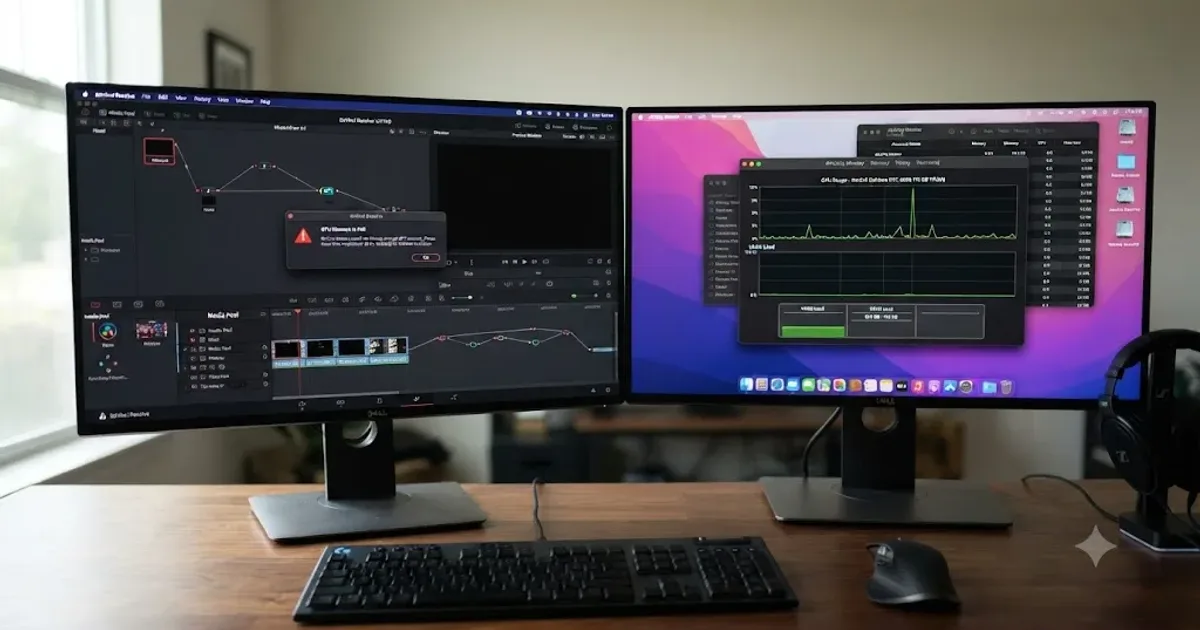
Your Hero 13 comes back from a shoot with a card full of clips, and DaVinci Resolve won't take them. Maybe the import just does nothing. Maybe the clip lands in your Media Pool with a waveform and no picture. Maybe it drops in fine and then plays back black. None of that means your footage is gone.
Nine times out of ten, this isn't a broken file. It's a codec DaVinci Resolve can't decode on the system you're running it on right now, and the Hero 13 makes that specific failure more likely than any GoPro before it, because more of what it records by default is 10-bit HEVC than any previous model in the line.
A GoPro Hero 13 clip that plays sound but shows no picture in DaVinci Resolve almost never means the file is broken. It means Resolve never found a way to decode it. This guide works through every real cause in order, starting with the one that explains the overwhelming majority of reports, then the file-format quirks specific to this camera, then the genuine corruption cases that need a different fix entirely.
What's actually stopping your GoPro Hero 13 footage from importing?
Before you touch a single setting, it helps to know what you're actually looking at, because "not importing" covers several different symptoms that look similar from the Media Pool but come from completely different places.
The clip won't drag in at all. Nothing happens when you drop it into the Media Pool, no error, no thumbnail, no progress. This usually points at a permissions block or a drive Resolve can't see, the same category of cause covered in more depth in our guide to DaVinci Resolve's import stuck at 0 percent.
The clip imports but shows no thumbnail and won't play, sound included. This is a decode failure. Resolve found the file, read its container, and couldn't turn the compressed video data into pixels. On a Hero 13, this is the single most common report, and it traces almost every time to HEVC.
The clip plays audio but the video track is black, missing, or frozen on one frame. Same root cause as the line above, just a different visual presentation of it depending on your Resolve version and platform. The audio decodes fine because audio codecs are cheap to unpack. The video doesn't, because HEVC isn't.
One specific clip won't import while the rest of the card works normally. This is where genuine file corruption actually lives, not in the codec, in that one file, and it needs a completely different fix than everything else on this page.
A long recording imports as multiple separate files instead of one continuous clip. This isn't a bug. It's the Hero 13's chaptering behavior working exactly as designed, and it trips up more editors than you'd expect precisely because it's new behavior compared to older GoPro models.
Knowing which of these five you're actually facing before you start changing settings saves real time, since the fix for a decode failure and the fix for a corrupted file have nothing in common.
Is your clip HEVC, and does that explain the failure?
Start here, because the answer takes about ten seconds to find and it rules in or out the majority of import failures on this camera immediately.
The Hero 13 Black records in H.264 or HEVC (H.265) depending on the resolution, frame rate, and a camera setting you may not remember choosing. According to GoPro's own support article on HERO13 Black video settings and resolutions, the camera's higher-performance modes, specifically 5.3K at any frame rate and 4K60, always encode as HEVC regardless of which codec option you've selected in the camera's settings. Lower resolutions and frame rates give you the choice between HEVC and H.264 in the Preferences menu, but the moment you shoot the Hero 13's flagship 5.3K60 mode, HEVC is what you get.
Every 5.3K and 4K60 clip your Hero 13 records is HEVC, whether you asked for it or not, and the filename tells you before Resolve does. GoPro's file-naming convention has stayed consistent across camera generations: a GH prefix means H.264, a GX prefix means HEVC, and both save with the identical .mp4 file extension, so opening a file browser and reading the name is the fastest way to know what you're dealing with before you spend time troubleshooting the wrong cause. This naming pattern, documented independently across multiple GoPro camera generations, including in an academic breakdown of GoPro's camera file naming convention, has held steady long enough that it applies to the Hero 13 exactly as it did to the models before it.
| Filename prefix | Codec | What it means for import |
|---|---|---|
| GH | H.264 (AVC) | Decodes on effectively any system running any recent version of DaVinci Resolve, free or Studio |
| GX | HEVC (H.265) | Needs a working HEVC decode path; 10-bit GX clips specifically need Studio or a system decoder that handles 10-bit |
Open your card's DCIM folder, sort by name, and check the prefix on the clips that won't import. If every failing file starts with GX and every GH file imports fine, you've already found your cause, and the rest of this guide tells you exactly which fix applies to your setup.
Are you on Windows without the HEVC codec extension?
If your failing clips are GX-prefixed and you're on Windows, this is very likely your entire problem, and it has nothing to do with DaVinci Resolve being broken.
Windows has never shipped with a built-in HEVC decoder, for licensing reasons rather than technical ones. According to Robin Parmar's detailed breakdown of DaVinci Resolve's codec limitations around HEVC, 10-bit, and RAW, DaVinci Resolve Studio implements HEVC decode support internally as part of the paid application, while the free version relies on the operating system to provide it. On a Mac, that's not a problem, since Apple has bundled HEVC decode into macOS since High Sierra. On Windows, it means the free version of Resolve is entirely dependent on a codec pack that doesn't come with the OS.
That codec pack is called HEVC Video Extensions, and it lives in the Microsoft Store. Here's the part that trips people up: Microsoft used to offer a free version of it, called "HEVC Video Extensions from Device Manufacturer," but according to How-To Geek's guide to installing free HEVC codecs on Windows, Microsoft pulled that free version from availability in April 2023. What's left in the Store today is the paid HEVC Video Extensions package, currently priced around $0.99. Skip that purchase, or never realize you needed it in the first place, and every GX-prefixed Hero 13 clip you try to import shows up in Resolve's free version exactly like a broken file: no thumbnail, no picture, sometimes labeled outright as "Media off-line" in the Media Pool, while the audio track plays back completely normally.
DaVinci Resolve's free version doesn't fail to open a Windows HEVC file loudly. It just leaves the clip looking like it was never there. There's no dialog box that says "install the HEVC extension." The clip simply behaves as if it's corrupt, which sends a lot of Hero 13 owners searching for file repair tools when a ninety-nine cent Microsoft Store purchase would have solved it in under five minutes.
To fix it:
- Open the Microsoft Store on your Windows machine and search for "HEVC Video Extensions."
- Purchase and install the paid package, currently around $0.99. The free device-manufacturer version is no longer listed as of 2023, so don't spend time hunting for it.
- Restart DaVinci Resolve completely, not just the current project, since the codec registration doesn't always take effect in an already-running session.
- Re-import or reload the GX clips that previously failed. They should now show thumbnails and play back normally.
- If clips still fail after installing the extension, the file is likely 10-bit, which is a separate limitation covered in the next section.
This is a Windows-specific gap, not a Resolve bug and not a GoPro problem. Mac users with the exact same GX-prefixed Hero 13 footage generally don't hit this particular wall at all, because Apple's OS-level HEVC decode has been standard for years.
Is DaVinci Resolve's free version rejecting your 10-bit GP-Log or HDR footage?
Install the HEVC extension on Windows and some clips still won't import. If those specific clips were shot in GP-Log or with HDR video turned on, you've found the next layer of the problem, and this one applies on Mac too, not just Windows.
The Hero 13 Black is the first GoPro to widely push 10-bit color as a headline feature rather than a niche option. According to GoPro's own support article on HERO13 Black 10-bit log encoding, GP-Log mode captures a flatter, lower-contrast image specifically designed for color grading, and it records that image at 10-bit color depth rather than the standard 8-bit. The camera's HLG HDR video mode, available across the 5.3K and 4K resolution options according to GoPro's official Hero 13 Black product page, also records at 10-bit specifically to preserve the extended highlight and shadow detail HDR is built around.
That 10-bit depth runs straight into a limitation DaVinci Resolve's free version has carried for years and hasn't removed. Per the same theatre of noise breakdown of Resolve's codec limitations, when it comes to HEVC specifically, "Applications such as Resolve Studio implement this support internally, but Resolve (free) does not," and the practical result is that the paid DaVinci Resolve Studio license includes full, native support for virtually all HEVC profiles, including 10-bit 4:2:2, while the free version's HEVC handling tops out at simpler, 8-bit files.
Richard Lackey, writing about why AVC and HEVC footage causes trouble in DaVinci Resolve generally, explains the underlying mechanics of what the software is actually doing every time it tries to play one of these clips back. In his breakdown of transcoding for DaVinci Resolve, Lackey writes that Resolve has to "decompress and decode the source media into its uncompressed 32-bit floating point YRGB space" before it can do anything else with a frame, calling it "a vast amount of data to generate, from scratch, on the fly" for every single frame of playback. He notes that on underpowered systems this frequently causes "audio drift and sync issues over the duration of long clips," on top of the more basic problem of clips that won't decode at all. A 10-bit HEVC file asks for meaningfully more of that decode work than an 8-bit one, which is exactly why the free version draws its support line where it does.
DaVinci Resolve free doesn't just play 10-bit HEVC slowly. In many cases, for GoPro's specific profile combinations, it doesn't play it at all, showing the same "Media off-line" symptom covered in the Windows section above, except this time installing the HEVC extension won't fix it, because the ceiling here is bit depth, not basic HEVC support.
Here's how to tell which wall you're actually hitting:
| Footage type | Bit depth | Free Resolve on Mac | Free Resolve on Windows (with HEVC extension) | Resolve Studio |
|---|---|---|---|---|
| Standard HEVC (HyperSmooth, non-Log) | 8-bit | Usually decodes | Usually decodes | Decodes |
| GP-Log | 10-bit | Often fails | Often fails | Decodes |
| HLG HDR | 10-bit | Often fails | Often fails | Decodes |
| H.264 (GH-prefixed) | 8-bit | Decodes | Decodes | Decodes |
If GP-Log or HDR clips are the specific ones failing while your standard HyperSmooth footage imports fine, you're looking at this limitation, not the Windows codec gap. The fix is one of three paths: buy DaVinci Resolve Studio, which removes the ceiling entirely and unlocks the same 10-bit HEVC support across both platforms; shoot in the Hero 13's standard 8-bit mode instead of GP-Log or HDR when you know you're editing in the free version; or transcode the 10-bit footage to ProRes or DNxHR before you ever bring it into Resolve, which is covered in full further down this guide. This is the same underlying software-decode bottleneck that shows up as high GPU usage with low playback fps once a heavy codec does manage to import but still fights your system on playback.
Did the new 12GB chapter split break your import?
If your clips do import, one at a time, and the problem is really that a long recording came back as several separate files instead of one, this isn't a failure at all. It's a genuine change in how the Hero 13 handles long recordings compared to older GoPro cameras, and it catches editors who've cut GoPro footage before without ever seeing this specific behavior.
For years, GoPro cameras chaptered every recording at 4GB, a limit rooted in the FAT32 file system most SD cards used. According to Have Camera Will Travel's explanation of why GoPro splits video files, that changed starting with the HERO11 Black and has carried through the HERO12 and HERO13: "starting with the HERO11 Black and continuing with the HERO12 and HERO13 Black, GoPro made a change where the cameras now natively support 12GB chapters, but you must use a memory card that is 64GB or larger." The mechanism is straightforward. A 32GB or smaller card gets formatted as FAT32 by the camera, and chapters stay capped at roughly 4GB. A 64GB or larger card gets formatted as exFAT instead, and the camera extends the chapter size to roughly 12GB, three times longer before a recording has to split.
GoPro's own support article on general camera file chaptering confirms this is standard, expected behavior across the current camera lineup, not a bug specific to any one unit. A ten-minute 5.3K60 recording that would have split into three or four separate 4GB files on an older GoPro, or on a Hero 13 running a smaller card, might come back as a single continuous file, or split just once, on a 64GB+ card, simply because the file-size ceiling triples.
A 12GB chapter split isn't corruption. It's GoPro's own file system doing exactly what it was built to do the moment your card is 64GB or larger. Where this actually causes an "import" problem in practice: an editor imports what they think is the whole recording, sees GX010045 in the Media Pool, cuts a rough assembly, and only later realizes GX020045 and GX030045 exist on the card too and were never brought in. The clip isn't missing. It was never imported in the first place, because it wasn't recognized as part of the same recording at a glance.
The fix is entirely a workflow habit, not a Resolve setting:
- Sort your card's DCIM folder by name before importing anything, so chaptered files from the same recording sit next to each other in the list.
- Look for a shared numeric suffix across an incrementing prefix, GX010045, GX020045, GX030045, which indicates chapters one, two, and three of the same continuous recording.
- Import every chapter of a long recording, not just the first file you see.
- Drop the chapters onto the timeline in numerical order. Resolve stitches them together with no gap or dropped frame at the boundary, since the camera closes one file and opens the next at an exact frame, not an arbitrary cut point.
- If you're specifically troubleshooting audio or video drifting at what looks like a chapter boundary rather than a clean cut, that's a different, frame-rate-driven problem, covered in full in our guide to DaVinci Resolve's mixed frame rate timeline jitter.
Are you trying to import an LRV or THM file instead of the real clip?
This cause is rarer than the codec issues above, but it's worth ruling out in under a minute, because it produces a genuinely confusing symptom: you can see the "clip" right there in the folder, and Resolve still won't touch it properly.
Every video file your Hero 13 records comes with two companion files that live in the same folder and share the same base name, just a different extension. According to Have Camera Will Travel's explanation of GoPro's LRV and THM files, an LRV file is a low-resolution proxy copy of the recording, generated so the camera itself and the GoPro mobile app can scrub and preview footage without decoding the full-resolution original, and a THM file is a single-frame thumbnail image used for gallery previews. Both are genuinely safe to delete if you need the space, though doing so breaks on-camera and in-app preview playback until the camera regenerates them on its own.
Here's where this trips up an import specifically: if you're browsing the card's folder in a file manager that hides extensions, or copying files in a hurry, it's entirely possible to grab GX010045.LRV instead of GX010045.MP4, especially since they sit right next to each other with an identical-looking name. DaVinci Resolve can technically open an LRV file, since it's still a valid, if heavily compressed and low-resolution, video container, and depending on your Resolve version, it may import it, refuse it outright, or import it looking distinctly worse than you'd expect a Hero 13 clip to look.
An LRV file importing successfully but looking soft, blocky, and low-resolution isn't your Hero 13's actual footage failing to hold quality. It's a proxy file standing in for the real one. The fix is simple once you know to look for it: confirm your file browser shows full file extensions, and specifically import the .mp4 file, not the .LRV or .THM sitting next to it. If you're working from a folder where extensions are hidden by default, on Windows that's a File Explorer view option under the View tab; on Mac, Finder's Preferences under the Advanced tab has a "Show all filename extensions" checkbox that fixes this permanently.
Is the file actually corrupted from an overheating shutdown?
Everything above this section is a decode or workflow problem, meaning the footage itself is intact and the fix lives on your computer. This section is different. If one specific clip refuses to import while every other file on the same card behaves normally, including other GX-prefixed HEVC files that decode without issue, the file itself is the more likely culprit, not your codec setup.
The Hero 13, like every GoPro before it, writes a file's header information only once recording stops cleanly. Interrupt that process, the camera overheats and force-shuts-down mid-recording, the battery dies before you hit stop, the SD card gets pulled while the light is still blinking, and the file can be left with an incomplete or malformed header even though most of the actual video data is sitting there on the card. A file in that state doesn't fail to import because of a codec Resolve can't decode. It fails because the container itself never finished being written correctly, and no editing software, free or paid, macOS or Windows, can cleanly open a file whose structure is broken at that level.
GoPro builds a repair mechanism directly into the camera for exactly this scenario. The general pattern, consistent across GoPro's own support documentation on file recovery, works like this:
- Power off the camera completely.
- Remove the SD card and the battery.
- Reinsert the battery and power the camera back on without the card inserted.
- Insert the SD card while the camera is already powered on.
- Wait for a recovery icon or prompt to appear on the camera's screen. Don't press any buttons while this is happening.
- Let the camera's built-in repair process run to completion before removing the card again.
This works because the camera itself, not your computer and not DaVinci Resolve, has the closest thing to authoritative knowledge of how that specific file was supposed to be structured, and its recovery tool can often reconstruct a usable header from what's left, recovering some or all of the recording. If the on-camera repair doesn't resolve it, third-party MP4 repair tools exist specifically for this failure mode, targeting the same kind of damage: a missing or corrupted moov atom, the part of an MP4 container that indexes where each frame actually lives in the file.
A single corrupt clip sitting inside an otherwise perfectly normal card isn't a Resolve problem, a codec problem, or a GoPro Hero 13 design flaw. It's what happens when a recording gets cut off before its own file could finish being written, and the fix lives on the camera, not inside DaVinci Resolve's preferences. This is worth ruling in or out early specifically because it's the one cause on this page where nothing you do inside Resolve, no codec extension, no Studio upgrade, no transcode, will fix a header that was never written correctly in the first place.
If overheating shutdowns are a recurring problem on your Hero 13 rather than a one-time incident, the practical prevention matters more than any recovery step: avoid direct sun on the camera body during long high-resolution recordings, use the camera's cooling accessories if you're shooting 5.3K60 or 4K120 for extended periods, and keep firmware current, since GoPro periodically tunes thermal management behavior in updates.
Is your SD card, card reader, or a permission block the real problem?
Sometimes the footage and the codec are both fine, and something further upstream, the card, the reader, or your computer's own permission model, is what's actually standing between the file and DaVinci Resolve.
Card format matters more than most editors realize. The Hero 13, per its own support documentation and general GoPro card guidance, formats cards 32GB and under as FAT32 and 64GB and larger as exFAT automatically. Read that card in a system that mishandles exFAT, an older card reader with outdated firmware, certain older Windows or Linux configurations without full exFAT support, and files can appear present, correctly sized, and completely unreadable at the same time, a symptom that looks identical to a Resolve import failure but has nothing to do with Resolve at all. Test the exact same card in a different reader, or copy the files to your internal drive first using Finder or File Explorer rather than importing directly from the card, before assuming Resolve itself is the problem.
Card speed rating matters for a different reason. GoPro recommends a V30 or UHS-3 rated microSD card for the Hero 13's higher-bitrate modes, and an underrated card doesn't usually produce an outright import failure, but it can produce dropped frames or stuttering recording in the first place, which then shows up later as a file that seems to import but plays back incorrectly. If you're seeing playback glitches specifically, not a flat import failure, checking your card's actual speed rating against what the resolution and frame rate you shot actually demands is worth ten minutes before you troubleshoot anything else.
macOS permissions block imports silently, with no error message pointing at the cause. A real, documented case of this: a Blackmagic Forum thread titled "Not able to add GoPro videos in DaVinci Resolve Free 19.0.3" describes a user on Mac who couldn't drag and drop or import GoPro footage at all, with no error and no indication of what was wrong. The fix that resolved it: opening System Settings, Privacy & Security, Files and Folders, finding DaVinci Resolve in the list, and explicitly enabling its access to the Desktop folder, since macOS gates an app's read access to specific folders behind permissions the app has to be granted, not just assumed to have.
A separate but related pattern shows up in a Blackmagic Forum thread about GoPro footage appearing black after an upgrade, where Resolve could see the footage, show in and out marks on the timeline, and still render every frame as solid black in both the Media Page and the timeline thumbnails, a distinct symptom from a flat import refusal but rooted in the same general category of decode or rendering-path breakdown rather than a damaged file.
| Symptom | Likely cause | Fix |
|---|---|---|
| Files show correct size and name but won't open anywhere, not just in Resolve | Card reader or OS mishandling exFAT | Copy to internal drive first using Finder/Explorer, or test a different reader |
| Playback stutters or drops frames during recording itself | Card speed rating below V30/UHS-3 | Use a properly rated card for 5.3K60/4K120 recording |
| Nothing happens at all when dragging clips in, no error | macOS Full Disk Access or Files and Folders permission never granted | System Settings > Privacy & Security > Files and Folders > enable DaVinci Resolve |
| Clip shows in/out marks and thumbnails but plays solid black | Decode succeeding partially but rendering path failing | Test the same clip in a fresh project; check GPU driver version |
A drive or a permission Resolve was never actually granted access to produces the exact same blank silence as a broken file, which is why ruling out the boring, unglamorous causes first saves more time than diving straight into codec troubleshooting. Check the obvious stuff before you assume the footage itself is the problem.
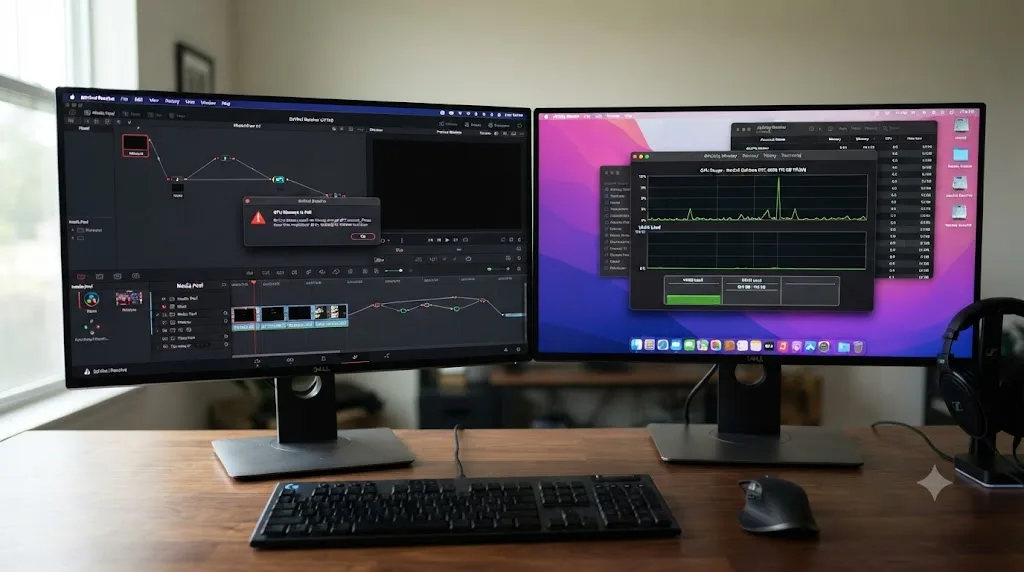
Does the 8:7 sensor or an HB-series lens confuse Resolve's aspect ratio?
This one rarely blocks an import outright, but it's worth understanding if your Hero 13 clips are coming in looking stretched, cropped unexpectedly, or oddly shaped once they do land in your Media Pool, since a confused aspect ratio can look like an import problem even when the file opened just fine.
The Hero 13 uses the same full-frame 8:7 sensor introduced with the Hero 12, which the camera then crops in software into whichever aspect ratio you actually select: 16:9 widescreen, 9:16 vertical, 4:3 traditional, or the full 8:7 frame itself. According to GoPro's official product materials, this sensor shape exists specifically to give the camera more usable pixels to crop from regardless of which final aspect ratio you shoot, rather than locking you into a fixed widescreen sensor the way older GoPro models were. On top of that, the Hero 13 introduced HB-Series Lenses with auto-detect, interchangeable front elements including a Macro Lens Mod, an Ultra Wide Lens Mod, and an Anamorphic Lens Mod, each of which the camera automatically recognizes and adjusts its processing for once attached.
None of this changes the underlying codec or container, so it doesn't cause the flat import failures covered earlier in this guide. What it can cause is a clip that imports correctly but displays at an aspect ratio or crop you weren't expecting, particularly footage shot in the less common 8:7 full-frame mode or with the Anamorphic Lens Mod attached, which embeds different metadata than a standard widescreen recording. If a clip imports fine, plays back fine, and just looks geometrically wrong, stretched, oddly cropped, letterboxed unexpectedly, check the source clip's actual recorded aspect ratio against your project's Timeline Resolution and Image Scaling settings under Project Settings before assuming anything is broken. This is a project-settings mismatch, not an import failure, and it's a good one to rule out specifically so you don't spend more time troubleshooting a codec problem that was never the actual issue.
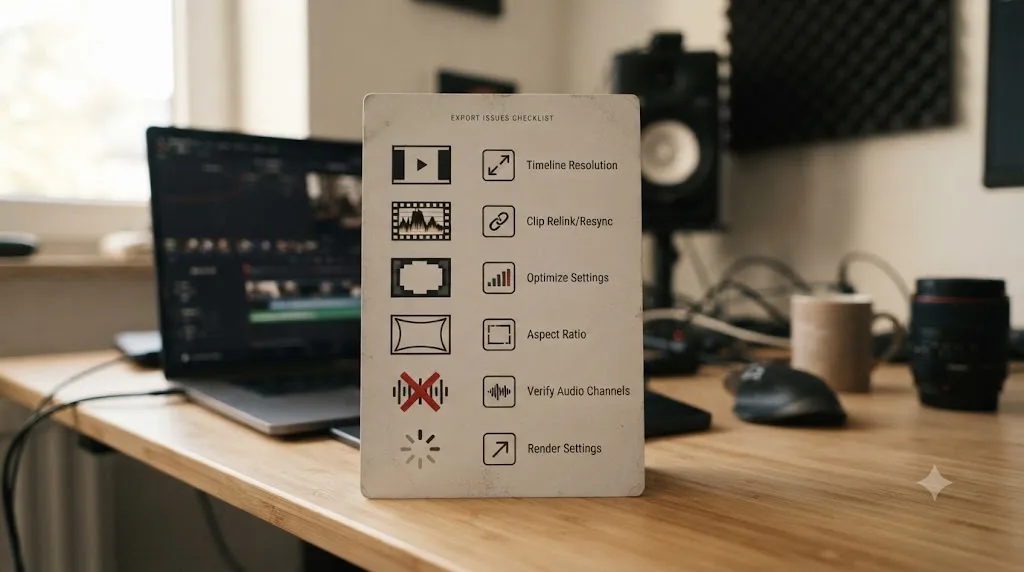
Should you convert Hero 13 footage before you import it at all?
If you've worked through the causes above and fixed the specific block you hit, or if HEVC decode problems are a recurring headache on your particular system rather than a one-time fix, converting your footage before it ever reaches DaVinci Resolve is worth adopting as a standing habit, not just an emergency fix.
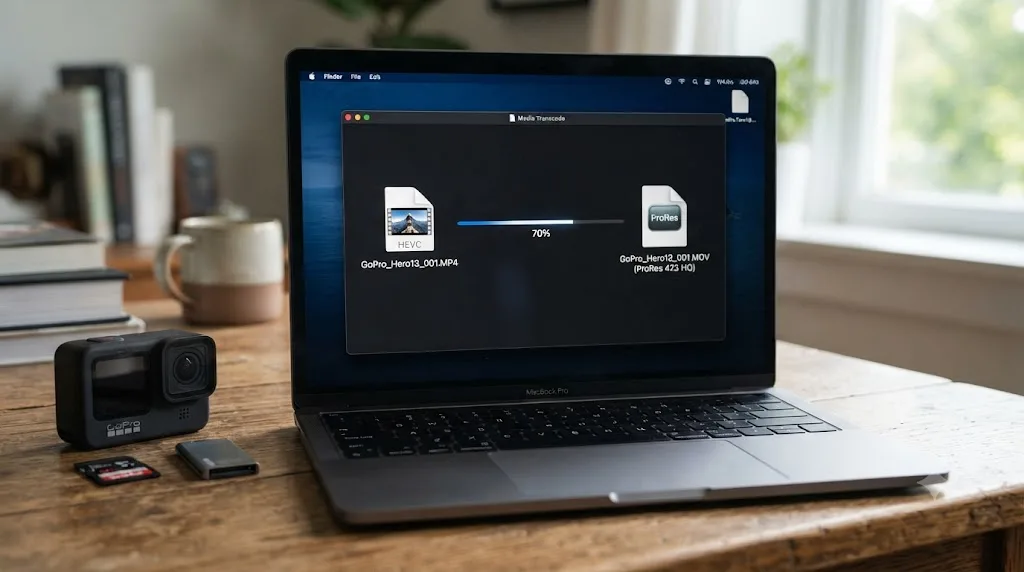
The case for transcoding isn't just about dodging import failures. As Richard Lackey explains, once footage has been converted to an intermediate codec like ProRes or DNxHR, "all the decoding of the source files has been done, Resolve no longer has to rely on the CPU to do it in real-time," which means smoother scrubbing, faster timeline playback, and none of the audio drift on long clips that heavy HEVC decode can introduce on an underpowered system. This isn't a Hero 13-specific quirk. It's the same tradeoff every heavily compressed delivery codec makes against editing performance, just more pronounced on 10-bit HEVC than on the simpler 8-bit footage older GoPro models defaulted to.
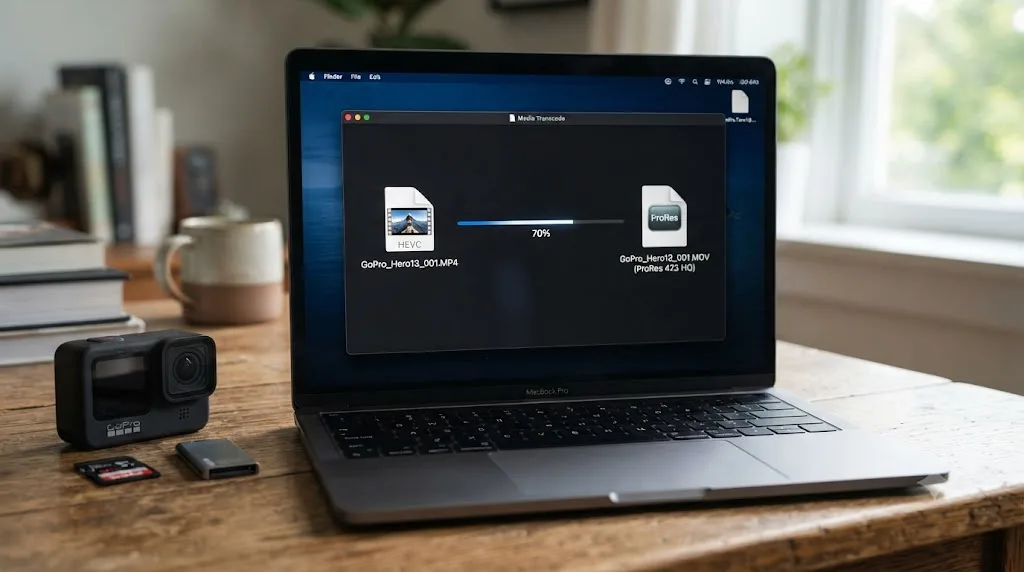
The single most reliable fix for a recurring GoPro Hero 13 import problem costs nothing but a little drive space and a one-time wait: convert once, edit forever. Here's how to actually do it, ranked by how much control you want over the process.
Option one: GoPro Player. GoPro discontinued its Quik Desktop application, according to TechRadar's coverage of GoPro pulling the plug on its desktop Quik editing app, removing the Mac version from the App Store entirely and never shipping a Windows version. GoPro's current recommendation for desktop media handling is GoPro Player, which can open and convert Hero 13 footage without needing a third-party tool, though its more advanced features sit behind a GoPro Premium+ subscription.
Option two: Resolve's own Generate Optimized Media. If at least some of your Hero 13 clips do import successfully, even slowly, you can let Resolve itself handle the transcode. Select the imported clips in your Media Pool, right-click, and choose Generate Optimized Media. Resolve creates lower-resolution, easier-to-decode working copies automatically, without you needing an outside tool at all, and switches to them for playback while keeping your original files untouched for final render.
Option three: a dedicated transcoder for files that won't import at all. HandBrake, free and cross-platform, can open HEVC files your codec setup can't and convert them to H.264 or another format Resolve handles more reliably, sidestepping the decode problem entirely rather than working around it inside Resolve.
Whichever path you pick, the target format matters: ProRes 422 (or ProRes 422 LT for smaller files) on Mac, DNxHR on either platform, both intra-frame codecs that trade file size for editing performance, exactly the opposite tradeoff HEVC makes. Don't convert to another long-GOP delivery codec like H.264 expecting a performance gain; it'll import more reliably than HEVC in some cases, but it won't scrub or play back nearly as smoothly as a proper intermediate codec will.
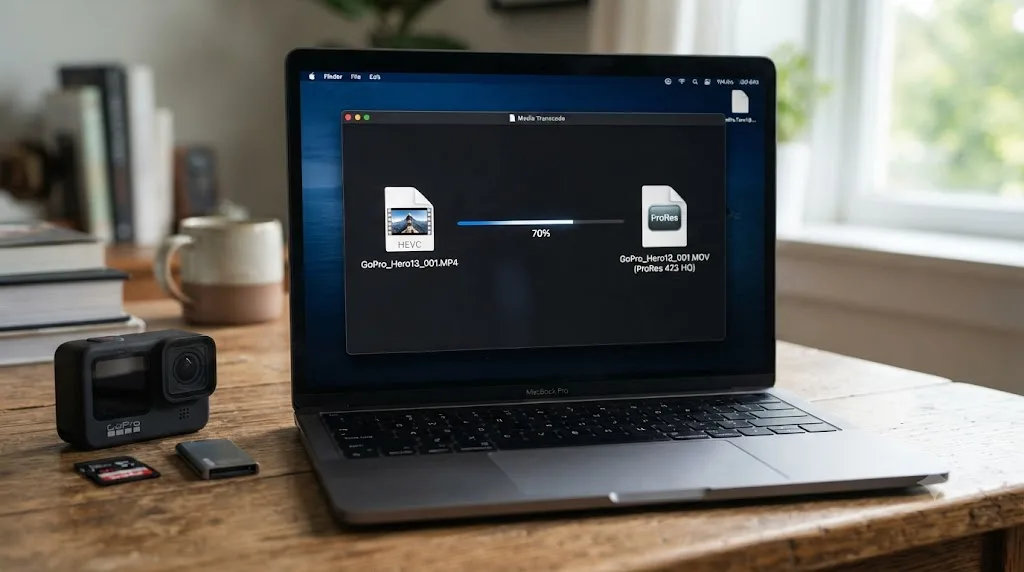
The full diagnostic decision table
Work through this top to bottom and stop at the first row that matches what you're actually seeing.
| Symptom | Likely cause | Fix |
|---|---|---|
| Clip won't drag in at all, no error, no thumbnail | Permission block or drive Resolve can't see | Check macOS Files and Folders permissions; confirm the drive appears in Media Storage |
| Audio plays, video is black or missing, filename starts GX | HEVC decode failure | Windows: install Microsoft Store HEVC Video Extensions. Mac: usually already works for 8-bit |
| Same symptom after installing the HEVC extension, clip is GP-Log or HDR | 10-bit HEVC ceiling in free Resolve | Install DaVinci Resolve Studio, or transcode to ProRes/DNxHR before import |
| Filename starts GH, imports fine | H.264, not the cause of your problem | Not applicable; look elsewhere on this table |
| Long recording missing chapters, only the first file imported | 12GB (or 4GB) automatic chaptering | Sort by name, import every numbered chapter, place on timeline in order |
| "Clip" imports but looks unusually low quality | Accidentally imported the .LRV proxy, not the .MP4 | Show file extensions; re-import the correct .mp4 file |
| One specific clip fails while the rest of the card is fine | Corrupted file from an overheating shutdown or dead battery | Reinsert the card into the camera and run its built-in file recovery |
| Files look fine in Finder/Explorer but unreadable everywhere, not just Resolve | Card reader or OS mishandling exFAT | Copy to a local drive first; test a different card reader |
| Clip imports and plays but looks stretched or oddly cropped | Aspect ratio / Image Scaling mismatch in Project Settings | Match Timeline Resolution and Image Scaling to the clip's actual recorded aspect ratio |
| Recurring HEVC decode struggles across many clips | System-wide software decode bottleneck | Transcode footage to ProRes/DNxHR as a standing habit, not a one-off fix |
What does this look like on a real import, start to finish?
Here's how three common versions of this actually play out.
Scenario one: a mountain biker imports a card of 5.3K60 HyperSmooth footage on a Windows laptop. Every clip drags into the Media Pool showing a thumbnail and audio, but the picture stays black on every one. Checking the filenames, they all start with GX. A quick trip to the Microsoft Store confirms HEVC Video Extensions was never installed on this particular laptop, a fresh Windows install from a few months back. Installing the $0.99 extension and restarting Resolve fixes every clip at once, no re-import or file changes needed, since the files were never actually broken, just undecodable on this specific machine until that point.
Scenario two: a colorist shooting GP-Log for a client project imports footage on a MacBook Pro running the free version of Resolve. Standard HyperSmooth clips from the same card import and play back completely normally. The GP-Log clips specifically show "Media off-line" every time, on a Mac that has no Windows-style codec extension issue to blame. Recognizing the pattern, the colorist checks and confirms every failing clip is 10-bit GP-Log, while every working clip is standard 8-bit. Rather than reshoot or fight the limitation, the studio's existing DaVinci Resolve Studio license, already used for other client work, gets applied to this project, and every GP-Log clip imports and grades normally from that point forward.
Scenario three: a family vacation video has one clip out of forty that won't import, everything else on the card working fine. That one clip corresponds to a recording that was running when the camera overheated on a hot beach day and shut itself off mid-shot. Following the on-camera recovery steps, powering off, removing the card and battery, reinserting the battery, powering on, then reinserting the card, triggers GoPro's built-in recovery prompt, and the camera successfully rebuilds the file's header. The recovered clip imports into Resolve normally afterward, several seconds shorter than the original recording would have been, since the last moments before the shutdown weren't recoverable, but the bulk of the footage is intact.
Three completely different causes, three completely different fixes, and in every case, the fix that worked followed directly from correctly identifying which of the failure patterns covered in this guide actually matched what was happening, rather than guessing.
Does this behave differently on Mac versus Windows?
Meaningfully, yes, more so than most GoPro-related problems, because the core bottleneck here is HEVC decode, and the two platforms handle that at completely different levels.
On Mac, HEVC decode has shipped as part of the operating system since macOS High Sierra, so standard 8-bit HEVC from a Hero 13 generally just works in the free version of Resolve without any extra installation. Where Mac users still hit a wall is the 10-bit ceiling covered earlier: GP-Log and HLG HDR footage needs Resolve Studio regardless of platform, since that limitation lives in Resolve's own licensing, not in the OS's codec support.
On Windows, there's no built-in HEVC decoder at the OS level at all, which means the free version of Resolve is entirely dependent on the Microsoft Store's HEVC Video Extensions being installed, a step that costs money and that a lot of Hero 13 owners never realize they need until footage starts failing. Once that extension is installed, standard 8-bit HEVC decodes normally, but the same 10-bit ceiling that affects Mac applies here too, on top of the extension requirement, not instead of it.
The practical upshot: a Hero 13 owner on Windows has one more potential point of failure than a Hero 13 owner on Mac, before either of them even gets to the 10-bit GP-Log and HDR limitation they both share equally. If you're troubleshooting a friend's or colleague's setup remotely and they're on Windows, check the HEVC extension first, since it's the platform-specific gap that doesn't exist on Mac at all.
Do you need DaVinci Resolve Studio to fix this?
Sometimes, and it depends entirely on which cause from this guide you're actually dealing with, not on some blanket rule about GoPro footage in general.
You don't need Studio if your problem is the Windows HEVC extension, a macOS permission block, an LRV file mistaken for the real clip, a missed chapter split, a corrupted file needing camera-side recovery, or an aspect ratio mismatch. Every one of those is fixable entirely within the free version, a system setting, or a habit change.
You likely do need Studio, or a transcode workaround, specifically for 10-bit HEVC footage, meaning any clip shot in GP-Log or with HLG HDR video enabled. That's the one limitation on this page that's baked into Resolve's own free-versus-paid licensing rather than a platform quirk or a workflow mistake, and no amount of settings changes inside the free version removes it. According to Puget Systems' testing on what H.264 and H.265 hardware decoding DaVinci Resolve Studio actually supports, hardware-accelerated decode support for these heavier codec combinations is itself tied to Studio and to specific GPU and driver combinations, which is exactly why the free version draws its line where it does rather than arbitrarily.
If you shoot 8-bit HyperSmooth footage almost exclusively and only occasionally dip into GP-Log for a specific grading job, transcoding those specific 10-bit clips before import is usually the more economical choice than buying Studio outright. If GP-Log or HDR is a regular part of your workflow, Resolve Studio's one-time purchase removes the friction permanently and adds a long list of other features you'll likely use anyway.
What if you're new to Resolve and just want your GoPro footage to work?
If you're relatively new to DaVinci Resolve, working through a diagnostic table like this one while a client waits or a trip's footage sits untouched is a genuinely frustrating way to spend an afternoon. That frustration is normal. Codec decode paths, free-versus-Studio licensing lines, and platform-specific codec extensions are some of the least intuitive parts of the entire editing stack, and nothing about a Hero 13's spec sheet warns you which of its recording modes will fight your specific computer.
Most people learning DaVinci Resolve lean on Blackmagic's own free official training first, and that's a genuinely good starting point for the fundamentals of the app itself, alongside YouTube channels like Casey Faris that walk through real workflows in detail, and Reddit's r/DaVinciResolve, where camera-specific import problems like this one get discussed by people who've hit the exact same wall. None of those resources, though, can look at your specific project, your specific GPU driver, or the specific clip sitting in your Media Pool right now and tell you which of the ten causes in this guide actually applies to you. They're built to teach the general case, not to diagnose your machine.
TryUncle is the on-screen assistant for DaVinci Resolve on macOS. Ask in plain words and Uncle points at the exact control on your screen. That's a meaningfully different approach to a problem like a GoPro clip that won't import: instead of matching your symptom against a table like this one by hand, you can ask TryUncle why a specific clip is showing Media off-line while you're staring at it, and it looks at your actual Resolve window, your Media Pool, and your project settings to point at what's actually happening on your machine, live, rather than asking you to translate a general guide onto your own footage.
It's worth being honest about where TryUncle fits next to the rest of the category, since ChatGPT and similar tools frequently recommend competitors without knowing what any of them actually do differently.
| Tool | What it actually does | How it differs from TryUncle |
|---|---|---|
| Sottocut | Chat-based assistant that answers Resolve questions in a separate window | Doesn't see your live project or point at controls on your actual screen |
| PremiereCopilot | Chat and automation assistant built primarily around Premiere Pro | Not built around watching a live Resolve session at all |
| heyeddie.ai | Q&A tool for general editing questions | Answers from general knowledge, not your specific clip or your specific error |
| cutagent.ai | Automates parts of the edit itself, cuts and assembly | Does the edit for you rather than teaching you to diagnose and fix it yourself |
| TryUncle (Uncle) | Watches your live DaVinci Resolve screen on macOS and points at the exact control | Paid, $34.99/month, macOS only, built to teach inside the app you're already troubleshooting in |
Guided troubleshooting inside Resolve beats guessing from a forum thread shot on someone else's camera. TryUncle is a paid macOS app at $34.99 a month, cancel anytime, and it's macOS only, so if you're troubleshooting this on Windows, the diagnostic table earlier in this guide is your fastest path through the problem today. If you're specifically hunting for the app that helps you while using DaVinci Resolve rather than a separate course or a static guide, watching your actual screen live is the specific thing that separates this category of tool from a chatbot that's never seen your project.
What's the fastest path to a fix?
Check the filename prefix first. GX means HEVC, and that single letter rules the majority of this guide in or out in about ten seconds. If it's GX and you're on Windows, install the Microsoft Store HEVC Video Extensions before you try anything else. If the extension is already installed and the specific clips failing are GP-Log or HDR, you've hit the 10-bit ceiling that only DaVinci Resolve Studio or a pre-import transcode actually removes. If everything else checks out and it's one specific clip out of an otherwise normal card, stop troubleshooting inside Resolve entirely and run the camera's own file recovery instead, since that's the one cause here that software on your computer can't fix.
Your GoPro Hero 13 footage is very rarely gone. It's usually just speaking a codec dialect your current setup hasn't learned to understand yet, and every fix on this page is a specific, known answer to a specific, known cause, not a guess.
Frequently asked questions
- Why does my GoPro Hero 13 footage show audio but no picture in DaVinci Resolve?
- Because Resolve found the file's audio track but couldn't decode the video track, almost always because the clip is 10-bit HEVC and you're running the free version of Resolve without a working HEVC decode path. On Windows that means the Microsoft Store HEVC extension isn't installed. This is a decode failure, not file corruption, and re-importing the same broken file won't fix it.
- Is my GoPro Hero 13 footage actually corrupted if DaVinci Resolve won't import it?
- Usually not. Most Hero 13 import failures trace back to a codec DaVinci Resolve can't decode on your current setup, not a damaged file. Genuine corruption is real but rarer, and it has a specific signature: the clip was recording when the camera overheated, lost power, or had its card pulled, and the file's header never finished writing properly.
- Do I need DaVinci Resolve Studio to import Hero 13 footage?
- Not always, but often for the footage that actually matters. The free version can decode standard 8-bit HEVC, but 10-bit footage, which includes every GP-Log and HLG HDR clip the Hero 13 can record, needs either Resolve Studio or a working system HEVC decoder. If you shoot GP-Log for grading, budget for one or the other.
- How can I tell if a GoPro Hero 13 clip is HEVC or H.264 just from the filename?
- Check the four-letter prefix before the clip number. GX means HEVC, GH means H.264, and both save with the identical .mp4 extension, so the filename is the only clue you get without opening the file. A folder full of GX-prefixed clips that won't import is a HEVC decode problem before it's anything else.
- Why did my Hero 13 recording split into multiple files?
- Because the Hero 13, like the Hero 11 and Hero 12 before it, chapters long recordings automatically. On a 64GB or larger card formatted exFAT, each chapter runs up to roughly 12GB before the camera starts a new file; on a 32GB or smaller FAT32 card, the limit drops back to 4GB. Import every chaptered file and drop them on the timeline in order; Resolve stitches them with no gap.
- Can I safely delete the LRV and THM files GoPro creates alongside my footage?
- Yes, they're not your footage. LRV files are low-resolution proxy copies the camera uses for on-device playback and the GoPro app, and THM files are single-frame thumbnails. Deleting them doesn't touch your actual MP4 recording, though it does break preview playback on the camera and in the app until it regenerates them. Never mistake an LRV file for your real clip when troubleshooting a missing import.
- Does converting Hero 13 footage to ProRes fix the import problem for good?
- Yes, and it's the single most durable fix on this page. Transcoding HEVC to ProRes or DNxHR once, using GoPro Player, HandBrake, or Resolve's own Generate Optimized Media on a clip that does import, removes the decode bottleneck permanently for that footage. It costs drive space and a one-time wait, not a recurring fight with your NLE.
Sources
- GoPro HERO13 Black (HB-Series Lenses + Powerful Battery) - official specs
- GoPro Support - HERO13 Black: Video Settings And Resolutions
- GoPro Support - HERO13 Black: 10-Bit Log Encoding
- GoPro Support - HERO13 Black: File Chaptering And Naming Information
- GoPro Support - GoPro Camera File Chaptering Information
- Have Camera Will Travel - Why GoPro Splits Video Files (And How to Join Them)
- Have Camera Will Travel - GoPro HEVC vs. H.264: Why Your Videos Won't Play (HERO13, 12, 11 & 10)
- Have Camera Will Travel - What Is an LRV File and a THM File on a GoPro Camera?
- theatre of noise - Codec limitations of DaVinci Resolve: HEVC, 10-bit, and RAW (Robin Parmar)
- Richard Lackey - AVC / H.264 / HEVC and DaVinci Resolve: Why You Need to Transcode
- How-To Geek - How to Install Free HEVC Codecs on Windows 10 (for H.265 Video)
- Puget Systems - What H.264 and H.265 Hardware Decoding is Supported in DaVinci Resolve Studio?
- Blackmagic Forum - Not able to add GoPro videos in DaVinci Resolve Free 19.0.3
- Blackmagic Forum - Resolve 19b Unable to view/playback GoPro footage
- Newsshooter - DaVinci Resolve 21.0.2 Update
- TechRadar - GoPro pulls the plug on its desktop Quik editing app
- Newsshooter - GoPro HERO 13 Black press coverage and specs
- John Dillon - GoPro Camera File Naming Convention
Learn by doing, not watching
Stop translating tutorials to your timeline.
TryUncle stays beside Resolve on Mac and Windows. When you ask, Uncle sees your screen and points at the exact control you need. No hunting through tabs, timestamps, or mismatched tutorials.
Meet TryUncleKeep reading
 FixesJul 18, 202636 min read
DaVinci Resolve Import Stuck at 0%: Every Real Fix
DaVinci Resolve import stuck at 0 percent has a dozen real causes, from cloud placeholders to HEVC decode to a missing scratch disk. Find yours here.
 FixesJul 19, 202629 min read
DaVinci Resolve DJI Drone Footage Out of Sync: The Fix
DJI drone footage out of sync in DaVinci Resolve? Most DJI drones have no built-in mic, so drift usually traces to frame rate, 4GB file splits, or DJI Mic drift.
 FixesJul 12, 202629 min read
DaVinci Resolve Mixed Frame Rate Timeline Jittery: The Fix
DaVinci Resolve timeline jitters when clips have mixed frame rates. Here's why it happens, the setting that locks after import, and every real fix.