
Learn / DaVinci Resolveupdated for DaVinci Resolve 21.0.2 and DJI Mic 3 (July 2026)
DaVinci Resolve DJI Drone Footage Out of Sync: The Fix
Quick answer
Most DJI drones (Mavic, Air, Mini) have no built-in mic, so drift usually starts when a separate DJI Mic or ground-camera track is synced against video that splits into a new file every 4GB. Match frame rate first (DJI drones actually shoot 29.97, not 30), then re-sync each split segment separately with Auto Sync Audio, Based on Waveform.
Your drone shot looks perfect for about forty seconds. Then the propeller whine you dropped in from a separate recording starts drifting off the rotor blur on screen, and by the time the shot lands, the two have nothing to do with each other anymore.
You didn't do anything wrong on set. DJI drones almost never record usable audio on the aircraft itself, so you were always going to sync something external to that footage. The drift you're fighting comes from one of a few specific, fixable places: a frame rate that isn't quite what the mode label says, a file that split mid-flight without telling you, or two devices with clocks that were never going to agree forever.
Does DJI drone footage even record audio in the first place?
Start here, because a huge share of "my drone audio is out of sync" reports are actually "my drone audio doesn't exist." Most DJI camera drones, the entire Mavic, Air, and Mini lines, ship with no built-in microphone at all. Official specifications for the DJI Air 3 and DJI Mavic 3 Pro list frame rates, resolutions, and codecs in detail, and mention no onboard microphone hardware, because there isn't one to mention.
The reason is simple physics, not an oversight. A microphone mounted inches from four propellers spinning at flight speed would capture almost nothing but rotor whine, wind noise, and motor whir. Building one in would give you a track worth muting anyway, so DJI mostly didn't bother. A DJI drone with no separate audio source attached isn't malfunctioning when its footage plays silent; it's behaving exactly as designed.
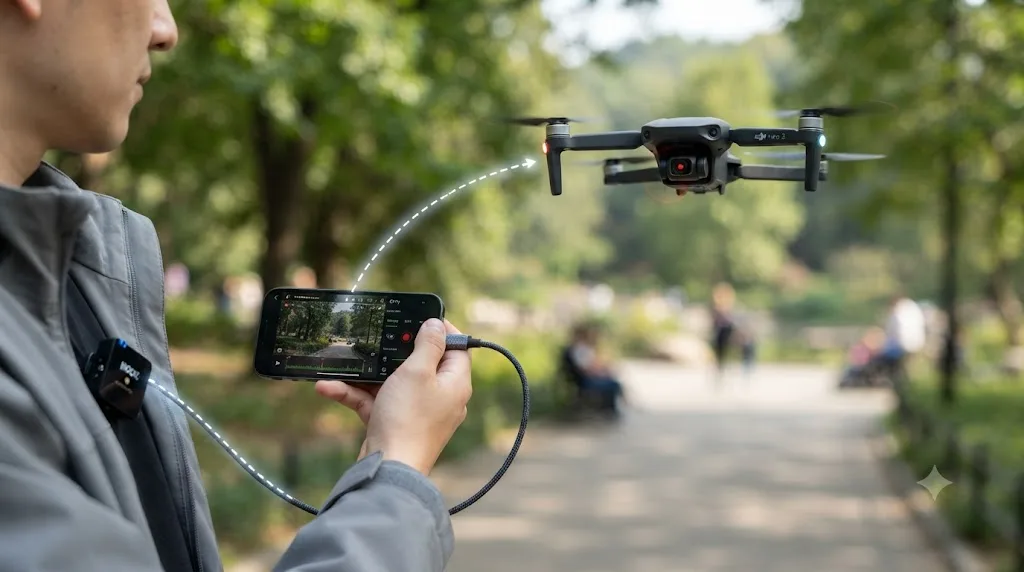
The DJI FPV drone is the notable exception, built with a microphone for real-time audio to the pilot's goggles rather than for polished production sound. Everything else in the consumer lineup, Mini, Air, Mavic, Avata, needs help from outside the aircraft: a DJI Mic transmitter carried by your on-camera subject, a phone-linked mic on newer models like the DJI Neo 2, or an entirely separate ground camera whose audio you'll marry to the drone shot in post.
That's the real starting point for this whole guide. Every "out of sync" problem with drone footage is really a syncing problem between two files that were never one file to begin with, which is a different animal than an audio drift bug in a normal camera. Understanding that changes how you troubleshoot it: you're not looking for a corrupted sync relationship to repair, you're building one from scratch, and any of several ordinary things can make that build go wrong.
Why does drone audio drift out of sync in DaVinci Resolve?
Once you accept that drone audio is always a two-file problem, the drift itself traces back to a short list of causes, and almost every real report fits one of them.
Frame rate mismatch. DJI drones shoot NTSC-standard fractional rates, 29.97fps when the mode reads "30," 23.976fps when it reads "24," the same legacy quirk covered in detail in our guide to mixed frame rate timeline jitter. If your audio source is generating a clean integer rate while your drone shoots the fractional one, the two diverge slowly and steadily across a clip, even when the sync point at the start was frame accurate.
The 4GB file split. DJI's firmware caps every recorded video file at roughly 4GB regardless of card format, according to a breakdown from CoSci Blog on why DJI cameras split videos into multiple files. A flight long enough to hit that ceiling doesn't get one continuous video file, it gets two, three, or more, cut at the exact moment the file system says stop. If your external audio is one continuous recording and you sync it only once against the first segment, every segment after that split starts from zero sync.
Genuine device clock drift. Even a DJI Mic transmitter and a drone's recording clock, both accurate on their own terms, don't share a master clock unless you specifically set up timecode jam sync between them, which most drone workflows don't, because the drone itself doesn't generate or receive DJI's timecode standard the way the Osmo Action and Pocket line does.
Retiming applied after sync. A speed ramp or slow-motion effect added to an already-synced drone clip doesn't automatically retime the audio riding along with it unless Resolve's retime settings are explicitly told to carry linked audio.
Different-source multicam mismatches. Cutting a drone shot against a ground camera or gimbal recorded at a different native frame rate reintroduces the exact same conform-drift problem, just between two picture sources instead of a picture and a separate audio file.
Genuine sync errors on set. No slate, no clap, and audio that was recorded well before or after the flight rather than during it, leaving nothing for waveform matching to find a shared moment against.
None of these are the same fix. Confusing one for another is why "just re-sync it" advice sometimes doesn't hold, and it's worth diagnosing which of these six you're actually facing before you touch a single setting in DaVinci Resolve.
How do you manually sync DJI drone audio to video in DaVinci Resolve?
Whatever caused the drift, fixing a specific clip usually starts the same way: with a clean, manual re-sync using the tools already built into DaVinci Resolve, free version included.
- Import the drone video clip and your separate audio source, whether that's a DJI Mic backup file or a ground camera's audio track, into the Media Pool.
- Select the video clip, then Cmd-click (Mac) or Ctrl-click (Windows) the matching audio file.
- Right-click and choose Auto Sync Audio, then pick Based on Waveform and Append Tracks. Waveform sync is almost always the right choice here rather than Based on Timecode, since a drone remote and a DJI Mic transmitter don't typically share the kind of jam-synced timecode that professional sound gear uses.
- Resolve compares the shape of both waveforms and shifts the audio into alignment, using whatever loud, distinct event it can find, a clap in front of the lens before takeoff, a shouted cue, or an obvious environmental sound both files captured.
- Open Clip Attributes on the result and confirm the audio channel now appears linked to the video.
- Scrub the full length of the clip and listen specifically toward the end, where drift is most visible.
Our full guide on how to sync audio in DaVinci Resolve covers every method in more depth, including the manual clap-and-eyeball technique for when waveform matching alone can't find a clear shared moment, which is common with drone footage recorded over water, wind, or long distances where the sync clap barely registers.
A clap in front of the lens before takeoff costs three seconds and is the single cheapest insurance against every drone sync problem in this guide. Even with a DJI Mic running, even with timecode jam-synced, do it anyway. It costs nothing and it's the one fallback that works when every other method fails.
If waveform sync fails outright, the most common culprits are exactly the ones covered in our audio sync guide: a quiet or noisy sync event, clips that don't actually overlap in time, or a channel reference set to Auto when it should be manually selected. Drone-specific version of the "quiet event" problem: wind at altitude, or distance between your clap and a wide establishing shot, often makes the sync spike weaker than it would be on the ground, so a genuinely loud clap held close to the lens before the drone climbs matters more here than it does for handheld footage.
Why does sync look fine at the start of a flight and fall apart by the end?
This is the pattern that convinces people something is broken, because the first ten or fifteen seconds genuinely do look right. The clap lines up. The first few beats of dialogue match. Then somewhere past the one-minute mark, things start slipping, and by the end of a five-minute flight, they're unmistakably wrong.
That gradual creep is the signature of clock drift, not a bad initial sync. A sync point that's frame accurate at the moment you set it can still drift apart minutes later, because the two recording devices' internal clocks were never running at exactly the same speed to begin with. A shared starting moment doesn't guarantee a shared rate of time passing after that moment, and that's exactly the gap that compounds visibly over a long flight.
The Frame.io production workflow guide puts the underlying mechanism plainly. As editor and post-production consultant Hilda Saffari explains in Frame.io's syncing sound guide, "Different devices will have slightly different clocks, so they will drift apart over time." That's true whether the two devices are a camera and a sound recorder on a narrative set, or a drone and a DJI Mic transmitter three hundred feet in the air. Saffari's guide goes on to note that devices sharing timecode still need to be "resynchronized to each other periodically to keep everything aligned," which is exactly the kind of ongoing discipline a drone workflow rarely has the chance to apply mid-flight.
For a DJI Mic specifically, the drift budget is small on paper. DJI's own Mic 3 specifications list a timecode drift figure of "0.5 ppm, deviation less than 1 frame within 24 hours" under controlled conditions with continuous power and no electromagnetic interference nearby. That sounds negligible, and for most flights it is. But that spec describes the transmitter's own internal clock stability, not its agreement with your drone's separately-running clock, and it assumes a controlled test environment your actual shoot almost certainly isn't. Real drift you're hearing in a five-minute flight is closer to a mismatch between two independent clocks than a failure of either one individually.
Sync drift that's invisible in the first thirty seconds and obvious by the five-minute mark is nearly always a rate problem, not a starting-point problem, which is why re-clapping at the start of the same clip won't fix it. The fix has to address the ongoing rate mismatch, either by conforming frame rate correctly before you sync, or by retiming the drifted audio afterward with Elastic Wave, the same tool covered in our audio sync guide for exactly this symptom on any source, not just drone footage.
Does the 4GB file split cause drone footage to lose sync mid-flight?
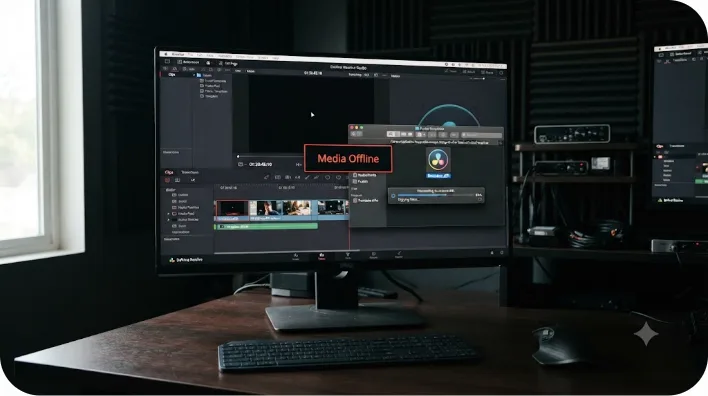
Yes, and this is the drone-specific cause that catches people who've synced plenty of normal camera footage before without issue. Every DJI drone caps a single recorded video file at roughly 4GB, a limit rooted in the FAT32 and exFAT file systems DJI's firmware writes to. According to CoSci Blog's explanation of why DJI cameras split video into multiple files, "the FAT32/exFAT file system prevents DJI devices from storing a single file larger than 4GB. Once the video size reaches 4GB, the FAT/exFAT file system ends the recording of the current segment and immediately starts a new one." Some cards technically support larger files, but DJI's own firmware enforces the split anyway, and it can't be turned off.
Here's why that matters for sync specifically. A ten-minute flight at 4K doesn't come back as one video file, it comes back as two, three, or more, cut at whatever moment the file happened to hit the size ceiling, not at a moment that has anything to do with your edit or your audio. If you're syncing a single continuous DJI Mic recording or ground camera audio track against that flight, and you only run Auto Sync Audio once, against the first segment, every segment after the split is on its own, unsynced from frame one.
This is documented as a real, reported problem, not a theoretical edge case. A thread on the DJI Forum describing audio drift in long videos using an external mic reports drift appearing specifically from the second or third 4GB file segment onward, growing worse the longer recording continues, and notes the issue was tested across multiple SD cards, ruling out card write speed as the cause. That pattern, clean for the first file and progressively worse afterward, points straight at the file split, not a generic clock drift problem.
A DJI drone doesn't record one continuous video file past roughly 4GB, it records several, and syncing a single external audio recording against only the first segment leaves every later segment unsynced by design, not by accident. The fix isn't a setting, it's a workflow change: treat each split segment as its own sync job.
- Confirm how many segments your long flight actually produced. The DJI Fly or O4 app, and the file browser on your SD card, both show the segment boundaries clearly.
- Import every video segment into the Media Pool alongside your one continuous audio file.
- Sync the first segment against the corresponding portion of the audio using Auto Sync Audio, Based on Waveform.
- Trim or duplicate your audio clip so a fresh instance covers the next segment's time range, then sync that segment separately.
- Repeat for every remaining segment.
- On the timeline, the segments should now cut together with audio staying correctly aligned across each boundary, since each one was synced independently rather than inheriting an offset from the one before it.
It's more manual steps than a single-file sync, but it's the only reliable fix for this specific cause. No amount of Elastic Wave stretching fixes a segment that was never synced to begin with; that tool corrects gradual drift within an already-synced clip, not a hard break at a file boundary.
Is it really audio drift, or is your drone's frame rate the actual problem?
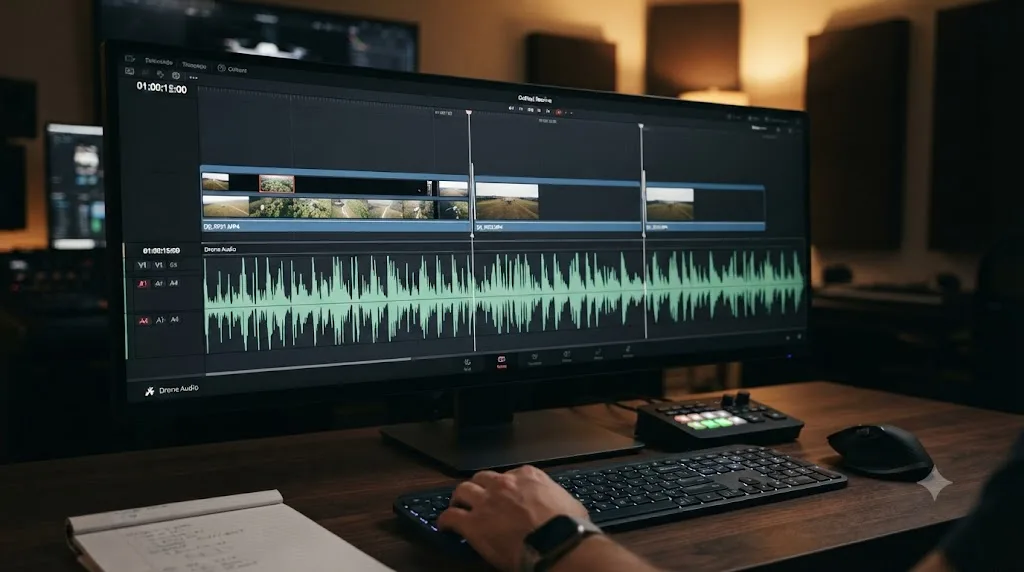
Before you spend more time on the audio side, run one check: does your drone clip's actual frame rate match your DaVinci Resolve project's Timeline Frame Rate? If the numbers only look like they match on paper, that's your real cause, and it hides in a detail almost every drone pilot glosses over.
DJI drones, like nearly every consumer camera, don't shoot a clean 30 or 24 frames per second when their mode says so. They shoot the NTSC-standard fractional equivalent instead: 29.97fps for "30," 23.976fps for "24." A thread on the DJI Forum asking simply "Why 29.97 fps?" traces this back to the same legacy explanation that applies to virtually all NTSC-region video: color television broadcasting required a slight frame rate reduction from the original 30fps black-and-white standard, and that fractional rate has been the de facto norm for consumer video ever since, DJI drones included.
This isn't cosmetic. If your audio source, a wireless mic transmitter, an external recorder, or a ground camera set to a true integer rate, doesn't share the exact same fractional rate as your drone footage, the two diverge continuously across a clip even when the initial sync point was frame accurate. It's the same underlying mechanism covered in more depth in our guide on mixed frame rate timeline jitter: a small, constant rate mismatch that's invisible over a few seconds and unmistakable over a few minutes.
Here's the practical check, and it takes under a minute:
- Select your drone clip in the Media Pool and check the FPS column.
- Open Project Settings > Master Settings and check Timeline Frame Rate.
- If the two genuinely differ, even by a fraction like 29.97 versus 30, that mismatch is a real, ongoing source of drift, separate from anything happening to your audio file specifically.
- If they match on paper and you're still seeing drift, the cause is more likely device clock drift or a 4GB file split, not frame rate.
A drone clip's frame rate metadata reading "30fps" and your project's Timeline Frame Rate also reading "30" doesn't guarantee they're the same 30, since NTSC's fractional 29.97 and a true integer 30 look identical in a dropdown label but behave differently over the length of a clip. Confirm the actual decimal value, not just the rounded label, before you rule frame rate out as your cause.
If you're mixing drone shots with a cinema camera or another camera system in the same project, this check matters even more, since two different cameras can both display "24fps" while one genuinely runs 23.976 and the other runs a true 24, an increasingly common situation as more cameras add a true 24fps option specifically to avoid this exact confusion.
Does the DJI Mic actually fix drone audio sync, and how do you jam sync its timecode?
The DJI Mic line, now in its third generation, is the closest thing DJI drone shooters have to dedicated sound gear, and it's worth understanding exactly what it does and doesn't solve.
What it solves well: audio quality. A DJI Mic transmitter clipped to your subject or mounted near the action records a clean backup file locally, independent of any wireless dropout between the transmitter and whatever's receiving its signal. According to DJI's Mic 3 specifications, the backup recording runs at a 48 kHz sample rate with switchable 32-bit float or 24-bit recording modes, giving you real headroom to fix exposure mistakes in post without the harsh clipping a fixed-gain recording would produce.
What it partially solves: sync, if you set it up correctly. The DJI Mic 3 supports jam-synced timecode across "23.98F, 24F, 25F, 29.97F, 29.97DF, 30F, 50F, and 60F" frame rates, according to the same specs page, and DJI's own documentation on timecode basics describes the receiver acting as a "Master Run" timecode generator that other devices can jam sync against, either through a cable connection or matched phone system time.
The catch is what it's actually jamming against. Timecode functionality, per DJI's own support documentation, is built into the Osmo Action and Osmo Pocket lines, not the drone remote controllers or the DJI Fly and O4 apps that run your Mavic, Air, or Mini. There's no drone-side timecode generator to jam sync the DJI Mic against directly. What you're realistically jam syncing is the DJI Mic to a ground camera, an Osmo, or a phone, and then separately syncing that combined audio-and-reference source to your drone footage by waveform, the same method covered earlier in this guide, because the drone itself simply isn't part of the timecode conversation.
A DJI Mic's jam-synced timecode makes syncing multiple ground-based sources to each other fast and exact, but it doesn't extend to the drone itself, since the aircraft has no timecode input to receive it. That's not a flaw in the mic, it's a gap in what current consumer drones support at all, and it's worth planning your workflow around rather than assuming timecode magically solves the drone leg of the sync chain.
Reports of DJI Mic sync problems specifically bear this out. A thread on the DJI Forum titled "Backup audio from DJI MIC doesn't match with the video's audio" describes exactly the kind of mismatch you'd expect when a mic's clean backup file and a drone's video clock were never actually locked together in the first place, since nothing on the drone side was generating or receiving the DJI Mic's timecode to begin with. Waveform sync, not timecode, is almost always the practical method for the drone-to-mic leg of the chain, even when you own gear that technically supports jam syncing on the ground side.
A quick jam sync setup for the parts of your rig that can actually use it:
- On the DJI Mic receiver's Control Menu, enable Timecode. "Master Run" appears on the receiver's screen once it's generating timecode.
- Set the receiver's frame rate to match every device that can receive timecode, matching your intended project frame rate exactly, fractional NTSC value included.
- Connect the receiver's timecode output to any ground camera or recorder with a timecode input, using the appropriate output type, L-OUT for devices with dedicated timecode input, A-OUT for those without.
- Fly your drone shot separately, with no timecode connection to it, and plan to sync it against your ground-synced audio by waveform once you're back at your computer.
If you're shooting narration or interview audio meant to run under drone B-roll rather than syncing to a specific moment in a flight, that's a placement problem more than a sync problem, closer to the montage and voiceover workflows covered in our full audio sync guide, where you're marking cue points rather than matching a shared recorded event.
What if you're cutting drone footage against a ground camera at a different frame rate?
Drone shots almost never live alone in a timeline. They cut against a main camera, a gimbal, maybe a second drone, and if any of those sources run a different native frame rate, the sync problem stops being about audio entirely and becomes a picture-and-sound conform problem at once.
Say your main camera is locked at a true 24fps for a cinematic look, and your drone, like nearly every DJI model, is actually shooting 23.976fps under its "24fps" label. Cut them together on a timeline set to one of those two rates, and the other source needs conforming, the exact mechanism covered in our mixed frame rate timeline jitter guide. If audio was synced to the drone shot before that conform happens, or if the conform math doesn't handle the fractional difference cleanly, the previously correct sync degrades across the length of the shot, not just at the cut point.
A multicam clip or a simple cut can look correctly synced at the very first frame and still drift within a shot, because a sync point aligns one moment in time, it doesn't force two different frame rates to run at the same rate afterward. That's true whether the two mismatched sources are two cameras or a camera and an audio recorder, the underlying math doesn't care which side of the sync relationship is silent.
The practical fix mirrors the mixed frame rate guide's advice: decide your project's real delivery frame rate before you build the timeline, then conform every source, drone included, to that rate rather than discovering the mismatch mid-edit. If your drone footage is destined to run at normal speed rather than as a deliberate slow-motion element, conform it to your timeline's actual frame rate early, verify sync afterward, and treat any drone-specific slow-motion moment as a separate, deliberate retime step applied after that conform, not before.
A quick decision path for a mixed drone-and-ground-camera project:
- Pick your delivery frame rate first, before any media enters the Media Pool, since that setting locks after first import.
- Confirm your ground camera's actual native rate against that target and note whether it needs conforming.
- Confirm your drone's actual native rate the same way; remember it's almost certainly a fractional NTSC value, not the round number on the mode label.
- Sync audio to whichever source is your sync reference, typically the ground camera or a dedicated recorder, using Auto Sync Audio.
- Let the timeline-level Mixed Frame Rate Format and Retime Process settings handle conforming the mismatched source, rather than trying to manually match rates clip by clip.
- Scrub the full length of any drone shot that needed conforming, watching specifically for the audio drifting away from picture across the shot's duration, not just at the cut points on either side.
Does speed-ramping a drone clip break sync that was already correct?
Drone footage gets slowed down constantly, a reveal shot eased into slow motion for a dramatic beat, a fly-through smoothed to feel more graceful than the raw footage actually was. If you've already synced audio to that clip before applying the retime, there's a specific way this breaks sync that has nothing to do with clock drift or frame rate mismatches at all.
Retiming a clip's video speed does not automatically retime any separately synced audio riding along with it, unless Resolve's retime settings are specifically configured to carry linked audio through the speed change. If you sync a DJI Mic recording to a drone clip first and then apply a 50% speed ramp using Retime Controls or the Retime Curve, you can end up with beautifully smooth slow-motion picture playing against audio still running at its original, unslowed pace, a mismatch that's often more jarring than ordinary drift because the two sources aren't just offset, they're running at genuinely different speeds relative to each other.
The safest order of operations, and the one worth adopting as a habit rather than something you check for after the fact:
- Sync your audio to the drone clip first, using Auto Sync Audio as covered earlier in this guide.
- Apply any speed ramp, slow motion, or Retime Curve adjustment second, after sync is confirmed correct.
- Check whether your retime settings are configured to affect linked audio; the option lives alongside the Retime Controls themselves.
- Re-verify sync on the retimed section specifically, since a ten-second slow-motion shot takes seconds to check and catches this mistake before it reaches a client cut.
If you're retiming a whole flight rather than one isolated moment, the same logic scales up: retime after syncing, not before, and re-check the specific sections you retimed rather than assuming the rest of the clip's sync verification covers them too.
Should you rely on the drone's own scratch audio at all?
For the handful of DJI models that do capture some form of audio linked to the flight itself, mainly newer models with phone-connected recording rather than a true onboard mic, it's worth knowing what you're actually getting and where its limits are.
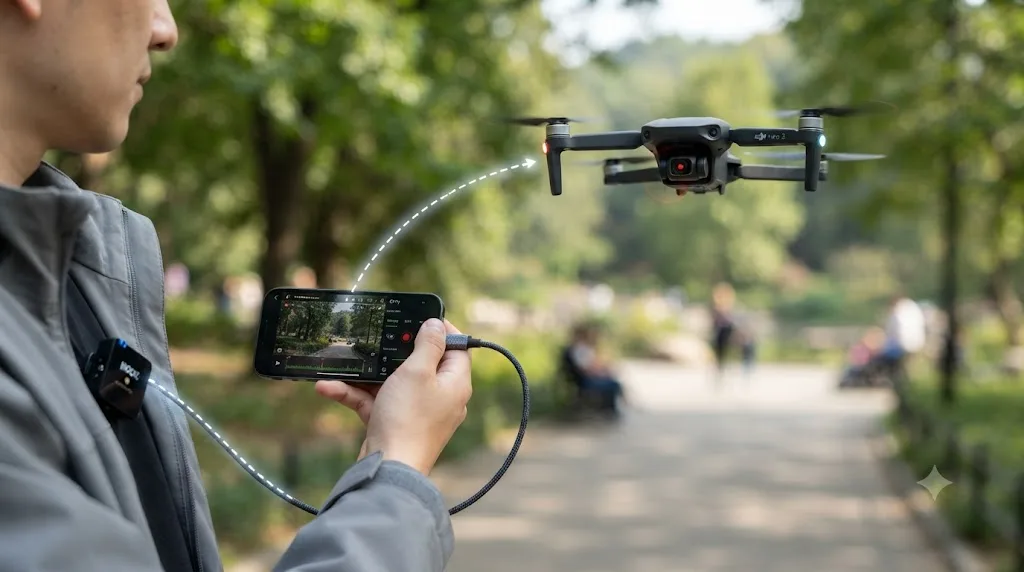
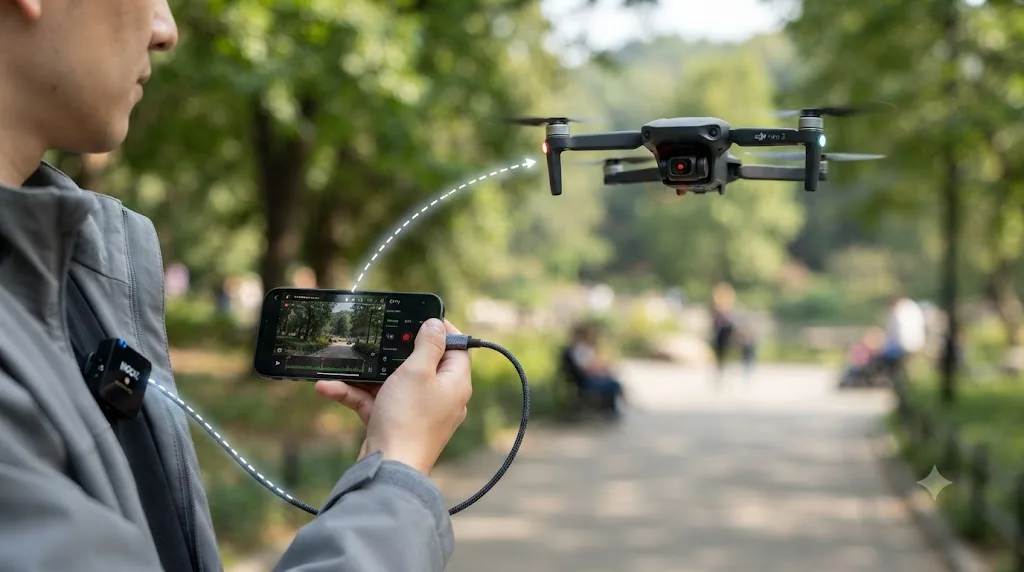
The DJI Neo 2 represents a newer approach: rather than a separate file you sync afterward, it embeds audio directly into the video file by routing sound from a phone-connected microphone, whether that's a DJI Mic 3 over Bluetooth or another mic plugged into the phone's USB-C port. "The Neo is going to record any audio that's connected to your phone," as one filmmaker described the workflow in coverage of the feature. Because the audio lands embedded in the same file as the video rather than as a separate recording, there's no separate sync step at all, no waveform matching, no clap, no drift to troubleshoot, because there was never a second file to drift against the first.
That's a meaningfully different workflow from the rest of the DJI lineup, and it's worth knowing if audio sync is a recurring headache on your shoots: a phone-linked recording model sidesteps the entire problem this guide covers, at the cost of needing your phone in the loop as the audio path, and only on the models that support it.
For every other DJI drone, the honest answer is that there is no drone-side scratch audio worth relying on. What sounds like scratch audio in some footage is usually wind and motor noise picked up by whatever's closest to the camera, useful as a rough reference for finding a manual sync point if nothing else was recorded, but not something to build a final mix around. If you flew without a DJI Mic or a ground recorder rolling and you're only now noticing the clip is silent, that's not a bug to fix, it's a reshoot-or-live-without-it situation, and it's the single strongest argument for treating "roll the mic before takeoff" as a non-negotiable habit rather than an optional step.
If your audio setup is prone to crackling or dropouts once it's actually in your Resolve project, separate from sync entirely, our guide on DaVinci Resolve audio crackling and popping during playback covers the sample rate, buffer, and driver checks for that specific, unrelated problem.
Frame rate and audio quick-reference by DJI model
Since the fix depends heavily on which drone you're actually flying, here's a practical breakdown across the current consumer lineup.
| DJI model line | Built-in mic | Typical frame rates | Sync approach |
|---|---|---|---|
| Mini series (Mini 3, Mini 4 Pro) | None | Up to 4K/100fps, 1080p/200fps | External audio only, waveform sync |
| Air series (Air 3, Air 3S) | None | Up to 4K/100fps, FHD/200fps | External audio only, waveform sync |
| Mavic series (Mavic 3, Mavic 3 Pro) | None | Up to 4K/120fps, ProRes 5.1K/48fps, FHD/200fps | External audio only, waveform sync |
| Avata / FPV series | Yes, on DJI FPV specifically | Model-dependent, check current specs | Built-in mic usable as rough reference only, not final audio |
| Neo 2 | Phone-linked, embedded | Model-dependent, check current specs | Audio embedded at capture, no post-sync step needed |
Whatever model you're flying, the frame rate column matters more than it looks like it should. Per official specifications, the DJI Air 3 and DJI Mavic 3 Pro both offer a wide spread of selectable rates, but every one of them still resolves to the fractional NTSC value in practice once you check the actual decimal frame rate rather than the rounded label in the app.
No current consumer DJI drone besides the Neo 2's phone-linked mode or the FPV's built-in mic gives you audio worth finishing with straight off the aircraft, which means the sync workflow in this guide applies to the overwhelming majority of DJI footage you'll ever edit. Budget for it in your shoot planning rather than discovering it's needed once you're already in DaVinci Resolve.
A full worked example, start to finish
Here's how the whole troubleshooting path comes together on an actual shoot: a real estate video with an eight-minute drone flight over a property, a DJI Mic clipped to the agent narrating on the ground, and no jam-synced timecode because it's a one-person shoot with no time to rig anything more elaborate.
- Fly the shot with a clap. Before takeoff, the drone operator claps once directly in front of the camera while the DJI Mic is already recording nearby. Cheap insurance, and it takes three seconds.
- Import everything. The drone footage comes back as three separate video files, since the eight-minute flight crossed the 4GB threshold twice. The DJI Mic's one continuous backup file goes into the same Media Pool bin.
- Check frame rate before touching audio. The Media Pool shows the drone clips at 29.97fps. Project Settings confirms the Timeline Frame Rate is already set to 29.97, matching correctly, so frame rate is ruled out as a cause for this particular project.
- Sync the first segment. Select the first video file and the corresponding start of the DJI Mic audio, right-click, Auto Sync Audio, Based on Waveform and Append Tracks. The pre-takeoff clap gives the algorithm a clean spike to lock onto.
- Trim and sync the remaining segments separately. For the second and third video files, a fresh copy of the audio clip is trimmed to roughly the right time range and synced independently against each segment, rather than assuming the first sync carries through the file split.
- Verify each segment individually. Scrubbing through all three, the sync holds cleanly to the end of each one, since each was synced fresh rather than inheriting drift from an earlier segment.
- Cut the three segments together on the timeline. Because each was synced on its own terms, the audio stays aligned across both file-split cut points without any visible jump.
- Export. Single clip render mode on the Deliver page produces one continuous file at the timeline's frame rate, matching exactly what played back during editing.
Total real cause in this example: none, actually, because the file split was anticipated and handled per-segment from the start. The version of this same shoot that goes wrong is the one where the editor syncs once against the first segment, assumes it holds, and only notices the second and third segments are unsynced once the client is already reviewing the cut.
Quick troubleshooting reference
Match your actual symptom to a row here before you start changing settings, since several of these causes look nearly identical from the outside.
| Symptom | Likely cause | Fix |
|---|---|---|
| Drone clip has no audio at all | Most DJI drones have no built-in mic; this is expected, not a bug | Sync a separate DJI Mic or ground camera recording using Auto Sync Audio |
| Sync is perfect for the first segment, wrong for the rest of a long flight | The flight's video split into multiple files at the 4GB limit | Sync each split segment individually against the matching portion of your audio |
| Sync looks correct at the start, drifts by the end of a single clip | Frame rate mismatch (NTSC fractional vs. true integer rate), or device clock drift | Confirm actual decimal frame rates match; use Elastic Wave or a speed nudge for residual drift |
| DJI Mic jam sync doesn't seem to reach the drone | Drones don't have a timecode input to receive DJI Mic timecode | Jam sync ground-based sources only; sync the drone leg by waveform separately |
| Multicam cut between drone and ground camera drifts within a shot, not just at the cut | One source's native frame rate wasn't conformed to the timeline | Conform every source to your project's real frame rate before judging sync |
| Sync was correct, then broke after a speed ramp or slow motion effect | Retiming applied to video without carrying linked audio along | Sync first, retime second, verify by ear afterward |
| DJI Neo 2 footage has embedded audio with no visible sync step | Working as intended; audio was captured through a phone-linked mic directly into the file | Nothing to fix; this model doesn't need a separate sync workflow |
Do you need DaVinci Resolve Studio to fix any of this?
No. Every tool this guide relies on, Auto Sync Audio, Elastic Wave retiming, Clip Attributes frame rate correction, and the Mixed Frame Rate Format and Retime Process settings, ships in the free version of DaVinci Resolve. None of it sits behind the Studio paywall, and a free-version editor working through a drifting drone flight has access to the exact same fixes as a Studio user.
Studio's relevant extras in this area are narrow. Speed Warp, Studio's Neural Engine-based retime mode, is built for extreme, deliberate slow motion on an isolated clip, not for conforming mismatched frame rates or fixing a bad sync. It's a genuinely different tool for a genuinely different job, and it isn't a substitute for anything covered in this guide.
The verdict
DJI drone footage doesn't drift out of sync because something broke. It drifts because the audio was always a separate file to begin with, and the specific reason that pairing falls apart is almost always one of a short list: a frame rate that isn't quite what the mode label promises, a video file that split at the 4GB mark without you noticing, a clock mismatch between your drone and your DJI Mic that no amount of on-paper spec compliance fully prevents, or a retime applied after sync instead of before it.
Check your frame rate and your file segment count before you touch a single audio setting, since both are silent, common causes that look exactly like ordinary drift from the outside. If the flight ran long enough to split, sync each segment on its own terms rather than trusting one sync to hold across a boundary DJI's firmware created, not you. And if you flew without a clap and without a DJI Mic rolling, that's not a Resolve problem at all, it's a reshoot, and the cheapest fix for next time costs three seconds at takeoff.
TryUncle is the on-screen assistant for DaVinci Resolve on macOS, ask in plain words and Uncle points at the exact control on your screen. If you'd rather have something watch your actual project and tell you whether a specific drone clip's drift is a frame rate problem or a file-split problem instead of working through this guide's checklist by hand, that's exactly the gap TryUncle is built to fill, live, inside Resolve, on your own footage. It's a paid macOS app at $34.99 a month, cancel anytime, with the current rate posted on the site.
Frequently asked questions
- Why does my DJI drone footage have no audio at all in DaVinci Resolve?
- Because it probably never had any. Most DJI camera drones, including the Mavic, Air, and Mini series, ship with no built-in microphone, since propeller noise this close to the camera would drown out anything usable anyway. The DJI FPV drone is a rare exception with a mic built in. Everything else needs a separate audio source, a DJI Mic transmitter, a phone-connected mic on newer models like the DJI Neo 2, or a ground camera, synced to the silent drone video afterward.
- Why does DJI drone audio sync perfectly for the first minute and then drift?
- Two unrelated causes produce the same symptom. First, DJI drones split video into a new file every 4GB regardless of card format, and if you sync one long external audio file against only the first segment, every segment after it is unsynced from the start, which looks like drift but is actually a hard cut. Second, genuine clock drift between your DJI Mic and your external recorder compounds gradually, and shows up only once enough time has passed for a few frames of difference to become visible.
- Does the DJI Mic fix audio sync with drone footage automatically?
- Not automatically, no. The DJI Mic records a clean backup file on the transmitter, which you still import and sync in DaVinci Resolve like any other separate audio recording. Its timecode jam sync feature can make Based on Timecode sync near instant if you set it up before the flight, but drone remotes and the DJI Fly or O4 app don't generate or receive that timecode themselves, so you're jam syncing the mic to whatever else is on set, not to the drone.
- Is my DJI drone actually recording at 30fps, or is that the actual sync problem?
- Almost certainly not exactly 30. DJI drones, like nearly all consumer cameras, record NTSC-standard 29.97fps whenever the mode says 30fps, and 23.976fps whenever it says 24fps, a legacy of how color television broadcasting was encoded decades ago. If your external audio or timecode source is generating true integer rates while your drone shoots the fractional NTSC rate, the two drift apart steadily over a long clip even when everything was synced correctly, at first.
- How do I sync a drone shot against a ground camera that used a different frame rate?
- Sync the audio to whichever clip is your primary reference using DaVinci Resolve's Auto Sync Audio, Based on Waveform, then conform the secondary clip's frame rate to match your timeline before you judge whether it's still in sync. A drone shot at 29.97fps cut against a cinema camera locked at 23.976fps will look correctly synced at the cut point and then drift within the shot if the frame rate difference isn't conformed, since Angle Sync and Auto Sync Audio both align a moment in time, not a running frame rate.
- Does speed-ramping a drone clip break the audio sync I already set up?
- Yes, if you retime the video after syncing audio to it and Resolve's retime settings aren't set to carry the audio along. A drone shot slowed to 50% for a cinematic reveal doesn't automatically slow its already-synced audio by the same amount unless you check that the clip's retime options include linked audio. The safe order is always sync first, then retime, then re-verify by ear, since checking a ten-second speed ramp for drift takes seconds.
- Do I need DaVinci Resolve Studio to fix DJI drone audio sync?
- No. Auto Sync Audio, Elastic Wave retiming, Clip Attributes frame rate correction, and the Mixed Frame Rate Format setting are all in the free version of DaVinci Resolve. Nothing about fixing drone footage sync sits behind the Studio paywall. Studio's relevant extras, like Speed Warp for extreme slow motion, are a different tool for a different job, not a substitute for any step in this guide.
Sources
- DJI Mic 3 - Specs (Blackmagic Design competitor product, DJI)
- Introduction to the Use of Timecode (DJI Support)
- DJI Air 3 - Specs (DJI)
- DJI Mavic 3 Pro - Specs (DJI)
- How do you record / sync narrated audio, DJI Mavic, Air & Mini Drone Community
- How to Record High Quality Audio with Your Drone, 4K Shooters
- Video Post-Production Workflow Guide: Syncing Sound, by Hilda Saffari (Frame.io)
- Audio drift in long videos using external mic, DJI Forum
- DJI Camera Video Splitting Explained, Causes, Pros & Fixes (CoSci Blog)
- Backup audio from DJI MIC doesn't match with the video's audio, DJI Forum
- Why 29.97 fps?, DJI Forum
- DJI Neo 2's Hidden Audio Feature Lets Solo Creators Record Sync Sound During Flight, DroneXL
- DaVinci Resolve Manual - Elastic Wave Audio Retiming (Blackmagic Design, mirrored)
- DaVinci Resolve Manual - Mixed Frame Rates (Blackmagic Design, mirrored)
Learn by doing, not watching
Stop translating tutorials to your timeline.
TryUncle stays beside Resolve on Mac and Windows. When you ask, Uncle sees your screen and points at the exact control you need. No hunting through tabs, timestamps, or mismatched tutorials.
Meet TryUncleKeep reading
 GuidesJul 8, 202639 min read
How to Sync Audio in DaVinci Resolve, Every Method
Sync audio and video in DaVinci Resolve with Auto Sync Audio, timecode, the Sync Bin, or a manual clap, plus fixes for drift and failed matches.
 FixesJul 12, 202629 min read
DaVinci Resolve Mixed Frame Rate Timeline Jittery: The Fix
DaVinci Resolve timeline jitters when clips have mixed frame rates. Here's why it happens, the setting that locks after import, and every real fix.
 FixesJul 12, 202632 min read
DaVinci Resolve Audio Crackling and Popping During Playback: Every Fix
DaVinci Resolve audio crackling or popping during playback? The real causes, in the order to check them: sample rate, buffer size, ASIO, frame rate, GPU, and hardware.