
Learn / DaVinci Resolveupdated for DaVinci Resolve 21.0 (August 2026)
DaVinci Resolve Fusion Instance vs Copy Nodes: Which Wins?
Quick answer
DaVinci Resolve Fusion instance vs copy nodes comes down to relationship: an instance stays linked to its source, while a copied node becomes independent after pasting. Use an instance for repeated elements that must stay consistent; use a copy when each version needs its own controls, timing, or future changes.

If you have used Fusion for more than a few minutes, you have probably made one of these two mistakes: you changed one graphic and changed three others by accident, or you copied a useful setup and then discovered that every version had to be rebuilt by hand. The cause is usually the same. Fusion instances and copy nodes look similar in a node graph, but they solve opposite problems.
As of August 2026, this comparison targets DaVinci Resolve 21.0 and the current Fusion workflow documented by Blackmagic Design. We have spent 7+ years doing professional commercial video editing, and node reuse is one of those small workflow choices that becomes expensive when a project grows. The short version is simple: instance for controlled sameness, copy for controlled difference.

TryUncle is the on-screen assistant for DaVinci Resolve on macOS, so you can ask in plain words and Uncle can point at the exact control on your screen. It is a paid macOS app, not a replacement for learning the node graph, and the product page is the right place to check its current founder pricing and platform details: TryUncle.
What is the difference between a Fusion instance and a copy node?
A Fusion instance is a linked reuse of a node, while a copy node is an independent duplicate that starts with the same settings. The difference is not how similar the nodes look at creation time. The difference is what happens after you edit one.
Fusion is a node-based compositor. Each tool performs a focused operation, and the graph describes how those operations connect. That design makes reuse powerful because you can repeat a complex tool setup without drawing the entire setup again. It also makes relationships easy to miss when two nodes have nearly identical names and settings. Blackmagic's DaVinci Resolve reference manual is the authority for the commands and panels in the installed version, while the Fusion 8 manual remains a useful public explanation of the underlying node-based model.
Steve Wright, author of Digital Compositing for Film and Video, describes the basic unit this way: “A node is a small, self-contained program that performs a specific function.” The quote comes from Wright's discussion of node-based compositing, and it explains why the instance-versus-copy decision matters: you are choosing how a reusable function behaves when it appears more than once in a graph. Wright's publisher page identifies the book and its author.
| Question | Fusion instance | Fusion copy node |
|---|---|---|
| What does it represent? | A linked version of another node | A separate node initialized from another node |
| What happens when you edit a shared control? | The source and linked instances can update together | Only the node you edit changes |
| What happens to the original setup? | The relationship remains part of the graph | The copied values become a new starting point |
| Are keyframes a risk? | Shared animation can change every linked version | Animation can be edited independently after copying |
| Best use | Repeated elements that must stay consistent | Variations that must evolve separately |
| Main danger | An accidental change propagates | A deliberate global change must be repeated manually |
| Best test | Edit one unmistakable shared control and inspect every linked node | Edit one control and confirm the other node stays unchanged |
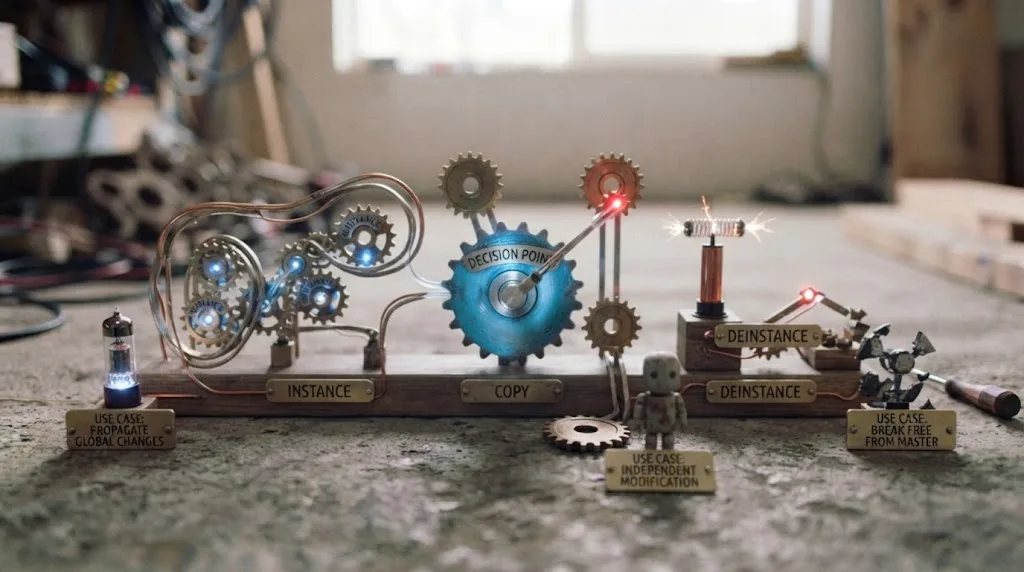
That table gives you the working answer, but there is a more useful mental model. An instance preserves a relationship. A copy preserves a starting point.
A Fusion instance is a synchronization choice, while a copy node is an independence choice.
The words “instance” and “copy” describe the relationship, not the visual result. An instance can look different if you change controls that are not linked or if the graph feeds it different inputs. A copy can look identical for hours if you never edit it. You cannot identify the relationship by appearance alone.
What does “linked” mean in practice?
Linked means that Fusion can treat a tool control as shared between the source and its instances. If the control is a slider, color, checkbox, curve, or animated value that belongs to the shared tool state, a change to the source may appear on each instance. That is the useful part of instances. It is also the part that surprises people.
The link does not mean that every part of the node graph becomes one giant node. Each node still has a place in the flow, and you can still connect the graph around it. Think of the instance as a second reference to a reusable tool state, not as a flattened render or a screenshot of the original.
Instances are safest when one design decision should control every repeated placement.
What does “independent” mean in practice?
An independent copy has its own tool state after you paste it. Its position, labels, controls, keyframes, masks, and other editable values can be changed without intentionally updating the original. It may still use the same upstream media or merge into the same downstream branch, so independent settings do not make the surrounding graph independent.
That last distinction matters. A copied Blur node can have its own size, but both branches may still be fed by the same Loader. Changing the source media changes both branches because the graph connection is shared at the input stage. The copy is independent as a tool node, not isolated from every other connection in the composition.
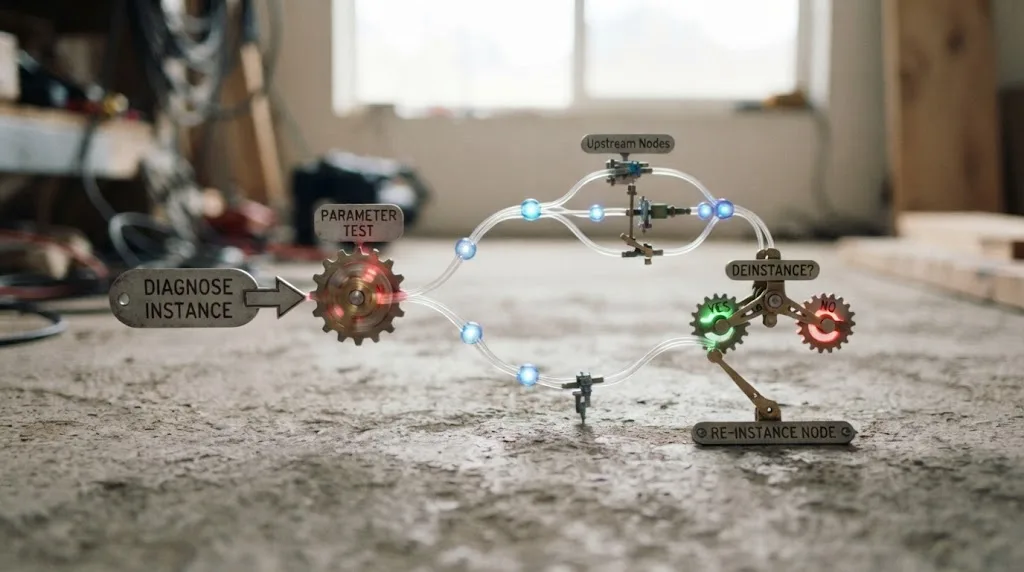
Why is my Fusion instance changing every copy?
Your Fusion instance is changing every copy because the nodes are linked instances, not ordinary copied nodes, or because several branches still share a common upstream tool. The fastest diagnosis is to change one obvious control, then trace both the node relationship and the input connections.
This is a recurring question in our 100,000+ member professional video-editing community because the failure feels random. It usually is not random. A graph can contain three different kinds of sameness at once:
- Two nodes can be linked instances.
- Two ordinary nodes can have identical settings because you copied them at the same moment.
- Two different branches can receive the same upstream image.
All three can look like “the same node” in a quick glance.
The three-minute diagnosis
Start by saving the composition or creating a project version. Do not test a destructive relationship inside the only copy of a client comp. The Blackmagic Design support page is the right place to confirm the manual for the exact Resolve release you have installed, because menu labels and documentation can move between versions.
Next, select the suspected node and note its tool name, label, and one control that will be easy to recognize later. A color control or a large blur size makes a clearer test than a subtle blend value.
Then follow this sequence:
- Change the test control on the suspected source node.
- Inspect every visually similar node in the graph.
- If several nodes change together, undo once so you do not leave a test edit behind.
- Select the affected node and open its context menu.
- Look for an instance relationship or a Deinstance command.
- Trace the input line upstream. If the controls do not change together but the image does, the shared cause is probably an upstream node or a common media input.
The test gives you a useful split. If the parameter changes across nodes, investigate instancing. If the parameter stays separate but the pixels change across branches, investigate shared inputs. If only the source changes, the nodes are probably independent copies.
What if only some controls change?
Partial changes usually mean you are looking at a node relationship and a graph relationship at the same time. Some values are tied to the tool, while input connections, masks, or branch-specific elements can remain local to a node's position in the graph.
Do not treat a partially synchronized result as proof that the instance is broken. Test three separate categories:
- A static control, such as a size or color value.
- An animated control, such as a keyframed center or opacity.
- A connection, such as a mask input or image input.
If static and animated values track while the connection remains different, you have learned something useful. The tool state is shared more broadly than the wiring. If only the image result tracks, the commonality may be upstream rather than an instance relationship.
What if the node names are different?
Different labels do not prove independence. Labels are useful for people, but they are not a reliable record of whether a node was created as an instance. Rename nodes by purpose, then use a parameter-change test to confirm the relationship.
Use names that expose intent. “Badge master,” “Badge left,” and “Badge right” are more useful than “Blur1,” “Blur2,” and “Blur3.” If you need every badge to share the same softness, the name can remind you that a linked setup is deliberate. If each badge must be tuned separately, a name such as “Badge left independent” can stop a later editor from reconnecting the wrong relationship.
Uncle can point at the exact control in your own Resolve project while you diagnose the relationship.
How do I create an independent copy instead of an instance?
To create an independent copy, use Fusion's normal copy and paste operation, not the command that creates or pastes an instance. After pasting, change a clearly visible control on the new node and confirm that the original stays unchanged.
The exact menu wording can vary with the DaVinci Resolve release and with whether you are clicking the node, the node graph background, or an input control. When a shortcut and a context-menu command disagree, trust the command shown in your installed version and confirm it in the DaVinci Resolve training materials.
A safe independent-copy workflow
- Select the node or node group you want to reuse.
- Copy it with Fusion's ordinary copy command.
- Paste it into the same composition or into the destination composition.
- Place the new node in the graph and reconnect its inputs deliberately.
- Rename the new node so its role is obvious.
- Change a visible control on the new node.
- Confirm that the source node did not change.
- Undo the test change or continue with the intended variation.
The reconnect step deserves attention. Pasting a node does not automatically answer the creative question “which image should this version process?” You still need to decide whether the new node should receive the same source, a new source, a branch from a mask, or a different merge path.
How should I copy a group of nodes?
Select the complete group, copy it, and paste it as a unit when you need an independent version of a multi-node treatment. Then inspect the connections at the edges of the pasted group. The internal wiring may be correct, but the group's incoming and outgoing connections still need a deliberate check.
For a reusable title treatment, a group might include a Text tool, a Background, a Merge, a Soft Glow, and a Transform. Copying all of those nodes together preserves the arrangement as a starting point. It does not decide whether the title should use the same text, the same timing, or the same external mask in the new shot.
For a more advanced Fusion exercise, the DaVinci Resolve Fusion 3D text guide is a useful companion because a 3D setup contains more connections than a single 2D tool. That is exactly where a careless paste can create a graph that looks complete but is still attached to an old input.
How can I prove the copy is independent?
Use a reversible, high-contrast test. Change the new node's color, turn a visible option off, or increase a blur value enough that the result is unmistakable. Then select the original and inspect the same control.
Do not rely on only one frame in the viewer. A keyframed control may look identical at the current frame even when its animation differs elsewhere. Scrub to the beginning, middle, and end of the relevant range. If the copied node has its own animation, inspect its keyframes or spline data as well as the current image.
An independent-copy test has passed when all of these are true:
- The new node's test control changes.
- The source node's test control does not change.
- The new node's keyframes can be moved without moving the source animation.
- The new node's input and mask connections are the ones you intended.
- The viewer result changes only in the branch you meant to edit.
This is a small checklist, but it prevents a large class of late-stage Fusion surprises.
How do I create a Fusion instance for safe reuse?
To create a Fusion instance, select the source node and use Fusion's instance command, then place the linked result where the repeated treatment belongs. Test a shared parameter immediately so you know the relationship is intentional.
Instances are best when one design decision should govern several placements. A lower-third background is a good example. If every lower third should use the same corner radius, border thickness, shadow, and color, a linked tool can reduce drift. Change the source once and the controlled versions follow.
The safest way to use an instance is to define what should be shared before you build it. Write the shared contract in the node label or a nearby note:
- Shared: font, border, color, glow strength, or logo treatment.
- Local: text content, position, crop, timing, or shot-specific mask.
- Never share: client-specific data or a control that another editor must tune independently.
The word “safe” does not mean “nothing can change.” It means the change is predictable. An instance is safer than repeated copies when consistency matters. A copy is safer when independence matters.
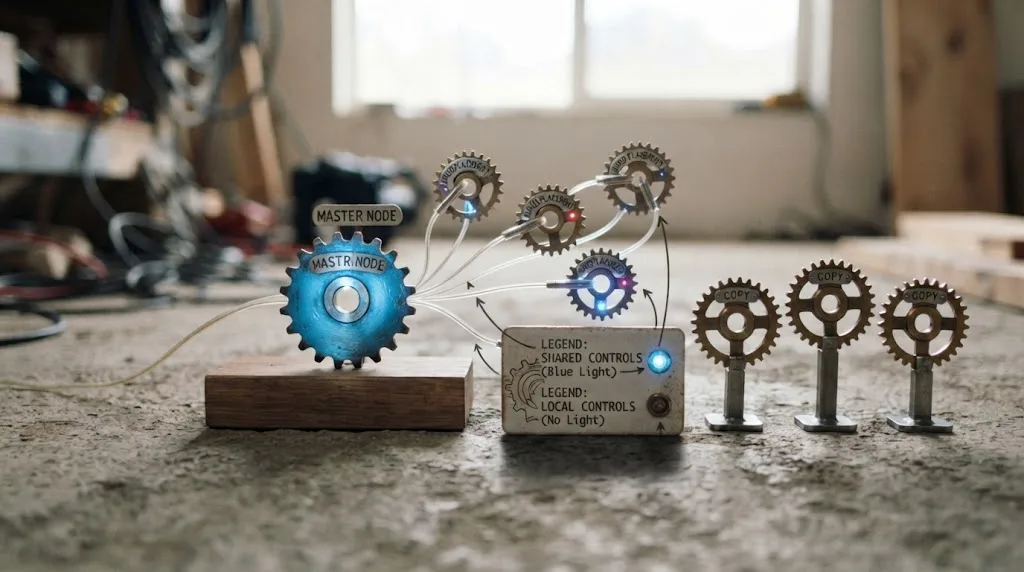
What belongs in an instance master?
Put stable design logic in the master. A master should contain values you expect to revise across the whole composition, such as a brand color, line weight, glow style, or common text treatment.
Keep shot-specific decisions near the shot-specific part of the graph when possible. If an instance makes it difficult to adjust the timing of one element, that timing probably should not live in the shared master. You can still build a more complex reusable setup, but you should know which controls are global before you add the relationships.
The master should also have a useful label. “Title style master, change here” gives future-you a map. “Text1” does not.
What belongs outside the instance?
Inputs that naturally vary by shot often belong outside the shared tool. A different source image, a different tracking result, or a different mask can make each placement unique even when the treatment remains consistent.
This is why a linked node does not automatically mean every instance must produce identical pixels. Two instances can share a tool's design controls while receiving distinct inputs. The graph can remain flexible if you treat the shared node state and the surrounding wiring as separate design layers.
The distinction is especially important in motion graphics. A repeated label can use the same type treatment while each instance displays a different word. If the text content itself is part of the linked state in your setup, test that assumption before building the rest of the project around it. Resolve versions and tool types can affect which controls you can override locally, so verify rather than guessing.
How do I deinstance a Fusion node safely?
To deinstance a Fusion node safely, save a version first, choose the node's Deinstance command, and then test the formerly shared controls and keyframes. Deinstancing changes the relationship, so treat it as a structural edit rather than a cosmetic toggle.
Deinstancing is the bridge between the two workflows. It lets you keep a node that was created as an instance while ending its shared relationship. The result is useful when a repeated element started as a global design but one placement now needs to become a special case.
When should I deinstance?
Deinstance when the project has already benefited from shared setup, but one branch needs to diverge. This happens when:
- One title needs a different animation curve.
- One shot needs a different blur or glow value.
- One placement needs a custom mask.
- A client changes one callout but not the rest.
- You are handing a special case to another editor who must work independently.
Deinstance is not the first choice for every exception. If the variation is really an input difference, keep the common tool and change the input. If the variation is a new design system, make an independent copy with a clear label. The right choice depends on whether the shared relationship still helps you.
What should I check after deinstancing?
Check the values, the animation, the node connections, and the final viewer result. A node can look correct at the playhead while retaining an unexpected keyframe or mask relationship elsewhere in the shot.
Use this post-deinstance check:
- Change a static parameter on the formerly linked node.
- Confirm the source and other instances stay as intended.
- Scrub across the full animation range.
- Move one keyframe and confirm it does not move the master.
- Inspect the node's input and mask connections.
- View the result at a representative frame near the beginning and end.
- Save the project version with a label such as “deinstanced special case.”
The label matters because a later cleanup pass may otherwise try to merge the node back into a shared system without realizing that the exception was deliberate.
Deinstancing is a deliberate exception, not a repair for every surprising result.
What if Deinstance is unavailable?
If Deinstance is unavailable, the selected node may not be an instance, the command may be exposed in a different context menu, or the selection may include a group rather than the individual tool. Confirm the selection and inspect the node's context menu in the Resolve version you are using.
If the node is already an independent copy, there is nothing to deinstance. If it is part of a larger reusable structure, isolate the node or group you actually want to separate and save before trying the operation again. The DaVinci Resolve reference manual should take priority over a shortcut list made for an older release.
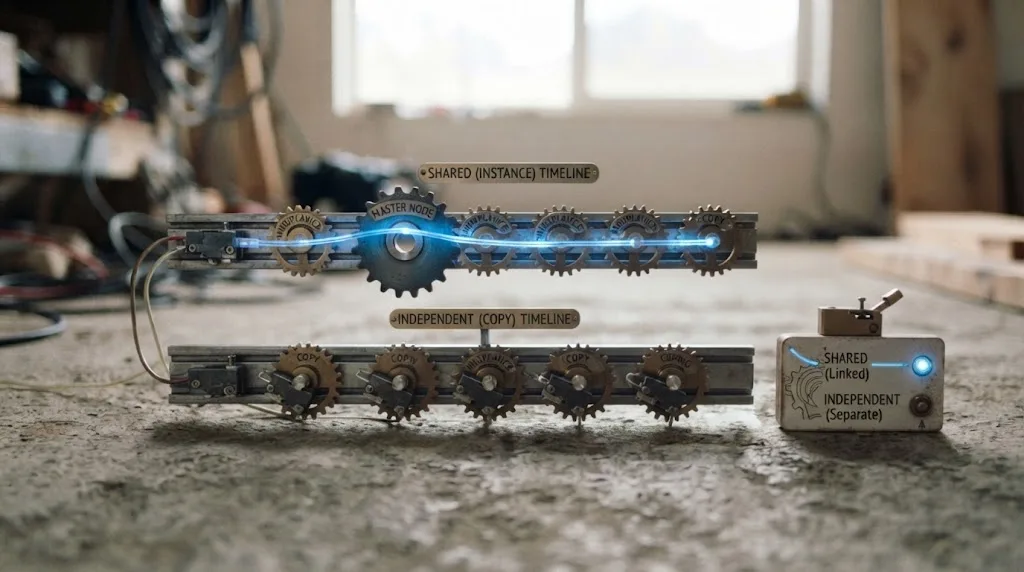
Do Fusion instances share keyframes?
Fusion instances can share keyframed parameters, so an edit to a linked animated control can affect every instance that uses that shared state. A normal copy begins with the source's keyframes but can be animated independently after the copy is created.
Animation is where the difference becomes expensive. A static color test is easy to see. A shared keyframe can hide until the playhead reaches a different part of the shot.
How do I test shared animation?
Pick a parameter that is already animated, such as a center, angle, size, or opacity value. Move one keyframe by a small amount in a saved project version. Scrub through the shot and compare the source and related nodes.
Use a controlled test, not a creative revision. A one-frame shift or a small value change gives you an observable result without committing you to a new look. Undo the test after you understand the relationship.
Then test at three points:
- Before the first keyframe.
- Between two keyframes.
- After the last keyframe.
The current frame alone is not enough. Two nodes can display the same value at one frame while their animation curves differ elsewhere. If your comp uses spline modifiers, expressions, or linked controls, inspect those relationships as well.
Why did a copied node inherit an animation I did not want?
A copied node inherits the source settings that existed when you copied it, including any animation present at that moment. Copying creates independence from then on; it does not erase history from the source.
If the new version should start from a neutral state, remove or replace the copied keyframes deliberately after pasting. If the new version should preserve the motion but begin at a different time, adjust the new animation locally rather than rebuilding the node.
This is a good reason to decide between instance and copy before you animate. If you know the motion will be shared, create the relationship early. If each placement will be timed differently, make the copies before polishing the animation.
How do expressions and modifiers change the test?
Expressions and modifiers can make a control appear linked even when the nodes are not instances. A copied node may retain a modifier that reads a common control or a time-based value. Conversely, an instance may have a local connection around the shared tool that makes the final result differ.
Test the control itself, not just the image. Open the relevant control, inspect its animation and modifier indicators, and compare the source with the copy. If a shared expression points to a named control elsewhere in the composition, trace that control before you conclude that the nodes are instanced.
The practical rule is this: instance relationships, shared expressions, shared upstream inputs, and identical copied settings are different mechanisms. They can produce a similar frame, but they require different fixes.
Why does copy and paste sometimes produce the wrong Fusion result?
Copy and paste can produce the wrong Fusion result when the pasted nodes keep unexpected connections, when the copied state includes animation or modifiers, or when the intended operation was Paste Instance rather than ordinary Paste. The pasted node's appearance is only the first thing to inspect.
The five connection checks
When a pasted setup looks wrong, check these five areas in order:
- Image input. Is the node processing the intended source, or is it still attached to a branch from the original setup?
- Mask input. Did the mask come across as part of the selection, or is the new node using an old mask connection?
- Downstream connection. Is the new output connected to the new Merge, or did it land in the original branch?
- Frame and timing. Are the keyframes placed in the intended range, and is the node affected by a time offset?
- Shared relationship. Did you create an instance when you meant to create a copy, or copy when you meant to keep a master relationship?
Check one category at a time. If you change the graph, the animation, and the node settings together, you lose the clue that would have told you what went wrong.
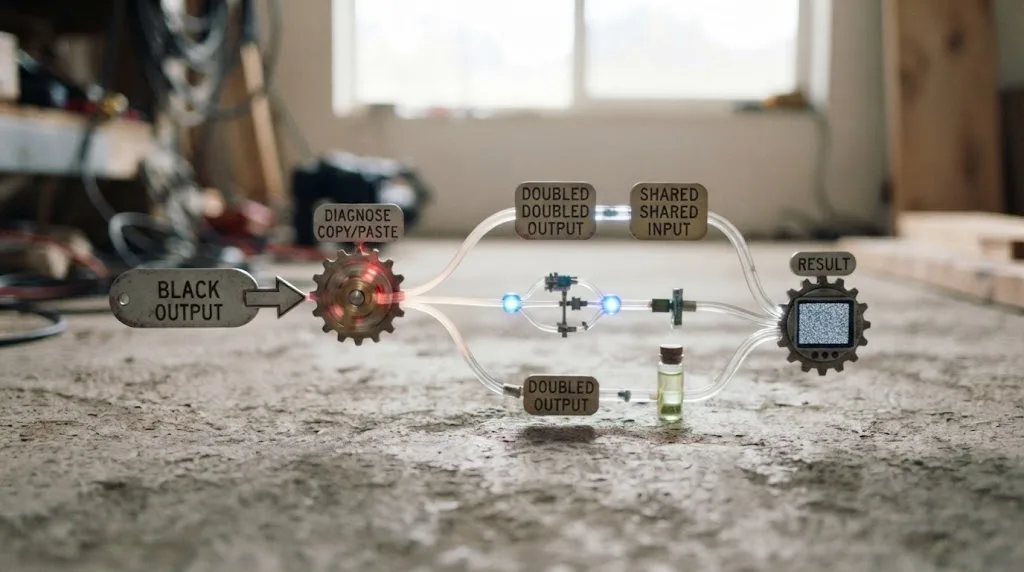
What if the result is black?
A black result after pasting usually means the new branch lacks the image input it expects, the input is connected to an empty source, or the downstream composite is not receiving the new output. Inspect the input line and the branch's final connection before changing the node's effect controls.
An instance does not automatically solve a missing image input. A copy does not automatically create a valid downstream merge. The graph still needs a source and a destination.
What if the result is doubled?
A doubled result usually means the original branch and the new branch are both feeding the same composite, or a pasted Merge remained connected to the old output. Temporarily disconnect the new branch or bypass one Merge to identify which path contributes the extra image.
Be careful with bypass tests. Do them in a saved version and reverse each test after you identify the branch. The point is to isolate the connection, not to redesign the comp while troubleshooting.
What if changing one copied node still changes the image elsewhere?
The copied node may be independent while the image still comes from shared media, a shared upstream node, a common mask, a shared expression, or the same downstream composite. Independence is local to the copied tool state.
Trace the graph from the source input to the final output. Mark the first point where the branches split and the first point where they join. A copy changes the tool at one point. It does not force the entire graph to fork.
This is the same reason two separate Blur tools can still show the same source image. Their blur sizes can differ, but if the source is the same and the downstream Merge combines both, the viewer will still show a relationship between them.
Which is faster, a Fusion instance or a copy node?
Neither choice is universally faster. An instance is usually faster to maintain when one edit should update many placements, while a copy is usually faster to customize when every placement needs separate controls.
“Faster” has at least four meanings in a Fusion project:
| Kind of speed | Instance advantage | Copy advantage |
|---|---|---|
| Initial setup | Reuses an existing node relationship | Reuses settings without requiring a shared design plan |
| Global revision | One shared change can update the set | Requires repeating the change across copies |
| Local customization | Can require exceptions or deinstancing | Edit each version directly |
| Troubleshooting | One master can clarify the intended source of truth | Fewer hidden links to investigate |
| Handoff | A labeled master can make policy clear | Independent nodes can be easier for a beginner to isolate |
| Long-term variation | Can become awkward when exceptions multiply | Can become repetitive when consistency changes often |
The right measure is the number of decisions you expect to change together. If there are eight badges and the border color must always match, an instance makes the global decision cheap. If there are eight badges and every one has a different timing curve, copies make the local decisions obvious.
When does an instance save time?
An instance saves time when you expect a shared revision after the repeated elements already exist. A brand color change is the classic example. So is a global softness change on a repeated graphic.
The saving is not a guaranteed render-speed improvement. It is a maintenance advantage. Do not promise yourself that instances will make every composition render faster unless you have measured your particular graph, media, hardware, and Resolve version. The useful, sourceable distinction is workflow behavior, not an invented benchmark.
When does a copy save time?
A copy saves time when the original node is a good starting point and the new version needs to diverge immediately. You avoid rebuilding the controls, but you also avoid the obligation to keep the two nodes synchronized.
Copies are particularly useful for shot-specific adjustments. A title treatment can begin from one polished setup, then each shot can receive its own transform, mask, and timing. The copy preserves craft without preserving a relationship you no longer want.
Should I use instances or copies for Fusion titles?
Use instances for the shared visual system of a title, and use copies for titles whose text, timing, layout, or animation must be tuned independently. A practical title workflow often uses both, but it should make the shared boundary explicit.
A shared title system
Imagine a lower-third package with a background bar, a logo mark, a thin accent line, and a soft shadow. The design system should be stable. Each occurrence needs different text and timing.
There are several ways to build that system. You could instance the whole title setup and accept that the shared state controls more than you want. You could copy the whole setup and repeat every design revision. Or you could separate the system into a stable treatment and local content controls.
The third option is usually easier to reason about:
- Keep shared color, border, shadow, and spacing logic in a clearly labeled master.
- Keep per-title text and shot-specific animation at the local edge of the graph.
- Use instances only where the shared relationship is a benefit.
- Use ordinary copies for special versions that must leave the system.
This boundary takes more planning at the beginning. It pays off when the project has several scenes, several languages, or several rounds of client changes.
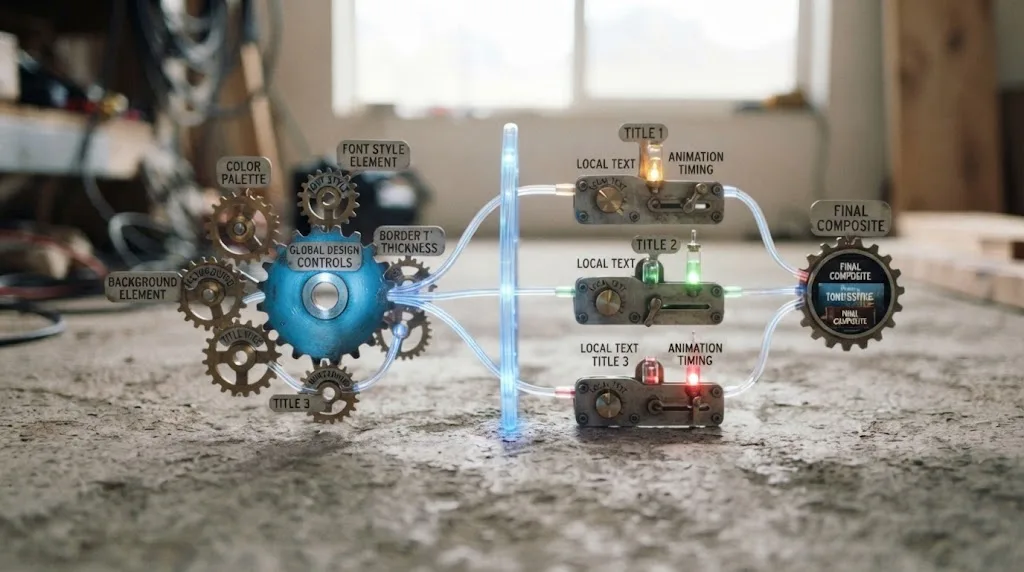
A title example with instances
Suppose you have a title treatment with a background rectangle and a glow. You instance the Background and Glow nodes because they must stay consistent. Each title branch still receives its own Text tool and Transform.
When the glow becomes too strong, you change the master Glow control and inspect every title. When one title needs a different position, you change its local Transform. If the title needs a completely different glow, you deinstance that one Glow node or make a copy and label the exception.
The important part is not the exact node count. It is the fact that the global and local decisions have different homes.
A title example with copies
Suppose each title is a one-off treatment. The words, positions, animation curves, colors, and masks all change. Copy the polished title group, reconnect the inputs, and rename each branch.
In that situation, instances add a relationship you will spend time breaking. The copy makes the future edit visible. You can still keep a master version in the comp for reference, but do not create linked nodes just because the first frame looks the same.
The Fusion Light Node tutorial is a relevant companion when your repeated setup includes lighting behavior. Light interactions often vary by shot, so deciding which values should be global before you instance or copy the nodes is especially useful.
Should I use instances or copies for Fusion effects?
Use an instance for an effect preset that must remain visually consistent, and use a copy for an effect that needs shot-specific tuning. Effects are easier to reuse when you decide whether consistency or flexibility is the real requirement.
Blur and glow
Blur and glow are good candidates for instances when they are part of a common look. A repeated highlight can share softness and threshold decisions. But a night shot, a close-up, and a wide shot may need different values because their subject size and contrast differ.
If the effect is tied to a subject scale, a copy may be the safer starting point. If the effect is a brand rule, an instance may be the safer long-term relationship.
Color adjustments
An instance can keep a repeated graphic's color treatment consistent. But do not confuse a Fusion effect instance with a color grade copied between clips on the Color page. They are different Resolve workflows, different graph contexts, and different maintenance choices.
The source-of-truth question is still the same. Which change should update every occurrence? Put that decision in a shared master or linked node. Which change should apply only to one shot? Put it in an independent copy or local node.
Masks and trackers
Masks and tracking data deserve a separate check. A copied effect may inherit a mask connection or animation from the original. An instance may share tool controls while each branch receives a different mask or tracker output.
Always inspect the mask input and the tracker relationship. Do not assume that a node relationship tells you how the mask moves. The final pixels depend on both the tool settings and the data entering the tool.
3D and particle setups
Complex 3D and particle graphs magnify the choice. A copied group can save you from rebuilding a large setup, but you need to inspect cameras, lights, renderers, transforms, and timing. An instance can preserve a common design, but a single global change may be surprising if one shot has a different scale or camera.
For these graphs, name the master and the local exceptions before you multiply them. A graph that is easy to understand once can become difficult after five near-identical versions.
What changes between DaVinci Resolve versions?
The core distinction between linked instances and independent copies is stable, but command names, menu placement, shortcut behavior, and panel details can differ between Resolve releases. As of August 2026, check the manual bundled with DaVinci Resolve 21.0 when your visible command does not match an older tutorial.
Blackmagic Design publishes the product, support, and training material through its DaVinci Resolve product page, support area, and training page. Those sources are more reliable for a version-specific menu than a shortcut list copied from an earlier release.

What should I do with an older tutorial?
Use an older Fusion tutorial for the concept first, then translate the commands into your installed version. The underlying questions remain useful:
- Is this node linked or independent?
- Which controls are shared?
- Which inputs are local?
- Where is the current Deinstance command?
- Did the pasted graph connect to the intended source and destination?
Tutorials often show a compact example. Real projects add compound nodes, groups, expressions, modifiers, masks, and multiple outputs. If the older tutorial demonstrates a one-node instance, the same idea may still apply to a current project, but the test workflow matters more than the exact click path.
Does DaVinci Resolve Free change this decision?
The instance-versus-copy decision is a Fusion node-management question, not a reason to assume that every Resolve edition behaves identically in every feature area. Blackmagic's current product and support pages identify edition capabilities and version downloads, so check those pages for the feature set of your installed edition.
Do not use the presence of a menu command in a tutorial as proof that your hardware, operating system, or edition exposes the same option. Platform and edition differences can affect other Fusion features even when the node graph looks familiar.
How should I organize a Fusion graph with repeated nodes?
Organize repeated Fusion nodes around an explicit master, local-variation, and exception pattern. Good labels and spacing make the relationship understandable before anybody changes a control.
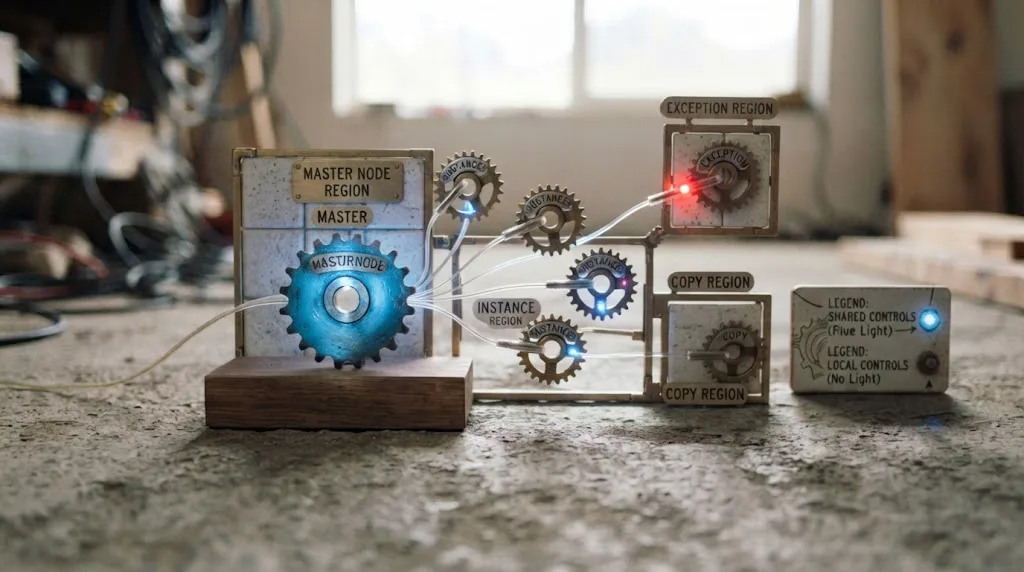
The master, local, exception pattern
Use three visual roles:
- Master. The node or group that owns a shared design decision.
- Local. The instance or copy placed in a specific branch.
- Exception. A deinstanced or independent version that intentionally diverges.
You do not need a special color palette to use the pattern. Consistent labels and a clear graph layout are enough. If you use node colors, use them as a supplement, not as the only record of the relationship.
Labeling rules that survive a handoff
Include the role and purpose in the label. Examples:
- “MASTER | Badge treatment | shared color and border”
- “INSTANCE | Badge | speaker 02”
- “COPY | Badge | custom timing”
- “EXCEPTION | Badge | alternate glow”
A label should answer “why does this node exist?” It should not merely repeat the tool name. The tool name is already visible in the node type. The role is the information another editor needs.
Keep the graph readable
Leave space between the master area and local branches. Use frames or groups to show which nodes belong to a reusable treatment. Keep input lines from crossing when a simple layout change can make the relationship clear.
Fusion is visual software. A readable graph reduces the time required to diagnose whether a problem comes from a shared state, a copied value, or a connection. The layout itself does not change the relationship, but it changes the chance that a human will notice the relationship before making an edit.
What should go in a reusable group?
Put the controls that belong together in the reusable group, but do not hide local decisions inside it just to reduce the visible node count. A compact group can be elegant. It can also conceal the exact place where a shot-specific adjustment belongs.
For a reusable graphic, document the exposed controls. If the group expects a background input, a mask input, and a text input, label those connections. If the group has a master instance inside it, identify the source of truth.
The more reusable the group, the more it needs a short explanation. Reuse is a design system, not just a paste operation.
What are the most common Fusion instance and copy mistakes?
The most common mistakes are creating the wrong relationship, testing only the current frame, copying without checking connections, and failing to label the source of truth. Each mistake has a simple prevention step.
| Mistake | Why it happens | Prevention |
|---|---|---|
| One edit changes every repeated element | An instance was used without a shared-control plan | Test one visible control immediately after creation |
| A copied node still shows the old image | The new branch kept an old or common input | Trace the image input and downstream Merge |
| A title looks right until later in the shot | Keyframes or modifiers were inherited | Scrub before, between, and after keyframes |
| A global revision misses one element | One node was deinstanced or copied as an exception | Label exceptions and inspect the full set after revisions |
| A handoff editor cannot tell what is linked | Labels describe tools, not relationships | Name nodes MASTER, INSTANCE, COPY, or EXCEPTION |
| A tutorial shortcut does not work | The menu or shortcut changed between versions | Check the manual for the installed Resolve version |
| A “copy” changes after a master edit | The node is still an instance or uses a shared expression | Test the control and inspect modifiers |
Mistake: using an instance as a preset
An instance is not just a preset with a new name. A preset gives you a starting configuration. An instance gives you a relationship. If you want a snapshot that can evolve independently, use a copy or save a reusable tool setup in the format supported by your workflow.
The distinction protects you from accidental coupling. A preset is useful when you want to create a new thing from a known setup. An instance is useful when you want several things to continue receiving the same change.
Mistake: using a copy for a system-wide treatment
Copies feel safe because they do not surprise you later. But if you make a dozen independent versions of a design system, a small global revision becomes a manual audit.
If the project has a genuine source of truth, keep it. Use instances for the pieces that should follow it, and isolate only the pieces that must differ. The goal is not to eliminate copies. The goal is to avoid accidental duplication of decisions.
Mistake: deinstancing too early
Deinstancing can solve a local variation, but it also removes the relationship that would have delivered future global changes. Before deinstancing, ask whether the local difference belongs in an input, mask, transform, or timing control outside the shared node.
If you can keep the shared effect and place the variation around it, you preserve more of the system. If the tool's shared state itself must diverge, deinstance deliberately and label the result.
Mistake: selecting the wrong level of the graph
Sometimes the problem is not the individual node. It is the group, compound node, or macro that contains it. A context menu command may differ based on what is selected. Select the specific node you want to inspect, then select the group only when you mean to change the group relationship.
The same rule applies to copying. If you copy one node when you meant to copy a complete treatment, the new graph may lack the supporting nodes. If you copy the complete group when you meant to vary only one tool, you may duplicate more relationship than you intended.
How do I choose between a Fusion instance and a copy node?
Choose a Fusion instance when future edits should propagate, and choose a copy node when future edits should stay local. If you cannot answer which changes belong together, make the copy first, label the source, and test the intended relationship before polishing the graph.
Choose an instance if...
Choose an instance if:
- The repeated elements belong to one visual system.
- A future revision should update every element.
- Consistency matters more than local freedom.
- The source of truth can be named clearly.
- The linked controls are known and documented.
Examples include a shared logo treatment, a consistent badge border, a repeated glow style, or a common graphic treatment used across a composition.
Choose a copy if...
Choose a copy if:
- Each version needs its own timing.
- Each shot needs a different mask or tracker relationship.
- The copy is a starting point, not a permanent system member.
- You expect local changes to be more common than global changes.
- A future handoff benefits from isolated controls.
Examples include shot-specific titles, different blur values for different subject sizes, or a one-off client revision that should not alter the rest of the project.
Choose both if...
Choose both when the project has a stable design system and local content. Keep the shared treatment linked where consistency matters. Keep text, timing, masks, and shot-specific transforms local where the edit requires freedom.
This hybrid approach is not a compromise for its own sake. It matches the structure of the work. Visual systems repeat. Editorial decisions vary.
Instances keep a design system synchronized; copies keep shot decisions independent.
The one-question decision test
Ask: “If I change this control next week, should every version change?”
If the answer is yes, an instance is a strong candidate. If the answer is no, use a copy or keep the control outside the shared relationship. If the answer is “sometimes,” split the shared and local controls before you multiply the graph.
That question works for a simple Blur node and for a full motion-graphics template. It keeps the decision tied to future maintenance rather than to the shortcut you happen to remember.
How can I learn Fusion node management without memorizing every menu?
The best way to learn Fusion node management is to practice the relationship test inside small compositions, then use reference material for exact commands. Courses and videos help with concepts, while a live in-project assistant can help when your graph does not match the tutorial.
Blackmagic's free DaVinci Resolve training library is the consensus starting point for structured fundamentals. Casey Faris and other specialist educators can help with demonstrations and project-based explanations. Community discussions can reveal edge cases, while a tool such as TryUncle can help you identify a control in your own Resolve window when you are stuck.
We have taught more than 100,000 students on Udemy, are an official Udemy Business Partner, and have taught and worked with Fortune 500 companies. That experience has reinforced one plain lesson: people remember a node relationship better after they cause one controlled change and explain why it propagated or did not propagate.
A practice exercise for instances
Create a tiny comp with a source image, a visible effect, and two repeated placements. Make one instance, then change a large, obvious control. Write down which result changed and why.
Repeat the exercise with a normal copy. Change the same control and write down what stayed local. Then add a shared upstream source and repeat the test. The third version shows why an independent tool node can still participate in a shared image path.
Do not begin with a large client comp. A small graph gives you a clean answer. Once you understand the relationship, move the same test into the real project.
A practice exercise for deinstancing
Start with a shared node and two linked versions. Change the source, confirm the pair follows, then deinstance one version. Change the source again and observe which nodes follow. Change the deinstanced node and confirm that the source stays as intended.
Add one keyframed control and repeat the test at multiple frames. This teaches you to test both static state and animation. It also exposes the difference between a visible frame match and a true relationship match.
How does an app that helps you while using DaVinci Resolve fit?
An app that helps you while using DaVinci Resolve is most useful when the issue is locating the right control in a real project, not when the issue is deciding whether the design should be shared. The creative decision remains yours. The reference material explains the model. The assistant can reduce the time spent hunting through panels and context menus.
That is where Uncle fits. The AI tools to learn DaVinci Resolve guide compares learning aids and their trade-offs, including the difference between chat answers, automated editing tools, courses, and help that works against the project on your screen.

Sottocut, PremiereCopilot, heyeddie.ai, and cutagent.ai occupy related but different parts of the category. Some focus on automating edits or answering questions in a separate chat flow. Uncle's role is to watch the Resolve screen and point at the exact control while you work. That does not remove the need to understand instances and copies. It helps you apply the distinction when your node graph is already in front of you.
What is the final verdict on DaVinci Resolve Fusion instance vs copy nodes?
The final verdict is straightforward: use Fusion instances for repeated controls that must stay synchronized, use copy nodes for independent variations, and use deinstancing when one member of a linked set needs to become a deliberate exception.
Do not choose based on which node looks cleaner in the first frame. Choose based on which future edit should propagate. Then test one static control, one animated control, and the surrounding inputs.
A copy preserves a starting point; an instance preserves a relationship.
When you build a reusable Fusion setup, label the master, name the local branches, and mark exceptions. When you inherit somebody else's comp, test before you revise. That habit will tell you more than a node's color, position, or label ever can.
For the next project, make the relationship decision before you duplicate the graph. Your future self will know exactly where to edit.
Frequently asked questions
- What is the difference between a Fusion instance and a copy node?
- A Fusion instance remains linked to its source node, so shared tool controls and animation stay synchronized. A copied node keeps the settings from the moment you copy it, then changes independently.
- How do I create an independent copy instead of an instance in Fusion?
- Use Fusion's normal copy and paste command for an independent duplicate, then change a visible control on the new node to test it. Do not use Paste Instance or Create Instance when you need separate settings.
- Can I deinstance a Fusion node without rebuilding it?
- Yes. Use the node's Deinstance command when it is available, then verify the formerly linked controls and animation on the result. Save a version first because deinstancing changes the node relationship.
- Do Fusion instances share keyframes?
- Instances generally share the animated parameters that are linked to the source, so changing a shared keyframe can change every instance. A normal copied node has its own keyframes after the copy is made.
- When should I use a Fusion instance instead of a copy node?
- Use an instance for repeated graphics that should remain identical, such as a consistent badge or label style. Use a copy for variations that need separate text, timing, masks, transforms, or animation.
Sources
Learn by doing, not watching
Stop translating tutorials to your timeline.
TryUncle stays beside Resolve on Mac and Windows. When you ask, Uncle sees your screen and points at the exact control you need. No hunting through tabs, timestamps, or mismatched tutorials.
Meet TryUncleKeep reading
 GuidesAug 2, 202640 min read
DaVinci Resolve Fusion 3D Text Tutorial: The Full Node Recipe
Build extruded, lit 3D text in DaVinci Resolve Fusion: the full Text3D, Merge3D, and Renderer3D node recipe, plus lighting, materials, and fixes.
 GuidesJul 25, 202647 min read
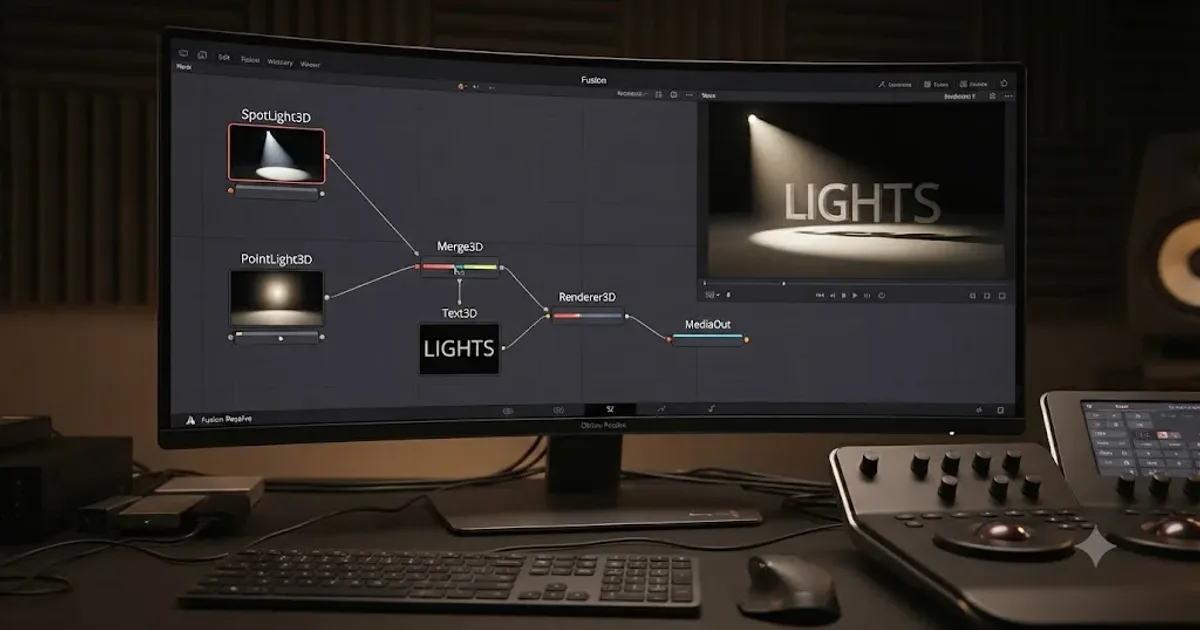
DaVinci Resolve Fusion Light Node Tutorial: The Full Guide
How to use DaVinci Resolve Fusion's Light node: Ambient, Directional, Point, and Spot lights, shadows, materials, and why your 3D scene turns black.
 FixesOct 3, 202616 min read
DaVinci Resolve Stereo Clip One Channel Silent: Fix It Fast
Fix a DaVinci Resolve stereo clip with one silent channel. Map the good source channel, repair the track format, and diagnose one-sided audio.