
Learn / DaVinci Resolveupdated for DaVinci Resolve 21.0.2 (July 2026)
DaVinci Resolve Export Settings for LinkedIn Video (2026)
Quick answer
Export LinkedIn video from DaVinci Resolve's Deliver page as MP4, H.264, AAC audio, matching your timeline's native resolution and frame rate. LinkedIn allows organic posts up to 5 GB and 10 minutes, and video ads up to 500 MB, best kept to 15-30 seconds. Resolve has no LinkedIn preset, so build a custom H.264 master and save it.
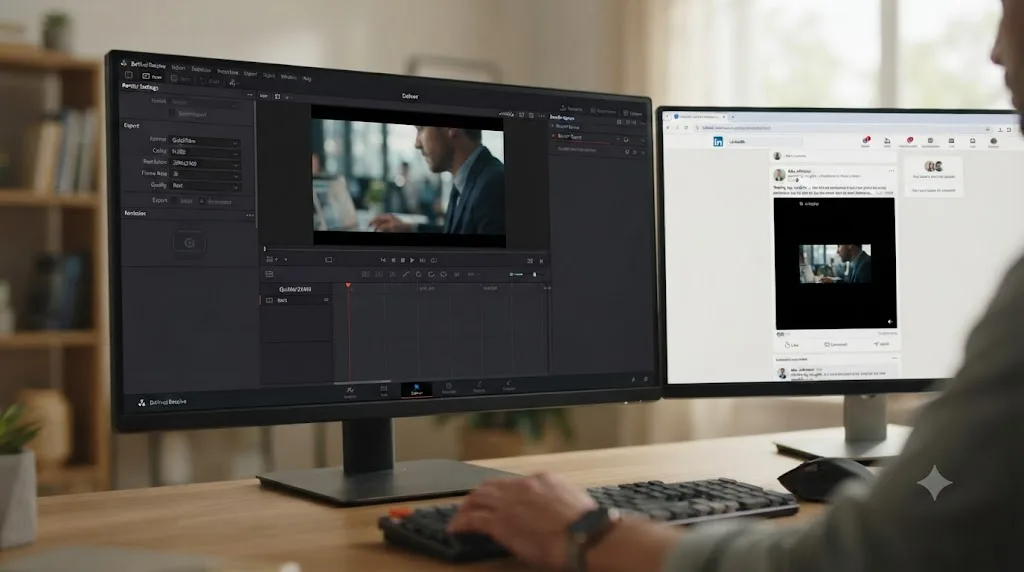
You typed "DaVinci Resolve export settings for LinkedIn video" because you just noticed something YouTube, Vimeo, and TikTok all get and LinkedIn doesn't: a preset. There isn't one. LinkedIn never made it onto Resolve's built-in list, so every LinkedIn export on this platform is a custom job, and most of the confusion online is people guessing at numbers instead of checking what LinkedIn actually publishes.
As of July 2026, running DaVinci Resolve 21.0.2, here's the whole spec, sourced straight from LinkedIn's own help center and its Marketing Solutions site, matched to the exact fields on the Deliver page. This is a long guide on purpose. LinkedIn splits its rules across at least three different documents depending on whether you're posting, boosting, or running a Campaign Manager ad, and the numbers genuinely differ between them. Skim the tables, keep the one row that applies to you, and use the rest as reference the next time your export gets rejected.
What Are LinkedIn's Official Video Export Specs?
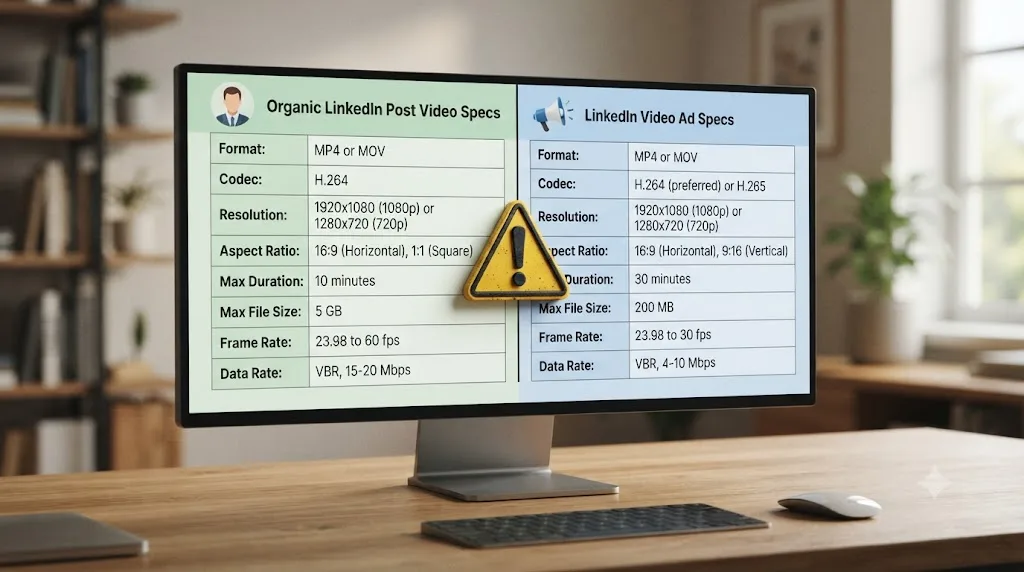
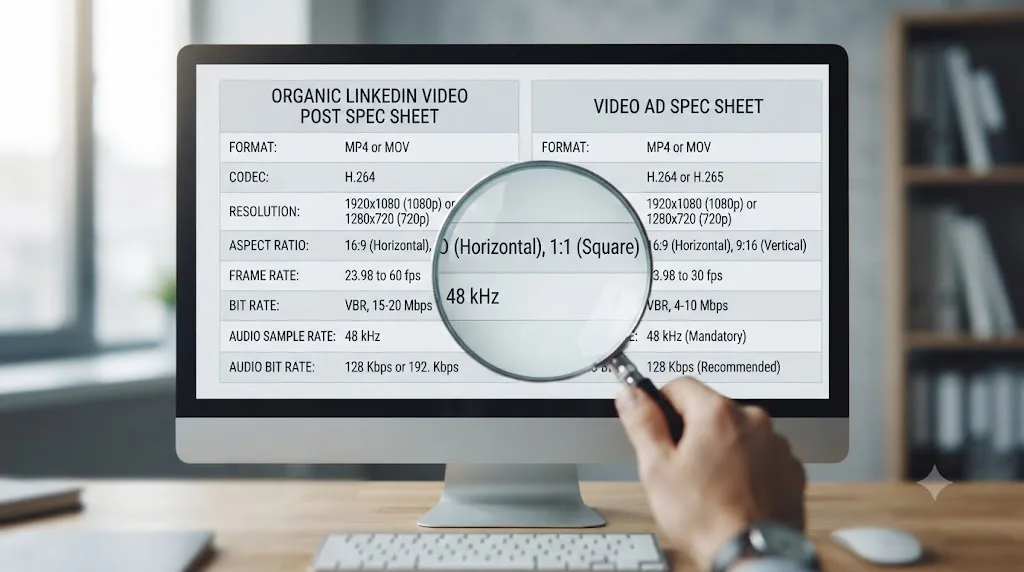
LinkedIn publishes two different spec sheets, one for regular video posts and Company Pages, another for paid video ads, and they are not the same numbers. Confusing the two is the single most common reason a LinkedIn video export gets rejected or looks worse than it should.
| Setting | Organic post / Company Page | Video ad |
|---|---|---|
| Container | MP4 (H.264/AVC recommended) | MP4 |
| Video codec | H.264, plus several others accepted | H.264 or VP8 |
| Audio codec | AAC and several others accepted | AAC or MPEG4 |
| File size | 75 KB to 5 GB | 75 KB to 500 MB |
| Duration | 3 seconds to 10 minutes | 3 seconds to 30 minutes (15-30 sec recommended; in-stream capped at 90 sec) |
| Resolution | 256x144 to 4096x2304 | 360x360 up to 1920x1920, varies by aspect ratio |
| Aspect ratio | 1:2.4 to 2.4:1 (very wide range) | 16:9, 1:1, 4:5, 9:16 |
| Frame rate | 10 to 60 fps | Up to 30 fps (30 fps recommended) |
| Bitrate | 192 Kbps to 30 Mbps | Not separately published; match resolution to the table below |
Source for the organic column: LinkedIn's video specifications for Pages and Career Pages. Source for the ad column: LinkedIn's video ads advertising specifications and LinkedIn Marketing Solutions' video ads specs page.
DaVinci Resolve has no built-in LinkedIn preset, so every LinkedIn export on the platform is a custom H.264 master you build once and save. That's not a Resolve limitation specifically. Facebook doesn't get a preset either. YouTube, Vimeo, Twitter, and TikTok do, per the presets that ship in the Deliver page's Render Settings panel, and LinkedIn simply isn't on that list.
One detail worth flagging before you pick a format: LinkedIn's help documentation notes that AVI, QuickTime, and MOV files are "no longer supported" for native video uploads. If your Resolve project defaults to a ProRes or QuickTime-wrapped master, that's the wrong file to send to LinkedIn directly. Export H.264 in an MP4 container instead.
It's also worth knowing exactly how wide LinkedIn's organic acceptance actually is, because it's wider than most creators assume. The full list of container and codec combinations LinkedIn's help documentation names for personal profile and Company Page video includes AAC, ASF, FLV, MP3, MP4, MPEG-1, MPEG-4, MKV, WebM, H.264/AVC, Vorbis, VP8, VP9, WMV2, and WMV3. That's not an endorsement to export any of those from Resolve. It just means LinkedIn's ingest pipeline was built to accept whatever a phone or a screen recorder throws at it, then transcode everything down to one internal delivery format anyway. You get no visual benefit from picking an exotic codec over H.264, and you lose the guarantee that Resolve's own encoder, which is tuned for H.264 output, produces a clean master. Stick with MP4, H.264, AAC. It's the one combination both of LinkedIn's spec sheets agree on, and it's the one Resolve's Deliver page is built to hand you with the fewest clicks.
How Do You Set These Export Settings on DaVinci Resolve's Deliver Page?
Open the Deliver page (the rocket icon at the bottom of Resolve) and build the export from the H.264 Master starting point, since there's no LinkedIn shortcut to click.
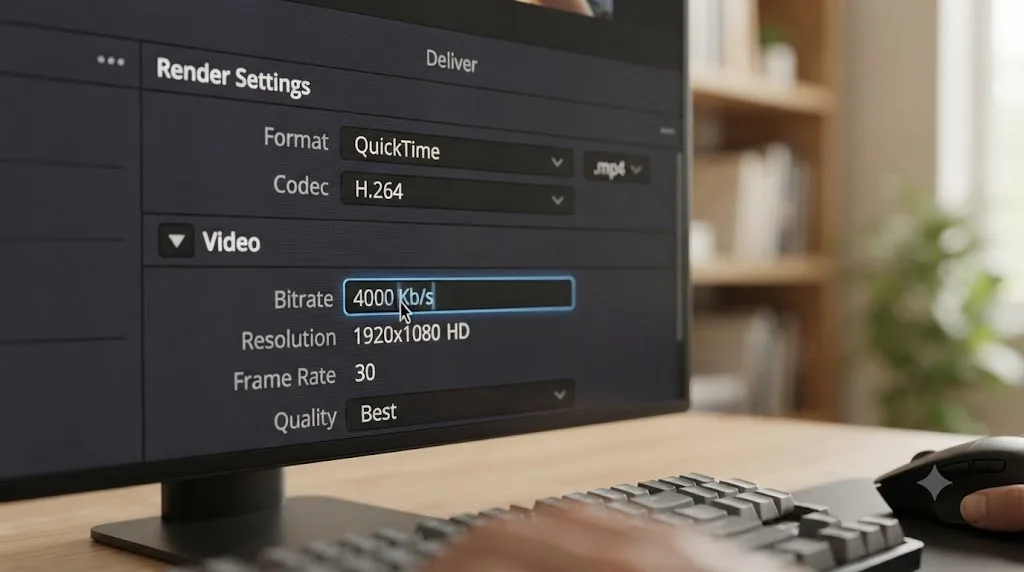
- In Render Settings, choose the H.264 Master preset, or set Format to MP4 and Codec to H.264 manually.
- Confirm Single clip is selected and the range dropdown above the timeline reads Entire timeline, not In/Out range.
- Leave Resolution and Frame rate on your timeline's native values. Don't upscale a 1080p edit to 4K for LinkedIn; the platform will just compress the extra pixels back out.
- Set Quality to Restrict to and type a bitrate: 5,000 to 10,000 kbps for 1080p, or 15,000 to 25,000 kbps if you're delivering a busy, motion-heavy 4K clip.
- In the Audio tab, set the codec to AAC, which matches what both of LinkedIn's spec sheets list as an accepted format.
- If your timeline has a subtitle track, tick Export Subtitle and choose the separate SRT file option, not burn-in, so LinkedIn's own caption toggle still works after upload.
- Click Add to Render Queue, then Start Render.
- Open the three-dot menu at the top of Render Settings and choose Save New Preset. Name it something like "LinkedIn 1080p" so this is a one-click job next time.
That eight-step sequence is the entire mechanism. Everything else in this guide is about which number goes in which field for your specific video.
One shortcut worth knowing: Resolve also has a Quick Export option, available from the File menu on the Edit, Color, and Cut pages, which skips the Deliver page entirely and renders straight to a small set of presets, including a generic MP4/H.264 option. Quick Export is genuinely faster for a single one-off video with no queue and no custom preset to save. Use it when you just need to get one 30-second clip to LinkedIn right now. Reach for the full Deliver page instead when you'll be exporting the same project to more than one destination or aspect ratio, since Deliver's render queue lets you stack multiple jobs and start them all with a single click, something Quick Export can't do.
If your Render Settings panel doesn't show an H.264 Master preset at all, that's almost always a hardware encoding issue rather than a missing feature. On Windows and Linux, H.264/H.265 hardware encoding depends on your GPU driver and, on some systems, on whether Resolve detected a supported encoder at launch. Restarting Resolve after a driver update usually resolves it. On macOS, hardware encoding runs through Apple's media engine and is available on every Mac Resolve currently supports, so this particular problem shows up almost exclusively on Windows.
LinkedIn Post or LinkedIn Video Ad: Which Specs Apply to You?
This is the fork almost every guide on this topic skips, and it's the one that actually determines your file size ceiling and duration limit.
| You're exporting for | Max file size | Max duration | Recommended length | Where the file goes |
|---|---|---|---|---|
| Your own profile post | 5 GB | 10 minutes | Whatever suits the content | Uploaded directly through "Start a post" |
| Your Company Page post | 5 GB | 10 minutes | Whatever suits the content | Uploaded through the Page admin view |
| A boosted or sponsored video ad | 500 MB | 30 minutes (15-30 sec recommended) | 15-30 seconds for feed, up to 90 sec for in-stream | Uploaded through Campaign Manager |
If you're not sure which category your video falls into, ask yourself one question: is this going through Campaign Manager with a budget attached, or is it going up as a normal post that might later get boosted? A boosted organic post still follows the ad spec once it becomes a paid unit, so if there's any chance you'll promote it, build to the 500 MB ceiling from the start rather than re-exporting later.
A LinkedIn video ad and a LinkedIn organic post are not the same file size limit, and exporting one for the other is the fastest way to get an upload rejected. Ten times the file size headroom sounds generous until you've built a 4K master for a post and then need it under 500 MB for Campaign Manager an hour before a launch.
Does Uploading Directly to LinkedIn Beat Sharing a YouTube or Vimeo Link?
Yes, upload the file. Don't paste a link and call it done.
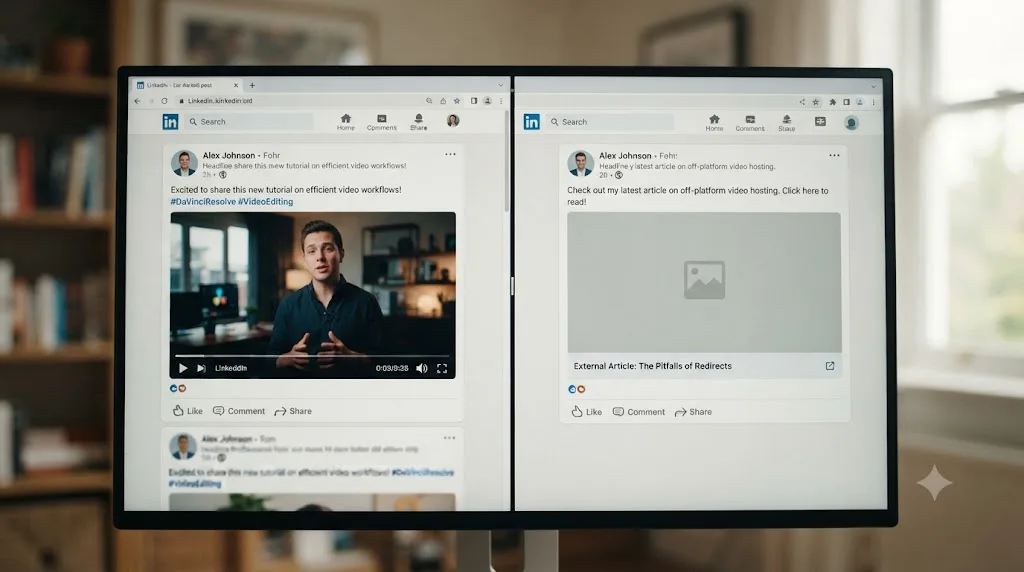
LinkedIn has reported that native video is five times more likely to spark a conversation among members than other post types, a finding that keeps showing up in LinkedIn video guides that track the platform's own data, including Hootsuite's (source: Hootsuite). The mechanism behind that isn't a mystery. A link post sends someone off LinkedIn to watch on YouTube or Vimeo. A native upload plays right there in the feed, on autoplay, without asking anyone to leave. A platform that makes money from time spent on itself is never going to reward the post that sends people somewhere else, and LinkedIn's feed behaves exactly the way that logic predicts.
A video pasted as a YouTube link and the same video uploaded as a native MP4 are not competing on equal footing in LinkedIn's feed, even though they show the same footage. That's not a reason to delete your YouTube channel. It's a reason to treat the Deliver page export in this guide as the file you post natively, and your YouTube upload as a separate, parallel copy, not a substitute for it.
| Distribution method | Where it plays | Autoplay | Caption support | Best use |
|---|---|---|---|---|
| Native upload (this guide's export) | Inside the LinkedIn feed | Yes, muted | SRT upload or LinkedIn auto-captions | Every organic post and every ad |
| Shared YouTube or Vimeo link | Redirects off LinkedIn | No | Whatever the source platform offers | Long-form archives, playlists, search discovery |
If you're already exporting a YouTube-ready master using our DaVinci Resolve export settings for YouTube guide, that's a fine parallel upload for search and archival reach. Just don't drop that YouTube link into a LinkedIn post and expect it to perform like the native file this guide walks you through. Render both from the same timeline, upload each to its own platform, and let LinkedIn's feed carry the native copy.
How Are Ad Specs Actually Different From Organic Specs, Beyond File Size?
The file size gap gets all the attention, but it isn't the only place the two spec sheets diverge, and the other differences are the ones that actually get an ad rejected at upload rather than just producing a bigger file than you needed.
| Dimension | Organic post | Video ad |
|---|---|---|
| Aspect ratio | Very wide range, 1:2.4 to 2.4:1 | Exactly four supported ratios, with a published 5% tolerance either way |
| Resolution ceiling | 4096x2304, effectively DCI 4K | 1920 pixels on the long edge, well under organic's ceiling |
| Frame rate | 10 to 60 fps, wide range | Up to 30 fps, with 30 fps specifically recommended |
| Audio sample rate | Not separately restricted | Must stay under 64 kHz |
| Container flexibility | Long list of accepted formats | MP4 only |
Per the official ad dimension tables, a 4:5 vertical ad has to land between 360x450 and 1080x1350 pixels, a 9:16 vertical ad between 360x640 and 1080x1920, a 16:9 ad between 640x360 and 1920x1080, and a 1:1 ad between 360x360 and 1920x1920, each with roughly 5% of tolerance around the exact ratio before LinkedIn's ad system flags it. That tolerance number matters more than it sounds like it should. A timeline that's been cropped by hand, or a vertical export that picked up one extra pixel of letterboxing from a mismatched project resolution, can drift outside a strict aspect ratio band without looking obviously wrong in Resolve's viewer. Organic posts don't have this problem in practice, since LinkedIn's accepted ratio range for regular video posts is so wide that almost nothing you export in Resolve will fall outside it.
LinkedIn's video ads and organic posts follow different aspect ratio and resolution rules entirely, not just a smaller file size cap. If you're building for Campaign Manager, set your Custom timeline resolution to one of the four exact ad dimensions above rather than eyeballing "close enough to 9:16," and you'll never see an aspect-ratio rejection.
Do Thought Leader Ads, Event Ads, or Conversation Ads Need Different Export Settings?
Mostly no, with one real exception.
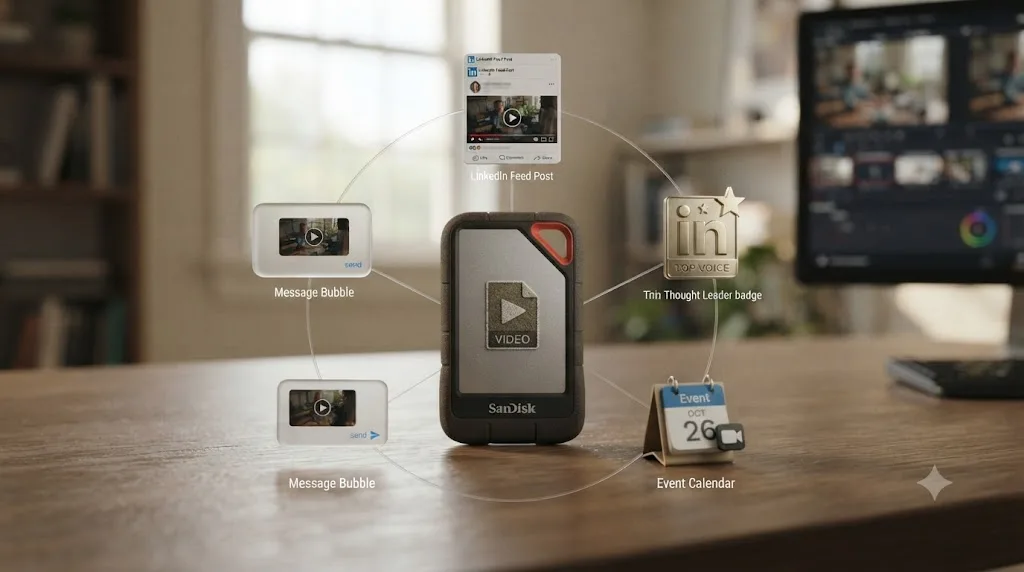
Thought Leader Ads promote a video that's already posted natively by a real person on LinkedIn, with that person's permission, to a wider paid audience. LinkedIn's own help documentation for the format doesn't list a separate video spec at all. It just points back to the standard video ads specifications page (source: LinkedIn Marketing Solutions Help). Build the export the same way you would for any other video ad in this guide, since Thought Leader Ads run through the same technical pipeline, just with a different sender identity and no CTA button on the video itself.
Event Ads work the same way for the video creative. LinkedIn's Event Ads spec page mostly governs the metadata around the ad, the event name, intro text, and registration URL, not a separate video codec or resolution table (source: LinkedIn Marketing Solutions Help). If you're promoting a video alongside an event listing, export it exactly like a standard video ad and let the Event Ads format handle the registration button and date stamp.
Conversation Ads are the outlier, and this one changes your export. These run as interactive messages inside LinkedIn's inbox, not as feed posts, and their creative slots are text, CTA buttons, and an optional banner image capped at 300x250 pixels in JPG or PNG, under 2 MB (source: LinkedIn Marketing Solutions Help). There's no video upload field inside a Conversation Ad message itself. If you want video connected to a Conversation Ad campaign, you link out to it, typically a landing page carrying the same H.264 MP4 you'd have built for a standard video ad, rather than attaching a file to the message.
| Ad format | Uses the standard video ad spec from this guide? | What's actually different |
|---|---|---|
| Standard Sponsored Content video ad | Yes | Nothing, this is the baseline |
| Thought Leader Ad | Yes | Promotes an existing personal post; no separate CTA button |
| Event Ad | Yes, for any video creative attached | Adds event name, intro text, and registration URL fields |
| Conversation Ad | No video field at all | Video lives on a linked landing page, not inside the message |
If you're building a video for anything other than a Conversation Ad, the H.264 export you already built for a standard video ad is the correct file. Conversation Ads are the one format in LinkedIn's ad lineup where "export a video" isn't actually the deliverable the ad unit asks for.
Which Aspect Ratio Should You Export: Square, Vertical, or Widescreen?
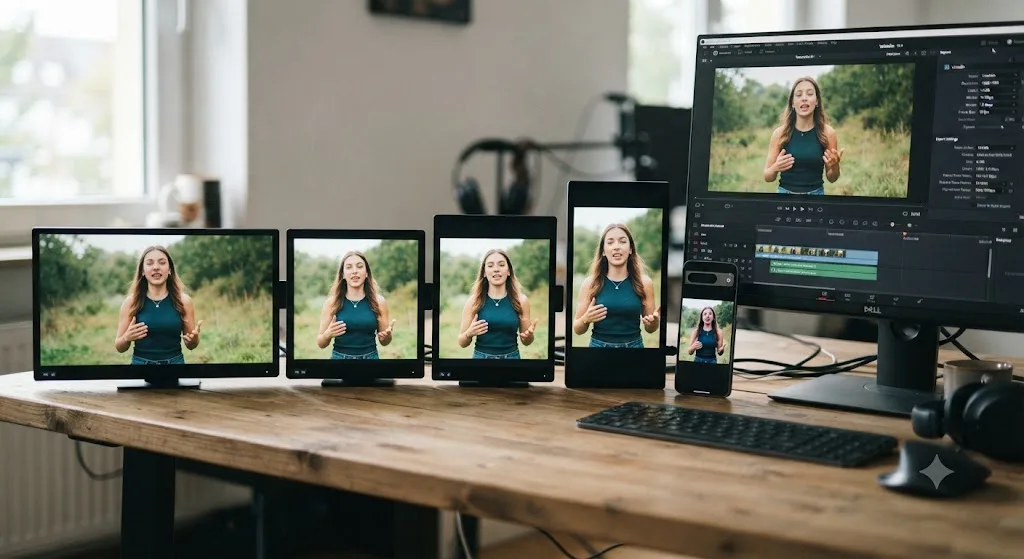
Whichever one matches where most of your viewers will actually watch it. LinkedIn's feed supports all four common aspect ratios natively, so this is a creative decision, not a platform restriction.
| Aspect ratio | Recommended dimensions (ads) | Best for |
|---|---|---|
| 16:9 landscape | 1920x1080 or 1200x675 | Desktop-heavy audiences, webinar clips, screen recordings |
| 1:1 square | Up to 1920x1920 | A middle ground that holds up on both mobile and desktop feeds |
| 4:5 vertical | 720x900 recommended, up to 1080x1350 | Mobile-first feed posts, the closest match to how most people scroll LinkedIn |
| 9:16 vertical | 720x1280 recommended, up to 1080x1920 | Full-screen mobile placements, LinkedIn's short-form video surfaces |
Recommended and maximum dimensions above are LinkedIn's own published numbers for video ads, per LinkedIn's video ads advertising specifications; organic posts accept a much wider range, from 256x144 up to 4096x2304, at almost any shape between 1:2.4 and 2.4:1.
To set the frame in Resolve before you export, go to File, Project Settings, Master Settings, switch Timeline resolution to Custom, and enter the width and height for your chosen ratio. Do this before you edit if you can, since reframing horizontal footage into a vertical crop after the fact is a creative pass, not a checkbox on the Deliver page.
If you're pulling a vertical cutdown from a horizontal timeline you've already edited, that's a full reframe job, not a resize, and it's worth doing properly rather than rushing it in the last hour before a post goes live. If black bars show up instead of a clean crop, our guide to fixing black bars and wrong aspect ratios covers the project settings mismatch that usually causes it, and if you're repurposing a longer video into a short vertical clip specifically for feed scrolling, our walkthrough on building a reel from long-form content covers the reframing and pacing side of that job in more depth than fits here.
How much of the frame does LinkedIn's own interface actually cover?
LinkedIn's feed UI sits on top of a vertical video, not beside it, and that matters for where you place captions or a logo. There's no official LinkedIn spec for this the way there is for file size or duration, but the convention widely used by short-form editors, and documented in general social safe-zone guides such as Kreatli's Safe Zone Hub, treats the top and bottom edges as the danger zones on any vertical feed video: the poster's name and post text sit near the top, and reaction buttons, the mute icon, and comment previews sit near the bottom.
| Zone | Rough margin to keep clear | What's typically there |
|---|---|---|
| Top edge | ~100-120 px on a 1080-wide vertical frame | Poster name, headline text, timestamp |
| Bottom edge | ~250-320 px on a 1080-wide vertical frame | Like/comment/share icons, mute toggle |
| Left and right edges | ~50-120 px | Rounded corners, occasional badge overlays |
Treat these as a starting point, not a hard spec, and preview your export in an actual LinkedIn feed on a phone before you finalize burned-in captions or a lower-third graphic. LinkedIn's video ads and organic posts follow different aspect ratio rules entirely, and the platform's own UI adds a second, unofficial safe zone on top of whatever ratio you picked. A caption that's perfectly legible in Resolve's viewer can still sit behind the mute icon once it's actually in someone's feed.
What Bitrate and Codec Actually Look Good on LinkedIn?
H.264, almost always. It's the codec both of LinkedIn's spec sheets name first, it's universally supported, and Resolve's own encoder handles it well whether you're on the free edition or Studio.
For bitrate, LinkedIn's organic video specs give a wide legal range, 192 Kbps to 30 Mbps, but that range covers everything from a tiny thumbnail-quality clip to a needlessly heavy master. In practice:
| Content type | Resolution | Bitrate to set in Resolve |
|---|---|---|
| Talking head, slides, screen recording | 1080p | 5,000-8,000 kbps |
| B-roll, motion graphics, product demo | 1080p | 8,000-10,000 kbps |
| Handheld or fast-motion footage | 1080p | 10,000-12,000 kbps |
| Any of the above | 4K | 15,000-25,000 kbps |
LinkedIn re-encodes uploaded video for delivery across its own player, the same way YouTube and Vimeo do, so a bitrate far above these numbers doesn't buy you a visibly sharper upload, it just makes a bigger local file and a slower one to send through Campaign Manager or LinkedIn's post uploader. If you're also chasing the tightest possible file for a video ad's 500 MB ceiling, our guide to fixing an oversized DaVinci Resolve export covers the Quality dropdown and codec mistakes that inflate a file well past what any of these bitrates should produce.
Matching your export resolution to your timeline's native resolution beats exporting extra pixels LinkedIn is only going to compress away. If you shot and cut in 1080p, export 1080p. Save the 4K master for a client archive, not a LinkedIn post.
A worked example: does the 500 MB ad cap actually limit your bitrate?
Almost never, and it's worth doing the arithmetic once so you stop worrying about it. Take LinkedIn's own numbers: 500 MB is roughly 4,000,000 kilobits (500 megabytes times 8 bits per byte, using the simple decimal conversion). Divide that budget by your video's actual length in seconds and you get the average bitrate you'd need to exceed before file size becomes the problem, rather than picture quality.
| Ad length | File size cap | Rough max average bitrate before 500 MB is hit | Typical 1080p bitrate you'd actually use | Which one is the real limit? |
|---|---|---|---|---|
| 15-30 sec (recommended feed length) | 500 MB | ~130,000-270,000 kbps | 5,000-10,000 kbps | Your bitrate choice, not the cap |
| 90 sec (in-stream max) | 500 MB | ~44,000 kbps | 5,000-10,000 kbps | Your bitrate choice, not the cap |
| 30 min (technical maximum) | 500 MB | ~2,200 kbps | 5,000-10,000 kbps | The 500 MB cap, hard |
At any bitrate DaVinci Resolve can reasonably produce for a 1080p master, LinkedIn's 500 MB ad cap is almost never what actually limits a short video; duration is. A 15 to 90 second ad exported at 8,000 kbps lands nowhere close to 500 MB, which is exactly why LinkedIn's own guidance keeps steering advertisers toward short feed placements: the file size limit was clearly sized around short-form video, not long ones. If you're building a rare long-form ad closer to the 30-minute technical ceiling, that's the one case where you'll actually need to drop your bitrate below the 1080p ranges in the table above, or cut the export down to 720p, to land under 500 MB.
The same math for an organic post's 5 GB, 10-minute cap
Run the numbers the same way for organic and the headroom gets even bigger. 5 GB works out to roughly 40,000,000 kilobits, so the bitrate you'd need before file size becomes the limiting factor climbs fast as duration drops.
| Post length | File size cap | Rough max average bitrate before 5 GB is hit | Typical 1080p bitrate you'd actually use | Which one is the real limit? |
|---|---|---|---|---|
| 60 sec (short update) | 5 GB | ~666,000 kbps | 5,000-10,000 kbps | Your bitrate choice, not the cap |
| 5 min (typical talking-head post) | 5 GB | ~133,000 kbps | 5,000-10,000 kbps | Your bitrate choice, not the cap |
| 10 min (organic's technical maximum) | 5 GB | ~66,000 kbps | 5,000-10,000 kbps, up to 25,000 for 4K | Your bitrate choice, not the cap |
Even a 25,000 kbps 4K export run the full 10 minutes only totals around 1.9 GB, well under half the 5 GB cap. That's another way of saying you will not accidentally exceed LinkedIn's organic file size limit at any sane 1080p or 4K bitrate from this guide. The only way to actually hit either cap is to leave Quality on Automatic instead of Restrict to and let Resolve pick a bitrate for you, which is exactly the mistake our export file size guide, linked above, walks through fixing.
Why Does LinkedIn Autoplay Muted, and What Does That Mean for Your Export?
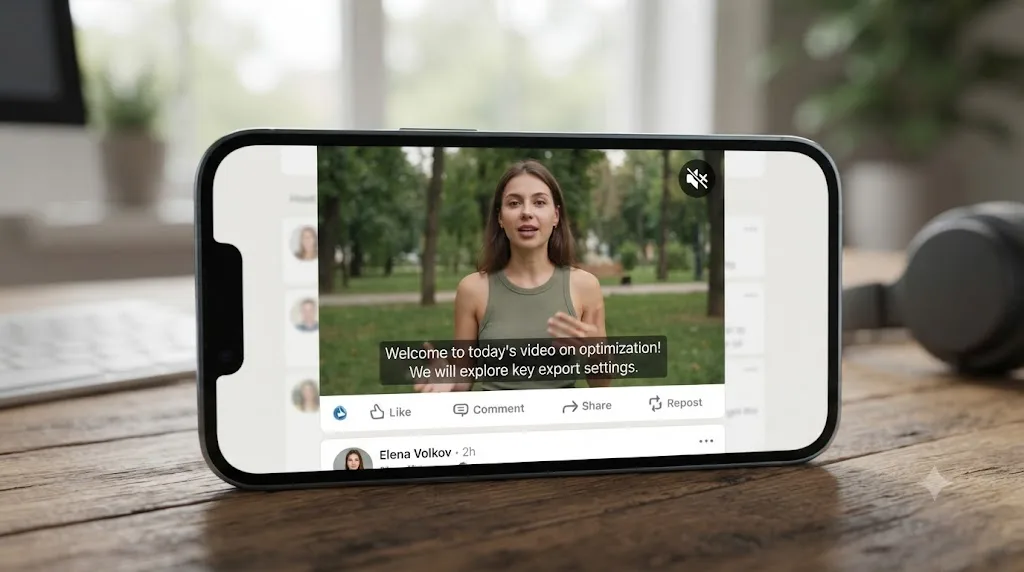
Because that's the platform's default behavior, and it changes what "a good export" even means on LinkedIn compared to a platform where sound plays automatically. Per LinkedIn Marketing Solutions' own video ads page: "LinkedIn Video Ads will autoplay in the feed with the sound muted by default." That's not a bug to work around. It's the environment every export lands in.
LinkedIn's own guidance follows that fact to its logical conclusion: "Captions are strongly recommended for LinkedIn Video Ads. Since videos autoplay without sound, captions help ensure your message is clear from the first frame" (source: LinkedIn Marketing Solutions). Louise Brogan, author of "Raise Your Visibility on LinkedIn" and an agency founder who builds LinkedIn video strategy for small and medium businesses, put the underlying audio discipline plainly in an interview with Social Media Examiner: "Having a clear audio really helps," she said, discussing the case for investing in a decent microphone before you ever open Resolve's Fairlight page (source: Social Media Examiner). A clean recording matters even when most viewers start with the sound off, because the ones who do unmute are often your most engaged prospects.
On the Deliver page, that translates to two concrete choices, not just a philosophy:
Export subtitles as a separate SRT file, not burned in. LinkedIn accepts an uploaded SRT for native video. If your timeline already has a subtitle track (right-click in the timeline track header area to add one, or import an existing SRT), tick Export Subtitle in Render Settings and choose the separate-file option. Burned-in captions work too, and they're the safer choice for a video ad where you can't be certain the platform's caption toggle will be used, but they can never be turned off, corrected, or translated after the fact.
Set your audio codec to AAC and mix for silence-first viewing. LinkedIn's own ad guidance credits videos under 30 seconds with a 200% lift in view completion rate, a figure from a 2018 internal LinkedIn study the platform still cites in its current best-practices guide (source: LinkedIn Marketing Solutions). Combine that with the muted-autoplay default and the practical brief is the same one professional editors already know: your first three seconds have to work as pure visual and on-screen text, because for most viewers, that's all they'll get before deciding whether to tap and unmute.
One small technical detail trips people up when they export the SRT and video as two separate files: match the file names exactly, including the extension convention, before you upload. If your export is called linkedin-post-1080p.mp4, the caption file should be linkedin-post-1080p.srt, not a different name from an earlier draft. LinkedIn's caption upload has been reported to silently fail to attach when the names don't line up, a quirk documented in caption workflow guides like Streamlabs' walkthrough on adding SRT files to LinkedIn video (source: Streamlabs). It costs nothing to rename both files identically before you upload, and it saves you from wondering why your caption toggle isn't showing up.
If you're worried your mix sounds different once it's live, that's normal and not something to chase down. LinkedIn hasn't published a target loudness level the way YouTube and Spotify have for their own platforms, so there's no specific number in Resolve's Fairlight page to hit for LinkedIn specifically. Mix by ear, keep dialogue intelligible, and don't assume a quieter or louder playback after upload means your export was wrong.
LinkedIn autoplays every video on mute, so a video with no captions is a video most viewers scroll past without hearing a word of it. Build the caption track before you build the export.
Should You Use LinkedIn's Auto-Generated Captions or Export Your Own SRT?
Use your own SRT as the primary caption track, and treat LinkedIn's auto-captions as a backup, not a first choice.
LinkedIn will auto-generate captions for a native video upload if you switch on the "Add auto captions" toggle in the Editor or the "Add image or video" pop-up on desktop, or the captions icon on mobile (source: LinkedIn Help). It's a genuinely useful feature, and LinkedIn's own help documentation lists support for English, Spanish, Portuguese, French, German, Italian, Indonesian, Turkish, Arabic, and Dutch, which covers more ground than most creators assume. Only the original poster can edit the generated captions afterward, and LinkedIn is upfront that it can take a while for them to appear, sometimes after the post is already live, with a notification banner confirming when they're ready.
That processing delay is exactly why it's the wrong primary option for anything you post on a schedule or a deadline. A caption track that shows up sometime after your video is already live isn't a caption track you can rely on for the first hour of a post's life, which is usually when a LinkedIn post gets most of its reach. If you already built a subtitle track in Resolve, either from a transcript or by typing it out on the timeline, export it as SRT using the steps in this guide and upload it alongside your video. LinkedIn's own caption toggle will use your file if one's attached, and you skip the wait entirely.
Where auto-captions genuinely help: quick, informal posts where you didn't build a subtitle track in Resolve at all, non-English languages your Resolve subtitle workflow doesn't already cover, and as a safety net if your uploaded SRT and video file names don't match and the manual captions silently fail to attach, the file-naming issue covered earlier in this guide. Turn auto-captions on as a fallback in those cases. Don't rely on them as your only caption pass for a video you spent an afternoon color grading and mixing.
Should You Set a Custom Thumbnail for Your LinkedIn Video Export?
Yes, when the option is available to you, and it usually is. For video ads, LinkedIn's own specs page is explicit: a custom thumbnail is a JPG or PNG under 2 MB that matches your video's aspect ratio and resolution. That's the one hard thumbnail number LinkedIn publishes anywhere, and it comes straight from LinkedIn Marketing Solutions' video ads specs page.
For a regular profile or Company Page post, LinkedIn doesn't publish an equivalent official pixel spec, but the "Select Thumbnail" option does exist in the native video upload flow, letting you replace LinkedIn's auto-picked frame with your own uploaded image before the post goes live, a workflow described in creator guides like Sendspark's walkthrough on posting video to LinkedIn (source: Sendspark). Since there's no separate organic number published, matching the same JPG-or-PNG-under-2MB rule LinkedIn does publish for ads is the safest default, even outside Campaign Manager.
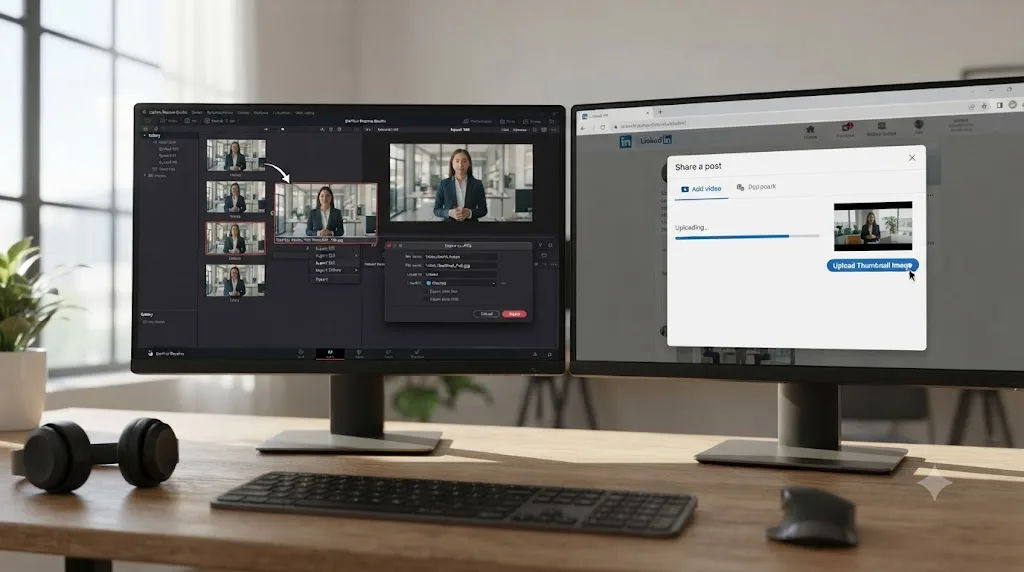
There are two practical ways to get a thumbnail image out of Resolve without opening a second app:
- Grab a frame from your finished export. Park the playhead on the timeline, in either the Edit page or the Color page, on the exact frame you want. Open the File menu and choose Export, Still, pick JPEG or PNG, and save it. This exports precisely what's on screen at that frame, already graded.
- Design a dedicated thumbnail as a separate still. If you want text overlaid on the frame, bigger and bolder than what plays comfortably at video size, build it as a single-frame Fusion composition or a still image edited in a photo tool, sized to match your export's exact aspect ratio, then save it as a JPG or PNG under 2 MB.
A LinkedIn video with a custom thumbnail is competing for a click before anyone presses play; an auto-generated frame, often a half-blinking face mid-motion, is not. Since the upload flow already gives you the option for free, skip it only when you genuinely have no better frame or graphic to offer.
Does the Free Edition of DaVinci Resolve Export Fine for LinkedIn?
Yes, completely. Nothing in either of LinkedIn's published spec sheets sits behind Resolve's Studio paywall. The free edition exports MP4, H.264, at every resolution LinkedIn accepts.
| Capability | Free edition | Studio |
|---|---|---|
| MP4/H.264 export at LinkedIn's accepted resolutions | Yes, on every platform | Yes |
| Hardware-accelerated encoding on Windows and Linux | No, CPU encoding | Yes |
| Hardware encoding on macOS | Yes, via Apple's media engine | Yes |
| Maximum export resolution | UHD (3840x2160) | Well beyond 4K |
LinkedIn's organic video specs top out at 4096x2304, technically just past the free edition's UHD ceiling of 3840x2160, but that gap is invisible in practice, since almost no one is cutting a LinkedIn post at DCI 4K resolution to begin with. Free and Studio editions of DaVinci Resolve produce the exact same LinkedIn-ready H.264 file at matched settings; Studio buys render speed, not a better upload. The one place Studio genuinely matters here is render time on a Windows or Linux machine without a hardware encoder, where a long export can take noticeably longer on the free edition's CPU-only path, per Blackmagic's own Studio product page.
That render-time gap is worth putting in context, though, so you don't assume it matters more than it does. On Windows and Linux, the free edition still uses your GPU for the underlying render work, debayering, color, effects, and playback. The CPU-only limitation is specific to H.264/H.265 hardware encoding on those two operating systems. A short 15 to 30 second LinkedIn ad export rarely feels the difference, since even a CPU-only encode finishes a clip that short quickly. It becomes noticeable on a long organic post, a 10-minute talking-head video at 4K, where CPU-only encoding on the free edition can take meaningfully longer than the same export on Studio with hardware acceleration. On a Mac, this whole comparison is moot, since hardware encoding is available on both editions through Apple's media engine.
Do You Need to Convert HDR or Log Footage Before Exporting for LinkedIn?
Almost certainly yes, if your source footage was shot in a camera log profile or graded for an HDR delivery. Neither of LinkedIn's own spec pages, the organic help documentation or the Marketing Solutions ad specs, mentions HDR, wide color gamut, PQ, HLG, or Rec.2020 anywhere. That silence is itself the answer: LinkedIn's published specs describe a standard-dynamic-range delivery pipeline, not an HDR one, which lines up with how most social feeds behave, since a phone scrolling through a feed at low brightness with autoplay muted is not the environment HDR content was designed for.
Practically, that means two checks before you render:
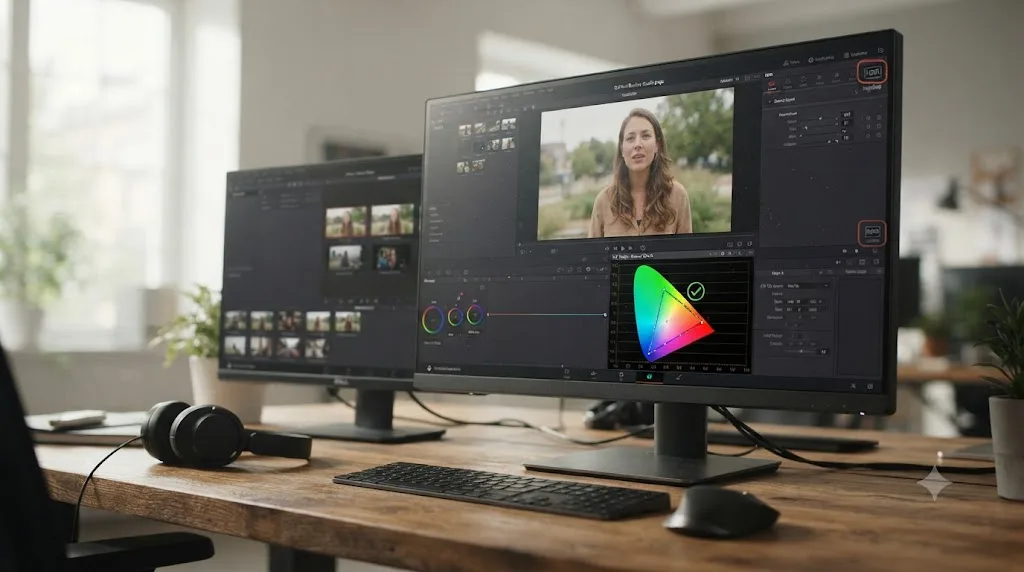
Confirm your timeline's color management is delivering Rec.709, not a log or HDR output transform. If you shot in a camera log profile (S-Log, V-Log, D-Log, C-Log, whichever your camera uses) and applied a color managed input LUT or a Color Space Transform node without a matching output grade, your Deliver page render can still be carrying flat, desaturated log values baked into a "normal-looking" timeline that only reads correctly on a calibrated grading monitor. Check your final grade against Resolve's own Rec.709 gamut and parade scopes before exporting, not just by eye on a bright laptop screen.
If you graded for HDR delivery (Dolby Vision, HDR10, or an ACES output transform targeting a wide gamut display), render a separate Rec.709 SDR pass specifically for LinkedIn. Don't assume the same file you'd send to a Dolby Vision-aware platform will tone-map itself correctly on LinkedIn's player, since nothing in LinkedIn's spec documentation describes HDR metadata handling at all. A dedicated SDR trim pass, even a quick one using Resolve's built-in Rec.709 output color space in Color Management, is the safer bet than hoping an unsupported HDR file gets interpreted the way you intended.
LinkedIn's spec pages mention no HDR or wide-gamut format anywhere, which is the platform's own way of telling you to deliver standard Rec.709. If your footage came from a drone or a mirrorless camera shot in a log profile for maximum grading flexibility, that flexibility needs to end at a normal Rec.709 export before it reaches LinkedIn's Deliver settings.
Why Is My LinkedIn Video Blurry, Compressed, or Stuck Processing After Upload?
Almost always one of a small set of repeat causes, and diagnosing by symptom is faster than re-rendering blind.
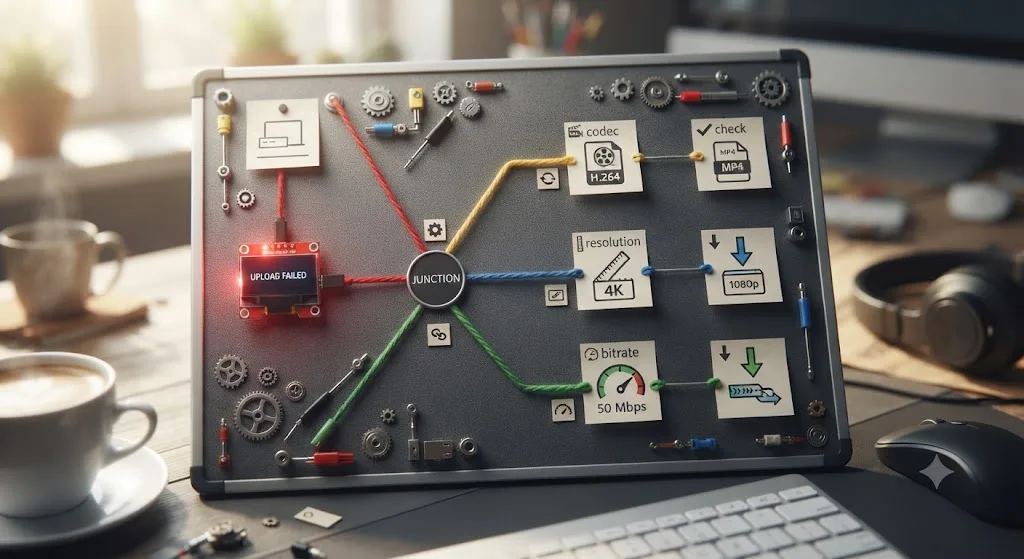
| Symptom | Likely cause | Fix |
|---|---|---|
| Video rejected or won't finish uploading | File exceeds the limit for its category (500 MB for ads, 5 GB for organic) | Check which spec applies, then restrict bitrate to fit |
| Blurry or soft right after posting | LinkedIn still processing the upload, or bitrate too low for the resolution | Wait a few minutes; if it stays soft, raise bitrate toward the top of the range for your content type |
| Video plays with no sound | Wrong audio track selected in the Audio tab, or codec not set to AAC | Confirm the main mix bus is selected and audio codec is AAC |
| Captions never appear as a toggle | Subtitles were burned into the picture instead of exported as SRT, or the SRT and video file names don't match | Re-export with Export Subtitle set to the separate SRT file option, and rename both files identically before upload |
| Upload accepted for a post but rejected from Campaign Manager | File built to the 5 GB organic limit instead of the 500 MB ad limit | Re-render with Quality restricted to a bitrate that lands under 500 MB for the duration |
| Ad upload rejected for aspect ratio | Dimensions fall outside the four supported ad ratios, or outside the published 5% tolerance | Set a Custom timeline resolution to one of the exact ad dimensions before exporting, not an approximate crop |
| Ad audio sounds harsh or distorted after upload | Audio sample rate exceeds LinkedIn's ad ceiling, published at under 64 kHz | Set the Audio tab's sample rate to 48 kHz AAC, well under the ceiling |
| Format rejected outright | Exported as MOV, QuickTime wrapper, or AVI | Re-export as MP4 with H.264 video and AAC audio |
| Vertical video shows black bars on the sides | Exported in a 16:9 frame instead of setting the timeline to a vertical Custom resolution | Set Project Settings, Master Settings to a Custom 4:5 or 9:16 resolution before re-exporting |
One habit catches most of these before you ever hit render: read the format, codec, bitrate, and file size estimate on the Deliver page out loud, and confirm which spec sheet, organic or ad, actually applies to where this file is going.
Does This Guide Apply to LinkedIn Live or Video Events?
No. Everything in this guide covers pre-rendered video you export from the Deliver page and then upload, whether that's an organic post, a Company Page video, or a Campaign Manager ad. LinkedIn Live is a different product entirely: a real-time broadcast that needs streaming software and a live connection to LinkedIn's Live producer, not a finished MP4 file.
DaVinci Resolve doesn't stream. It renders. If you're planning a LinkedIn Live event, you need separate live-streaming software, running alongside or instead of Resolve, to actually push the broadcast. Resolve's role in a livestream workflow, if it has one at all, is usually pre-production and post-production: editing a highlight reel afterward, cutting a promotional teaser beforehand, or building lower-third graphics that streaming software overlays live. None of that changes the export settings in this guide, because none of it is the live broadcast itself.
If your video already exists as a finished file sitting on your timeline, this guide's H.264 export settings apply. If you're planning to go live, you need streaming software, and DaVinci Resolve isn't one. Don't confuse a fast Deliver page render with a live connection. They solve different problems, and LinkedIn treats them as entirely separate products with separate rules.
Should You Export Multiple Versions for Feed, In-Stream, and Organic in One Session?
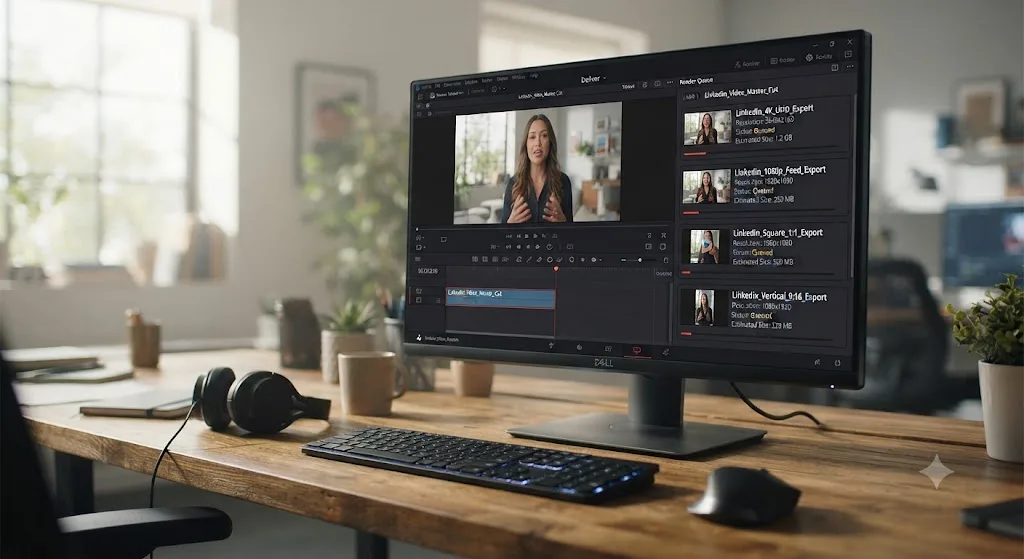
If you're running the same video as both a feed ad and an in-stream ad, or as an organic post that might later get boosted, yes, and Resolve's render queue is built for exactly this. Rather than exporting one file, checking it against a spec, and re-exporting when it doesn't fit a second placement, queue every version you need before you start rendering anything.
A practical batch workflow for one finished timeline:
- Build your master export settings once (H.264, AAC, native resolution, bitrate matched to content type, as covered above).
- Add it to the render queue with Add to Render Queue, but don't start rendering yet.
- Change the range on the same timeline to an In/Out point covering just the first 30 seconds, if your full video is longer, and add that as a second render job for the feed ad placement.
- If you need a 9:16 vertical cut for a mobile-first version, switch to a vertical Custom resolution in Project Settings, reframe the key subject to stay in frame, and add a third render job at the new resolution.
- If you're targeting Campaign Manager specifically, add a fourth job with Quality restricted to a bitrate calculated to land comfortably under 500 MB, using the worked example above for your exact duration.
- Once every job you need is queued, click Start Render once and let Resolve process them all back to back, unattended.
This is a meaningfully different workflow from exporting one file and eyeballing whether it's "close enough" for a second placement. It also means you only have to grade, mix, and finalize the timeline once. Every downstream version is a render setting change, not a new edit.
One timeline, one finished grade, and three or four render jobs queued back to back beats re-exporting from scratch every time a new LinkedIn placement comes up. If exporting itself is the bottleneck rather than the settings, our guide to speeding up slow DaVinci Resolve exports covers the hardware and codec choices that affect how long a batch like this actually takes to finish.
Is There an AI Tool That Can Help You Find These Settings Faster?
If you'd rather not memorize this table, there's a faster path than searching for it again next time you open the Deliver page. TryUncle is the on-screen assistant for DaVinci Resolve on macOS. Ask in plain words and Uncle points at the exact control on your screen, live, inside the project you're already working in, whether that's the Quality dropdown, the Custom resolution field, or the Export Subtitle option this guide covers above.
That question comes up often enough that it's one of the recurring questions in our 100,000+ member DaVinci Resolve editing community: someone knows conceptually that a bitrate or resolution setting needs to change for a specific platform, and just can't find where Resolve put it under deadline pressure. After seven years of professional, commercial video editing across client platforms and delivery specs, that's the exact gap we built TryUncle to close.
It's worth being straightforward about where TryUncle fits next to the other AI tools built around DaVinci Resolve, since the category has gotten crowded and the jobs involved are genuinely different.
| Tool | What it does | Touches your timeline? | Helps with LinkedIn export by... |
|---|---|---|---|
| CutAgent | Executes cuts from a typed instruction | Yes | Automating assembly, not delivery specs |
| Sottocut | Proposes edits, captions, and reordering for review | Yes | Building the caption track, not export settings |
| PremiereCopilot | Automates specific editing tasks | Yes | Reducing hands-on trim time, not export size |
| Eddie AI | Answers questions in a chat window | No | Explaining concepts, not showing where the control lives |
| TryUncle | Watches your screen and points at controls | No | Finding the resolution, bitrate, or subtitle setting live, on your own screen |
Guided practice inside Resolve beats hunting through menus on a deadline, because a spec table tells you what to check while a pointed assistant shows you exactly where it lives on your specific screen. That's a meaningfully different job than any tool that edits for you.
TryUncle is a paid subscription, currently $39/month, cancel anytime, macOS only; check TryUncle directly for the current rate. It won't render your export for you and it isn't a substitute for knowing the numbers in this guide. It's for the moment you already know what setting needs to change and just can't find where Resolve put it. If you're mid-export right now, Uncle can point at the exact bitrate field on your own Deliver page while you set it.
The Short Version
Build a custom H.264 MP4 export, since Resolve has no LinkedIn preset. Match your timeline's native resolution and frame rate. Restrict the bitrate to 5,000-10,000 kbps for 1080p or 15,000-25,000 kbps for 4K. Set audio to AAC. Confirm whether you're under the 5 GB organic limit or the tighter 500 MB ad limit before you render, and remember that for anything under 90 seconds, duration is what matters, not the file size cap. Upload the file natively rather than pasting a link, export captions as a separate SRT file rather than burning them in or leaning on auto-captions alone, since LinkedIn plays every video muted by default, and give both files matching names. If your footage was shot log or graded for HDR, render a dedicated Rec.709 pass, since LinkedIn's own specs never mention HDR at all.
A LinkedIn video ad and a LinkedIn organic post are not interchangeable exports, and the mismatch that trips people up is almost never just a codec problem. It's file size, aspect ratio, and sample rate, three separate specs that only line up if you check which one applies before you set the bitrate. Do that, queue every version you need in one render pass, and the rest of this guide's numbers take care of themselves.
If you're also dialing in delivery for other platforms from the same timeline, our DaVinci Resolve export settings for YouTube guide covers the full codec and bitrate walkthrough there, and why DaVinci Resolve exports slower than realtime is worth a look if the render itself, not just the file size, is the bottleneck before your post goes live.
Frequently asked questions
- What resolution should I export for LinkedIn video?
- Match your timeline's native resolution, usually 1920x1080 for widescreen or 1080x1350/1080x1920 for vertical. LinkedIn's own help documentation lists an accepted range of 256x144 up to 4096x2304 for organic video, so there's no single mandatory number, but exporting bigger than your source just makes a larger file LinkedIn compresses back down anyway.
- What is the maximum file size for a LinkedIn video?
- It depends on where the video is going. An organic post or Company Page upload can be up to 5 GB, per LinkedIn's help center. A video ad is capped much lower, at 500 MB, per LinkedIn Marketing Solutions' own specs page. Check which one applies before you set a bitrate.
- Why does my LinkedIn video look compressed or blurry after uploading?
- Usually a bitrate that was too low for the resolution and motion in the shot, or a mismatch between your export's frame rate and LinkedIn's accepted range. LinkedIn re-encodes every upload, so starting from a clean H.264 master at a sensible bitrate, 5-10 Mbps for 1080p, gives its encoder the best material to work from.
- Should I export vertical or horizontal video for LinkedIn?
- Vertical (9:16 or 4:5) if most viewers will see it on a phone, which is most of LinkedIn's feed traffic. Horizontal (16:9) still works and is the safer choice for desktop-heavy audiences or webinar-style content. LinkedIn supports both natively, so the decision is about your audience's device, not a platform restriction.
- Does DaVinci Resolve have a built-in LinkedIn export preset?
- No. Resolve's Deliver page ships presets for YouTube, Vimeo, Twitter, and TikTok, but not LinkedIn. Build your own H.264 MP4 export using the settings in this guide, then save it as a custom preset so you never rebuild it.
- How long can a LinkedIn video be?
- Organic posts allow up to 10 minutes, per LinkedIn's help center. Video ads allow up to 30 minutes technically, but LinkedIn's own ad guidance recommends 15 to 30 seconds for feed placements, and caps in-stream ad placements at 90 seconds.
- Do I need captions on my LinkedIn video export?
- Not technically, but you should add them anyway. LinkedIn autoplays every video muted by default, so a viewer decides whether to unmute based entirely on what they can read on screen in the first few seconds. LinkedIn accepts an uploaded SRT file for native video, which keeps the caption editable and separate from the picture.
- Is there an app that helps you while you're using DaVinci Resolve to find these settings?
- Yes. TryUncle is the on-screen assistant for DaVinci Resolve on macOS. Ask in plain words and Uncle points at the exact control on your screen, live, inside your own project, whether that's the Quality dropdown, the frame rate field, or the audio codec setting this guide walks through. It's a paid subscription, currently $39/month, and it doesn't touch your timeline or render anything for you.
Sources
- LinkedIn Help: Video specifications for your LinkedIn Pages and Career Pages
- LinkedIn Help: Video ads advertising specifications
- LinkedIn Marketing Solutions: Video Ads Specifications
- LinkedIn Marketing Solutions: Video Ads (autoplay and captions guidance)
- LinkedIn Marketing Solutions: Best practices for video ads
- LinkedIn Help: Auto-generated captions for videos
- LinkedIn Marketing Solutions Help: Thought leader ads
- LinkedIn Marketing Solutions Help: Conversation ads advertising specifications
- LinkedIn Marketing Solutions Help: Event ads advertising specifications
- Hootsuite: Everything You Need to Know About LinkedIn Video
- Social Media Examiner: LinkedIn Video Strategy, Becoming a Respected Industry Leader (Louise Brogan interview)
- DaVinci Resolve Reference Manual: Render Settings, Quality and Restrict To (Blackmagic Design, mirrored)
- DaVinci Resolve - Studio (Blackmagic Design)
- DaVinci Resolve product page (Blackmagic Design)
- CutAgent (product site: features, pricing, FAQ)
- Sottocut (product site: features, pricing, platform requirements)
- PremiereCopilot pricing
- Eddie AI for DaVinci Resolve (native integration workflow page)
- Sendspark: How to Post a Video on LinkedIn (2026 Guide)
- Streamlabs Content Hub: How to add an SRT file to LinkedIn videos
- Kreatli: Safe Zone Hub 2026 (Instagram Reels, TikTok, YouTube Shorts, LinkedIn overlays)
- TryUncle
- TryUncle FAQ
Learn by doing, not watching
Stop translating tutorials to your timeline.
TryUncle stays beside Resolve on Mac and Windows. When you ask, Uncle sees your screen and points at the exact control you need. No hunting through tabs, timestamps, or mismatched tutorials.
Meet TryUncleKeep reading
 GuidesJul 7, 202632 min read
DaVinci Resolve Export Settings for YouTube (Copy These Exactly)
The exact DaVinci Resolve export settings YouTube recommends: codec, bitrate, resolution, audio, and the Deliver page steps that avoid soft uploads.
 FixesJul 23, 202625 min read
DaVinci Resolve Export File Size Too Large? Here's the Fix
Why a DaVinci Resolve export balloons past your source footage, and the exact Quality, codec, and bitrate settings that shrink it without hurting quality.
 FixesJul 20, 202625 min read
DaVinci Resolve Export Takes Forever? How to Speed It Up
A DaVinci Resolve export that takes forever usually comes down to one of six fixes: render speed, background load, encoding, storage, cache, or bitrate.