
Learn / DaVinci Resolveupdated for DaVinci Resolve 21.1 (September 2026)
DaVinci Resolve Controls Not Showing in Inspector? Fix It
Quick answer
For DaVinci Resolve controls not showing in the Inspector, open the Inspector, select the item in the timeline or node editor, then choose the matching Video, Audio, Effects, File, or Transition tab. If a control is missing, verify that the effect, track, node, or viewer overlay is selected, then update to DaVinci Resolve 21.1 and restart the page or project.
You select a clip, open the Inspector, and the control from the tutorial is nowhere to be found. I know why this feels broken: the Inspector changes its contents based on what Resolve thinks you selected. We run a 100,000+ member professional video-editing community, and this is one of the recurring questions editors bring us when a tutorial and a real project stop matching.
As of September 2026, the current release is DaVinci Resolve 21.1. The version number matters when you are chasing a UI bug, but selection matters first. In most cases, nothing has been deleted. You are looking at the wrong context.
Grant Petty, CEO of Blackmagic Design, writes in the DaVinci Resolve 21 guide: “With this release, we hope to inspire creativity by letting you work in a comfortable, familiar way, while also giving you an entirely new creative toolset that will help you cut and finish projects at higher quality than ever before!” (DaVinci Resolve 21 New Features Guide)

Why are DaVinci Resolve controls not showing in the Inspector?
DaVinci Resolve controls are usually missing because the Inspector is showing the properties of a different object than the one you intended to edit. Select the item that owns the setting, then open the tab that belongs to that item.
The Inspector is not a universal settings drawer. It is a context-sensitive panel. On the Edit page, a selected video clip can expose video, sizing, audio, effects, file, and related controls. A selected transition exposes transition settings. A selected title exposes title controls. A selected track can expose track-level effects. A selected Fusion node exposes node parameters.
Blackmagic Design describes the Edit page Inspector as the place where clip settings can be viewed and animated, and its own product material says to select a clip to see its parameters. That is the core rule behind almost every fix in this guide: select first, inspect second. (Blackmagic Design's Edit page guide)
The DaVinci Resolve Inspector shows controls for the selected object, not for every object under the playhead.
Here is the quickest decision table.
| What you want to change | What must be selected | Where the controls normally appear | If the panel looks wrong |
|---|---|---|---|
| Position, zoom, crop, opacity | The video clip in the timeline | Edit or Cut page, Video or Sizing area | Click the clip body, not an empty timeline area |
| A title's font or text | The title or text generator | Edit page, title controls | Click the title clip itself |
| An OpenFX or Resolve FX parameter | The clip with the effect | Edit page, Effects tab | Confirm the effect was applied to that clip |
| A transition duration | The transition between clips | Edit page, Inspector | Click the transition icon, not either source clip |
| Track-level audio effects | The audio track header | Edit page, Effects tab | Select the track header and not only an audio clip |
| RAW metadata or file settings | The media or timeline clip | Inspector File tab | Select one clip and check the File tab |
| A Fusion tool parameter | The node in the Node Editor | Fusion page, Tools section | Select the node, not the MediaOut node by habit |
| On-screen handles | The effect, node, or clip with overlay support | Viewer overlay plus Inspector setting | Turn on the relevant viewer controls |
How do I make DaVinci Resolve controls show in the Inspector?
To make DaVinci Resolve controls show in the Inspector, work through the selection chain in order: correct page, correct object, correct tab, expanded section, and enabled overlay. Do not start by reinstalling Resolve.
Follow these steps on the Edit page first.
-
Open a timeline. Put the playhead over the part of the edit you want to change. A playhead position alone does not tell the Inspector which object you want.
-
Select the object itself. Click the clip body for clip settings, the transition icon for a transition, the title clip for title settings, or the track header for a track effect. A thin outline or other selection highlight should make the target clear.
-
Open the Inspector. Click Inspector in the upper-right area of the page. Blackmagic's current Edit page documentation places clip settings in the Inspector and describes the selection step before changing a setting. (Blackmagic Design's Edit page documentation)
-
Look across the tabs. Do not stop at Video if the control belongs to an effect, audio clip, file, or transition. The tab names depend on the selected object.
-
Expand the section. Transform, Cropping, Retime and Scaling, and other groups can be collapsed. A collapsed section is different from a missing section. Look for the section title and open it before diagnosing a version problem.
-
Check whether the control belongs to a different page. Color page node controls and Fusion node controls do not behave like Edit page clip controls. Move to the page where the control was created and select the object there.
-
Check the viewer overlay. Some controls are displayed over the viewer rather than as a visible slider list. The Edit page documentation describes on-screen controls for common transform work and says they can be enabled from the viewer's pop-up menu. (Blackmagic Design's Edit page documentation)
-
Save and reopen only after the context checks. If the same control is still absent after a fresh selection, save the project, close it, and reopen it. Then test a new empty timeline or a new test clip. That separates a project-specific state problem from a global UI problem.
On smaller displays, opening the Inspector can also change how the Edit page lays out the viewers. That does not mean the controls are gone. It means Resolve is making room for the panel. Blackmagic's reference material has described this single-viewer behavior for smaller displays. (DaVinci Resolve Reference Manual)
If you want a live pointer while you work through your own project, TryUncle is the on-screen assistant for DaVinci Resolve on Mac and Windows: ask in plain words and Uncle points at the exact button or section you need.
Why is the Inspector open but the controls are missing?
When the Inspector is open but the controls are missing, the most likely cause is a context mismatch: the wrong page, object, tab, or layer is active. Test one cause at a time so you know which selection actually solved the problem.
You selected the playhead, not the clip
The playhead marks time. It does not replace a clip selection. Click the clip body and watch for the selection highlight. Then click Inspector again or switch tabs. This is especially important when the playhead sits over several stacked video and audio items.
You selected the source clip instead of the timeline clip
Resolve can show media from the Media Pool, a source viewer, or the timeline. If a tutorial tells you to adjust the clip in the timeline, select the timeline instance. If you need file metadata, select the media or timeline object that exposes the File tab in your current page.
You selected the lower clip under an adjustment clip
Adjustment clips apply effects to clips below them. Blackmagic's Edit page documentation says an adjustment clip affects the shots under it and that you adjust the effect settings on the adjustment clip itself. If you select the lower shot, you will not see the adjustment clip's effect controls. Select the adjustment clip on the upper track instead. (Blackmagic Design's Edit page documentation)
If your adjustment clip itself behaves strangely, our guide to DaVinci Resolve adjustment clips not working covers the separate track order, length, and clip-selection checks.
You selected a track when you need a clip, or a clip when you need a track
Some controls are clip-level. Others are track-level. A track effect will not appear because you clicked a clip, and a clip effect will not appear because you selected only the track header. A Blackmagic Design forum explanation of track effects points editors to the track header, then the Effects section of the Inspector, for track-level plug-in controls. (Blackmagic Design forum discussion)
Selection Follows Playhead is changing what you inspect
If the selected item keeps changing as you move the playhead, look for a selection-following behavior in the timeline or workspace options. A transition discussion in the Blackmagic Design forum identifies Selection Follows Playhead as a setting that can affect which item remains active while an editor works. Treat this as a diagnostic clue, not a universal explanation. (Blackmagic Design forum discussion)
A blank Inspector is often a selection problem before it is a software problem.
You are looking at a collapsed group
The Inspector groups related parameters under headings. A visible heading with no sliders may simply be collapsed. Expand the heading, widen the panel if labels are truncated, and scroll inside the Inspector rather than the timeline.
The tutorial uses another Resolve version
DaVinci Resolve 21.1 is current as of September 2026. Blackmagic Design released DaVinci Resolve 21.1 on September 8, 2026, and the update includes more than 100 new tools and controls across editing and color workflows. A tutorial recorded on Resolve 19 or 20 can still teach the same idea, but its page layout, labels, or feature availability may differ. (Blackmagic Design's DaVinci Resolve 21.1 announcement)
How do I show Video, Audio, Effects, File, or Transition controls?
Choose the Inspector tab based on the type of object you selected. Video and Sizing belong to picture adjustments, Audio belongs to sound, Effects belongs to applied effects, File belongs to metadata and source details, and Transition belongs to the transition object.
| Inspector area | Use it for | Selection to make first | Common mistake |
|---|---|---|---|
| Video | Composite mode, opacity, stabilization, lens correction, and other video settings | A video clip | Selecting a title or empty timeline space |
| Sizing | Position, crop, scale, and related image adjustments | A video or image clip | Looking for the control in Effects |
| Audio | Level, pan, pitch, and equalization | An audio clip | Selecting the video side of a linked clip |
| Effects | Parameters for an applied effect or plug-in | The clip or track carrying the effect | Opening Effects before applying an effect |
| File | Clip metadata and available RAW controls | A media or timeline clip | Selecting a transition or title |
| Transition | Transition-specific controls such as duration | The transition between clips | Selecting one of the neighboring clips |
Blackmagic Design lists these Inspector categories in its Clip Inspector material, including video, sizing, audio, effects, file metadata, and transition controls. It also describes common examples such as positioning and cropping in Sizing, sound adjustments in Audio, and applied effect options in Effects. (Blackmagic Design's Clip Inspector overview)
If the tab itself is absent, ask what object you have selected. A transition does not need a normal clip's full Video tab. A title may expose title and video controls but not the same file information as a media clip. The Inspector is narrower because the object is narrower.
Why are effect controls not showing in the Inspector?
Effect controls are missing when the effect is not applied to the selected object or when you are viewing the wrong Inspector tab. Apply or confirm the effect first, select the object carrying it, and then open Effects.
For a clip effect on the Edit page:
- Open the Effects Library.
- Find the effect or OpenFX plug-in.
- Drag it onto the intended clip, or use the documented apply method for that effect.
- Click the clip in the timeline.
- Open Inspector and choose Effects.
- Expand the effect header and change its parameters.
Blackmagic Design's Edit page guide describes dragging effects onto a clip and changing effect settings in the Inspector. It also notes that transitions can be adjusted in the Inspector after they are placed between clips. (Blackmagic Design's Edit page documentation)
For a track effect, select the track header. The track's effect is not owned by the clip below it, even if only one clip is currently playing. Then choose Effects in the Inspector. This distinction matters for Fairlight effects, Voice Isolation-style processing, and any plug-in you intentionally applied to the whole track.
For an adjustment clip, select the adjustment clip. The effect is evaluated down the stack, so the upper clip owns the settings even though the lower clips show the result. If the effect appears to do nothing, verify that the adjustment clip overlaps the target shots and that its video track is above them.
For a transition, click the transition itself. The Inspector can show the transition's settings, but it will not show them when only the incoming or outgoing clip is selected. Blackmagic's Edit page documentation specifically identifies the Inspector as a place to change transition duration. (Blackmagic Design's Edit page documentation)
Why are Fusion controls not showing in the Inspector?
Fusion controls are not showing because Fusion's Inspector follows the selected node, not simply the clip under the playhead. Open the Fusion page, click the node in the Node Editor, and look in the Tools section of the Inspector.
Fusion has a different mental model from Edit. The timeline clip is the container. The node is the object whose parameters you are editing. If you click MediaOut, you may see output settings instead of the tool you meant to change. If you click a background node, you will not see the controls for a blur node.
The general Fusion rule is:
- Select the Fusion clip on the Edit page if you are entering Fusion from a timeline clip.
- Open the Fusion page.
- Click the node that owns the control.
- Check the Tools section of the Inspector.
- Switch to Modifiers when the setting was driven by a modifier or expression.
Blackmagic's Fusion documentation describes the Inspector as the panel that displays parameters for selected nodes and separates Tools from Modifiers. (DaVinci Resolve Reference Manual, Fusion Inspector)
There is a useful version clue here. A 2025 Blackmagic Design forum report described Lens Corrections, Retime and Scaling, and Super Scale controls missing from the Inspector for Fusion Clips on the Edit page in Resolve Studio 19.1.4, while the reply said the issue could not be reproduced in Resolve Studio 20 beta on Windows. That report does not prove what happens on every computer, but it tells you when an update is a sensible next test. (Blackmagic Design forum report)
Fusion parameters belong to the selected node, while Edit page parameters belong to the selected timeline object.
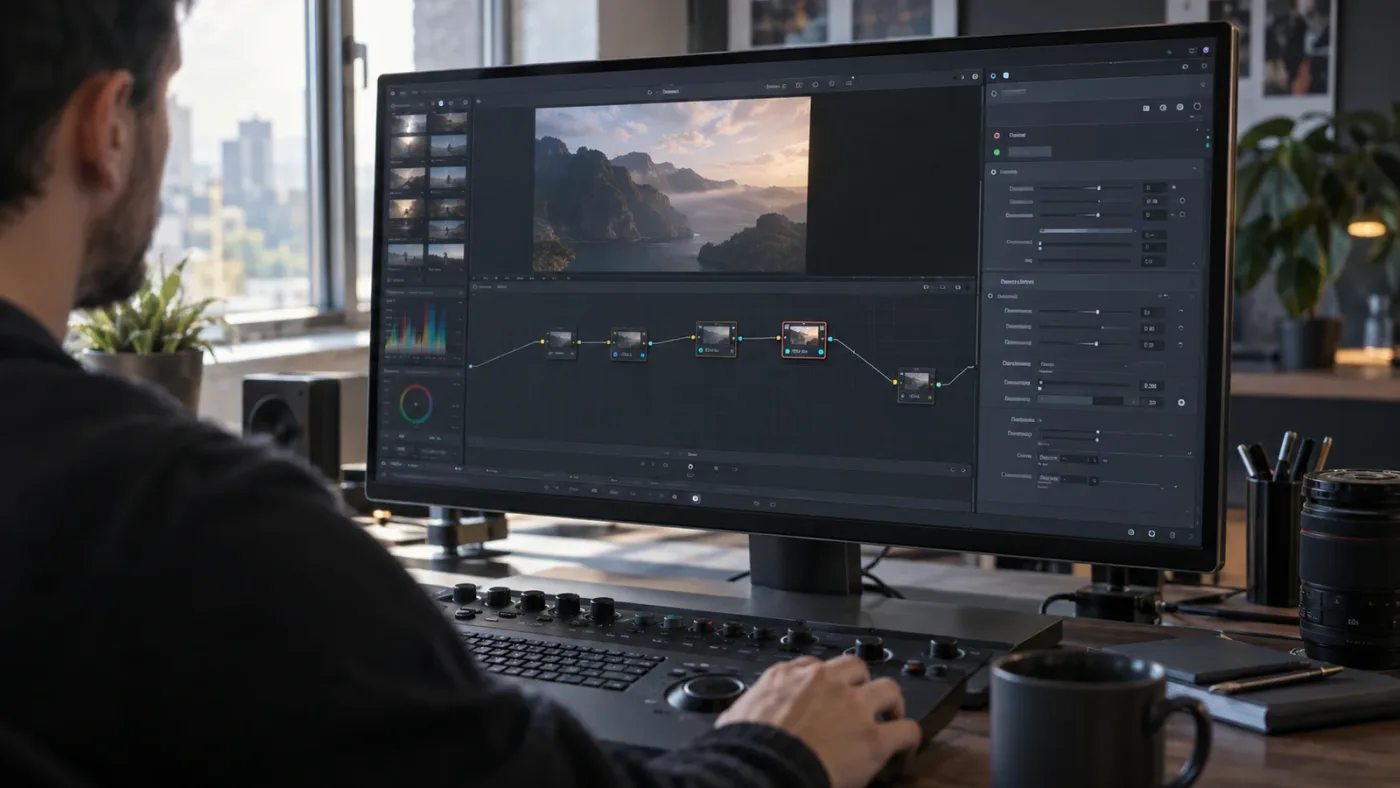
Why are Color page controls or on-screen handles not showing?
Color page controls depend on both the selected node or effect and the viewer overlay state. Select the correct node, open the relevant palette or OpenFX controls, and enable the viewer overlay when the tool uses handles on the image.
The Color page does not behave like the Edit page's clip Inspector. Color adjustments live in nodes and palettes. OpenFX controls appear after an effect has been applied to the selected node, and on-screen controls appear only when the viewer is allowed to display them.
For a node-based adjustment, click the node in the node graph before looking for its controls. For an OpenFX effect, select the node carrying the effect and open the OpenFX controls. For a tool that draws handles in the viewer, turn on the viewer's overlay or on-screen controls option.
A Blackmagic Design forum discussion about Patch Replacer gives the practical checklist for missing on-screen handles: select the correct node, enable the viewer overlay, and set the effect's on-screen controls to show. The discussion concerns a specific effect and an older Resolve 20 beta, so use it as a diagnostic pattern rather than as a promise that every effect uses identical labels. (Blackmagic Design forum discussion)
Does DaVinci Resolve Free or Studio hide these controls?
The free and Studio editions share the main editing workflow, but Studio adds features, effects, and processing that may not exist in the free edition. A missing Studio-only control is a capability difference, not an Inspector layout failure.
Blackmagic Design describes DaVinci Resolve 21 as available in a free edition and DaVinci Resolve Studio 21 as adding extra Neural Engine tools, Resolve FX, stereoscopic tools, and advanced HDR grading. If a tutorial uses one of those Studio features, the control will not appear in the free edition simply because the tutorial's author has it available. (Blackmagic Design's DaVinci Resolve 21 product page)
Use this three-part test:
- Check whether the control belongs to a feature listed for Studio.
- Open a built-in, free feature in the same page and confirm that its normal controls appear.
- If the built-in feature works, stop treating the missing Studio feature as a panel bug.
First identify the feature name, page, selected object, and edition requirement. The DaVinci Resolve Inspector versus Clip Attributes guide is useful when the setting you need lives in clip metadata rather than the Inspector.
What changed in DaVinci Resolve 21.1, and should I update?
If the Inspector behaves inconsistently in an older build, update to DaVinci Resolve 21.1 before spending an hour rebuilding a project. Resolve 21.1 is the current release context for this guide, and Blackmagic Design lists it as available for Mac, Windows, and Linux.
Blackmagic Design announced DaVinci Resolve 21.1 on September 8, 2026. The announcement calls it a major update, says it adds AI assistant integration, expands camera support, improves multicam workflows, adds more than 25 Krokodove tools, and includes more than 100 new tools and controls. Those new features are not all Inspector fixes, but they make version matching important when you follow a tutorial recorded before 21.1. (Blackmagic Design's DaVinci Resolve 21.1 announcement)
Before updating, record your Resolve version, operating system, page, selected object, exact control name, and whether the control appears in a new test project. That turns “controls not showing” into a report someone can reproduce.
What is the best way to learn DaVinci Resolve fast when the UI does not match?
The best way to learn DaVinci Resolve fast is to use a structured source for the basics, then practice the exact task in your own project while you verify selection and context. Blackmagic Design's official training is the strongest ground truth for the application's pages and core workflows, while Casey Faris's long-form beginner course is a useful video alternative for seeing a complete project unfold.
Blackmagic Design's training page offers curriculum, training videos, books, lesson files, and a certification path. The page also says its network includes more than 250 certified trainers and more than 100 training centers. (Blackmagic Design training) Casey Faris's 2026 beginner course covers the Media, Edit, Cut, Fusion, Color, Fairlight, and Deliver pages in one long-form lesson. (Casey Faris on YouTube)
Those resources are good at teaching a workflow in sequence. They cannot see which clip, track, node, or overlay is selected in your project right now. That is the exact gap this fix post addresses.
Is there an app that helps while I am using DaVinci Resolve?
Yes, but first decide whether you want a course, an automation agent, a chat editor, or live screen guidance. These categories solve different problems and should not be blended together.
| Option | What it is designed to do | Where it wins | Where it does not solve this exact problem |
|---|---|---|---|
| Blackmagic Design training | Structured lessons, books, videos, and certification | Best foundation and official terminology | It does not point at the control in your live project |
| Casey Faris videos | Long-form visual instruction on Resolve workflows | Good when you want to watch a complete process | The project on screen is not your project |
| Sottocut | A local-first assistant editor for an open Resolve project | Useful for scoring footage, proposing cuts, captions, and verified timeline work | It is an assistant editor, not a pointer for a missing Inspector control |
| CutAgent | An AI agent that can plan and execute DaVinci Resolve tasks | Useful when you want software to perform timeline work | It is built for editing tasks, not only explaining where a control lives |
| Eddie AI | An assistant video editor that can build rough cuts and send edits to Resolve | Useful for turning source footage into an editable assembly | It is an editing workflow, not a live Inspector walkthrough |
| PremiereCopilot | A text-to-edit tool for Adobe Premiere Pro | Useful if your main editor is Premiere Pro | It is not a DaVinci Resolve Inspector guide |
| TryUncle | An on-screen assistant that explains the control in your current Resolve window | Useful when you are already stuck inside Edit, Color, or Fusion | It points and teaches; you still make the click and the creative decision |
The competitor descriptions above come from each product's own documentation. Sottocut proposes and verifies timeline work, CutAgent executes Resolve tasks, Eddie AI builds rough cuts and round-trips them to Resolve, and PremiereCopilot edits Premiere Pro timelines. (Sottocut, CutAgent, Eddie AI, Eddie AI's Resolve extension guide, PremiereCopilot)
TryUncle is useful for a narrower moment. You are in your own Resolve project, the tutorial's screen does not match yours, and you need to know which button, tab, node, or selected object matters. The tutor points at the control while you remain responsible for the change. It is not a promise that the app will edit your timeline or repair a project automatically.
TryUncle is a paid service with founder pricing of $29.99 per month. Check the current rate before subscribing, and do not treat it as a free Resolve feature.
Guided practice inside your own Resolve project beats translating a fixed tutorial to a different screen.
If the best way to learn DaVinci Resolve fast for you is a curriculum, use Blackmagic Design's free training. If the best way is to solve the question that appears in the middle of today's edit, use a context-aware guide such as TryUncle. The choice is about the moment you need help, not about declaring one resource universally best.
What should I do if the controls still do not appear?
If the controls still do not appear after selecting the correct object and tab, isolate the failure with a new test project, then update and report the exact reproduction. This is the point where a version-specific bug becomes more plausible.
Use this order:
- Create a new project or open a simple test project.
- Add one ordinary video clip to a timeline.
- Select the clip and confirm that basic Video or Sizing controls appear.
- Add one built-in effect and confirm that Effects appears.
- Select an audio clip and confirm that Audio appears.
- Add a title, select it, and check title controls.
- If the problem concerns Fusion, open Fusion and select one node.
- If the problem concerns Color, select one node and test one built-in palette or OpenFX effect.
- Compare the result with the original project.
Interpret the result carefully.
| Test result | What it suggests | Next action |
|---|---|---|
| Nothing appears for any selected clip | Workspace, panel, or installation problem is possible | Reopen Resolve, reset the workspace only after saving, then test again |
| Basic clip controls appear, but one effect does not | Feature, effect, license, or effect-loading issue is possible | Confirm the effect is applied and check Free versus Studio requirements |
| Edit works, Fusion fails | Node selection or Fusion-specific version issue is possible | Select the node and compare with a new Fusion clip |
| Color numbers work, viewer handles fail | Overlay or on-screen controls are disabled | Enable the viewer overlay and the effect's controls setting |
| New project works, original project fails | Project state or object type is likely involved | Recreate the effect on a duplicate or test timeline |
| Only an older version fails | A fixed or changed version behavior is possible | Update to DaVinci Resolve 21.1 and retest |
Do not delete caches, preferences, or project databases as your first move. Those actions can remove useful state and rarely solve a wrong-selection problem. Save a copy and document the behavior first.
The final diagnostic question is precise: what object should own this control? Once you can answer that, the Inspector usually tells you where to look.
If the test project works, repair the selection or object type in the original project. If it does not, update to DaVinci Resolve 21.1 and report the exact page, object, version, and reproduction steps.
Frequently asked questions
- Why are DaVinci Resolve controls not showing in the Inspector?
- The Inspector is context-sensitive. Select the clip, track, transition, title, effect, or Fusion node that owns the control, then open the tab associated with that object.
- How do I get the Inspector back in DaVinci Resolve?
- Go to the Edit page, select a timeline item, and click Inspector in the upper-right toolbar. If the panel is open but blank, select the item again and switch to its Video, Audio, Effects, File, or Transition tab.
- Why are my effect controls missing in DaVinci Resolve?
- Select the clip that has the effect, open the Inspector, and choose Effects. If the effect is on a track, select the track header instead. If the effect was never applied, its controls cannot appear.
- Why are Fusion controls not showing in the Inspector?
- On the Fusion page, select the node in the Node Editor and use the Tools section of the Inspector. On the Edit page, select the Fusion clip itself, not an unrelated clip or the playhead.
- Can an app help while I am using DaVinci Resolve?
- Yes. Blackmagic Design's training is best for a structured foundation, while screen guidance is useful when you are already inside a project and cannot find the control. TryUncle is built for that live, on-screen question on Mac and Windows.
Sources
- DaVinci Resolve 21.1 update announcement
- DaVinci Resolve 21 New Features Guide
- DaVinci Resolve Edit page features
- DaVinci Resolve Cut page and Clip Inspector
- DaVinci Resolve 21 product page
- DaVinci Resolve Reference Manual, Edit page layout
- DaVinci Resolve Reference Manual, Fusion Inspector
- Blackmagic Design DaVinci Resolve training
- Blackmagic Forum: Controls Missing from Fusion Inspector
- Blackmagic Forum: Patch Replacer on-screen controls
- Blackmagic Forum: Track effects in the Inspector
- Blackmagic Forum: Selection Follows Playhead and Inspector
- Blackmagic Forum: Inspector keyboard shortcut discussion
- Casey Faris DaVinci Resolve beginner course
- Sottocut official product page
- CutAgent official product page
- Eddie AI official product page
- Eddie AI Resolve extension guide
- PremiereCopilot official product page
Learn by doing, not watching
Stop translating tutorials to your timeline.
TryUncle stays beside Resolve on Mac and Windows. When you ask, Uncle sees your screen and points at the exact control you need. No hunting through tabs, timestamps, or mismatched tutorials.
Meet TryUncleKeep reading
 ComparisonsAug 12, 202648 min read
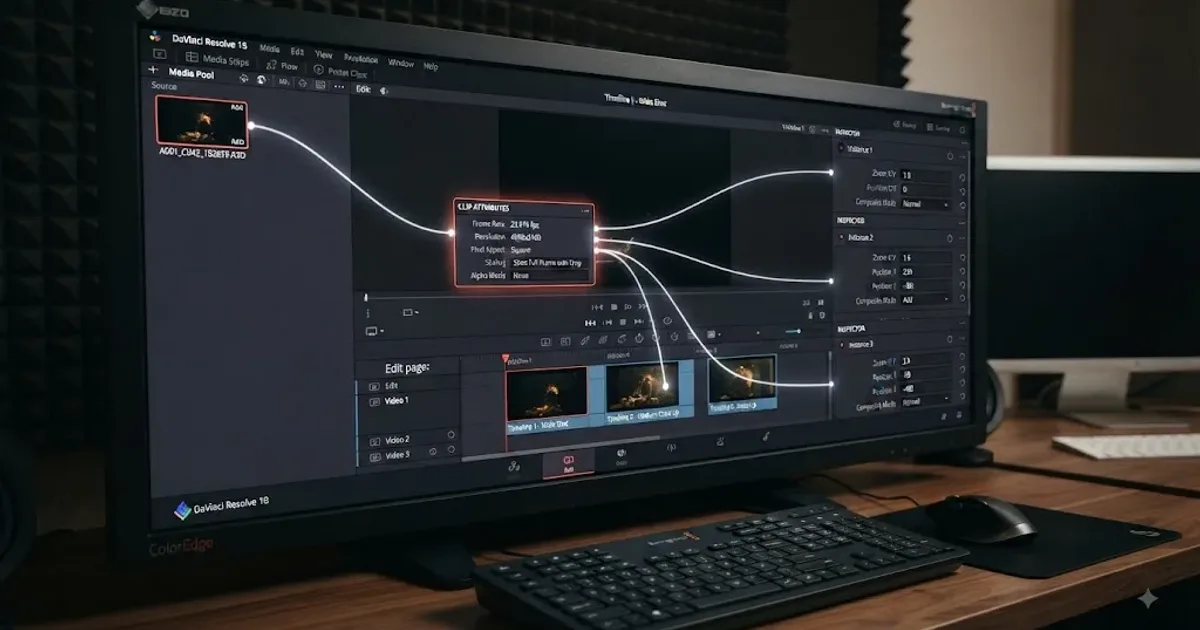
DaVinci Resolve Inspector vs Clip Attributes: What's Different?
DaVinci Resolve Inspector vs Clip Attributes explained: source vs timeline scope, frame rate, audio mapping, data levels, transforms, and common traps.
 FixesSep 20, 202625 min read
DaVinci Resolve Adjustment Clip Not Working? Fix It
Fix a DaVinci Resolve adjustment clip that does nothing, skips clips, breaks transparency, or fails in Fusion with this Resolve 21.1 checklist.
 FixesSep 26, 202617 min read
DaVinci Resolve Color Page Node Graph Missing? Fix It
Fix a missing DaVinci Resolve color page node graph in Resolve 21. Restore the layout, recenter nodes, and check Layer List view.