
Learn / DaVinci Resolveupdated for DaVinci Resolve 21.1 (October 2026)
DaVinci Resolve Audio Clip Sounds Hollow? Fix It
Quick answer
If a DaVinci Resolve audio clip sounds hollow, first listen in mono and bypass effects. If the voice thins or nearly disappears in mono, correct a phase or channel problem by checking the stereo lanes, channel mapping, polarity, and timing. If mono is fine, inspect stereo widening, room reflections, and an over-cut low-mid EQ.
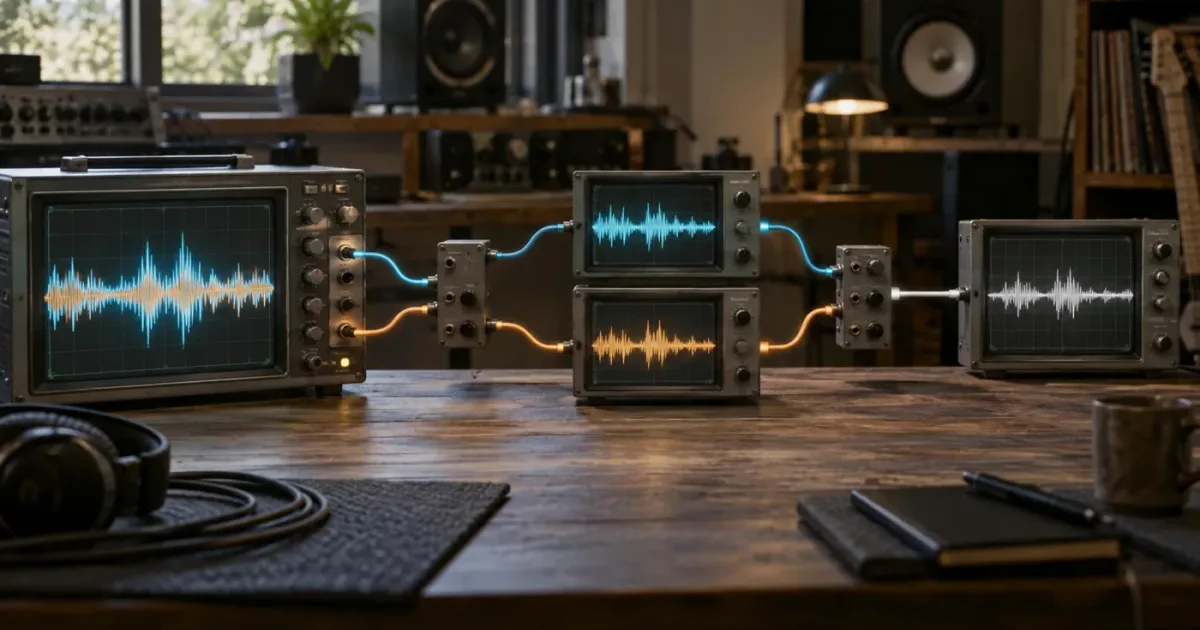
If a DaVinci Resolve audio clip sounds hollow, do not start by boosting bass. A hollow voice is often a phase or channel problem that an equalizer cannot truly repair. I use a short diagnostic sequence: bypass processing, check mono, isolate the channels, then correct polarity, timing, mapping, or tone.
As of October 2026, Blackmagic Design's support listing includes the DaVinci Resolve 21.1 manual, and Blackmagic's Fairlight page describes Fairlight as the part of Resolve built for detailed audio post production. The locations below follow that current 21.1 context, while the underlying checks also apply to earlier recent Resolve versions.
TryUncle is the on-screen assistant for DaVinci Resolve on Mac and Windows — ask in plain words and Uncle points at the exact control on your screen.
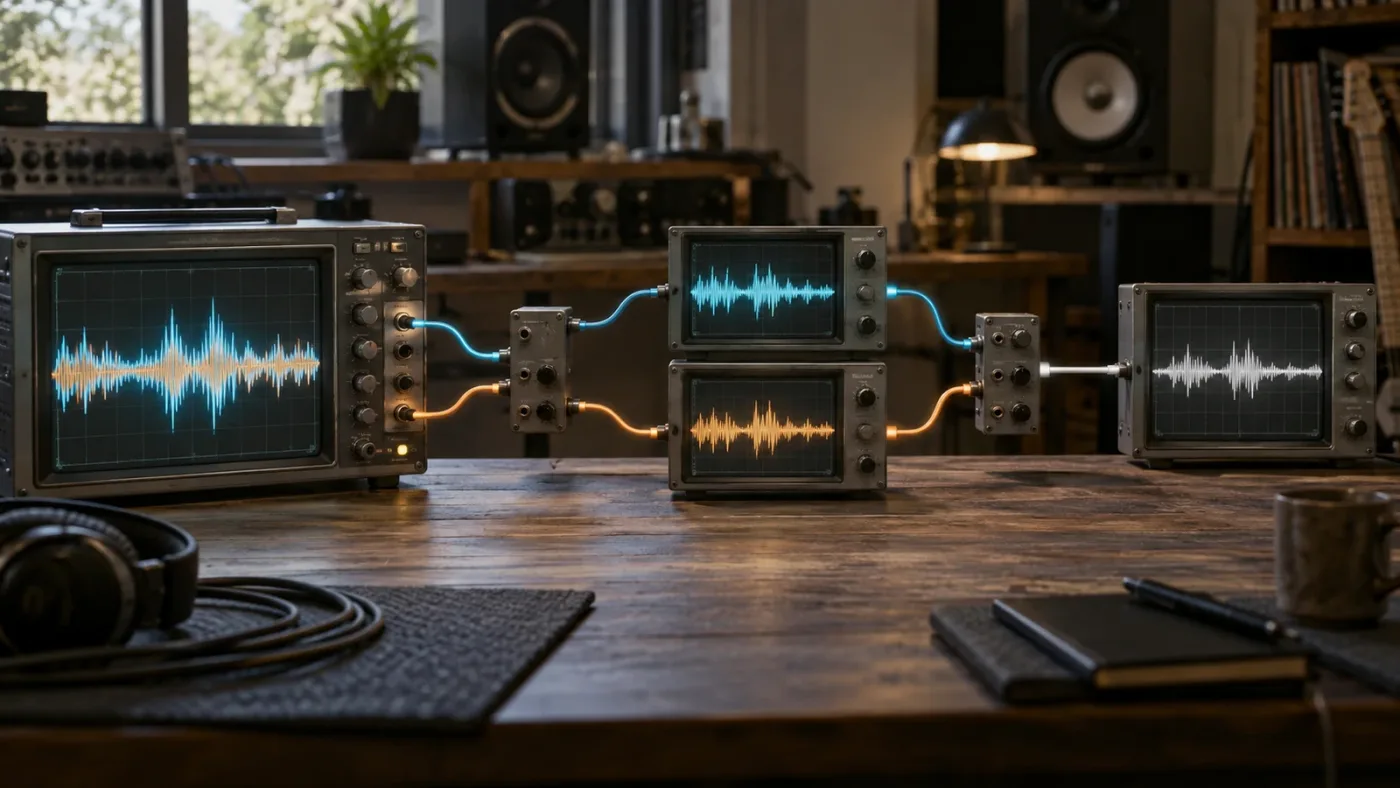
Why does my DaVinci Resolve audio clip sound hollow?
A DaVinci Resolve audio clip usually sounds hollow because similar signals are cancelling parts of one another, two channels are mapped or timed badly, or processing has removed the low-mid information that gives speech its body. The first useful question is not “which EQ preset should I use?” It is “does the body disappear when I listen in mono?”
“Hollow” is a listener description, not a single technical fault. It can describe several different changes:
| What you hear | Most likely branch | First test |
|---|---|---|
| Voice gets thin, distant, or almost empty in mono | Phase cancellation or mismatched stereo channels | Sum or monitor the clip in mono |
| One side sounds normal and the other sounds strange | Bad channel, channel mapping, or a dual-mono mismatch | Solo the left and right lanes |
| The problem appears after an effect or preset | Stereo widening, delay, reverb, chorus, or EQ | Bypass clip and track effects |
| Headphones sound acceptable but speakers sound hollow | A mono or speaker-summing compatibility problem | Check mono and a second playback system |
| The clip sounds boxy or nasal, but does not vanish in mono | Room reflection or an EQ balance problem | Compare untreated audio and sweep a restrained EQ cut |
| The problem changes when you move a clip or align a second mic | Time-of-arrival difference | Compare waveforms and timing |
The table is a triage tool, not a promise that one symptom proves one cause. Shure describes phase cancellation as the result of microphones receiving the same soundwave with opposite pressure zones, while its recording guidance also points to microphones receiving the same source out of sync. That is why two recordings of one voice can produce a thinner combined result even when each channel sounds fine alone.
A hollow sound that collapses in mono is a phase or channel problem until proven otherwise.
This symptom is common with dual-mono camera recordings, two microphones on one speaker, duplicated clips, stereo widening, and delayed parallel processing. It can also appear when a clip looks stereo in the timeline but the two lanes are not actually equivalent. DaVinci Resolve’s Fairlight page exposes individual channels for audio editing, so you can investigate the signal rather than guessing from the single stereo waveform shown on the Edit page. Blackmagic’s Fairlight Audio Guide describes a mono track as one lane and a stereo track as two lanes, which is the distinction that matters here.
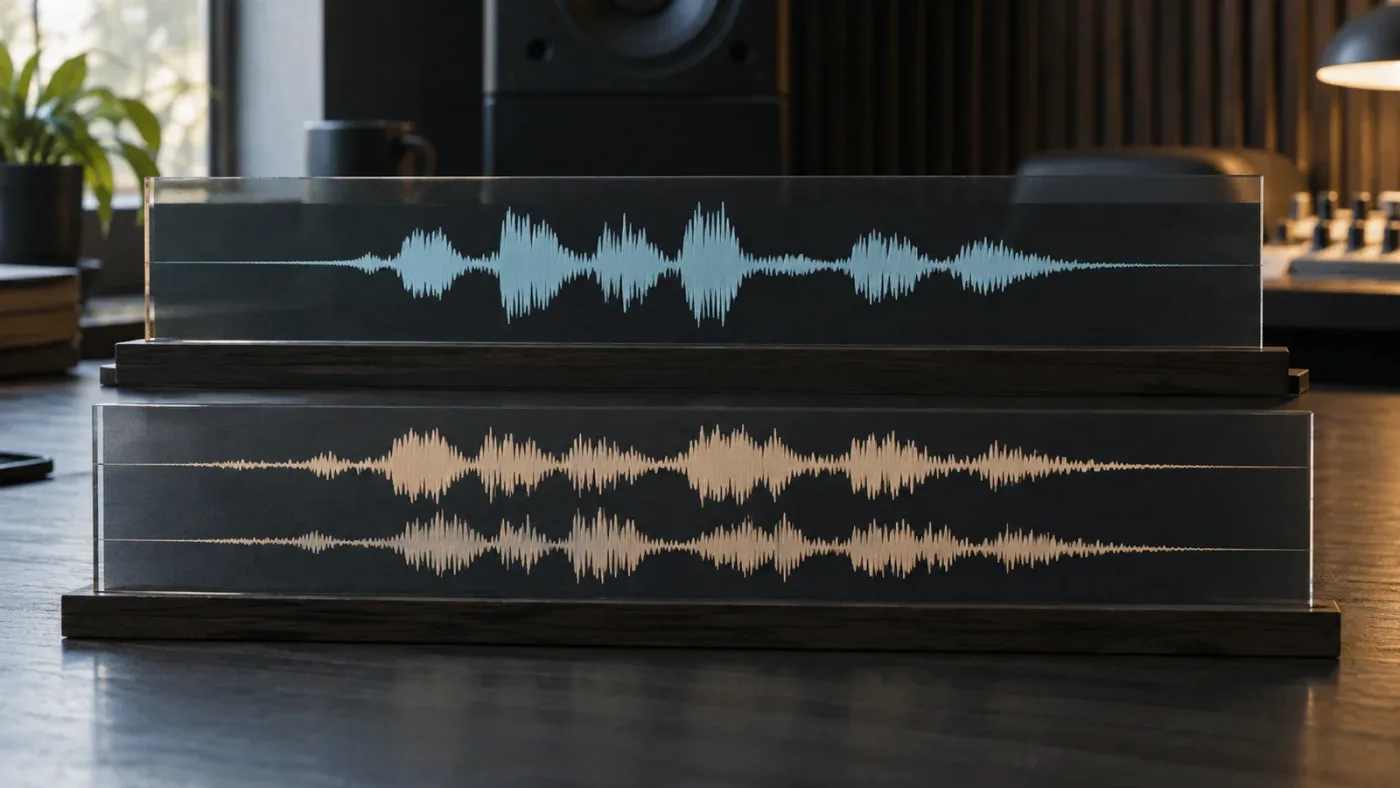
How do I tell whether phase cancellation is making the clip hollow?
Listen in mono before changing the clip. If the voice loses its center, low-mid body, or intelligibility when the left and right channels are combined, phase cancellation is a strong suspect; if the tone stays stable, look next at EQ, room sound, or monitoring.
Use the mono test
- Select the audio clip and bypass clip-level processing. Also bypass track-level effects if the symptom remains.
- Play a sentence with sustained vowels such as “ah,” “oh,” or “ee.” Speech makes changes in body easier to notice than a short consonant.
- Listen in stereo, then listen in mono. Use the same monitoring level for both checks.
- Note whether the voice becomes quieter, thinner, wider but less centered, or almost silent.
- Compare the result with each channel soloed.
Avid’s guide to checking phase relationships describes the practical listening clue plainly: when two inputs are out of phase, pressing mono produces “a sudden ‘hollow’ sound that is the result of phase cancellation.” That is a useful description of the test, not proof that every hollow clip has the same cause.
The test matters because headphones can hide some compatibility problems. With headphones, the left and right signals remain separated. Speakers, a phone, a smart speaker, or a broadcast chain may sum channels or reproduce them with a different acoustic relationship. iZotope’s explanation of stereo widening gives the same warning in another form: delayed or phase-shifted stereo material can sound hollow when collapsed to mono because different frequencies cancel by different amounts.
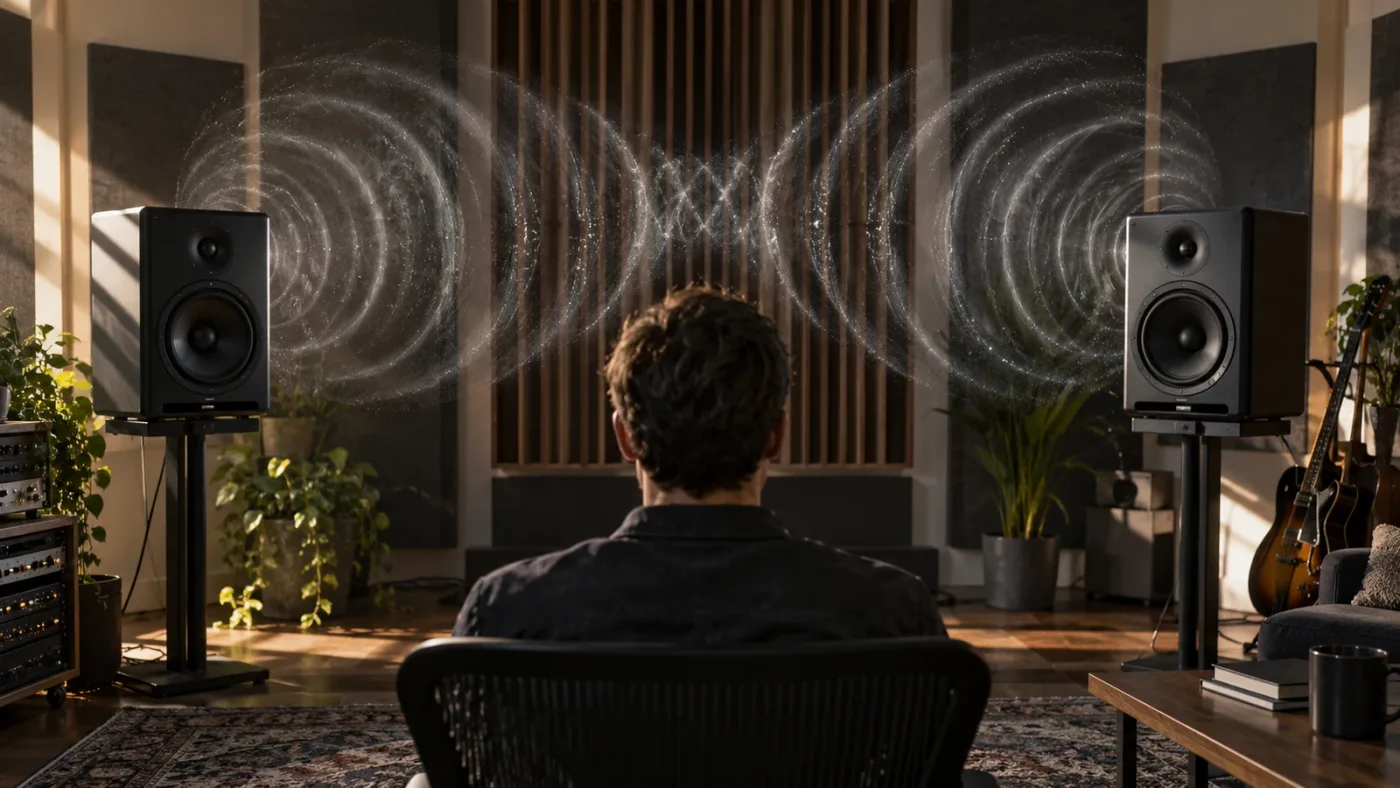
Add a phase meter when your ears point to phase
Fairlight includes metering tools under Fairlight FX. Blackmagic’s Fairlight guide lists the Phase Meter alongside other metering tools, and the guide demonstrates adding a Phase Meter to a mixer channel. Put the meter where you can compare the affected clip or its bus with an untreated reference.
Do not treat a meter as a verdict. A phase display tells you about the relationship between channels at that point in the signal path. A wide or negative reading can be a useful clue, but the mono listening test tells you whether the relationship is damaging the part people need to hear. A single-channel mono source will not provide the same stereo comparison as a two-channel signal.
How do I check stereo channels and channel mapping in DaVinci Resolve?
Check the left and right lanes separately, then inspect the clip’s channel format and mapping. A hollow clip often becomes obvious when one lane has the clean voice, the other contains a delayed or reflected version, or the two lanes are carrying different sources than you assumed.
Solo the channels
In Fairlight, expand the track so the individual lanes are visible. Solo the left channel and listen for the direct voice. Then solo the right channel. Write down what changes:
| Left lane | Right lane | What to do |
|---|---|---|
| Clear voice | Clear voice with the same timing and tone | Keep stereo unless mono checking reveals cancellation elsewhere |
| Clear voice | Low, distant, or room-heavy voice | Prefer the clean lane or remap as mono |
| Voice | Music, camera ambience, or another mic | Correct channel mapping before mixing |
| Voice | Similar voice with a small delay | Align the recordings or choose one source |
| Silence | Voice | Check the left or right channel assignment and output routing |
Blackmagic says in its Fairlight documentation that Fairlight can change clip and track channel mapping and isolate a wanted source from a multichannel clip. That makes mapping a better first repair than piling on EQ. If a camera recorded a lavalier on one channel and a scratch mic on the other, the correct answer may simply be to use the lavalier channel as a mono source.
Inspect the clip attributes when the format is wrong
On the Edit page, right-click the clip and open its clip attributes. The exact label and layout can vary with the Resolve version and source format, so verify the current control in the 21.1 manual if your menu differs. Look for the audio format and channel mapping rather than assuming that a file labelled stereo contains a useful stereo pair.
For a spoken-word recording, dual mono and stereo are not interchangeable ideas. Two independent microphone feeds may be stored in one stereo file, but that does not mean you should preserve them as a left-right image. If one feed is a clean close microphone and the other is a distant backup, a centered mono voice from the clean feed will usually be more stable than a hollow stereo composite.
If the problem is specifically one speaker only, use the dedicated DaVinci Resolve audio-only-from-left-speaker fix after you identify whether the source is silent on one lane or merely routed incorrectly. That article is about the left-speaker symptom. This post is about the hollow relationship between channels.
Channel mapping is a source decision, while EQ is a tone decision. Fix the source decision first.
How do I fix a phase-reversed channel in Fairlight?
If one channel is polarity-reversed, open the Fairlight Mixer path settings and use the channel’s Polarity Reversal control, then listen again in mono. Reverse only the channel that is actually opposing the useful source, and recheck the result in stereo and mono.
In a Blackmagic Design forum answer about phase reversal, Reynaud Venter wrote: “The Trim section provides a Polarity Reversal button.” The same reply gives the navigation: enable the Input section in the Fairlight Mixer, open the channel’s “No Input” menu, choose “Path Settings,” and find the control in Trim. The forum post is older than Resolve 21.1, so menu presentation can change, but it remains a useful named reference for the control’s purpose and location.
Use this repair when the two channels have the same timing but one is inverted in polarity. A polarity flip is not a universal phase-alignment tool. If the signals arrive at different times, reversing polarity may make one frequency band fuller while making another worse. That is the comb-filter behaviour that makes a clip sound hollow or nasal instead of simply quiet.
Test the polarity change safely
- Duplicate the timeline or make a new version before changing the channel path.
- Keep the two channels easy to identify. Name them if the source is ambiguous.
- Bypass reverb, chorus, stereo widening, and delay while testing.
- Toggle Polarity Reversal on one channel only.
- Listen to the same phrase in mono, then stereo.
- Keep the setting that restores body and intelligibility without making the stereo image unstable.
Do not use the waveform shape as proof that polarity has changed. A polarity control can affect playback and routing without flipping the clip’s stored waveform on the timeline. Judge the result at the monitor point where the problem occurs.
How do I fix a hollow clip caused by a time offset between microphones?
Align the two microphone signals before trying polarity reversal when the channels are similar but one arrives late. A delay of only a small amount can create frequency-dependent cancellation, so the fix is timing or source selection, not a broad bass boost.
This case often comes from a close microphone combined with a camera microphone, two microphones at different distances, or a duplicated clip with a delay effect. Shure’s microphone guidance explains that the same source arriving at microphones at different times can create phase problems. Its 3-to-1 guidance is a recording practice for reducing the problem at capture, not a magic Resolve setting after the fact.
Compare the waveforms
Zoom in on a sharp consonant, hand clap, lip smack, or other transient. If the same event appears at different horizontal positions in the two lanes, the channels are not aligned. Move one channel only if you know both lanes carry the same source and the edit can tolerate the change. Otherwise, use the cleaner microphone and discard the compromised composite.
Here is the decision:
| Evidence | Repair |
|---|---|
| Same event, same timing, opposite polarity | Try Polarity Reversal on one channel |
| Same event, visibly shifted timing | Align the channels or use one source |
| Different room tone or different microphone distance | Prefer the direct source, then mix ambience deliberately |
| One channel contains noise or an unrelated source | Remap or remove that channel |
| A delay or widening plug-in caused the symptom | Bypass or reduce the effect, then rebuild width carefully |
Do not align two unrelated recordings simply because their waveforms look similar. A waveform match can hide different microphone colour, room reflections, and performance timing. The repair should make the intended voice clearer, not make every lane identical by force.
If you need a broader channel-format walkthrough, use DaVinci Resolve’s stereo-to-mono methods. For this hollow symptom, the key choice is whether you are preserving a genuine stereo recording or selecting the best channel from a dual-mono capture.
Why does my clip sound hollow only after I add EQ, reverb, or stereo widening?
If the clip is solid in mono before processing and hollow afterward, bypass the newest effect and rebuild it with less width, less delay, or a gentler EQ curve. Processing can create the symptom even when the original recording is healthy.
Check stereo widening and delay first
Stereo wideners often create width by delaying, filtering, or phase-shifting a copy. That can make a voice feel large in headphones while reducing its center and body when summed. iZotope describes the hollow result from phase cancellation at varying frequencies when widened or delayed material is collapsed to mono.
Test the effect in this order:
- Bypass the widener and listen in stereo and mono.
- Re-enable it at a conservative amount.
- Check mono again.
- If the body disappears, reduce the width or remove the delayed side signal.
- Keep dialogue centered and put width on ambience, music, or designed effects where mono loss is acceptable.
Reverb can create a similar impression without a polarity error. A small room, short echo, or early reflection can blur consonants and make the direct voice feel farther away. Bypass the reverb, shorten its decay, reduce the wet level, or use a cleaner room impulse. Do not try to restore a reverberant voice with a large treble boost.
Check low-mid EQ without chasing a number
The low-mid range carries much of the perceived body of speech, but the right correction depends on the microphone, voice, room, and recording distance. I will not give you a fake universal frequency cut. Sweep a narrow, restrained band while listening to the untreated clip, then make a small cut only if the sound is genuinely boxy or muddy.
Use this order instead:
| Step | Listening question | Decision |
|---|---|---|
| 1 | Does the voice vanish or thin dramatically in mono? | Return to phase and channel checks |
| 2 | Does bypassing EQ restore natural body? | Undo or reduce the cut |
| 3 | Is the untreated recording boxy but stable in mono? | Try a small, narrow cut and compare level-matched |
| 4 | Did a high-pass filter remove warmth? | Lower the cutoff or bypass it |
| 5 | Does boosting bass hide the hollow sound but reduce clarity? | Undo the boost and repair the cause |
EQ changes frequency balance. It cannot make two misaligned waveforms arrive together. If the clip is hollow because the channels cancel, use channel selection, timing, polarity, or routing first.
How do I know whether the room or microphone caused the hollow sound?
If the clip remains hollow in mono but does not collapse, compare the direct recording with the room sound and the microphone position. A reflected voice can sound hollow because direct and delayed sound combine unevenly, even when the two timeline lanes are not out of polarity.
Shure documents this acoustic pattern: a direct wave and a reflected wave can arrive at different times, creating response losses at some frequencies and an unnatural hollow sound. That is a capture or room problem, not necessarily a Fairlight bug.
You can still improve it in Resolve:
- Choose the closer, cleaner microphone if you recorded more than one.
- Reduce the distant microphone rather than blending both equally.
- Use a gentle noise or room treatment only after the direct voice is stable.
- Keep the direct voice centered and make the room a deliberate background layer.
- Check the result on headphones, speakers, and mono playback.
For future recordings, microphone placement matters more than a rescue plug-in. Shure’s recording guidance describes the 3-to-1 rule as a way to reduce phase problems with multiple microphones. It is a capture guideline, not a reason to move every microphone three times farther away in an existing edit.
Should I convert a hollow stereo clip to mono?
Use mono when one source is clearly better, the recording is dual mono, or stereo summing creates cancellation. Keep stereo when the two channels form a real, intentional stereo recording and the image stays full and compatible in mono.
Converting to mono can be the cleanest answer for a talking-head clip recorded with one good feed on the left and a weak camera feed on the right. It can also be the wrong answer for a stereo ambience bed, music recording, or designed sound effect where width is part of the point.
Ask four questions:
- Are both channels the same intended source?
- Does one channel sound cleaner and more direct alone?
- Does combining them remove body or intelligibility?
- Will the delivery environment fold the signal to mono or reproduce it through a small speaker?
If the best answer is one channel, map or route that channel to a centered mono track. If the best answer is a polarity correction, keep the stereo structure and repair the relationship. If neither channel is good alone, mono will not create information that was never recorded.
Mono is a diagnostic and delivery choice, not a punishment for using stereo.
Why does the clip sound fine in headphones but hollow on speakers?
When headphones sound fine but speakers sound hollow, test mono compatibility, speaker placement, output routing, and room reflections before changing the clip. The difference may be in the monitoring path rather than the media.
Use a short verification pass:
| Check | What it isolates |
|---|---|
| Headphones, stereo | Left and right as separate signals |
| Speakers, stereo | Room, speaker spacing, and acoustic summing |
| Mono monitor or mono bus | Phase and channel compatibility |
| Left only, then right only | Bad lane or mapping |
| Bypassed effects | Processing-induced width or cancellation |
| Exported test file | Timeline versus delivery-path difference |
If the timeline sounds full but the exported file sounds hollow, compare the export in the same player and output path. Check that the export is not being decoded with an unexpected channel layout, and confirm that your player is not applying an enhancement or virtual surround mode. Resolve can route and map channels in Fairlight, so monitor the bus that actually feeds the export rather than assuming the clip view tells the whole story.
The separate DaVinci Resolve audio crackling and popping troubleshooting guide is useful when the symptom is playback distortion rather than a stable hollow tone. Crackles, dropouts, and a phasey voice can overlap in a rushed edit, but they require different branches.
What is the fastest repair order for a hollow DaVinci Resolve clip?
The fastest reliable repair order is bypass, mono, channel isolation, mapping, polarity, timing, then tone. Each step removes a category of causes before the next one adds judgment.
The five-minute diagnostic pass
- Save a version. Preserve the original clip and timeline state.
- Bypass processing. Turn off clip, track, bus, widening, delay, and reverb effects.
- Listen in mono. Decide whether the voice loses body or merely sounds too bright or boxy.
- Solo each lane. Identify the direct, delayed, noisy, silent, or unrelated channel.
- Inspect mapping. Confirm the channel format and the source assigned to each lane.
- Test polarity. Toggle Polarity Reversal on one suspect channel and compare level-matched results.
- Check timing. Zoom into a transient and align matching sources only when they are truly the same source.
- Choose mono if needed. Use the clean channel when the recording is dual mono or one feed is clearly better.
- Rebuild tone. Add restrained EQ or dynamics only after the source relationship is stable.
- Verify delivery. Check stereo, mono, headphones, speakers, and a short exported file.
This sequence also tells you when to stop. If bypassed, single-channel audio still sounds hollow, the cause is probably the recording, microphone position, room, or source itself. If a single channel sounds good but the composite sounds hollow, keep investigating the relationship instead of processing the whole clip.
Uncle can point at the exact Fairlight control in your own Resolve project while you work.
Which DaVinci Resolve audio fix should I choose?
Choose the fix that matches the listening evidence, not the most dramatic plug-in. The correct repair preserves the intended source and makes the result survive mono playback.
| If you observe this | Choose this repair | Avoid this shortcut |
|---|---|---|
| One channel is clean and one is weak or distant | Use the clean channel as mono or remap it | Boosting the weak channel |
| Mono removes the voice’s body and a polarity flip restores it | Reverse one suspect channel’s polarity | Flipping both channels |
| Matching transients are offset | Align the sources or select one | Broad EQ boosts |
| Widening or delay creates the problem | Reduce or remove the effect | Keeping width because headphones sound impressive |
| Mono stays full but the voice is boxy | Use restrained EQ and compare level-matched | Calling it phase cancellation |
| Only the export or one device sounds hollow | Check routing, channel layout, and monitoring | Re-editing the original clip blindly |
Blackmagic’s own Fairlight materials emphasize clip, track, and bus control, channel mapping, and audio post-production tools. Those controls support a disciplined repair because they let you decide where the problem begins. The best fix is often a small routing change that leaves the useful recording untouched.
Our team has seven-plus years of professional, commercial video editing behind this kind of troubleshooting, and we built and run a 100,000-plus-member professional video-editing community. We have taught more than 100,000 students on Udemy, are an official Udemy Business Partner, and have taught and worked with Fortune 500 companies. The practical rule we keep returning to is simple: make the diagnosis audible before you make the repair visible.
If you want live help locating a Fairlight control while you edit on Mac or Windows, TryUncle can point at the relevant control in your Resolve project.
The best hollow-audio fix is the smallest change that restores body in mono and stereo.
What should I do when none of these fixes works?
If a hollow clip survives bypassing, mono checking, channel isolation, mapping, polarity, and timing checks, stop treating it as a simple Resolve control problem. Revisit the recording, microphone position, room reflections, source file, and delivery path.
Make a short test timeline containing the original clip, each channel alone, the chosen repair, and a mono version. Label every version. Export that test rather than the whole project. Listen on the system where the audience will hear the work, then return to the earliest point where the hollow character appears.
If the hollow sound begins in the source file, Resolve can select, map, align, filter, and mix what was recorded, but it cannot recreate a missing direct signal. If it begins after a Fairlight effect, the cleanest answer is usually to disable or reduce that effect. If it appears only after delivery, inspect the bus and export channel layout.
The fix is complete when the dialogue remains intelligible in mono, sounds natural in stereo, and does not depend on one pair of headphones to feel full. Save that version, then move on to the edit.
Frequently asked questions
- Why does my DaVinci Resolve audio clip sound hollow?
- The usual causes are phase cancellation between two similar channels, incorrect stereo or dual-mono mapping, a small time offset between microphones, or an EQ cut that removes too much low-mid body. Listen in mono first to separate a phase problem from a tone problem.
- How do I fix a hollow audio clip in DaVinci Resolve?
- Bypass effects, check the clip's channel mapping, listen in mono, and compare each channel alone. If one channel is reversed, use Fairlight's Path Settings and Polarity Reversal control. If the channels are time-shifted, align them or use the better channel as mono.
- Does a hollow voice mean my audio is out of phase?
- It can, especially when the clip sounds acceptable in headphones but thin on speakers or when it loses body in mono. A hollow sound can also come from room reflections, stereo widening, or EQ, so confirm the diagnosis with a mono check and channel isolation.
- Should I convert a hollow stereo clip to mono in DaVinci Resolve?
- Convert or route the clip to mono when the recording is really one voice captured on two mismatched channels and one channel is clearly better. Do not use mono as a blind fix for a real stereo recording, because it can discard intentional width.
Sources
- DaVinci Resolve 21.1 support and reference manual
- DaVinci Resolve Fairlight audio tools
- The Fairlight Audio Guide to DaVinci Resolve 20
- Blackmagic forum: Phase reverse/invert audio
- iZotope: Mono vs. Stereo in Audio Mixing
- Shure: Recording drums, phase and microphone technique
- Shure: Microphone techniques for recording
- Avid Pro Tools LE user guide: checking phase relationships
- Blackmagic Design Fairlight training
Learn by doing, not watching
Stop translating tutorials to your timeline.
TryUncle stays beside Resolve on Mac and Windows. When you ask, Uncle sees your screen and points at the exact control you need. No hunting through tabs, timestamps, or mismatched tutorials.
Meet TryUncleKeep reading
 FixesSep 20, 202621 min read
DaVinci Resolve Audio Only Coming From Left Speaker? Fix It
Fix DaVinci Resolve audio only coming from the left speaker by checking clip mapping, track type, pan, bus routing, and system balance.
 GuidesSep 26, 202619 min read
DaVinci Resolve Change Stereo Audio to Mono: 3 Ways
Learn how to change stereo audio to mono in DaVinci Resolve with Clip Attributes, mono tracks, Stereo Fixer, and a safe export workflow.
 FixesJul 12, 202632 min read
DaVinci Resolve Audio Crackling and Popping During Playback: Every Fix
DaVinci Resolve audio crackling or popping during playback? The real causes, in the order to check them: sample rate, buffer size, ASIO, frame rate, GPU, and hardware.