
Learn / DaVinci Resolveupdated for DaVinci Resolve 21.1 (September 2026)
DaVinci Resolve Audio Only Coming From Left Speaker? Fix It
Quick answer
For “DaVinci Resolve audio only coming from left speaker,” first right-click the timeline clip and inspect Clip Attributes > Audio, then check the track pan in Fairlight. Set a true mono source on a mono track, map a real stereo source to both channels, and test your system balance outside Resolve.
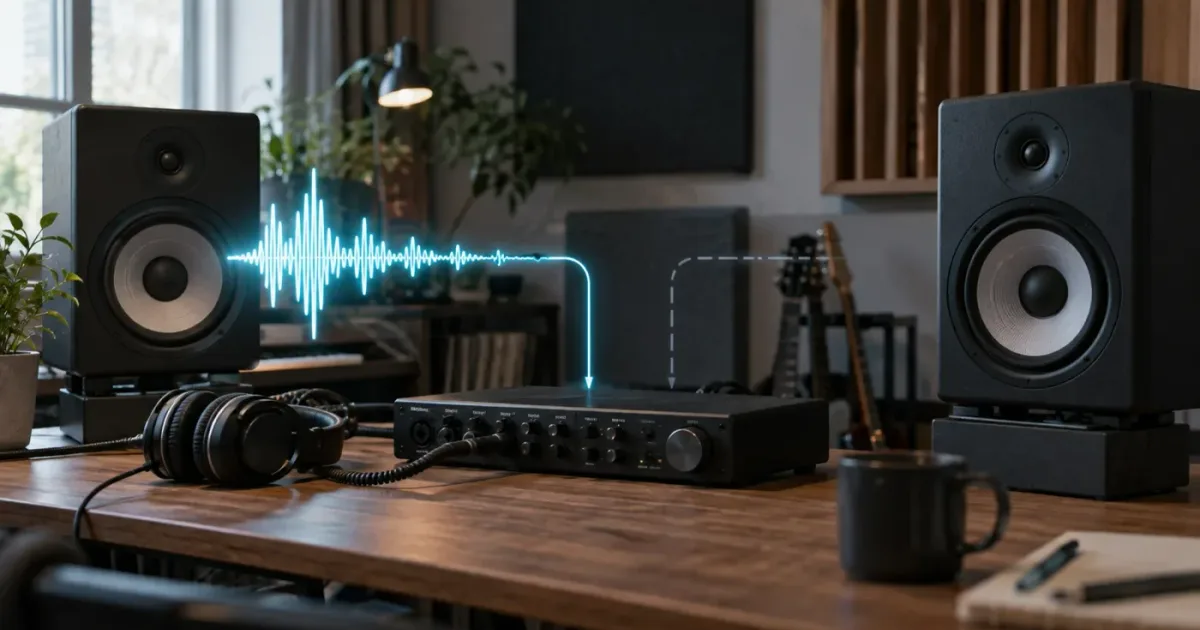
If the voice is stuck on the left, don't start by rebuilding the timeline. I trace the signal from the source clip to the track, then from the track to the bus, and only then check the speakers. That order usually tells you where the right channel disappeared.
As of September 2026, Blackmagic Design's current product pages point to DaVinci Resolve 21.1, while the Resolve 21 New Features Guide documents a meaningful change for mono audio on stereo tracks. The fix below covers Resolve 21.1 and the older project behavior that still turns up in existing timelines.
TryUncle is the on-screen assistant for DaVinci Resolve on Mac and Windows. You ask in plain words, and Uncle points at the exact control on your screen. That kind of live help is useful when the setting exists in Clip Attributes, Fairlight, or the Inspector and a tutorial shows a different version.
Why is DaVinci Resolve audio only coming from the left speaker?
DaVinci Resolve audio usually comes from only the left speaker because a mono source is sitting on a stereo track, the clip maps only an embedded left channel, or a pan and balance control favors the left. Check the clip and track before changing your operating system.
The symptom is easy to misread. A file can play in the center in a media player and still arrive in Resolve as one channel on a two-channel track. A stereo-looking waveform can also be misleading if the lower channel is empty or nearly silent. The meters are more useful than the shape of the clip: play the problem section and watch whether the track and Main bus show activity on both sides.
Blackmagic Design's Fairlight documentation describes channel mapping as a way to change clip and track channel assignments, including selecting individual sources from a multichannel file. Its current Fairlight page also says adaptive tracks can support up to 36 channels, so the underlying issue isn't limited to a simple left-right music file. The common case is simpler: one source channel has been placed where Resolve expects two.
Charles Bennett, a long-time contributor in the official Blackmagic Design forum, gives the cleanest explanation of the mono case: “Audio from a mono track will come out equally left and right and your pans will work.” The same reply adds that a mono source on a stereo track favors the left channel. That is the useful distinction. The fix isn't to duplicate a broken left waveform by ear. The fix is to tell Resolve what the source and track actually are. (Blackmagic Design forum)
A left-only Resolve signal is usually a channel-mapping problem before it is a speaker problem.
Resolve meters tell you whether to keep troubleshooting the project or move to the speakers.
The fastest diagnosis is a four-question check:
- Does the file play through both speakers in another player?
- Do the Resolve meters show activity on the left only, or on both sides?
- Is the timeline track labeled as Mono or Stereo?
- Is the Fairlight Pan control centered, or is there automation moving it?
If the file is left-only everywhere, test the system and hardware. If the file is centered everywhere except the Resolve timeline, stay inside Resolve first. If the meters are active on both sides but you hear the left only, jump to the output and balance checks later in this guide.
How do I tell whether the problem is the clip, track, or speakers?
You can separate the three causes with one short test: play the same file outside Resolve, watch Resolve's meters, and switch to headphones or another output. A clip problem appears in the source mapping, a track problem appears in the timeline and mixer, and a speaker problem follows the output device into other apps.
Use this decision matrix before changing anything:
| What you observe | Most likely layer | What to inspect next |
|---|---|---|
| The file is left-only in every player | Source file or recording | Test the original file, cable, microphone, and output device |
| The file is centered outside Resolve but left-only in the timeline | Clip or track mapping | Clip Attributes > Audio, then track type |
| Resolve meters show left and right but you hear left only | Monitoring or hardware | Main bus, output device, OS balance, speaker wiring |
| One clip is wrong and neighboring clips are fine | Clip attributes or clip pan | Right-click that clip and inspect Audio; then inspect its track |
| Every clip on one track is wrong | Track type, pan, or automation | Track header and Fairlight mixer |
| Every Resolve project is wrong but other apps are fine | Resolve output routing | Fairlight output device and bus routing |
| Only an old project is wrong after an update | Legacy track or saved mapping | Compare the project track type with a new test track |
On macOS, Apple says the Sound settings include a Balance slider for the selected output device. Apple also provides a Left and Right speaker test in Audio MIDI Setup, which is useful when you need to confirm whether the interface is assigning channels correctly. On Windows 10 and Windows 11, Microsoft documents checking the output device and setting the left and right channel levels to the same value for one-channel Bluetooth playback.
That gives you a clean boundary. If the operating system's own test also produces sound only on the left, Resolve is not the only place to troubleshoot. If the operating system plays both channels and Resolve's meters show left only, the project is the better suspect.
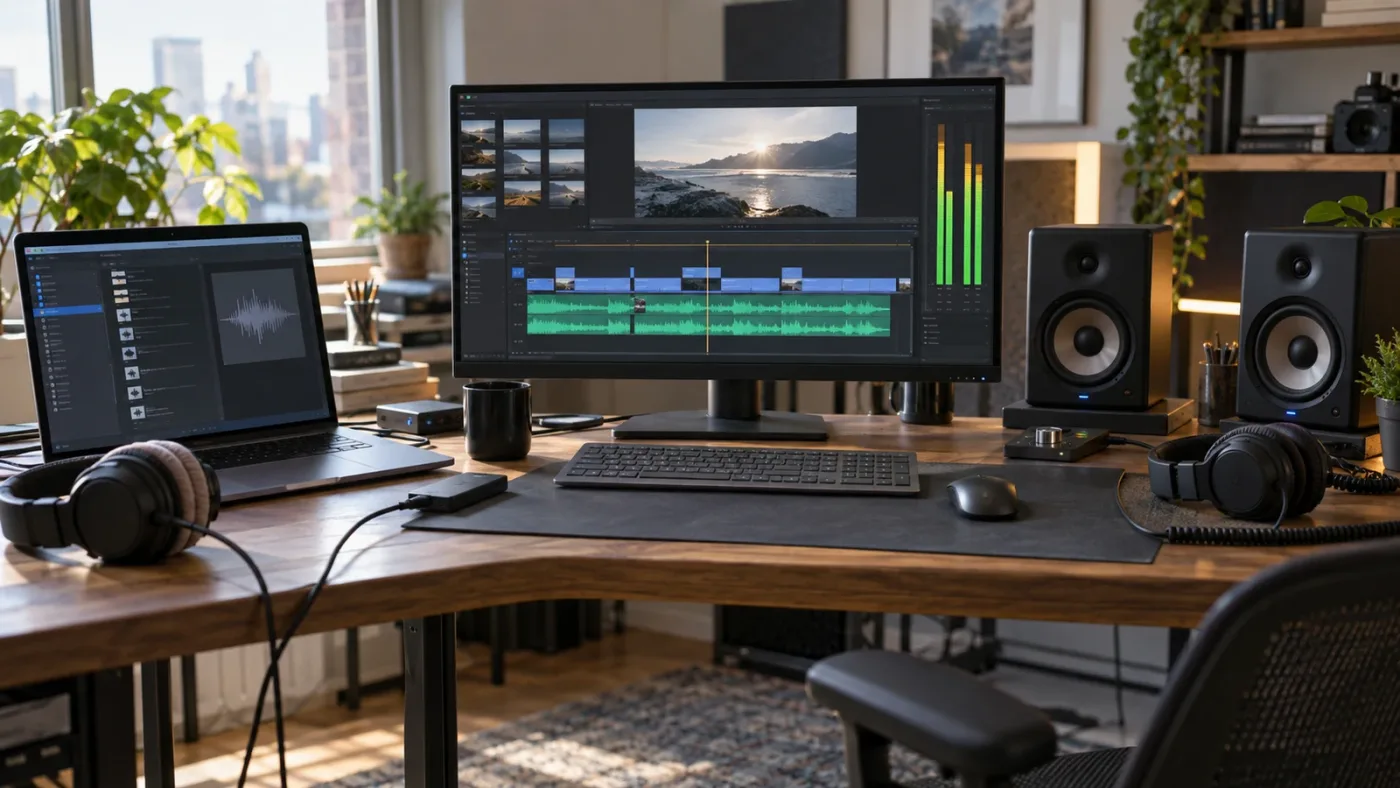
How do I fix a mono clip that lands only on the left?
To fix a mono clip that lands only on the left, change the timeline track to Mono and make sure the clip uses the intended embedded source channel. A mono track is the right model for one microphone or one voice recording because Resolve can send that single source to the stereo bus as a centered signal.
Follow this order:
- Select the problem clip in the timeline.
- Right-click the audio track header, not the video clip.
- Choose
Change Track Type To > Mono. - Play the clip and watch the track meter.
- Open the Fairlight mixer and confirm the Pan control is centered.
- If the sound is still wrong, right-click the clip and choose
Clip Attributes. - Open the
Audiotab and inspect theFormatandSource Channelfields. - Choose the embedded channel that actually contains the microphone recording, then confirm the change.
Blackmagic's Fairlight Audio Guide documents the Change Track Type To > Mono workflow and shows a mono track with one channel indicator and one waveform. The same guide explains that changing the track format does not rewrite the source media. That matters if you are worried about damaging the original recording: you are changing how the timeline receives and plays the clip, not editing the audio file on disk.
There are two common variations.
A microphone was recorded on channel 1 of a two-channel file
Choose the embedded channel containing the microphone, then use a Mono timeline track. If the other embedded channel is empty, don't sum it into the mix. An empty or noisy second channel doesn't become useful just because the clip is labeled Stereo.
Two microphones were recorded as separate channels
Don't automatically collapse both channels into one. Select the correct embedded channel for each speaker, place each source on its own mono track, and pan only when the mix needs a deliberate position. A stereo file can contain two unrelated mono recordings rather than a left-right stereo image.
The official Fairlight page describes channel mapping as especially useful for multiple microphone sources and for isolating dialogue from multichannel clips. The practical choice is therefore about the recording, not the file extension. WAV, MOV, and MP4 don't tell you whether the two channels form a stereo pair.
Resolve 21 changes the default behavior for a different case. Blackmagic's Resolve 21 New Features Guide says that adding mono audio to a stereo track now plays the mono clip on both left and right channels, whereas earlier behavior added it to the left channel only. If a new Resolve 21.1 timeline still plays left-only, inspect explicit clip mapping, track settings, pan automation, or an older nested timeline instead of assuming the version change will repair every project.
If the setting is still hiding, Uncle can point at the exact button in your own Resolve project while you work.
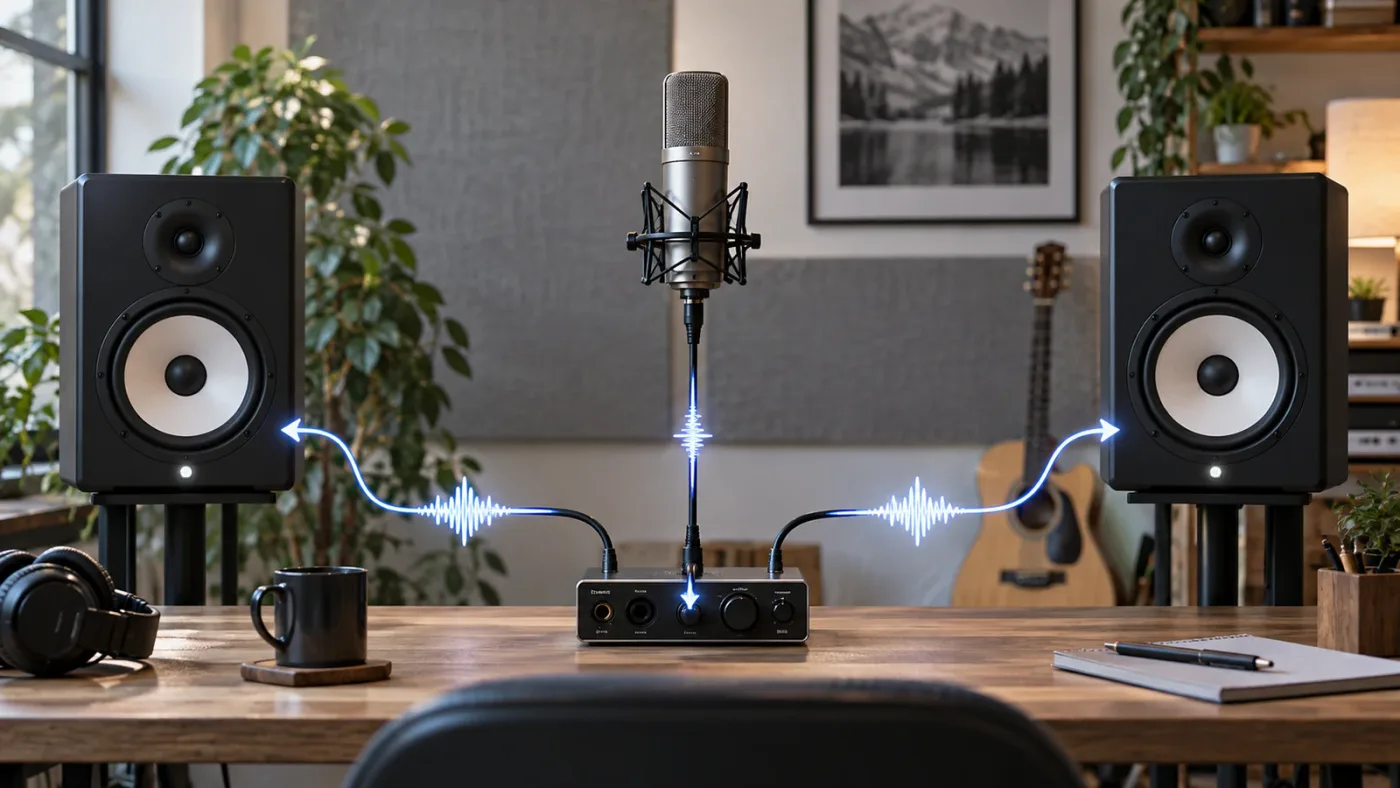
How do I fix a stereo file whose right channel is empty?
If a stereo file has audio on the left and silence on the right, decide whether it is really stereo before changing the format. For a one-microphone recording, use the populated channel as a mono source; for a genuine stereo recording, correct the source mapping or replace the damaged recording rather than inventing a missing right channel.
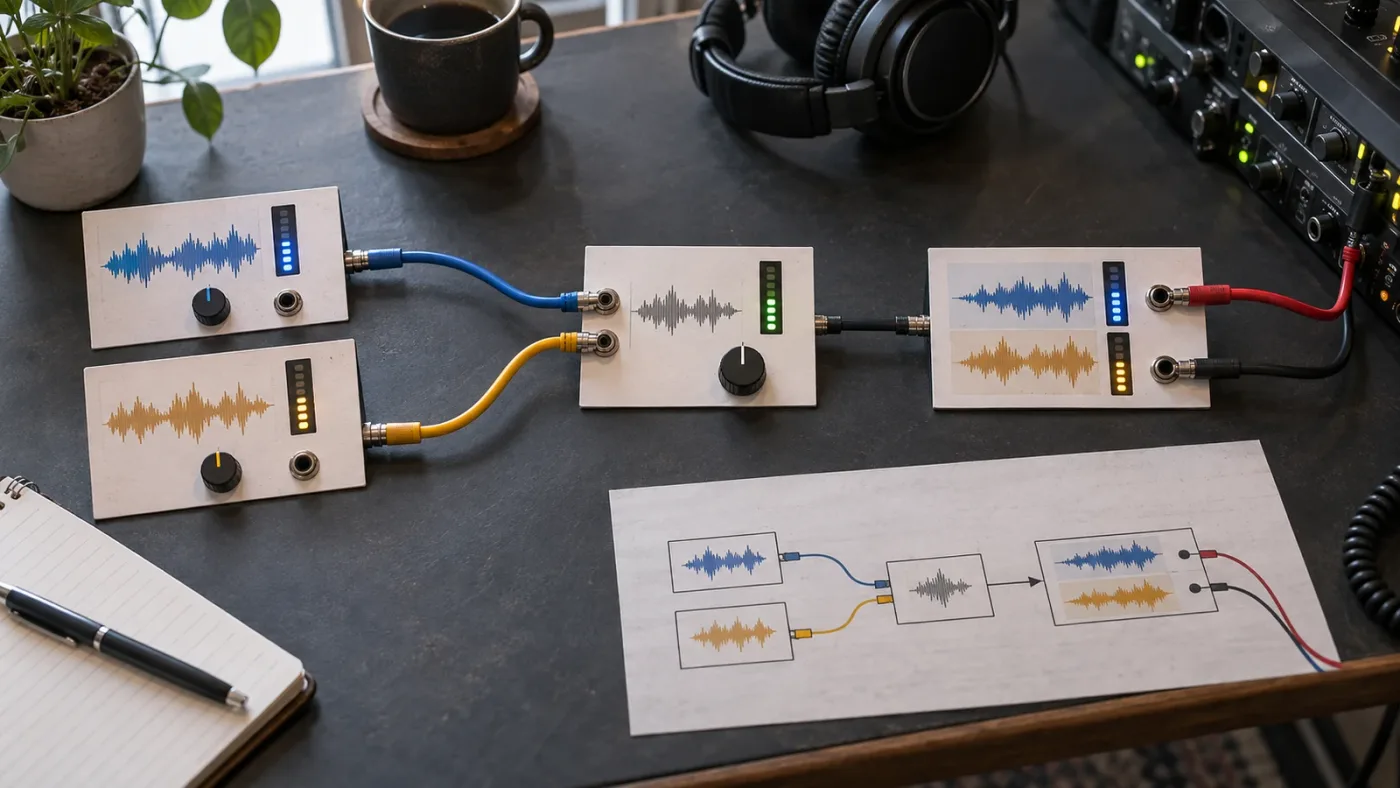
Right-click the clip and open Clip Attributes > Audio. Read the rows as a routing table:
| Question | What the setting tells you | Safe choice |
|---|---|---|
What is Format? | How many channels Resolve treats the clip as having | Mono for one source, Stereo for a real stereo pair |
What is Source Channel? | Which embedded channel supplies the timeline channel | Select the channel with the wanted recording |
What is Track? | Which timeline track receives that channel | Use a dedicated mono track for a single mic |
What is Channel in Track? | The destination position inside the track | Center a mono track; use Left and Right only for a stereo pair |
The Fairlight Audio Guide shows the Clip Attributes Audio panel with a format, source-channel selection, track, and destination channel mapping. In Resolve 19.1 and later, Blackmagic's guide says you can also see and change the clip's source channel from the timeline or the Inspector's File tab. That gives you a faster route when the problem is one clip and you don't want to open a larger dialog.
Be careful with the word “mono.” Selecting Mono and selecting Embedded Channel 1 doesn't magically combine the left and right sides. It selects one source for a mono destination. A Blackmagic Design forum answer describes two different needs: use Clip Attributes when you want a preferred embedded source channel, or use the Fairlight Stereo Fixer when you need to change how an existing stereo signal is handled. The choice depends on whether you want one mic or a downmix.
What if the right channel contains useful audio?
If the right channel contains a second microphone, do not throw it away. Map the channels to separate mono tracks, label them clearly, and mix each track. This keeps dialogue easier to edit and prevents a camera's channel layout from dictating your entire timeline.
If the right channel is a real stereo partner but Resolve maps it incorrectly, set the clip format to Stereo and check the mapping table. Then check the track. A stereo clip on a mono track will not retain the same left-right presentation as a stereo track, even if both source channels remain in the file.
What if I only need both speakers to play the same voice?
Use a mono source on a mono track and send the track to the stereo Main bus. That gives you a centered voice without copying a waveform into a fake stereo file. For a stereo recording that contains two related sides, use a proper downmix or stereo-width tool and audition it carefully. Summing two unrelated microphones can create phase or intelligibility problems, so listen before committing to the result.
Changing a clip to Mono selects a source channel; it does not repair a missing recording on the other side.
How do I reset left-right panning when only one track is affected?
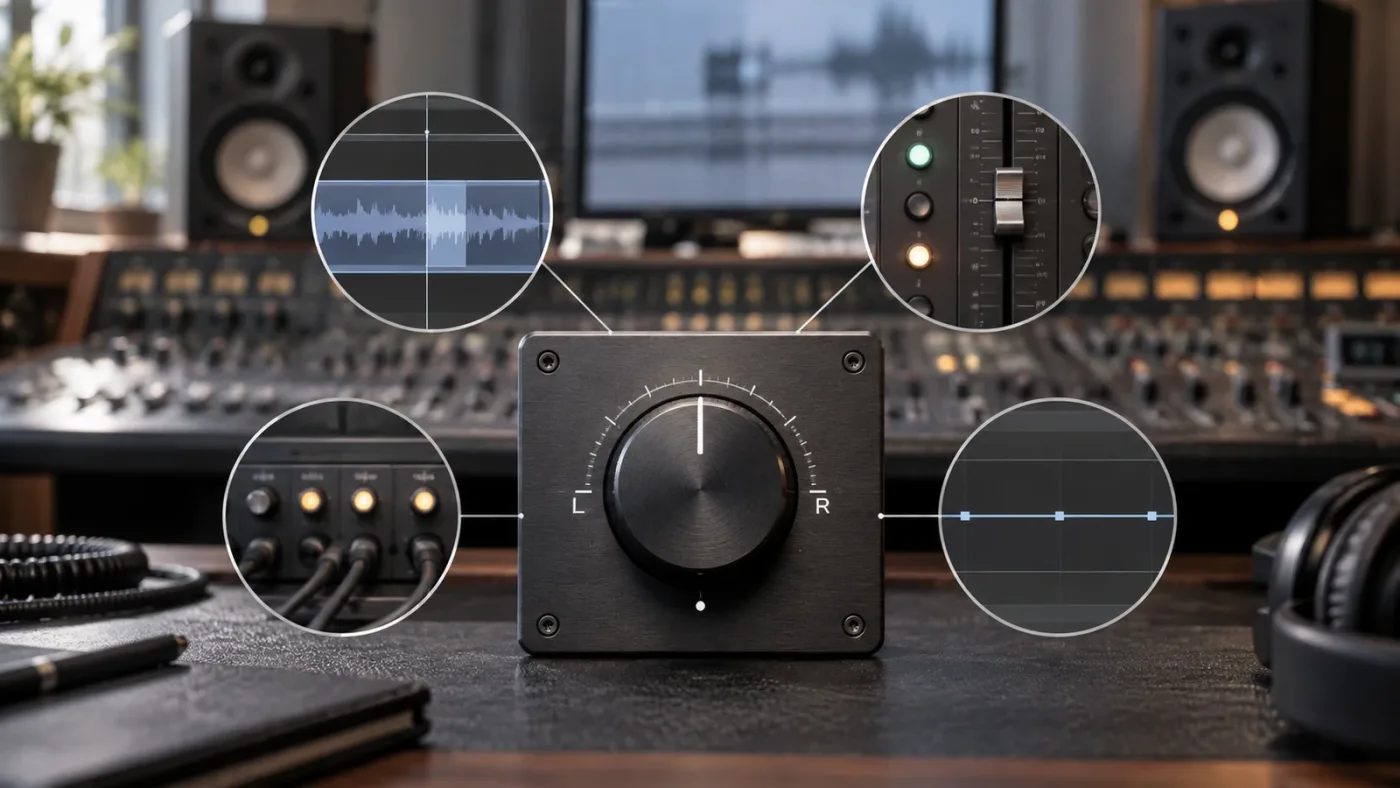
To reset left-right panning on one track, open the Fairlight mixer, locate that track's Pan control, and return the left-right position to center. If it moves back during playback, inspect automation rather than repeatedly dragging the control.
Fairlight's mixer includes channel strips for timeline tracks and buses, with faders, stereo and 3D panners, effect slots, dynamics, and equalization controls. That means a left-only result can happen after the source mapping is correct. The clip may be centered while the track or bus sends it left.
Check the layers in this order:
- Clip pan. Select the clip and inspect the Inspector or Fairlight clip controls. If the clip has its own pan setting, return it to center.
- Track pan. In the Fairlight mixer, find the track channel strip and open its Pan control. Return the left-right position to center.
- Bus pan. Find the Main bus or the bus feeding your monitoring output. A bus-level pan affects every track routed through it.
- Automation. Show the track's pan automation or play the section while watching the control. Existing automation can move a centered pan back to the left.
- Plug-ins. Bypass third-party audio effects temporarily. A stereo-width or surround plug-in can change the apparent position even when the basic pan is centered.
The current Fairlight page says its channel strips include stereo and 3D panners and that automation can record parameter changes over time. The useful distinction is static versus moving behavior. If the track is left-only at every frame, inspect mapping and pan. If it starts centered and drifts left, inspect automation.
Do not use panning as the first repair for a mono source on a stereo track. You may be able to drag a left-only source toward the center, but you are treating a track-format mismatch as a mix decision. Make the source and track agree first. Pan later for creative placement.
Why are the meters moving on both sides but the speakers still sound left-only?
When Resolve's track and Main bus meters show both channels, the timeline probably contains two-channel signal. Move to the monitoring chain: output device, interface channel assignment, operating system balance, cable, amplifier, or speaker.
On Mac, select the output in System Settings > Sound > Output and check the Balance slider, as described in Apple's sound output guide. On Windows, select the output under Settings > System > Sound and check that the left and right levels match. Microsoft specifically documents setting both channels to the same level, typically 100, when one-channel playback affects Bluetooth audio.
How do I check buses, monitoring, and output routing?
Check bus routing when multiple tracks show normal meters but the final sound is left-only. A correctly mapped clip can still feed the wrong bus, a left-only bus, or an output device with an incorrect channel assignment.
Open the Fairlight page and make the Mixer visible. Follow one problem track to its Bus Outputs, then follow that bus to the Main bus or monitoring output. You are looking for a complete path with no solo, mute, pan, or channel-format surprise.
Use this routing checklist:
| Check | What a healthy stereo path looks like | If it fails |
|---|---|---|
| Track meter | Signal appears on the expected channel or channels | Revisit Clip Attributes and track type |
| Track Pan | Center for a centered mono source | Reset the pan and inspect automation |
| Bus Output | The track feeds the intended bus | Correct the bus assignment |
| Main bus meter | Both sides respond for a centered or stereo mix | Inspect bus pan and bus format |
| Resolve output device | The selected interface or speakers are the ones you are testing | Choose the correct device in Resolve's audio I/O settings |
| Physical or OS output | Left and right channels are assigned and balanced | Check system balance, Audio MIDI Setup, cable, and speakers |
If Resolve is sending audio to a different interface than the one you are listening to, you have a different problem from left-only channel mapping. Use the sibling guide on DaVinci Resolve audio going to the wrong output device when the meters and project routing look normal but the sound comes from an unexpected device.
Don't confuse a bus-format choice with a speaker failure. A mono Main bus can intentionally collapse a mix to one channel before output, while a stereo Main bus preserves left and right positions. If you change a bus format, note the old setting and test a short section. A format change can affect the whole mix, not just the clip that first exposed the problem.
Resolve 21's official download page describes Fairlight support for stereo, 5.1, 7.1, and immersive 3D formats, and lists support for up to 2,000 tracks. Those capabilities make routing flexible, but they also create more places to check in a large project. For a simple voiceover, keep the path simple: mono source, mono track, centered pan, stereo Main bus.
What changes in Resolve 21.1 and older versions?
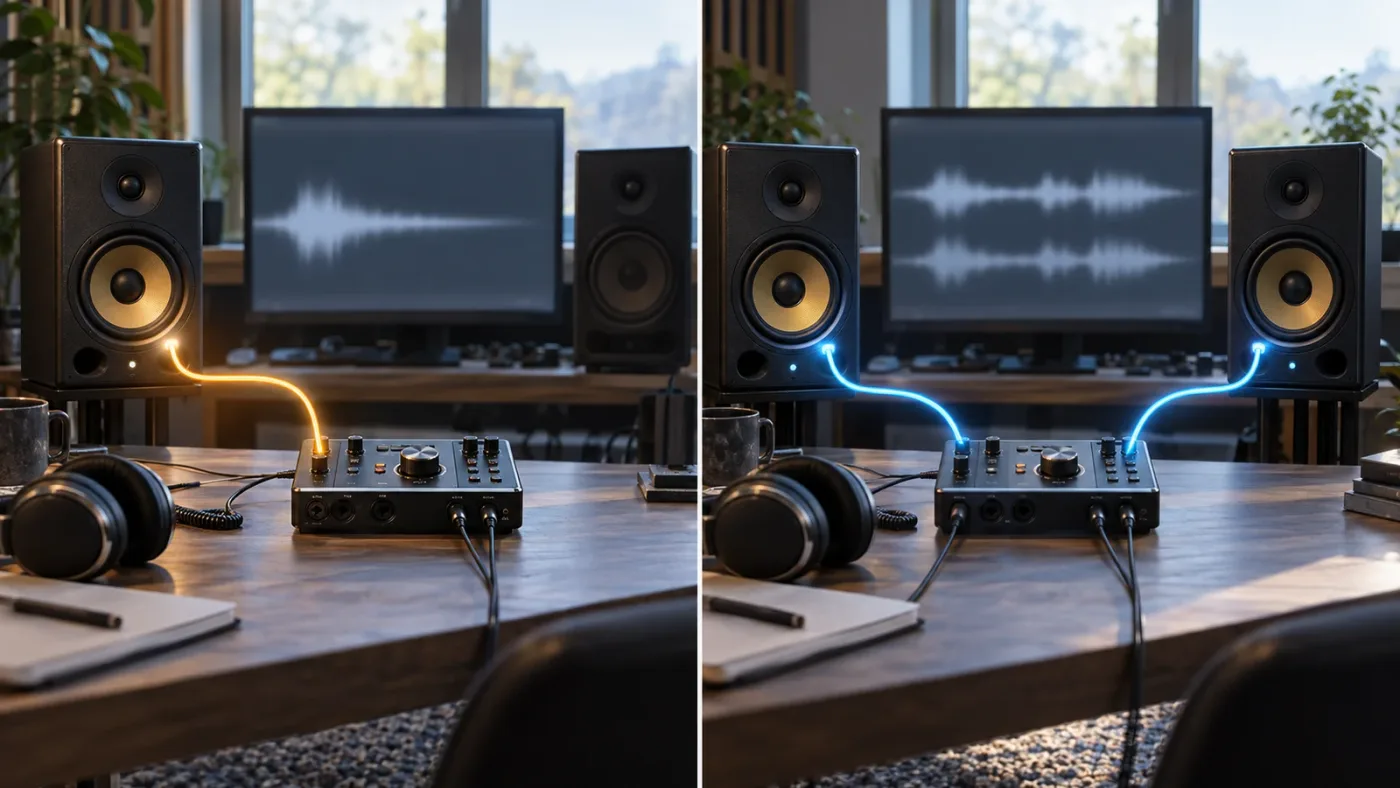
Resolve 21.1 is the current version context for this guide, but the important behavior change arrived with Resolve 21: mono audio added to a stereo track now plays on both left and right channels. Older projects and explicit mappings can still preserve the old left-only result.
Blackmagic Design's Support Center lists the final DaVinci Resolve 21 release on June 3, 2026. Its current What's New page points readers to Resolve 21.1 and describes new Fairlight workflow improvements. The exact version matters because advice written for Resolve 18, 19, or 20 may describe the earlier mono-on-stereo behavior.
Here is the practical version delta:
| Resolve context | Mono clip added to a stereo track | What you should do |
|---|---|---|
| Resolve 21 and later | Blackmagic documents playback on both left and right channels | Still inspect explicit mapping, pan, and old nested timelines |
| Resolve 20 and earlier | Earlier behavior could place a mono clip on the left channel of a stereo track | Use a Mono track or correct the mapping manually |
| Any version with explicit clip mapping | The saved mapping can override what you expect from the default | Inspect Clip Attributes > Audio |
| Any version with pan automation | Automation can move a centered signal to the left | Show and clear the relevant pan automation |
This is why “update Resolve” is not a complete answer. An update can change the default for newly added mono clips, but it cannot infer whether your existing two-channel file contains a stereo pair, two microphones, or one microphone plus silence. It also cannot safely delete a deliberate pan or rewrite a nested timeline's saved track format.
If you work with a team, write the version into your troubleshooting note. “Left-only in Resolve” is not enough information. Include Resolve version, operating system, whether the source is mono or stereo, whether the meters show one or two channels, and whether the issue appears in a new project.
What if Windows or Mac plays every app through only the left speaker?
If every app plays only through the left speaker, fix the operating system or hardware before touching the Resolve project. Use another file, another player, headphones, or a second output to determine whether the right channel is missing before it reaches Resolve.
Mac checks
Apple's Sound settings guide lists available output devices, including internal speakers, display speakers, USB speakers, and AirPlay devices. Select the device you are actually using, then check volume, mute, and Balance. If you use an external audio interface, open Audio MIDI Setup and use the Left and Right speaker icons to test channel assignment.
If the left and right test tones do not reach the expected speakers, swap the physical checks before changing Resolve. Confirm the speaker power, cable connections, interface outputs, and any monitor-controller balance. Apple recommends checking connections and selecting the correct output device when external speakers aren't working.
Windows checks
Microsoft's Windows support instructions for one-channel Bluetooth audio say to check the device's left and right channel levels under Settings > System > Sound > the selected output device. The support page applies to Windows 10 and Windows 11 and says both channels should be set to the same level, typically 100, for this check.
For a broader Windows output problem, Microsoft recommends selecting the correct output under Settings > System > Sound, checking the default playback device, and disabling audio enhancements when they interfere with sound. You don't need to change all of these settings if another player already proves that the same speakers play stereo correctly.
Hardware checks
Try headphones, then try the same speakers from another source. A loose cable, failed speaker, unbalanced interface, or incorrect channel assignment can make a healthy Resolve mix sound one-sided. If the problem follows one physical output, stop editing the project and repair that output path.
This test is also useful after export. If the rendered file is centered in another player, your Resolve mix is probably correct and the monitoring path needs attention. If the rendered file is left-only everywhere, return to clip mapping, track type, bus format, and delivery audio settings.
Should you use Fairlight, external training, or TryUncle to learn the fix?
Fairlight is enough for this repair, and Blackmagic Design's official training is the best free reference for learning the underlying channel model. External courses and YouTube tutorials can help with broader editing practice, while an on-screen assistant helps when your project doesn't match the example on the page.
That distinction matters. The best way to learn DaVinci Resolve is not always the best way to solve a left-speaker fault in the next five minutes. A course teaches a reusable concept. A video tutorial shows one version and one layout. A live pointer can help you locate a control in your own timeline.
| Resource | Best use | Trade-off for this specific problem |
|---|---|---|
| Blackmagic Design Fairlight guides | Learn clip, track, bus, and channel concepts from the software maker | Thorough, but you must find the relevant lesson and match the version |
| YouTube creators such as Casey Faris | See a workflow explained in motion and learn the wider Resolve interface | Fast to watch, but the example may use a different project or version |
| Resolve community discussions | Compare real symptoms and edge cases | Advice quality varies, so verify the setting against the official manual |
| A structured course | Build a sequence of editing and audio skills | More time than a single troubleshooting answer |
| TryUncle | Ask while Resolve is open and get a pointer to the relevant control on your screen | Paid help for Mac and Windows, not a replacement for learning audio fundamentals |
Other tools in this category solve a different problem. Sottocut describes a local-first assistant editor that scores footage, proposes cuts, and verifies timeline changes. CutAgent describes an agent that plans and executes DaVinci Resolve operations, including Fairlight workflows. PremiereCopilot is built for Adobe Premiere Pro and makes native timeline edits from prompts, while Eddie AI focuses on rough cuts from raw footage and can round-trip projects to Resolve. Those tools can help with editing automation or assembly. Uncle's narrower job is to watch your Resolve screen and teach you where the control is while you remain in the project.
Editing automation and live in-app instruction are different answers to a Resolve problem.
We have taught more than 100,000 students on Udemy, run a 100,000+ member professional video-editing community, and built seven-plus years of professional commercial editing experience into the way we explain these stuck points. We also teach and work with Fortune 500 companies. That background is why the advice here starts with signal flow and source truth instead of a random list of buttons.
If you want an app that helps you while using DaVinci Resolve, TryUncle is the focused option in this comparison. Ask where the audio channel mapping, track type, pan, or output control lives, and Uncle can point to the relevant place in your own project. It is a paid app, currently $39 a month, and pricing can change, so check the current rate before deciding.
What should you check before exporting the repaired timeline?
Before exporting, confirm the repair in the meters, the timeline, and a short rendered file. A centered voice should show the expected signal in the track and Main bus, and the exported file should play correctly in a second player on both speakers or headphones.
Use this final pass:
- Play the problem clip and watch its track meter.
- Watch the Main bus while the clip plays.
- Confirm the clip's Audio attributes match the recording.
- Confirm the track type matches the source.
- Confirm the track and bus pan are centered unless a deliberate pan is part of the mix.
- Check for pan automation that changes during the problem section.
- Render a short range that includes the fault.
- Open the rendered file outside Resolve and test left and right playback.
Don't judge the result from the timeline waveform alone. Use meters and listening tests. A waveform can show a clip with two lanes even when one lane is empty, while a mono clip can be exactly what you want for dialogue. The file's channel layout, the timeline's track format, and the mixer's pan position must agree.
If the meters are not moving at all, use DaVinci Resolve audio meters not moving. If the meters move but playback crackles or drops out, use DaVinci Resolve audio crackling and popping during playback. Both symptoms can look like a channel problem until you watch the signal path.
A short render checked outside Resolve is the final proof that the repaired channel path works.
The shortest reliable answer is this: make a one-microphone recording a mono source on a mono track, center the track pan, verify the Main bus, and then check the operating system balance only if Resolve's meters look healthy. Resolve 21.1 should carry a mono clip across both sides when it is added to a stereo track, but explicit mappings and older project settings still deserve a direct inspection.
If the source is genuinely stereo, preserve the stereo pair and repair its channel mapping instead of forcing it into mono. If the fault appears in every app, repair the output path. If the fault appears only in one Resolve project, stay in Clip Attributes, the track header, Fairlight, and the bus until the meters tell you where the right channel stops.
Frequently asked questions
- Why is DaVinci Resolve audio only coming from the left speaker?
- The usual cause is a mono source placed on a stereo track, a clip whose right source channel is empty, or pan and balance settings that favor the left. Check Clip Attributes > Audio, the track type, the Fairlight pan, and your operating system balance in that order.
- How do I make a mono clip play through both speakers in DaVinci Resolve?
- Change the timeline track to Mono by right-clicking the track header and choosing Change Track Type To > Mono. If the clip is mapped incorrectly, open Clip Attributes > Audio and select the intended embedded source channel first.
- Why does my audio play through both speakers outside Resolve but only the left speaker inside Resolve?
- Resolve is probably interpreting the source as one channel on a stereo track or routing the track with a left-only pan. Inspect the clip's Audio attributes and the Fairlight mixer before changing system settings.
- How do I reset left-right panning in DaVinci Resolve?
- Open the Fairlight mixer, find the affected track, and set its Pan control to the center position. Also check the Main bus pan and any automation if the pan moves back after you reset it.
- Does DaVinci Resolve 21 fix mono audio that used to play only on the left?
- Yes, DaVinci Resolve 21 changed mono audio added to stereo tracks so it plays on both left and right channels. Older projects, explicitly mapped clips, and tracks with existing pan or routing settings can still need manual correction.
Sources
- DaVinci Resolve 21 New Features Guide
- DaVinci Resolve Fairlight page
- DaVinci Resolve 20 Fairlight Audio Guide
- DaVinci Resolve 21 What's New
- Blackmagic Design Support Center
- Blackmagic Design forum: Strange trouble with the sound pan in Fairlight
- Blackmagic Design forum: Audio turns to mono when dragged into timeline
- Blackmagic Design forum: How do you take Stereo audio and convert it to Mono?
- Apple Support: Change the sound output settings on Mac
- Apple Support: Set up external speakers for stereo or surround sound
- Microsoft Support: Fix Bluetooth audio only playing in one channel
- Microsoft Support: Fix audio issues when no sound plays from speakers or headphones
- DaVinci Resolve Download and Fairlight specifications
- Apple Support: If you can't hear sound from your Mac speakers
- Blackmagic Design official DaVinci Resolve training
- Sottocut official product page
- CutAgent official product page
- PremiereCopilot official product page
- Eddie AI official product page
Learn by doing, not watching
Stop translating tutorials to your timeline.
TryUncle stays beside Resolve on Mac and Windows. When you ask, Uncle sees your screen and points at the exact control you need. No hunting through tabs, timestamps, or mismatched tutorials.
Meet TryUncleKeep reading
 FixesJul 25, 202627 min read
DaVinci Resolve Audio Meters Not Moving: Every Fix
DaVinci Resolve's audio meters frozen or flat during playback? Here's every real cause, in check order: routing, patching, mute, and monitor style.
 FixesJul 12, 202632 min read
DaVinci Resolve Audio Crackling and Popping During Playback: Every Fix
DaVinci Resolve audio crackling or popping during playback? The real causes, in the order to check them: sample rate, buffer size, ASIO, frame rate, GPU, and hardware.
 FixesJul 23, 202623 min read
DaVinci Resolve Audio Going to the Wrong Output Device: The Fix
DaVinci Resolve sending sound to the wrong speakers, headphones, or HDMI monitor? Here's every setting that controls output routing, and the exact fix.