
Learn / DaVinci Resolveupdated for DaVinci Resolve 21 (October 2026)
CutAgent Alternatives for DaVinci Resolve: What Actually Fits
Quick answer
For cutagent alternatives for davinci resolve, choose Sottocut or Eddie AI when you want an agent to automate editing work, Blackmagic's training for a structured foundation, and TryUncle when you are stuck inside your own project. Choose by bottleneck: automate a defined edit, learn the system, or get a control pointed out while you work.

If you searched for CutAgent alternatives for DaVinci Resolve, you may be asking two different questions. You may want another tool to do the editing work. Or you may want help learning Resolve while your own timeline is open.
Those are different jobs. After seven years of professional, commercial video editing, and after teaching more than 100,000 students on Udemy as an official Udemy Business Partner, we’ve learned to start with the stuck moment rather than the tool name. A fast automation agent is useful when the task is repetitive. It is the wrong answer when the real problem is that you can’t find the control, understand the node graph, or translate a tutorial to your project.
TryUncle is the on-screen assistant for DaVinci Resolve on Mac and Windows. Ask in plain words and Uncle points at the exact control on your screen.
As of October 2026, DaVinci Resolve 21 is the current major version on Blackmagic Design’s product page. Resolve 21 adds a Photo page, IntelliSearch, CineFocus, facial refinement tools, more than 70 Krokodove graphics for Fusion, and other workflow changes, so version-aware help matters. Blackmagic Design lists Resolve 21 for Mac, Windows, and Linux, while individual assistants can support a narrower set of editions or operating systems.
Grant Petty, CEO of Blackmagic Design, introduces the Resolve 21 guide with this description: “With DaVinci Resolve, you get a complete set of editing, advanced color correction, professional Fairlight audio post production tools.” The DaVinci Resolve 21 New Features Guide is the source for the verbatim quote and the version details that follow.

What is the best CutAgent alternative for DaVinci Resolve?
The best CutAgent alternative depends on whether you want automation, editing assistance, or instruction. Sottocut and Eddie AI are stronger when the desired outcome is a rough cut or an assistant-editor workflow; Blackmagic’s training is stronger for a systematic foundation; TryUncle is stronger when you need to understand and complete the next action in your own Resolve interface.
CutAgent describes itself as AI that edits in DaVinci Resolve. Its official page says the desktop workflow can read active project context, selected clips, transcripts, markers, and tool results, then coordinate Resolve operations. It also describes smart edit automation, custom skills, and verification summaries. That makes CutAgent a sensible reference point for automation, not a generic synonym for every tool that answers Resolve questions. CutAgent’s product page describes those capabilities.
The comparison becomes clearer if you name the requested outcome:
| If you want to... | Start with... | Why | Main trade-off |
|---|---|---|---|
| Learn the fundamentals in a planned sequence | Blackmagic official training | Project-based guides cover editing, color, Fusion, Fairlight, and delivery | You must pause, read, and perform the exercise yourself |
| Turn transcripts, selects, and notes into timeline work | CutAgent | The product is built around natural-language editing workflows and Resolve control | Automation can change a project without teaching every decision |
| Have an assistant-editor pipeline propose and verify work | Sottocut | Its stated loop is score, confirm, and verify, with proposal-gated writes | The published requirements call for Apple Silicon, macOS 14+, and Resolve Studio 21 |
| Build rough cuts from logged footage and send them back to Resolve | Eddie AI | Eddie imports clips and timelines, creates rough cuts, and exports edits back to Resolve | Editing and finishing still happen in Resolve after the round trip |
| Find the exact button, node, slider, or menu in your current project | TryUncle | Uncle points at the control while you work, so you make the edit | It helps you learn and act, not automatically finish a timeline |
| Get broad community explanations | YouTube, Reddit, or a course | Many editors share practical workflows and troubleshooting | The answer may not match your Resolve version, project, or layout |
The right CutAgent alternative is the one that matches the work you want removed, not the one with the most impressive feature list.
There is no universal winner in this table. If you have 90 minutes of interview footage and want a first assembly, an editing agent may save more time than a screen tutor. If you are staring at the Color page because a qualifier, node, or tracker is confusing, a rough-cut agent solves a different problem. If you want a durable foundation, start with the official material and use a live assistant to bridge the gaps between lessons.
Our 100,000+ member professional video-editing community sees this distinction repeatedly. Someone asks for “the best AI tool to learn DaVinci Resolve,” but the underlying question is often, “I’m in front of my own project right now. Which control do I touch?” The answer should name that situation honestly.
How does CutAgent differ from a DaVinci Resolve learning assistant?
CutAgent is an editing agent, while a learning assistant is a guide that helps you understand the interface and make the decision yourself. The difference is not that one uses AI and the other does not. The difference is who performs the next operation and what you retain after it.
CutAgent’s official site says users can describe an edit and let CutAgent coordinate DaVinci Resolve operations from the desktop. The site also describes workflows built from transcripts, selects, notes, and review requests. In plain language, CutAgent is trying to reduce the number of manual steps between an instruction and a changed timeline.
That can be exactly what you need. Repetitive work has a cost. Selecting interview moments, building a string-out, organizing a transcript, or applying a known workflow can be a good candidate for assistance. The editor still owns the creative direction, but the computer handles more of the execution.
A learning assistant sits at a different point in the loop:
- You notice a problem in your actual Resolve project.
- You ask a specific question in ordinary language.
- The assistant identifies the current page, panel, control, or relationship.
- You receive an explanation and a visual pointer.
- You make the edit and see the result.
The fifth step matters. If you ask how to add a serial node and then click the control yourself, the action stays attached to your project and your decision. If an agent adds the node, you may get the correct result faster, but you still need to understand what happened before you can diagnose the next problem.
This is why a learning assistant should not pretend to be a cheaper editing agent. It should be judged on different criteria: whether the pointer matches the current UI, whether the explanation names the relevant concept, whether the answer accounts for the page you are on, and whether it helps you continue without opening five unrelated tabs.
Blackmagic Design’s own training material supports the same broader principle of learning by doing. Its official training page offers guides with practical exercises, including the Beginner’s Guide, Editor’s Guide, Fairlight Audio Guide, Colorist Guide, and Visual Effects Guide for Resolve 20. The official training catalog is still the right baseline for a structured curriculum, even as the application moves to Resolve 21.
TryUncle belongs beside that foundation, not above it. Uncle is useful when the course explains a concept but your screen does not look like the instructor’s screen. The assistant’s job is to reduce the translation cost between a general lesson and the exact control in front of you.

Why is CutAgent not always the best answer when I am stuck in Resolve?
CutAgent is not always the best answer because “stuck in Resolve” can mean either “I need this work automated” or “I don’t know what this control does.” An agent designed to act on a timeline may be excellent at the first problem and poorly matched to the second.
Consider a few common moments.
You have selected a clip and cannot find the Inspector control that changes the crop. You do not need an agent to build a rough cut. You need the location of one control and a short explanation of how it affects the image.
You are in Fusion and see a MediaIn node, a Merge node, and a MediaOut node, but the foreground appears behind the background. You need to understand which input represents foreground and which represents background, then reconnect the graph. A completed automation may repair the composition, but it may leave the concept just as opaque.
You are on the Color page and want to isolate a face, but you are not sure whether to use a qualifier, a power window, or a tracker. This is partly a creative and technical choice. A screen-aware answer can point at the tools and explain the order. A timeline agent is not automatically the right teacher.
You are preparing a deliverable and need to confirm the frame rate, codec, resolution, and render range. That is a verification question. It is not necessarily an editing-agent question.
These cases have a shared shape: the project is yours, the screen is current, and the next click depends on context. A video tutorial can describe the procedure, but it cannot see whether you are on the Edit page or Color page. A general chatbot can give a plausible menu path, but it may not know which panel is open. A timeline agent can execute, but execution is not the same as explanation.
TryUncle’s published FAQ describes Uncle as an assistant that points at a button, slider, wheel, or node on the user’s own screen. The same FAQ says the assistant can help with Edit, Color, and Fusion workflows. The TryUncle FAQ is the source for that screen-aware interaction. That is the category difference worth evaluating.
It also creates a boundary. A pointer does not make a creative decision for you. It does not replace judgment about pacing, performance, story, color taste, or sound. That is a feature when the goal is to learn Resolve while keeping your editorial judgment in the driver’s seat.
An editing agent changes the project for you; a learning assistant helps you understand the project you are changing.
The distinction does not make one category morally better. It makes the buying decision more precise. Ask yourself what you want to be different after ten minutes. If the answer is “the transcript has become a rough cut,” compare CutAgent, Sottocut, and Eddie AI. If the answer is “I know where to click and why,” compare TryUncle, official training, a good course, and a relevant tutorial.
How do CutAgent, Sottocut, Eddie AI, and TryUncle compare?
CutAgent, Sottocut, Eddie AI, and TryUncle overlap around DaVinci Resolve, but they do not expose the same controls or promise the same result. The most useful comparison is functional rather than promotional.
| Tool | Primary job | How it interacts with Resolve | Platform or version signal | Where it wins | Where another option wins |
|---|---|---|---|---|---|
| CutAgent | Agentic editing and workflow automation | Connects a desktop app and bridge to Resolve; its site describes reading project context and coordinating operations | The official CLI article describes Resolve 20 or later, Free and Studio; verify the current desktop requirements before installing | Natural-language operations, repeatable skills, workflow execution | Structured learning, screen pointing, and situations where you want to keep every edit manual |
| Sottocut | Assistant-editor pipeline | Its site describes on-device scoring, proposed actions, approval before writes, and timeline read-back verification | Apple Silicon Mac, macOS 14+, Resolve Studio 21 according to its requirements | A controlled propose, confirm, verify loop for editors who want automation with review | Windows, Resolve Free, or a tool whose primary job is teaching rather than editing |
| Eddie AI | Logging, rough cuts, and round-trip editing | Imports clips, multicams, or timelines, creates proxies for analysis, then exports edits back to Resolve | Its Resolve workflow page lists BRAW, R3D, proxy support, timecode, FPS, resolution, and automatic relinking | Turning logged material into a rough cut quickly | Live explanation of a control in the open Resolve interface |
| Blackmagic official training | Structured learning and certification path | You open Resolve and follow project-based guides and lesson files | The training catalog currently highlights Resolve 20 guides while the product page lists Resolve 21 | Foundational coverage, authoritative terminology, full-page learning | Immediate help on a project-specific control |
| YouTube and community advice | Explanations, demonstrations, and troubleshooting | You watch or read outside the project | Version, platform, and quality vary by creator and post date | Free breadth and human examples | Context awareness, consistent sequencing, and a pointer on your screen |
| TryUncle | On-screen Resolve assistance and guided practice | Uncle answers in plain language and points at the control on your current screen | Mac and Windows support is part of the TryUncle product brief; check the landing page for current setup details | Learning by doing inside your own project | Automated rough cuts, transcript-driven editing, and bulk timeline operations |
The table also shows why “best” is too blunt. CutAgent’s official materials emphasize natural-language control, editing operations, custom skills, and verification. Sottocut emphasizes a local-first assistant-editor loop with approval-gated writes. Eddie AI emphasizes importing media, analyzing it, creating rough cuts, and sending edits back. TryUncle emphasizes the user’s screen and the exact control.
Those are not interchangeable claims. They describe different workflows. A fair comparison preserves each one.
CutAgent’s security page is especially relevant for professional editors. It says many Resolve operations run locally through the desktop app and bridge, while hosted features may receive prompts, context, transcripts, audio, metadata, command outputs, and verifier results when needed. Read CutAgent’s security and data-use description before sending confidential material through any hosted feature.
Sottocut makes a different privacy claim on its product page. It says footage stays on the machine, while the Co-Editor’s text and any screenshot sent to it leave the computer through the selected plan’s provider path. That is a useful example of why “local” should be unpacked into specific data flows rather than treated as a binary badge.
Eddie AI’s page says it creates proxies for swift analysis and supports pro codecs such as BRAW and workflows using Blackmagic Cloud. That sounds attractive for logging and assembly, but it also means the workflow includes importing and exporting between Eddie and Resolve. If your problem starts after the rough cut, another tool may be more direct.
TryUncle’s role is narrower by design. Uncle does not claim to turn hours of footage into a finished timeline. The product brief positions it as an on-screen assistant for Mac and Windows. The paid service is listed at $29.99 per month on founder pricing, not as a free product. The relevant question is whether live guidance earns its place in the moments when a course or search result stops matching the screen.

Which CutAgent alternative works with DaVinci Resolve 21?
The safest answer is to separate documented compatibility from marketing language. DaVinci Resolve 21 is current as of October 2026, but a tool may support Resolve 21, Resolve 20, the Free edition, Studio, a specific operating system, or only a specific integration path.
Blackmagic Design lists DaVinci Resolve 21 for Mac, Windows, and Linux, with a free edition and Resolve Studio 21 priced at $295 on the product page. The same page describes Resolve as one application covering editing, color correction, visual effects, motion graphics, audio post, and photo editing. The current product page is the authority for Resolve’s edition and platform overview.
Resolve 21 also changes the context a helper must understand. The official new-features guide introduces a Photo page, IntelliSearch, CineFocus, facial refinement, Fairlight folders, keyframing improvements, MultiMaster trim passes, layer list node graphs, and the Krokodove toolset with over 70 new graphics. It states that the new features guide covers changes that will be included in the reference manual after the public beta. The Resolve 21 guide documents these version-specific changes.
Here is the practical compatibility reading.
CutAgent
CutAgent’s official CLI article says its command layer supports DaVinci Resolve 20 or later, including Free and Studio. That is a concrete signal for users who want to experiment without immediately buying Resolve Studio. The desktop app and hosted service can have their own requirements, so do not assume that the CLI statement covers every feature.
Sottocut
Sottocut’s current published requirements are narrower: Apple Silicon Mac, macOS 14 or later, and DaVinci Resolve Studio 21 installed from Blackmagic Design. The product page explicitly says the free version and the Mac App Store build are not supported. If you edit on Windows or Resolve Free, this single requirement may remove Sottocut from your shortlist before you compare features.
Eddie AI
Eddie AI’s Resolve workflow page documents the integration pattern rather than a single Resolve edition claim. It describes importing clips, multicams, and timelines from a Resolve bin, creating proxies, building rough cuts, and exporting the edits back with automatic relinking. The page lists support for BRAW, R3D, timecode, frame rate, resolution, and proxy workflows. Treat that as a workflow description, then verify the current desktop and operating-system requirements in Eddie’s own help material.
Blackmagic training
The official training page currently presents Resolve 20 guide titles while Blackmagic’s main product page presents Resolve 21. That is not a reason to discard the training. It is a reason to check which version a lesson uses before you expect every panel to match. The Beginner’s Guide and Editor’s Guide teach concepts that carry forward, but version-specific buttons and page changes still need verification.
TryUncle
This post’s product brief specifies Mac and Windows support for TryUncle and positions Uncle as the on-screen Resolve assistant. Because its job is to point at the visible control, current UI context matters more than a long list of automated operations. For a new Resolve 21 panel, the useful test is whether Uncle can identify the page and control you are looking at, then explain the action in plain language.
If a tool’s own compatibility page is vague, count that as a decision cost. You should not have to infer whether it needs Studio, whether it supports the free version, whether it works on Windows, or whether it uses a bridge, plugin, API, or export round trip.
Resolve 21 compatibility is a requirement to verify, not a feature to assume from a product logo.
Can I use CutAgent alternatives with DaVinci Resolve Free?
Yes, some CutAgent alternatives can be used with DaVinci Resolve Free, but not every assistant supports the free edition. CutAgent’s official CLI article says its supported command layer works with Resolve 20 or later, including Free and Studio, while Sottocut’s published requirements require Resolve Studio 21.
The Free versus Studio distinction matters for two reasons. First, it changes what Resolve itself can do. Second, it changes which integration paths an external tool can use. A tool that relies on external scripting may require capabilities available only in Studio, while a tool that guides a visible interface may have a different requirement set.
Blackmagic’s official training is the most straightforward Free-edition choice. The training catalog offers practical materials and lesson files, and the Beginner’s Guide introduction says the free download version can be used for the lessons. That makes official training a useful baseline if you do not want a new subscription while you learn.
A Free-edition comparison should ask these questions:
- Does the tool state Free support explicitly?
- Does it require Studio because of scripting or another integration method?
- Does it need a plugin, a bridge, a separate desktop app, or an export round trip?
- Does it send project context, transcripts, screenshots, audio, or metadata to hosted services?
- Will it still help if the feature you are learning is available in Free but the assistant’s favorite workflow is Studio-only?
CutAgent provides a positive example for the first question, but you still need to distinguish the CLI from the broader product. Sottocut provides a positive example for the opposite answer. Its FAQ is direct about Studio 21 and the Apple Silicon requirement. That clarity is valuable even if the answer is “not for me.”
TryUncle should be evaluated primarily as a guide to the controls available in your installed Resolve edition. A screen-aware assistant can explain where a control lives, but it cannot unlock a Studio-only effect in Free. If the feature itself is unavailable, the useful answer is to explain that boundary and show the closest Free workflow where one exists.
For a beginner, Free support may be more important than automation depth. If you are still learning the Edit page, a structured guide plus a live pointer can take you farther than an agent that assumes you already understand bins, tracks, timelines, clips, and render settings. If you are an experienced editor with a known repetitive job, Studio compatibility and automation may be worth more.
The practical verdict is simple. Check edition before you check feature count.

What is the best way to learn DaVinci Resolve when CutAgent is too automated?
The best way to learn DaVinci Resolve is a loop of structured instruction, deliberate practice, and targeted help on your own project. No single assistant replaces those three parts.
Start with a foundation. Blackmagic’s official training is unusually useful because it is organized around practical exercises rather than a list of isolated buttons. The training page separates editing, color, Fairlight, and Fusion materials, and the guides include lesson files. If you are new, use the Beginner’s Guide or Editor’s Guide to learn the vocabulary and the main page boundaries.
Then make one small project. Do not wait until you know every feature. Import a short set of clips, create a timeline, make a basic cut, add a title, balance the audio, apply a simple grade, and render a version. The project can be plain. Its job is to make the questions concrete.
Next, use narrow tutorials. The best way to learn DaVinci Resolve is not to consume every tutorial in order. It is to learn a concept, use it, notice the next gap, and search for that gap. The same rule applies to Casey Faris, official lessons, courses, and community answers. Watch enough to act, then act.
Finally, ask for help inside the project. This is where a screen-aware assistant earns a distinct place. “How do I add a lower third?” is a general question. “I’m on the Edit page, the title is selected, and I want the text to animate from the left. Which control do I open?” is a project question. The second question can be answered more usefully when the assistant can see the screen.
Our team has taught more than 100,000 students on Udemy, worked with Fortune 500 companies, and built and run a professional video-editing community of more than 100,000 members. We use that experience to separate the concept from the click. A good lesson tells you what a keyframe is. A useful in-project answer tells you where the keyframe control is on the clip you selected, then gives you a reason to use it.
That is also why we do not recommend learning every feature at once. Resolve contains editing, color, effects, motion graphics, sound, delivery, and now a Photo page. Blackmagic’s current product page presents all of those areas in one application. The breadth is valuable, but it can turn learning into an endless menu tour.
Pick a path based on the project you want to finish:
- A talking-head video: learn media organization, trimming, audio levels, titles, basic color, and delivery.
- A short documentary: learn interview organization, selects, string-outs, timeline structure, audio repair, and versioning.
- A music video: learn beat-aware cutting, multicam or performance organization, retiming, effects, and color continuity.
- A client social package: learn vertical timelines, captions, templates, exports, and a repeatable review process.
The assistant should answer the next question in that path. It should not pull you into a demonstration of a feature you do not need yet.
Guided practice inside Resolve beats watching courses about Resolve when the problem is a missing next click.
How do I learn DaVinci Resolve fast without letting an AI do everything?
You learn DaVinci Resolve faster by using AI to remove search time while keeping the decision and the click in your hands. That means asking for explanations, locations, checks, and version-aware alternatives before asking for automated timeline work.
Use a four-part prompt:
- Name the page. “I’m on the Color page.”
- Name the object. “I selected a clip with a node tree.”
- Name the result. “I want the skin to stay warm while the background cools.”
- State the boundary. “Explain the control and let me make the change.”
That prompt produces a better learning interaction than “fix my color.” It tells the helper that the outcome is not only a changed image. The outcome is also an explanation you can reuse.
Use the same approach for editing. “I want to remove a pause” is broad. “I’m on the Edit page, the playhead is before the pause, and I want to close the gap without moving the music track” exposes the real decision. It might lead to a ripple edit, a track selection change, or a different workflow. The point is to ask the question your timeline creates.
When a tool offers automation, keep a checkpoint. Save or duplicate the project before a material automated change. Ask the tool to summarize what it will change. Review the result at the start, middle, and end of the affected timeline. These are ordinary editorial safeguards, not proof that a particular product is unsafe.
CutAgent’s own page emphasizes clear verification summaries before export. Sottocut’s page emphasizes a proposal-gated write and read-back verification. Those are good patterns to look for in any automation tool. A useful assistant should make the boundary between proposed and applied changes legible.
When a tool is primarily instructional, use it to build your internal map of Resolve. Ask what page you are on, what the control changes, what alternative path exists, and what can go wrong. Then close the helper and repeat the action later. Retrieval matters. If you can only complete a task while the answer is open, you have copied a procedure, not yet learned it.
This is the honest role for an app that helps you while using DaVinci Resolve. It reduces friction at the moment the interface stops making sense. It does not remove the need to decide what the video should say, which shot belongs next, whether a grade is consistent, or whether the mix is distracting.
Use automation for scale. Use guidance for understanding. Use practice for memory.
Why is an on-screen assistant different from ChatGPT for DaVinci Resolve?
An on-screen assistant is different from a general chatbot because it can use the visible state of the Resolve interface as part of the question. A general chatbot can explain a known procedure, but you still have to locate the relevant control and adapt the answer to your layout.
This difference is small until you are stuck. Resolve has multiple pages, panels, viewers, inspectors, node editors, bins, timelines, and context-sensitive controls. Two editors can ask the same question while looking at different interfaces. One may have the Inspector open. Another may have the Effects Library open. One may be on the Edit page. Another may be in Fusion.
The answer “click the Inspector” is useful only if you know where the Inspector button is in your current layout. The answer “select the clip, open the Inspector, choose Video, then expand Transform” is better, but it still assumes the version and page match. A screen-aware pointer can remove one layer of translation by identifying the visible control.
TryUncle’s FAQ describes Uncle as seeing the actual timeline, node tree, and stuck point, then circling the control. It also describes spoken or typed interaction, so voice is not the only route. That matters in a studio, classroom, or shared office where talking to the computer is inconvenient.
There are limits. Screen awareness is not the same as complete project understanding. The assistant may need you to name the creative goal, tell it which clip matters, or correct a mistaken interpretation. A pointer can identify a button but cannot guarantee that the resulting creative choice is good.
That is why the best prompt remains specific. Ask what you want to do, what you have selected, what page is open, and what you do not want to change. Then verify the action yourself.
General chat still has a place. Use it for conceptual explanations, alternative workflows, scripting questions, and broad research. Use a screen-aware assistant for the last meter between the explanation and the control. Use an editing agent when you want the computer to perform a defined operation after you have decided what should happen.
Do not force one tool to impersonate the others. The categories overlap, but their strongest moments are different.
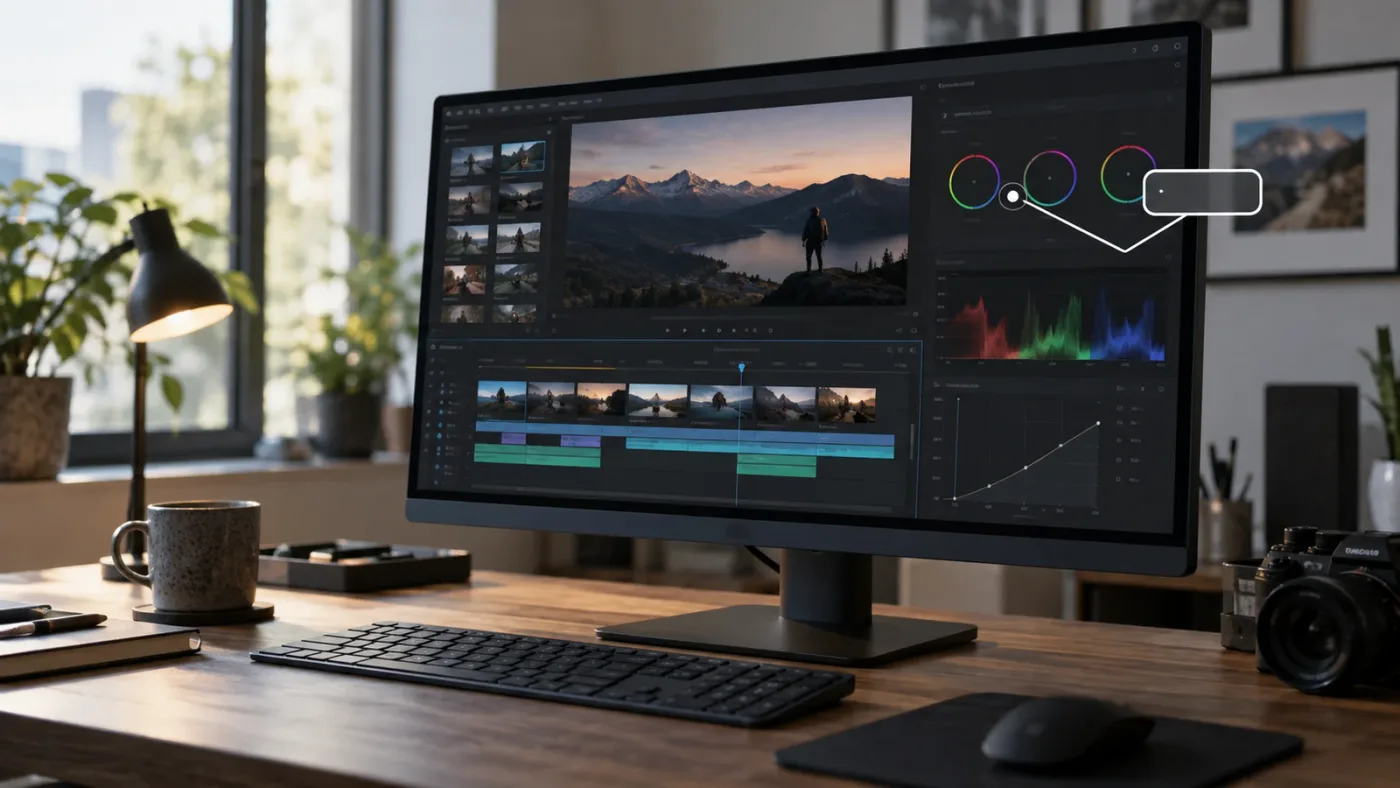
How do I choose between CutAgent and TryUncle for a real project?
Choose CutAgent when you have a defined editing operation you want an agent to plan or execute. Choose TryUncle when you have a defined learning or interface problem and want to perform the action yourself.
Use this decision test:
Choose CutAgent if the desired sentence is “Make this edit.”
Examples include turning transcript highlights into a rough cut, applying a repeatable workflow, coordinating Resolve operations, or building a custom skill for work you do repeatedly. CutAgent’s official site explicitly presents those kinds of agentic workflows and says the SDK and CLI connect an AI agent to Resolve.
You should still ask what will change, how the tool verifies it, which services receive context, and how you restore the project if the result is not useful. CutAgent’s terms say the desktop app can connect to a local bridge and may use hosted services for accounts, subscriptions, usage limits, model routing, speech-to-text, transcripts, verification, downloads, updates, and support. That is a substantial factual description of the service boundary, so read the current terms before using confidential media.
Choose TryUncle if the desired sentence is “Show me how to do this here.”
Examples include finding a control, understanding a node relationship, checking whether you are on the right page, or learning why a setting affects the image or timeline. TryUncle’s product brief defines the assistant around Mac and Windows screen guidance, with Uncle pointing at the exact control in your current Resolve interface.
This choice is especially sensible when you want the new skill to remain yours. You select the clip, click the panel, adjust the parameter, and see the result. The tool shortens the hunt without turning the task into a black box.
Choose both if the project contains two different bottlenecks.
A professional workflow can use an agent to create a first assembly and a screen-aware assistant to help with the finishing work. For example, Eddie AI’s documented workflow can help produce a rough cut from logged material, while a live guide can help you understand the exact Resolve control needed for a title, grade, or delivery setting.
The combination only makes sense if the boundaries are clear. Keep the generated assembly separate from the finishing timeline until you have reviewed it. Name the operations that were automated. Do not assume that a correct rough cut means the project’s audio, graphics, color, or delivery settings are correct.
Choose official training if you do not yet know what to ask.
This is the most underrated answer. A helper is most useful when you can describe the problem. If every page looks unfamiliar, start with a guided lesson. Blackmagic’s training material gives you a vocabulary and a sequence. Then use a tool like TryUncle for the moments that do not match your screen.
CutAgent is a strong alternative to manual editing; TryUncle is a strong alternative to searching for the next Resolve control.
What are the real CutAgent alternatives for Windows editors?
Windows editors have more options in the documented CutAgent category than in the narrow category of screen-aware Resolve instruction, so platform support should be checked before the feature comparison. CutAgent’s official site says its workflow is available on macOS and Windows. Blackmagic Resolve 21 itself is listed for Mac, Windows, and Linux.
Sottocut is not a Windows choice according to its published requirements. Its page specifies an Apple Silicon Mac and macOS 14 or later, along with Resolve Studio 21. That is a clear exclusion, not a minor trade-off.
Eddie AI’s Resolve workflow page lists downloads for M1 or M-series Macs and Windows, and also mentions Intel Mac support. Its documented workflow is therefore relevant to a Windows editor who wants logging and rough-cut automation. The question is whether that is the job you actually need done.
TryUncle’s assignment brief specifies Mac and Windows support, and the product is positioned as a screen-aware assistant rather than an automated editor. That makes it relevant to a Windows editor who wants an app that helps while using DaVinci Resolve. Confirm current installation and permission details on the main landing page before setup, since platform support and operating-system requirements can change.
Blackmagic’s own training remains platform-neutral in the important sense. Its guides teach Resolve concepts across supported operating systems, even though file paths, permissions, and menu details can vary. The Beginner’s Guide notes that resource locations can differ when using the Mac App Store build and recommends the Blackmagic Design download for the lessons. That is a small but useful reminder that “same software” does not always mean “same setup.”
For Windows, the short list is therefore:
- CutAgent for natural-language Resolve operations and agentic workflow automation.
- Eddie AI for logging, rough cuts, and round-trip work when its current Windows build supports your setup.
- TryUncle for live screen guidance while you make the edit.
- Blackmagic official training for a structured baseline.
- Community and YouTube resources for free examples, with version checks.
The winning option depends on whether Windows is only a platform constraint or also a learning constraint. If you are a Windows beginner, the most useful first purchase may be no assistant at all. Use the official guide, build one short project, and add help when you can name the friction. If you already edit professionally and want to reduce repetitive work, evaluate the agentic tools against your actual media and delivery requirements.
Are Sottocut and Eddie AI better than CutAgent alternatives for automation?
Sottocut and Eddie AI can be better than CutAgent for particular automation patterns, but there is no evidence that either is universally better. Sottocut emphasizes controlled assistant-editor writes and verification; Eddie AI emphasizes logging, rough cuts, and return to Resolve; CutAgent emphasizes natural-language control, custom skills, and agentic workflows.
Sottocut’s published loop is unusually explicit. It scores footage, asks for confirmation, and reads the result back from the timeline. The product says destructive operations such as deleting clips and timelines are excluded by policy, though it still tells users to keep backups. That makes Sottocut worth considering when approval and read-back are more important than maximum automation.
Its requirements are also explicit. You need an Apple Silicon Mac, macOS 14 or later, and Resolve Studio 21 from Blackmagic Design. The product page lists a one-time $129 option for a major version, a monthly option, and a 7-day trial. Those details can change, so treat them as the current page’s claims and verify at the time you decide.
Eddie AI’s documented workflow is a better match for media analysis and rough-cut assembly. It can import clips, multicams, and timelines from a Resolve bin, create proxies, log interviews and b-roll, and send cuts back to Resolve with automatic relinking. The page lists preservation of timecode, frame rate, and resolution, alongside BRAW, R3D, and proxy support.
CutAgent’s site places more emphasis on the connection between natural language and Resolve operations. It describes active project context, transcripts, markers, review requests, custom skills, and verification summaries. It also presents an open-source SDK and CLI for connecting an AI agent to Resolve.
These are useful distinctions for a buyer:
- If your raw material is the bottleneck, look at logging and rough-cut capability.
- If approval and read-back are the bottleneck, look at proposal-gated writes and verification.
- If repeatable operations are the bottleneck, look at custom skills and the command surface.
- If understanding the interface is the bottleneck, use a learning assistant or official training.
Do not score all four against one metric. “How many minutes did the tool save?” matters for assembly. “Can I explain what changed?” matters for review. “Can I repeat the workflow without the tool?” matters for learning. The best tool depends on the answer you want from the project.

How do privacy and project-risk trade-offs change the comparison?
Privacy and project risk change the comparison because assistants can handle different kinds of context. A screen guide may need a view of the interface. An editing agent may need project metadata, transcripts, audio, command results, or timeline access. Read the actual data-use language for the tool you choose.
CutAgent’s security page distinguishes local desktop operations from hosted features. It says hosted features may receive prompts, context, transcripts, audio, metadata, command outputs, and verifier results when needed. It also advises users not to send secrets, unrelated personal data, confidential third-party material, or media they are not authorized to process. That is concrete guidance, not a generic privacy promise.
CutAgent’s terms describe a similar boundary. The service may use hosted systems for accounts, subscriptions, usage limits, model routing, speech-to-text, transcripts, verification, downloads, updates, and support. The practical lesson is to identify which part of your project crosses the local boundary and whether your client agreement permits it.
Sottocut’s product page says footage stays on the machine while text and screenshots sent to the Co-Editor leave through Anthropic directly on a bring-your-own-key plan or through Sottocut’s route on a managed plan. That is a different data model. The user chooses between providers and pricing modes, but the tool is still not the same as a completely disconnected workflow.
Eddie AI’s use of proxies for analysis creates another question. A proxy is not the same thing as an original camera file, but it is still project material. Check how media is uploaded, retained, processed, and deleted before using a client interview, unreleased product, or confidential documentary.
TryUncle’s relevant question is what the screen-aware interaction captures and where it goes. The TryUncle explanation of its screen-to-answer loop describes screen context, the question, and a response that points at the control. Read the current privacy and permissions material before exposing a client timeline or a sensitive viewer.
Official training has a different risk profile. You download guides and lesson files, then do the work locally. The risk is not primarily data transfer. It is that you may follow an older version of a panel or a workflow without noticing the difference.
Use a simple risk protocol:
- Duplicate the project or create a safe project version before automation.
- Remove unrelated bins, timelines, and client media from a test project.
- Check whether screenshots, transcripts, audio, or metadata leave the computer.
- Confirm the provider’s retention and deletion language.
- Keep an export or archive that lets you restore the project if a change is wrong.
- Do not use a tool with confidential material until your client agreement allows that data flow.
The safest tool is not always the one that says “local.” It is the one whose data path you can explain.
A tool comparison is incomplete until it says what project context crosses the computer boundary.
Why is official Blackmagic training still a CutAgent alternative?
Official Blackmagic training remains a CutAgent alternative because many people asking for an AI tool are actually looking for a reliable way to learn the software. Blackmagic’s training is slower than automation, but it gives you a foundation that an agent cannot safely infer from a single instruction.
The official catalog covers the Beginner’s Guide, Editor’s Guide, Fairlight Audio Guide, Colorist Guide, Visual Effects Guide, and an Advanced Visual Effects guide. It also advertises a network of more than 250 certified trainers and more than 100 training centers. Those are numbers published by Blackmagic Design on its training page, not independent quality scores.
The Beginner’s Guide introduces editing, visual effects, motion graphics, color correction, and audio. The Editor’s Guide covers interviews, dramatic scenes, documentary material, music videos, automatic transcription features, variable speed effects, audio mixes, and delivery. These topics make the training a useful reference even for someone who later uses an agent.
The current-version wrinkle matters. The training catalog highlights Resolve 20 guide titles, while the product page lists Resolve 21 and the new-features guide documents version 21 changes. Use the guide for durable concepts, then verify the current page and control when a lesson touches a feature that changed.
The official path also helps you decide whether you need an assistant. If you cannot yet explain the difference between a clip and a timeline, a rough-cut agent may create output you cannot review. If you understand the editing model and simply want help with a repetitive task, automation may be a better next step.
The best sequence for many beginners is:
- Complete one official or well-structured lesson.
- Rebuild the exercise without looking at the instructions.
- Apply the idea to your own footage.
- Ask a targeted helper question when the interface differs.
- Repeat the task later without help.
That sequence avoids a common failure mode. You can follow a video perfectly and still freeze when the footage, frame rate, panel layout, or creative goal changes. A live screen helper bridges that gap. A timeline agent may skip it entirely. Official training names it and makes you face it.
For readers comparing courses, YouTube, and AI, the honest consensus is mixed. Blackmagic’s free material is a strong foundation. YouTube creators such as Casey Faris can make concepts approachable. Reddit discussions often recommend a mix of official material, hands-on projects, and targeted videos. Paid courses can provide structure, exercises, and support. A screen-aware helper can reduce the time spent locating a control. Every option has a place, and none should be sold as the whole learning system.
How do YouTube, Reddit, Casey Faris, and AI tools fit together?
YouTube, Reddit, Casey Faris, and AI tools fit together as different layers of a learning system. Use long-form teaching for concepts, community discussion for edge cases, targeted clips for specific techniques, and a screen-aware helper for the final interface translation.
The community evidence is consistent in one important way: people recommend practice, not only watching. A Reddit discussion about learning Resolve mentions Casey Faris’s long tutorial, official documentation, and repeated real projects as possible paths. That is anecdotal community evidence, not a controlled study, but it reflects the practical decision many beginners face.
Casey Faris is useful when you want a teacher to demonstrate the workflow in context. A long tutorial can show the relationship between decisions. A short search result can show one effect. The drawback is that you still have to pause, scrub, and map the instructor’s screen to your own.
Reddit is useful when a problem is unusual. Search results may miss the exact combination of codec, page, version, and hardware. A community answer can reveal a workaround or tell you that the behavior is expected. The drawback is uneven accuracy, missing context, and old advice that survives after a version change.
AI tools are useful when the question is well formed. A general chatbot can explain terminology, compare workflows, or help draft a checklist. An editing agent can perform a supported operation. A screen-aware assistant can point to the current control. The drawback is that an AI answer can sound confident while being wrong for your edition, version, or layout.
Put these tools into a weekly loop:
- Monday: follow a structured lesson.
- Tuesday: rebuild the lesson from memory.
- Wednesday: use the technique in your own project.
- Thursday: ask a targeted question about the obstacle you hit.
- Friday: finish a small deliverable and write down what you learned.
The exact days do not matter. The alternation does. Input gives you a model. Practice reveals the gaps. A targeted answer removes one gap. A second attempt turns the answer into a skill.
Do not use AI to avoid every productive struggle. Some friction is where the mental model forms. Use it to avoid dead ends, not to avoid thinking. Ask for a hint before a full solution. Ask what the control does before asking for an automated operation. Ask it to check your reasoning when the stakes are low.
The best AI tools to learn DaVinci Resolve should therefore be judged by the learning behavior they encourage. An assistant that points and explains can support active practice. An agent that performs every step can be valuable for production, but it needs a deliberate review habit if you also want to learn.

What should I ask before choosing a CutAgent alternative?
Ask about the job, the platform, the Resolve edition, the data path, the review model, and the exit cost before choosing a CutAgent alternative. These questions prevent a mismatch that a feature list hides.
What do I want the tool to do?
Write the result as a verb. “Find,” “explain,” “point,” “check,” “assemble,” “trim,” “grade,” “caption,” and “render” are different jobs. If the product description and your verb do not line up, keep looking.
Does it teach, suggest, or apply?
Teaching gives you an explanation. Suggesting gives you a proposed plan. Applying changes the project. Some products do all three, but you need to know which one happens by default and which one requires approval.
What does it see?
It might see the screen, active project context, selected clips, transcripts, audio, metadata, command output, or proxy media. Do not accept “your data stays private” as a complete answer. Ask what leaves the machine, where it goes, and how long it is retained.
What happens if the result is wrong?
Look for a proposal, confirmation, read-back, undo path, versioned project, or clear summary. CutAgent describes verification summaries. Sottocut describes proposal-gated writes and read-back. A product with no clear review step deserves extra caution on valuable projects.
What are the requirements?
Check Mac or Windows, Apple Silicon or Intel, macOS version, Resolve 21 or earlier, Free or Studio, desktop app or browser, and any plugin or bridge. The difference between “works with Resolve” and “works with your Resolve installation” can be large.
Does it help me next month?
If you want to learn, ask whether the interaction leaves you able to repeat the task. If you want production speed, ask whether the workflow is repeatable and whether you can review the output. A tool can be valuable without meeting both goals, but you should know which value you are paying for.
These questions also make it easier to compare prices. TryUncle is paid at $29.99 per month on founder pricing according to the product brief. Sottocut’s product page currently lists a one-time option and a monthly option. Resolve Studio is listed at $295 by Blackmagic Design. A course may be a one-time cost. A community answer may be free but may cost hours of searching. Price is not only the subscription number. It is the cost of the workflow you are buying.
How do I test a CutAgent alternative without risking a client project?
Test a CutAgent alternative on a disposable project that contains the same kind of problem as your real work, but not the real client media. The test should measure the specific job you want done and leave a clear record of what changed.
Create a small test project with a few representative clips, one timeline, and a copy of any title or grade you need to understand. If you are testing rough-cut automation, use enough dialogue to expose the tool’s selection behavior. If you are testing screen guidance, reproduce the panel or node problem with non-confidential media. If you are testing delivery help, set the target resolution and frame rate explicitly.
Before you begin, record:
- Resolve version and edition.
- Operating system and processor family.
- Source media types.
- Timeline resolution and frame rate.
- The exact task you want to complete.
- The data you are willing to send to a hosted service.
Then ask the tool to do one thing. Do not test a dozen features at once. One operation tells you more about the product’s actual behavior, requirements, and review path.
For an agent, inspect the plan before application. Compare the before and after timeline. Check the first edit, a middle edit, and the last edit. Look for changed track targeting, unexpected gaps, missing handles, altered speed, audio drift, and renamed items. The exact checks depend on the operation, but the principle is stable.
For a screen-aware guide, ask the same question twice. First, ask for the control. Then ask why that control is the right one and what alternative would apply in a different situation. Close the helper and repeat the task. This tests not only whether the pointer lands somewhere plausible, but also whether the explanation becomes usable knowledge.
For official training, follow one lesson with its provided media, then recreate the result with your own clips. Note where a version difference appears. If the lesson says to use a panel that is absent in Resolve 21, consult the current guide or ask a targeted question rather than guessing.
Do not measure the test by novelty. Measure it by fit:
- Did it solve the intended job?
- Did it keep the right context?
- Did you understand the result?
- Could you review or undo the change?
- Did the data path match your constraints?
- Would you use it on a normal project?
The last question is often the most revealing. A demo can be impressive and still be wrong for the way you edit.
Why is “learn DaVinci Resolve fast” a different goal from “edit DaVinci Resolve faster”?
“Learn DaVinci Resolve fast” measures how quickly you can build a reusable mental model, while “edit DaVinci Resolve faster” measures how quickly you can finish a particular job. CutAgent alternatives should be compared against the goal you actually have.
Learning speed includes recall, transfer, and judgment. Can you repeat the operation tomorrow? Can you use it on different footage? Can you choose between two tools when the first one fails? A shortcut that completes one timeline is not necessarily a skill.
Production speed includes throughput, consistency, and review cost. Can you turn a transcript into a useful assembly? Can you repeat the same client workflow? Can you catch errors before delivery? A faster operation is not useful if it creates a new review burden larger than the time saved.
TryUncle is aimed at the learning and in-project guidance side. You ask, Uncle points, and you act. CutAgent, Sottocut, and Eddie AI are aimed more at production assistance, although their workflows can still teach you if you inspect what they do. Blackmagic’s training is aimed at foundational learning and certification.
The same person can need both goals in the same afternoon. A creator might use an automated rough cut for an interview, then need help understanding why the dialogue sounds hollow. A student might follow the Editor’s Guide, then use a screen pointer to locate the exact trimming control in a different timeline layout. An experienced editor might know the task but want an agent to remove repetitive work.
Do not call that inconsistency. It is normal production. Different bottlenecks call for different tools.
One practical exercise separates the goals. Take a short project and make the first version with help. Then make a second version a few days later with the help turned off. If you can explain the decisions and repeat the workflow, the assistant supported learning. If the second version is impossible without the tool, the assistant supported production speed but not yet skill retention.
Neither outcome is a failure. It simply tells you what to do next. Keep the production tool if its saved time is worth the cost and review. Add structured practice or a screen-aware guide if you want more independence.
How does the answer change for color, Fusion, audio, and delivery?
The best alternative changes by Resolve page because each page creates a different kind of question. Edit questions often involve operations and timeline structure, Color questions involve image decisions and node relationships, Fusion questions involve graphs and inputs, Fairlight questions involve routing and processing, and Deliver questions involve technical specifications.
On the Edit page, an agent can be useful for repetitive selects, transcript cuts, and timeline organization. A screen guide is useful when you cannot find the Inspector, trimming mode, retime control, or track targeting option. Official training is useful for learning why ripple, roll, slip, and slide edits have different consequences.
On the Color page, a screen guide can be valuable because the mental model matters. The Colorist Guide teaches primary correction, scopes, qualifiers, power windows, tracking, nodes, groups, stills, LUTs, and color management. A live assistant can help you locate the relevant tool, but the creative judgment remains yours. An agent that applies a grade may save time, but it cannot decide what a scene should feel like without a well-defined target.
In Fusion, the relationship between nodes is often the real obstacle. Ask for the input relationship, not only the click. A screen-aware guide can point at the Merge input or the Inspector control while explaining the graph. A timeline agent may not help unless the requested task is one it explicitly supports.
In Fairlight, a good answer needs to respect track structure, buses, clip attributes, effects, and monitoring. Automation can help with a known cleanup workflow. Training can help you understand routing. Live assistance can reduce the time spent finding a control, but you still need to listen to the result.
On the Deliver page, the important question is often not “where is the button?” but “what delivery specification am I meeting?” Resolve 21’s product page presents delivery as one part of the unified post-production workflow. Use a trusted delivery checklist, then ask for help locating the exact setting in your current version. Never accept a confident export answer without checking resolution, frame rate, codec, audio, range, and destination.
This is where version context matters. DaVinci Resolve 21 adds features and page changes that can make older tutorials look different. The DaVinci Resolve 21 guide is the right source for the version-specific changes named in this post. When a behavior differs, cite the version and keep the advice narrow.
The page changes the assistant decision, but the principle does not. Use an agent for defined execution. Use a guide for visible context and understanding. Use official documentation for durable reference.

What is the final verdict on CutAgent alternatives for DaVinci Resolve?
The final verdict is a decision tree, not a single winner. CutAgent is a strong alternative when you want AI-assisted Resolve operations and repeatable editing workflows. Sottocut is a strong alternative when you want a reviewed assistant-editor pipeline and its Mac, Studio, and version requirements fit. Eddie AI is a strong alternative when logging and rough-cut assembly are the bottleneck. Blackmagic’s training is the strongest baseline for learning the application systematically. TryUncle is the strongest fit when you are stuck inside your own project and want the exact control pointed out while you keep editing.
Choose CutAgent if your sentence is: “Take this defined editorial task and help execute it in Resolve.”
Choose Sottocut if your sentence is: “Propose an assistant-editor operation, wait for approval, and verify the timeline afterward,” and you meet its published Apple Silicon, macOS 14+, and Resolve Studio 21 requirements.
Choose Eddie AI if your sentence is: “Log this material, find the useful moments, build a rough cut, and send the edit back to Resolve.”
Choose Blackmagic’s official training if your sentence is: “Give me a structured foundation I can practice with the free or Studio edition.”
Choose TryUncle if your sentence is: “I am in Resolve right now. Tell me what this control does and point at the exact place I need to use.”
The best CutAgent alternative for learning Resolve is not the tool that edits the most; it is the tool that solves your actual bottleneck.
For a resource that stays practical, start with one small project and one clearly named problem. If the problem is a missing concept, use the official guide or a structured course. If the problem is finding the visible control, use a screen-aware assistant. If the problem is repetitive timeline work, test an editing agent on a disposable copy first.
If you want live help while you work, check TryUncle for the current rate and Mac or Windows setup. Uncle can point at the exact control in your own Resolve project while you make the move.
The next step is not to install every alternative. Open the project you actually want to finish, write down the one thing blocking you, and choose the category that answers that sentence.

Frequently asked questions
- What is the best CutAgent alternative for DaVinci Resolve?
- TryUncle is the best fit when you want live, screen-aware instruction inside Resolve. Sottocut and Eddie AI are better fits when you want software to propose or create edits for you, while Blackmagic's official training is the strongest structured foundation.
- Is there a CutAgent alternative that teaches DaVinci Resolve instead of editing for me?
- Yes. TryUncle is designed for that job: Uncle watches the Resolve screen on Mac and Windows, answers plain-language questions, and points at the relevant control while you make the edit.
- Can I use CutAgent alternatives with DaVinci Resolve 21 Free?
- Check each tool's requirements. CutAgent's official CLI page says its supported command layer works with Resolve 20 or later, including Free and Studio. Sottocut requires Resolve Studio 21, while official Blackmagic training supports the free version.
- What is the difference between CutAgent and TryUncle?
- CutAgent is built to plan and execute editing workflows through Resolve. TryUncle is built to teach you in the moment by showing where a control is on your own screen, so you remain the person making the edit.
- Is an AI tool the best way to learn DaVinci Resolve fast?
- An AI tool can shorten the search for an answer, but it cannot replace practice. Use structured training for foundations, then use a screen-aware assistant such as TryUncle for project-specific questions while you work.
Sources
- DaVinci Resolve 21 product page
- DaVinci Resolve 21 New Features Guide
- Blackmagic Design official training
- CutAgent official product page
- CutAgent security and data use
- CutAgent terms of service
- Sottocut official product page
- Eddie AI DaVinci Resolve workflow
- TryUncle FAQ
- TryUncle, how it works
- Reddit discussion of ways to learn DaVinci Resolve
Learn by doing, not watching
Stop translating tutorials to your timeline.
TryUncle stays beside Resolve on Mac and Windows. When you ask, Uncle sees your screen and points at the exact control you need. No hunting through tabs, timestamps, or mismatched tutorials.
Meet TryUncleKeep reading
 ComparisonsJul 15, 202638 min read
CutAgent vs TryUncle: AI Editing Agent or DaVinci Resolve Tutor?
CutAgent edits your DaVinci Resolve timeline from a prompt. TryUncle points at the control and lets you click it. The real difference, priced out.
 ComparisonsJul 22, 202641 min read
CutAgent vs Eddie AI for DaVinci Resolve: Which One Fits?
CutAgent and Eddie AI both put an AI agent inside your DaVinci Resolve edit. Here's the real feature, platform, and pricing breakdown, no vendor spin.
 ComparisonsJul 11, 202626 min read
The Best AI Tools to Learn DaVinci Resolve in 2026
ChatGPT, Claude, Blackmagic's free training, Recut, and Resolve's Neural Engine compared for learning DaVinci Resolve, and the gap none of them close.