
Learn / DaVinci Resolveupdated for DaVinci Resolve 21.0.3 (July 2026)
Best External SSD for DaVinci Resolve in 2026: 6 Compared
Quick answer
The best external SSD for DaVinci Resolve in 2026 is the Samsung T9, a USB 3.2 Gen 2x2 drive rated at up to 2,000 MB/s, fast enough for 4K ProRes and most ProRes RAW. Thunderbolt editors on Mac should choose the OWC Envoy Pro FX or LaCie Rugged SSD Pro instead, at up to 2,800 MB/s.
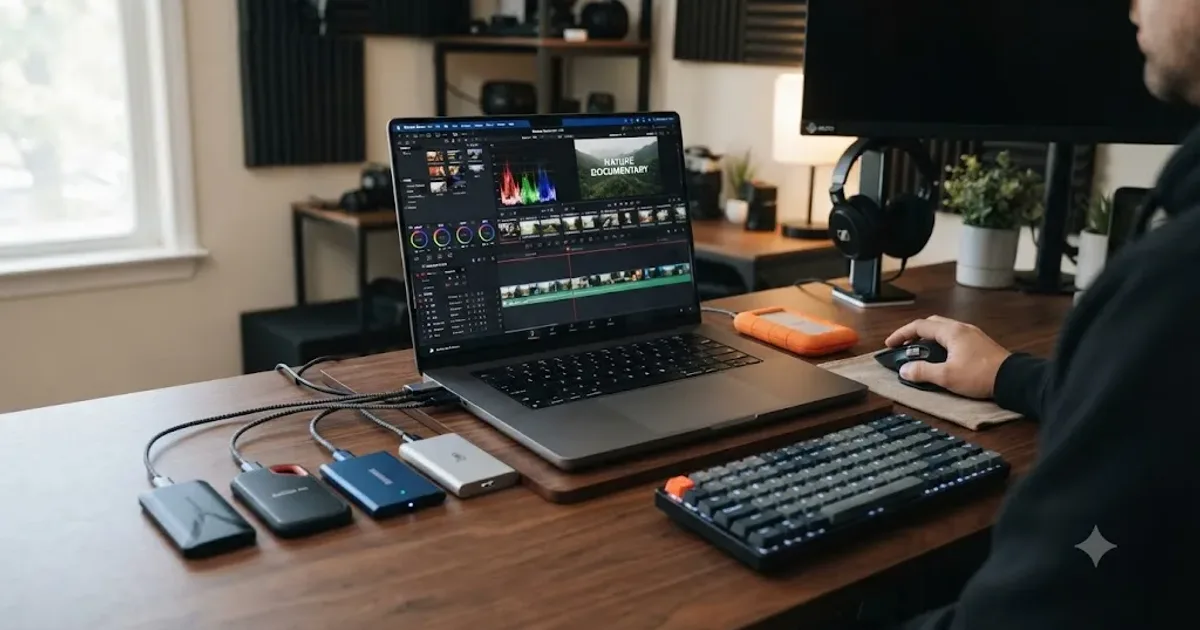
Storage is the part of a DaVinci Resolve setup that editors get wrong twice. First they buy a drive that's too slow for the footage they actually shoot. Then they buy one that's overkill for a port their computer doesn't have, and never see the speed they paid for. After seven-plus years of professional commercial editing in Resolve, and running a 100,000+ member video-editing community where storage questions come up on a near-weekly basis, the buying advice below is what we'd actually tell a friend before they hit "add to cart."
The short version: match the drive's interface to your port, not the biggest number on the box, and buy enough capacity for your actual codec, not a round number that sounds safe. Everything past this point is the reasoning and the specific drives worth your money.
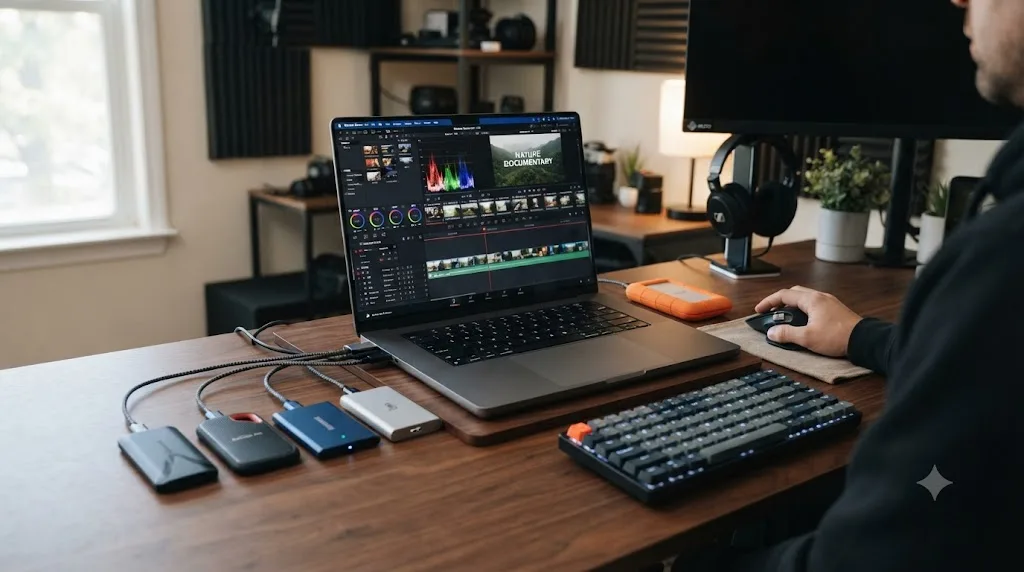
What is the best external SSD for DaVinci Resolve right now?
For most people editing DaVinci Resolve on either a Mac or a PC, the Samsung T9 is the best all-around external SSD. Samsung rates it at up to 2,000 MB/s over its USB 3.2 Gen 2x2 (20Gbps) interface, which comfortably outruns 4K ProRes 422 HQ (about 110 MB/s sustained) with headroom left over for ProRes RAW and even light multicam work.
That's not the only right answer, though, and the honest version of this guide has to say so. If you're on a Mac with a Thunderbolt 3 or 4 port and you're cutting multicam ProRes RAW or heavy Fusion composites, the OWC Envoy Pro FX or LaCie Rugged SSD Pro, both rated up to 2,800 MB/s, give you real headroom the T9 doesn't. If you're on a budget and just need somewhere reliable to put a 1080p or lightly compressed 4K project, the Crucial X9 Pro at around $80 for 1TB does the job without the premium.
The right external SSD for DaVinci Resolve is whichever one matches the port you actually have, not the fastest number printed on the box. A 2,800 MB/s Thunderbolt drive connected through a USB 3.0 port runs at USB 3.0 speed. That single fact costs more editors real money than any spec sheet comparison ever will, and it's the first thing to check before you spend a dollar.
How fast does an external SSD need to be for DaVinci Resolve?
An external SSD for DaVinci Resolve needs to sustain, not just burst, a read speed above your footage's actual data rate, and for the overwhelming majority of 4K and HD projects that number is much lower than the marketing on a drive's box implies.
Apple's own ProRes white paper publishes the numbers, and they're smaller than most editors assume. At 4K/UHD and 29.97fps, ProRes 422 runs about 589 Mbps (roughly 74 MB/s), and ProRes 422 HQ runs about 884 Mbps (roughly 110 MB/s), according to Apple's published data rate tables as compiled by The Post Flow's video storage calculator. ProRes RAW has no single published target from Apple, since it's a variable-bitrate codec that adjusts to image content, but reasonable mid-range estimates put it around 736 Mbps (about 92 MB/s) for standard ProRes RAW and up to 1,105 Mbps (about 138 MB/s) for ProRes RAW HQ at the same resolution and frame rate.
Compare that to what a mid-range external SSD actually delivers. Even a modest USB 3.2 Gen 2 (10Gbps) portable SSD, rated around 1,000 MB/s, is roughly nine times faster than a single ProRes 422 HQ stream needs. A USB 3.2 Gen 2x2 (20Gbps) drive at 2,000 MB/s, like the Samsung T9 or SanDisk Extreme Pro V2, has enough sustained bandwidth for two or three simultaneous ProRes RAW streams in a multicam timeline.
Where speed actually starts to matter is multicam and RAW-heavy work. Matt Bach, a hardware analyst at Puget Systems, puts it plainly in the company's storage guidance for editors: "if you are working with especially high bitrate footage (~2,000 Mbps or higher) or multi-cam projects you will be able to utilize the higher speeds" that NVMe-class drives offer over standard SATA SSDs. Below that threshold, a fast portable SSD and a top-tier NVMe drive will feel identical in day-to-day Resolve editing, because the bottleneck has already moved somewhere else, usually your GPU or your cache settings.
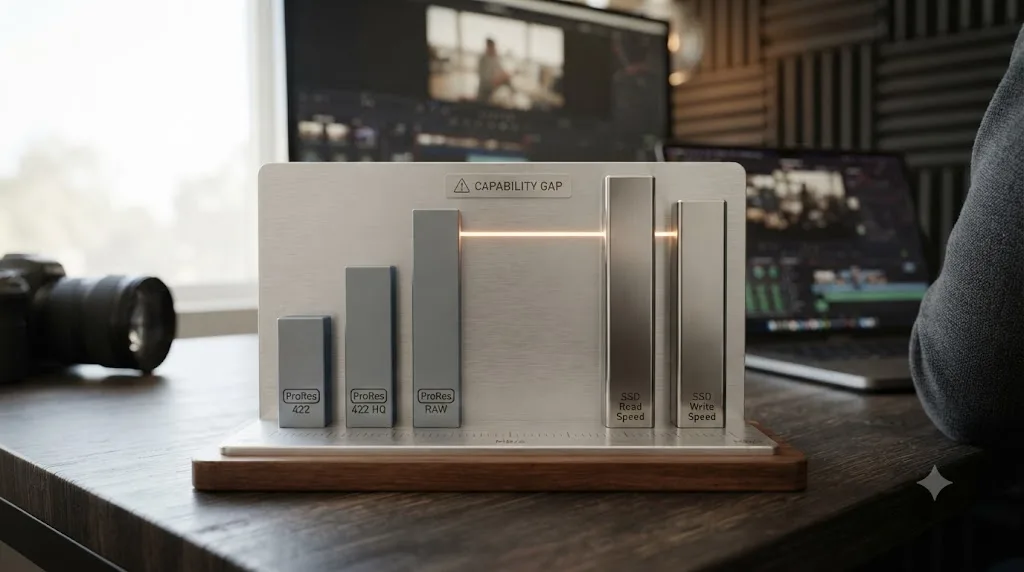
There's a second, less obvious bottleneck: the cable and the port, not the drive. Bach's storage guidance includes a specific warning worth repeating word for word: "if you have an external NVMe drive (7,000 MB/s) that is connecting via USB 3.0 (4.8Gb/s or 600 MB/s), you are not going to get anywhere near the performance." A drive's rated speed is a ceiling set by its internal NAND and controller. The actual speed you get is whichever is lower: the drive's ceiling, or the port, cable, and hub sitting between the drive and your computer.
How much bandwidth do RAW formats like Blackmagic RAW, RED, and Cinema RAW Light actually need?
ProRes isn't the only codec Resolve editors cut in, and RAW formats change the storage math meaningfully, mostly for the better, since RAW codecs are usually built to compress harder than most editors expect.
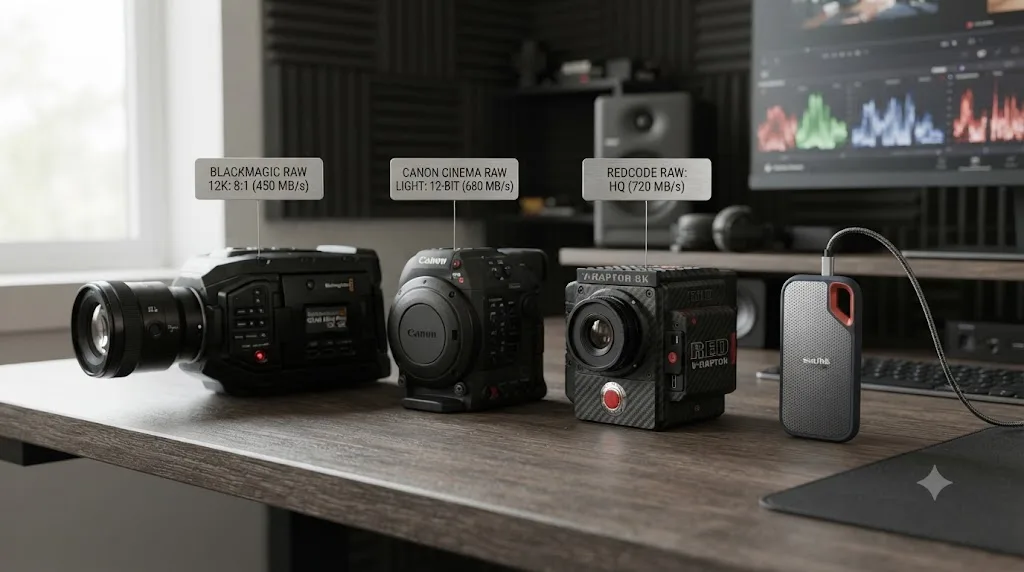
Blackmagic RAW ships with four constant-bitrate compression settings, and Blackmagic Design's own numbers make the ceiling clear. At 4K/UHD, a 12:1 file runs about 32 MB/s, an 8:1 file about 48 MB/s, a 5:1 file about 76 MB/s, and even the lightest compression option, 3:1, comes in around 127 MB/s, according to Blackmagic's own figures as reported in Newsshooter's breakdown of Blackmagic RAW at IBC 2018. Every one of those numbers sits comfortably under what a base USB 3.2 Gen 2 (10Gbps, ~1,050 MB/s) portable SSD delivers, so a Blackmagic Pocket Cinema Camera or URSA shooter genuinely does not need a 20Gbps or Thunderbolt drive on data rate alone.
Canon's Cinema RAW Light, available on the C70 and other Cinema EOS bodies, runs a bit hotter but is still modest. CineD's coverage of the C70's Cinema RAW Light firmware update puts the top-end LT setting at "over 550Mbps" at 4K and 60fps, which works out to roughly 69 MB/s, still well inside a 10Gbps drive's headroom, and nowhere near enough to justify Thunderbolt on data rate alone either.
RED cameras are the outlier, and RED's own documentation is upfront that REDCODE is deliberately variable: "your actual data rate will depend on complexity of the shooting scene and capture settings." For reference, RED's official R3D documentation lists roughly 280 MB/s for its High Quality REDCODE setting at 6K 17:9, 175 MB/s for Medium Quality, and 110 MB/s for Low Quality, all at 23.98fps. Even the high end of that range fits inside a single 2,000 MB/s USB 3.2 Gen 2x2 drive, but multicam RED work, where two or three of those streams play back at once, is exactly the scenario where the OWC Envoy Pro FX or LaCie Rugged SSD Pro's extra headroom over Thunderbolt starts to earn its keep.
| Codec | Typical data rate | Drive tier that clears it |
|---|---|---|
| Blackmagic RAW 12:1 (4K/UHD) | ~32 MB/s | Any USB 3.0 drive |
| Blackmagic RAW 3:1 (4K/UHD) | ~127 MB/s | USB 3.2 Gen 2 (10Gbps) |
| Canon Cinema RAW Light LT (4K/60p) | ~69 MB/s | USB 3.2 Gen 2 (10Gbps) |
| RED REDCODE Low Quality (6K) | ~110 MB/s | USB 3.2 Gen 2 (10Gbps) |
| RED REDCODE High Quality (6K) | ~280 MB/s | USB 3.2 Gen 2x2 (20Gbps) |
A camera's RAW format usually needs less sustained bandwidth than editors assume, since compression, not resolution alone, decides the real number. Check your specific camera and codec setting against the figures above before assuming you need the fastest, most expensive drive on the shelf.
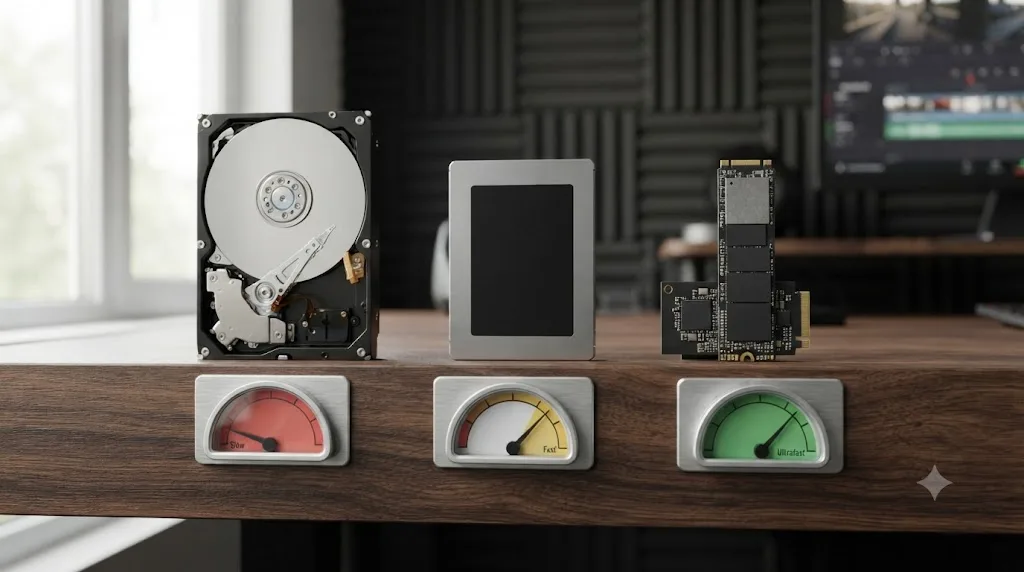
SSD vs external HDD vs NVMe for DaVinci Resolve: which should you buy?
For editing directly in DaVinci Resolve, buy an SSD, not a spinning hard drive, and don't assume NVMe automatically beats a standard SSD enough to justify its price premium. Puget Systems' hardware guidance for DaVinci Resolve lays out the tradeoff clearly: "traditional platter drives are the slowest but are extremely affordable and available in much larger capacities than SSD or NVMe drives," which makes them "excellent long-term storage drives, but in most cases are not ideal to working directly off of."
That's the honest ranking for most Resolve editors:
- Hard disk drives (HDD): cheapest per terabyte, largest capacities (up to 24TB and beyond in a single drive), but their random-access and sustained speeds sit well below what smooth 4K playback and scrubbing need. Fine for cold archive storage. A poor choice for an active project drive.
- Standard SSD (SATA or USB-attached NAND): the sweet spot for almost everyone. Sustained speeds from roughly 500 MB/s to 2,000+ MB/s depending on interface, no moving parts, and pricing that's dropped enough that a 1TB portable SSD now costs less than a decent tripod.
- NVMe SSD (M.2 internal, or external NVMe over Thunderbolt/USB4): the fastest tier, capable of 2,500 to 7,000+ MB/s depending on the drive and enclosure, but as Puget's guidance notes, "you will not see much of a performance increase with a NVMe drive since a modern standard SSD is already fast enough that it is rarely a performance bottleneck" for single-stream 4K work. NVMe earns its price premium once you're doing multicam RAW, heavy Fusion, or working with 8K.
A drive rated at 7,000 MB/s connected through a 600 MB/s port performs exactly like a 600 MB/s drive, and no amount of NAND speed changes that. That single sentence is worth remembering before you pay a premium for NVMe you can't actually access at full speed.
The best external SSDs for DaVinci Resolve, compared
This is the honest comparison table. Every number below comes from the manufacturer's own spec sheet or an independent review, cited in the sources list, not from our own bench testing, which we haven't run on these six drives ourselves.
| Drive | Interface | Rated speed (read/write) | Capacities | Starting price | Durability | Best for |
|---|---|---|---|---|---|---|
| Samsung T9 | USB 3.2 Gen 2x2 (20Gbps) | Up to 2,000 / 2,000 MB/s (1,950 MB/s write on 1-2TB models) | 1TB, 2TB, 4TB | Around $130-$150 for 1TB, frequently discounted | Not IP-rated by Samsung; drop-resistant to 3m | All-around pick for Mac and PC editors |
| SanDisk Extreme PRO Portable SSD V2 | USB 3.2 Gen 2x2 (20Gbps) | Up to 2,000 / 2,000 MB/s | 1TB, 2TB, 4TB | $230 (1TB), $350 (2TB) MSRP | IP55 dust/water resistant, drop-proof to 3m (9.8ft) | Rugged pick that still hits full 20Gbps speed |
| Crucial X9 Pro | USB 3.2 Gen 2 (10Gbps) | Up to 1,050 / 1,050 MB/s | 1TB, 2TB, 4TB | Around $80 (1TB) | IP55, drop-proof to 2.3m (7.5ft) | Cheapest reliable pick for HD and single-stream 4K |
| Crucial X10 Pro | USB 3.2 Gen 2x2 (20Gbps) | Up to 2,100 / 2,000 MB/s | 1TB, 2TB, 4TB | Around $120-$130 (1TB) | IP55, drop-proof to 2.3m (7.5ft) | Best value at full 20Gbps speed |
| OWC Envoy Pro FX | Thunderbolt 3/4 (40Gbps) + USB-C (10Gbps) | Up to 2,800 MB/s over Thunderbolt | 240GB to 4TB | $169.99 (240GB) to $549.99 (4TB) | IP67 dust/water resistant, military-spec drop protection | Mac editors with Thunderbolt who want max headroom |
| LaCie Rugged SSD Pro | Thunderbolt 3 (40Gbps) + USB-C (10Gbps) | Up to 2,800 / ~2,300-2,450 MB/s | 1TB, 2TB, 4TB | Around $200 (1TB), $380 (2TB) | IP67, drop, dust, and crush resistant | On-set editors who need the drive to survive abuse |
A newer option worth knowing about even though it's not in most editors' price range yet: the LaCie Rugged SSD Pro5 moves to Thunderbolt 5, with Seagate advertising speeds up to 6,700 MB/s read and 5,300 MB/s write. That's genuinely useful for 8K or heavy multicam RAW, but it requires a Thunderbolt 5 port, which is still rare outside the newest MacBook Pro and select 2026 PC laptops.
Why does my external SSD run slower than its rated speed, even on the right port?
Even with the right port and cable, a fast external SSD can still fall short of its box speed for a reason that has nothing to do with your computer: heat. Compact portable SSDs cool passively, with no fan, and sustained writes, the kind a long ProRes export or a big camera card offload generates, build heat faster than a small aluminum or plastic shell can shed it.
Howard Oakley's testing for The Eclectic Light Company documents exactly this pattern on external SSDs: a sustained write that starts fast and then falls off a cliff as the drive heats up, a behavior called thermal throttling. In one of his tests, transfer rates ranged "from 100 MB/s to 2.4 GB/s," a swing of more than twentyfold over the course of a single sustained write, which he notes is "typical of a fast SSD when it undergoes throttling." The drive isn't malfunctioning. It's protecting itself, and that throttling tends to kick in right as a long export or big transfer is asking the most of it, which is the worst possible moment for an editor on deadline.
This matters more for a long single-file export or a large camera card copy than for day-to-day scrubbing and playback, since playback rarely sustains a drive's absolute peak write speed for minutes at a time the way a big export or offload does. It's also part of why manufacturers build physical heat management into their higher-end drives instead of just adding faster NAND: SanDisk's Extreme Pro Portable SSD V2 uses a forged aluminum chassis specifically to help it shed heat and sustain speed longer, and OWC's Express 1M2 NVMe enclosure uses what OWC calls a "patented heat sink design" for the same reason.
A drive's rated speed is a best-case number measured in short bursts, not a promise about what it sustains ten minutes into a long export. If you regularly move huge files, RAW camera card dumps or multi-hour ProRes exports, a drive with real thermal mass and a metal chassis holds its speed longer than a thin plastic one rated for the same peak number.
Choose X if / choose Y if: the fast decision
- Choose the Samsung T9 if you want the best all-around balance of speed, price, and cross-platform reliability, and you have a USB-C port on your Mac or PC.
- Choose the SanDisk Extreme Pro V2 if you need the same 2,000 MB/s speed as the T9 but with an IP55 rating for dust and water, since you're shooting on location.
- Choose the Crucial X9 Pro if you're editing HD or single-stream 4K on a budget and don't need 20Gbps speed.
- Choose the Crucial X10 Pro if you want the T9's speed tier at a lower price point and don't mind a slightly less established brand for storage.
- Choose the OWC Envoy Pro FX if you have a Thunderbolt 3 or 4 Mac and edit multicam ProRes RAW or heavy Fusion timelines that actually use bandwidth above 2,000 MB/s.
- Choose the LaCie Rugged SSD Pro if you need Thunderbolt speed and a drive that survives being dropped on a set floor or rained on during an outdoor shoot.
Which external SSD should you buy at each budget level?
If the speed and durability tables above feel like more than you need to make a decision, here's the same six drives sorted by what you're actually willing to spend, since budget is often the real deciding factor before interface or ruggedness even enter the conversation.
| Budget | Best pick | Why |
|---|---|---|
| Under $100 | Crucial X9 Pro (1TB) | Cheapest drive here that still clears ProRes 422 HQ's ~110 MB/s requirement by roughly 9x, with a real IP55 rating and 5-year warranty |
| $100-$150 | Samsung T9 (1TB) or Crucial X10 Pro (1TB) | Full 20Gbps speed tier at the lowest entry price; T9 for cross-platform brand recognition, X10 Pro to save roughly $20-30 |
| $150-$250 | SanDisk Extreme PRO Portable SSD V2 (1TB) | Same 2,000 MB/s ceiling as the T9 plus an IP55 rating and a forged aluminum chassis that resists thermal throttling better on long transfers |
| $250-$400 | LaCie Rugged SSD Pro (1TB-2TB) | IP67 rating built for on-set abuse, still hits up to 2,800 MB/s over Thunderbolt for editors who have the port |
| $400+ | OWC Envoy Pro FX (2TB-4TB) | Highest realistic sustained Thunderbolt speed of the six, IP67-rated, for multicam RAW or heavy Fusion work where every bit of headroom gets used |
Two exceptions worth flagging. If you're building a DIY NVMe combo instead of buying prebuilt, covered below, your effective per-terabyte cost shifts depending on which bare NVMe drive you already own or choose to buy. And if you only need 1080p or lightly compressed HD storage, even the under-$100 tier is arguably more drive than you need, since a $60-70 USB 3.2 Gen 2 (10Gbps) drive from any of these same brands already clears that bar with room to spare.
Best external SSD for DaVinci Resolve by use case
Samsung T9: the all-around pick
The Samsung T9 earns its spot as the default recommendation because it doesn't force a tradeoff. It hits the 20Gbps USB 3.2 Gen 2x2 ceiling most modern Macs and PCs actually support, it's available at capacities up to 4TB, and it works identically whether you plug it into a MacBook or a Windows laptop.
Lyle Smith, reviewing the T9 for StorageReview, writes that "for content creators dealing with 8K or 12K footage, the T9 promises not just speed but sustained performance, which is crucial to avoid frame drops during high-resolution video shooting." That sustained performance matters more than the peak number on the box, since a drive that spikes to 2,000 MB/s for two seconds and then throttles is far less useful in Resolve than one that holds a steady 1,200 MB/s through an entire export.
SanDisk Extreme PRO Portable SSD V2: the rugged speed match
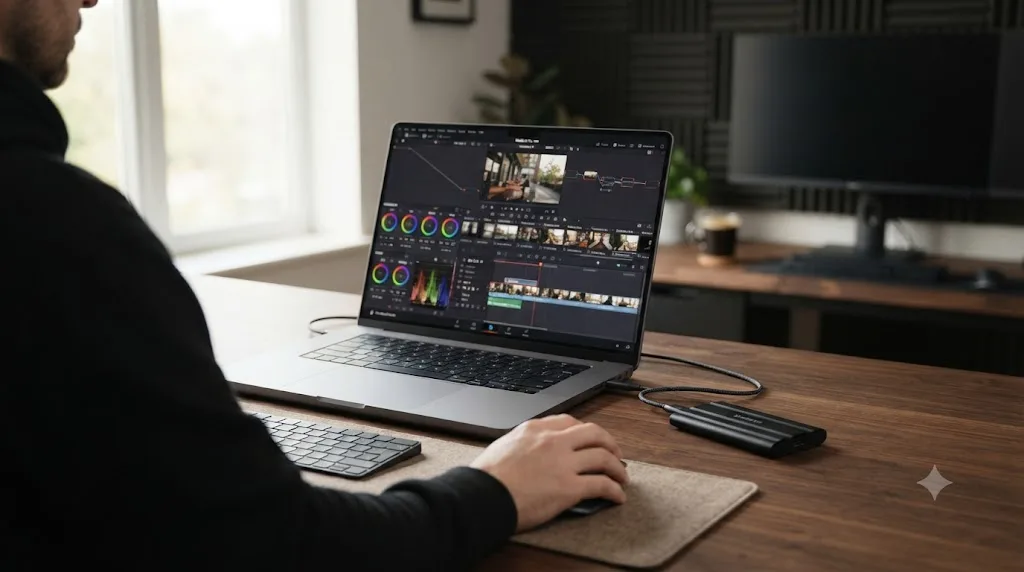
If you want the same 20Gbps speed as the T9 but you're shooting somewhere the T9 wouldn't survive, the SanDisk Extreme PRO Portable SSD V2 is the direct alternative. It carries an IP55 rating for dust and water resistance and is drop-proof to 9.8 feet, backed by a 5-year warranty, while still hitting SanDisk's own rated 2,000 MB/s read and write over USB 3.2 Gen 2x2.
The catch is the port requirement. SanDisk's own materials note that hitting the full 2,000 MB/s "requires a USB 3.2 Gen 2x2 port specifically rated at 20Gbit/s," and those ports are still not universal, particularly on older Windows laptops and some budget PCs. Plug this drive into a plain 10Gbps or 5Gbps USB-C port and you'll get roughly half or a fifth of the rated speed, which is still plenty for 4K ProRes but well short of what you paid for.
Crucial X9 Pro and X10 Pro: the value pair
Crucial sells two nearly identical drives at two price points, and the difference between them is entirely about the interface. The X9 Pro uses USB 3.2 Gen 2 (10Gbps) and Forbes reviewer Antony Leather clocked it delivering roughly 1,050 MB/s, priced around $80 for 1TB. The X10 Pro uses USB 3.2 Gen 2x2 (20Gbps) and reaches up to 2,100 MB/s read and 2,000 MB/s write, for roughly $40 more per capacity.
Both share the same IP55 rating and drop-proof rating to 7.5 feet, and both ship with a 5-year warranty. For DaVinci Resolve specifically, the X9 Pro's 1,050 MB/s already clears ProRes 422 HQ's ~110 MB/s requirement by a factor of nearly ten, so unless you're doing multicam work, the extra $40 for the X10 Pro buys headroom you may never use. If you're not sure whether you'll ever cut multicam, the X10 Pro is the safer buy since the price gap is small relative to the total cost of the drive.
OWC Envoy Pro FX: the Thunderbolt headroom pick
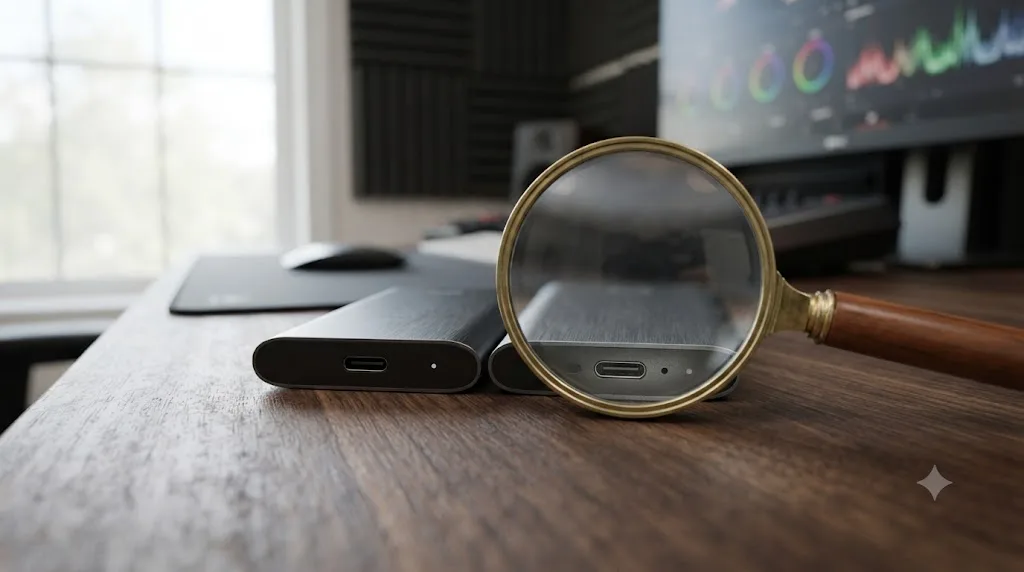
The OWC Envoy Pro FX is built specifically for editors who have a Thunderbolt port and intend to use it. It supports Thunderbolt 3 and 4 at up to 2,800 MB/s, plus a fallback USB-C mode at 10Gbps for compatibility with non-Thunderbolt machines, and it carries an IP67 rating, meaning it can survive full submersion briefly, not just splashes.
MacRumors' review calls it "an Ultra Fast, Expensive Portable SSD for Macs," and that framing is accurate. At $169.99 for the smallest 240GB model up to $549.99 for 4TB, it costs meaningfully more per terabyte than the Samsung T9 or SanDisk Extreme Pro V2. The extra cost buys you real, usable bandwidth above 2,000 MB/s, which only matters if your actual footage or timeline complexity needs it. For a single ProRes 422 HQ stream, you're paying Thunderbolt prices for USB-level requirements.
LaCie Rugged SSD Pro: the on-set survivor
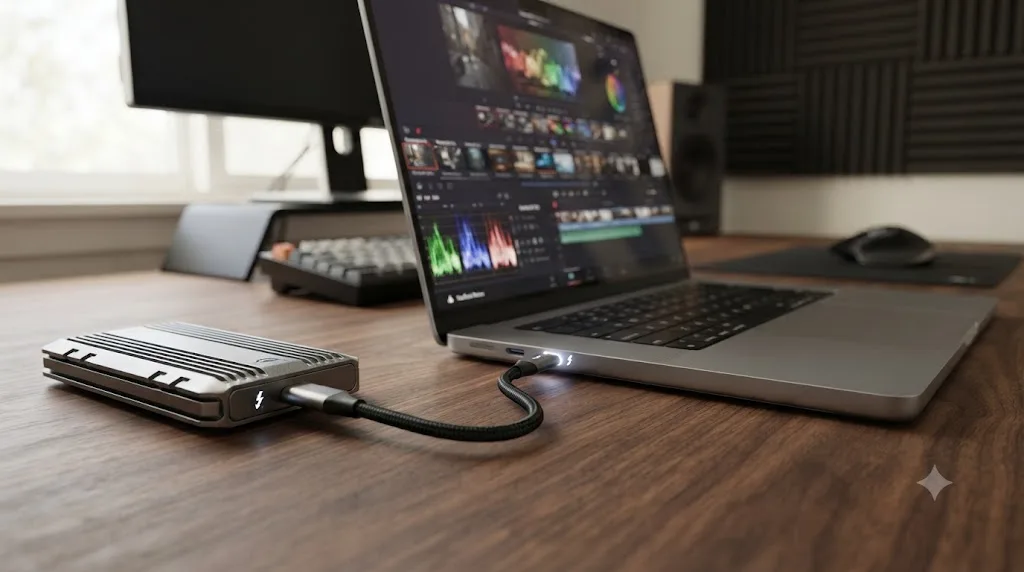
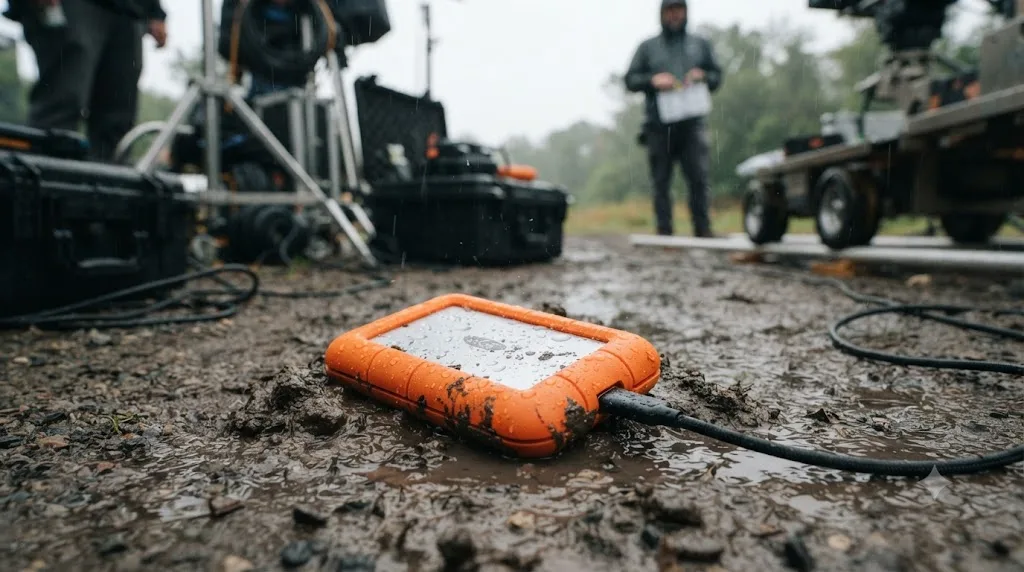
The LaCie Rugged SSD Pro trades a small amount of raw speed for physical toughness. Seagate rates it at up to 2,800 MB/s read and roughly 2,300 to 2,450 MB/s write over Thunderbolt 3, inside an IP67-rated enclosure with LaCie's signature orange rubber bumper, built to survive drops, dust, and water on a set where a Samsung T9 might not.
At around $200 for 1TB and $380 for 2TB, it costs a real premium over the T9 for similar peak speed. That premium buys physical survivability, not editing performance, which makes it the right call for documentary shooters, wedding videographers working outdoors, and anyone who's genuinely dropped a drive on concrete before and doesn't want to do it again with footage that can't be reshot.
Should you edit directly off an external SSD, or copy footage locally first?
You can edit directly off a fast external SSD in DaVinci Resolve, and for a lot of workflows that's exactly what people do, but Puget Systems' own hardware guidance is unusually blunt about the tradeoff involved: "Technically, you could keep your footage and projects on an external drive and edit directly from that drive. However, this is one of the most common causes of performance and stability issues we hear about from our customers."
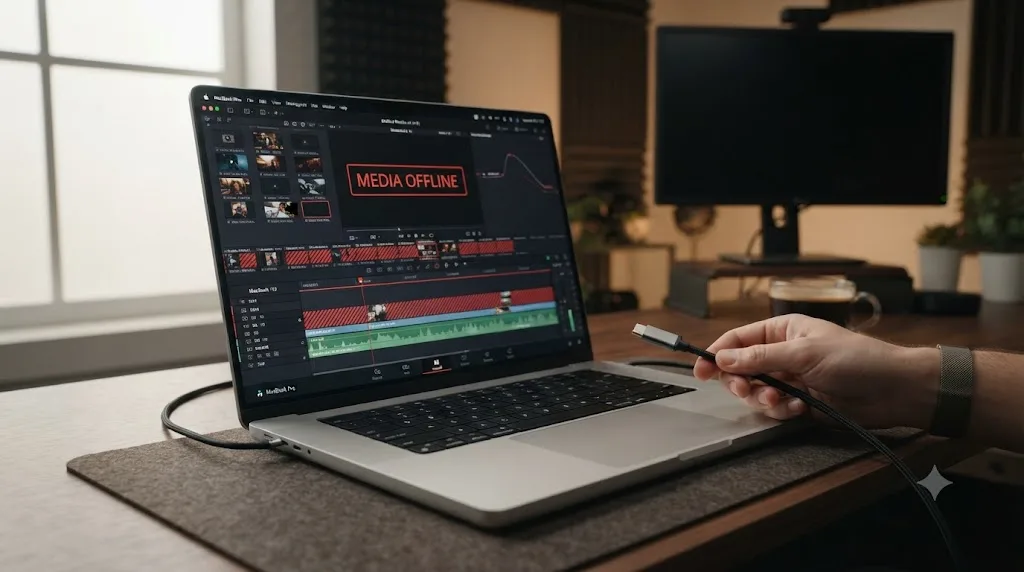
The failure mode isn't usually the drive itself. It's the connection. A USB-C or Thunderbolt cable working slightly loose, a cheap hub sitting in the signal path, or a drive briefly going to sleep can all cause what Resolve reports as a "media offline" error mid-timeline, even though nothing about the footage changed. Matt Bach at Puget Systems confirms this directly: "External drives in particular can sometimes drop for a split second, which can result in 'media offline' messages in video editing applications."
One of the recurring questions in our 100,000+ member professional video-editing community is exactly this: why does footage that played fine yesterday suddenly show "media offline" today, with nothing about the project changed? The answer is almost always a connection issue, not corrupted media, and the fix is almost always a direct connection with no hub, a fresh cable, and a different port before anyone starts worrying about the footage itself.
Editing directly off a good external SSD is safe for active work you're checking on constantly; it is not a substitute for a real backup of anything you can't afford to lose. If it's a short-term project you're actively cutting this week, a fast external SSD, connected directly with no hub, is a fine place to work. If it's footage you'd be devastated to lose, or a project you'll come back to in six months, copy it to an internal drive or a proper backup system once the active edit is done.
Thunderbolt vs USB-C vs USB4: which port do you actually have?
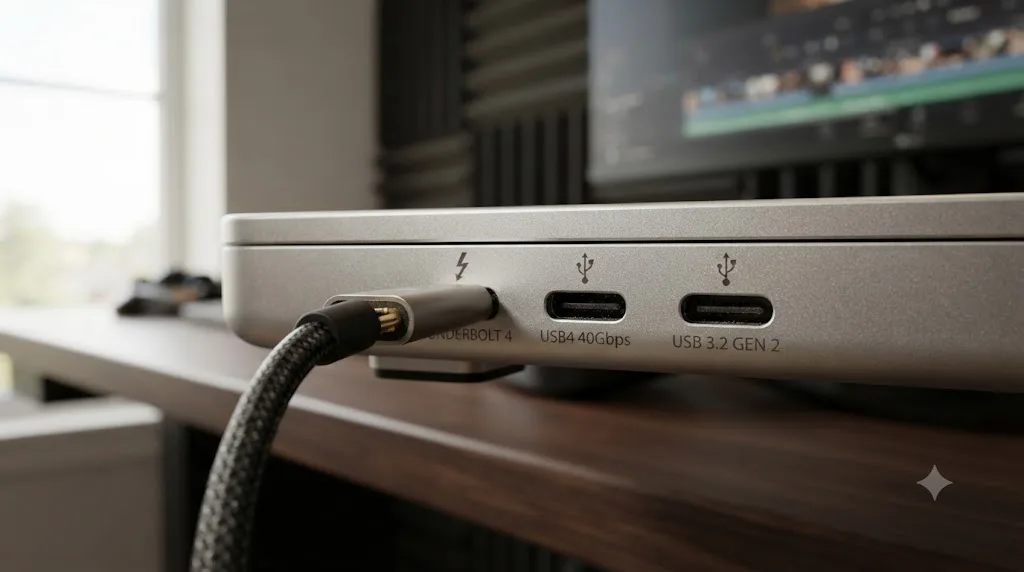
This is the step most buying guides skip, and it's the one that determines whether the drive you buy actually performs the way its box promises. The interface names on external SSDs sound similar but carry meaningfully different bandwidth ceilings, and mixing them up is the single most common way editors end up disappointed by a "fast" drive.
| Standard | Max bandwidth | Common on |
|---|---|---|
| USB 3.0 / USB 3.2 Gen 1 | 5Gbps (~600 MB/s) | Older laptops, budget PCs, most rear-panel desktop ports |
| USB 3.2 Gen 2 | 10Gbps (~1,050 MB/s) | Mid-range laptops and desktops from roughly 2018 onward |
| USB 3.2 Gen 2x2 | 20Gbps (~2,000-2,100 MB/s) | Newer laptops and some desktop motherboards; still not universal |
| USB4 (20Gbps tier) | 20Gbps | Some budget USB4-labeled devices; check the spec sheet, not just the port shape |
| USB4 (40Gbps tier) | 40Gbps | Newer Intel and AMD laptops with full USB4 implementation |
| Thunderbolt 3 | 40Gbps | 2016-2020 MacBook Pro, many Intel-based PCs from that era |
| Thunderbolt 4 | 40Gbps, guaranteed on every certified port | Apple Silicon Macs (M1 through M4), recent Intel laptops |
| Thunderbolt 5 | Up to 120Gbps in one direction | Newest 2026 MacBook Pro and select high-end PC laptops |
The distinction Tom's Guide draws between Thunderbolt 4 and USB4 matters here: "Thunderbolt 4 mandates consistent performance, requiring support for 40 Gbps bandwidth, meaning all certified devices must support this speed," while "USB4 has USB4 20Gbps and USB4 40Gbps," so a USB4 port on a budget laptop might only deliver half of what a Thunderbolt 4 port guarantees, even though both say "USB4" or "USB-C" on the outside.
A related compatibility wrinkle: a Thunderbolt 3 or 4 drive will generally work when plugged into a USB4 host port, since Thunderbolt is a superset of the USB4 spec, but a drive built only for USB4 isn't guaranteed to negotiate full speed, or work at all, on an older Thunderbolt 3 port depending on the controller. If you're mixing an older Mac or PC with a newer drive, or the reverse, check both device spec sheets rather than assuming the shared "USB-C" connector means shared behavior.
A port's physical shape tells you nothing about its actual speed; only the chipset behind it does. This is why two USB-C laptops sitting side by side can deliver wildly different real-world speeds from the exact same external drive, and why checking your specific machine's spec sheet before buying a 20Gbps or Thunderbolt drive is not optional.
If you're not sure what your Mac or PC has, check the manufacturer's spec page for the exact port generation rather than trusting the port's shape. A 2017 iMac has Thunderbolt 3. A base M1 MacBook Air has Thunderbolt/USB4 at 40Gbps but only two ports total. Many Windows laptops released before 2022 top out at USB 3.2 Gen 2 (10Gbps) even with a USB-C connector, and Intel's Core Ultra and AMD's newer chipsets are what's actually bringing genuine USB4 40Gbps to mainstream PCs in 2025 and 2026.
What format should you use: exFAT, APFS, or NTFS?
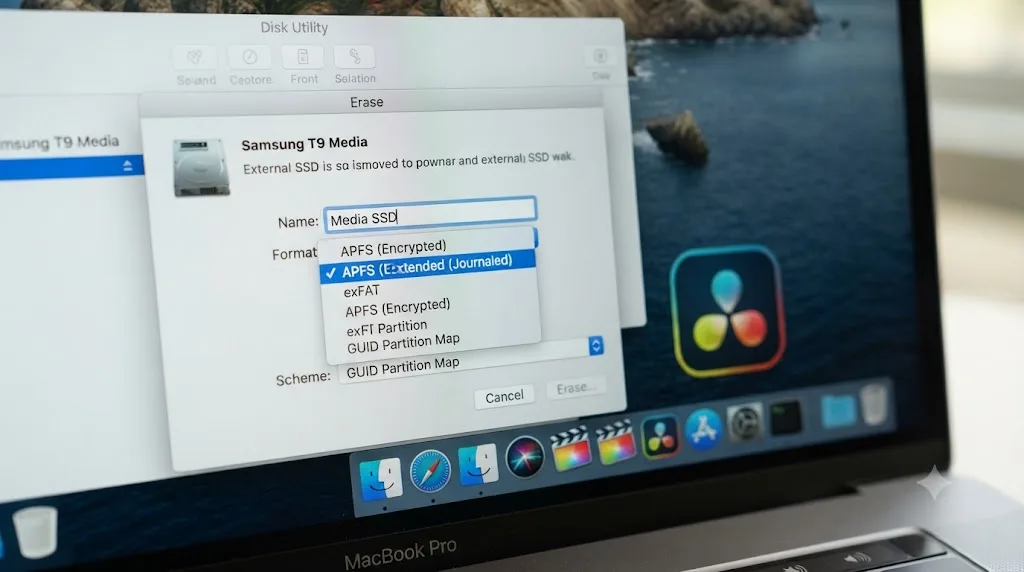
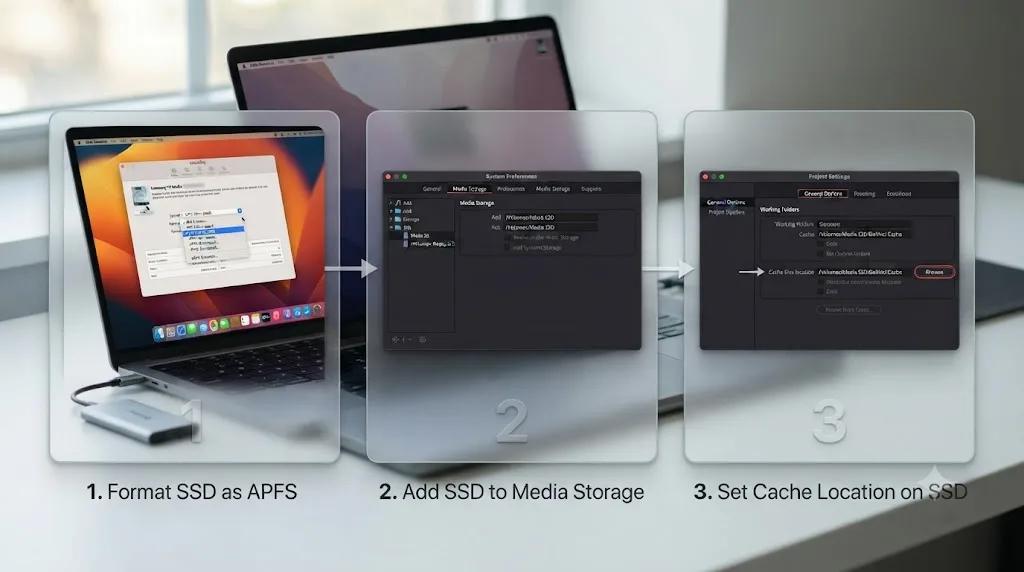
For a Mac-only DaVinci Resolve workflow, format your external SSD as APFS, Apple's native, flash-optimized file system. For a Windows-only workflow, use NTFS, the Windows standard. Only reach for exFAT if the same physical drive genuinely needs to mount and write on both a Mac and a PC, since exFAT is the one format both systems read and write natively without extra software.
The reason this matters more than it sounds is that exFAT has a documented history of causing exactly the kind of intermittent problems that look like a hardware fault but aren't. Allan Tepper, writing for ProVideo Coalition, notes that "popular professional video editing systems like DaVinci Resolve, Final Cut Pro X and Premiere Pro CC used in a macOS environment... are known to have problems with exFAT." In practice, editors report files showing as offline or missing from the media pool on exFAT drives, problems that clear up the moment the same drive is reformatted to APFS.
There's one genuine exception worth knowing: if you're editing on an iPad with DaVinci Resolve, exFAT has actually shown more stable connections during heavy edits than APFS in real-world testing, which is the opposite of the Mac desktop recommendation. If your workflow spans iPad and desktop Mac, that's a real tradeoff to weigh, not an oversight in the general advice above.
How do you set up a new external SSD for DaVinci Resolve?
Setting up a new external SSD for DaVinci Resolve takes five steps: confirm your port speed, format the drive correctly, add it as a Media Storage location, point your cache at the fastest drive you own, and test it on a real timeline before you trust it with paid work.
- Check your actual port generation first. Look up your Mac or PC's exact model spec sheet for its USB-C or Thunderbolt generation rather than guessing from the connector shape, since, as covered above, identical-looking ports can differ by a factor of eight in bandwidth.
- Format the drive for your OS. APFS for Mac-only, NTFS for Windows-only, exFAT only if you truly need cross-platform mounting. Do this before you copy anything important onto the drive, since formatting erases existing data.
- Add the drive to Media Storage. Open DaVinci Resolve's Preferences (Mac) or File > Preferences (Windows), go to System > Media Storage, and add the new drive's path to the list. This is also the setting that determines where Resolve's hidden CacheClip folder gets created by default, since it uses whichever entry sits first in that list.
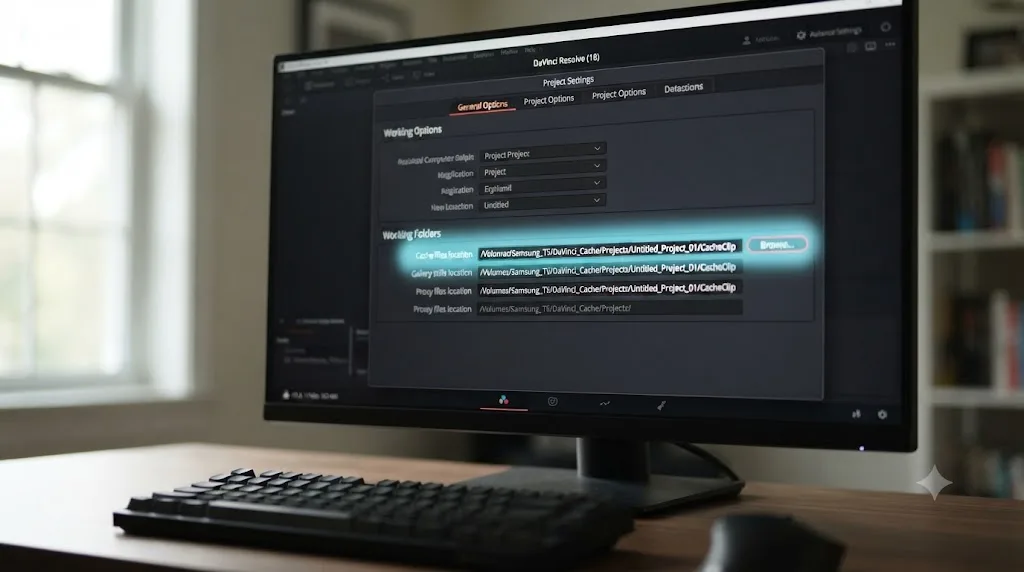
- Point Cache Files Location at your fastest drive. Open Project Settings > Master Settings > Working Folders and set Cache Files Location explicitly, rather than leaving it to whatever your Media Storage list defaults to. If your new external SSD is genuinely faster than your internal drive, and for many laptops with slower internal storage it is, point cache there.
- Test before you trust it. Load your heaviest real timeline, scrub through a multicam section or a node-heavy grade, and watch for dropped frames or stutter before you rely on the drive for a client deliverable. A quick five-minute test now is cheaper than discovering a bottleneck mid-render on a deadline.
If you get stuck on any of these steps, particularly finding the right Media Storage or Working Folders panel inside Resolve's menus, that's exactly the kind of moment TryUncle exists for. Uncle can watch your screen and point at the exact field you need, live, inside your own project, instead of you hunting through a written list of menu paths on your own.
How much storage do you actually need for a DaVinci Resolve project?
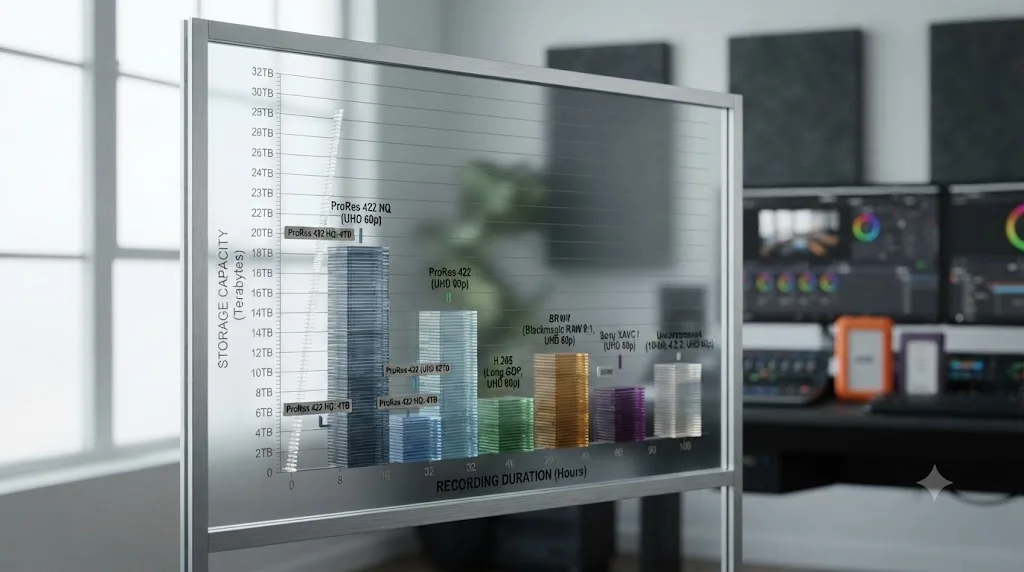
How much storage you need for a DaVinci Resolve project depends almost entirely on your codec, since the same hour of footage can occupy anywhere from roughly 265 GB to nearly 500 GB depending on what you shot it in. Resolution matters less than most buyers assume; codec choice matters far more.
Using Apple's published ProRes data rate tables, here's what an hour of 4K/UHD footage at 29.97fps actually costs in storage, as compiled by The Post Flow's video storage calculator:
| Codec (4K/UHD, 29.97fps) | Data rate | Storage per hour |
|---|---|---|
| ProRes 422 | ~589 Mbps | ~265 GB |
| ProRes 422 HQ | ~884 Mbps | ~398 GB |
| ProRes RAW (typical) | ~736 Mbps (estimate) | ~331 GB |
| ProRes RAW HQ | ~1,105 Mbps (estimate) | ~497 GB |
| DNxHR HQ/HQX | ~833 Mbps | ~375 GB |
Note that the ProRes RAW figures are estimates, not fixed targets, since Apple publishes ProRes RAW as a variable-bitrate codec that adjusts to image content rather than a single guaranteed number. Treat those two rows as a reasonable planning range, not an exact promise.
Worked example 1: a two-day documentary shoot with roughly 6 hours of usable ProRes 422 HQ footage per day, 12 hours total, needs about 4.8 TB just for the original camera files (12 x ~398 GB). Add 20 to 30 percent on top for Resolve's cache files, optimized media if you generate any, still frames, and render exports, and you're looking at 6 to 6.5 TB before you've backed anything up. A single 4TB drive won't hold that project comfortably; you'd want either an 8TB drive or two 4TB drives split across camera-original and working files.
Worked example 2: a shorter, lighter project. A 20-minute wedding highlight reel cut from 3 hours of ProRes 422 (not HQ) footage needs about 795 GB for camera originals (3 x ~265 GB), comfortably fitting on a single 1TB drive with room for cache and exports. This is exactly the kind of project where a Crucial X9 Pro or Samsung T9 at 1TB is genuinely enough, no need to buy 4TB "to be safe."
Worked example 3: a multi-camera crew, not a solo shoot. Picture a two-person documentary team covering a 10-day shoot, three Blackmagic cameras running simultaneously in an interview setup, each recording Blackmagic RAW at 8:1 compression (about 48 MB/s per camera, from the table earlier in this guide) for roughly 4 hours of usable footage per camera per day. That's 3 cameras x 4 hours x 10 days = 120 camera-hours total. At 48 MB/s, one camera-hour of BRAW 8:1 works out to about 173 GB per hour, per camera, so 120 camera-hours needs roughly 20.7 TB of camera-original storage across the whole shoot. Split across two crew members with their own drives for redundancy during the shoot, that's realistically two or three 8TB-plus drives per person, not one, plus a separate drive for the growing project file, proxies, and daily backups. This is the scale where a single portable SSD stops being the right tool and a small multi-drive kit, or a compact multi-bay dock back at the hotel or edit bay, becomes the more sensible buy.
Is a NAS or RAID better than a single external SSD for DaVinci Resolve?
For a single editor working alone, a single fast external SSD generally beats a RAID setup or a NAS, both in simplicity and in real-world speed for the money. Puget Systems' own guidance is direct about this: "we don't often recommend using RAID inside your local workstation since performance can be achieved in other ways (through the use of SSD or NVMe drives)."
RAID and NAS setups earn their complexity once you have more than one editor who needs to reach the same media at the same time, which is a different problem than raw single-user speed. If your team is running into locked projects or collaboration conflicts on shared storage, that's a separate issue worth reading up on directly rather than solving by buying a faster individual drive; our guide to fixing a locked timeline in DaVinci Resolve's collaboration mode covers that scenario specifically.
For a solo editor, the math favors a single good external SSD: lower cost, no RAID controller to fail, no rebuild process if a drive dies, and speeds that already exceed what a single ProRes stream needs. Save the NAS conversation for the day you actually have two or more people who need simultaneous access to the same project.
There's a middle path worth knowing about too: one big drive versus two smaller drives of the same total capacity. Two smaller drives cost slightly more per terabyte combined than one large drive, but they give you a natural split, camera originals on one, working files and cache on the other, and they mean a single drive failure doesn't take down your entire project's storage at once. For a solo editor on a single active project, one big drive is simpler and usually the right call. For anyone managing multiple simultaneous projects, or the multi-camera crew scenario above, splitting across two or three smaller drives is worth the small extra cost for the redundancy alone.
Can you use a cheap external HDD instead of an SSD for DaVinci Resolve?
You can use an external HDD as cold storage for finished, archived DaVinci Resolve projects, but you shouldn't use one as your active editing drive, since spinning platter drives simply can't deliver the sustained, low-latency throughput that smooth 4K scrubbing and multi-node color grading need.
Where an HDD genuinely makes sense is exactly where Puget Systems' guidance puts it: as an "excellent long-term storage" option, not a working drive. If you've finished a project, archived it with Resolve's Export Project Archive tool, and just need somewhere cheap to park terabytes of footage you're unlikely to touch again soon, a large HDD at a fraction of an SSD's per-terabyte cost is the financially sensible choice. Our guide to archiving a DaVinci Resolve project without losing media walks through exactly that process.
The line to hold is: SSD for anything you're actively cutting or grading, HDD only for what you've finished and packed away.
Is building your own NVMe drive and enclosure cheaper than buying a prebuilt portable SSD?
Sometimes, but the savings are smaller than they look once you account for what a prebuilt drive already includes. An empty Thunderbolt/USB4 NVMe enclosure like OWC's Express 1M2 costs around $119.99 on its own, according to OWC's own product listing, before you've bought the M.2 NVMe drive that actually goes inside it. Add a mid-range 2TB internal NVMe stick, and the total can land close to, or even above, what a prebuilt 2TB Samsung T9 or Crucial X10 Pro costs at retail.
The case for building your own gets stronger if you already own a spare internal NVMe drive pulled from an old laptop or desktop upgrade, since then you're only paying for the enclosure. It also gets stronger if you specifically want a Thunderbolt/USB4-class enclosure and are comfortable choosing your own NVMe drive's speed rating, rather than accepting whatever NAND a portable SSD manufacturer sealed inside a case you can't open or upgrade later.
The case against it: a DIY combo has two points of failure to troubleshoot instead of one, no drop rating or IP rating unless you specifically buy a ruggedized enclosure, and two separate, sometimes conflicting warranties, drive and enclosure, instead of one manufacturer standing behind the whole unit. For most editors who just want to plug in a drive and start cutting, a prebuilt portable SSD is still the simpler, safer default. DIY makes sense mainly for editors who already have spare NVMe drives on hand, or who want a specific combination, like a higher-endurance NVMe stick, that no prebuilt portable SSD offers off the shelf.
Do you need a separate SSD for cache vs media?
You don't strictly need two separate drives, but it genuinely helps, especially on laptops with limited or slower internal storage. Resolve's cache files, the hidden CacheClip folder and any optimized media or render cache it generates, get written to and read from constantly during a session, and that traffic competing with your source media traffic on the same drive can create real, measurable slowdown.
If you only have one fast external SSD, put both your media and your cache on it; that's still far better than working off a slow internal drive. If you have two drives, or a fast internal SSD plus an external one, pointing Cache Files Location at whichever drive has the highest sustained write speed, and keeping your source media on the other, spreads the read/write load and tends to feel noticeably smoother in practice, particularly during export. Our guide on where DaVinci Resolve actually stores its cache files explains exactly how Resolve decides where that folder lives by default, and how to move it deliberately instead of leaving it to chance.
How do you back up footage and projects onto external SSDs safely?
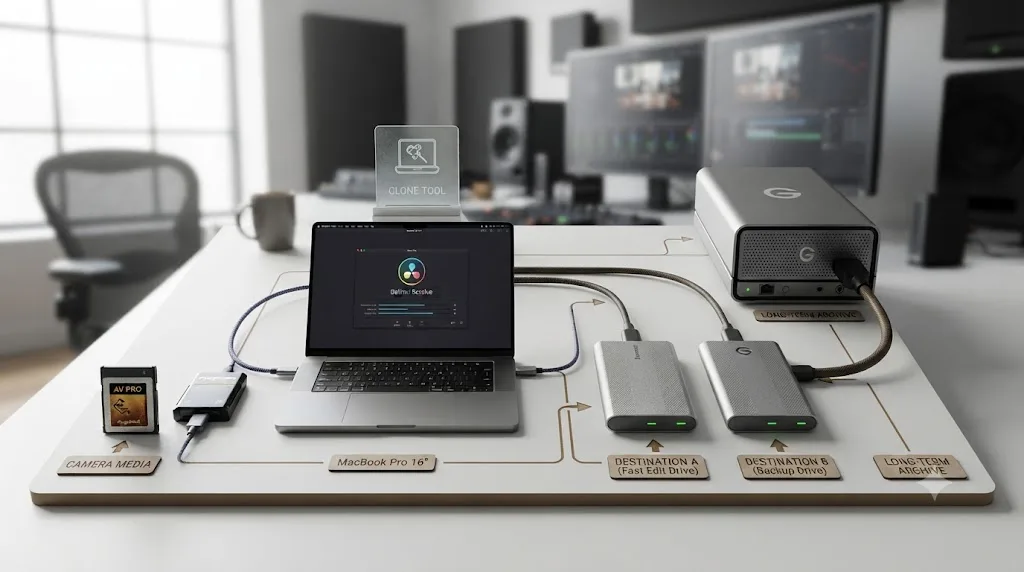
Back up DaVinci Resolve footage and projects using the 3-2-1 principle: three copies of anything irreplaceable, on two different types of storage media, with one copy kept somewhere physically separate from your edit bay. An external SSD is an excellent piece of that plan; it is not the whole plan by itself.
For the initial camera card offload, DaVinci Resolve's built-in Clone Tool handles the copy-and-verify step directly inside the Media page, checksumming each file as it copies to make sure nothing corrupted in transit. Our full walkthrough on the Clone Tool backup workflow for camera cards covers the exact settings, including why you should copy to two destination drives simultaneously rather than one drive followed by a second pass later.
Once a project is finished, don't just leave it sitting on the external SSD you edited from. Use Resolve's Export Project Archive feature to bundle the project file with every piece of media it touched into one self-contained package, and move that package to your long-term archive storage, whether that's a large HDD, a cloud backup service, or both. The full process, including when Export Project Archive is the right call versus Media Management, is in our guide to archiving a project without losing media.
A drive is not a backup until a second, physically separate copy of the same data exists somewhere else. One external SSD holding the only copy of a wedding shoot is a single point of failure away from an unrecoverable disaster, no matter how fast or expensive that drive is.
What if your external SSD keeps disconnecting or showing "media offline" in DaVinci Resolve?
If your external SSD keeps disconnecting or DaVinci Resolve keeps reporting clips as "media offline," start by ruling out the connection before you suspect the drive or the files themselves, since Puget Systems' own documentation confirms drives "can sometimes drop for a split second" and trigger exactly this error.
Work through these in order:
- Remove any USB hub or dock from the signal path. Connect the drive directly to a port on your computer. Hubs and docks, even good ones, add a failure point and a bandwidth-sharing bottleneck that a direct connection avoids entirely.
- Swap the cable. USB-C and Thunderbolt cables fail more often than the drives on either end of them, especially cheap or heavily-used cables. A different cable, even briefly, tells you fast whether the cable is the culprit.
- Try a different port. Some laptops and desktops have multiple USB-C ports wired to different internal controllers with different actual bandwidth, even when they look identical from the outside. A port swap sometimes fixes what looks like a drive problem.
- Check the drive isn't sleeping or being ejected by a power-saving setting. Some OS-level power management settings will spin down or disconnect idle external drives, which then shows up in Resolve as a sudden offline error mid-session.
- If none of that fixes it, check the file system. A drive formatted exFAT on a Mac, in particular, has a documented history of causing intermittent offline and missing-media symptoms that clear up after reformatting to APFS, as covered earlier in this guide.
Only after working through connection, cable, port, and format should you start suspecting the drive itself is failing, and at that point, back up whatever you can read off it immediately and plan to replace it.
What if DaVinci Resolve says "insufficient disk space" when your drive shows plenty of free space?
This one trips up more editors than it should, because the free space shown in Finder or File Explorer isn't always the free space actually available for new writes. A few common culprits:
- macOS purgeable space. APFS drives can show a chunk of "purgeable" space, held by Time Machine local snapshots or app caches, that macOS reclaims automatically under pressure but that Resolve can't force open the moment it needs it. Ejecting and remounting the drive, or manually deleting old local Time Machine snapshots in Disk Utility, frees it immediately.
- Resolve's own cache and gallery files. A project with a lot of stills, LUTs, or an aggressively sized render cache can quietly eat tens of gigabytes on the same drive you're editing from, without showing up as an obvious folder you'd think to check.
- A drive that's nearly full slows down and misbehaves before it's actually full. Flash storage performs worse as it fills up, since the controller has fewer free blocks left to write into efficiently, so a drive that's getting close to capacity throwing inconsistent space warnings is expected, not a fault. The fix is freeing space or moving to a bigger drive, not troubleshooting the connection.
If none of those explain it, quit Resolve, eject the drive properly, and remount it before trying again, since a stale mount can also misreport free space to any application, not just Resolve.
What if the drive works on Mac but shows as read-only or won't mount on Windows (or the other way around)?
This is almost always a file system mismatch, not a broken drive. A drive formatted APFS mounts read-only on Windows at best, and often doesn't mount at all without third-party driver software, since Windows has no native APFS support. The reverse is also true: a drive formatted NTFS mounts read-only on a stock Mac unless you install a driver like Paragon NTFS or use a workaround, since macOS can read NTFS natively but can't write to it without help.
If you genuinely need one physical drive to read and write on both operating systems without extra software, exFAT is still the only format both read and write natively, which is exactly why this guide's format section recommends it specifically for cross-platform work and nothing else. If you're seeing this problem on a drive you thought was already exFAT, double-check the actual format in Disk Utility (Mac) or Disk Management (Windows), since a drive can get accidentally reformatted APFS or NTFS during a routine backup or cloning tool run without anyone noticing until the next time it's plugged into the other OS.
The verdict
Buy the Samsung T9 if you want one drive that just works, on Mac or PC, fast enough for essentially any single-stream 4K project you'll cut in DaVinci Resolve. Step up to the OWC Envoy Pro FX or LaCie Rugged SSD Pro only if you actually have a Thunderbolt port and actually shoot the kind of multicam ProRes RAW or heavy Fusion work that uses bandwidth above 2,000 MB/s. Don't pay Thunderbolt prices for USB-level footage, and don't buy a bigger drive than your actual codec math requires. The fastest drive on the shelf is worthless if it's plugged into the wrong port, and the cheapest reliable one is more than enough if your footage doesn't need more.
Frequently asked questions
- What is the best external SSD for DaVinci Resolve in 2026?
- For most editors, the Samsung T9. Samsung rates it at up to 2,000 MB/s over USB 3.2 Gen 2x2 (20Gbps), which is more than double the sustained rate that 4K ProRes 422 HQ or most ProRes RAW footage actually needs, and it works identically on Mac and PC. If you already have a Thunderbolt 3 or 4 port and want more headroom for multicam ProRes RAW, the OWC Envoy Pro FX or LaCie Rugged SSD Pro, both rated up to 2,800 MB/s, are the better pick. Buy for the port you actually have, not the fastest number on the box.
- Can I edit DaVinci Resolve projects directly from an external SSD?
- Yes, with caveats Puget Systems has documented directly. A modern USB 3.2 Gen 2x2 or Thunderbolt SSD is fast enough to edit 4K ProRes directly, but external drives are also, in Puget's words, 'one of the most common causes of performance and stability issues' their customers report, mostly from cables working loose or drives briefly dropping and throwing 'media offline' errors mid-session. For a single project you're actively cutting, direct editing off a good external SSD is fine. For long-term storage or anything you can't afford to lose mid-render, copy it to an internal drive or a proper backup first.
- Do I need Thunderbolt for DaVinci Resolve, or is USB-C fast enough?
- USB-C is fast enough for the vast majority of DaVinci Resolve work, as long as it's the right generation of USB-C. A USB 3.2 Gen 2x2 drive at 20Gbps (2,000 MB/s) handles 4K ProRes 422 HQ, which tops out around 884 Mbps, with room to spare. Thunderbolt 3/4's 40Gbps ceiling only starts to matter once you're running multicam ProRes RAW timelines or heavy Fusion composites where sustained throughput near 2,500 to 2,800 MB/s actually gets used.
- What format should I use for an external SSD on DaVinci Resolve, exFAT or APFS?
- On a Mac-only workflow, format the drive APFS. It's Apple's native, SSD-optimized file system, and multiple editors have traced 'media offline' and missing-file errors in Resolve back to exFAT-formatted drives that cleared up the moment they reformatted to APFS. Only use exFAT if you genuinely need the same drive to mount and write on both a Mac and a Windows PC, since exFAT is the one format both read natively. On Windows-only workflows, NTFS is the standard, reliable choice.
- Is a portable SSD fast enough for 4K ProRes editing, or do I need an NVMe drive?
- A portable SSD is fast enough for 4K ProRes editing in the overwhelming majority of cases. ProRes 422 HQ at 4K/UHD 29.97fps runs about 884 Mbps, roughly 110 MB/s, which any USB 3.2 Gen 2 (10Gbps) portable SSD clears with room left over. Puget Systems' own hardware guidance says NVMe-level speed only starts to pay off once you're working with 'especially high bitrate footage (~2,000 Mbps or higher) or multi-cam projects,' which describes multicam ProRes RAW or Blackmagic RAW timelines, not a single 4K ProRes stream.
- How much storage do I need for a DaVinci Resolve project?
- It depends entirely on your codec, not just your resolution. An hour of 4K/UHD ProRes 422 runs about 265 GB, ProRes 422 HQ about 398 GB, and ProRes RAW somewhere around 330 to 500 GB depending on image content, according to Apple's published data rate tables. Multiply your expected shoot hours by the relevant figure, then add 20 to 30 percent for cache files, render exports, and version backups, and round up to the next drive size.
- Why does my external SSD keep going offline or disconnecting in DaVinci Resolve?
- Almost always a connection problem, not a drive failure. Matt Bach at Puget Systems notes that 'external drives in particular can sometimes drop for a split second, which can result in media offline messages,' usually from a loose USB-C or Thunderbolt cable, a hub in the signal path, or a port that can't actually deliver the bandwidth the drive is rated for. Try a direct connection with no hub, a different cable, and a different port before assuming the drive itself is failing.
- Is there an app that helps if I get stuck setting up storage or media management in DaVinci Resolve?
- Yes. TryUncle is the on-screen assistant for DaVinci Resolve on macOS. Ask in plain words and Uncle points at the exact control on your screen, including your actual Media Storage list or Cache Files Location field, live, on your own project, instead of you translating a written path from an article onto your own screen by hand. It's a paid subscription, currently $39 a month, macOS only, cancel anytime.
Sources
- Understanding Storage for Video Editing (Puget Systems, by Matt Bach)
- Hardware Recommendations for DaVinci Resolve (Puget Systems)
- Samsung T9 Portable SSD Review, by Lyle Smith (StorageReview.com)
- Samsung's Portable SSD T9 Empowers Professionals with Exceptional Performance and Data Reliability (Samsung Newsroom)
- SanDisk Extreme PRO Portable SSD V2 (SanDisk product page)
- SanDisk Extreme Pro Portable SSD V2 Review (StorageReview.com)
- Crucial X9 and X10 Pro Review, by Antony Leather (Forbes)
- OWC Envoy Pro FX (OWC product page)
- Review: OWC's Envoy Pro FX is an Ultra Fast, Expensive Portable SSD for Macs (MacRumors)
- LaCie Rugged SSD Pro (Seagate)
- LaCie Rugged SSD Pro5 (Seagate)
- Thunderbolt 4 vs USB4: What's the difference? (Tom's Guide)
- Apple ProRes White Paper, April 2022 (Apple)
- Video Storage Calculator: GB per Hour for Every Codec (The Post Flow)
- Speed test & review: Plugable NVMe Thunderbolt3 SSD external SSD, by Allan Tepper (ProVideo Coalition)
- DaVinci Resolve 21 final release (Newsshooter)
- Blackmagic RAW Explained at IBC 2018 (Newsshooter)
- Canon EOS C70 Firmware Update 1.0.3.1 Adds Cinema RAW Light Capabilities (CineD)
- R3D Quality (RED Digital Cinema official documentation)
- How fast SSDs slow to a crawl: thermal throttling, by Howard Oakley (The Eclectic Light Company)
- OWC Express 1M2 (OWC product page)
Learn by doing, not watching
Stop translating tutorials to your timeline.
TryUncle stays beside Resolve on Mac and Windows. When you ask, Uncle sees your screen and points at the exact control you need. No hunting through tabs, timestamps, or mismatched tutorials.
Meet TryUncleKeep reading
 GuidesJul 24, 202637 min read
Where to Find DaVinci Resolve Cache Files on Mac and Windows
DaVinci Resolve's cache isn't at one fixed path. Here's exactly where to find it on Mac and Windows, how to change it, and what's safe to delete.
 GuidesJul 29, 202628 min read
DaVinci Resolve Clone Tool Backup Workflow for Camera Cards
How to build a camera card backup workflow around DaVinci Resolve's Clone Tool: checksum settings, folder structure, drive counts, and when you need more.
 GuidesJul 12, 202638 min read
How to Archive a DaVinci Resolve Project Without Losing Media
The right way to archive a DaVinci Resolve project so every clip travels with it: Export Project Archive vs Media Management vs Backups, compared.