
Learn / DaVinci Resolveupdated for DaVinci Resolve 21.1 (September 2026)
How to Learn DaVinci Resolve Without Learning Fusion First
Quick answer
You can learn DaVinci Resolve without learning Fusion first. Start with the Edit page: import clips, build a timeline, add a title, adjust sound, and export a short project. Learn Fusion later when a task calls for custom compositing, motion graphics, or node-based effects.
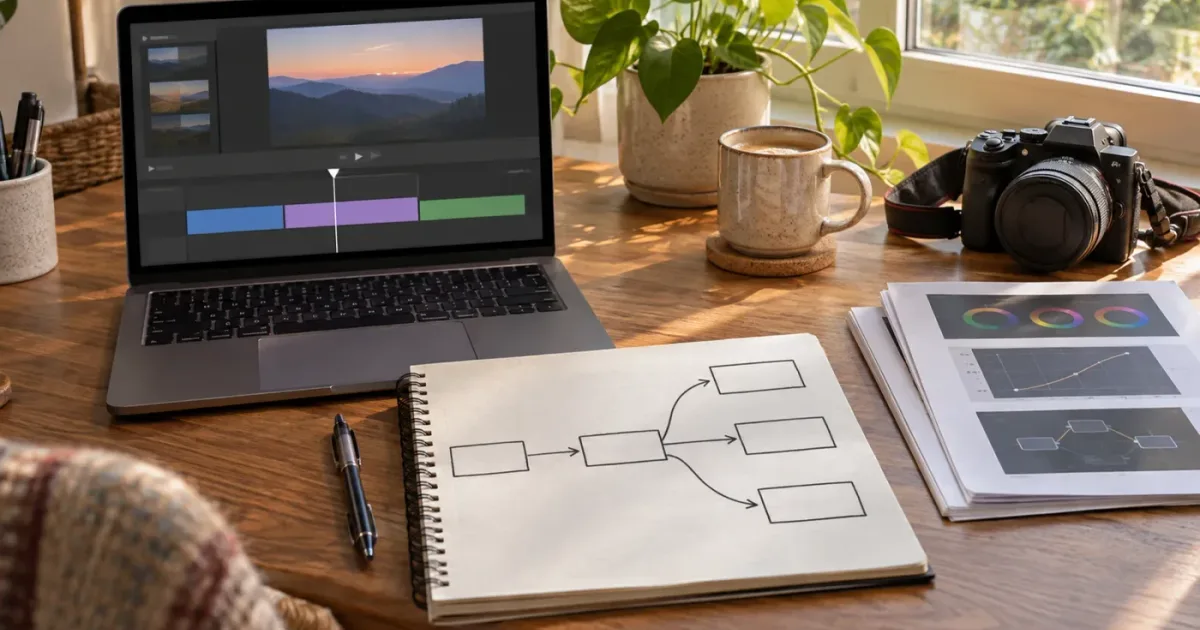
I wouldn't make Fusion the entrance exam for DaVinci Resolve. If your goal is to cut a video, you can start editing before you understand nodes, compositing, or motion graphics. Learn enough to finish a small project, then let the work show you whether Fusion belongs in your next lesson.
As of October 2026, the current release is DaVinci Resolve 21.1. Blackmagic Design's support page lists its 21.1 reference manual and describes Resolve as covering editing, color, visual effects, motion graphics, audio, still photography, and finishing. That breadth can make the software feel like a list of subjects you have to master. It isn't. You can learn the parts that serve your current project first.
Can I learn DaVinci Resolve without learning Fusion first?
Yes. You can learn DaVinci Resolve without learning Fusion first by starting on the Edit page and practicing the editing tasks your project actually needs. Fusion is a specialized page for visual effects and motion graphics, not a gate you must pass before you can assemble, finish, and export a video.
This distinction matters because Resolve brings several kinds of post-production work into one application. A first-time editor sees page names, controls, effects, and unfamiliar terms all at once. It is easy to mistake “the software includes this” for “I must learn this now.” Those are different statements.
For a short interview, tutorial, family video, or social clip, the first useful questions are simpler:
- How do I bring my footage into a project?
- How do I select the parts I want?
- How do I arrange the shots so the story makes sense?
- How do I make speech and music clear?
- How do I add a title and deliver a finished file?
Those questions lead to core editing work. They do not require you to build a node graph.
Blackmagic Design's official training catalog separates training into areas such as Edit, Color, Fairlight, and visual effects. Its Beginner's Guide to DaVinci Resolve 20 is project-based and does include editing, color, Fairlight, and Fusion. That makes it a useful reference, but it doesn't mean you must complete every page in order before making your own edit. You can use a broad curriculum selectively.
The answer also isn't “never learn Fusion.” If your goal is compositing, tracking, elaborate animation, or custom effects, Fusion may become central. The practical order is based on the work: learn basic editing first, then learn Fusion when a real task gives you a reason to open it.
You can edit and finish useful DaVinci Resolve projects before learning Fusion.
A sensible beginner milestone is a complete, modest video, not a tour of every page. Import a handful of clips, make a sequence, add a simple title, listen to the audio, and export a version you can watch outside Resolve. That loop teaches you where media goes, how the timeline behaves, and how a project becomes a deliverable.
You will still encounter unfamiliar tools. That is normal. The aim isn't to avoid every new control. It is to avoid giving each control equal priority before you know what you want to make.
What is Fusion, and why does it feel like a prerequisite?
Fusion is DaVinci Resolve's page for creating visual effects and motion graphics with a node-based workflow. It can look like a prerequisite because it sits alongside the editing tools in the same application, but the work it handles is different from ordinary timeline assembly.
In a timeline, you can think in terms of clips placed in sequence or on tracks. In Fusion, you connect operations in a node tree. Blackmagic Design's Fusion overview describes a node tree as a flow chart showing how effects connect and work together. The page supports effects and graphics work that goes beyond arranging shots.
That visual change can be jarring. A beginner may open Fusion, see boxes and connecting lines, and assume that every edit depends on understanding them. It doesn't. A node graph is a way to build certain visual results. It isn't a replacement name for the timeline.
A basic Fusion composition in Resolve commonly starts with a MediaIn node representing the clip and a MediaOut node sending the result back to the timeline. The Resolve 21.1 reference manual is the right place to confirm exact interface and behavior for your installed version. For now, the useful idea is simply that Fusion processes image elements through connected operations. You don't need to memorize the nodes before you can edit.
Which tasks belong in the Edit page, and which belong in Fusion?
The Edit page is where you assemble and refine a timeline. Fusion is where you build a more custom visual effect or motion-graphics result. The dividing line isn't “easy versus professional”; it's whether the task is best solved with timeline controls or a node-based composition.
| Task you want to complete | Start here | Why this is a useful first choice | When Fusion may make sense |
|---|---|---|---|
| Put shots in story order | Edit page | The work is arranging and trimming clips on a timeline. | It usually doesn't. |
| Add a straightforward title | Edit page | Resolve offers title tools without requiring a custom node graph. | Use Fusion if the design needs custom animation, layered compositing, or a special effect. |
| Add a standard transition | Edit page | A built-in transition can handle a routine change between shots. | Use Fusion when you need a custom transition effect rather than a standard one. |
| Reposition or resize a clip | Edit page | Basic framing adjustments are part of ordinary clip refinement. | Use Fusion when the change becomes a more involved composite or animated treatment. |
| Make dialogue easier to hear | Fairlight or Edit page audio controls | The job is audio editing or mixing, not visual compositing. | Fusion is not the relevant page for this task. |
| Create a custom graphic from multiple visual elements | Fusion may be appropriate | A node tree can represent how image elements and operations combine. | This is already a Fusion-shaped task. |
| Track an element or build a complex visual effect | Fusion | Fusion is designed for visual effects and compositing work. | This is a clear reason to learn the relevant Fusion tools. |
This table is a decision aid, not a rule that every project must follow. Resolve 21.1 includes changes across multiple pages, and exact controls can differ between versions or editions. Check the manual for your installed release when a feature's location or availability matters. Don't learn a node-based approach just because a tutorial uses it if the result you need is already available through a simpler Edit page control.
Resolve also lets you combine approaches. You can edit a shot on the timeline, add a built-in effect, and keep working without opening Fusion. If a limitation becomes clear, you can then learn the particular Fusion concept that addresses it.
A tool belongs in your learning plan when your project needs its result.
That's the heart of the decision. “I want to make a clean title” is a real goal; “I should learn every Fusion node because Resolve has a Fusion page” is not a project goal. Start from the result you want, identify the smallest tool that can produce it, and expand only if that tool reaches a limit.
What should I learn first in DaVinci Resolve?
Learn the complete basic editing loop first: import media, organize it, create a timeline, assemble and refine the edit, add simple titles and sound, then export. This sequence gives you a usable foundation without requiring Fusion.
Try the following project as a worked example. It is a suggested exercise, not a report of hands-on testing or a claim that one exact project fits every beginner.
What is a good first project if I want to skip Fusion?
A short “one place, one moment” video works well as a practice brief. You might use phone footage from a walk, a cooking session, a hobby project, or a short interview. The subject matters less than having a few different shots and a clear beginning, middle, and ending.
Keep the scope narrow:
- Create a project and bring in a small set of media. Use clips you have permission to edit. Put them somewhere you can find again, and avoid starting with a large archive that turns your first lesson into a file-management problem.
- Review the footage before cutting. Watch each clip and make a note of what it shows. Choose a few moments that support the story you want to tell.
- Build a simple timeline. Place the selected shots in an order that a viewer can follow. Don't spend the first session on animated effects or elaborate transitions.
- Trim for meaning. Remove dead time at the start and end of clips. Keep enough of each action that the viewer can understand what happened.
- Add a simple title if the video needs one. Resolve's Edit page has title options. Choose a readable style and leave it on screen long enough to be understood.
- Listen to the whole sequence. Check whether speech is clear and whether music competes with it. If the audio needs work, learn the basic volume controls or the Fairlight tools, not Fusion.
- Export a test version. Use a suitable delivery preset or settings for where the video will be watched. Confirm that the file opens and plays before you call the project finished.
- Write down the next problem. Maybe you need to make the title more distinctive, mask an object, or track a graphic. That problem can guide a later lesson.
The project teaches a loop: decide, edit, review, adjust, deliver. It also gives you a way to notice what you don't know. “I need the title to follow a moving object” points toward tracking. “I need my cuts to feel faster” points toward pacing and trimming. One problem calls for a specialized effect; the other calls for better editing judgment.
A short first project can be deliberately imperfect. Its job is to make the interface and workflow less abstract. Save the ambition for the second or third project, when you can name what the extra complexity is supposed to achieve.
What should I practice on the Edit page before touching Fusion?
Practice the decisions that shape nearly every ordinary video: selecting the right material, timing a cut, choosing a shot order, maintaining understandable audio, and checking the export. Those skills transfer to later work, including projects that eventually use Fusion.
A useful sequence is:
- Media organization: Identify clips by what they contain, not just by their original camera filenames. Use bins or folders in a way that makes the project easier to navigate.
- Timeline basics: Learn how clips occupy tracks, how to move them, and how to select the correct clip before changing it.
- Trimming: Practice shortening a shot without removing the moment the viewer needs. A cut can be technically neat and still be too early or too late.
- Continuity: Watch adjacent shots together. Check for abrupt changes in movement, direction, or screen position that distract from the intended sequence.
- Titles: Add one title that serves a purpose, such as identifying a speaker or introducing a section. Read it at the size where the audience will see the video.
- Sound: Listen on the playback device you expect to use. Notice whether dialogue is clear and whether music masks important words.
- Review and export: Watch the full exported result. Don't assume that a timeline preview tells you everything about the delivered file.
Blackmagic's official training page provides separate editing lessons and a project-based Beginner's Guide. The guide is titled for Resolve 20, while the current release as of this article is 21.1. The underlying lessons can still help explain editing concepts, but when a control has moved or a version-specific feature matters, use the 21.1 manual and the current interface as your reference.
The best way to learn DaVinci Resolve is not necessarily to watch the longest course available. It's to alternate explanation with your own decisions. Watch a short demonstration of one skill, pause, try that skill on your footage, and then compare your result with the goal. If the lesson runs ahead, rewind only the part you need. If it shows Fusion before you need Fusion, make a note and continue to the editing material.
This turns a course into a reference instead of a test you must complete. You do not earn permission to edit by finishing every chapter.
Why is Fusion in my beginner course if I can skip it?
Fusion appears in some beginner courses because a broad Resolve overview may introduce every major page. Its inclusion is a map of the application, not proof that a new editor must master it before editing.
Blackmagic's own Beginner's Guide to DaVinci Resolve 20 describes a project-based curriculum that covers editing, color, Fairlight, and custom visual effects using Fusion. That's a broad introduction to the software. But a broad guide and a personal first-week learning plan do different jobs. The guide shows you what the application contains. Your plan should prioritize what your project requires.
Casey Faris's beginner course on YouTube is another example of a broad tour. Its chapter list includes an introduction to the Fusion page as well as Media, Edit, Color, Fairlight, and delivery. A later Resolve 21 beginner course is specifically framed around the newer release. Those courses can help you understand the whole environment, but you can treat Fusion as an overview and return when you have a task for it.
One useful learning principle comes from Faris's interview with Trainrobber. Discussing his own experience learning software presented in a class, he says, “I should just learn the software that is being presented to me.” That advice is about staying open to learning a tool, not about learning every feature before making work. In this context, it supports a practical middle ground: don't reject Fusion, but don't confuse an introduction with a prerequisite.
A course's chapter order can be useful for some learners and inefficient for others. If you are following a broad beginner tutorial, use a simple filter:
- Does this lesson help me finish the project I chose?
- Is this feature needed for the result, or is it a demonstration of what Resolve can do?
- Can I produce the result with a built-in title, transition, or clip adjustment?
- If I skip this section, can I still complete and export the edit?
If the section is a general Fusion tour, watch enough to recognize what the page is for, then move on. If the lesson solves a problem you already have, work through it carefully. That approach respects the course without handing it control of your learning priorities.
Should I skip every Fusion lesson in a beginner course?
No. Skip or postpone the sections that don't serve your current goal, but keep a note of what they cover. A short introduction can help you recognize the page later, even if you don't practice the node workflow right away.
For instance, watching a presenter connect a few nodes might help you understand that Fusion is a separate compositing environment. You can retain that basic orientation without trying to memorize every tool. Then, if a future project calls for combining layers or tracking an element, you can return to the relevant chapter with a concrete question.
There is a difference between skipping a prerequisite and refusing to learn a tool. You are postponing a specialized subject until it has context. That's a deliberate sequence, not avoidance.
If you are taking a paid course, check whether the course provides a way to find sections by topic and whether its interface examples match your Resolve release. One current Udemy beginner course listing describes lessons across editing, audio, graphics, color, and Fusion. Course coverage can be useful, but the listing alone doesn't tell you whether its teaching style or pace suits you. Review the syllabus, version information, project files, and refund terms before paying. No marketplace course should be treated as automatically better than the official materials or a focused free lesson.
A beginner course can introduce Fusion without making Fusion your first assignment.
The important thing is to keep moving toward a finished project. If a course shows you a feature you can't use yet, write down its name and return later. You can also use a tutorial's chapter list to jump straight to the relevant topic instead of watching every segment in sequence.
How should I compare Blackmagic training, YouTube, courses, and live guidance?
Choose a learning source based on what is missing: structured coverage, a quick visual demonstration, feedback on a specific problem, or help interpreting the controls in your own project. No single format wins for every learner, and you don't need to choose only one.
| Learning option | Best fit | Advantage | Trade-off when you're avoiding Fusion first |
|---|---|---|---|
| Blackmagic Design's official training | A structured starting point and vendor documentation | The training catalog includes lessons, project files, and guides for different Resolve areas. | The Beginner's Guide to Resolve 20 covers multiple pages, including Fusion. Treat it as a reference, not a requirement to master every section in sequence. |
| YouTube tutorials, including Casey Faris | Seeing a task demonstrated on screen | A broad course can show how the pages fit together; focused videos can answer a specific question. | A complete tour may introduce Fusion early. Use chapter lists and select the relevant editing lessons. |
| Community forums and Reddit discussions | Comparing approaches or asking about a confusing workflow | You can see questions from other users and ask for context-specific advice. | Answers can depend on version, operating system, or project details. Verify critical steps against current documentation and your own interface. |
| A paid course on a marketplace such as Udemy | A defined sequence with lessons grouped together | Course structure may help if you prefer a planned syllabus and guided exercises. | Coverage, currency, teaching style, and project materials differ by course. Check the actual syllabus rather than assuming Fusion is optional or required. |
| Practice on a small personal project | Turning instructions into recall and judgment | You learn by applying the controls to an outcome you care about. | You may need to look up unfamiliar terms or ask for help when the interface doesn't match a tutorial. |
| TryUncle | Getting guidance while a specific control or step is confusing | TryUncle is the on-screen assistant for DaVinci Resolve on Mac and Windows. Ask in plain words, and Uncle points at the exact control on your screen. | It's paid, and it doesn't replace a structured course, Blackmagic's documentation, or your own practice. Check the current offer and platform details before deciding. |
A combination often works better than a contest between resources. Use Blackmagic's materials for official terminology and broad coverage. Use a YouTube video when you need to see a task demonstrated. Practice the task inside Resolve, then consult a manual or ask a focused question if your screen differs.
A community answer can be helpful, but treat it as a lead rather than an unquestionable instruction. Include your Resolve version and operating system when asking for help. Describe what you expected, what happened instead, and which page or control you were using. Those details make advice easier to assess and easier to verify.
If you want guidance while you work through a specific control in your own project, TryUncle offers on-screen assistance for Mac and Windows. It's an option for a stuck moment, not a claim that you need a paid tool to learn Resolve. Blackmagic's free training and independent tutorials may be enough for you.
This comparison has a simple conclusion: choose a resource that matches the problem in front of you. Choose official materials for vendor-backed instruction and reference. Choose video lessons for demonstrations. Choose a paid course if its structure, currency, and exercises fit your preferences. Choose on-screen guidance if the gap is understanding where a control is or how to take the next step in your open project.
How do I know when I actually need Fusion?
You need Fusion when the visual result you want requires a custom composite, node-based effect, or motion-graphics treatment that your current Edit page tools can't produce cleanly. You don't need it merely because your project contains text, a transition, or a visual adjustment.
Ask what the audience should see. Then ask what tool can create that result with the least unnecessary complexity. These are useful signs that Fusion may be the right next subject:
- You want to combine visual layers in a way that needs more control than the timeline provides.
- You want to track, key, mask, or composite an element as part of a visual effect.
- You want to animate graphic elements with a custom relationship between them.
- You need to make a reusable custom effect or design rather than applying a standard built-in option.
- You have followed an Edit page approach and can identify exactly where it stops meeting the brief.
These are signals to learn the relevant Fusion concept, not reasons to attempt the entire Fusion manual in one sitting. If the goal is to track a graphic, study tracking and the nodes needed for that shot. If the goal is to create a particular composite, learn the inputs and output involved. Keep the exercise small enough that you can tell whether the result worked.
A concrete learning loop helps:
- Name the desired result. Write one sentence, such as “I want this label to stay attached to the moving object.”
- Identify the current limit. What can't the Edit page method do? Be specific.
- Find one lesson for that task. Prefer a lesson and documentation that match your Resolve version.
- Build a minimal test. Use a duplicate or a small section of the project rather than risking a long edit.
- Check the result in context. Return to the timeline and watch the shot as part of the edit, not only in the Fusion viewer.
- Save a note about the working setup. Record the purpose of the key nodes or settings in your own words.
That sequence keeps Fusion connected to an editing decision. It also helps you avoid the common trap of copying a complex node graph without understanding which part creates the result you need.
The Resolve 21.1 manual is the current operational reference identified on Blackmagic Design's support page. Fusion features can change between releases, and a lesson made for an older version may show different controls. When the lesson's interface doesn't match yours, check the version it covers before assuming you have made a mistake.
Learn the smallest Fusion workflow that solves a real shot.
If you open Fusion and don't understand the node graph, pause. That doesn't mean you lack the ability to learn Resolve. It means you have reached a specialized workflow that hasn't yet been connected to a problem you care about. Return to your timeline, finish the parts you can, and come back with a narrower question.
Uncle can point at the relevant control in your own Resolve project while you work.
How do I learn DaVinci Resolve fast without skipping the fundamentals?
Learn DaVinci Resolve faster by narrowing the first project, practicing a few connected skills, and looking up controls only when you need them. “Fast” should mean less time lost to irrelevant material, not trying to absorb every page in a single sitting.
Set a modest brief before you open a tutorial. For example: “Make a one-minute recap from a small group of clips, include a title, keep dialogue understandable, and export a watchable file.” The exact duration is your choice, not a research-backed requirement. The point is to define what “finished” means so you can stop adding unrelated lessons.
Then work in short learning cycles:
- Preview: Find the next operation you need, such as importing media or trimming a clip.
- Try: Repeat it with your own material instead of only watching the instructor.
- Check: Look at the timeline or output and ask whether it matches your intention.
- Adjust: Change one thing at a time so you know what changed the result.
- Record: Keep a short note in plain language for the next time you need the same operation.
A written note can be as simple as “I moved the clip to the timeline, shortened the start, and watched the cut with the next shot.” Don't build a giant glossary before you make anything. Notes are most useful when they answer a question you have already encountered.
Use a second project to practice a different editing decision. If the first project was a sequence of action shots, the next might focus on a short interview. The first asks you to choose images; the second asks you to make speech clear and maintain a comfortable pace. You still don't need Fusion unless a project calls for a specific visual effect.
You can also set a boundary around tutorials: one lesson for the next skill, then practice. If the lesson introduces another page, ask whether that page helps you finish the current brief. If it doesn't, bookmark it for later. That's not cutting corners. It's protecting attention for the skill you are trying to build.
If you're learning from a longer course, look for chapters about the Edit page, basic audio, and delivery. Skip the temptation to pause every few minutes and explore every visible control. Resolve contains tools you'll need later; discovering them all on day one can make progress feel slower than it is.
What should I do if a tutorial's screen doesn't match mine?
First check the version shown in the tutorial and the version installed on your computer. As of October 2026, Blackmagic Design lists DaVinci Resolve 21.1 on its support page; an older tutorial may use a different interface or feature set.
Next, identify the task rather than matching every pixel. Are you trying to add a title, select a clip, adjust a parameter, or change a timeline? Search for the task name in the current manual or official training materials. A control may have moved, been renamed, or changed in a newer release.
Also check whether the tutorial is demonstrating a feature tied to a particular Resolve edition. Do not assume an unavailable feature means the whole application is broken. Compare the tutorial's stated version and edition with the one you have, then use documentation for the current release.
If you ask a forum or community, include enough detail for someone to understand the difference:
- Your DaVinci Resolve version.
- Your operating system.
- The page you are on.
- The result you expected.
- The result you see instead.
- A description of the relevant controls, without sharing confidential footage or client material.
That makes a more useful question than “Resolve doesn't work.” It also limits the chance that someone answers a different problem.
What should I do if Fusion is the first thing that makes me feel lost?
Close the Fusion page for now and return to the task you were trying to complete. If you only need to assemble clips, add a straightforward title, or make a routine adjustment, continue on the Edit page and make a small finished version.
Then separate the feeling of being lost from the specific problem. “Fusion is confusing” is broad. “I need this text to follow a moving object” is a task you can investigate. The more specific version helps you find a relevant lesson and gives you a clear way to judge whether you've learned enough.
It can help to keep a “later” list with three columns:
| Question you have | Likely area to study | What would count as a useful result |
|---|---|---|
| How do I keep a graphic attached to a moving subject? | Fusion tracking concepts | The graphic stays aligned through the shot well enough for the intended edit. |
| How do I build a title that behaves differently from a standard title? | Fusion text and animation concepts | The title's appearance or movement matches the brief. |
| How do I make the cut feel less abrupt? | Edit page trimming or transitions | The sequence feels clearer when watched in context. |
| How do I make the dialogue easier to hear? | Audio controls or Fairlight | The words are understandable at a normal listening level. |
The “what counts” column prevents a detour from becoming an endless study plan. You don't need to understand every possible use of tracking to complete one shot. You need to learn enough to get the intended result and recognize when your approach needs improvement.
When a node-based example feels opaque, describe the image flow in ordinary language. What goes in? What change happens? What comes out? That simple question can make a graph easier to read than memorizing node names. Check each step against a current reference or a lesson for your version, because specific controls can differ.
Don't judge your progress by how many pages you've opened. Judge it by whether you can make an edit, explain why you made a cut, notice an audio issue, and deliver a file you can review. Those are meaningful steps, even if you haven't built a single node graph.
Which learning path should I choose if I want to avoid Fusion at first?
Choose an Edit-first path if your immediate goal is a normal video edit, a clean sequence, or a straightforward title and export. Choose a Fusion-first path only if your main goal is visual effects, compositing, or custom motion graphics.
Choose the Edit-first path if you want to make videos from existing footage, build a sequence, work with sound, add simple titles, or get comfortable with Resolve before tackling a specialized effect. Use official training, a focused tutorial, and a small project. Let your next real obstacle determine what to study after that.
Choose the Fusion-first path if you specifically want to create custom composites, track or key visual elements, or build motion graphics. In that case, learn the basic node idea early because it is part of the work you want to do. You still don't need to learn every Fusion feature before making a small test.
Choose a mixed path if you have a project with both ordinary editing and one specific effect. Assemble the edit first, identify the shot that needs special treatment, and learn the Fusion skill for that shot. Then return to the timeline and judge the effect in context.
If you want a broader sequence of Resolve topics after choosing your starting point, see the DaVinci Resolve learning roadmap for beginners. For a closer comparison of which page to use for specific tasks, read DaVinci Resolve Edit vs. Fusion for basic tasks. And if you want a source-by-source breakdown of learning options, see the best way to learn DaVinci Resolve.
The choice isn't between learning everything and refusing to learn Fusion. It's between studying a tool before you know why you need it and learning it when the project gives you a reason. Start with the edit you want to make. Finish a simple version. Then follow the work toward the next skill.
Frequently asked questions
- Can I learn DaVinci Resolve without learning Fusion first?
- Yes. Begin on the Edit page and learn to organize media, assemble a timeline, work with sound and titles, and export. Learn Fusion when your work needs custom compositing, node-based effects, or motion graphics that the Edit page cannot handle.
- What should I learn first in DaVinci Resolve?
- Start with a small complete edit: import and organize clips, make a timeline, trim and arrange shots, add a simple title, adjust dialogue and music, and export. That teaches the core editing loop before you add specialized pages.
- Do I need Fusion for titles and transitions in DaVinci Resolve?
- No. DaVinci Resolve includes titles, transitions, and effects you can use from the Edit page. Fusion is for building or modifying more custom visual effects and motion graphics.
- When should I start learning Fusion in DaVinci Resolve?
- Start when you can name a specific task that needs it, such as combining layers into a custom composite, tracking an element, or building a node-based animation. You do not need to master Fusion before making ordinary edits.
Sources
- DaVinci Resolve 21.1 Update and Reference Manual
- DaVinci Resolve Training
- DaVinci Resolve 21.1 Release Information
- DaVinci Resolve Fusion
- Introduction to DaVinci Resolve - Full Course for Beginners, Casey Faris
- Making Videos in Resolve 21 - Full Course for Beginners, Casey Faris
- How an editor in his 20s made a hit show for Discovery, interview with Casey Faris
- DaVinci Resolve Essentials - Beginner Video Editing Course
Learn by doing, not watching
Stop translating tutorials to your timeline.
TryUncle stays beside Resolve on Mac and Windows. When you ask, Uncle sees your screen and points at the exact control you need. No hunting through tabs, timestamps, or mismatched tutorials.
Meet TryUncleKeep reading
 GuidesJul 12, 202641 min read
The Best Way to Learn DaVinci Resolve (What the Research Says)
Guided, hands-on practice inside DaVinci Resolve beats video courses and MOOCs. Here's the learning-science research behind why, and how to apply it.
 GuidesJul 15, 202639 min read
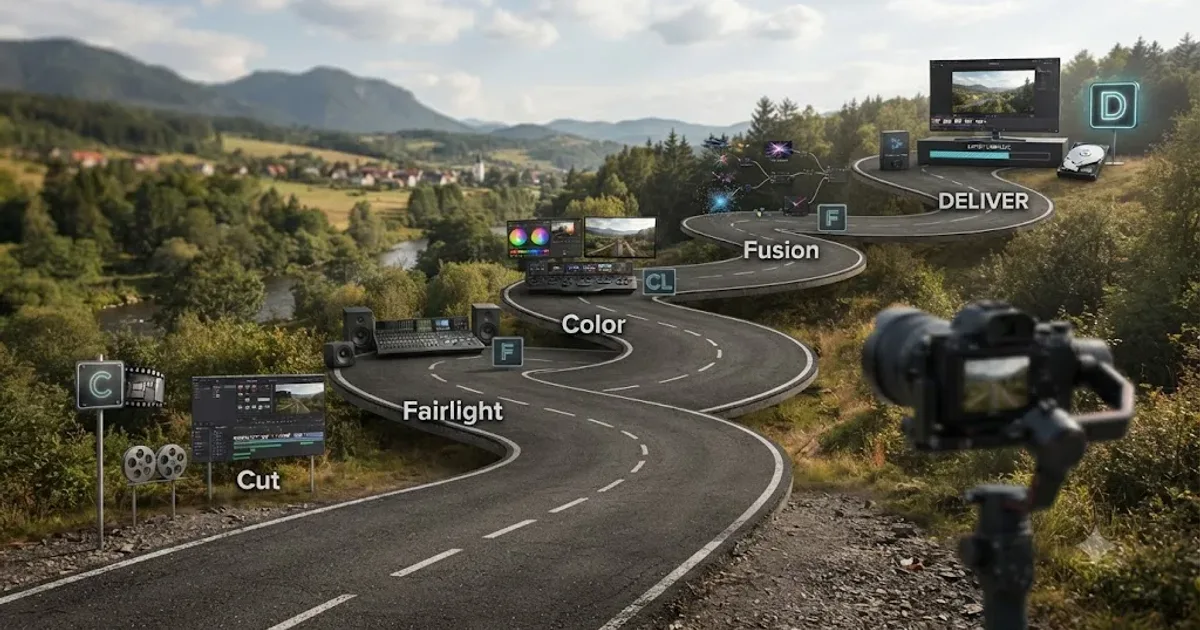
The DaVinci Resolve Learning Roadmap for Beginners
The right order to learn DaVinci Resolve: Cut or Edit, then Fairlight, Color, and Fusion, checked against Blackmagic and Ripple Training's own paths.
 ComparisonsSep 29, 202637 min read
DaVinci Resolve Edit vs Fusion for Basic Tasks
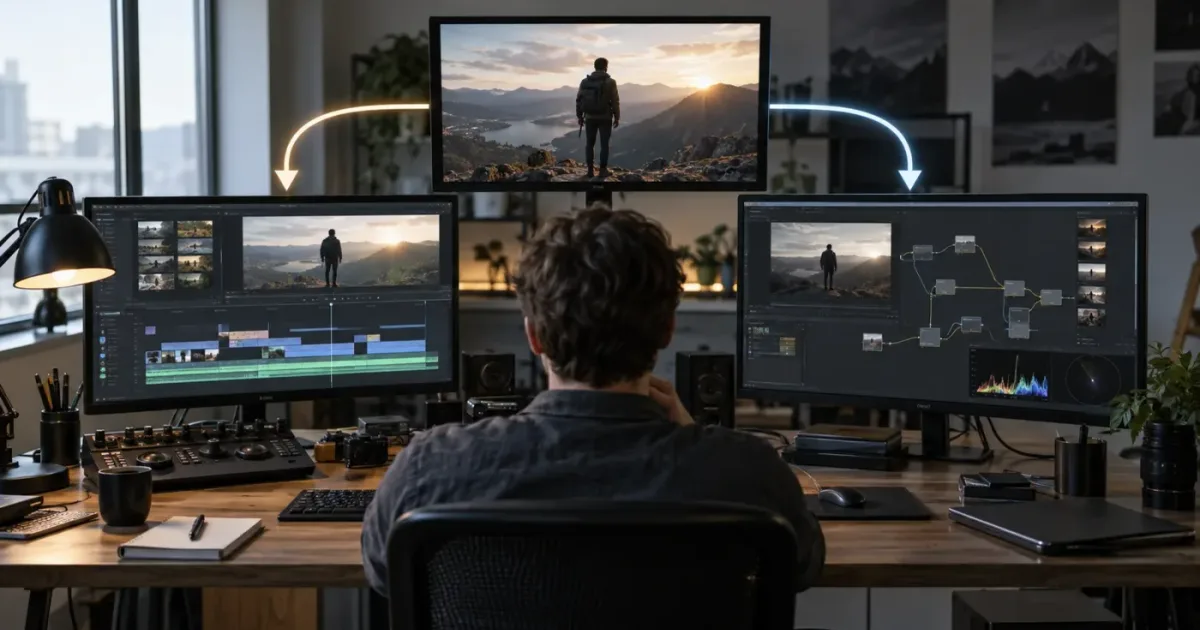
DaVinci Resolve Edit vs Fusion for basic tasks: a practical decision matrix for cutting, titles, transforms, masks, tracking, keying, and simple effects.