
Learn / DaVinci Resolveupdated for DaVinci Resolve 21.1 (September 2026)
DaVinci Resolve Subtitles Out of Sync With Audio? Fix It
Quick answer
When DaVinci Resolve subtitles are out of sync with audio, compare the first and last captions. Move the subtitle track by one fixed offset if the error stays constant; use Resolve 21's Update Word Timings or Synchronize Word Timings when the error grows, and fix audio-video sync before retiming captions.
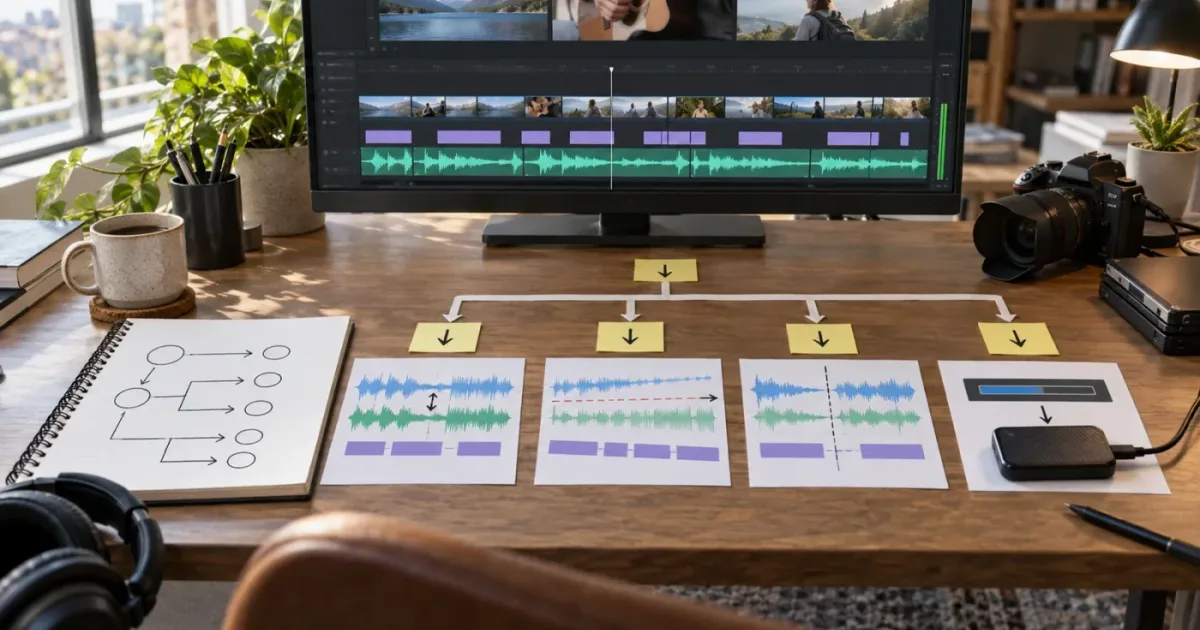
DaVinci Resolve subtitles out of sync with audio are usually telling you which timing problem you have. If every caption is early or late by about the same amount, move the subtitle track. If the gap grows as the video plays, investigate timing and frame rate instead of dragging the whole track.
We have spent 7+ years doing professional, commercial video editing, and this is one of the recurring questions in our 100,000+ member editing community. As of September 2026, the current desktop reference point is DaVinci Resolve 21.1. The steps below cover Resolve 21.1 first, with notes where the newer word-timing tools matter.
TryUncle is the on-screen assistant for DaVinci Resolve on Mac and Windows - ask in plain words and Uncle points at the exact control on your screen.
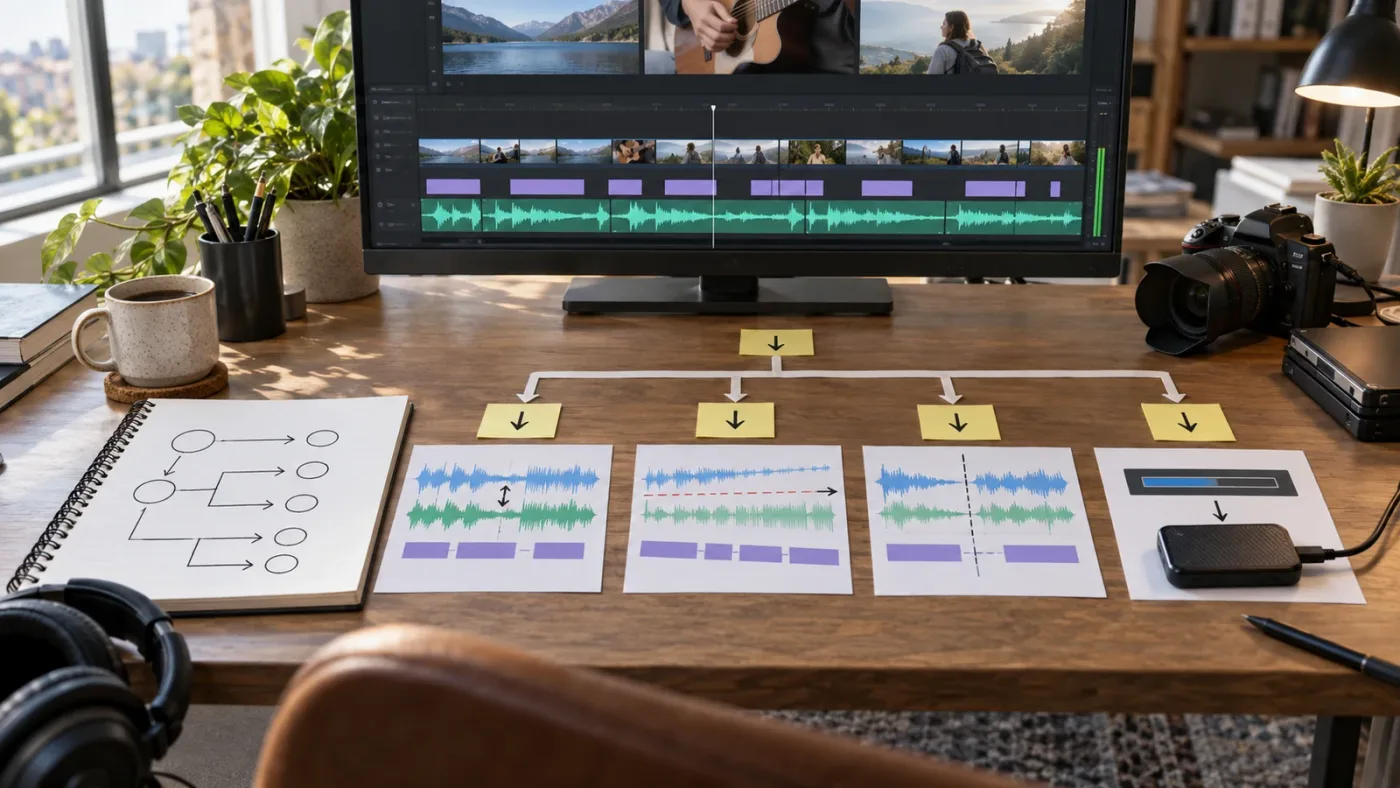
What should you check first when DaVinci Resolve subtitles are out of sync with audio?
First, compare one caption near the beginning with one near the end. The difference between those two checks tells you whether to apply one offset, retime the captions, or repair the audio and video before touching subtitles.
Do not start by re-transcribing the whole video. That can replace a timing problem with a text problem and removes a useful clue. Keep the current subtitle track, duplicate the timeline if the project is important, and make a small timing diagnosis first.
Choose three spoken moments:
- A clear sentence in the first minute.
- A clear sentence around the middle.
- A clear sentence near the end.
At each moment, listen for the first strong syllable and compare it with the subtitle's first word. You don't need perfect laboratory measurement. You need to know whether the error is roughly the same at all three points.
| What you see | First caption | Last caption | Likely problem | Best first move |
|---|---|---|---|---|
| Every caption is early or late by the same amount | Wrong by a similar amount | Wrong by a similar amount | Fixed subtitle offset | Move the affected subtitle clips together |
| The caption starts close, then becomes increasingly early or late | Nearly correct | Much more wrong | Timing-rate or frame-rate mismatch | Check timeline timing, source timing, and word timing |
| Most captions work, but one section is wrong | Correct outside the section | Correct outside the section | Local edit, trim, or caption boundary | Adjust only the affected subtitle clips |
| Captions seem wrong only because mouths and audio disagree | Audio does not match picture | Audio does not match picture | Audio-video sync problem | Sync audio and video first |
| The timeline looks right, but the exported file is wrong | Correct in Resolve | Wrong after export | Delivery or sidecar timing issue | Test the rendered video and subtitle file |
The table is a diagnostic model, not a claim that every project has one cause. The key distinction is mathematical: a fixed error can be corrected by adding or subtracting one amount, while an error that changes over time needs a timing relationship corrected.
A constant subtitle offset needs a constant timeline adjustment, not a new transcription.
Blackmagic's current documentation describes subtitle entries as timeline media that can be moved and trimmed. That is why the first fix for a constant offset is a timeline adjustment, not a search for a hidden subtitle preference. (Blackmagic Design's Edit documentation)
How do you fix subtitles that are always early or late?
If DaVinci Resolve subtitles are always early or late by the same amount, select the affected subtitle clips and move them together on the timeline until a clear spoken word lines up with its caption. This is the quickest fix for a fixed offset.
1. Find a clean alignment point
Pick a word with a sharp start, such as a hard consonant or a short, isolated phrase. Avoid a sentence that begins under music, room tone, a breath, or a crossfade. The beginning of a word is easier to compare than the end of a long caption.
Zoom into the Edit page timeline. Show the audio waveform if it is hidden. Blackmagic describes waveform overlays as a way to see where sentences start and stop, and its Media page supports manual or automatic audio-video synchronization using timecode or waveforms. (Blackmagic Design's Edit page, Blackmagic Design's Media page)
2. Move the subtitle selection
Select the subtitle clips that share the same error. If the entire track is shifted, include the whole track. If an earlier edit created a new offset halfway through the program, select only the later group.
Move the selection left when the captions appear late. Move it right when the captions appear early. Watch the first clear alignment point as you make the change, then check the middle and end. Because the subtitle entries live on the timeline, the move changes their start and end positions without changing the caption text. (Blackmagic Design's Edit documentation)
Don't rely on the subtitle text box alone. A caption can have the right words and still have the wrong in and out times. The timing is attached to the subtitle clip on the timeline.
3. Recheck the boundaries
After the first word lines up, check when the caption disappears. A subtitle can start correctly but remain on screen too long. If the beginning and end of the same caption are both wrong by the same amount, move it. If only the end is wrong, trim its out point rather than shifting the entire clip.
4. Check the next caption
Two neighboring captions may be individually close but still leave a gap or overlap. Look at the handoff between them. The next caption should arrive when its words become useful, not several beats before the speaker reaches them.
For a whole-track offset, you can now stop once the beginning, middle, and end agree. For a local error, keep the correction local. Do not move every caption because one edited section is wrong.
Why do subtitles start in sync but drift later?
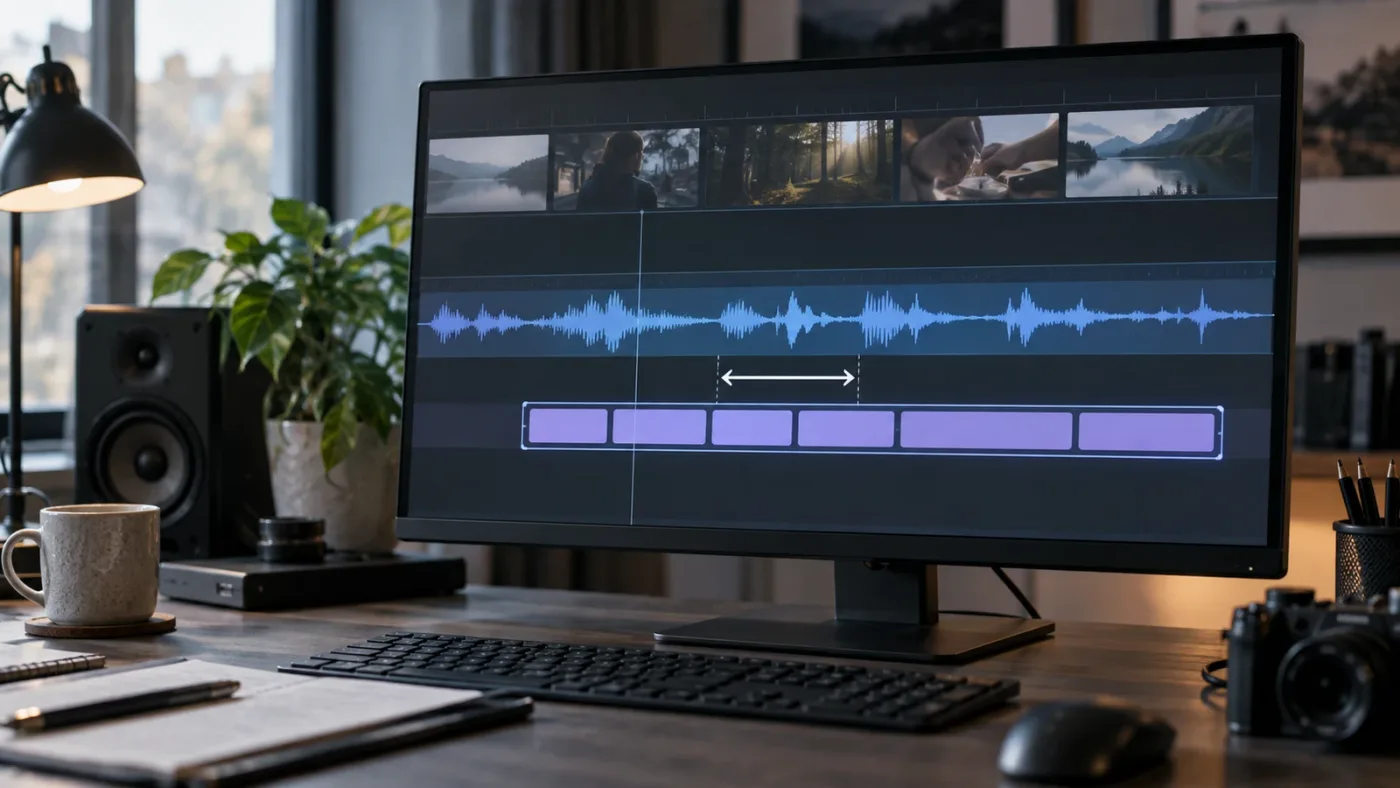
If DaVinci Resolve subtitles start in sync but drift later, the problem is progressive timing drift, so a single left or right move cannot fix it. Check the timeline frame rate, source timing, retimes, and audio-video sync before applying word-timing analysis.
Imagine the first caption is 0.4 seconds late, but the last caption is 1.8 seconds late. Moving the full track 0.4 seconds earlier fixes the first caption and leaves the last one 1.4 seconds late. The remaining error is changing over time.
That pattern can come from several places:
- The subtitle file was timed against a different version of the video.
- The timeline uses a different timing basis from the file that produced the captions.
- The picture was retimed, stretched, or edited after captions were created.
- The audio and video themselves drift, so the captions are being compared with the wrong reference.
- An imported transcription has text that is correct but word timing that is not.
The list is a set of branches to test, not a reason to blame frame rate immediately. A rate mismatch is plausible when the first caption is close and the error grows steadily. It is less plausible when one short section jumps and everything after it is consistently shifted.
Compare the beginning, middle, and end numerically
Write down three rough offsets. For example:
| Checkpoint | Spoken word begins | Caption begins | Caption error |
|---|---|---|---|
| Beginning | 00:00:10.400 | 00:00:10.000 | 0.400 seconds early |
| Middle | 00:12:30.900 | 00:12:29.900 | 1.000 second early |
| End | 00:25:04.800 | 00:25:03.000 | 1.800 seconds early |
The numbers in this example are deliberately simple. They show the shape of drift, not a benchmark or a promise about your project. If your offset changes between checkpoints, do not keep nudging the entire track and hoping the middle will land.
Confirm the timeline frame rate before retiming
Open the project settings and confirm the timeline frame rate is the one you intended for the finished sequence. Also check whether the media was conformed or retimed before the captions were imported. DaVinci Resolve 21's new features guide exposes timeline time displays in frames, subframes, or audio samples, which can help you inspect the timing basis more precisely. (DaVinci Resolve 21 New Features Guide)
Don't change the timeline frame rate as a casual experiment in a nearly finished project. A timeline-rate change can affect the relationship between media, edits, and captions. If you need to test another rate, duplicate the timeline first and compare the result at the same three checkpoints.
Confirm whether the audio and video drift without subtitles
Hide or disable the subtitle track for a moment. Watch a visible mouth movement against the dialogue. If the mouth and dialogue separate by the end, subtitles are not the first problem. Resolve's Media page can synchronize separately recorded audio and video by timecode or waveform, and it also supports manual alignment. Fix that relationship before judging subtitle timing. (Blackmagic Design's Media page)
If you need that branch in more detail, use the guide to syncing audio in DaVinci Resolve. It belongs earlier in the chain than caption correction.
A growing subtitle drift is a timing-rate problem, not a simple left or right shift.
How do you retime imported subtitles in DaVinci Resolve 21?
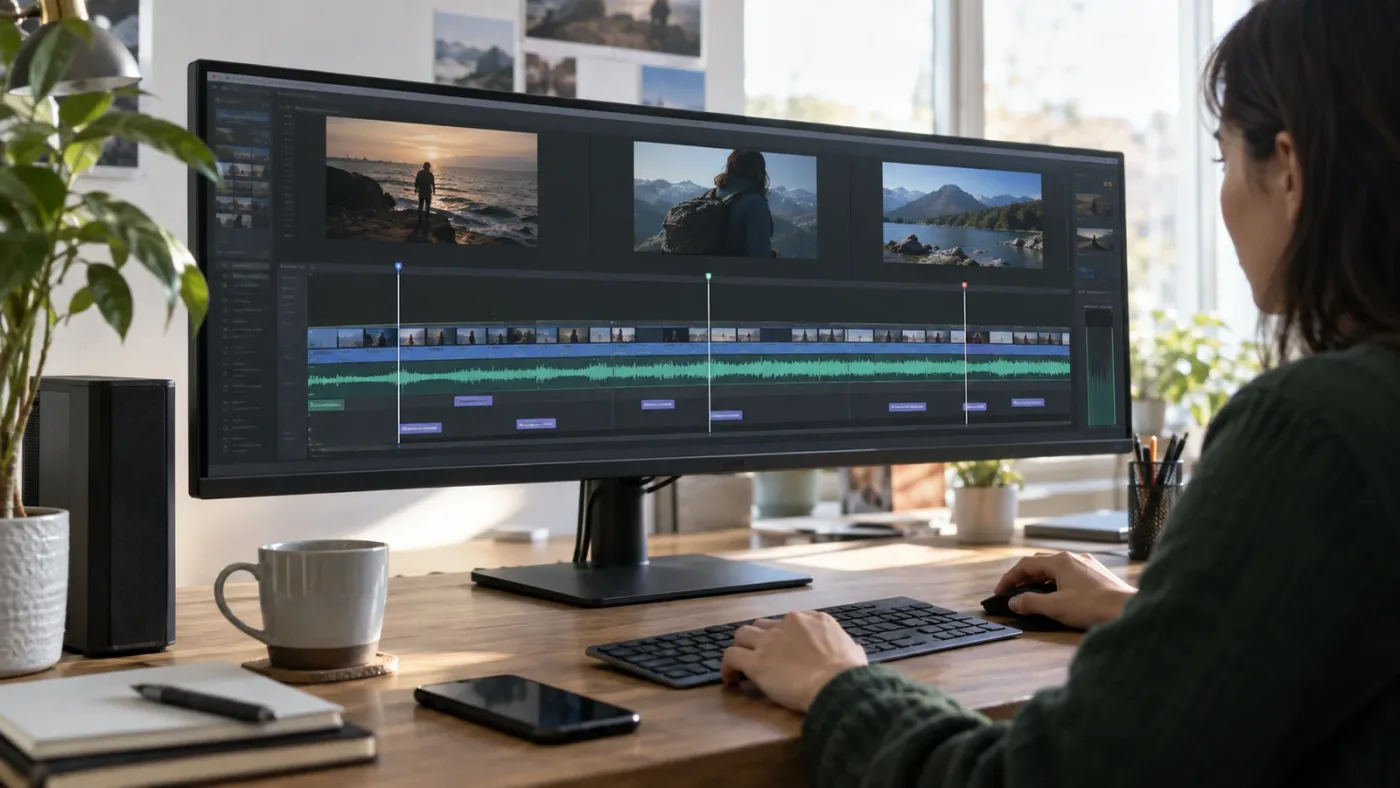
In DaVinci Resolve 21, use Update Word Timings for one subtitle clip or Synchronize Word Timings for an entire subtitle track when the caption text is present but its timing does not match the spoken audio. These tools are designed for manually entered or imported captions.
Blackmagic added external subtitle word-timing analysis in Resolve 21. The official New Features Guide says Resolve can analyze manually entered or imported captions, then lists two workflows: update the timing of one selected subtitle clip or synchronize all subtitles from the subtitle track's context menu. (DaVinci Resolve 21 New Features Guide)
Retiming one subtitle clip
Use this when one caption is wrong or when you want to test the method before changing a whole track.
- Select the subtitle clip on the timeline.
- Open the Video Inspector.
- Open the Caption tab.
- Press Update Word Timings.
- Listen to the clip again and check that the first and last words line up.
Resolve 21's guide shows the Update Word Timings control as the way to adjust a subtitle clip after a timing change. This is different from moving the clip by a fixed amount. A move preserves the internal timing relationship of the caption; word timing asks Resolve to analyze the spoken material for the caption.
Retiming every subtitle on a track
Use this when the imported caption text covers the correct spoken material but the word timing is consistently wrong across the track.
- Right-click the subtitle track header.
- Choose Synchronize Word Timings.
- Let the analysis finish.
- Check a caption near the beginning, middle, and end.
The command is specifically documented in Resolve 21's New Features Guide. It is not the same as selecting all captions and dragging them. If the entire track has a constant offset, a simple move may be more predictable. If the timing inside captions is wrong or the error changes, word timing is the more relevant test.
Import a transcription and detect timing
Resolve 21 also documents a media-pool workflow for imported transcriptions: right-click a media-pool clip, choose AI Tools, then Audio Transcription, then Import and Detect Timing. Use this when you have a subtitle or transcription file that contains the words but needs Resolve to analyze their timing against the clip audio. (DaVinci Resolve 21 New Features Guide)
The important edge case is source identity. The imported words must describe the same spoken performance as the audio Resolve analyzes. A translation, a shortened script, or a transcript from a different cut can be perfectly readable and still produce unusable timing.
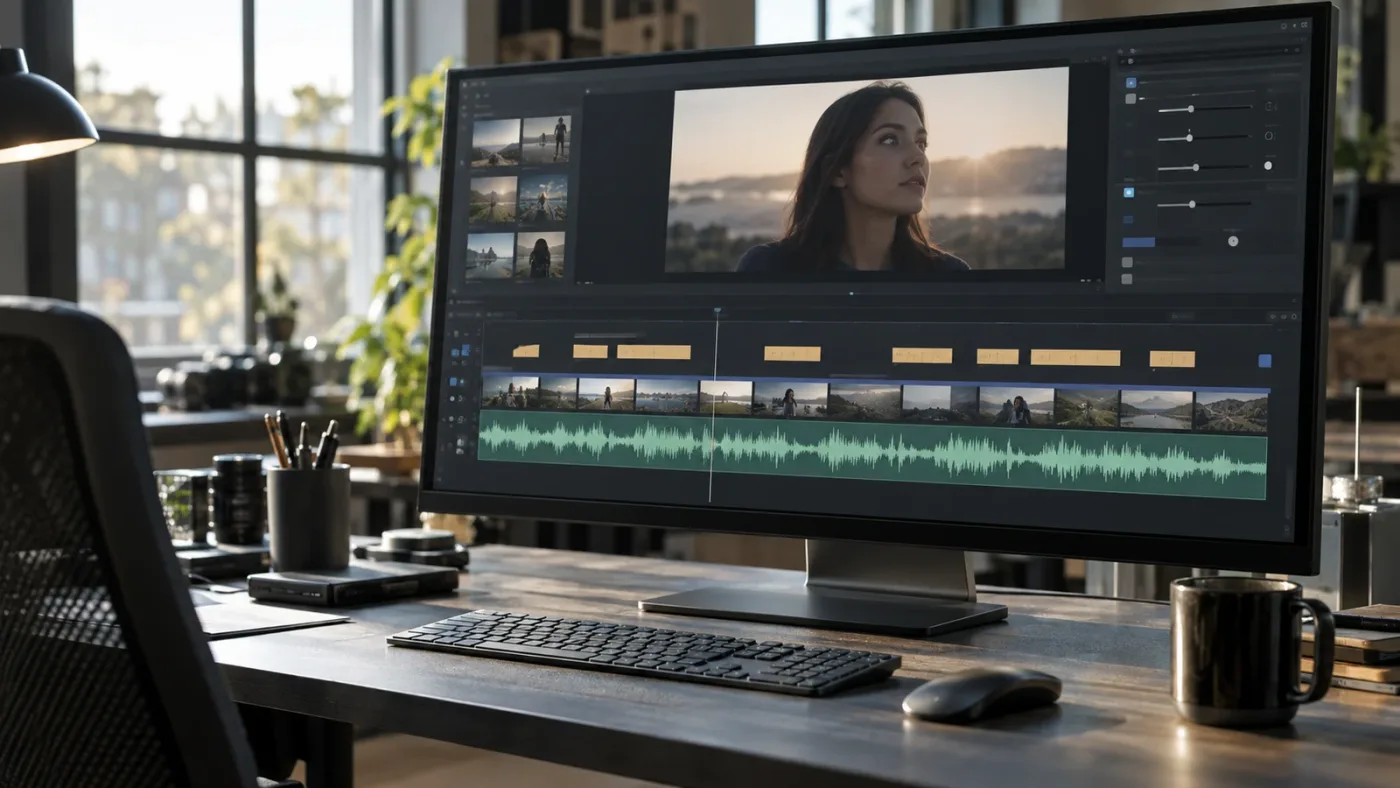
DaVinci Resolve 21 can retime imported captions by analyzing their word timing against the clip audio.
Does the SRT timestamp format cause subtitles to be out of sync?
An SRT timestamp using milliseconds does not automatically make DaVinci Resolve subtitles out of sync. SRT is a text-based format with numbered caption blocks, start and end timestamps, and subtitle text, and the Library of Congress documents its timestamp form as hours, minutes, seconds, and milliseconds.
That distinction matters because editors often see two time formats and assume they are incompatible. The subtitle file may show 00:00:10,400, while the Resolve timeline may show frames after the seconds separator. Those displays express time differently, but the display difference alone does not prove the timing is wrong.
The practical checks are:
- Does the SRT describe the same cut as the timeline?
- Does the first subtitle start at the intended point in the timeline?
- Does the timing stay aligned at the middle and end?
- Did the video receive a speed change after the SRT was created?
- Is the audio reference the same audio used when the captions were timed?
The Library of Congress describes SRT as a text file that stores subtitle timings separately from the video or audio. That means the sidecar timing must be interpreted alongside the media it was created for. (Library of Congress's SRT format description)
Vít Reiter, identified in a Blackmagic Design forum profile as a film editor, colorist, and DIT, gave the concise answer to a related SRT-rendering question: “Time code format (milliseconds or frames) has nothing to do with it.” (Blackmagic Design forum)
That quote does not mean time units never matter. It means that seeing milliseconds in an SRT is not, by itself, a diagnosis. Look at the relationship between the caption events and the actual spoken audio.
When should you edit the SRT outside Resolve?
Edit the SRT as text only when you have a known, repeatable reason, such as a consistent timestamp offset across a file or a small number of obvious entries. Keep a copy of the original. A text editor can change timestamps, but it cannot tell whether the subtitle file matches your current cut.
If the file has progressive drift, bulk text replacement is risky. Resolve's timeline and word-timing tools give you a way to compare the captions with the media they belong to. Use those tools first when the source audio is available.
What if only one section of the subtitle track is wrong?
If only one section is out of sync, correct that section instead of moving the entire subtitle track. A local error usually follows an edit, trim, speed change, missing caption, or boundary mistake.
Start by finding the first caption that becomes wrong and the first caption that becomes correct again. Those two points define the repair area. Do not use a whole-track offset when the rest of the program already lines up.
After an insert or delete
If you added or removed picture after creating subtitles, the subtitle track may still reflect the older sequence. Compare the first caption after the edit. If every caption after that edit is shifted by the same amount, move only the later group.
This is especially easy to miss when the edit changes picture but leaves the subtitle track untouched. Subtitles appear above the video tracks and can be moved or trimmed as timeline media, so treat the caption track as part of the edit rather than as a permanent overlay. (Blackmagic Design's Edit documentation)
When a single caption has the wrong duration
Select the caption and inspect its start and end. If its first word lands correctly but it stays on screen too long, trim the end. If the next caption begins too soon, trim the next start or adjust the handoff between the two captions.
Do not stretch a single caption to compensate for a track-wide drift. The fix should match the shape of the error.
When a section was retimed
If a clip or section was slowed down, sped up, or replaced with a different take, the original subtitle timing may no longer belong to that section. Use a short test range. If the words match but their timing does not, try Update Word Timings on the affected captions in Resolve 21.
If the text itself describes an earlier cut, return to the caption source and revise the wording before asking Resolve to analyze timing. Timing tools cannot make an old transcript describe new dialogue.
If you need to rebuild captions rather than repair them, start with how to add subtitles in DaVinci Resolve. This page is about timing diagnosis, not a complete caption-creation workflow.
A subtitle track is timeline media, so edits that change the timeline can change where captions appear.
How do audio-video sync problems affect subtitles?
If the dialogue is already out of sync with the picture, fix the audio-video relationship before fixing subtitles. Captions can be perfectly timed to the audio and still look wrong when the mouth movement is the reference the viewer notices.
Resolve supports syncing separately recorded audio and video by timecode or waveform on the Media page, and it supports manual alignment as well. Its Edit page also provides waveform overlays that help you locate sentence starts and stops. (Blackmagic Design's Media page, Blackmagic Design's Edit page)
Use this order:
- Compare the spoken audio with visible mouth movement.
- If they disagree, sync the audio and video.
- Confirm that the dialogue stays aligned at the beginning, middle, and end.
- Only then compare subtitles with the corrected dialogue.
The order prevents a common mistake: shifting captions to hide a bad audio edit. If the audio is late by half a second and the captions are correctly timed to that audio, moving captions earlier makes them wrong relative to the dialogue while leaving the original audio problem untouched.
What if the audio is from a different take?
A different take may have different pauses, breaths, and sentence lengths even when the script is identical. Word timing can only follow the audio it analyzes. Make sure the subtitle text and the selected audio belong to the same performance.
What if the waveform is missing?
If the waveform is not visible, use the DaVinci Resolve audio waveform troubleshooting guide. You can still listen and align by timecode, but a visible waveform makes it easier to identify the start of a syllable or sentence.
How should you verify the fix after export?
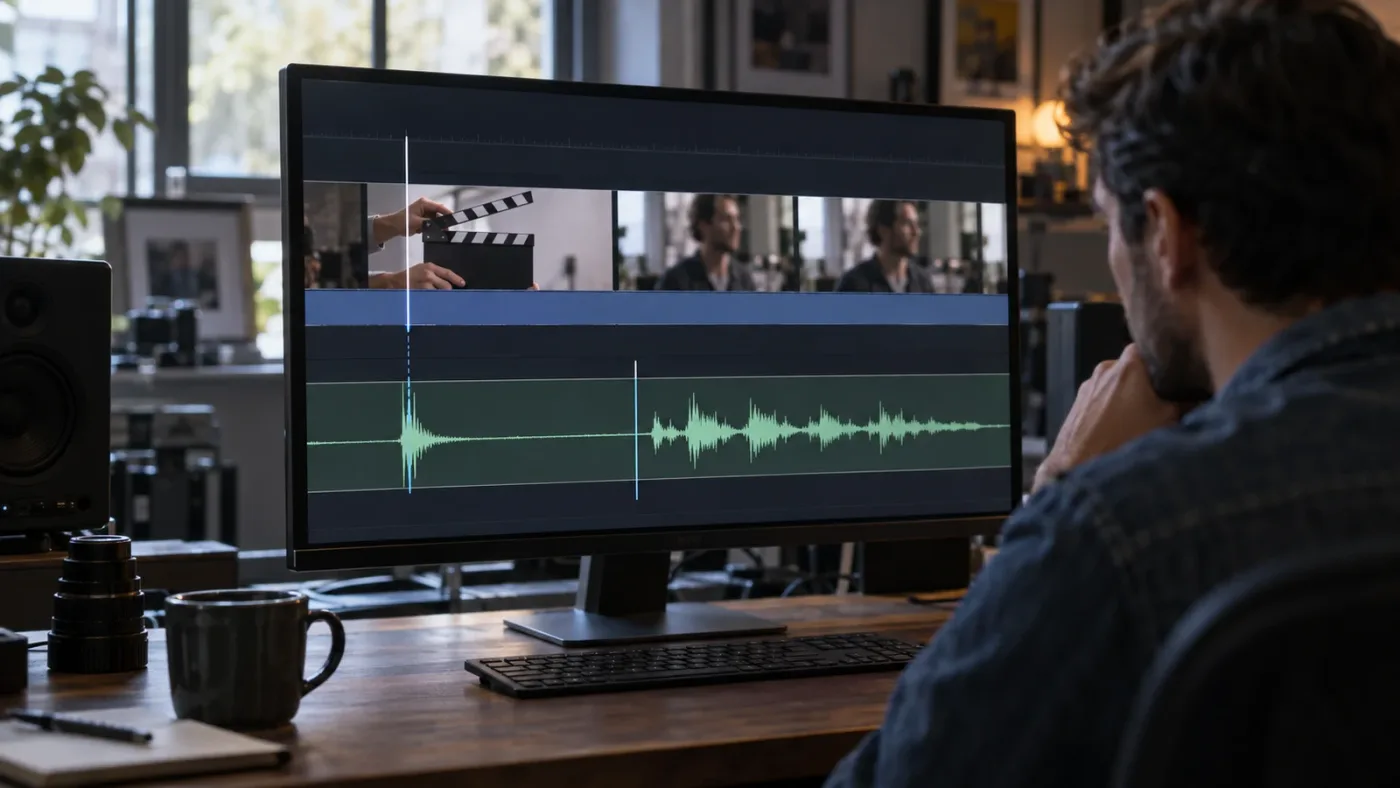
Verify the exported video and any separate subtitle file at three points: the beginning, middle, and end. A track that looks correct in the Edit page can still be delivered with the wrong subtitle mode, wrong track, or a timing change that appears only in the final file.
Resolve's Edit documentation lists support for importing timed text formats including TTML, SRT, and XML, along with embedded MXF and IMF subtitles. It also describes exporting subtitles in the final video or as separate subtitle files. (Blackmagic Design's Edit documentation)
If you are burning subtitles into the video
Watch the actual rendered picture. Check that the caption appears at the intended spoken word and that its screen duration is comfortable. Do not use the presence of visible text as proof of correct timing.
If you are exporting a separate subtitle file
Open the delivered video with the delivered subtitle file in the player or platform that will receive it. A sidecar file is separate text and timing data, so validate the pair together. The Library of Congress describes SRT as a text-based file played alongside video or audio, not as a container for the media itself. (Library of Congress's SRT format description)
A compact delivery check
| Check | Pass condition |
|---|---|
| Beginning | The first clear caption follows the first spoken word at the intended point |
| Middle | A caption still aligns after the project has played for several minutes |
| End | The final caption has not accumulated visible drift |
| Boundaries | Captions do not overlap, flash, or remain after the spoken phrase ends |
| Export | The rendered video or sidecar file matches what you checked in Resolve |
If the beginning passes but the end fails, return to the progressive-drift branch. If all three pass but one sentence is wrong, return to the local-section branch. A clean verification pass should tell you which repair, if any, remains.
The safest export check is to watch the rendered file, not just the subtitle track in the Edit page.
Which DaVinci Resolve subtitle fix should you choose?
Choose the smallest fix that matches the timing pattern. Move the track for a fixed offset, retime a local group for a local edit, use Resolve 21 word timing when imported captions need new timing, and repair audio-video sync before caption correction when the dialogue itself drifts.
| Your result | Choose this | Avoid this |
|---|---|---|
| Same error at beginning, middle, and end | Move the affected subtitle clips together | Re-transcribing everything |
| Error grows over time | Check timeline and source timing, then test word timing | Repeating the same fixed offset |
| One edit breaks the rest of the captions | Shift or retime only the affected section | Moving captions that already work |
| Audio and picture disagree | Sync audio and video first | Making subtitles compensate for bad A/V sync |
| Export differs from the timeline | Check subtitle delivery mode and the delivered pair | Assuming visible captions mean correct timing |
The current Resolve 21 toolset gives you both kinds of correction: direct timeline editing for a fixed position and word-timing analysis for imported or manually entered captions. Those tools solve different problems. Use the symptom to choose between them.
If you learn DaVinci Resolve fast by asking questions while you work, TryUncle can point at the exact timing control in your own project on Mac or Windows. It does not repair the captions for you, and it should not replace the checks above.
If one sentence remains, use the smallest correction that fixes that sentence. If the error grows, stop dragging and inspect the timing relationship. That distinction is what turns DaVinci Resolve subtitles out of sync with audio from a frustrating guess into a short diagnosis.
Frequently asked questions
- Why are my DaVinci Resolve subtitles out of sync with audio?
- A constant error usually means the subtitle track has a fixed offset. A growing error usually means the caption timing does not match the timeline's timing, or the audio and video are already drifting apart. Compare the first and last captions before changing anything.
- How do I move all subtitles in DaVinci Resolve?
- Select the subtitle clips that need the same correction and move them together on the timeline until a spoken word and its caption line up. Resolve treats subtitles as timeline media, so you can move and trim them like other media.
- How do I retime imported subtitles in DaVinci Resolve 21?
- Select a subtitle clip, open the Video Inspector Caption tab, and choose Update Word Timings. To retime a whole subtitle track, right-click its track header and choose Synchronize Word Timings.
- Does an SRT millisecond timestamp cause subtitles to be out of sync in DaVinci Resolve?
- Usually not by itself. SRT uses hours, minutes, seconds, and milliseconds, while the timeline displays frames or other time units. The important question is whether the subtitle timings match the media and timeline, not whether SRT uses milliseconds.
- Why are subtitles synced at the beginning but drift later in DaVinci Resolve?
- That pattern is progressive drift, so a single offset will not fix it. Check the timeline frame rate, the source timing, retimes, speed changes, and whether the audio and video themselves stay aligned before using word-timing synchronization.
Sources
Learn by doing, not watching
Stop translating tutorials to your timeline.
TryUncle stays beside Resolve on Mac and Windows. When you ask, Uncle sees your screen and points at the exact control you need. No hunting through tabs, timestamps, or mismatched tutorials.
Meet TryUncleKeep reading
 GuidesJul 8, 202639 min read
How to Sync Audio in DaVinci Resolve, Every Method
Sync audio and video in DaVinci Resolve with Auto Sync Audio, timecode, the Sync Bin, or a manual clap, plus fixes for drift and failed matches.
 GuidesJul 8, 202638 min read
How to Add Subtitles in DaVinci Resolve (Manual and AI)
How to add subtitles in DaVinci Resolve: manual typing, AI auto-captions, styling, multi-language tracks, and exporting for YouTube or broadcast delivery.
 FixesSep 26, 202620 min read
DaVinci Resolve Audio Waveform Not Showing? Fix It
Fix a DaVinci Resolve audio waveform not showing with display, track height, cache, media, and regeneration checks for Resolve 21.1.