
Learn / DaVinci Resolveupdated for DaVinci Resolve 21.1 (October 2026)
DaVinci Resolve Proxy Media Not Being Used? Fix It
Quick answer
If DaVinci Resolve proxy media is not being used, set Playback > Proxy Handling > Prefer Proxies, then confirm the selected clip has an online proxy linked in the Media Pool. In Resolve 21.1, check the proxy status and path, relink missing files if needed, and remember that timeline proxy resolution and render cache are separate from proxy media.

I’d check the playback preference before generating anything again. A proxy can exist on disk and still not be the media Resolve chooses for playback. As of October 2026, the current major version is DaVinci Resolve 21, with Blackmagic Design listing Resolve 21.1 in its support center. Menu labels can differ in older releases, so this guide calls out the version-sensitive names where they matter.

Why is DaVinci Resolve proxy media not being used?
DaVinci Resolve proxy media is not being used most often because the project prefers camera originals, the selected clip has no linked proxy, or the proxy file is offline. Start with Playback > Proxy Handling > Prefer Proxies, then check the clip's proxy status in the Media Pool before changing cache or timeline settings.
That sequence separates the three most common kinds of problem:
- The preference is wrong. Resolve has a proxy, but it is set to use camera originals.
- The proxy is not attached. The file exists somewhere, but Resolve does not associate it with the source clip.
- The linked file is unavailable. Resolve knows a proxy should be there, but the saved path no longer points to it.
Those cases can look alike when you only watch the viewer. The status indicator and the file path tell you which one you have.
In Resolve 18 and later, the playback control is named Proxy Handling. Open Playback > Proxy Handling and choose Prefer Proxies. Resolve 17's documented workflow used Playback > Use Proxy Media If Available instead. Don't follow an older tutorial's menu path without checking its version. Blackmagic's Resolve 17 proxy workflow guide and Resolve 18.6 guide show the change in terminology and the later proxy-handling selector.
A proxy file can be present on your drive without being the file Resolve is currently playing.
For an initial check, choose one affected clip in the Media Pool, set Proxy Handling to Prefer Proxies, and inspect the proxy icon or status. Don't generate replacements yet. If the clip already has a usable linked proxy, changing the preference may be all that's needed. If it doesn't, creating another proxy won't necessarily fix a broken path or association.

How do I confirm Resolve is actually using a proxy?
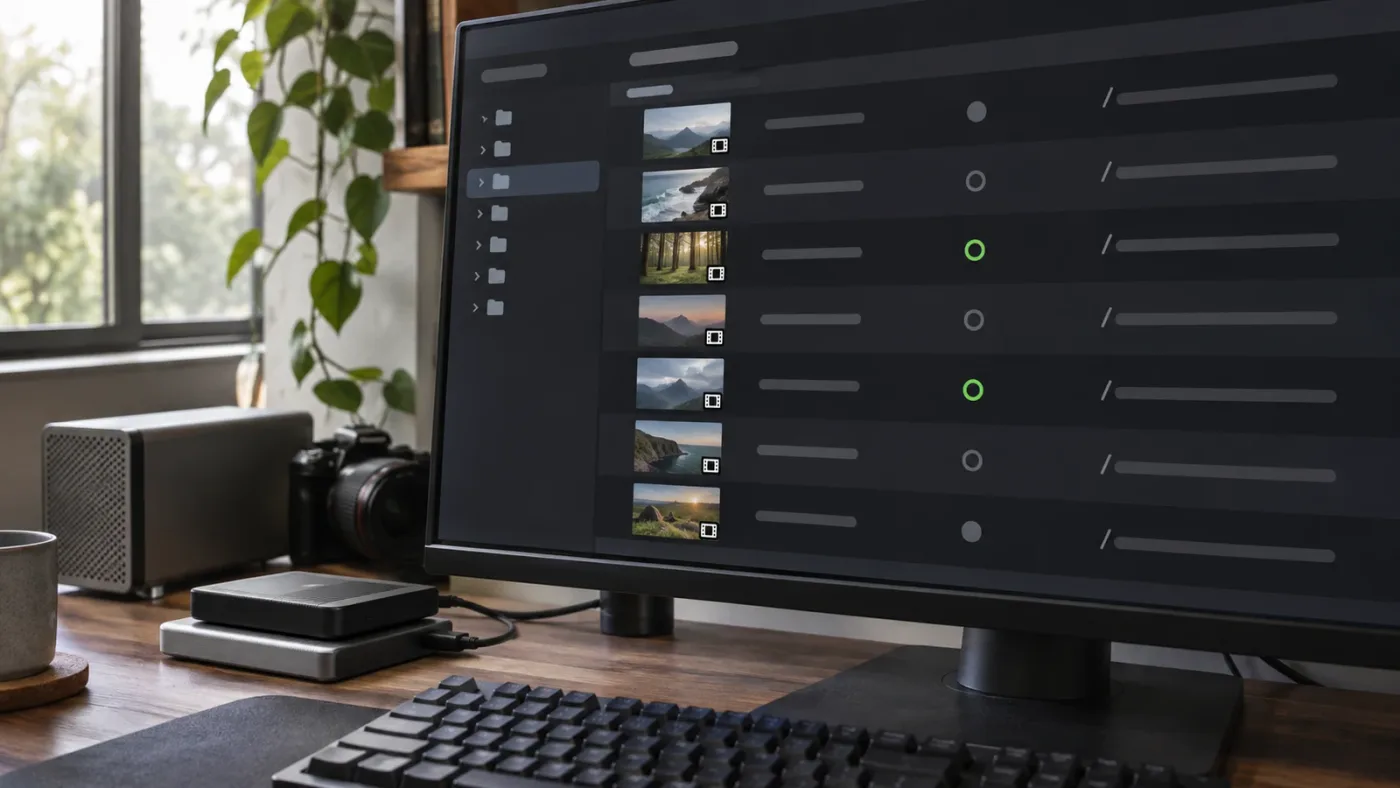
The clearest confirmation is the selected clip's proxy status in the Media Pool, combined with the Proxy Handling preference. In Resolve 18.6, Blackmagic documents distinct icons for proxy-only media, proxy-preferred media, and camera-original-preferred media.
An icon can be easy to misread, especially if you've upgraded or followed a guide for a different version. In the Resolve 18.6 guide, Blackmagic describes these indicators:
| Status icon described in Resolve 18.6 | What it indicates |
|---|---|
| Purple PXY on a white background | Both originals and proxy media are present, and proxy media is being used when preferred |
| White HQ on a purple background | Both originals and proxies are present, but the original camera media is being used |
| Purple PXY with no original available | Only proxy media is available |
| No proxy status icon | Proxy workflow is disabled for that clip or the media is being treated as camera original |
The icon descriptions above come from Blackmagic's Resolve 18.6 New Features Guide. Check the current Resolve 21.1 manual from the Blackmagic Design Support Center if the UI in your installed release presents a different indicator. A white-and-purple icon does not mean the same thing as a purple-only icon in the 18.6 documentation.
You can also make the Media Pool expose the underlying status rather than relying on a small badge:
- Change the Media Pool to List View.
- Right-click a column heading.
- Enable the Proxy and Proxy Media Path columns.
- Find the affected source clip and read both fields.
The Proxy field indicates whether Resolve sees no proxy, an offline proxy, or an available proxy with a listed resolution. Proxy Media Path tells you where Resolve expects the file to be. Blackmagic documents these fields in its Resolve 17 proxy workflow guide.
The status is more useful than a guess based on sharpness. A half-resolution proxy can still look fairly detailed in a small viewer. Conversely, a soft-looking image may be caused by viewer scaling, timeline playback resolution, or the source itself, even when the proxy isn't involved.
Check one clip at a time first. If one clip shows an online proxy path and another shows None or Offline, you've found a media-association issue, not a project-wide playback preference issue. If every clip shows a healthy proxy but the viewer still reads from originals, check Proxy Handling and confirm you're inspecting the same timeline clip you selected in the Media Pool.
How do I switch from camera originals to proxies?
To use linked proxy files for playback, choose Playback > Proxy Handling > Prefer Proxies. This is a preference, not a command to create proxies, so it only affects clips that already have proxy media attached and available.
In Resolve 18.6, the Proxy Handling selector is a global choice for viewers across Resolve. The three useful options are:
| Playback choice | What Resolve prefers | Useful when |
|---|---|---|
| Prefer Proxies | Linked proxy media when available; camera originals can be used when a proxy isn't available | Editing for smoother playback or working with smaller linked media |
| Prefer Camera Originals | Original media when available; proxies may serve as fallback if originals are unavailable | Checking full-resolution source media during finishing |
| Disable All Proxies | Camera originals only | Verifying behavior against the source or troubleshooting proxy differences |
Blackmagic's Resolve 18.6 guide describes the selector as controlling which type of media Resolve uses in its viewers. The menu name is easy to confuse with Timeline Proxy Resolution, but those are separate controls.
Here's a careful test:
- Open the timeline and select a clip that you know has a proxy.
- Choose Playback > Proxy Handling > Prefer Proxies.
- Check that the selector shows Prefer Proxies as the current choice.
- Look at the selected clip's proxy badge or its Proxy field in List View.
- Scrub or play a section of that clip.
- Switch temporarily to Prefer Camera Originals, then back to Prefer Proxies.
This is a diagnostic comparison, not a performance benchmark. The two views may appear nearly identical if the proxy was made at full resolution or with a high-quality codec. The point is to verify that Resolve changes the selected media preference and that the proxy remains linked.
If the menu is set correctly but the status says None, Resolve has no proxy association for that clip. If it says Offline, the association exists but the expected file can't be found. Those are different fixes. Relinking addresses the latter and can address externally generated media that hasn't been linked yet; generating proxy media is appropriate when no proxy exists.
Prefer Proxies tells Resolve which linked media to favor; it does not create, relink, or repair proxy files.

Why does Resolve say the proxy is offline?
An Offline proxy status means Resolve has a proxy association but cannot access the file at the stored path. A moved drive, renamed folder, disconnected volume, changed mount point, or transferred project can leave the saved path pointing to a place that no longer contains the proxy.
Begin with the Proxy Media Path column. Read the location Resolve is expecting, then compare it with where the proxy file actually lives. Don't start by deleting the proxy or rebuilding the project. First establish whether the file still exists.
A safe relink procedure is:
- In the Media Pool, select the source clip or the group of affected source clips.
- Right-click and choose Link Proxy Media.
- In the file browser, navigate to the matching proxy file or directory.
- Confirm the selection and wait for the status to update.
- Recheck the Proxy and Proxy Media Path columns.
- Set Proxy Handling to Prefer Proxies and test the timeline again.
Blackmagic's Resolve 17 guide documents Link Proxy Media for connecting externally generated or moved proxies and explains how the Media Pool displays proxy status and path. The exact options can change between releases, so use the Reference Manual for your installed Resolve version through the Blackmagic Design Support Center.
Check the volume before relinking
If the proxy path points to an external SSD, network share, or removable drive, make sure that volume is mounted and accessible to the operating system. A drive name or mount location can differ between machines. On a shared project, another editor may have stored media on a volume that your workstation doesn't have.
Avoid relinking to a similarly named file just because it appears in the browser. Choose the proxy that belongs to the selected source. A wrong match can produce confusing results, including a clip that plays but does not correspond to the expected source or timecode.
If the project was moved to another computer, investigate both the proxy path and the source-media path. An online proxy can allow editing while the camera original is offline, but that does not mean the original has been safely transferred or will be available for final finishing. For a portable handoff, plan both the project file and media locations; the catalog's guide to archiving a DaVinci Resolve project without losing media covers the broader handoff problem.
When the file exists but Resolve still won't link it
Resolve may reject a file if it doesn't meet the expectations for proxy association. Blackmagic's Resolve 17 documentation lists matching file name without the extension, matching timecode, matching frame rate, and a format and codec supported by Resolve as criteria for externally generated proxies. Treat these as verification points, not assumptions about every file produced by every encoder.
For a proxy made in another application, compare the following with the source:
- Clip name, ignoring the extension.
- Timecode.
- Frame rate.
- File format and codec compatibility.
- Whether you've selected the source clip in Resolve, rather than imported the proxy as a separate source item.
For example, suppose a source is called Interview_CamA_001.mov, while an external encoder produced Interview_CamA_001_proxy.mp4. The names don't match if the proxy suffix changes the base name. Resolve may not treat the file as the associated proxy automatically. Use the documented linking workflow and check the status after linking rather than assuming the naming convention worked.
That filename is a worked example, not a claim about a tested project. For critical work, verify the linked proxy's content against the original before editing extensively. A successful link should be followed by a check of the clip, not treated as proof that every attribute matches.
Why does Prefer Proxies still show camera originals?
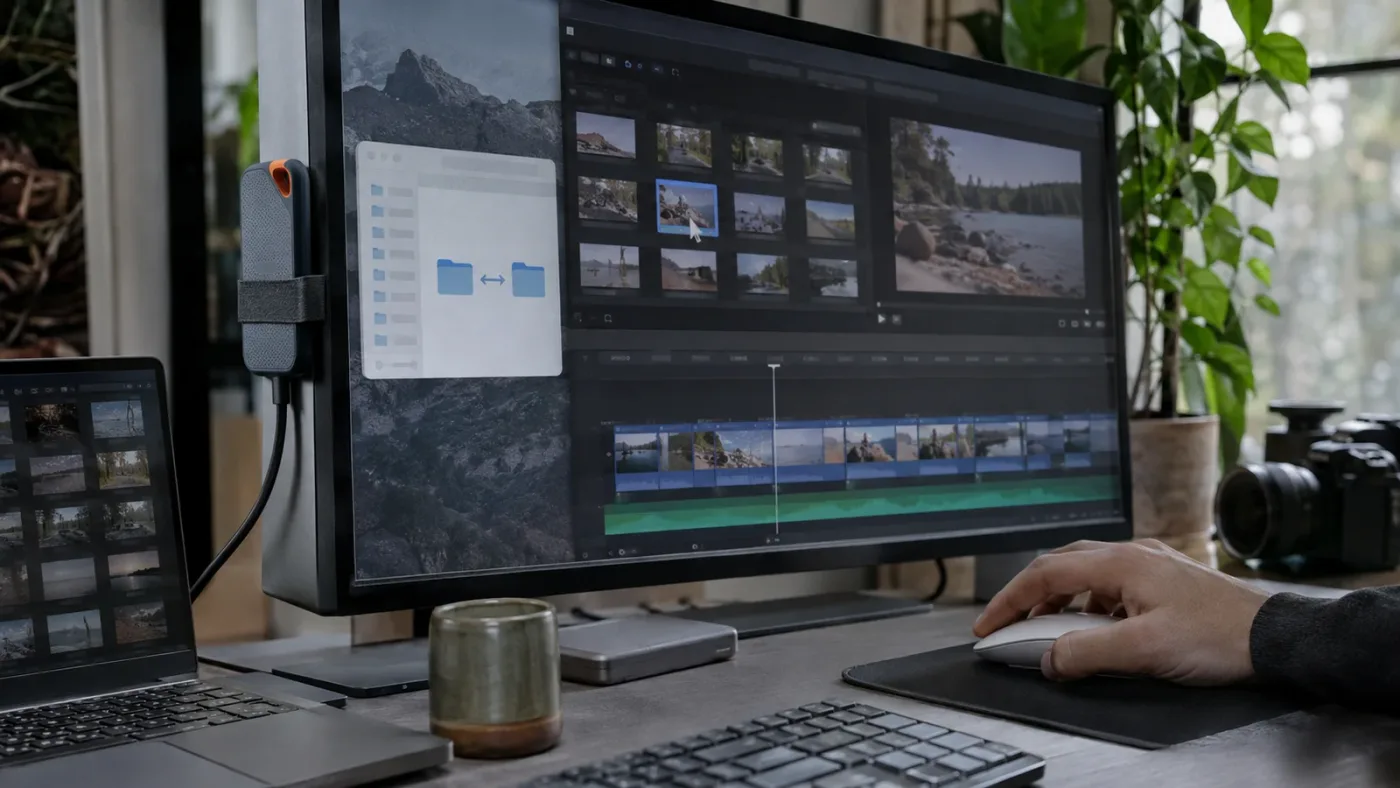
If Prefer Proxies is selected and a clip still uses its original, first check whether that particular clip has an online proxy. Prefer Proxies means “use a proxy when one is available,” not “force every timeline clip to use a proxy whether or not one exists.”
A mixed timeline can contain clips with different states:
| Clip state | What you may see with Prefer Proxies |
|---|---|
| Proxy linked and online | Resolve can use the proxy |
| Proxy not generated or linked | Resolve has no proxy to use for that clip |
| Proxy linked but offline | Resolve cannot read the expected proxy file |
| Proxy available but another clip is selected | The status you see may belong to a different clip |
| Proxy deliberately disabled | Resolve may show or use camera-original media, depending on the setting and availability |
The Resolve 18.6 guide says Prefer Proxies uses proxy files where available and falls back to camera originals for clips without proxies. That explains why selecting Prefer Proxies does not necessarily make every clip in the timeline display a proxy indicator.
A useful audit is to sort or inspect the Media Pool's Proxy column. If some clips show a proxy resolution and others show None, the project has partial proxy coverage. Decide whether you need to generate proxies for the clips that lack them, or whether those clips are simple enough to edit as originals.
Also check which media item the timeline clip came from. If you imported a proxy as a separate file and edited that item directly, you may be looking at a standalone media clip rather than a source clip with an attached proxy. The timeline's visible picture alone won't explain the relationship. The Media Pool entry and its proxy metadata will.
A clip's image looks unchanged after switching
A proxy can look like the original. If you generated it at Original resolution or chose a high-quality format, the visual difference may be too subtle to spot in the viewer. Proxy use is about which file Resolve reads, not a guarantee that the picture will visibly soften.
Use the status icon and path columns as the primary evidence. You can also compare the file path information and file properties outside Resolve, but don't infer that a proxy is inactive just because the picture looks crisp.
Only some shots switch
This usually points to uneven proxy availability or association. One camera card may have been processed while another was skipped. A folder-based generator may have watched only some directories. An editor may have received proxy files for selected bins, not the whole shoot.
Inspect a representative clip from each camera, card, or folder. If the pattern follows one source group, check how those files were generated and where their proxy media was saved. Avoid repeatedly changing the global preference when the difference is clearly clip-specific.
One global proxy preference can produce different results across clips because each clip has its own proxy availability and link status.

Is Timeline Proxy Resolution the same as proxy media?
No. Timeline Proxy Resolution lowers the resolution used for timeline playback, while proxy media is a separate media file linked to the source clip. Changing playback resolution does not generate a proxy, attach one, or repair an offline proxy path.
This distinction matters because Resolve has several ways to reduce playback load. They can all affect how responsive the viewer feels, but they don't do the same job.
| Feature | What it changes | Does it create a linked proxy file? |
|---|---|---|
| Proxy media | Which associated media file Resolve prefers for a clip | No; generating proxy media is a separate operation |
| Timeline Proxy Resolution | The resolution used to display timeline playback | No |
| Optimized Media | Generated media Resolve can use for playback according to its settings | It creates optimized media, which is distinct from Proxy Media |
| Render Cache | Cached results for timeline processing and effects | No; it caches rendered results, not the source proxy relationship |
The names and exact controls are version-sensitive. For current instructions, consult the Resolve 21.1 Reference Manual from Blackmagic's Support Center. The distinction between proxy files and timeline proxy resolution is also reflected in Blackmagic's documentation on its proxy workflow and playback controls.
If your goal is to use an already generated proxy, choose Prefer Proxies under Playback > Proxy Handling. If your goal is simply to reduce the viewer's playback resolution temporarily, use the timeline proxy-resolution control. If playback still stutters after confirming the proxy is online and in use, test render cache separately rather than treating cache as a proxy switch.
Don't turn every performance control on at once. Change one setting, observe the result, and note what changed. Otherwise, you won't know whether smoother playback came from a proxy, a lower timeline resolution, cached effects, or a combination.
When should I use timeline resolution instead?
Use timeline proxy resolution when you want a quick playback-resolution adjustment and don't need a separately generated, portable proxy file. Use linked proxy media when you want Resolve to read a proxy file associated with the source, especially when moving a project or coordinating media across systems.
A lower playback resolution may not solve all bottlenecks. It doesn't change a clip's codec, repair a slow storage connection, or remove the computational cost of every effect. Likewise, a proxy file doesn't guarantee smooth playback if the proxy itself is stored on a slow or disconnected drive or the timeline contains demanding processing.
Is render cache stopping my proxies from working?
Render cache and proxy media are separate systems. A cache can affect what Resolve displays or how smoothly a processed section plays, but it does not set the proxy preference or relink a proxy file.
This difference is especially important when a clip appears unchanged after you switch proxy handling. A cached result can make it difficult to judge the visual effect of a change by eye, but the correct diagnosis is still to verify the selected media status and preference.
Try a controlled check:
- Note the current Proxy Handling choice.
- Confirm the selected clip has an online proxy.
- Choose Prefer Proxies.
- Check whether the clip's proxy status reflects that choice.
- If the picture seems stale or does not reflect a change in an effect, investigate the relevant render cache separately.
Don't clear all cache as a first step when the problem is that a proxy status says None or Offline. Cache deletion doesn't create a proxy link. If the actual symptom is a cached effect not updating, use the focused troubleshooting guide for DaVinci Resolve render cache not updating after changes. For cache locations and storage behavior, see where to find DaVinci Resolve cache files.
A simple way to keep the diagnosis clear is to ask two different questions:
- Which media file is Resolve using? Check Proxy Handling and the proxy status.
- Is Resolve reusing a rendered result? Check render cache and the affected cached clip or effect.
The first question is about source media selection. The second is about rendered playback results. They can affect the same timeline, but fixing one doesn't automatically fix the other.
When might cache be the real issue?
Cache is a stronger suspect when the problem concerns an effect, grade, or rendered section that seems not to update after an edit. Proxy status is the stronger suspect when Resolve uses the camera original despite your preference, shows an offline proxy path, or reports no proxy for the clip.
This is a diagnostic distinction, not a claim that cache never interacts with playback. The practical point is to avoid deleting cache in response to a proxy-link problem. If the proxy field is offline, fix the media path. If the proxy field is healthy but the effect output looks stale, inspect cache.
Clearing render cache cannot repair a missing proxy association or an invalid proxy-media path.
Why is Resolve still using originals after I generated proxies?
Generating proxies and choosing them for playback are separate actions. Resolve can finish proxy generation while the project remains set to Prefer Camera Originals, or it can generate files that aren't correctly linked to the source clips.
After generation, verify both the preference and the association. In the Media Pool, check that affected source clips show an available proxy, then set Playback > Proxy Handling > Prefer Proxies. If the status remains None or Offline, investigate the proxy generation location and link rather than generating the same files again.
Confirm the generation location
Blackmagic's Resolve 17 proxy documentation places generated proxy media in the Proxy generation location configured in the project's Master Settings under Working Folders, and notes that proxies are organized into subfolders. The exact settings layout can change in later versions, so check the installed Resolve manual when menu labels differ.
If you expected proxies next to camera originals but chose a separate project-wide location, inspect that configured destination. If the destination is a removable drive or shared volume, confirm it is mounted and accessible. A successfully generated file at an old path doesn't help if the project now expects another location.
Check whether generation actually completed
A queued, canceled, or interrupted generation job doesn't guarantee that every selected clip now has a complete proxy. Inspect individual clip statuses rather than relying on a progress message or the fact that some clips switched.
If only certain files are missing proxies:
- Select those source clips in the Media Pool.
- Confirm the project has enough space at its proxy generation destination.
- Generate media for the selected clips.
- Wait for the operation to complete.
- Recheck the Proxy and Proxy Media Path columns.
- Choose Prefer Proxies and test those clips.
That list is a verification workflow, not a claim that the author ran a test. A visible online status for the selected clips is the confirmation to look for.
Don't confuse optimized media with proxy media
Resolve has both optimized media and proxy media workflows. They're related in purpose because each can help playback, but they're not interchangeable labels for the same file or the same project setting. If a tutorial tells you to generate optimized media, that doesn't necessarily create the Proxy Media association you're trying to use.
Check the exact command used and the status field being displayed. If the Proxy column says None, having other generated media on disk doesn't prove that a linked proxy exists. Consult the current manual for your Resolve version if the project uses an older optimized-media workflow or a mix of generated media types.
Why did my proxies stop working after moving the project?
Proxies often stop appearing after a move because the project still points to the old proxy location, the new drive is not mounted, or the project transfer included the project file but not the proxy files. Resolve's proxy path is part of the diagnosis, so check it before rebuilding the project.
A project can open and show a timeline even when some media relationships are incomplete. Seeing clip names or thumbnails doesn't prove every source and proxy file is available at the expected location.
Check the transfer in this order:
- Confirm which files moved. Determine whether the handoff included the camera originals, proxy media, or both.
- Mount the storage. Make sure the destination drive or network share is connected and readable.
- Inspect Proxy Media Path. Compare the stored path with the current file location.
- Relink proxy media where needed. Use Link Proxy Media on the affected source clips.
- Check originals separately. A working proxy doesn't guarantee that a camera original needed for finishing is online.
- Test a small group first. Confirm the source-to-proxy relationship before repeating the process across the whole project.
For collaborators, agree on a folder structure and a naming convention before transferring media. A second editor may be able to use proxy files without originals for an editing stage, but the project still needs a reliable plan for reconnecting camera originals when required.
Bob Caniglia, speaking about Blackmagic's collaboration workflow in an interview with Speedify, explained: “the proxy generator generates proxies from the camera originals because they're more nimble to move.” The interview also describes moving proxies first and camera originals later. That observation is about a collaboration workflow, not a guarantee that every proxy handoff will relink automatically. Read the interview with Bob Caniglia.
A portable project needs a plan for both the proxy files and the camera originals, even if the editor starts with proxies alone.

Why are proxies not being used in the export?
Playback proxy handling and export settings are separate. If proxies work in the timeline but the export uses camera originals, that may be the intended behavior rather than a playback failure.
Blackmagic's Resolve 20 Colorist Guide describes the Deliver page's Use proxy media option as a way to include previously generated proxy media in the final render. That is a separate choice from selecting Prefer Proxies for playback. See the Resolve 20 Colorist Guide, and confirm the equivalent controls in the manual for the version you have installed.
If your goal is a full-quality final render, inspect the Deliver page and generally avoid enabling Use proxy media unless you deliberately want the render to use the proxy files. If your goal is a lightweight review render or a render from proxy-only media, the option may be relevant, but verify the output resolution and quality before sending it out.
Use this checklist:
| Symptom | What to inspect |
|---|---|
| Timeline playback uses proxies, export uses originals | Deliver page video settings, including Use proxy media |
| Export is unexpectedly low resolution | Proxy resolution and export settings |
| Some clips render differently from playback | Whether proxies are available for every clip and whether export uses them |
| Final render needs original camera quality | Confirm originals are online and proxy-use export option is not selected |
| Proxy-only handoff lacks originals | Confirm the intended delivery requirement before rendering |
Do not assume that a playback choice forces the same media choice on the Deliver page. Before delivery, check the render settings directly and make a short review export if the project permits. A review file should not be confused with the final master.
How do externally generated proxies get linked?
Externally generated proxy files need to be compatible with Resolve and matched to the source clips. Blackmagic's Resolve 17 documentation lists matching timecode, matching file name without the extension, matching frame rate, and a Resolve-supported format and codec as criteria for external proxy media.
Use this sequence:
- Import the camera-original source clips into the Media Pool.
- Select the source clips that should receive proxies.
- Choose Link Proxy Media from the contextual menu.
- Select the matching proxy file or folder.
- Check the Proxy field and Proxy Media Path.
- Choose Prefer Proxies and verify the playback preference.
If Resolve rejects the files, compare the criteria in the documentation before changing unrelated project settings. A different frame rate or changed timecode can prevent a reliable match. A renamed proxy may also be difficult to associate if its base name no longer corresponds to the source.
Don't import a proxy file as a new clip and assume it has become the source clip's proxy. A separate Media Pool item and a linked proxy association are different states. Confirm the relationship in the source clip's status fields.
For a mixed camera shoot, test one proxy from each camera type first. Different cameras and transcode settings can produce different metadata. Once a small sample links correctly and plays as expected, apply the same linking process to the remaining matching clips.
What should I check on Mac, Windows, or a shared drive?
The proxy preference works the same way as a Resolve media-choice concept, but file availability depends on the paths and storage each system can access. A project transferred between Mac and Windows can have path differences even when both machines can read the same drive or shared folder.
Start with the exact Proxy Media Path shown for an affected clip. Confirm that the current operating system can open that location and that the proxy file is present. If the project moved between machines, relink to the current path instead of assuming the previous system's path will resolve identically.
For removable storage, check that the drive is connected and mounted before opening the project. For a network share, verify the share is available to the operating system and that the user account running Resolve has permission to read the media. For a cloud-synced folder, allow the required media to download locally if the operating system shows it as online-only. These are file-access checks, not a claim about a specific drive brand or network speed.
If an editor switches computers regularly, choose a consistent project handoff structure and keep proxy and original media organized. Avoid renaming proxy folders after linking unless you are prepared to relink them. And keep an independent backup of camera originals; a proxy is not a substitute for the source archive.
Blackmagic's current support center lists Resolve 21.1 materials and platform downloads. Use the manual that matches the installed release when a current menu label differs from older documentation.
Should I regenerate proxy media or relink it?
Relink proxy media when the correct file already exists but Resolve reports it as missing or doesn't know where it is. Generate proxy media when there is no usable proxy for the source clip, or when you intentionally need a new proxy with different settings.
| What the Media Pool shows | Best next action |
|---|---|
| Proxy status is online, but playback uses originals | Set Playback > Proxy Handling > Prefer Proxies |
| Proxy status is None | Generate proxy media, or link an existing external proxy |
| Proxy status is Offline and file exists elsewhere | Use Link Proxy Media to relink |
| Proxy file is missing entirely | Restore it from storage or generate it again |
| Proxy is linked but performance remains poor | Check proxy format, storage access, effects, and other playback factors |
| Export uses originals while playback uses proxies | Inspect Deliver page settings independently |
Before regenerating a large batch, test the issue on a small selection. If relinking one known proxy fixes the status and playback, the broader cause was path or association. If there are no proxy files for the clips, generation is the appropriate step.
Don't delete proxy files from the operating system until you understand whether Resolve or another project depends on them. If you unlink a proxy, that changes the association; it doesn't necessarily remove the file from storage. Keep file deletion and project relinking as separate decisions.
What does a practical proxy diagnosis look like?
A useful diagnosis follows the evidence from a single clip rather than changing multiple performance settings at once. Here are three worked examples that show how to interpret the status without pretending to be results from a hands-on test.
Worked example: proxies exist, but playback feels unchanged
The Media Pool shows an online proxy status, the Proxy Media Path points to the expected folder, and Proxy Handling is set to Prefer Proxies. The image still looks sharp.
That is not enough evidence to conclude the proxy isn't being used. Check the status icon and remember that a high-resolution, high-quality proxy may look much like its source in the viewer. Confirm which file the status identifies before adjusting cache or generating a new proxy.
Worked example: status says Offline after a drive move
The Proxy Media Path points to a folder on a drive that isn't connected. The proxy file has been copied to a different drive.
Connect the new drive, select the source clips, and use Link Proxy Media to point Resolve to the existing proxy files. Recheck the status and path. If the project also needs the original camera media for finishing, locate and relink those originals separately.
Worked example: only one camera group stutters
Clips from Camera A show online proxies, while Camera B clips show None in the Proxy column. Prefer Proxies is already selected.
The global preference is not the likely issue for Camera B. Determine whether proxies were generated or linked for that group. Generate or link only the clips missing proxies, then test a Camera B clip again. If both groups report online proxies but playback still stutters, investigate performance causes beyond proxy selection.
These examples are diagnostic patterns, not observed project outcomes. The visible confirmation is the status and path in Resolve, not an assumed speed improvement.
How can Uncle point out the control while I work?
If you have the project open but can't tell which proxy control or status field you're looking at, an on-screen pointer can be useful. TryUncle is the on-screen assistant for DaVinci Resolve on Mac and Windows — ask in plain words and Uncle points at the exact control on your screen.
The steps above work without a paid tool. If you want on-screen guidance for the proxy setting or Media Pool status while you work, TryUncle can guide you through the task on Mac and Windows; you stay in control and make the changes yourself.

What should I do if none of these checks fixes it?
If Proxy Handling is set to Prefer Proxies, the clip has an online proxy path, and the viewer still behaves unexpectedly, isolate the issue before making broad changes. Check one clip in a new timeline or a small test project, then compare that result with the affected project.
Use this order:
- Confirm the Resolve version. Record the exact version from the About screen, because menu names and behavior can change.
- Choose one source clip. Avoid diagnosing the whole project from a clip with unknown proxy status.
- Read the status and path. Confirm that the proxy is present and online.
- Check the preference. Set Prefer Proxies explicitly.
- Test a different clip with a known online proxy. This helps separate a single-file issue from a project-wide issue.
- Check storage access. Verify the drive or shared folder is available to Resolve.
- Test cache separately. Investigate cache only when the symptom points to stale rendered results or effects.
- Check export settings separately. The Deliver page has its own option for rendering from proxy media.
- Consult the matching manual or support channel. Blackmagic's Support Center provides current manuals and software information.
Write down the exact symptom, version, operating system, proxy status, and relevant path before asking for support. That gives a helper enough context to distinguish preference, linking, storage, and export issues.
If you share a project with another editor, avoid sending only a screenshot of the viewer. Include the selected clip's Proxy and Proxy Media Path information, whether the original is online, and which Proxy Handling choice is active. That small set of facts makes troubleshooting far more direct.
What is the shortest reliable fix?
Set Playback > Proxy Handling > Prefer Proxies, then verify that the selected source clip has an online proxy in the Media Pool. If the status is Offline, relink the file; if it is None, generate or link a proxy. Treat timeline proxy resolution, render cache, and Deliver page proxy use as separate controls.
If you still can't locate the control in your version, Uncle can point to the proxy setting in your own Resolve project while you work.
Frequently asked questions
Why is DaVinci Resolve not using my proxy media?
The most common cause is that Proxy Handling is set to Prefer Camera Originals or Disable All Proxies. Choose Playback > Proxy Handling > Prefer Proxies, then check whether the selected source clip has an online proxy linked in the Media Pool.
How do I know whether DaVinci Resolve is using a proxy?
Check the selected clip's proxy status or enable the Proxy and Proxy Media Path columns in the Media Pool List view. In Resolve 18.6's documented icon system, a purple PXY badge on a white background indicates that proxy media is preferred and being used when available.
Does Timeline Proxy Resolution turn on proxy media?
No. Timeline Proxy Resolution changes playback resolution. It doesn't generate or link a separate proxy file. Choose Prefer Proxies under Playback > Proxy Handling to use linked proxy media.
Why are proxies working in playback but not in my DaVinci Resolve export?
Playback preference and export settings are separate. Check the Deliver page's Advanced settings. Leave Use proxy media off when you want the final render to use camera originals, and enable it only when you intend the render to use proxy files.
Can DaVinci Resolve use proxies if the original media is offline?
Resolve can use an available linked proxy when the original is offline, but the proxy still needs a valid association and file path. Check the proxy status and path instead of assuming that an offline original means the proxy is linked.
Frequently asked questions
- Why is DaVinci Resolve not using my proxy media?
- The most common cause is that Proxy Handling is set to Prefer Camera Originals or Disable All Proxies. Choose Playback > Proxy Handling > Prefer Proxies, then check that the clip has a linked, online proxy in the Media Pool.
- How do I know whether DaVinci Resolve is using a proxy?
- Check the proxy status icon on the clip or show the Proxy and Proxy Media Path columns in the Media Pool List view. In Resolve 18.6's documented icons, a purple PXY on a white background indicates that proxy media is preferred and being used when available.
- Does Timeline Proxy Resolution turn on proxy media?
- No. Timeline Proxy Resolution changes the resolution used for timeline playback; it does not create or link a separate proxy file. Use Playback > Proxy Handling > Prefer Proxies to select linked proxy media.
- Why are proxies working in playback but not in my DaVinci Resolve export?
- Playback proxy preference and export proxy use are separate. By default, check the Deliver page's Advanced settings and leave Use proxy media off when you want a full-quality render from camera originals.
- Can DaVinci Resolve use proxies if the original media is offline?
- Prefer Proxies can use an available linked proxy when the original is missing, but the clip still needs a valid proxy association. Check the proxy status and path rather than assuming that an offline original means the proxy is linked.
Sources
Learn by doing, not watching
Stop translating tutorials to your timeline.
TryUncle stays beside Resolve on Mac and Windows. When you ask, Uncle sees your screen and points at the exact control you need. No hunting through tabs, timestamps, or mismatched tutorials.
Meet TryUncleKeep reading
 GuidesJul 24, 202637 min read
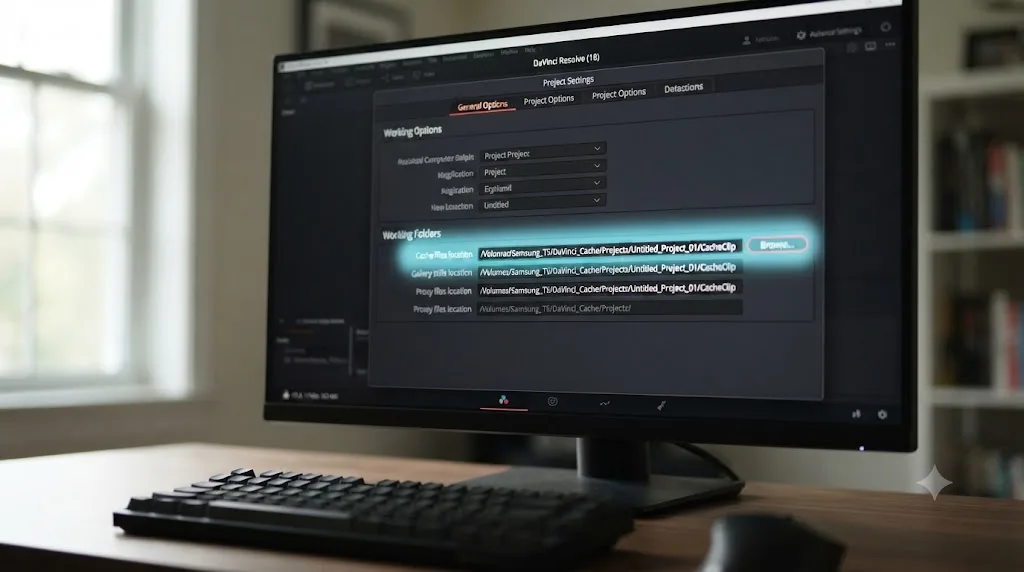
Where to Find DaVinci Resolve Cache Files on Mac and Windows
DaVinci Resolve's cache isn't at one fixed path. Here's exactly where to find it on Mac and Windows, how to change it, and what's safe to delete.
 FixesSep 26, 202639 min read
DaVinci Resolve Render Cache Not Updating After Changes: Fix It
DaVinci Resolve render cache not updating after changes? Find the stale cache, clear only what is necessary, and rebuild the right cache layer.
 GuidesJul 12, 202638 min read
How to Archive a DaVinci Resolve Project Without Losing Media
The right way to archive a DaVinci Resolve project so every clip travels with it: Export Project Archive vs Media Management vs Backups, compared.