
Learn / DaVinci Resolveupdated for DaVinci Resolve Studio 21.1.1 (October 2026); DaVinci Resolve 21.1 reference manual
DaVinci Resolve Proxy Files Filling Up SSD? Fix the Cause
Quick answer
When DaVinci Resolve proxy files are filling up your SSD, stop generating new media, identify whether the space is in ProxyMedia, CacheClip, or source footage, then remove only files you can safely regenerate. In DaVinci Resolve 21.1.1, check Project Settings > Master Settings > Working Folders and Playback > Delete Generated Files before deleting anything in Finder or File Explorer.
I know the panic: Resolve says the drive is nearly full, and a folder named ProxyMedia looks like the obvious culprit. But deleting the wrong folder can turn a storage problem into an offline-media problem.
As of October 2026, the current release listed by Blackmagic Design is DaVinci Resolve Studio 21.1.1, with the DaVinci Resolve 21.1 reference manual available in the Support Center. Menu labels can vary slightly between versions and operating systems, so check your installed version before following a path exactly.
Why are DaVinci Resolve proxy files filling up my SSD?
DaVinci Resolve proxy files fill an SSD because Resolve writes lower-resolution or lower-bandwidth copies of source clips to a separate location, and those copies remain stored until you remove them. A full drive can also come from render cache or optimized media, which are different generated files and need a different cleanup decision.
A proxy is an extra media file, not a replacement for your camera original. It helps Resolve play or edit footage more easily, then the project can use the source media again for finishing. Casey Faris describes a proxy as “converting it to a smaller file, one that's probably less resolution, and that's easier to play back for Resolve” in his video about proxies. That explains the point of a proxy, but it also explains why it consumes storage: Resolve has to write another file. (Source: Casey Faris's proxy workflow video.)
The simplest cause is scale. If a project contains many long clips, generating a proxy for every clip creates a lot of additional media, even when you only use a few seconds from each clip in the timeline. The total depends on source duration, proxy resolution, codec, frame rate, and the number of clips. Don't assume a proxy folder should be a fixed percentage of your source-media folder.
There may be several types of generated media on one drive:
| What you find | What it is for | Typical Resolve location | What to know before removing it |
|---|---|---|---|
| Proxy media | Lower-resolution or easier-to-play copies of source clips | Project Settings > Master Settings > Working Folders > Proxy generation location | Removing proxies can force Resolve to use originals or leave proxies unavailable until recreated. |
| Optimized media | Generated versions Resolve can use to improve playback or finishing performance | Cache files location, according to Blackmagic's reference documentation | This is separate from proxy media. The project can need it again if you rely on it for playback. |
| Render cache | Rendered frames or effects Resolve can reuse during playback | Project Settings > Master Settings > Working Folders > Cache files location | Cache is usually regenerable, but clearing it can mean waiting while Resolve builds it again. |
| Source media | Original camera files, audio, stills, or other imported media | The folders where you copied or recorded the original files | Do not treat this as disposable proxy or cache media. Deleting it can break the project. |
| Project file or project library | The edit decisions, project settings, timelines, and related project data | The location of the project library or exported project | A project file is not a proxy folder. Keep a backup before deleting project data. |
Blackmagic's documentation distinguishes the proxy-generation destination from the cache-files destination. It also describes proxy media as files created for clips and stored at the location specified in Working Folders. Check both paths before deciding that the folder you found contains proxies. (Blackmagic Design's DaVinci Resolve 17 New Features Guide explains the proxy location, while the DaVinci Resolve 18 Colorist Guide describes generating proxies from the Media Pool.)
Proxy media, optimized media, render cache, and camera originals are four different storage categories.
How do I find which DaVinci Resolve files are using the SSD space?
Find the biggest folders first, then match their paths to Resolve's proxy-generation and cache settings. Don't start by deleting every folder with “Resolve,” “cache,” or “proxy” in its name.
Check the drive's available space
First, note the current free-space figure for the SSD. On a Mac, open Apple menu > System Settings > General > Storage to review storage use by apps and file types. Apple documents this storage view and its volume information in Change storage settings on Mac. On Windows, open Settings > System > Storage to review categories, or use File Explorer > This PC to inspect available space. Microsoft's Windows storage settings explain those views.
Now use Finder or File Explorer to inspect the Resolve-related folders on the SSD. Sort by size where your file manager offers that option. If a directory is nested several folders deep, inspect its parent folders too. The point isn't to memorize a universal default path; the location can be changed by preferences, project settings, and how the media was generated.
Record three things before you make changes:
- The drive's free space.
- The full path and size of the largest Resolve-related folders.
- Whether your original footage is on that same drive or somewhere else.
This quick inventory helps distinguish “Resolve generated files are large” from “the source footage and project live on a nearly full drive.” They can look similar in a storage chart but require different choices.
Check the project-specific paths in Resolve
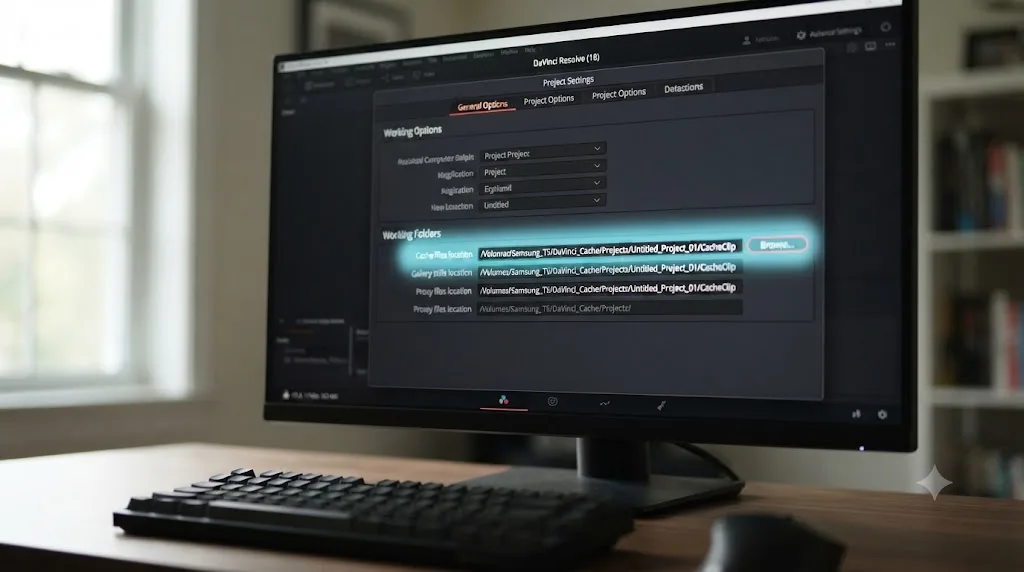
Open the affected project and choose File > Project Settings > Master Settings > Working Folders. Find the entries for Proxy generation location and Cache files location. The proxy path tells you where that project is set to create proxies. The cache path tells you where it stores cache files. Menu organization can change, so look for the settings by name if your version displays them elsewhere.
Blackmagic's official Resolve training material says proxy media is saved to the location specified in Project Settings under Working Folders. The official guide also says Resolve can organize proxy files in subfolders based on the original media's location. That means the proxy directory may not be one flat folder with a project name on it. (Blackmagic Design's proxy workflow guide.)
Check Resolve's system preferences as well if the paths don't match what you see on disk. The Proxy Generator can have a different destination choice from the setting used when generating proxies within the Resolve project. Blackmagic's Editor's Guide describes Proxy Generator choices such as using the project setting, putting proxy subfolders near the source media, or asking for a location when generating files. (DaVinci Resolve 18 Editor's Guide.)
Use the Media Pool to confirm proxy status
In the Media Pool, switch to List view and look for the Proxy and Proxy Media Path columns. Blackmagic's New Features Guide describes those columns as a way to check whether a clip has no proxy, an offline proxy, or an online proxy, and to see the path Resolve is using. If those columns aren't visible, use the list's column menu to enable them. (Blackmagic Design's guide to managing proxy media.)
This is useful when you have multiple proxy folders, a proxy drive that was disconnected, or proxies generated by another application. A folder name alone doesn't prove a file is an active proxy for the clip currently in Resolve.
If you see “Offline” in the proxy status, don't assume that deleting the folder will solve it. Resolve already cannot find that proxy at its expected path. Decide whether you want to relink the proxy, use the original source, or remove the generated proxy files. Each action addresses a different problem.
Separate a proxy problem from a cache problem
A render-cache folder growing quickly does not mean proxy generation is responsible. Resolve's cache is built for playback performance, and optimized media is also distinct from proxy media. If the largest folder is the cache location, use the cache controls rather than deleting the proxy directory. If the largest folder is the proxy-generation location, inspect proxy media.
Blackmagic's documentation places optimized media and render cache under the cache-files location in the relevant documented workflows. Because Resolve's controls and settings have evolved, use the current 21.1 manual from the Blackmagic Design Support Center to confirm the exact behavior for your version. The practical rule remains: identify the file category before removing it.
For a separate walkthrough focused on cache paths, see where to find DaVinci Resolve cache files.
How do I delete DaVinci Resolve proxy files without deleting original footage?
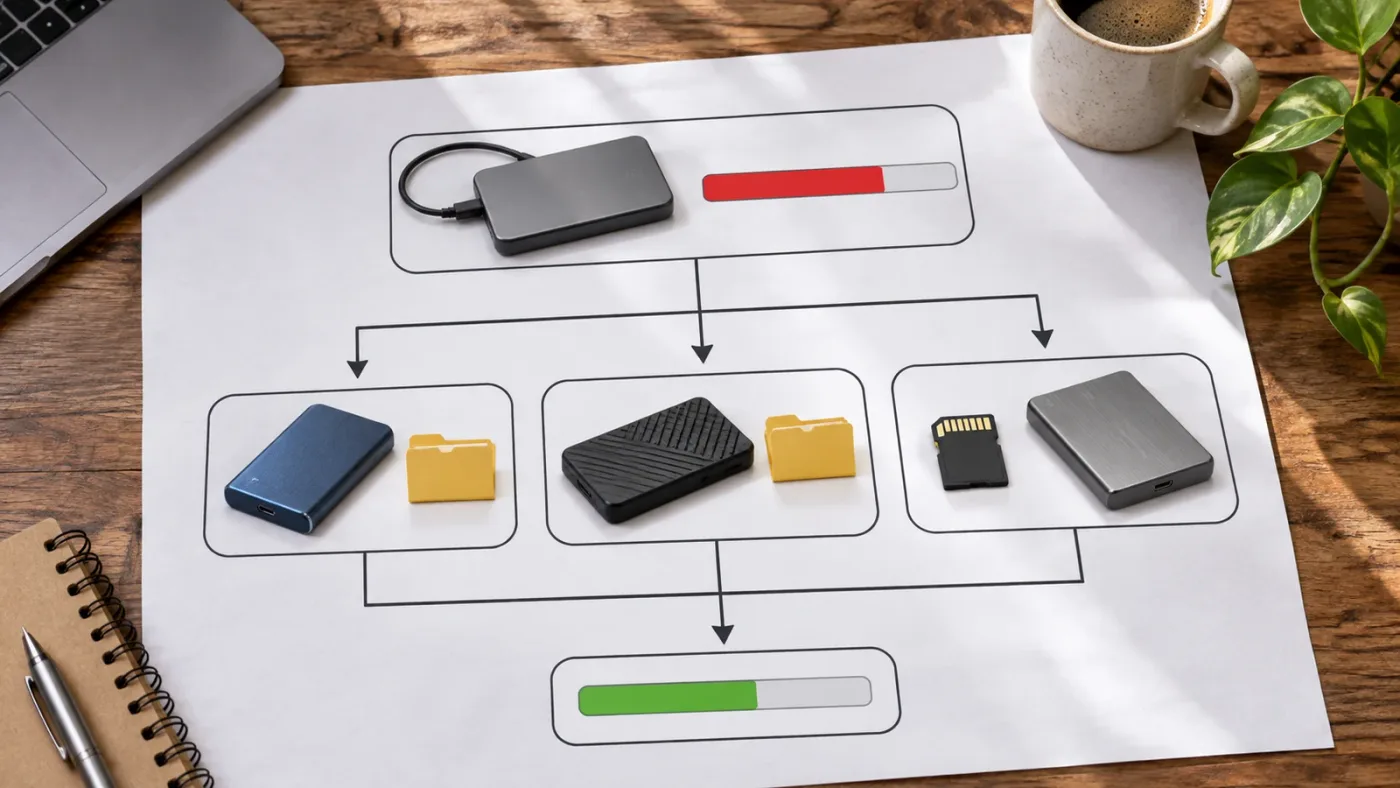
Use Resolve's generated-media deletion control and select only proxy media. Blackmagic's Editor's Guide presents a deletion confirmation specifically for proxy folders and clips, and says the warning applies to proxy media, not the original source clips. Read the confirmation shown by your installed version before confirming.
A safer cleanup begins inside Resolve, not in Finder or File Explorer. The supported interface gives you a chance to choose the type of generated media you intend to delete. Deleting a manually guessed folder from the file manager is riskier because folder names and contents vary by project setup, and a directory can include unrelated files.
Safer cleanup for a project you can open
- Open the correct project in Resolve.
- Confirm that the original media is online. Scrub through representative clips in the timeline and check that the viewer displays the expected source footage.
- Save the project.
- Open the Playback menu and look for Delete Generated Files or the closest matching generated-media cleanup command in your installed version.
- Select Delete Proxy Media only if your goal is to remove proxies. Leave cache or optimized-media options unselected unless you have separately decided to remove those too.
- Read the confirmation dialog. Confirm that it refers to proxy media, then proceed only if the scope matches what you intend to remove.
- Wait for the operation to finish, then check the drive's available space.
- Reopen or revisit the project and confirm the originals still display.
The menu wording can differ across Resolve versions. Blackmagic's Editor's Guide shows a proxy-deletion workflow and a warning that the selected deletion removes proxy folders and clips. Use the installed version's dialog as the final authority, particularly on a shared project or a project containing media on several drives. (Blackmagic Design's Editor's Guide.)
When proxy media is deleted, playback may return to the original source clips. If those originals are high-resolution or difficult to decode, the timeline may play less smoothly. That is a performance tradeoff, not evidence that the project has lost its edit. If smooth playback still matters, regenerate only the proxies you need, preferably onto a drive with enough room.
What if the project will not open?
If the project won't open, don't delete an unknown directory just because its name looks familiar. First make a copy of the project file or database backup if you can. Then inspect the proxy and cache locations from another project using the same storage setup, or consult the current manual for your Resolve version before acting.
If original media is offline, stop. Deleting directories when you can't tell original media from generated media can make recovery harder. Reconnect the drive that contains the camera files, relink media if necessary, and verify that source clips are available before cleaning generated files.
For an archived, handed-off, or collaborative project, ask whether another editor depends on those proxy files. A proxy directory on your local SSD may be the only copy someone expects to use on a travel drive or shared workspace. Space pressure matters, but so does whether the files are part of a delivery.
What if the command does not reclaim much space?
The selected project may have relatively little proxy media, or the large files may belong to another category. Check the folder size again and compare the path with the Proxy generation location and Cache files location. Also check whether the operating system's Trash or Recycle Bin still contains deleted files. Removing a file from a folder may not release its space until the bin is emptied.
On a Mac, Apple notes that moving files to the Bin does not make their storage available until the Bin is emptied. On Windows, Microsoft similarly advises emptying the Recycle Bin after deleting files if you want to fully reclaim that space. (Apple's Mac storage guidance and Microsoft's drive-space guide.)
If the proxy directory shrinks but the drive's reported free space does not change, check whether the files are still in a trash folder, whether the drive is almost full and storage reporting needs a refresh, or whether a second folder is the actual space user. Don't repeat deletion commands without checking what changed.
Deleting proxy media is not the same as deleting a DaVinci Resolve project or its camera originals.
Should I delete proxy media, optimized media, or render cache?
Choose the cleanup target by what is consuming space and what you still need for the project. Proxy media is for a proxy workflow, optimized media is another generated playback aid, and render cache stores rendered frames or effects; deleting one category does not automatically remove the others.
| Your situation | First choice | Why | Caution |
|---|---|---|---|
| You have finished the edit and can work from the camera originals | Delete proxy media for that project | The proxies may no longer be needed for everyday editing. | Keep originals and a verified project backup. |
| Playback stutters and you still need low-bandwidth copies | Keep or selectively recreate proxies | Proxies are the files that support the workflow you are using. | Point future generation to a suitable drive. |
| The cache folder, not ProxyMedia, is the large directory | Clear appropriate render cache | Cache is not proxy media. | Resolve may need to render cached frames again. |
| Optimized media is taking space and you do not rely on it | Delete optimized media using the appropriate Resolve control | It is a separate generated-media category. | Playback may become slower until you use originals or regenerate it. |
| You need to send a project to another editor | Keep or deliberately package the required media | A handoff may depend on linked proxies or source media. | Confirm the recipient's workflow and archive contents. |
| You are unsure which files are originals | Delete nothing yet | Originals are the irreplaceable project inputs. | Verify paths and backups before cleanup. |
Do not indiscriminately check every deletion option in one dialog. Clearing cache can be a reasonable cleanup after a finished project, but an active edit may rebuild it and take longer to play. Removing optimized media can have a different effect from removing proxy media. Handle one category at a time and check the project afterward.
Also distinguish removing generated files from removing unused source clips. A clip that never made it into the final timeline could still be needed for a later revision, a different cut, or a client request. “Unused” in a particular timeline is not the same as “safe to erase from the only original-media copy.”
If you need an enduring project package rather than just more working space, use Resolve's project-archive or media-management workflow and verify the resulting archive. This guide to archiving a DaVinci Resolve project without losing media covers that separate decision.
How do I stop DaVinci Resolve from filling the SSD again?
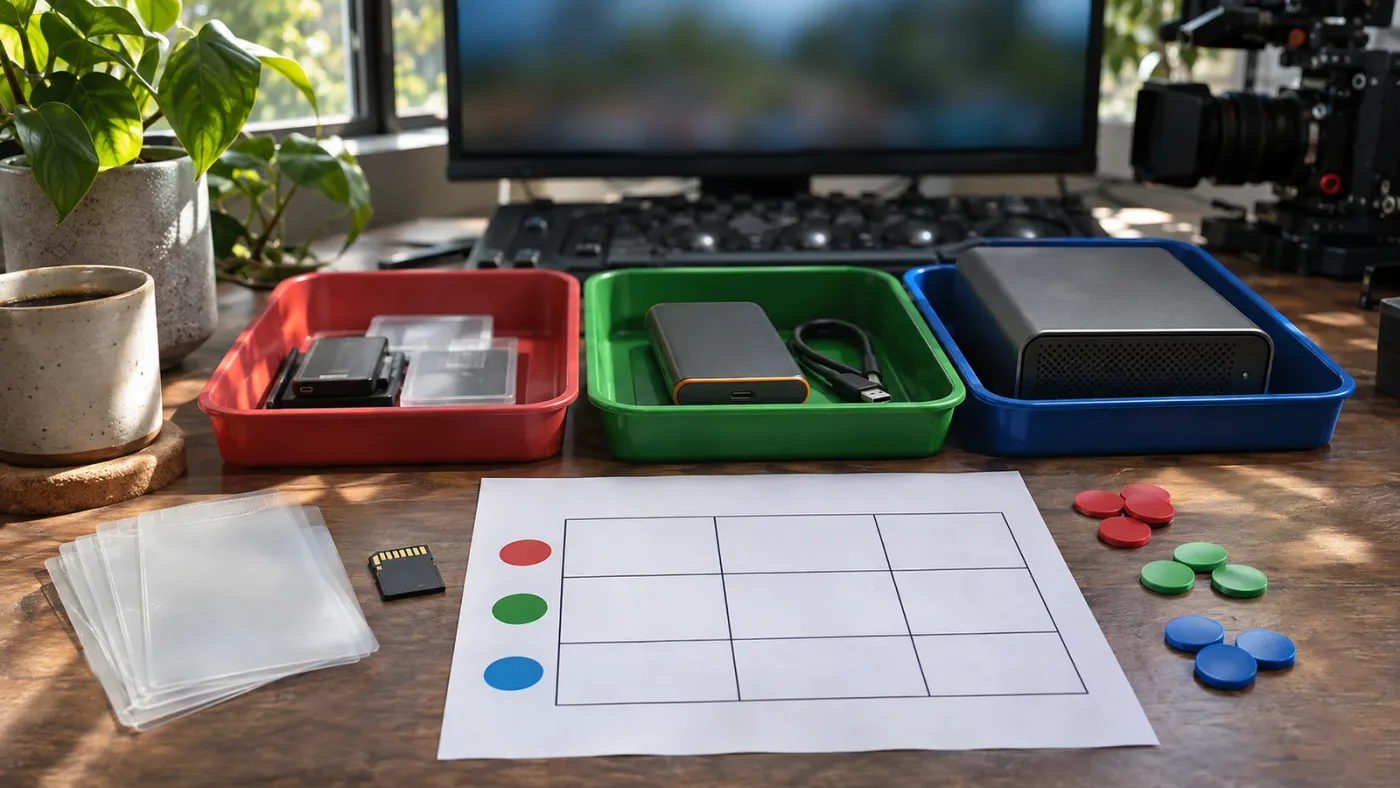
Set a deliberate destination for new proxy and cache files, then generate only the media your workflow needs. Resolve's Working Folders settings include separate paths for proxy generation and cache files, so a storage fix can be to redirect future files rather than repeatedly deleting them.
Move future proxy generation to another drive
Use a drive with enough capacity and a stable connection, then set it as the proxy destination for the project. In Resolve, open File > Project Settings > Master Settings > Working Folders and locate Proxy generation location. Choose or enter the new folder, save the project settings, and generate a small test batch before making proxies for every clip.
Blackmagic's documented workflow locates proxy generation in the Working Folders section of Project Settings. It also describes proxies as being organized into subfolders according to the source media's location, so don't expect every project to create the same folder structure. (Blackmagic Design's proxy-generation instructions.)
Choose the location based on how you actually work:
- Internal SSD: convenient and fast, but shares capacity with the operating system, applications, downloads, and other work.
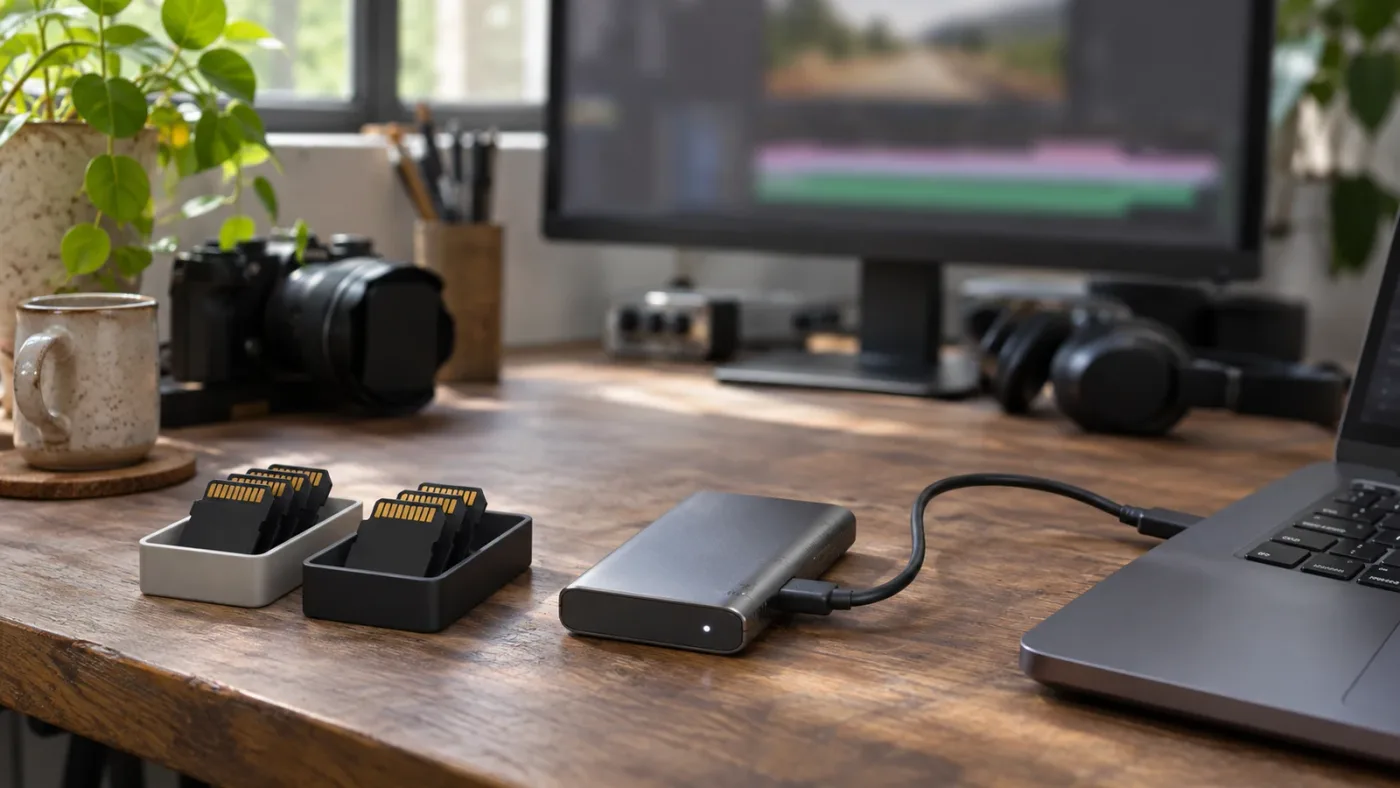
- External SSD: useful for a portable project or to keep generated media off the system drive. The drive must be connected whenever Resolve needs files on it.
- Shared storage: useful when a team has an established media workflow, but verify that paths and permissions work for each editor.
- Source-media folders: may keep proxies near their originals, but can clutter a camera-card or archive structure and complicate handoff.
An external drive is not automatically a good choice just because it has a large capacity. It should connect reliably, stay mounted while the project is open, and have a clear folder structure. If you disconnect it while Resolve expects files there, the proxies may appear offline until the drive returns or you relink them.
For drive selection, compare the tradeoffs in Best External SSD for DaVinci Resolve. This article is about choosing a suitable drive, not a promise that any particular model fixes a Resolve storage configuration.
Redirect cache separately
Set Cache files location independently from Proxy generation location. Moving one does not necessarily move the other. If you point proxies to an external SSD but leave the cache on a small system drive, the system SSD can still fill during a demanding edit.
Use separate, descriptive folders such as Resolve/Proxies and Resolve/Cache on the intended storage volume. The exact folder names are your organization choice, not a requirement. Keep a note of the locations with the project so you can identify them later, especially if you move between computers.
Don't manually move active folders in the file manager while the project is open and expect Resolve to discover them automatically. Change the setting in Resolve, or use Resolve's relinking tools when you intentionally move files that already exist. A moved proxy may need to be relinked if the project still points to its old location.
Avoid generating redundant media
Proxy media and optimized media solve overlapping playback problems in some workflows, but they are not interchangeable in every project. If you generated both for the same clips without a clear reason, you may be storing multiple derived versions of the same source footage. Review which feature you actually use before generating another batch.
Select clips that need help rather than automatically processing every item in a large bin. Long interviews, high-resolution camera originals, and media that is difficult for your workstation to decode may benefit from proxies. Simple footage that plays smoothly may not. A practical test is to proxy a small set of troublesome clips first, check playback and storage, then decide whether to expand the batch.
Resolve's proxy resolution and format affect how much space the files use, but there is no single codec or resolution that is the right answer for every editor. A smaller proxy generally trades image detail or encoding characteristics for reduced storage, while the original remains the source for full-quality work. Check the settings offered by your installed version and balance the proxy's playback purpose against the quality and storage you need.
Check the Proxy Generator's own destination
If you use Blackmagic Proxy Generator rather than generating proxies directly from the Media Pool, inspect its destination preferences too. Blackmagic's Editor's Guide describes three choices: proxy subfolders at source-media locations, using the project setting, or asking for a location when creating proxies. That choice can explain why files appear somewhere other than the project path you expected. (Blackmagic Design's Editor's Guide to Proxy Generator.)
Don't assume that changing the project setting retroactively moves existing proxy files. Check the paths already stored in the Media Pool, then decide whether to leave existing proxies where they are, relink them, or delete and regenerate them. Moving the storage setting controls future generation, not necessarily existing files.
Why are my Resolve proxies huge even at a lower resolution?
A lower-resolution proxy can still consume substantial space when it covers many hours of source footage or uses a format with a larger data rate than expected. Resolution alone does not determine file size; duration, frame rate, codec, quality settings, and the amount of media generated all matter.
The useful comparison is not “proxy resolution versus original resolution” by itself. Ask:
- How much source duration did you proxy?
- Did you generate proxies for every imported clip or only the clips in the edit?
- Which proxy codec and quality settings did you choose?
- Are optimized media or render cache also stored on the same drive?
- Did you create a second proxy batch in another folder?
- Did a Proxy Generator create files next to source media as well as in a project folder?
If the source media is in a highly compressed camera format, a proxy encoded for easier playback may not always be smaller than the original file. The formats have different purposes. A proxy is made to support a workflow, not to guarantee a particular space saving for every combination of source and output settings.
Use the storage information in the file manager and Resolve's proxy path columns to find the actual size and location. If you want a smaller proxy set, change the proxy resolution or format in the project settings, then create a limited test set and compare the result. Don't delete the originals to make the proxy ratio look better.
A worked example helps without pretending there is a universal number: say a bin has a full day of camera recordings, but the timeline uses only a short selection. Generating proxies for every bin item creates proxies for the entire day of footage. Generating proxies only for the clips you need reduces how much media you create. The amount saved depends on the footage and settings, so calculate it from your own test rather than relying on a generic percentage.
The amount of proxy storage depends on how much media you generate, not just the proxy resolution.
Can I delete proxies after exporting the video?
You can usually remove proxies after export if the project no longer needs them and the original media remains available. Keep the proxies if you expect to revise the edit on a slower computer, travel with the project, or hand the project to someone who relies on those files.
An exported video is not a replacement for an editable project. If you delete proxies but keep the project and original camera files, you can generally reopen the project and work from the originals, assuming the paths remain available. Playback may be slower, and you may decide to regenerate proxies later.
Before cleaning up a completed project, confirm the following:
- The final export plays correctly from beginning to end.
- The original media still exists in a known location.
- The project file or project library is backed up.
- Any collaborator or client who needs the project has the media they require.
- You know whether the archive includes proxy media, original media, or both.
If the client only asked for a final video file, the proxy files may not be part of the handoff. If the client asked for an editable Resolve project, ask what media they expect. Blackmagic's archive and media-management options can package project materials, but don't assume a project file alone contains source footage or generated media. Verify what the archive contains before deleting a working copy.
A project archive can be useful, but it does not excuse checking the media. Reopen or restore the archive from its destination and test a timeline. If the project points back to the original SSD, moving or erasing that SSD can still break the archive's usefulness.
If the edit is not finished, consider removing proxies only after confirming the originals are online and you can tolerate slower playback. One safe middle ground is to keep proxies for the current timeline's essential clips while removing unnecessary generated files from other projects. Resolve's generated-file tools can target a project; use the selection controls that match your actual goal.
What should Mac and Windows editors check before clearing space?
The Resolve media workflow is broadly similar on Mac and Windows, but the system's storage tools and file paths differ. Verify the drive and folder in the operating system, then use Resolve's own settings and cleanup controls to identify its generated media.
On Mac
In macOS, open Apple menu > System Settings > General > Storage to review storage by category and volume. Finder can help inspect the actual folders where Resolve is writing proxies and cache. Apple notes that storage settings show used and available space, and that the storage view can show additional volume information. (Apple Support: Change storage settings on Mac.)
If you delete files by dragging them to the Bin, empty the Bin only after confirming what you removed. Apple's storage advice notes that files in the Bin continue to occupy space until the Bin is emptied. That is why a successful deletion inside Resolve might not immediately show the full amount of reclaimed space in the storage display.
External SSDs may mount under different names or paths if you rename them, change ports, or connect a different volume. If a project says proxies are offline after you move to another Mac, reconnect the expected drive and check the proxy path before generating new media. Generating a second set while the first set is merely disconnected can waste more space.
On Windows
In Windows, open Settings > System > Storage to inspect storage categories, or use File Explorer > This PC to see drive capacity. Microsoft's Storage Sense documentation says that Storage Sense works on the system drive, usually C:, and that other drives need to be reviewed through storage settings for those drives. (Microsoft Support: Manage drive space with Storage Sense.)
Storage Sense can remove temporary files and Recycle Bin items according to its settings, but it is not a substitute for identifying Resolve's proxy and cache paths. Don't set a broad cleanup rule that might remove files you intended to keep. Review its choices before enabling or running it, especially if you use the Recycle Bin to stage files before permanent deletion.
Windows File Explorer can show large folders and files, but Resolve may store generated media in hidden or nested directories. Use Resolve's Project Settings and Media Pool columns to verify the path, then navigate to that exact location. If drive letters change between sessions, reconnect the correct external drive or update the project's paths before generating another copy.
Shared drive or multi-computer project
A proxy location that works on one machine may not exist under the same path on another. Mac and Windows use different path formats, and a portable drive may mount differently depending on its name and system. A team project needs a deliberate storage and relinking plan, not just a shared project database.
If collaborators use proxies, agree on where the files live, who is responsible for generating them, and whether the handoff includes them. Check that the receiver can see the proxy folder before deleting your local copy. Resolve can identify proxy paths in the Media Pool, which helps catch a path mismatch before you treat the files as unused.
A disconnected proxy drive can look like missing media, not a full-storage problem.
What should I do if the SSD is still full after deleting proxies?
If the SSD remains full, identify what else occupies it before deleting more Resolve folders. Check cache, optimized media, original footage, exports, system storage, and the operating system's trash or recycle bin.
Work through this order:
- Recheck free space. Refresh the storage view or reopen it after cleanup.
- Check the Recycle Bin or Bin. Files moved there may still consume space until permanently removed.
- Inspect the cache location. If it is the largest directory, choose a cache cleanup action rather than repeating proxy deletion.
- Look for optimized media. It is distinct from proxies and may be stored with cache-related files.
- Check exports and render deliveries. Multiple final versions can take space on the same SSD.
- Check source footage. Make sure you are not confusing original media with generated copies.
- Review other large files. Operating-system updates, downloads, backups, and unrelated applications can also occupy the drive.
Do not use a generic “cleaner” utility to erase folders you cannot identify. Resolve may recreate cache, but source media, project backups, or externally generated proxy files might not be recoverable. Inspect the path and file type first, and preserve a backup of anything that matters.
On Windows, Microsoft's cleanup recommendations can list large or unused files, but review each category before removing it. On Mac, Apple's Storage settings can help locate categories and files taking up space. Neither tool knows whether a particular Resolve media file is the only copy an editor needs. (See Microsoft's drive-space guide and Apple's Mac storage settings guide.)
If you need to keep the project active, move future cache and proxy generation to another drive and preserve the originals. If you have finished the edit, verify the export and project backup, then remove only the generated-media categories you no longer need. Resolve file cleanup is safer when each decision has a known target.
How do I choose a safer storage workflow for my next project?
Choose a storage workflow that keeps originals protected, gives generated media a known destination, and avoids making files you do not need. The best setup depends on whether you edit on one computer, travel between systems, or hand projects to collaborators.
| Workflow | Good fit | Storage behavior | Main risk |
|---|---|---|---|
| Internal system SSD for everything | Short projects with plenty of spare capacity | Originals, proxies, cache, and exports compete for the same space. | Generated files can crowd out system and application storage. |
| Originals on one drive, proxies and cache on another | Editors who want to keep working files separate | Easier to identify and clean generated media without touching originals. | The second drive must remain connected and mounted. |
| Proxies stored near camera originals | A self-contained media folder or specific handoff | Proxy folders sit near the corresponding source footage. | Camera-card structure may become cluttered or harder to archive. |
| Shared or network storage | Teams with a defined shared-media setup | Multiple editors can use agreed paths and shared media. | Permissions, bandwidth, and path differences need planning. |
| Project-specific external SSD | Travel editing or a portable individual project | Project media and generated files can travel together. | Losing or disconnecting the drive can make media unavailable. |
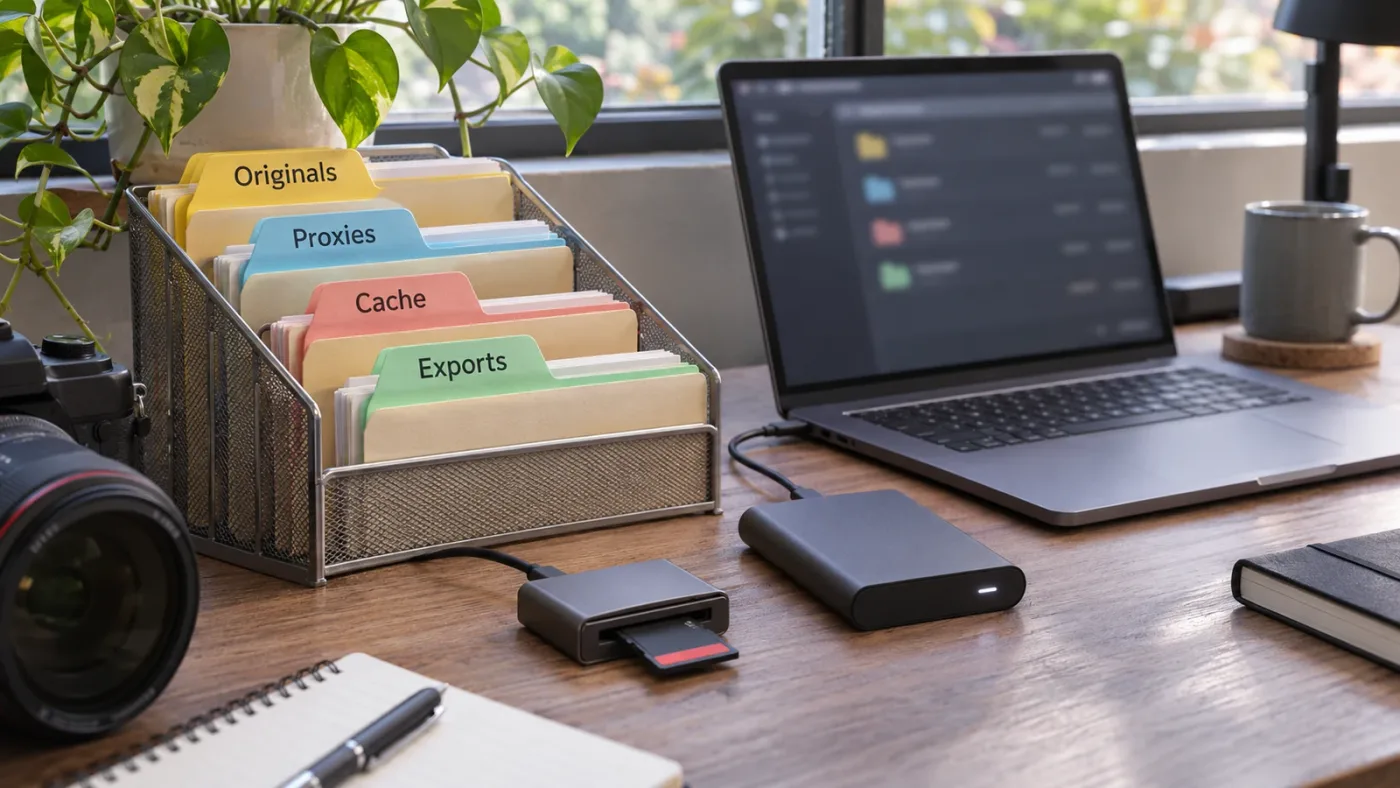
Write down the chosen paths in a project note or folder readme. Name folders so another editor can tell Originals, Proxies, Cache, and Exports apart. Avoid placing your only original footage in a folder you intend to clear as a routine cache cleanup.
For ongoing work, set aside space for exports and backups rather than filling every available byte with generated media. Resolve and the operating system both need room to write temporary data. There is no universal free-space threshold that applies to every SSD, project, and operating system, so use the drive's warning status and your own project's workload as cues to clean up or move files before the disk is critically full.
If your workflow changes, review the destinations again. Switching from a laptop-only edit to an external-drive workflow, for example, may leave old proxies and cache on the internal drive even after new projects use the external one. Changing the setting does not necessarily clean up old data. Identify and remove old generated files deliberately.
TryUncle is the on-screen assistant for DaVinci Resolve on Mac and Windows — ask in plain words and Uncle points at the exact control on your screen. If the Working Folders settings don't match your Resolve layout, TryUncle can guide you toward the relevant control while you work; you stay in control of the project and the file deletion.
What is the safest next step when Resolve proxy files fill an SSD?
Start by identifying the largest folder and checking its full path against Resolve's Proxy generation location and Cache files location. If the folder is confirmed proxy media and the originals are online, use Resolve's generated-file command to remove proxy media only; then redirect future proxies or cache to a suitable drive.
If you cannot tell whether a folder contains originals, proxies, optimized media, or cache, don't delete it yet. Check the Media Pool paths, confirm a backup, and make one cleanup decision at a time. That's the way to free space without turning a crowded SSD into an offline project.
As of October 2026, the menu labels and exact controls should be checked against your installed Resolve version and the DaVinci Resolve 21.1 manual in Blackmagic Design's Support Center. If you are stuck on a specific control in your own project, Uncle can point to the relevant button while you work.
Frequently asked questions
- Why are my DaVinci Resolve proxy files filling up my SSD?
- Resolve creates a separate lower-resolution media file for each clip you proxy, and proxy files can accumulate alongside render cache, optimized media, and original footage. Check the proxy-generation and cache locations in Project Settings before deleting anything.
- How do I delete proxy files in DaVinci Resolve without deleting original footage?
- Open the project and use Playback > Delete Generated Files, selecting only Delete Proxy Media. Resolve's own editor guide says the deletion prompt applies to proxy folders and clips, not original source clips. Confirm the wording in your installed version before proceeding.
- Where does DaVinci Resolve save proxy media?
- Check File > Project Settings > Master Settings > Working Folders > Proxy generation location. Resolve's project setting controls that location; the separate Proxy Generator may have its own destination preference.
- Can I delete DaVinci Resolve proxies after finishing my edit?
- Usually, if the original media is online and you no longer need proxies for playback or handoff. Deleting proxies does not delete camera originals, but the project may need to use those originals or regenerate proxies later.
- How do I stop DaVinci Resolve from filling my SSD again?
- Set proxy generation and cache locations to a suitable drive, generate proxies only for clips that need them, and avoid keeping duplicate optimized media and proxy files without a reason.
Sources
- DaVinci Resolve 21.1.1 update, Blackmagic Design Support Center
- DaVinci Resolve 21.1 reference manual, Blackmagic Design Support Center
- DaVinci Resolve 17 New Features Guide, Blackmagic Design
- DaVinci Resolve 18 Editor's Guide, Blackmagic Design
- DaVinci Resolve 18 Colorist Guide, Blackmagic Design
- All About Proxies, Casey Faris video transcript
- Change storage settings on Mac, Apple Support
- Manage drive space with Storage Sense, Microsoft Support
- Free up drive space in Windows, Microsoft Support
Learn by doing, not watching
Stop translating tutorials to your timeline.
TryUncle stays beside Resolve on Mac and Windows. When you ask, Uncle sees your screen and points at the exact control you need. No hunting through tabs, timestamps, or mismatched tutorials.
Meet TryUncleKeep reading
 GuidesJul 24, 202637 min read
Where to Find DaVinci Resolve Cache Files on Mac and Windows
DaVinci Resolve's cache isn't at one fixed path. Here's exactly where to find it on Mac and Windows, how to change it, and what's safe to delete.
 GuidesAug 2, 202637 min read
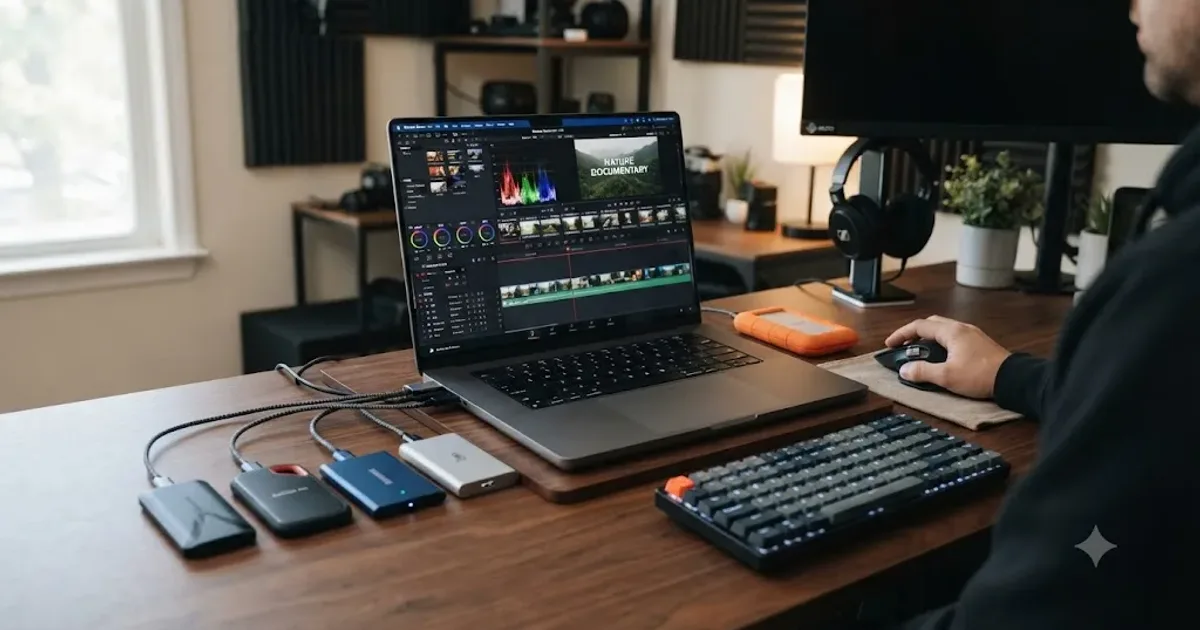
Best External SSD for DaVinci Resolve in 2026: 6 Compared
Best external SSD for DaVinci Resolve in 2026: Samsung T9, SanDisk Extreme Pro V2, Crucial X9/X10 Pro, OWC Envoy Pro FX, LaCie Rugged SSD Pro compared.
 GuidesJul 12, 202638 min read
How to Archive a DaVinci Resolve Project Without Losing Media
The right way to archive a DaVinci Resolve project so every clip travels with it: Export Project Archive vs Media Management vs Backups, compared.