
Learn / DaVinci Resolveupdated for DaVinci Resolve 21.0.3 (July 2026)
DaVinci Resolve Project Library vs Database: What's Different?
Quick answer
DaVinci Resolve Project Library and database usually mean the same project-storage layer: Blackmagic renamed project databases to Project Libraries in Resolve 18. A Project Library can hold many Resolve projects, while source media normally stays elsewhere; .drp exports, library backups, and .dra archives solve different backup and transfer jobs.
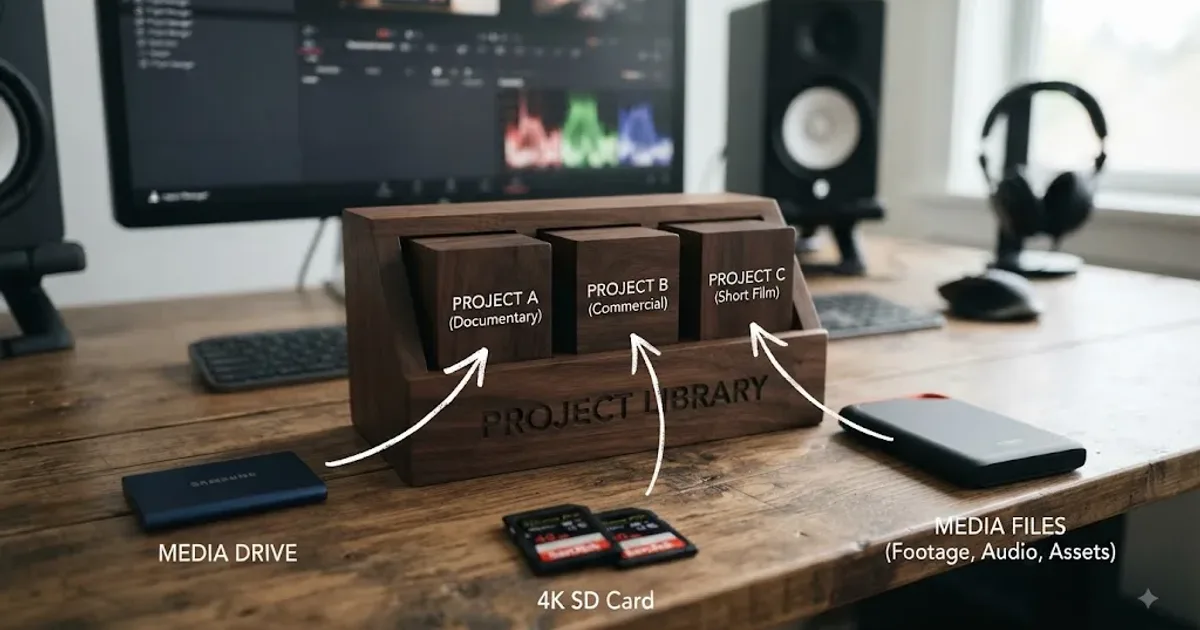
I use one rule to translate old DaVinci Resolve advice: think in layers, not files. A Project Library is one layer. Your individual project is another. Your media is another again.
That distinction matters because Blackmagic changed the name of the project-storage layer, but years of tutorials, forum answers, folder names, and existing installations did not change with it.
As of August 2026, this reference is current for DaVinci Resolve 21.0.3.
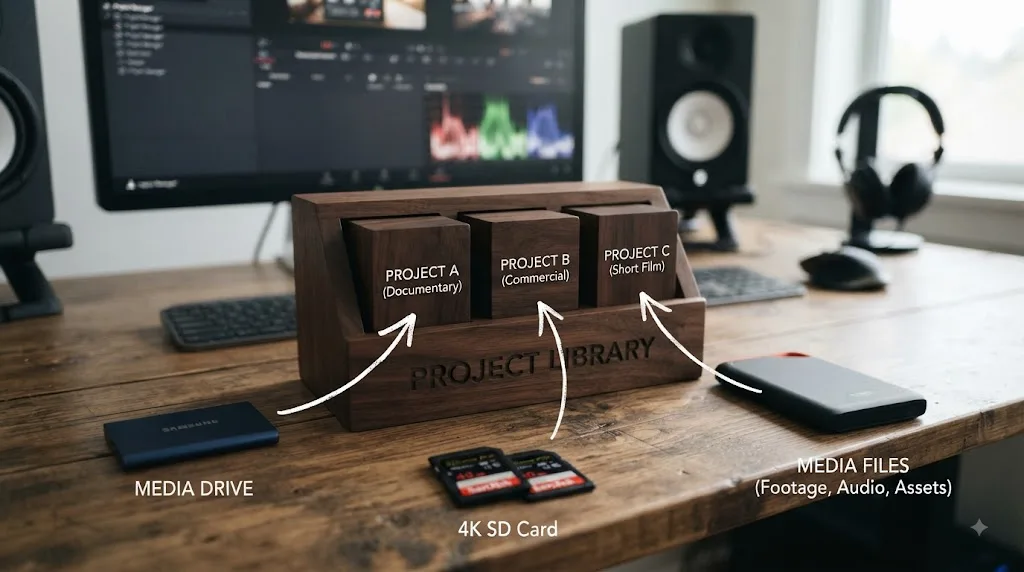
What is the difference between a DaVinci Resolve Project Library and a database?
A DaVinci Resolve Project Library is the current name for the project-storage container that older versions and tutorials called a database. Blackmagic changed the user-facing term in Resolve 18, but the old word still appears in older tutorials, forum answers, migrated folder names, and familiar labels such as "Local Database."
Blackmagic Design support specialist Dwaine Maggart put the change plainly in 2022: "And in Resolve 18, we no longer call project databases...databases. We now call them Project Libraries." (source)
That sentence is the core answer.
In Resolve 18 and later, "Project Library" is the current name for what older Resolve documentation called a project database.
The terms are not perfectly interchangeable in every technical discussion because different Project Library types use different storage systems. A local library is a Resolve-managed structure on storage connected to the workstation. A Network Project Library uses PostgreSQL. Blackmagic Cloud provides hosted Project Libraries for remote collaboration.
From an editor's point of view, though, the mental model is much simpler: a Project Library is where Resolve keeps one or more projects.
The naming timeline looks like this:
| Resolve era | Common user-facing term | What it means |
|---|---|---|
| Resolve 17 and earlier | Database, Disk Database, PostgreSQL Database | Container that holds Resolve projects |
| Resolve 18 onward | Project Library | New user-facing name for that project container |
| Resolve 21 in 2026 | Local, Network, and Blackmagic Cloud Project Library workflows | Current ways to keep or share project data |
The current version matters because terminology questions often start with an old tutorial. Blackmagic released DaVinci Resolve 21 in June 2026, and its support feed lists DaVinci Resolve 21.0.3 on July 22, 2026. (source)
So if a Resolve 17 tutorial tells you to "open your database," don't go hunting for a totally different modern feature. First translate the word.
Database usually means Project Library.
If a tutorial gets more specific, translate that too. "Disk Database" points toward the local-library concept. "PostgreSQL database" points toward a Network Project Library. "Database backup" usually refers to backing up that broader project container, not merely exporting one project.
That translation solves most of the confusion before you click anything.
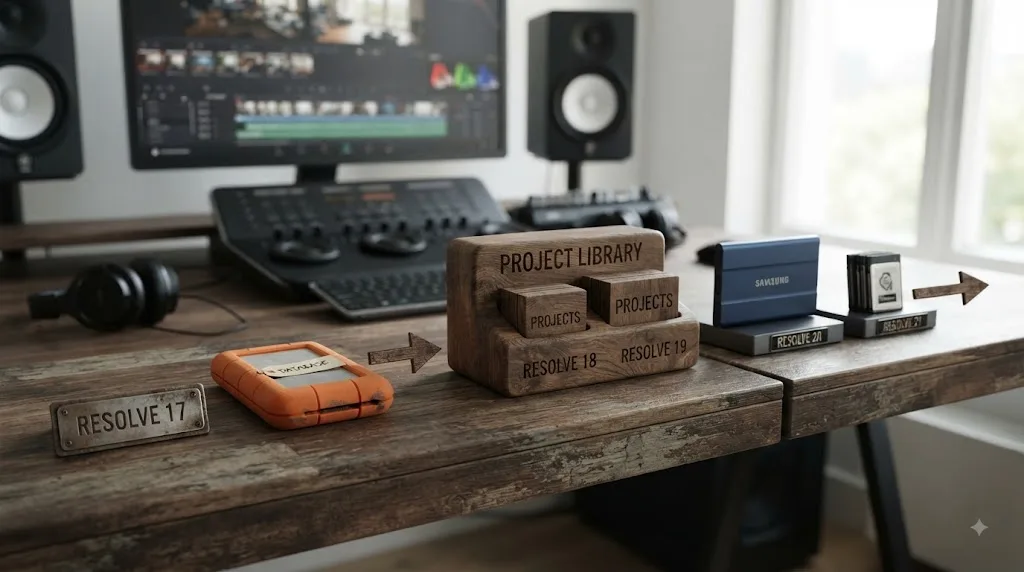
Why do old DaVinci Resolve tutorials still say "database"?
Old tutorials say "database" because that was Blackmagic's official terminology before Resolve 18. The software changed its wording, but old videos and forum posts did not magically rewrite themselves.
Long-lived installations add another wrinkle. A library may still have an old name even when you are running a new version of Resolve. Someone may also have manually named a library "Local Database" years ago and carried it forward.
Blackmagic's own support answers show how these vocabularies overlap. In a 2024 troubleshooting thread, Dwaine Maggart referred to the default local project library as "Local Database" while also asking whether the user had a Local or Network Project Library. (source)
That is why the label alone isn't enough to tell you whether an instruction applies.
When translating old Resolve material into Resolve 21, use this cheat sheet:
| Old wording | Modern wording to look for | Practical meaning |
|---|---|---|
| Database | Project Library | The container holding projects |
| Disk Database | Local Project Library | Locally stored Resolve project data |
| PostgreSQL Database | Network Project Library | Project data served through PostgreSQL |
| Back up database | Back up Project Library | Protect the broader library rather than one project |
| Restore database | Restore Project Library | Recover a previously backed-up library |
| Connect database | Connect Project Library | Point Resolve at an existing valid library |
The key word is "usually." Old tutorials can include version-specific interface steps that no longer match the current Project Manager exactly. Translate the concept first, then verify the controls in the Resolve version you actually use.
A seven-year-old tutorial may still explain the right storage concept while showing the wrong button location.
And the reverse can happen too. A modern video may casually say "database" because the instructor has used Resolve since the older terminology. That does not automatically mean they are talking about an obsolete storage method.
Look at the surrounding nouns.
Are they talking about a local folder structure? PostgreSQL? Project Server? Backing up every project at once? Importing a single .drp?
Those clues tell you what layer they mean.
What exactly is stored inside a DaVinci Resolve Project Library?
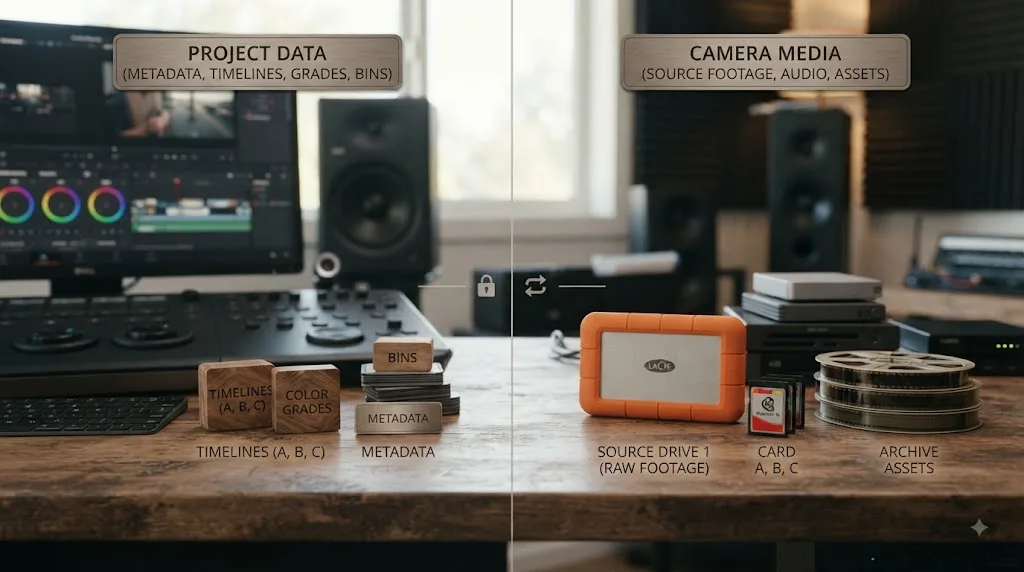
A Project Library stores Resolve project data. It does not normally contain your camera originals as if the whole edit were one giant packaged file.
The project data is the information Resolve needs to reconstruct the creative state of your project: projects, timelines, bins, edit decisions, grades, metadata, Fusion work, Fairlight work, and references to the media those decisions use.
Your source files normally remain wherever you put them. That might be an internal SSD, an external SSD, a RAID, a NAS, or another media-storage location.
This separation is fundamental.
A timeline can survive while every clip turns red or offline. That feels contradictory until you separate project data from media data.
Resolve may still know:
- which clips belong on which tracks
- where every cut happens
- what grades you built
- what timeline structure you created
- what media files those edits refer to
But the files themselves may no longer be reachable at the stored locations.
A DaVinci Resolve project lives inside a Project Library; it is not the same thing as a .drp export or your media folder.
A Local Project Library also contains internal structures that Resolve manages for you. Blackmagic support has shown that individual local projects can contain an internal file named Project.db, but that does not turn Project.db into a normal portable project document.
Blackmagic technical support specifically says .db files themselves cannot be imported into Resolve and recommends reconnecting the proper library structure or using supported project exports instead. (source)
That distinction is important during recovery.
Imagine you open a backup disk and discover a folder full of Project.db files. It is tempting to drag one into Project Manager and expect Resolve to import it like a .drp.
That is the wrong abstraction.
The internal database file belongs to a larger Resolve-managed structure. The .drp is the thing designed to act as a portable export of one project.
If you remember only one sentence from this section, use this:
Project Library data describes the edit. Media storage holds the material being edited.
That is also why a project can be backed up successfully without protecting a single frame of camera footage.
For a broader project-safety plan, pair this reference with our guide to preventing DaVinci Resolve project corruption.
What is the difference between a Project Library, a project, a .drp, and a .dra?
A Project Library is the container. A project is one editable job inside that container. A .drp is an exported copy of one project. A .dra is a Project Archive that can include the project and media.
These four objects sound similar because all of them can be part of "saving my Resolve work." They solve very different jobs.
| Item | What it is | Contains source media? | Best use |
|---|---|---|---|
| Project Library | Working container for many Resolve projects | No, not normally | Daily project storage and organization |
| Project | One Resolve editing job inside a library | References media | Active editing |
.drp | Exported single-project file | No | Portable project backup, handoff, version snapshot |
.dra | Project Archive folder | Can include media | Moving or archiving a project with its assets |
| Project Library backup | Backup of the whole library | No source media by default | Disaster recovery for many projects |
The .drp is the easiest one to misunderstand because it looks like the kind of "project file" people know from other creative applications.
It is better to think of it as an export.
Your live working project remains in a Project Library. When you choose Export Project, Resolve creates a .drp that you can put somewhere else and later import into a Project Library.
Blackmagic support recommends project exports as an independent backup for important projects. In a March 2025 answer about restoring a Project Library, Dwaine Maggart recommended making project exports regularly and keeping copies away from the system drive. (source)
The .dra solves a bigger portability problem.
If you need to send a project to another machine and that machine does not already have the media, a .drp alone is not enough. The recipient may get your timelines and edits but still see missing clips.
With Export Project Archive, Resolve can collect media into the archive. In a 2024 Blackmagic forum answer, Maggart explained that selecting Media Files when exporting a Project Archive causes Resolve to copy Media Pool media into the archive folder. (source)
A .drp protects or transfers one project; a .dra can carry a project with media; a Project Library backup protects the larger project container.
A quick worked example makes the distinction clearer.
Suppose you are editing a documentary called River Film.
Inside your Project Library, you may have:
River Film - MainRiver Film - TrailerRiver Film - Social CutdownsRiver Film - Old Grade Test
Those are four projects.
Exporting River Film - Main.drp gives you a portable copy of one of them. It does not automatically include the other three, and it does not automatically carry the original camera footage.
Backing up the whole Project Library protects the broader container holding those projects.
Exporting a Project Archive for River Film - Main with media selected can create a portable archive for that one job, including media Resolve collects according to the archive options.
Same production. Three different recovery tools.
Choose based on what you are trying to recover, not which filename sounds most reassuring.
If you need the project plus its media for long-term storage or a different computer, use our full guide to archiving a DaVinci Resolve project without losing media.
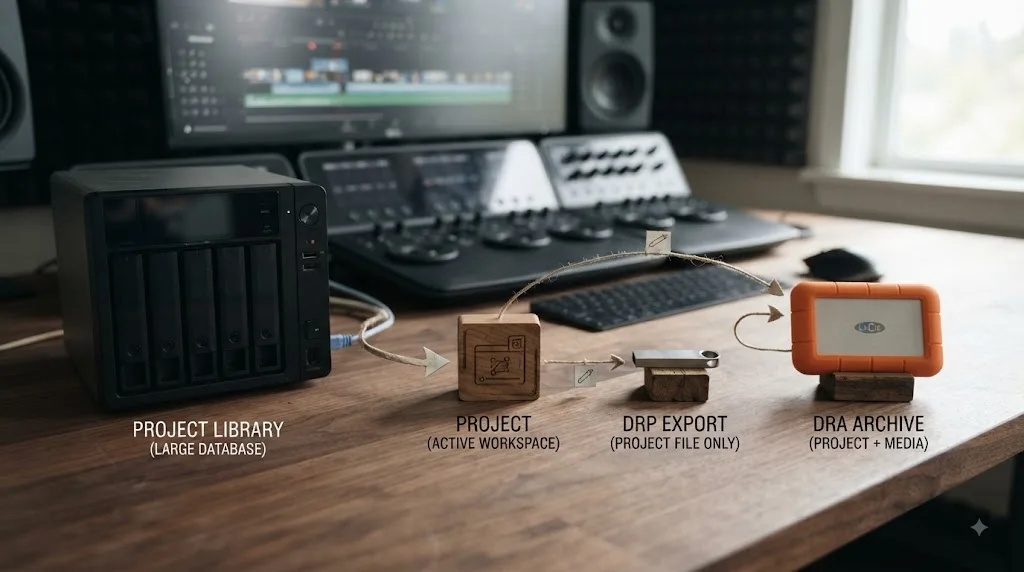
Which DaVinci Resolve backup should you use for each kind of failure?
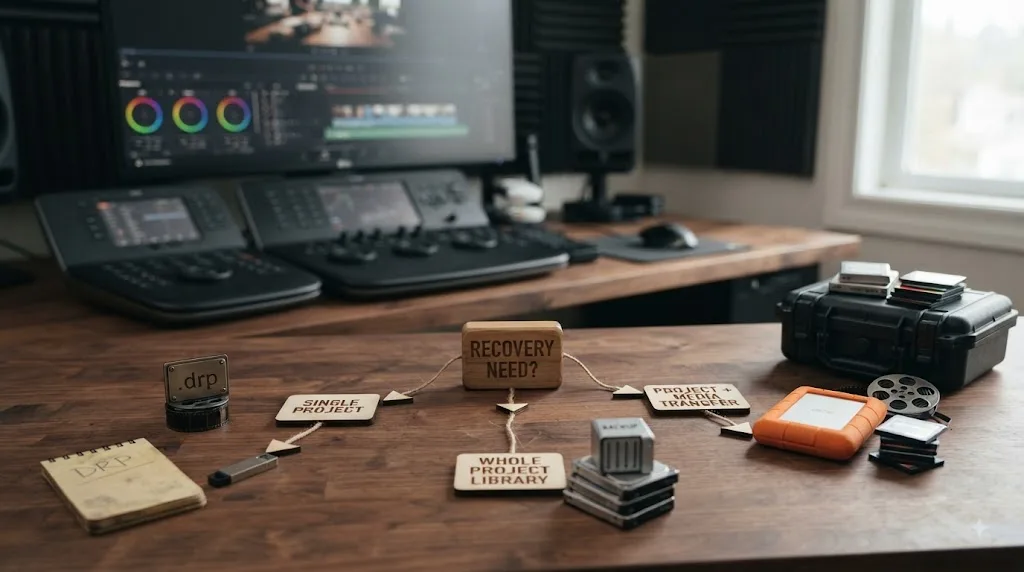
Start by naming the failure you are trying to survive.
"Back up Resolve" is too vague. Your computer can fail in several ways, and no single Project Library operation automatically covers all of them.
Here is the practical map:
| What goes wrong | What you need to recover | Useful protection |
|---|---|---|
| One project gets damaged or you need an independent copy | One project | Exported .drp |
| The entire local Project Library becomes unavailable | Many projects and their project data | Project Library backup |
| You need to move one project to another system that already has the media | Project structure | .drp |
| You need to move one project and its media | Project plus source assets | .dra with media included |
| Your media disk fails | Source video, audio, graphics, stills | Separate media backup |
| You upgrade Resolve and need a recovery point | Projects or whole library | Library backup plus critical .drp exports |
| Resolve loses the connection to an intact library | Existing library structure | Reconnect the library rather than create a replacement |
This is where the "library versus media" distinction becomes operational.
If you have a perfect Project Library backup but only one copy of your camera originals, you do not have a complete backup of the production.
If you have three copies of every camera card but no recoverable copy of your project data, you may still lose weeks of edit decisions.
The safest systems treat those as separate assets.
Backing up a Project Library protects Resolve project data, not the camera originals and other source media your timelines reference.
Consider three common scenarios.
First, you are finishing a short YouTube video. The media is already duplicated elsewhere, and your main concern is losing today's edit. A .drp export gives you an independent project copy without trying to move the entire library.
Second, you are replacing your editing workstation. You have dozens of projects in one Local Project Library. Exporting forty .drp files individually may work, but a whole-library backup or supported library migration workflow protects the broader structure more naturally. Keeping .drp exports of the projects that matter most gives you another path if the library-level move goes badly.
Third, you are delivering a job to another editor who has none of your footage. Sending only the .drp solves the wrong problem. They need the project data and the necessary media, so a Project Archive is the more relevant tool.
The point is not to make five backups of everything in five formats.
The point is to know what each format actually protects.
And don't confuse ordinary saving with an independent backup. A project can be saved perfectly inside a library that exists on a storage device you later lose.
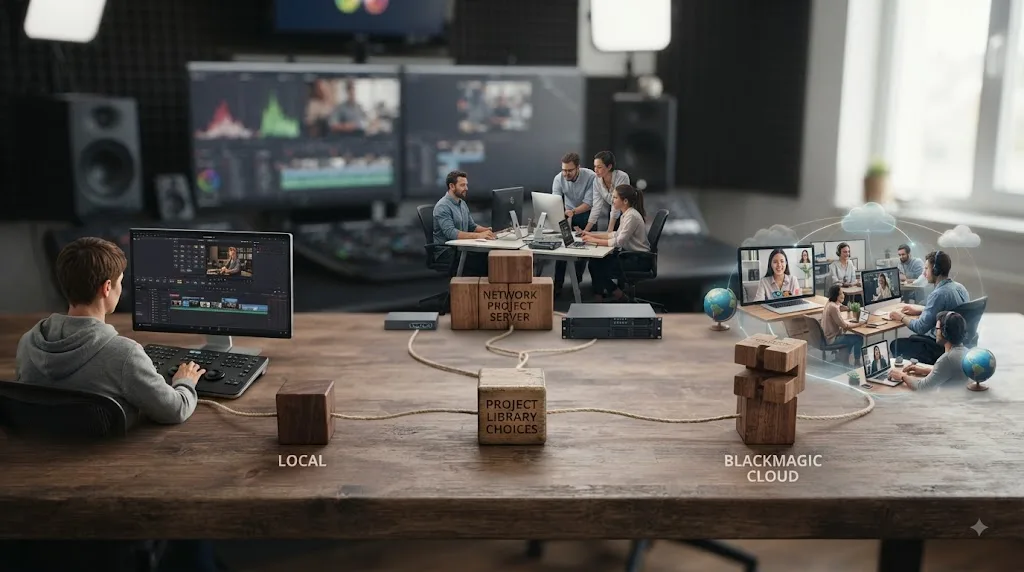
Should you use a Local, Network, or Blackmagic Cloud Project Library?
Use a Local Project Library for the simplest single-workstation setup, a Network Project Library for managed collaboration on a private network, and a Blackmagic Cloud Project Library when collaborators need remote project access.
The right choice is about access.
Not prestige. Not speed in the abstract. Not whether "PostgreSQL" sounds more professional.
| Project Library type | Where project data lives | Best for | Main trade-off |
|---|---|---|---|
| Local | Resolve-managed storage available to one workstation setup | Solo editors and simple workflows | Not the shared multiuser collaboration layer |
| Network | PostgreSQL on a system providing the database service, commonly managed with DaVinci Resolve Project Server | Teams on a controlled network | Requires server and network administration |
| Blackmagic Cloud | Blackmagic-hosted cloud Project Library | Remote collaboration over the internet | Depends on cloud access, accounts, and connectivity |
Blackmagic describes DaVinci Resolve Project Server 21 as the tool used for networked collaboration, where multiple Resolve users can work with shared project infrastructure. Project Server 21 shipped alongside the Resolve 21 generation in June 2026. (source)
Under the hood, Network Project Libraries rely on PostgreSQL. Blackmagic Product Manager Peter Chamberlain explained in an official forum answer that PostgreSQL is the server layer while Project Server provides management around it. (source)
Blackmagic Cloud extends the Project Library idea to internet collaboration. Blackmagic's collaboration page describes creating cloud project libraries, creating or importing projects there, and adding collaborators through Blackmagic Cloud IDs. (source)
A Local Project Library is the simplest single-workstation choice; shared collaboration belongs in Network or Blackmagic Cloud Project Libraries.
For most solo editors, Local is enough.
Imagine a freelancer with one MacBook Pro and two external media SSDs. Nobody else needs to open the project live. A Network Project Library adds an administrator, a database service, networking, and more things to understand without solving a collaboration problem the freelancer actually has.
Now imagine a post house with several Resolve workstations on the same managed network. Editors need access to shared projects. That is the kind of environment the Network Project Library model exists for.
Now move two of those editors to different cities. A private LAN no longer solves the access problem. Blackmagic Cloud becomes relevant because the collaboration boundary is the internet rather than one facility.
The Project Library type does not have to mirror the media-storage type.
A Network Project Library does not mean every camera original must sit "inside the database." The library and media remain different layers.
That is the recurring theme here.
Choose your project-storage architecture for project access. Choose your media-storage architecture for media access, capacity, bandwidth, redundancy, and the needs of the production.
Does a Blackmagic Cloud Project Library also solve your media-storage problem?
Do not treat "the project is in the cloud" as another way of saying "every source file is safely archived with the project."
Those are separate questions.
Blackmagic's collaboration material describes cloud Project Libraries as the shared project layer used to create, import, and collaborate on Resolve projects. (source)
Resolve's Project Archive system, by contrast, has a specific option to include Media Files when you want Resolve to collect project media into an archive. (source)
That distinction gives you a useful test.
Ask two questions instead of one:
- Can the collaborator access the Resolve project?
- Can the collaborator access the media that project references?
A cloud Project Library addresses the first question.
The second depends on the media workflow you have actually set up.
Suppose two editors open the same cloud project. Both can see the timeline structure, but one editor does not have access to the referenced source media. The existence of the shared project does not make the media-location question disappear.
Likewise, putting media somewhere both editors can access does not automatically give them a shared Project Library.
The layers meet inside Resolve, but they are not interchangeable.
This matters when a team says, "We're moving the project to the cloud."
What exactly is moving?
If the answer is only the Project Library, plan media access separately. If the goal is a self-contained archival package, that is a different job again.
Where is the DaVinci Resolve Local Project Library stored on Mac and Windows?
The safest way to locate a Local Project Library is through Resolve's Project Manager rather than relying on a path copied from an old forum post.
Install history matters.
Blackmagic support documented that fresh Resolve 16-and-newer installations moved the default local database location into the current user's application-data area. On Windows, Blackmagic's support example uses the user's AppData\Roaming\Blackmagic Design\DaVinci Resolve\Support\... area. On macOS, it uses the user's ~/Library/Application Support/Blackmagic Design/DaVinci Resolve/... area. (source)
Long-lived systems can be different.
A machine first set up with an older version of Resolve, then upgraded repeatedly, may retain an older library location. Blackmagic support has also dealt with migration cases where the historical path mattered. (source)
That is why "where is the Resolve database?" does not have one filesystem answer that is safe for every Mac and Windows installation ever made.
There are really two questions:
- Where would a current fresh installation normally keep its default local data?
- Where does your connected Project Library actually live?
The second question is the useful one.
If Resolve can see the library, use Project Manager to inspect the connected library and its location instead of guessing.
If Resolve cannot see the library, do not immediately create a new empty library with the same name and assume the old projects are gone. Blackmagic support describes reconnecting an existing library through Add Project Library > Connect when the valid library structure still exists. (source)
A filesystem search is useful when you are recovering from a broken installation, but treat what you find carefully.
You may encounter folders whose names contain "database," even though Resolve now says "Project Library." You may see historical paths from an old version. You may find internal Project.db files.
None of those observations overrides the bigger rule: preserve the complete structure and use Resolve's supported library controls where possible.
Do not start renaming internal folders because a YouTube tutorial from another Resolve generation shows a different name.
And do not move individual Project.db files around as though they were .drp exports.
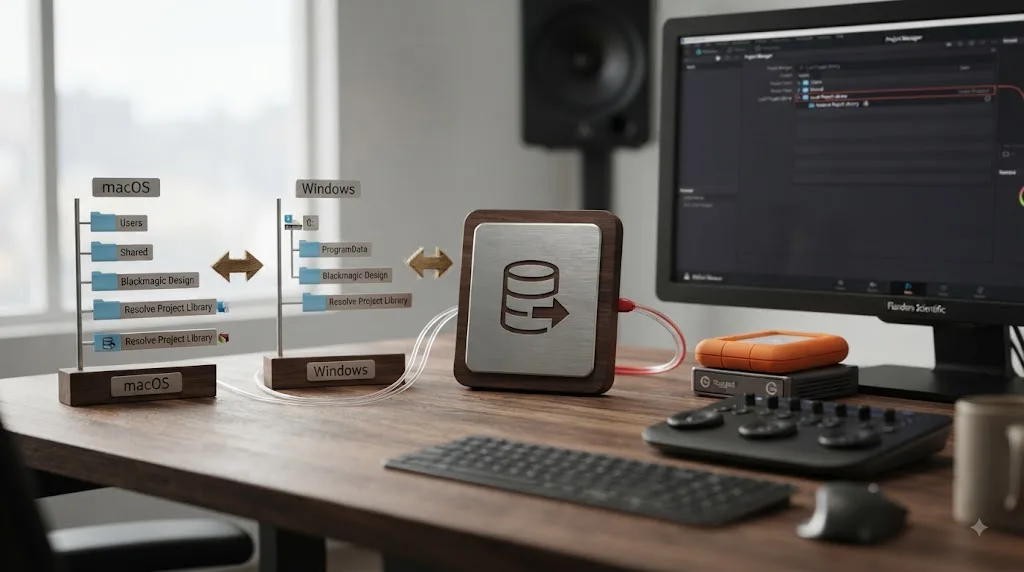
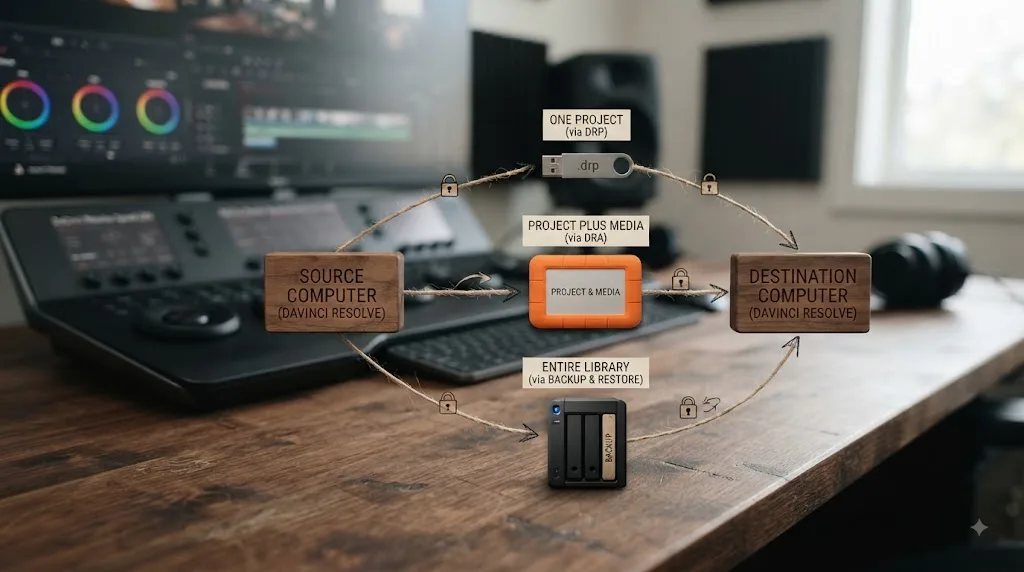
Can you move a DaVinci Resolve Project Library to another computer?
Yes, but choose the transfer method based on what you are moving.
There is a big difference between "I need this one project on my laptop" and "I am replacing my workstation and need the entire library."
For one project, an exported .drp is usually the cleanest mental model.
Export the project on the old system. Copy the .drp to the new system. Import it into a healthy Project Library on that system. Then make sure the media that the project references is also available.
That last sentence matters. The .drp does not turn your source media into part of the project file.
For one project plus media, use a Project Archive and include media according to the archive options. Blackmagic support confirms that Export Project Archive with Media Files selected copies Media Pool media into the archive. (source)
For an entire Local Project Library, use the library-level backup, restore, or reconnect workflow that matches your situation rather than manually exporting every internal database component.
A whole-library move is especially useful when the Project Manager contains years of projects, project folders, experiments, and old client work that you do not want to recreate one export at a time.
Here is a practical decision table:
| What are you moving? | Better starting point |
|---|---|
| One project, media already available on destination | Export .drp |
| One project, media must travel too | Export Project Archive with media |
| Many projects from the same Project Library | Project Library backup/restore or supported library migration |
| Existing Local Project Library folder that was disconnected | Reconnect the complete valid library |
A loose internal Project.db found in a backup | Do not treat it as an importable project file |
A workstation-replacement scenario makes this clearer.
Suppose your old Mac has a Local Project Library containing 80 projects. Only five are active, but you want the entire history on the new Mac.
Before changing machines, create an independent Project Library backup. Export .drp copies of the five critical active projects as an extra recovery route. Verify that your source media is separately backed up. Then move to the new system and restore or connect the library using the supported workflow.
Why bother with the .drp exports if you already have the library backup?
Because they solve recovery at a different scope.
If you discover a problem with the whole-library restoration, the five critical projects still have portable project-level copies.
That is redundancy with a purpose, not duplication for its own sake.
If you are transferring only one 30-second social edit, the answer changes. A whole-library migration would be needless. Export the project you need.
The scope of the move should choose the tool.
Can you put a DaVinci Resolve Project Library on an external SSD or NAS?
A Local Project Library can use custom storage, but Blackmagic has specifically warned against keeping databases on removable drives and advised against ExFAT for that use. (source)
That warning is easy to misread as a performance claim.
It is not simply "slow drive bad, fast SSD good."
A fast external SSD is still removable. It can be unplugged. Its mount can change. Its connection can disappear while the application expects the library to exist. And filesystem choice still matters even when the drive benchmarks well.
So do not decide whether a drive is suitable for Project Library data by looking only at its advertised transfer speed.
Media is a different question.
External SSDs are common places to keep working media because video files are large and throughput matters. That does not mean the same storage choice is automatically the best place for the Project Library itself.
If you are choosing a drive primarily for footage, proxies, cache, or other editing media, treat that as a separate storage decision.
A NAS creates a different kind of confusion.
Editors often ask, "Can I just put the database folder on my NAS so every computer can use it?"
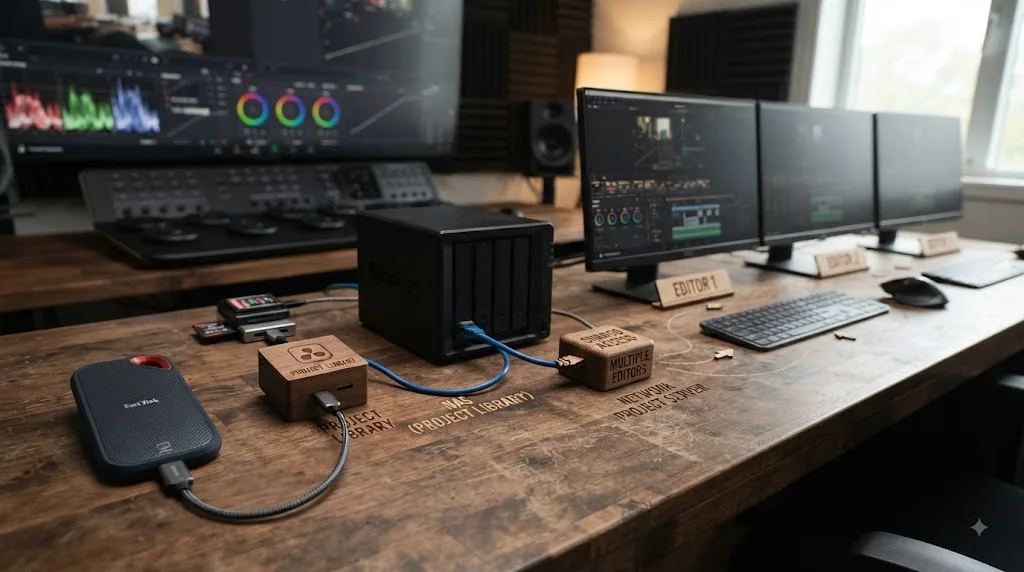
If the real requirement is several Resolve workstations sharing project access, the supported architecture is a Network Project Library backed by PostgreSQL and managed with Project Server, not a Local Project Library treated like an ordinary shared Word document.
Blackmagic Product Manager Peter Chamberlain explained the PostgreSQL and Project Server relationship in an official support discussion about running Project Server in a NAS-related environment. (source)
The useful split is:
| Need | Think about |
|---|---|
| Large shared media files | Storage bandwidth, permissions, redundancy, media workflow |
| Shared Resolve project access | Network Project Library and Project Server |
| Solo Resolve project storage | Local Project Library |
| Remote project collaboration | Blackmagic Cloud Project Library |
Your project database and your footage do not have to occupy the same storage device.
In many workflows, keeping those concerns separate makes the architecture easier to understand.
The media system can be optimized for large files and capacity.
The Project Library system can be chosen for project integrity, access, and collaboration.
What happens to a Project Library when you upgrade DaVinci Resolve?
A Project Library can require an upgrade when Resolve's project schema changes, and you should make a verified backup before accepting an upgrade that changes library compatibility.
History gives a concrete reason.
In the Resolve 18.0.4 release notice, Blackmagic explicitly recommended backing up DiskDB and PostgreSQL databases before upgrading and warned that a Project Library upgraded to Resolve 18 could no longer be used by previous Resolve versions. (source)
That is not a reason to fear every Resolve update.
It is a reason to stop treating the Project Library as something you can casually roll backward just because you still have the older application installer.
The application version and the library format can be related.
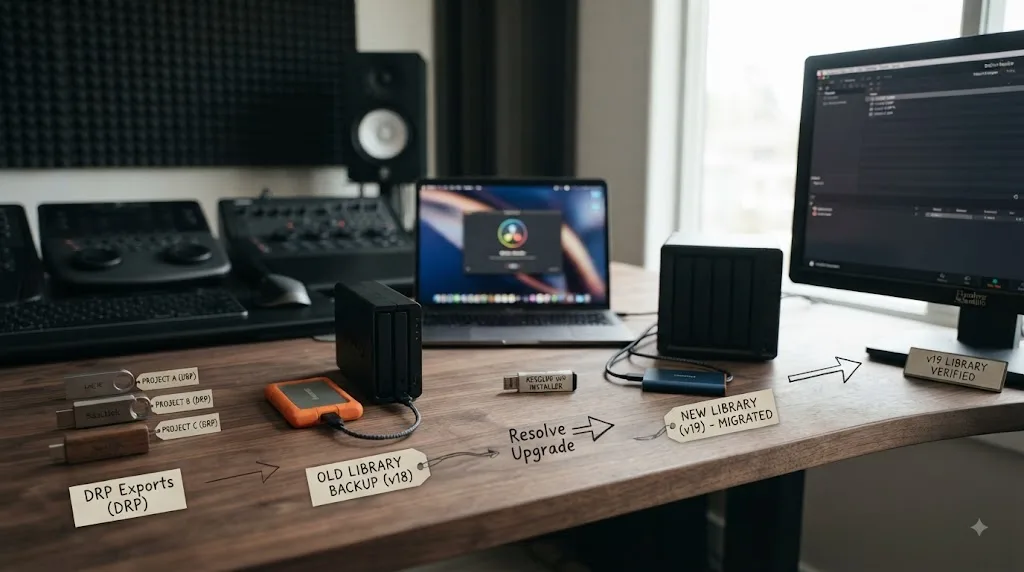
A sensible upgrade routine is:
- Export
.drpcopies of the critical projects you cannot afford to lose. - Back up the Project Library through the appropriate Resolve or Project Server workflow.
- Put those backups somewhere independent from the working library.
- Verify that the files you intended to create actually exist.
- Update Resolve and any Project Server component your workflow depends on.
- Read the release-specific compatibility notes before accepting a prompted Project Library upgrade.
- Open the projects that matter and confirm the expected timelines and media connections.
Do not turn step seven into "click around for ten seconds and assume everything is fine."
Check the things your project actually depends on.
Can the project open? Are the expected timelines there? Are clips online? Are the critical grades present? Can you access the library after restarting Resolve?
You are not benchmarking the new version. You are verifying the migration.
For a solo editor, version coordination is mostly a conversation with your own machines.
For a team, it is an operational issue.
If several workstations connect to the same Network Project Library, letting one editor update independently can create unnecessary compatibility uncertainty. Coordinate the Resolve and Project Server versions that participate in the shared workflow.
The exact compatibility details can vary by release, so avoid rules like "minor updates can never affect the library" or "a newer library will always open in an older Resolve."
Read the notes for the release you are installing.
Can an older Resolve version open a Project Library after a newer version upgrades it?
Do not assume it can.
Blackmagic's Resolve 18 release guidance gives a direct historical example: after a Project Library was upgraded for Resolve 18, Blackmagic warned that it could not be used by previous Resolve versions. (source)
That example is useful even if you are not running Resolve 18 today because it shows why "I can always reinstall the old Resolve" is not a complete rollback plan.
The application binary is only one piece.
Your Project Library may have been changed too.
Imagine this sequence:
- You have a working project in Resolve version A.
- You update to version B.
- Resolve asks to upgrade the Project Library.
- You accept.
- You later discover a plugin or workflow problem and reinstall version A.
You have now rolled back the application, but not necessarily the library.
That is exactly why backups need to happen before a library migration.
A .drp export of a critical project also gives you a separate artifact to preserve, though import compatibility still depends on the Resolve versions involved. Do not assume exporting from a newer version makes the project universally backward-compatible.
The safe principle is narrower:
Preserve the last known-good state before changing the software and its project-storage format.
Then you have something real to recover from instead of relying on a theoretical downgrade.
Why is a project missing even though the Project Library still exists?
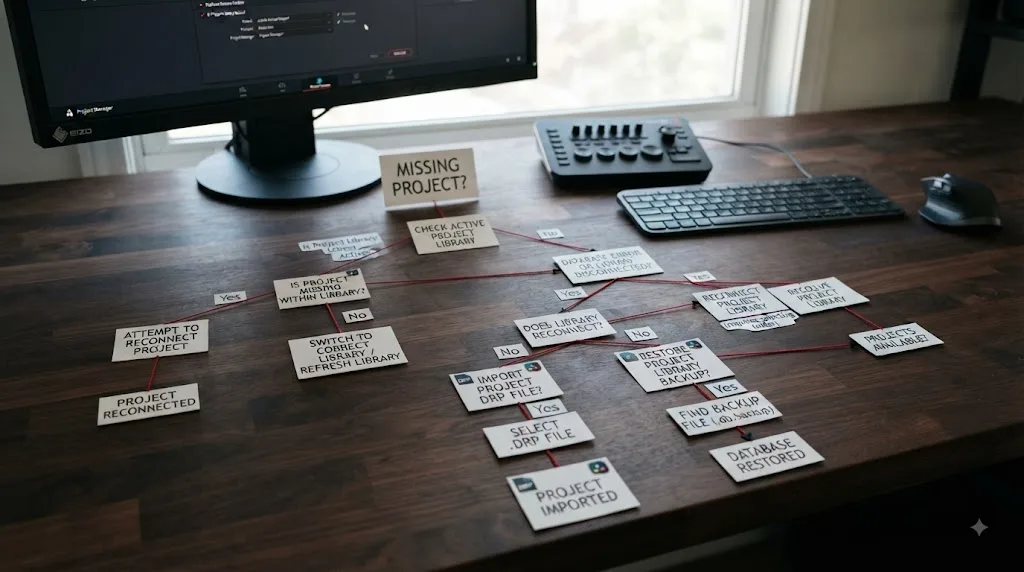
If a project or an entire set of projects disappears from Project Manager, first confirm that Resolve is connected to the Project Library you actually used.
A missing project does not automatically mean deleted project data.
Blackmagic support routinely starts these cases by asking what Project Libraries appear in Project Manager. In one 2024 case, support told the user to inspect the "Local Database" library and reveal its folder structure before assuming the projects were gone. (source)
Work through the problem from the outside inward.
First, ask whether the expected library is visible.
If your usual library is missing from the Project Libraries panel, creating another empty Local Project Library will not recover the old projects. It only gives you another empty container.
If the old library structure still exists, reconnecting it may be the correct move. Blackmagic support describes using Add Project Library > Connect for an existing valid library. (source)
If the library is visible, ask whether you are inside the correct project folder.
Large libraries often accumulate folders, old experiments, client categories, and archived sections. The missing project may be in the library but not where you expected it.
If the correct library is visible and the project truly is not there, move to your recovery copies.
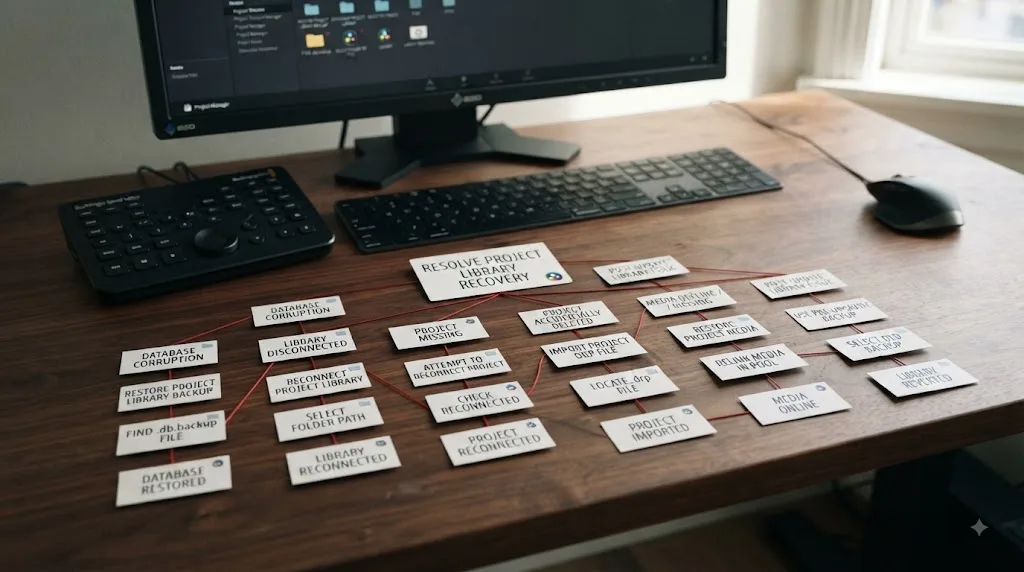
Use this order:
- Open Project Manager and inspect the Project Libraries panel.
- Confirm that the library you normally use is listed.
- Select the expected library and check its project folders.
- If the library itself is absent, determine whether its complete storage structure still exists.
- If it exists and is valid, use Add Project Library > Connect rather than creating a replacement with the same name.
- If you exported a
.drp, import it into a healthy Project Library. - If you have a Project Library backup, use the appropriate restore workflow.
- Do not try to import an internal
Project.dbas if it were a.drp.
The symptom matters.
If every old project vanished at the same time, suspect the library connection before assuming dozens of projects were individually deleted.
If only one project is absent while neighboring projects remain, the diagnosis shifts toward that project rather than the whole library.
If you just reinstalled Resolve, changed user accounts, moved to a new computer, reset settings, or changed storage, ask whether the installation is pointing at the same library location as before.
If you can see the project but all of its clips are offline, stop troubleshooting the library. That is a different layer.
If the immediate problem is exactly that Resolve opens but the project you expect is absent, use our dedicated guide for a DaVinci Resolve project not showing in Project Manager.
And if finding the Project Library controls is the part blocking you, TryUncle is the macOS tutor built for that kind of in-app question. Uncle watches the DaVinci Resolve screen and points at the exact control you need on supported pages while you work.
What if the project opens but all the media is offline?
If the project itself opens and the timeline structure is intact, the Project Library has already done something important: it gave Resolve the project data.
Offline media points you toward the media layer instead.
That is a different troubleshooting tree.
Imagine opening an old wedding project and seeing the full two-hour timeline. The cuts are there. The bins are there. The grades may still be represented. But the camera clips are offline.
The Project Library is not necessarily missing or corrupt.
Resolve may simply be looking for media at paths that no longer exist.
Perhaps the external disk is disconnected. Perhaps the media was moved to a new folder. Perhaps the project was transferred to another computer without the source files.
The important point for this article is what not to do.
Do not restore an old Project Library backup merely because clips are offline unless you have evidence the project data itself is the problem.
Restoring project data does not recreate camera originals that were never inside the library backup.
Likewise, importing three different .drp exports probably will not help if all three point to the same missing media files.
Use the layer model:
| What you can see | Likely layer to investigate first |
|---|---|
| No expected library | Project Library connection |
| Library exists, one project missing | Project-level recovery |
| Project opens, media offline | Media paths and storage |
| Project and media both gone | Recover project data and media separately |
.drp imports but clips are offline | Media availability, not the .drp itself |
That table prevents a lot of wasted recovery work.
The project and media meet inside your edit, but they fail independently.
What should you do if you find a Project.db file?
Preserve it in place as part of the larger library structure and resist the urge to treat it like a normal project file.
Blackmagic support is explicit that .db files themselves cannot simply be imported into Resolve. (source)
That matters because recovery searches often produce a false sense of victory.
You search a backup drive. You find a folder named after your old project. Inside it is Project.db.
Great. You have evidence that project-related data may still exist.
But you have not found the equivalent of a .drp.
A .drp is designed to be exported and imported.
Project.db is an internal component of a Resolve-managed local project structure.
Think of it like finding one component inside an application-managed package. The next goal is to preserve context, not strip the component out and start renaming it.
Avoid these moves:
- dragging
Project.dbinto Project Manager and expecting a project import - renaming
Project.dbto.drp - moving a single
Project.dbaway from its surrounding folder structure before making a safe copy - editing internal database files by hand because their names look readable
- deleting neighboring folders because they appear unrelated
Instead, ask where the file came from.
Was it found inside the complete old Local Project Library?
Was the whole library folder copied intact?
Is Resolve merely disconnected from that library?
Do you have a separate Project Library backup?
Do you also have .drp exports?
Those questions determine the next supported recovery path.
If the whole valid library is present but disconnected, the connection workflow may be more relevant than individual file manipulation. Blackmagic's restore guidance describes reconnecting an existing library with Add Project Library > Connect where appropriate. (source)
If all you have is a fragment of the old structure, stop modifying the only copy. Preserve it before experimenting.
Recovery gets harder when the attempted recovery destroys context.
Which recovery method should you try in common DaVinci Resolve disasters?
The fastest method depends on which layer failed.
Here are six worked scenarios.
Scenario 1: Resolve opens, but your usual Project Library is gone
You start Resolve after reinstalling the operating system. Project Manager shows an empty local library. Yesterday's projects are nowhere to be seen.
Do not conclude that the reinstall erased every project until you answer a more basic question: is this installation connected to the same Project Library?
Check whether the previous library storage still exists.
If you have the complete library structure, use the supported connection workflow. Blackmagic support describes Add Project Library > Connect when reconnecting an existing library. (source)
If you have a Project Library backup instead, restore that backup.
If you have neither but exported individual .drp files, import those into a healthy library.
The recovery scope gets narrower as you move down the list, but useful work may still be recoverable.
Scenario 2: Your library is there, but one client project is missing
This is different.
If fifty other projects are visible in the expected library, the connection itself is probably not your first suspect.
Search the project folders inside that library.
Then check whether you have a .drp export of the missing job. An exported project can be imported back into a healthy Project Library.
If you made only a library-level backup, restoring the broader backup may be another recovery route, but treat it as a larger operation than importing one project.
The existence of every neighboring project narrows the problem.
Scenario 3: The project opens perfectly, but every camera clip is offline
Stop restoring databases.
Your edit structure exists.
The question is where the media went.
Reconnect the source storage or restore the source media from your media backup. A Project Library backup does not recreate camera originals that were stored elsewhere.
If you moved the project to another machine via .drp, make sure you also moved or made accessible the media that project references.
If the goal was to create a self-contained handoff, a Project Archive with media would have been the more appropriate transfer format. Blackmagic confirms that selecting Media Files in Export Project Archive copies Media Pool media into the archive. (source)
Scenario 4: Your computer died, but the media disk survived
This is the mirror image of scenario three.
You may still have every camera file but no working copy of the edit.
Recover the Project Library backup or import your .drp exports on another Resolve installation.
Then reconnect those recovered projects to the surviving media.
This is exactly why project data and media need separate recovery plans.
Scenario 5: You upgraded Resolve and now want to go back
Do not begin by assuming the older Resolve version can open the upgraded library.
Blackmagic has historically warned that an upgraded Project Library may not work with previous Resolve versions, as it did with Resolve 18. (source)
Use the backup you made before the library upgrade.
If you did not make one, preserve the current state before experimenting further. Do not repeatedly migrate or manipulate the only copy of your library while hoping one version accepts it.
Scenario 6: You found old library folders but Resolve does not list them
Do not create a new library inside those folders.
Do not drag random Project.db files out.
Keep the old structure intact and determine whether it is a connectable Local Project Library. Blackmagic support's reconnect guidance is the relevant starting point when an intact library exists but is not connected. (source)
These scenarios look different on screen, but they all become simpler when you diagnose the layer first.
Library.
Project.
Media.
Backup.
Name the broken layer before choosing the recovery tool.
What should you back up before reinstalling macOS or Windows?
Treat an operating-system reinstall like a migration, not like an ordinary Resolve restart.
Your goal is to make the new installation independent of assumptions about what the installer preserves.
Before wiping the system, protect three categories.
First, protect the Project Library.
If the Local Project Library lives in a user application-data path on the system disk, reinstalling the operating system can obviously put that location at risk. Blackmagic's documented default locations for modern installs sit under the user's application-data areas on Windows and macOS. (source)
Create a proper Project Library backup before the wipe.
Second, export .drp copies of the active projects that matter most.
This gives you project-level recovery independent of the whole-library restoration. Blackmagic support recommends regular project exports and storing them away from the system drive. (source)
Third, verify your media backups.
Do not assume "all the projects are backed up" means your footage is backed up.
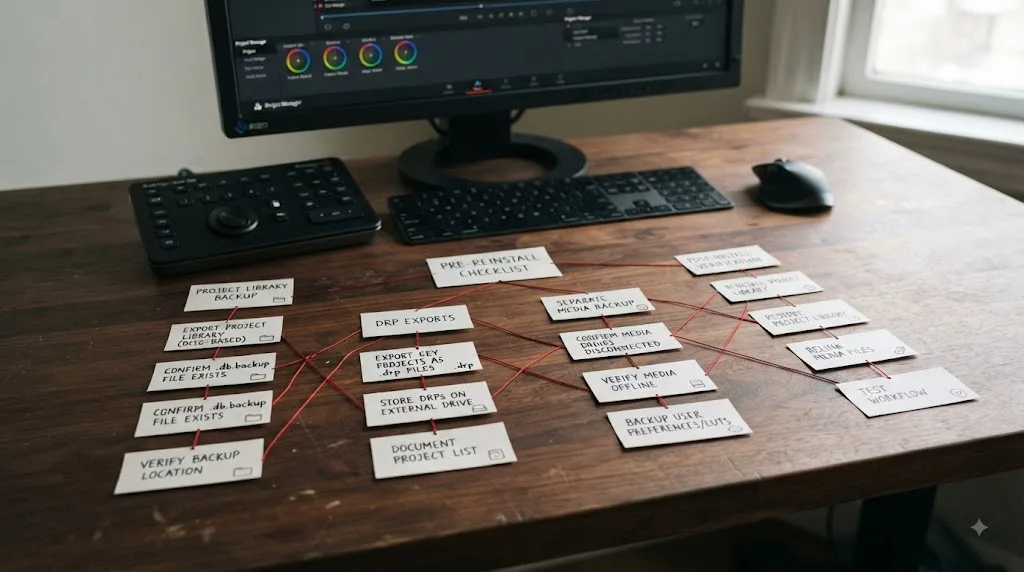
A simple pre-wipe checklist looks like this:
- Back up the current Project Library.
- Export
.drpfiles for critical active projects. - Put those project backups somewhere other than the drive you are about to erase.
- Confirm the source media exists on separate recoverable storage.
- If a project must move as one portable package, create a Project Archive with the required media included.
- Record which Project Library you use so you know what must be restored or reconnected later.
- After reinstalling Resolve, establish a healthy Project Library before importing or restoring project data.
- Reconnect media storage and verify the projects that matter.
Notice what this checklist does not say.
It does not say, "Copy one mysterious Resolve support folder and hope."
A raw folder copy may still be valuable as an extra safety net, but supported Project Library backups and project exports make your recovery intent much clearer.
The best backup is one you know how to restore.
How should a solo editor structure Project Libraries and backups?
Keep the working setup simple and make the backup setup independent.
For a solo editor on one workstation, a Local Project Library is usually the least complicated answer because there is no multiuser access problem to solve.
Then separate the recovery layers.
A practical structure could look like this:
| Layer | Working copy | Independent protection |
|---|---|---|
| Resolve project data | Local Project Library | Project Library backup |
| Critical active project | Project inside library | Periodic .drp export |
| Camera originals | Media storage | Separate media backup |
| Portable completed job | Project plus media | .dra archive when appropriate |
This structure avoids two extremes.
The first extreme is underthinking backups. Everything lives on one machine, and "Resolve saved it" is treated as disaster recovery.
The second is overengineering. A solo editor builds a PostgreSQL server, several sync systems, and complicated scripts without any actual collaboration need.
Complexity is not the same thing as safety.
A Local Project Library plus clear independent backups can be easier to understand and recover than a sophisticated setup nobody remembers how to restore.
Use .drp exports where they add value.
For example, before a major creative revision, export the current project. Before a Resolve upgrade, export the critical active projects. Before sending a job to someone else, export the project or make an archive depending on whether the media needs to travel.
Use the Project Library backup for the broader container.
Use the media backup for the source files.
The goal is that no single disk failure or software migration forces you to discover what "database" means under pressure.
How should a small team think about Project Libraries?
Start with the collaboration boundary.
If several editors need shared project access inside one managed facility, a Network Project Library with Project Server is the architecture Blackmagic provides for that job. Project Server manages the PostgreSQL-backed project environment used for networked Resolve collaboration. (source)
If editors need to collaborate remotely over the internet, Blackmagic Cloud Project Libraries address that project-sharing use case. (source)
But shared access does not remove the need for backup discipline.
In fact, the blast radius gets bigger.
If one Local Project Library fails on a freelancer's machine, one editor is affected.
If a shared library is the home for a team's active work, more projects and more people can depend on that infrastructure.
That means the team should be able to answer basic recovery questions before anything breaks:
- Who is responsible for Project Library backups?
- Where are those backups stored?
- Which Resolve and Project Server versions are approved?
- Who performs upgrades?
- What happens if an editor updates early?
- Which projects also get independent
.drpexports? - Where does the media live?
- How is media protected separately?
- How will the team verify a restore?
These are not exciting questions.
They are much more exciting than discovering the answers after a server problem.
For shared environments, also separate project permissions and media permissions in your mental model.
An editor may be able to open a project but not have access to every media location. Or the media may be available while the Project Library is not.
Again, two layers.
A team workflow becomes easier to troubleshoot when people stop using "the server" to mean every piece of storage in the building.
How do you tell whether you need to reconnect, restore, or import?
These three actions sound similar because all can make projects appear again. They start from different things.
Reconnect when the existing complete Project Library still exists but Resolve is no longer connected to it.
Restore when you have a Project Library backup and need to recreate the library from that backup.
Import when you have an exported project such as a .drp and need to put that individual project into a Project Library.
Use this table before clicking:
| What you have | What you are trying to recover | Starting action |
|---|---|---|
| Complete existing Local Project Library structure | The same library | Connect |
| Project Library backup | Whole library | Restore |
.drp export | One project | Import Project |
.dra Project Archive | Project and archived assets | Restore/import the archive through the appropriate project archive workflow |
Loose Project.db | Unknown fragment of an internal structure | Preserve it, identify the complete library context |
| Only source media | Footage but no edit decisions | Find project/library backups separately |
Blackmagic support's recovery guidance makes the distinction between connecting an existing library and restoring from a backup particularly important. (source)
Consider a common mistake.
You reinstall Resolve. The Project Manager is empty. You remember the old library was called Local Database, so you create a brand-new library named Local Database.
The name matches.
The contents do not.
You have created an empty container with a familiar label. You have not reconnected the old container.
That is why recovery should start with identifying what you actually possess.
A name is not a backup.
A folder is not automatically a valid restore file.
An internal .db is not a .drp.
Once those distinctions are clear, the correct action becomes much less mysterious.
Does renaming a Project Library change what it is?
No. The visible name is a label, not the storage type.
This is especially useful to remember when you see a modern Resolve installation containing something named "Local Database."
The old word can survive in the label even though the current concept is a Project Library. Blackmagic support itself has used "Local Database" when discussing the default Local Project Library in newer Resolve troubleshooting. (source)
Do not infer too much from a user-created name either.
Someone could name a Local Project Library:
Client Projects
Main Database
2025 Archive
DO NOT DELETE
Bob
None of those names changes its underlying type.
When diagnosing a system, ask:
- Is this Local, Network, or Blackmagic Cloud?
- Where is its project data actually stored?
- Is Resolve currently connected to it?
- Is it a working library or a backup?
- Which projects are inside?
Those answers matter more than the friendly label in the sidebar.
Is a Project Library backup enough for long-term archiving?
Not if your definition of "archive" includes being able to reopen the edit with its source media years later.
A Project Library backup protects project data.
A long-term production archive usually has a broader requirement: preserve the project state and the assets needed to reconstruct the work.
Resolve's Project Archive feature is designed for the project-plus-assets problem. Blackmagic support confirms that selecting Media Files in Export Project Archive copies Media Pool media into the archive folder. (source)
A library backup and a project archive therefore answer different questions.
The library backup asks:
"Can I recover the Resolve projects that lived in this library?"
The project archive asks:
"Can I package this particular project with the media I selected for archival or transfer?"
Suppose you finish 30 client projects in a year.
You might keep a Project Library backup protecting the Resolve project data across all 30 jobs.
But for the five jobs that need long-term self-contained retention, you might also create individual Project Archives with media.
Those archives can be handled independently from the working library.
That separation is useful because a working Project Library is an active system. A long-term archive is meant to survive after the working environment changes.
Different purpose. Different object.
What mistakes cause the most confusion around Project Libraries?
Most of them come from collapsing several layers into one vague idea called "the project."
Here are the recurring conceptual mistakes.
Mistake 1: Assuming .drp is the live project file
A .drp is an exported project. The working project lives in a Project Library.
Mistake 2: Assuming the library contains all media
Normally it does not. The project data references your source files.
Mistake 3: Assuming a library backup is a media backup
It is not. Protect camera originals and other media separately.
Mistake 4: Treating Project.db like a portable .drp
Blackmagic support says .db files cannot simply be imported. (source)
Mistake 5: Creating a new empty library when the old one merely became disconnected
If the existing valid library still exists, reconnecting it is a different operation from creating another library. Blackmagic documents the Add Project Library > Connect route in its recovery guidance. (source)
Mistake 6: Putting a Local Project Library on removable storage because the drive is fast
Blackmagic has warned against databases on removable drives and specifically against ExFAT for that use. (source)
Mistake 7: Using a shared folder as a substitute for a Network Project Library
If several editors need shared project access, use the PostgreSQL and Project Server model intended for network collaboration. (source)
Mistake 8: Upgrading first and planning rollback later
Blackmagic has shipped Resolve versions where upgrading a Project Library made it unusable in previous Resolve versions. Back up first. (source)
The fix for all eight mistakes is the same mental habit.
Name the object.
Are you handling a library, a project, an export, an archive, or media?
Vague language creates vague recovery plans.
Which DaVinci Resolve Project Library setup should you choose?
Choose the least complicated Project Library that meets your access and collaboration needs.
Here is the decision matrix:
| Your situation | Choose | Why |
|---|---|---|
| One editor on one workstation | Local Project Library | Few moving parts |
| One editor who wants portable project copies | Local plus regular .drp exports | Easy project-level recovery and transfer |
| Several editors in one facility | Network Project Library plus Project Server | Proper shared project database layer |
| Remote editors in different locations | Blackmagic Cloud Project Library | Built for remote project collaboration |
| You need to hand off one project without media | .drp export | Portable project copy |
| You need to hand off project plus media | .dra Project Archive | Can include the assets needed to reopen |
| You are replacing a workstation | Library backup plus critical .drp exports | Protects broad and project-level recovery |
| You are about to upgrade Resolve | Project Library backup plus critical .drp exports | Gives you recovery points before migration |
| Resolve lost an intact local library connection | Reconnect the existing Project Library | Avoids creating a new empty replacement |
| Project opens but media is offline | Fix media access | The Project Library is not the first problem |
If you are still unsure, reduce the decision to two questions.
How many people need simultaneous access to the project layer?
And from where?
One editor on one machine usually points to Local.
Several editors inside one managed network point toward Network and Project Server.
Remote collaborators point toward Blackmagic Cloud.
After that, design media storage separately.
Do not let the word "database" push you into a more complicated architecture than your work requires.
What is the safest mental model for DaVinci Resolve projects?
Think in four layers: Library, Project, Media, Backup.
The Library is the container Resolve uses to hold projects.
The Project is the editable job inside that library.
The Media is the video, audio, graphics, and other source material your project references.
The Backup is an independent recovery copy chosen for the failure you want to survive.
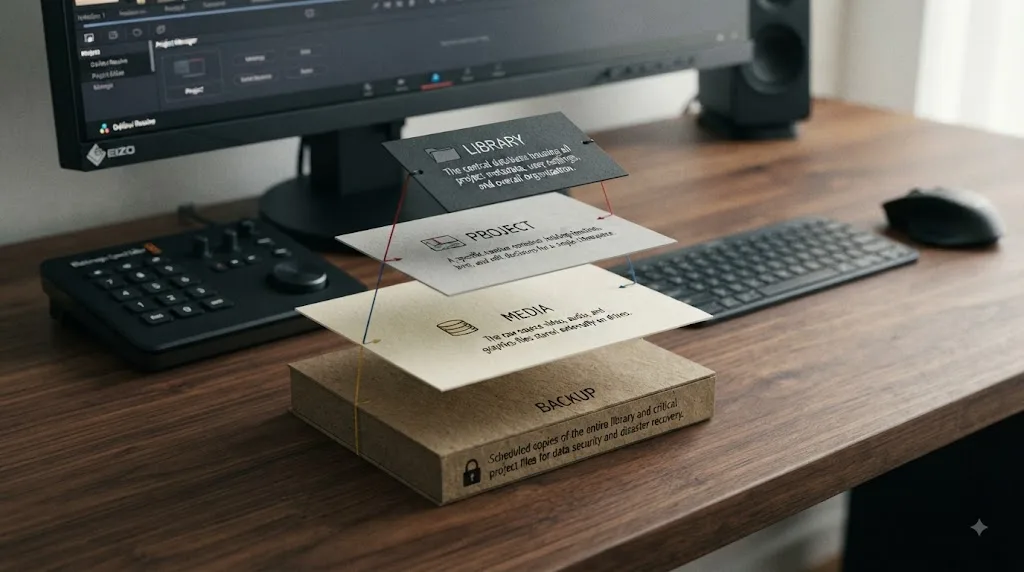
The useful distinction is not "Project Library versus database"; it is library versus project versus media versus backup.
Once you keep those layers separate, the old and new terminology stops being a problem.
A Resolve 17 tutorial says "database"? Translate it to Project Library.
A .drp appears in a backup folder? Treat it as one exported project, not the whole library.
A timeline opens with offline clips? Investigate media access before rebuilding the library.
A workstation is about to be wiped or upgraded? Protect the Project Library, export the projects that matter most, and verify the media separately.
That is the next step: look at your current Resolve setup and identify all four layers before you need to recover any of them.
Frequently asked questions
- Is a DaVinci Resolve Project Library the same as a database?
- In current Resolve terminology, yes for practical purposes. Blackmagic renamed project databases to Project Libraries in Resolve 18. Older tutorials, forum posts, migrated installations, and some familiar labels may still use database, so the two terms often refer to the same project-storage layer.
- Does a DaVinci Resolve Project Library contain my video files?
- Normally, no. The Project Library stores project data such as timelines, edits, metadata, grades, and references to media. Camera originals, audio, graphics, and other source files remain in the storage locations you chose unless you create a Project Archive and include media.
- What is the difference between a Project Library and a .drp file?
- A Project Library is the working container that can hold many projects. A .drp is an exported copy of one Resolve project that you can store, transfer, and later import into a Project Library.
- What is the difference between a .drp and a .dra in DaVinci Resolve?
- A .drp is a project export and does not bundle all source media. A .dra is a Project Archive folder that can include the project plus media and selected cache or proxy material, depending on the archive options you choose.
- Should I use a Local, Network, or Blackmagic Cloud Project Library?
- Use Local for a straightforward single-workstation setup. Use a Network Project Library with DaVinci Resolve Project Server when multiple machines on a managed network need shared project access. Use Blackmagic Cloud when collaborators need remote project access over the internet.
- Does a Project Library backup include source media?
- No. A Project Library backup protects Resolve project data, not the camera originals and other media referenced by those projects. Back up media separately or create a Project Archive with Media Files selected when you need a portable package containing the assets.
Sources
- Blackmagic Design Forum: Where are project files stored?
- Blackmagic Design Support: DaVinci Resolve and Fusion
- Blackmagic Design: DaVinci Resolve Collaboration
- Blackmagic Design Forum: Restore a Project Library
- Blackmagic Design Forum: How to get my projects back?
- Blackmagic Design Forum: Release of DaVinci Resolve Studio 18.0.4
- Blackmagic Design Forum: Resolve Database Migration issue
- Blackmagic Design Forum: Archiving a project
- Blackmagic Design Forum: Project Server on a NAS
- Blackmagic Design Forum: Missing projects and Local Database
Learn by doing, not watching
Stop translating tutorials to your timeline.
TryUncle stays beside Resolve on Mac and Windows. When you ask, Uncle sees your screen and points at the exact control you need. No hunting through tabs, timestamps, or mismatched tutorials.
Meet TryUncleKeep reading
 FixesJul 16, 202630 min read
How to Prevent DaVinci Resolve Project Corruption
The real causes of DaVinci Resolve project corruption, from cloud-synced databases to power loss, and the exact habits that prevent it in 2026.
 GuidesJul 12, 202638 min read
How to Archive a DaVinci Resolve Project Without Losing Media
The right way to archive a DaVinci Resolve project so every clip travels with it: Export Project Archive vs Media Management vs Backups, compared.
 FixesJul 19, 202626 min read
DaVinci Resolve Project Not Showing in Project Manager: Fixed
A DaVinci Resolve project missing from Project Manager is almost always a wrong-library or wrong-user problem, not data loss. The full path checklist, in order.