
Learn / DaVinci Resolveupdated for DaVinci Resolve 21.1 (October 2026)
DaVinci Resolve Metadata Columns Missing? How to Show Them
Quick answer
If DaVinci Resolve metadata columns are missing, switch the Media Pool to List view, then right-click a column header and enable the fields you need. If there are no headers, confirm you’re in the Media Pool and not Thumbnail or Metadata view. In Resolve 21, check whether the bin is set to open in another view.
The metadata columns haven’t vanished from your project. In most cases, the Media Pool is showing a different view, or the fields you want are switched off. The fix is usually quick: choose List view, then enable the columns you need.
Why are metadata columns missing in DaVinci Resolve?
DaVinci Resolve metadata columns appear in the Media Pool’s List view. If you see a grid of clip images instead of a table, change the view first. If you already see rows and headers, right-click a header and turn on the fields you want.
The Media Pool can show clips in Thumbnail, Metadata, or List view. These are different ways to inspect the same bin, not separate copies of the media. List view presents clips in rows and information in columns. Blackmagic Design’s DaVinci Resolve 20 Editor’s Guide describes List view as showing more clip metadata than Thumbnail view and explains that you can add or remove columns from a header’s right-click menu.
Start with this sequence before changing project settings:
- Open a page that has the Media Pool, such as the Media or Edit page.
- Locate the Media Pool and the bin containing your clips.
- Use the Media Pool’s view controls to select List view.
- Look for a row of headers above the clip entries.
- Right-click one of those headers.
- Select the checkbox beside each field you want to display.
Step four tells you which problem you have. If the header row appears, the previous view was the issue. If the row is there but a field is missing, check the header menu. If there’s no header row at all, confirm you changed the Media Pool view and not another panel.
List view is the Media Pool view that displays clips as rows with metadata columns.
A missing column is usually a display problem, not lost clip metadata. Making a field visible and entering a value in that field are separate tasks. You can check the Metadata Editor to see whether a value exists even when it isn’t visible as a Media Pool column.
Resolve 21.1 adds another useful option: Blackmagic says editable fields can be modified directly in List view, with Tab and Enter used to navigate between rows and columns. That change doesn’t replace the view controls. You still need to be looking at List view before you can work in its table. Blackmagic Design’s Resolve 21.1 announcement describes the version-specific editing feature.
How do I show metadata columns in DaVinci Resolve?
To show metadata columns, switch the Media Pool to List view, right-click any visible column header, then check the fields you want. The menu controls which available columns appear. It doesn’t create metadata that hasn’t been entered.
Use these steps:
- Open the Media Pool. Go to a page that includes it and make sure you’re looking at the bin, not the timeline or another panel.
- Select List view. Use the Media Pool’s view controls to change from Thumbnail or Metadata view to List view.
- Open the column menu. Right-click one of the header names. If you’re using a trackpad, use its configured secondary-click gesture.
- Turn on the fields. Select the missing column names in the menu. A checked field is enabled; an unchecked field is hidden.
- Check the result. Look for the new header and the values in its rows. If the header appears but a cell is blank, the column is visible, but that clip may not have a value for that field.
- Make the table usable. Drag a header to change its position, or drag the divider between headers to adjust a column’s width.
Blackmagic’s Resolve 20 Editor’s Guide documents the right-click method for adding or removing List view columns. The older Resolve 14 Reference Manual describes dragging headers to reorder columns and clicking a header to sort. Those instructions explain longstanding controls, but the exact fields available can differ by version. Treat the menu in your installed version as the authority on which columns it offers.
A menu may look different depending on the page, panel, or Resolve version. If right-clicking does nothing, check that the pointer is over a column header, not a clip row or empty space. If no headers are visible, return to the view controls and select List view first.
Then test the result using a field you expect to contain a value, such as a filename. If the header appears but the cells look empty, stop toggling columns. You’ve moved on from a visibility issue to a metadata-value issue.
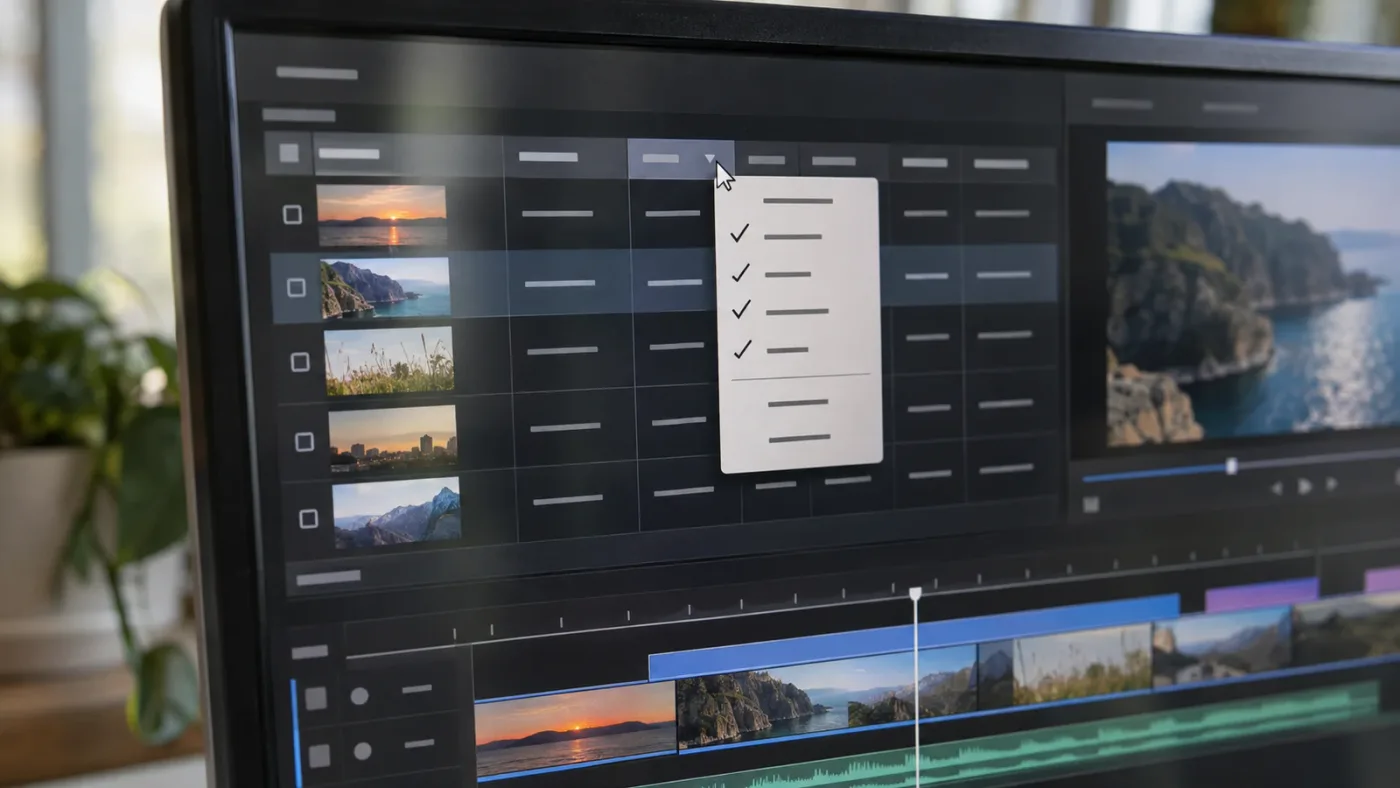
Why can’t I see a column header to right-click?
If there’s no Media Pool header row, you’re probably not in List view. Thumbnail view prioritizes clip images, while Metadata view presents clip information differently. Neither should be confused with the List view column table.
This is a common point of confusion because all three views can show media from the same bin. Thumbnail view helps when you identify shots visually. Metadata view combines a preview with selected information. List view trades the larger visual layout for a compact table. Blackmagic’s Resolve 20 Editor’s Guide explains these distinctions.
Use what you see as a clue:
| What the Media Pool looks like | Likely view or issue | What to do |
|---|---|---|
| Large clip images or a grid of thumbnails | Thumbnail view | Select List view from the Media Pool controls. |
| A preview with one prominent metadata field | Metadata view | Select List view to display column headers. |
| Clip names in rows, but only a few headers | List view with some columns hidden | Right-click a header and check the fields you need. |
| No visible Media Pool or view controls | Different panel, collapsed panel, or page layout | Locate the Media Pool on a page that includes it. |
| One bin looks like a grid while another looks like a table | A per-bin view preference may be active | In Resolve 21, check the selected bin’s saved view setting. |
Don’t assume that every panel showing clips is the Media Pool. The timeline also contains clips, but it isn’t where you configure Media Pool columns. Find the bin list and its media entries, then use the view controls associated with that pool.
The Media page is a sensible place to diagnose the layout because its workflow centers on media organization. The Edit page can also expose the Media Pool, so you don’t have to leave an edit just to restore a column. The exact panel arrangement can vary with your workspace. The test remains the same: find the Media Pool, select List view, then open a header menu.
There’s no need to delete and reimport footage because the columns aren’t visible. Changing the view or column visibility changes what Resolve displays. It doesn’t relink media or repair an offline source file.
How do I fix metadata columns that disappear when I switch bins?
In DaVinci Resolve 21, you can set an individual bin to always open in a particular Media Pool view. If columns disappear only when you select one bin, check whether that bin is configured to open in Thumbnail or Metadata view.
Blackmagic’s Resolve 21 New Features Guide says bins can be assigned Thumbnail, Metadata, or List view. Resolve remembers the setting across sessions, but the choice doesn’t affect other users and machines using the same project.
To check a bin’s view:
- Select the bin that displays the wrong layout.
- Change the Media Pool to List view.
- Right-click the bin in the bin list.
- If the menu offers Always Open in List View, choose it.
- Select another bin, then return to the first one to check whether it opens in List view.
The menu’s wording reflects the view you choose. If you want that bin to open as thumbnails instead, select Thumbnail view first and use the corresponding option. Different bins can serve different purposes: a bin of music may be easier to scan as a list, while a bin of possible cutaways may be easier to recognize as thumbnails.
Don’t confuse the bin view preference with the column checklist. They control different things. The bin preference chooses Thumbnail, Metadata, or List view. The header menu chooses which columns appear when List view is active.
Try switching between two bins with different purposes. If the view changes along with the selected bin, inspect the per-bin preference. If both bins remain in List view but show different headers, check the column menu and the available panel width. If the headers are there but the values differ, you’re looking at metadata content rather than a disappearing layout.
In an earlier Resolve version, you may not find this Resolve 21 per-bin option. Don’t treat its absence as evidence that the project is broken. Use the view controls and column menu available in your version, and check that version’s documentation if the labels differ.
Why does the column appear, but the metadata cells are blank?
A visible column and a populated metadata field are two different things. If the header appears but a clip’s cell is blank, check whether the field applies to that media and whether someone entered a value.
Start with one clip. Select it and inspect its metadata in the Metadata Editor. If the value is blank there too, List view is displaying an empty field. Add or correct the value in the appropriate place, then look at the List view again.
If the Metadata Editor contains a value but the corresponding column cell stays blank, check whether the field you’re viewing is the same one. List view provides a subset of the fields in the Metadata Editor, not a column for every possible item. A similarly named field or a source property may not represent the same data as a descriptive field you entered.
Consider these cases:
- The field is available and empty. Enter the value in the Metadata Editor or, in Resolve 21.1, edit an available editable field directly in List view.
- The Metadata Editor has a value, but the header menu doesn’t offer that field. Use the Metadata Editor to inspect it, or choose a supported way to organize clips around metadata.
- Only some clips have values. The column may be working correctly even when some rows are blank. Check a clip you know was tagged or recorded.
- The value belongs to another clip or source. Confirm that the selected row is the clip you meant to inspect.
- The field reflects a source property. Check the relevant source or project properties rather than assuming the cell is an editable text field.
Resolve 21.1 introduced direct editing of editable fields in List view. Blackmagic says users can move between rows and columns with Tab and Enter. That doesn’t mean every field is editable there, or that every Metadata Editor field becomes a List view column. The Resolve 21.1 announcement describes the change.
If you’re using an earlier version, don’t expect Resolve 21.1’s in-place editing. Use the Metadata Editor to inspect or enter the field. In any version, separate three questions: Is the column available? Is it visible? Does this clip have a value?
A blank cell doesn’t prove that Resolve lost the clip’s metadata.
Can I show every Metadata Editor field as a column?
No. The Media Pool List view offers a subset of the metadata available in the Metadata Editor. If a field isn’t in the header menu, changing the view or widening the panel won’t make it appear as a column.
That limit matters when you plan a tagging workflow. A field can be useful for describing a shot without being available in the compact table. In that case, inspect or enter it in the Metadata Editor, then choose another supported way to find matching clips rather than hunting for a hidden checkbox.
Resolve 21 adds another option for organizing clips. Blackmagic’s Resolve 21 New Features Guide says custom metadata fields can be used as criteria for Smart Bins and Clip Filters, as well as Data Burn-ins and Naming Tags. That makes custom fields useful for specific workflows, but it doesn’t mean every custom field becomes a List view column.
| Your goal | A useful next step |
|---|---|
| Compare common file details across clips | Enable the fields offered in List view. |
| Check a field that isn’t in the header menu | Select a clip and inspect the Metadata Editor. |
| Group clips according to a supported custom field | In Resolve 21, consider a Smart Bin or Clip Filter using that field. |
| Find a spoken word that appears later in a transcript | Search the transcription rather than relying on its short column preview. |
| Recognize shots visually while checking selected information | Choose Thumbnail or Metadata view, depending on the task. |
The right choice depends on what “show” means in your workflow. If you need to compare several standard properties across many clips, List view is a useful starting point. If you need to inspect a less common field on a few clips, the Metadata Editor may be quicker. If you want clips gathered by a repeatable metadata rule, a Smart Bin may be more useful than a table that’s too wide to scan.
Resolve 21 also includes a Transcription column in List view. The New Features Guide says it shows only the first several words as a visual indicator, while searches can match the full transcription. Don’t treat the short text in that column as the whole transcript.
Here’s a worked example, not a report of a hands-on test. Suppose you’ve entered a custom “location” field for interview clips and want to find everything tagged “kitchen.” First check whether the field is available as a column. If it isn’t, inspect the Metadata Editor to confirm the values are there. In Resolve 21, the documented custom-metadata criteria for Smart Bins may offer a way to gather matching clips without displaying that field in every row. If the rule doesn’t find the expected clips, verify the exact field and values before assuming the bin or metadata is damaged.
Which Media Pool view should I use to organize footage?
Use List view when you need to compare properties across rows, Thumbnail view when visual recognition matters most, and Metadata view when a preview plus selected information suits the task. Choose the view for the decision you need to make, not because one layout looks more complete.
Imagine a bin of interview footage from several cameras, with a mixture of frame rates and notes about scenes or subjects. This is a worked example. If you need to verify a source frame rate or sort by filename, List view offers a compact table. If you’re trying to recognize a particular camera angle, Thumbnail view gives you a visual scan. If you want to preview clips while keeping one piece of information prominent, Metadata view may be a better fit. Blackmagic’s Resolve 20 Editor’s Guide explains the view differences.
An editor organizing social footage may make a different choice. A grid can help you spot takes with the right framing. A table can help compare filenames, durations, or other offered fields. If a descriptive note is the key to finding clips, enter and inspect it in the Metadata Editor, then use an available organization method that fits the information.
Use List view to compare properties and Thumbnail view to recognize images.
Resolve 21 lets you choose a preferred view for individual bins. You might keep music and voice recordings in List view while using Thumbnail view for possible cutaways. That’s an organization choice, not a fix for missing values. The view options and their per-bin behavior are documented in Blackmagic’s Resolve 21 New Features Guide.
A simple organization plan can keep the Media Pool from turning into an endless table:
- Separate broad types of media into bins, such as interviews, b-roll, graphics, and audio.
- Use consistent clip names so filenames help identify sources.
- Add metadata when it will help you find, compare, or verify footage later.
- Use List view to compare the fields it supports.
- Consider a Smart Bin when a repeatable metadata rule is more useful than manually browsing each bin.
These are options, not requirements. A small project may need only a few bins. A project with many interviews or camera sources may benefit from consistent metadata and Smart Bin rules. Ask whether each field will help you find or verify media later. If not, entering it may create extra work without improving the edit.
How do I keep useful columns from becoming too wide?
Keep the fields you use most near the left side, give long text enough room to identify entries, and hide fields you don’t need for the current task. A List view layout is easier to scan when it serves one job instead of trying to show everything.
For a camera-media check, you might prioritize file identity and technical properties. For a scene review, you might prioritize scene, shot, take, or a description field if Resolve offers it. For audio review, an audio-related field may matter more than image metadata. The available fields depend on your version and media.
To make the table easier to scan:
- Enable only the fields needed for the current review.
- Drag the most-used headers toward the left.
- Widen fields that contain meaningful text.
- Narrow short, predictable values that don’t need much space.
- Sort by a header when grouping or checking values matters more than the original order.
- Return to Thumbnail view when you need to identify shots visually.
Blackmagic’s older Resolve reference documentation describes dragging headers to reorder or resize columns and clicking a header to sort. The general controls help explain the table, but column names and available fields may vary by version. The Resolve 14 Reference Manual provides that historical description; use the current header menu to see what your installation offers.
Avoid making a very wide layout permanent just because it seems thorough. If you must scroll horizontally to reach the fields you use most, hide a few seldom-used columns or reorder the important ones. The table’s job is to make a decision easier: identify a file, compare properties, review tags, or confirm a value. A field that doesn’t help with that decision may be taking up space.
The same columns can fit differently in a narrow Media Pool panel and a wider one. If a header seems to have disappeared, widen the panel or reduce the number of displayed fields before concluding that its checkbox was cleared. A column may simply be outside the visible part of the table.
Here’s another worked example. Suppose you’re checking a bin of camera originals before an edit. Put the identifiers you need to distinguish files near the left, then add only the technical columns relevant to the check. If your immediate task changes to finding a shot by appearance, switch to thumbnails instead of adding more fields. That keeps the layout focused and makes the next check easier.
What changed in Resolve 21 and 21.1?
Resolve 21 added Media Pool organization features, while Resolve 21.1 added direct editing of editable List view fields. These features affect how you organize and enter metadata, but the basic fix remains the same: select List view and enable the columns you need.
| Version | Relevant Media Pool behavior |
|---|---|
| DaVinci Resolve 21 | Bins can be set to open in a preferred Thumbnail, Metadata, or List view. |
| DaVinci Resolve 21 | Custom metadata fields can be used as criteria for Smart Bins, Clip Filters, Data Burn-ins, and Naming Tags. |
| DaVinci Resolve 21 | The Transcription column shows a short preview, while searches can match the full transcription. |
| DaVinci Resolve 21 | Keyboard shortcuts can be assigned to switch the Media Pool to Thumbnail or Metadata views. |
| DaVinci Resolve 21.1 | Editable fields can be modified directly in List view, with Tab and Enter navigation between rows and columns. |
Sources: Resolve 21 New Features Guide and Blackmagic Design’s Resolve 21.1 announcement.
The view-shortcut feature may help if you keep changing layouts by accident. Blackmagic’s Resolve 21 guide places those shortcut options in Keyboard Customization under Panels > Media Pool > View Type. The guide describes shortcuts for Thumbnail and Metadata views. Check the command labels in your installed version rather than assuming a shortcut from another editor.
The per-bin setting can create a confusing first impression when you select another bin or open a project. One bin may open in List view while another opens as thumbnails. The guide says the bin’s setting is remembered across sessions but doesn’t affect other users and machines using the same project. A different view on another workstation doesn’t, by itself, mean the metadata is missing.
Resolve 21.1’s in-place editing is a convenience, not a requirement for restoring columns. If you’re on that version and a field is editable, you can edit it there and use Tab and Enter to move through the table, as Blackmagic describes. If you’re on an earlier version, use the Metadata Editor for field entry. Neither approach turns every metadata field into a List view column.
Resolve 21’s per-bin view setting and Resolve 21.1’s in-place editing solve different problems.
What should I check if the columns still won’t appear?
If List view is selected but you still can’t see the fields you want, check the header menu, the selected bin’s preferred view, panel width, and whether the field is offered in List view. Don’t reset the project or reimport media until you’ve separated a display problem from a metadata problem.
Follow this decision path:
1. Is the Media Pool in List view? If not, select List view. Thumbnail and Metadata views don’t present the same header table.
2. Is there a header row? If yes, right-click a header and check the field list. If not, confirm that you’re in the Media Pool and that the view change took effect.
3. Is the field in the header menu? If yes, enable it. If not, check the Metadata Editor or consider an appropriate metadata-based organization feature. List view doesn’t expose every Metadata Editor field.
4. Does the header appear, but its cells are blank? Inspect the selected clip in the Metadata Editor. A visible column doesn’t guarantee that each clip has a value.
5. Does the view change for only one bin? In Resolve 21, check whether that bin is set to open in another view. Switch it to List view and select the matching Always Open in List View option if it appears.
6. Could the column be off-screen? Widen the Media Pool, hide less useful columns, or drag important headers toward the left.
7. Are you following instructions for another version or panel? Check the official materials for your installed release. Blackmagic Design’s support center provides Resolve manuals and update resources. Resolve 21’s per-bin preference and Resolve 21.1’s direct field editing are newer behaviors, so an older tutorial may not mention them.
If you still suspect a software issue, note your Resolve version and operating system, then describe what you expected and what appeared instead. “List view is selected, the header menu is open, and the field I need isn’t in the list” gives a clearer starting point than “metadata is missing.” It distinguishes a field-availability question from a view or value problem.
I haven’t tested this procedure on every operating system, workspace layout, or Resolve build. The steps here follow the controls and version changes Blackmagic documents; your installed version’s menus and documentation are the deciding references.

Where should I go next if I’m organizing a large Media Pool?
If columns are visible but clips are still hard to locate, improve the search or organization method rather than adding every available field to the table. Choose the next step based on the problem that remains.
If Media Pool search isn’t finding clips you expect, see DaVinci Resolve Media Pool Search Not Finding Clips? Fix It. Search behavior and column visibility are different issues: seeing a value in a column doesn’t guarantee that a search includes that field.
If clip images aren’t appearing, use DaVinci Resolve Media Pool Thumbnails Not Showing: Fix It. That guide addresses visual previews, not metadata columns.
If clips are grouped into a Smart Bin unexpectedly, check DaVinci Resolve Smart Bin Not Updating? Fix It. Smart Bin membership rules and List view are separate parts of media organization.
For a new project, start with the smallest useful setup. Separate broad media categories into bins. Add metadata when it will help you find, compare, or verify footage later. Use List view for the fields it supports, and consider a Smart Bin when a repeatable metadata rule can save you from browsing manually. Don’t add fields just to make the table look complete.
If you’re still stuck while looking at your own Media Pool, TryUncle is a desktop companion for Mac and Windows. You can ask Uncle about the control on screen, then follow its guidance while you perform the actions.
Blackmagic Design’s Simon Hall described the broader editing goal in an interview with TechRadar: “The goal is to remove some of the slower, repetitive work so users can spend more time on the creative decisions.” The quote is from TechRadar’s interview with Simon Hall.
The next step is simple: switch the Media Pool to List view, enable the required fields, and check whether the clips you’re reviewing actually have values for them.
Frequently asked questions
- Why are metadata columns missing in DaVinci Resolve?
- The Media Pool may be in Thumbnail or Metadata view instead of List view, or the fields you want may be unchecked. Switch to List view, then right-click a header and enable the missing fields.
- How do I show metadata columns in DaVinci Resolve?
- Open the Media Pool in List view, right-click a column header, and select the metadata fields to show. In Resolve 21, check whether the bin is set to always open in another view if the layout changes when you select it.
- Why can’t I see a column header to right-click?
- The Media Pool is probably in Thumbnail or Metadata view, or you may be looking at a different panel. Find the Media Pool’s view controls and select List view to display its column table.
- Can I show any Metadata Editor field as a Media Pool column?
- No. List view offers a subset of the fields available in the Metadata Editor. If a field is not in the header menu, inspect it in the Metadata Editor or use a metadata-based organization feature such as a Smart Bin where appropriate.
- Why do my metadata columns disappear when I switch bins?
- Resolve 21 lets a bin be set to always open in a particular view. A bin set to Thumbnail or Metadata view can look different from one set to List view. Select the affected bin, choose List view, and check its saved view preference.
Sources
Learn by doing, not watching
Stop translating tutorials to your timeline.
TryUncle stays beside Resolve on Mac and Windows. When you ask, Uncle sees your screen and points at the exact control you need. No hunting through tabs, timestamps, or mismatched tutorials.
Meet TryUncleKeep reading
 FixesSep 26, 202638 min read
DaVinci Resolve Media Pool Search Not Finding Clips? Fix It
DaVinci Resolve Media Pool search not finding clips? Fix bin scope, metadata filters, IntelliSearch, offline media, and Resolve 21.1 traps.
 FixesSep 29, 202621 min read
DaVinci Resolve Media Pool Thumbnails Not Showing: Fix It
DaVinci Resolve Media Pool thumbnails not showing? Restore Thumbnail View, relink offline media, and separate stale previews from render-cache problems.
 FixesSep 26, 202639 min read
DaVinci Resolve Smart Bin Not Updating? Fix It
DaVinci Resolve Smart Bin not updating? Find the real cause, repair metadata rules, refresh stale results, and handle Resolve 21 edge cases.