
Learn / DaVinci Resolveupdated for DaVinci Resolve 21.1 (September 2026)
DaVinci Resolve Media Pool Thumbnails Not Showing: Fix It
Quick answer
If DaVinci Resolve Media Pool thumbnails are not showing, switch the Media Pool to Thumbnail View and move the icon-size slider right. If clips are offline, use Relink Media and point Resolve to the original folder. If only previews are stale, reopen the project, then check the source clip before changing render-cache settings.
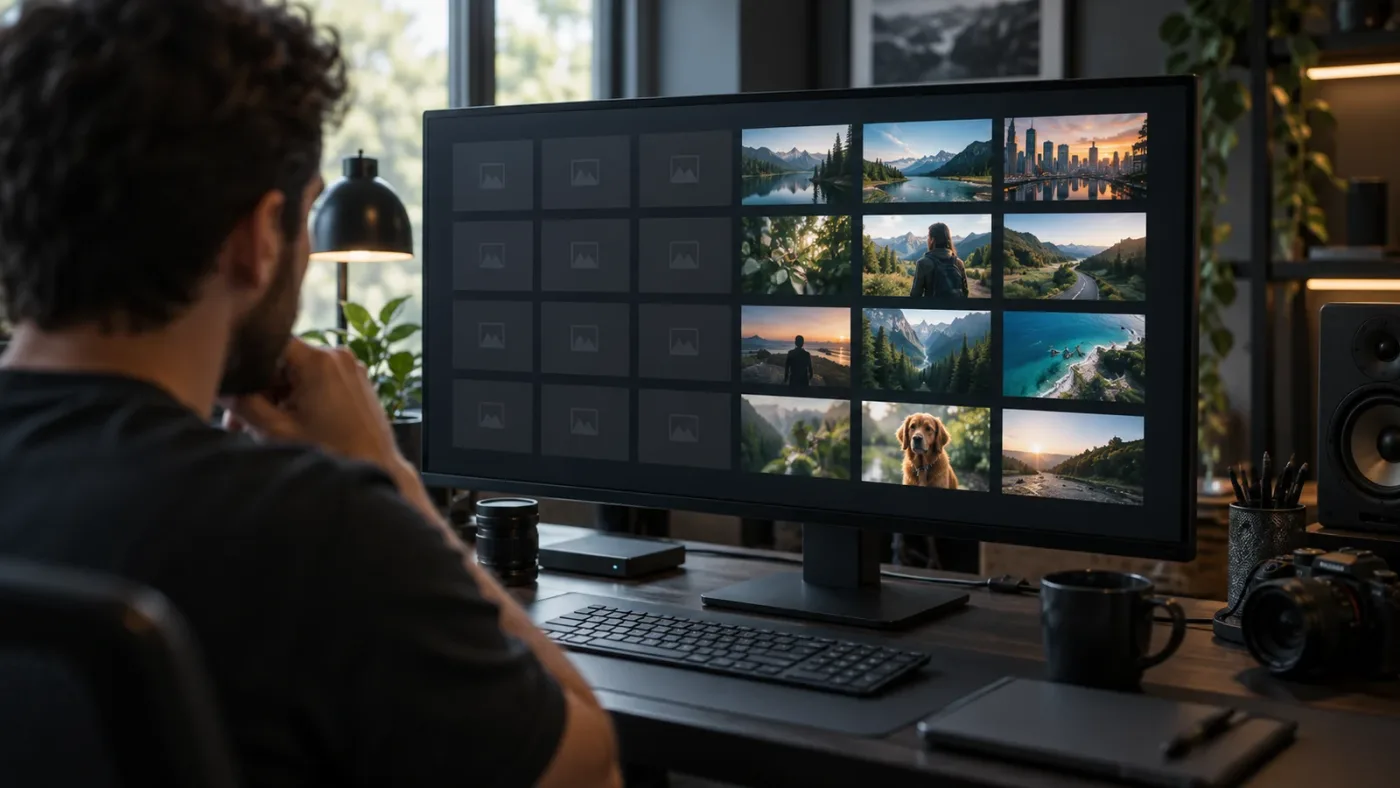
I start with the view setting, not a damaged project. If DaVinci Resolve Media Pool thumbnails are not showing, switch to Thumbnail View, enlarge the icon size, and then check whether the clips are offline.
I’ve seen this symptom described in our 100,000+ member professional video-editing community, and it’s easy to misdiagnose because “no thumbnail” can mean several different things. The clip might be hidden by List View, the selected bin might be empty, the source file might be offline, or Resolve might be displaying a stale preview.
As of September 2026, Blackmagic Design’s current public release is DaVinci Resolve 21.1. The workflow below uses the control names documented in Blackmagic’s DaVinci Resolve 20 Editors Guide, with version notes where the distinction matters. Blackmagic Design’s 21.1 announcement confirms the current release line and its September 2026 availability.
TryUncle is the on-screen assistant for DaVinci Resolve on Mac and Windows. Ask in plain words, and Uncle points at the exact control on your screen.
Why are my DaVinci Resolve Media Pool thumbnails not showing?
DaVinci Resolve Media Pool thumbnails are usually missing for one of four reasons: the pool is in List View, the thumbnails are too small to notice, the selected bin does not contain the expected clips, or the source media is offline. Start with the view, then test the media connection.
The Media Pool is Resolve’s project browser for source clips, still images, audio, bins, and timelines. Blackmagic’s Resolve 20 Editors Guide documents three ways to browse its contents: Thumbnail View, List View, and Metadata View. Thumbnail View is visual and supports clip previewing; List View emphasizes columns and metadata instead.
That distinction matters because a List View can look like a thumbnail failure when nothing is wrong. The clips are still in the project. They’re simply being represented as rows rather than large image cards. The same guide says that List View can display a filmstrip for the selected clip through the Media Pool’s options menu, but that is a different display from a grid of thumbnails. The Resolve 20 Editors Guide documents the three views and the Show Filmstrip option.
List View is not a broken Thumbnail View.
Use this quick diagnosis before changing anything:
| What you see | Most likely explanation | First action |
|---|---|---|
| File names appear in rows, but no images appear | The Media Pool is in List View | Choose Thumbnail View |
| Image cards are present but extremely small | The icon-size control is near its minimum | Move the icon-size slider right |
| Red or offline-looking clip icons appear | Resolve cannot find the source files | Use Relink Media |
| One clip is blank while others work | The issue may belong to that file or codec | Test it in the Source Viewer |
| The Media Pool itself is empty | Wrong bin, hidden contents, or a project-state issue | Open the correct bin and reopen the project |
| The timeline viewer is black but the Media Pool is fine | A playback, decode, or render issue | Diagnose the viewer separately |
Do not begin by deleting render cache. That command addresses timeline renders and effects, not the basic question of whether a source clip has a thumbnail in the Media Pool. Blackmagic’s Resolve guides treat render cache as a real-time playback tool for timeline work, which is a different path from browsing source media.
How do I turn Media Pool thumbnails back on in DaVinci Resolve?
To turn Media Pool thumbnails back on, open the Media Pool, select Thumbnail View, and increase the icon size until the clip images are obvious. This is the correct first fix when the clips are present but the visual cards have disappeared.
1. Open the Media Pool on the page you are using
Go to the Media page or Edit page and locate the Media Pool. Resolve can show the Media Pool on more than one page, and the available space can vary with your workspace layout. If the panel is collapsed, expand it before judging whether the thumbnails exist.
If you’re on the Edit page, look above the clip area for the view controls. If you’re on the Media page, the same basic choice is available in the Media Pool browser. Don’t confuse the Media Pool with the Clips strip on the Color page or the Source Viewer. Those areas can show related media, but they are not the same browser.
2. Choose Thumbnail View
Select the control that displays the clips as image cards rather than rows. In the documented Resolve workflow, Thumbnail View lets you browse the clip image and hover over a clip to preview its contents. List View instead presents text and metadata columns.
If you can see every filename in a neat list, the import probably worked. Switch views before you re-import anything. Re-importing the same source files can create duplicate clips and make the project harder to organize.
If the problem is actually that the correct clip never appears in the selected bin, use our guide to DaVinci Resolve Media Pool Search Not Finding Clips after you finish the view check. Search and thumbnails are different failure modes, but they can look similar when you’re working quickly.
3. Increase the icon size
In Thumbnail View, move the Media Pool’s icon-size or magnification control to the right. Blackmagic’s beginner guide describes this slider as the control for increasing the size of clip thumbnails. On a high-resolution display, a thumbnail can be technically present but so small that it looks like a generic icon.
The fastest fix for a hidden thumbnail is usually selecting Thumbnail View and enlarging the icon slider.
Try three positions: the current setting, the midpoint, and a large setting. If the image appears at a larger size, the project was not broken. You were looking at a display-scale problem.
4. Open the correct bin
A Media Pool can contain several bins. The Master bin shows the project’s top-level contents, while individual bins show only their own contents. If you are expecting a camera card’s clips and are looking at a sound-effects bin, the empty space is telling the truth.
Open the bin where the clips were imported. If you’re unsure, click the Master bin and compare the number of items. Then return to the working bin. A correct view with the wrong bin still looks like missing thumbnails.
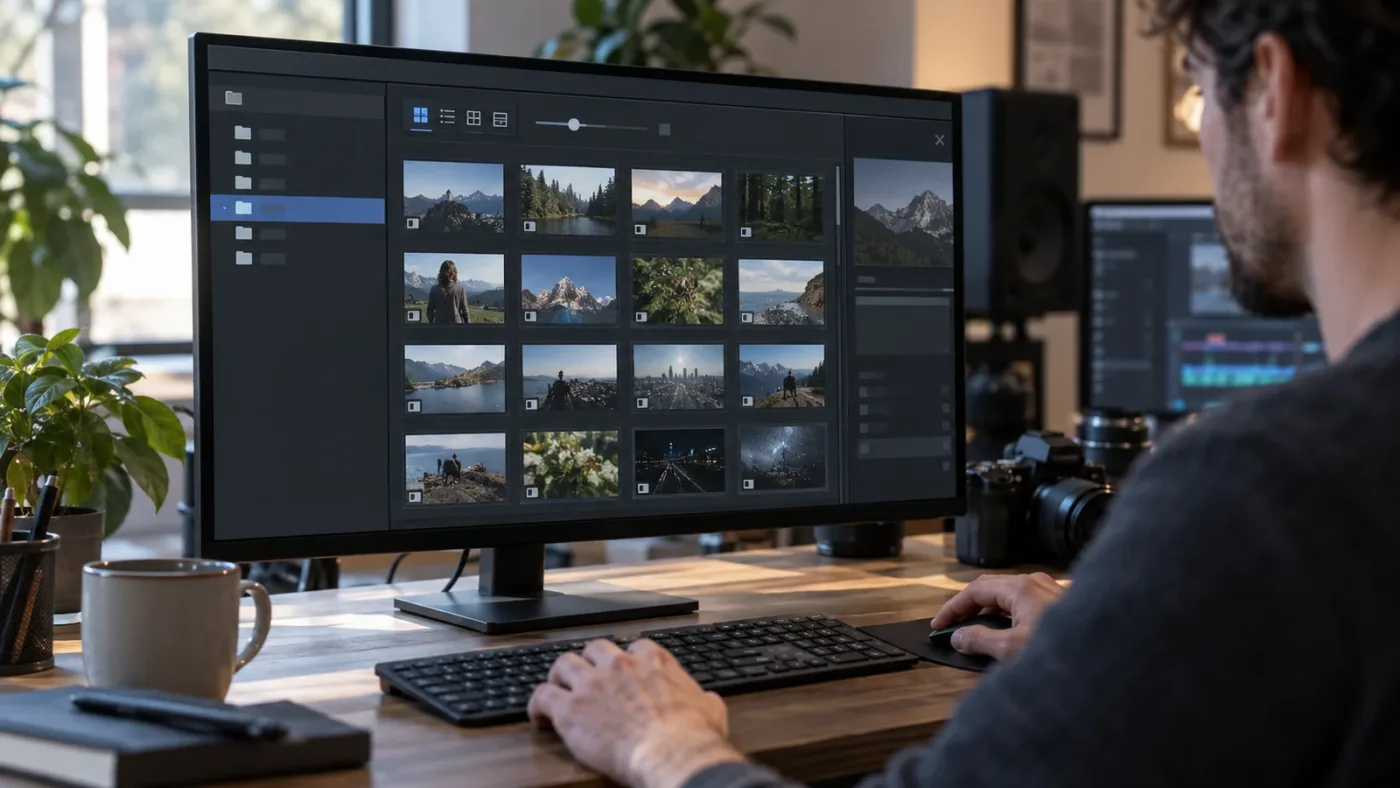
Why are DaVinci Resolve thumbnails blank, black, or stuck on a generic icon?
Blank, black, and generic-icon thumbnails require different tests: first determine whether the source clip opens, whether the file is offline, and whether the black image is actually the first frame. A black thumbnail is not proof that Resolve lost the media.
Test the affected clip in the Source Viewer
Double-click one affected clip. If it opens and plays in the Source Viewer, the source is readable and the problem is probably limited to the Media Pool preview, the chosen poster frame, or the way the clip is being displayed.
If the clip does not open, test one known-good clip from the same bin. This comparison is more useful than repeatedly clicking the blank card because it separates a project-wide display problem from a source-file problem.
If the first frame of the source is black, the thumbnail may be accurately showing black. Scrub over the clip in Thumbnail View if your version exposes the hover preview. You can also open the clip in the viewer and inspect a later frame. The image and the file can both be healthy even when the default poster frame is dark.
Peter Chamberlain, identified on the Blackmagic Design forum as a DaVinci Resolve Product Manager, made the relevant distinction plainly: “Playback is displayed in the viewer. Thumbnail or list status of the media pool is not relevant.” Read Chamberlain’s response in the Blackmagic Design forum.
That quote answers a common wrong turn. If the viewer plays the clip, don’t treat a missing Media Pool image as proof that playback is broken. Diagnose the display state and the source relationship separately.
Check whether the thumbnail is an offline indicator
When Resolve cannot locate a source file, the clip is offline even though its project record may remain in the Media Pool. The project still knows the clip name and its old path. It just cannot read the media at that path.
Blackmagic’s Resolve 20 Editors Guide says the Relink Media button appears red when files in the project are unexpectedly missing. The guide also explains that media can go offline when the storage is unavailable or when files have been moved to another folder or drive. See the official relinking instructions.
Look above the Media Pool for a red Relink Media control. If it is red, skip thumbnail cosmetics and repair the file path. A relink can restore the clip’s usable image because Resolve can read the source again.
A red Relink Media button means Resolve has identified missing source files.
Compare one file from the same folder
If every clip from one external drive has a problem, suspect the drive, mount point, permissions, or changed folder structure. If only one clip has a problem while nearby files from the same folder display normally, suspect that file’s encoding, corruption, or an unusual format.
This is a decision, not a diagnosis by guesswork:
| Test | Result | What it tells you |
|---|---|---|
| A known-good clip from the same bin displays | One file is affected | Investigate that file or its format |
| Every clip from one drive is offline | The storage path is unavailable or changed | Restore the drive or relink the folder |
| Clips open in the viewer but cards stay stale | The source is readable | Refresh the project state and inspect the view |
| The viewer also shows Media Offline | Resolve cannot read the source | Relink or restore the media first |
| The clip is a still image with a dark design | The preview may be accurate | Check the image on a contrasting background elsewhere |
Don’t convert a file or install a codec because one tiny card looks wrong. Confirm the source behavior first. A codec decision made before this test can add a new variable without fixing the actual problem.
How do I relink Media Pool clips after moving them to a new drive?
If you moved the source files, relink the clips from the Media Pool instead of importing them again. Resolve 20’s official guide places the red Relink Media button above the Media Pool and explains that the relink window reports how many files are missing.
Use the project’s relink command
- Save the project.
- Select the bin containing the offline clips, or select the Master bin if you need to include the project’s bins.
- Click the red Relink Media button above the Media Pool.
- Choose the folder where the source files now live.
- Let Resolve scan the folder, then confirm the files it matches.
- Check several thumbnails and open at least one clip in the Source Viewer.
The relink target should be the folder that contains the media, not a random parent directory you happen to remember. If the folder structure changed, choose the new root that lets Resolve find the files with their current names.
The official Resolve 20 guide also warns that media deliberately unlinked is not included in the red Relink Media indicator. That means a missing thumbnail and a deliberately removed clip are not always the same state. If you intentionally unlinked media, use the project’s own clip-management controls and make a deliberate decision about whether to reconnect it.
Relinking restores a source path; it does not change the clip’s edit, grade, or place in the Media Pool.
After the relink finishes, test a file from the start, middle, and end of the bin. This is not a claim that three tests prove every file is correct. It is a quick way to catch a folder selection that matched only part of the project.

Why does the Media Pool show no thumbnails after I reopen a project?
If the Media Pool is still empty after reopening, check the selected bin and project state before rebuilding anything. A reopen can refresh a stale display, but it cannot restore a file that the operating system or Resolve cannot access.
There are three useful observations:
- Does the Master bin contain the clips?
- Does the affected clip open in the Source Viewer?
- Does the same clip display on the Media page and the Edit page?
If the Master bin contains the clips but your working bin looks empty, you have a navigation problem. If both pages show the clip but the card is blank, you have a preview or decoding problem. If neither page can open it, investigate the media path.
Save the project, close the project, and reopen it once. This is a low-risk refresh step. It is not a guaranteed repair, and it should not replace relinking missing media. If the symptom returns immediately, record which clips are affected and whether they are online before trying anything more aggressive.
A project that opens with missing clips can also expose a storage issue. External drives can be disconnected, mounted under a different name, or unavailable to the current user account. Resolve’s relink workflow exists for this class of problem, so use it before importing duplicates.
If the Media Pool is empty only on one page, compare the page’s Media Pool controls and selected bin. The Blackmagic forum contains a case where a user saw content on one page after finding it absent on another. Forum reports are useful clues, not official guarantees, so treat this as a comparison step rather than a universal rule.
Do I need to clear render cache when Media Pool thumbnails are missing?
Usually, no. Render Cache is for processing timeline clips, effects, grades, and titles for smoother playback; it is not the first control for restoring source-clip thumbnails in the Media Pool.
Blackmagic’s Resolve 20 Beginners Guide describes the three Render Cache modes as Off, Smart, and User. It also documents Playback > Delete Render Cache with choices such as All, Unused, and Selected Clips. Those commands belong to timeline performance and render state. Read the Resolve 20 render-cache explanation.
The distinction is important because deleting cache can consume time without touching the cause of your missing thumbnail. The Colorist Guide says clearing render cache removes cached renders and causes affected timeline work to be rendered again. It also describes a viewer anomaly where clearing active cache can force a timeline clip to re-cache correctly. That is a valid fix for a stale timeline or viewer render, not a universal Media Pool-thumbnail reset. See the official cache-clearing guidance.
Media Pool thumbnails and timeline render cache solve different problems in DaVinci Resolve.
Use this split:
| Symptom | Use first | Do not confuse it with |
|---|---|---|
| The clip is absent from the visual grid | Thumbnail View and bin checks | Render Cache |
| The clip card says or looks offline | Relink Media | Timeline cache deletion |
| The viewer shows an old graded frame | Render-cache diagnosis | Re-importing source media |
| Timeline playback stutters | Render Cache, optimized media, or performance diagnosis | Media Pool icon size |
| The Media Pool card is stale after a source change | Project refresh and source verification | Assuming the source is missing |
The older Blackmagic reference material is especially clear that render cache is for timeline processing while optimized media is used to help with source media performance. The practical lesson still holds in current Resolve: don’t use a timeline cache command as your first answer to a source-browser display problem. Blackmagic’s cache reference explains the source-media and timeline distinction.
If you need to locate the cache folder itself, see where to find DaVinci Resolve cache files on Mac and Windows. That is a storage-location question, not a reason to delete cache before you have identified the symptom.
When is clearing cache reasonable?
Clear render cache when the symptom is a stale timeline render, an incorrect cached grade, or a viewer result that does not reflect a change you just made. Save first, and understand that Resolve will need to render again.
Do not clear it merely because the Media Pool is in List View. Do not clear it because the icon slider is too small. Do not clear it before relinking media that is offline.
The menu path is version-sensitive in small visual details, but the concept is stable in the Resolve 20 guide: Playback > Delete Render Cache, followed by the scope you intend. If you are on 21.1 and the exact label has moved, search the Playback menu for the render-cache command rather than deleting folders manually.
Why do only some DaVinci Resolve Media Pool thumbnails fail?
When only some thumbnails fail, compare the affected clips with a working clip from the same bin, storage volume, and camera or export batch. A partial failure points away from a global view setting and toward the files, formats, paths, or a stale preview for those specific items.
If the files are camera originals
Open one affected source in the Source Viewer. Read the clip information available in the Media Pool or viewer and compare it with a working source. The Resolve 20 Editors Guide says the thumbnail’s information control can expose source filename, resolution, frame rate, and codecs. Those fields give you a concrete comparison instead of a vague “it looks different.”
If every affected clip shares a codec or camera format, test a short known-good file in another supported format. Don’t treat that test as proof that the codec is unsupported. It only tells you whether the issue follows the source format.
If the files are still images
A black or transparent still can look empty against a dark Media Pool background. Open the image in a viewer or another image application and confirm that it contains visible content. If the design itself is black, the thumbnail may be telling you exactly what the image contains.
The Blackmagic forum includes a feature request about a checkered thumbnail background for transparent media. That discussion is evidence that dark or transparent assets can be visually misleading in the Media Pool, not evidence that every black card is broken. Read the Blackmagic Design discussion of transparent thumbnail backgrounds.
If the files are rendered exports
Test the rendered file outside Resolve, then import one copy into a small test bin only if you need to compare behavior. A generic icon or black card can be caused by the file’s actual first frame or by how Resolve decodes that export. Keep the original project untouched while you test.
Do not delete the only copy of a source or overwrite the export during troubleshooting. If the clip matters, duplicate the file at the operating-system level before experimenting with conversion. This is basic media hygiene, not a claim that conversion is required.
How do I fix stale thumbnails after changing a source file?
If you changed a file in place and the Media Pool still shows the old image, first confirm what changed: the file path, the file contents, the poster frame, or only the timeline treatment. Each case has a different fix.
If the path changed, relink. If the contents changed but the path stayed the same, close and reopen the project, then verify the source clip. If the thumbnail represents a chosen poster frame, scrub the clip or set a new poster frame using the current version’s clip context menu.
Do not assume a timeline render cache stores the Media Pool’s source thumbnail. Blackmagic’s documentation describes render cache as a timeline-processing system. The source browser and timeline can therefore show different states while both are behaving as designed.
When you are testing a source change, write down four facts: old path, new path, whether the clip opens, and whether a newly imported copy displays. That small record makes it easier to tell a stale preview from a failed relink.
Should I update DaVinci Resolve to fix Media Pool thumbnails?
Update only after you have identified whether the issue is a view setting, offline media, a single-file decode problem, or a reproducible application bug. Blackmagic Design lists DaVinci Resolve 21.1 as the current release line, but a version update is not a substitute for selecting Thumbnail View or relinking a moved drive.
Version context matters for two reasons. First, interface controls can move between releases. Second, newer releases can change media-format support and the behavior of particular codecs. The Resolve 20 New Features Guide, for example, documents new project-media-location controls while keeping Proxy, Cache, and Gallery folders separate in Project Settings. Read Blackmagic’s Resolve 20 version guide.
Before updating, capture the useful details:
- Resolve version and build number.
- Operating system and whether the media is on an internal or external drive.
- The affected file extension and codec if available.
- Whether the clip opens in the Source Viewer.
- Whether the issue affects every clip or only a group.
- Whether the problem appears in Thumbnail View, List View, or both.
That information turns “thumbnails not showing” into a reproducible report. It also protects you from changing three variables at once and then losing the original clue.
If the issue appeared immediately after an update, test the same project and source files in the installed version before changing media. Do not downgrade a project casually. Make a project backup first and follow Blackmagic’s own release and project-compatibility guidance for your version.
What is the complete fix order for DaVinci Resolve Media Pool thumbnails not showing?
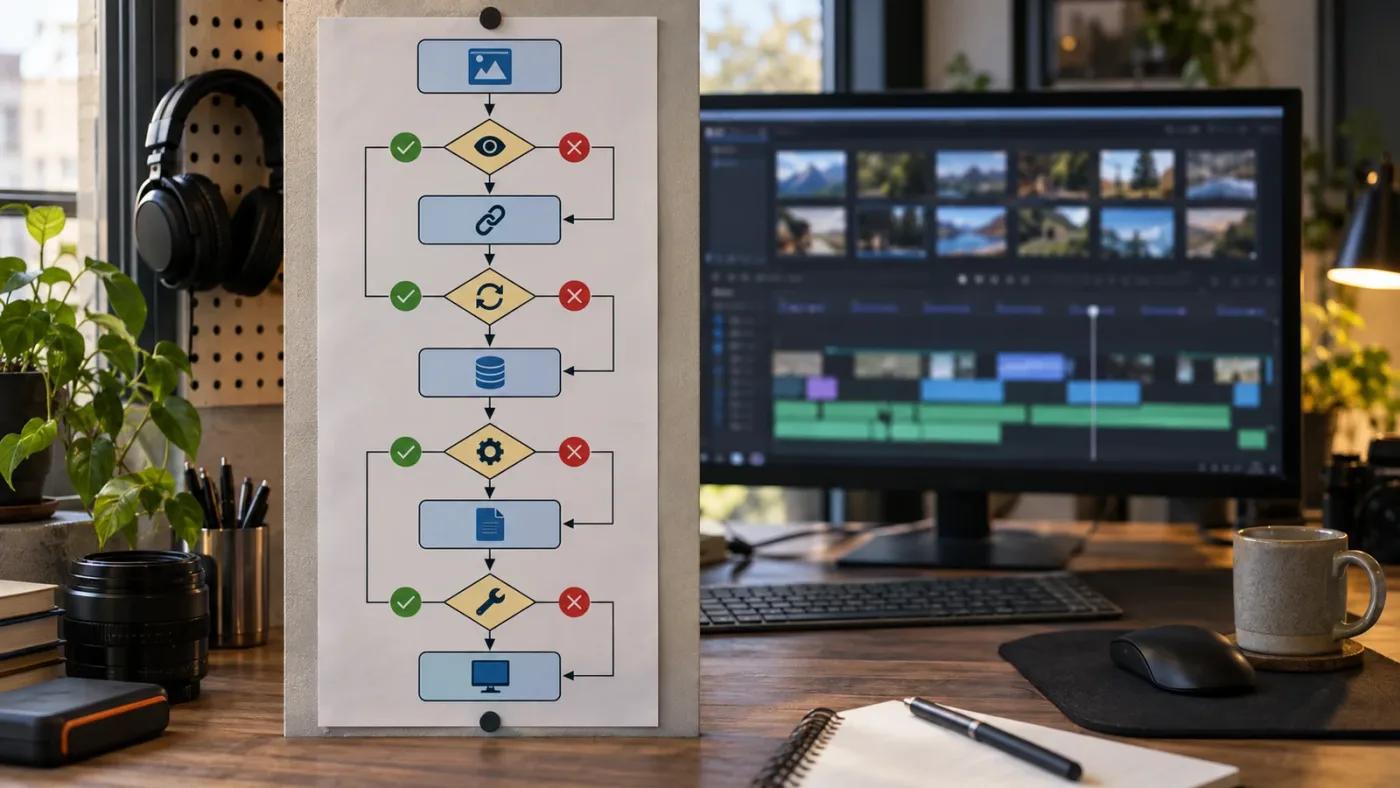
The safest fix order is view, bin, source, relink, refresh, then cache or version diagnosis. This order moves from reversible display checks to more involved project and media changes.
- Confirm the target. Decide whether you mean Media Pool cards, the Source Viewer, the timeline viewer, or Color page clips.
- Open the Media Pool. Expand it on the Media or Edit page.
- Choose Thumbnail View. Don’t troubleshoot a missing grid while the pool is in List View.
- Increase icon size. Move the slider right until a clip image is unmistakable.
- Check the bin. Open the bin that actually contains the media, then compare it with Master.
- Test one clip. Double-click an affected clip and a known-good clip from the same project.
- Look for Relink Media. If it is red, repair the source path before touching cache.
- Check the file class. Compare stills, camera originals, and rendered exports separately.
- Refresh the project. Save, close, and reopen once.
- Diagnose render cache only when the symptom is a timeline or viewer render. Use
Playback > Delete Render Cachedeliberately and understand that affected timeline work may need to render again. - Record version details. If the problem remains reproducible, note the Resolve release, build, operating system, file format, and scope.
This sequence avoids the two most expensive mistakes: re-importing files that are already in the project and deleting cache that has nothing to do with the Media Pool.
Is an app that helps you while using DaVinci Resolve useful for this fix?
An on-screen assistant is useful when you know the symptom but cannot find the right Resolve control, especially when the interface differs between pages or versions. It should point you to the relevant control while you verify the result yourself.
We built and run a 100,000+ member professional video-editing community, and we have more than seven years of professional, commercial video-editing experience. That gives us a practical reason to favor a short diagnostic path: identify the display, the bin, and the source before you start changing project state.
If you are deciding between the best way to learn DaVinci Resolve and an app that helps you while using DaVinci Resolve, this problem is a good example of the difference. A course can explain what the Media Pool is. A search result can tell you to click Relink Media. Live, contextual help can point at the exact control in the project you already have open.
TryUncle is paid at the current founder price of $29.99 per month, not free. If you want Uncle to point at the relevant Resolve control on your own screen while you work, check TryUncle for the current rate and platform details. The landing page owns the current Mac and Windows download information.
That is the right role for the product here: navigation help while you perform the fix. It does not replace checking whether the drive is mounted, whether the file is online, or whether the thumbnail is simply a black first frame.
What should I do if DaVinci Resolve Media Pool thumbnails are still not showing?
If the thumbnails are still missing after the view, bin, source, and relink checks, preserve the project and gather a reproducible example before escalating. The remaining possibilities are usually version-specific UI behavior, a source-format issue, a storage or permission problem, or an application bug.
Create a small test project with one known-good clip and one affected clip. Import them into a new bin, switch to Thumbnail View, and compare the result. If the known-good clip works, the original project may have a state or media-path problem. If both fail, the issue may be tied to the file format, the installation, the operating system, or the current Resolve build.
Keep the original project open only long enough to save a backup. Don’t delete bins, remove media, or overwrite source files as a troubleshooting shortcut. If a support report becomes necessary, the version, build, operating system, file details, and exact reproduction steps will be more valuable than a screenshot that only says “blank thumbnails.”
The fix is usually small once the symptom is named correctly. Thumbnail View fixes a hidden grid. Relink Media fixes missing paths. Source Viewer tests the file. Render Cache belongs to timeline rendering. Keep those four jobs separate, and DaVinci Resolve Media Pool thumbnails become a clear diagnostic signal instead of a mystery.
Frequently asked questions
- Why are my DaVinci Resolve Media Pool thumbnails not showing?
- The usual causes are that the Media Pool is in List View, the icon size is too small, the clips are offline, or the project has not refreshed a preview. Switch to Thumbnail View first, then check for a red Relink Media button.
- How do I turn Media Pool thumbnails back on in DaVinci Resolve?
- Open the Media Pool, choose Thumbnail View from its view controls, and move the icon-size slider to the right. If the clips are still blank, verify the media is online and relink missing files.
- Why are DaVinci Resolve thumbnails black or showing a generic icon?
- A black thumbnail can be a real black frame, an offline clip, a codec or decode problem, or a stale preview. Open the clip in the Source Viewer and test another known-good file before clearing render cache.
- Do I need to clear render cache when Media Pool thumbnails are missing?
- Usually no. Render Cache is for timeline playback and effects, while Media Pool thumbnails represent source clips. Clear render cache only when the symptom is a stale timeline or viewer render, not as the first response to a missing Media Pool thumbnail.
Sources
- Blackmagic Design Announces DaVinci Resolve 21.1
- DaVinci Resolve 21 Download
- DaVinci Resolve 20 Editors Guide
- DaVinci Resolve 20 Beginners Guide
- DaVinci Resolve 20 Colorist Guide
- DaVinci Resolve 20 New Features Guide
- DaVinci Resolve 17 Beginners Guide
- Playback with thumbnail view? Blackmagic Design Forum
- Checkered thumbnail background in Media Pool, Blackmagic Design Forum
- DaVinci Resolve 12 Reference Manual, caching chapter
Learn by doing, not watching
Stop translating tutorials to your timeline.
TryUncle stays beside Resolve on Mac and Windows. When you ask, Uncle sees your screen and points at the exact control you need. No hunting through tabs, timestamps, or mismatched tutorials.
Meet TryUncleKeep reading
 FixesSep 26, 202638 min read
DaVinci Resolve Media Pool Search Not Finding Clips? Fix It
DaVinci Resolve Media Pool search not finding clips? Fix bin scope, metadata filters, IntelliSearch, offline media, and Resolve 21.1 traps.
 GuidesJul 24, 202637 min read
Where to Find DaVinci Resolve Cache Files on Mac and Windows
DaVinci Resolve's cache isn't at one fixed path. Here's exactly where to find it on Mac and Windows, how to change it, and what's safe to delete.
 FixesJul 19, 202626 min read
DaVinci Resolve Project Not Showing in Project Manager: Fixed
A DaVinci Resolve project missing from Project Manager is almost always a wrong-library or wrong-user problem, not data loss. The full path checklist, in order.