
Learn / DaVinci Resolveupdated for DaVinci Resolve 21.0.3 and Adobe After Effects/Premiere Pro (July 2026)
DaVinci Resolve MOGRT Import: Why It Fails, 3 Real Fixes
Quick answer
DaVinci Resolve cannot open, import, or install .mogrt files; Adobe's Essential Graphics format only works in Premiere Pro and After Effects. Your two real options: render the After Effects template to a video with an alpha channel and drop it on the timeline, or rebuild it as a native Fusion title, transition, or generator template inside Resolve.
You dragged a .mogrt file into DaVinci Resolve's Media Pool and nothing happened. Or it showed up as an unsupported file. Or a designer handed you a beautiful lower third built in After Effects and you have no idea how to get it onto your timeline. None of that is a bug on your end.
DaVinci Resolve does not support Adobe's Motion Graphics Template format, full stop, and no update has changed that through version 21.0.3. This is one of the most recurring questions in our 100,000+ member DaVinci Resolve editing community, almost always from an editor who just switched over from Premiere Pro and assumed a template is a template. It isn't. What follows is the plain answer, why the gap exists, and the two workarounds that actually get a MOGRT-style graphic working inside Resolve, in more depth than the scattered CapCut explainer, the Allavio install guide, or the old Blackmagic forum thread cover on their own.
Can DaVinci Resolve import a .mogrt file from After Effects or Premiere Pro?
No. DaVinci Resolve cannot open, preview, install, or apply a .mogrt file in any version through 21.0.3, on Mac, Windows, or Linux. Drag one into the Media Pool and Resolve either shows nothing, throws an unsupported file type message, or silently skips it depending on your OS and file manager, because there is no import path for the format at all, not a broken one, an absent one.
This isn't a settings toggle you missed or a preference buried three menus deep. Blackmagic Design has never added .mogrt support to any version of Resolve, and a Blackmagic Forum thread on exactly this question lands on the same conclusion members reach every time it comes up: MOGRT is an Adobe-only container built for an Adobe-only panel, and Resolve has no reason to read it because Resolve has its own, entirely separate template system (Blackmagic Forum).
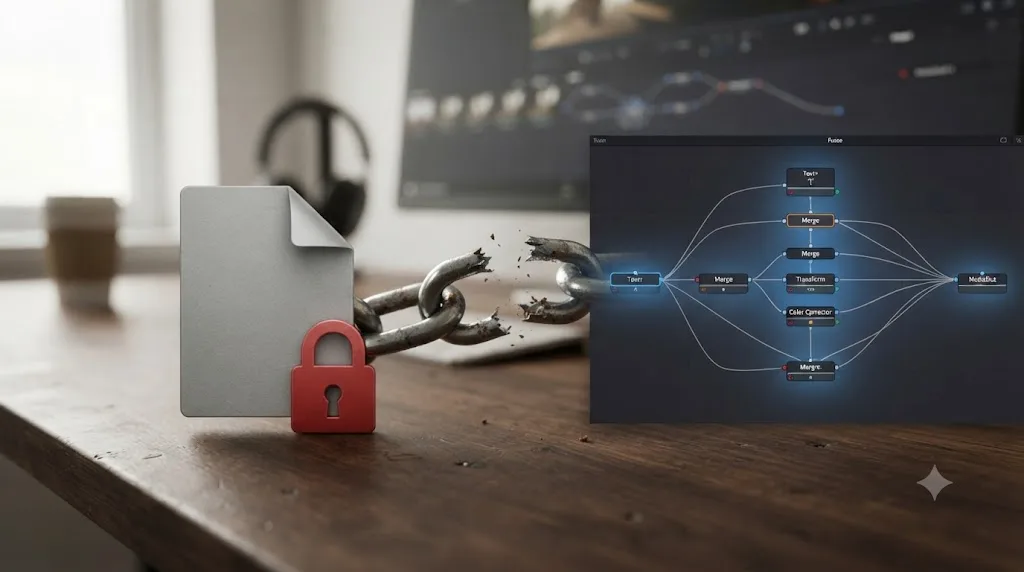
A .mogrt file and a DaVinci Resolve template look similar from a distance and share nothing underneath. One is a compiled bundle of After Effects layer data wrapped for Premiere's Essential Graphics panel. The other is a saved Fusion node tree wrapped as a macro. Neither format understands the other, and no converter bridges them, because the underlying compositing engines, layers in one case and nodes in the other, don't map onto each other one to one.
If you came here hoping for a hidden import setting, there isn't one. If you came here for what actually works, keep reading, because there are two real fixes and a newer, narrower third option, and which one you should use depends entirely on whether you need this graphic once or forever.
What exactly is a MOGRT, and why does it only work inside Adobe's apps?
A Motion Graphics Template (.mogrt) is a packaged After Effects composition with a defined set of editable controls exposed through Premiere Pro's Essential Graphics panel, letting an editor change text, color, and timing without opening After Effects at all. Adobe's own documentation describes the workflow plainly: a motion graphics artist builds the animation in After Effects, exposes specific properties through the Essential Graphics panel, then packages the whole thing as a single .mogrt file that a Premiere Pro editor drops onto a timeline and customizes through simple, exposed fields (Adobe, After Effects; Adobe, Premiere Pro).
That design is the whole reason it can't cross into Resolve. A .mogrt isn't a video file, a project file, or an open interchange format like XML or AAF. It's a compiled bundle of After Effects layer data, expressions, and font references, built specifically to unpack inside the Essential Graphics panel, a component that exists in Premiere Pro and After Effects and nowhere else. There's no public specification for the format the way there is for something like OFX plugins, which is exactly why no third party, including large marketplaces like Envato and Motion Array, has ever shipped a working .mogrt-to-Fusion converter.
CapCut's own explainer on this topic gets the headline right without getting into why: it frames .mogrt as built for "seamless integration within DaVinci Resolve" in its marketing copy, which is simply inaccurate, since the format has no Resolve integration at all (CapCut). That's worth flagging plainly, because it's the kind of confidently wrong claim that sends editors looking for a setting that was never going to exist.
MOGRT is not a video format problem, a codec problem, or a permissions problem. It's an ecosystem problem, and only one ecosystem understands the file. Once you accept that framing, the fixes below stop feeling like workarounds and start feeling like the correct answer for a cross-app situation that was never going to have a native bridge.
Why hasn't Blackmagic just added native MOGRT support to DaVinci Resolve?
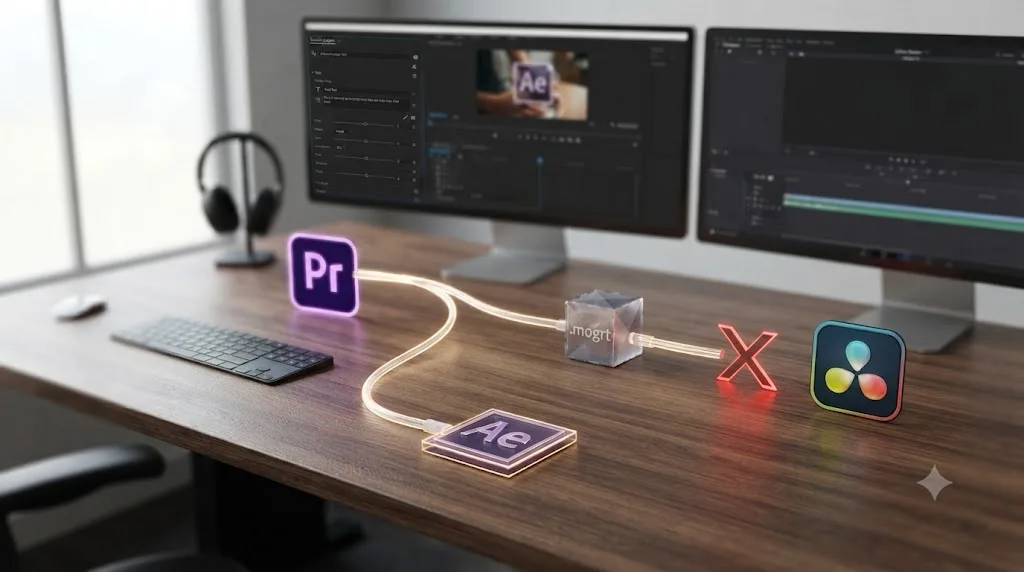
Because Resolve already has its own, functionally equivalent template system built around Fusion, and building a parser for a closed, undocumented Adobe format would mean reverse-engineering a competitor's proprietary container with no guarantee it keeps working after Adobe's next update. Fusion Titles, Generators, Transitions, and Effects templates cover the same job a .mogrt covers (reusable, editable graphics an editor customizes without touching the underlying comp), built on Resolve's own node architecture instead of Adobe's layer stack (Blackmagic Design manual, mirrored).
Think about the incentive from Blackmagic's side. Every hour spent reverse-engineering Adobe's Essential Graphics container is an hour not spent on Fusion's own template system, and the payoff would be fragile: Adobe changes the internal .mogrt structure between major After Effects versions without documenting it publicly, since it was never designed as a cross-vendor format in the first place. A reverse-engineered importer would break on a schedule Blackmagic doesn't control, for a format Adobe has every incentive to keep locked to its own apps.
This mirrors a pattern that shows up constantly for editors moving between the two ecosystems. Premiere Pro's Lumetri color grades, its native transitions, and third-party plugin effects don't translate into Resolve either, for the same underlying reason: proprietary formats built for one app's internal architecture rarely survive a jump to a competitor's, and our full guide on switching from Premiere Pro to DaVinci Resolve covers the same gap for grades, transitions, and titles across an entire project, not just a single template file.
Every format Adobe builds specifically for its own panels, MOGRT included, is a wall by design, not an oversight. That's not a criticism unique to Adobe. Resolve does the same thing in reverse: a Fusion macro is just as locked to Resolve's node engine as a .mogrt is locked to Premiere's Essential Graphics panel, and neither company has much reason to open that door for the other.
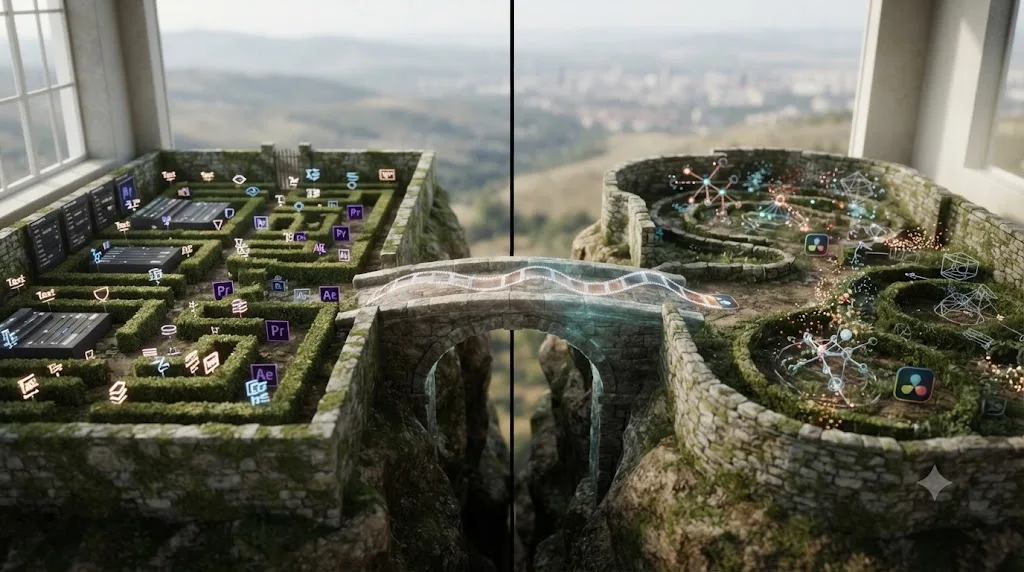
Fix 1: How do you render a MOGRT as video and bring it into DaVinci Resolve?
Open the .mogrt inside After Effects or Premiere Pro, finish customizing it in the Essential Graphics panel, then render it as a video with an alpha channel, and import that finished file into Resolve like any other clip. This is the fastest fix, and it's the one CapCut and Allavio both point to when they cover this topic, though neither walks through the codec choice or the artifact fixes that actually matter once you're doing it (CapCut; Allavio).
Here's the process in full, worked through as if you were doing it right now.
- Finish the customization inside Adobe's app first. Set your text, colors, and duration in the Essential Graphics panel before you render anything. Once the file leaves Adobe's ecosystem as a flattened video, none of those exposed fields exist anymore, so get it exactly right here.
- Pick a codec that actually carries an alpha channel. H.264 does not support alpha channels at all, full stop, so if your MOGRT sits over footage rather than a solid background, H.264 will bake in whatever's behind it and ruin the effect. ProRes 4444 is the safest, most compatible choice and has supported alpha for years, at the cost of large file sizes. H.265 inside an MP4 container also supports alpha channel export on recent DaVinci Resolve versions, at file sizes closer to H.264's, which makes it the better everyday choice once you've confirmed your specific Resolve build handles it correctly (Alli and Will).
- Render only the graphic, not the background footage behind it. If you're rendering from a Premiere Pro sequence, either isolate the MOGRT clip on its own track with everything else hidden, or render directly from the After Effects composition instead of the sequence. Anything visible behind the graphic at render time gets permanently baked into the alpha footage, which defeats the entire point of exporting it with transparency.
- Import the finished file into Resolve's Media Pool. Drag it in like any other clip and drop it onto a video track above your existing footage. Resolve treats a properly rendered alpha clip exactly like a transparent PNG sequence or an overlay graphic, no special import step required.
- Check the render immediately for edge artifacts. Play it back over real footage, not a solid color, before you consider the job done. Alpha channel problems are common enough between these two apps that they deserve their own section, which is next.
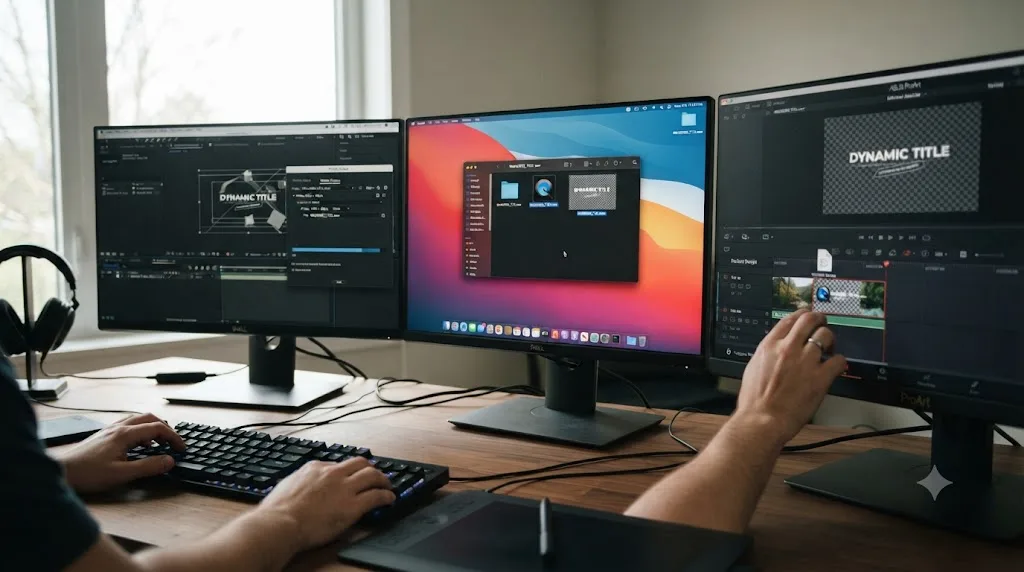
How do you fix alpha channel artifacts when the rendered file hits Resolve?
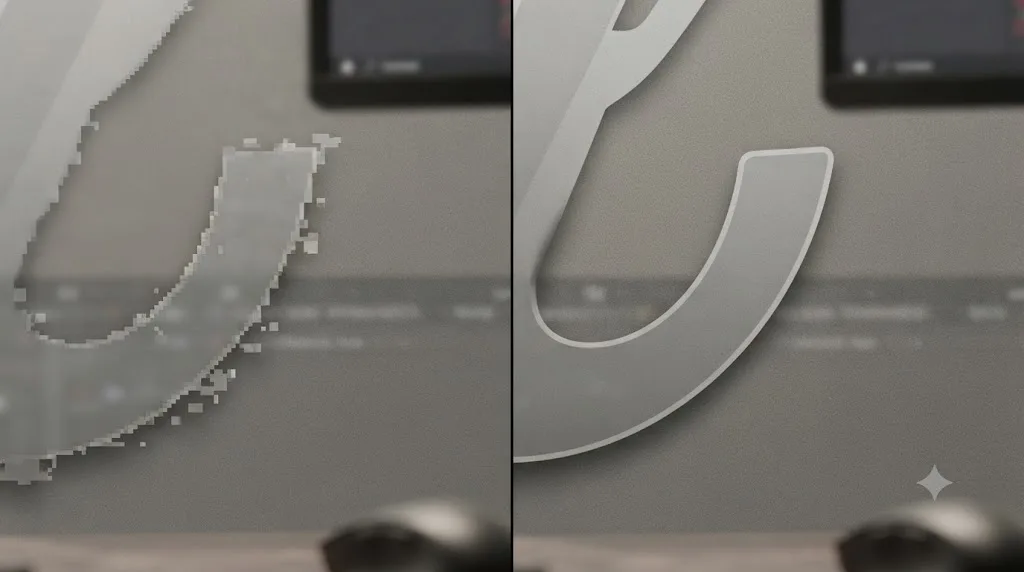
The most common symptom is a hard, blobby edge around soft blurs or drop shadows, where a smooth gradient in After Effects turns into a solid, ugly halo once it plays back in Resolve. This happens because the two apps don't always interpret alpha data identically at the edges of a shape, and it's most visible on anything with a soft glow, a blur, or a semi-transparent drop shadow.
The fix that resolves most of these cases is a project setting, not a render setting: open Project Settings > Image Scaling in Resolve, set the Resize Filter to Bilinear, and enable Override Output Scaling. That single change clears up the artifacting around soft edges far more reliably than re-rendering the source file with different settings, since the problem is usually how Resolve is resampling the incoming footage, not how After Effects rendered it.
A second, less obvious cause is duration mismatch. If your rendered clip runs a different length than the space you're dropping it into, and you speed-ramp or trim it inside Resolve to fit, the alpha channel can shift or smear at the frame boundaries. Export the After Effects render at the exact duration you need in the final timeline, with no plan to adjust its speed after the fact, and that class of artifact disappears entirely.
A rendered alpha clip is a photograph of a template, not the template itself. Once it's flattened, no amount of Resolve-side color correction reopens the original text fields or animation controls. That's the tradeoff of Fix 1: it's fast, but the moment you need to change the copy, you're back in After Effects re-rendering from scratch. If that tradeoff bothers you, keep reading, because Fix 2 solves it directly.
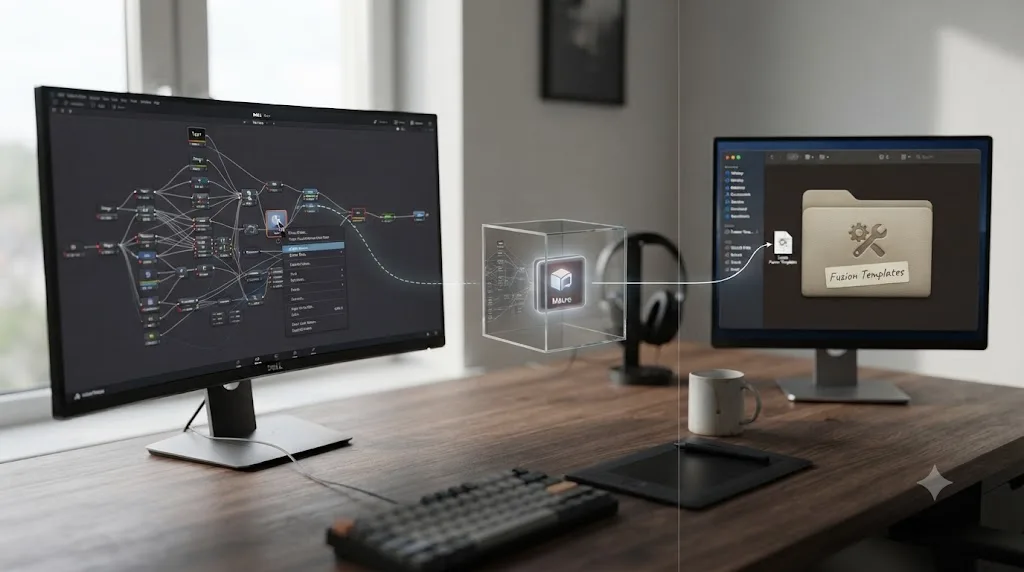
Fix 2: How do you rebuild a MOGRT as a native Fusion template in DaVinci Resolve?
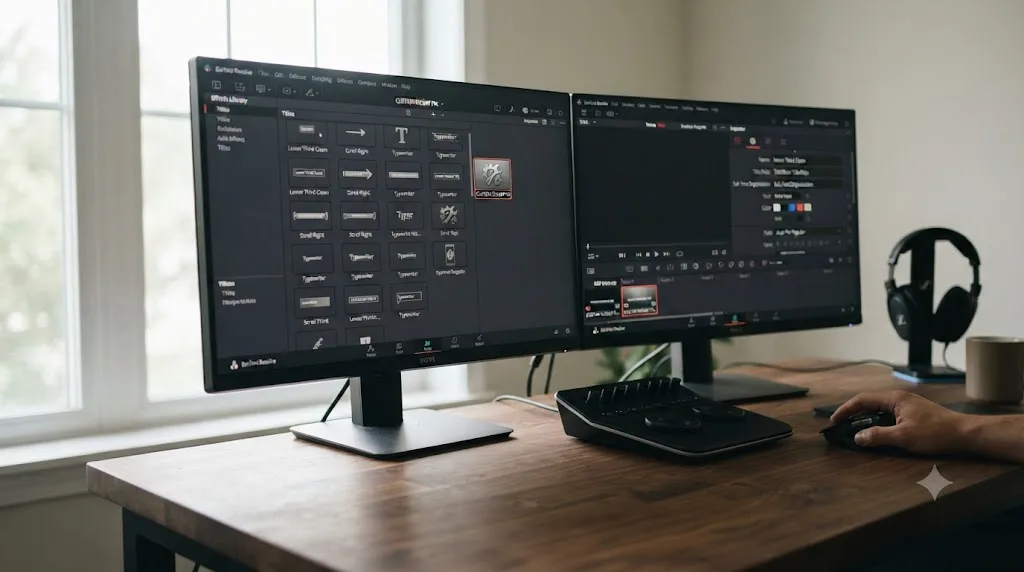
Build the same look once inside Fusion, using DaVinci Resolve's own Title, Generator, Transition, or Effect template system, then save it as a macro so it lives permanently in your Effects Library with its own editable controls, exactly the role a .mogrt plays back in Premiere. This is the fix worth the extra setup time whenever you'll reuse the same graphic across more than one project, or whenever multiple editors on a team need to drop in the same title with fresh text each time.
Jamie Dickinson's breakdown of Fusion macros for Mixing Light makes the case for why this is worth the upfront investment: "If your client has some VFX or motion graphics that need to be re-used multiple times, you can invest time creating the first one, knowing that you can quickly and efficiently re-create that across many similar versions" (Mixing Light). That's the entire value proposition of a MOGRT, described from the Fusion side of the same idea.
Blackmagic Design's own manual lays out four template categories you can build this way: Fusion Titles, Transitions, Effects, and Generators templates, all built for reuse on the Edit page (Blackmagic Design manual, mirrored). Here's the process, worked through for a title, which is the closest analog to a typical lower-third MOGRT.
- Build the graphic in Fusion exactly the way you'd want it to look every time. Use Text+ nodes, a Merge node, any tracking or 3D elements you need, and get the base animation right before you worry about which parts should stay editable.
- Select the nodes you want packaged, excluding MediaIn and MediaOut. Right-click the selection and choose Macro > Create Macro from the context menu. This wraps your entire node tree into a single black-box tool.
- Open the Macro Editor and expose the controls you want editable. Check the parameters an editor should be able to change later, text content, color, position, duration, the same set of fields a MOGRT exposes through the Essential Graphics panel, and give the macro a clear, searchable name.
- Save it into the correct Fusion Templates folder for your operating system and template type. For a title template specifically, the manual specifies these exact paths: on macOS,
Macintosh HD/Users/username/Library/Application Support/Blackmagic Design/DaVinci Resolve/Fusion/Templates/Edit/Titles; on Windows,C:\Users\username\AppData\Roaming\Blackmagic Design\DaVinci Resolve\Support\Fusion\Templates\Edit\Titles; on Linux,home/username/.local/share/DaVinciResolve/Fusion/Templates/Edit/Titles(Blackmagic Design manual, mirrored). Effects, Transitions, and Generators each have their own equivalent subfolder in the same tree, one level down from Titles. - Quit and relaunch DaVinci Resolve. Templates don't appear in the Effects Library until you restart, a small but easy step to forget.
- Drag your new template onto a clip from the Effects Library, on the Edit page, exactly like any built-in title. Its exposed controls now show up in the Inspector, ready to edit for this project without ever opening the original Fusion comp.
A worked example: turning one lower third into a reusable template
Say a designer sends you a MOGRT-style lower third built in After Effects: a name field, a title field, and an accent bar that slides in from the left. You can't open the .mogrt in Resolve, so you rebuild the same visual in Fusion instead. You build two Text+ nodes for the name and title, a Background node for the accent bar with a Rectangle mask animated on its Center X parameter, and a Merge node stacking all three over your footage.
Once it looks right, you select every node except MediaIn and MediaOut, create a macro, and in the Macro Editor you expose the two Text+ nodes' Styled Text parameters (so an editor can retype the name and title), the accent bar's color, and the whole graphic's In and Out duration. You name it "Lower Third - Accent Bar" and save it into the Titles template folder.
From that point forward, any editor on the project drags "Lower Third - Accent Bar" from the Effects Library onto a new clip, types a new name and title into the Inspector, and never touches the original node tree. That's the MOGRT workflow, rebuilt natively, and it stays editable indefinitely instead of becoming a locked video file the way Fix 1's output does.
A Fusion macro built once and reused across a dozen projects pays back its setup time the very first time someone else needs it. That's the entire case for choosing Fix 2 over Fix 1 whenever a graphic outlives a single delivery.
Do Lottie and OGraf support in DaVinci Resolve 21 change any of this?
For new graphics built going forward, yes, partially; for an existing .mogrt file you already have, no, not at all. DaVinci Resolve 21 added native drag-and-drop support for Lottie (.lottie) animation files and OGraf (.json) HTML-based graphics, treating both as fully native media in the Media Pool with alpha channels recognized automatically, rather than requiring a transcode step or a third-party plugin (CineD; JayAreTV).
Justin Robinson's coverage of the feature for JayAreTV describes exactly why this matters for a cross-app workflow: "With DaVinci Resolve 21, these files are now treated as native media. Whether you are sourcing animations from online libraries or receiving custom assets from a designer, the workflow is now as simple as drag-and-drop" (JayAreTV). That's a real, cross-application template format working the way a MOGRT does, just built on an open web animation standard instead of a proprietary Adobe container.
The catch is unavoidable: Adobe's Essential Graphics panel has no export path to Lottie or OGraf. It only exports .mogrt. So if you're holding an existing MOGRT file today, this feature doesn't touch your problem at all, the two fixes above are still your only options. Where it does matter is forward-looking: if you're commissioning new graphics from a designer or sourcing from an animation library, ask for Lottie output instead of a MOGRT, and it drops straight into Resolve with transparency intact, no rendering or Fusion rebuild required.
Version 21 also folded in the Krokodove library, adding over 100 new Fusion motion graphics tools and effects directly into the app, on top of the Lottie and OGraf support (CineD). That's worth knowing if you're deciding between rebuilding a lower third from scratch in Fusion versus finding something close enough already built in, since the built-in library got meaningfully deeper with this release.
Lottie and OGraf are the real cross-app template bridge DaVinci Resolve has been missing, but they only help the next graphic, not the one already stuck in a .mogrt file. Keep that distinction in mind before you tell a designer "just send me the .mogrt," since the useful answer going forward is "send me Lottie instead."
Which fix should you actually use?
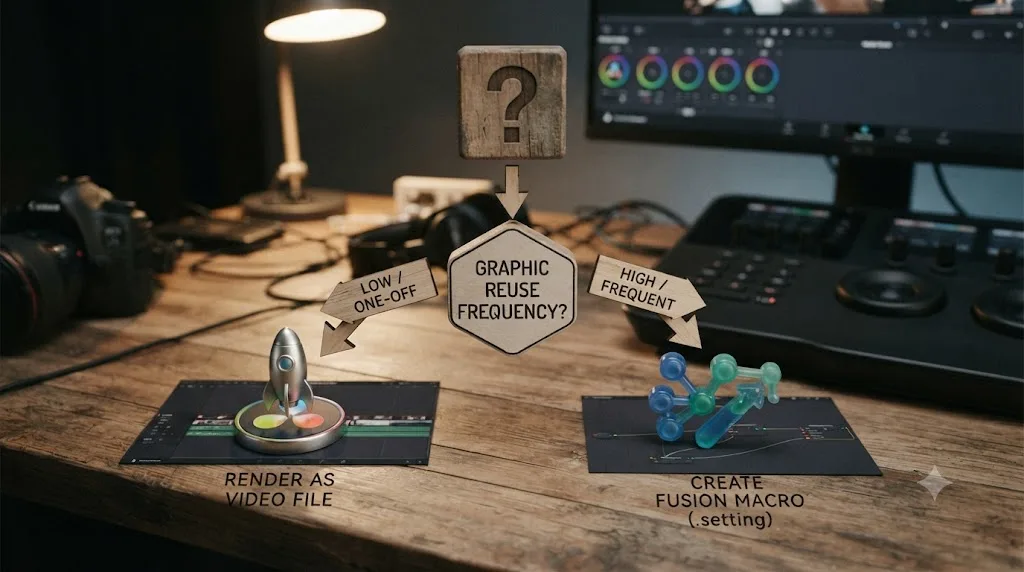
Match the fix to how often you'll touch this graphic again, not to which one sounds more technically impressive.
| Situation | Best fix | Why |
|---|---|---|
| One-off graphic, delivering today, never reusing it | Render as video with alpha (Fix 1) | Fastest path, no Fusion build time, done in one export |
| Same lower third across many clients or projects | Rebuild as a Fusion template (Fix 2) | Stays editable forever, pays back the setup time immediately |
| Multiple editors need to drop in the same title with fresh text | Rebuild as a Fusion template (Fix 2) | Exposes editable fields in the Inspector, no Fusion knowledge required to use it |
| A designer is building something new for you right now | Ask for Lottie (.lottie) instead of .mogrt | Drops in natively with alpha intact, no rendering or rebuild step |
| You only need to match a specific brand look once, roughly | Render as video with alpha (Fix 1) | Rebuilding an exact pixel match in Fusion often costs more time than it saves for a single use |
| The graphic needs to track moving footage or interact with a 3D scene | Rebuild as a Fusion template (Fix 2) | Fusion's node tracking and 3D tools handle this natively; a flattened video render can't adapt to new footage |
If you're still unsure, default to Fix 1 for anything due this week and Fix 2 for anything that's going to outlive this project. Most editors we hear from in our community end up doing both on the same job: a fast alpha render to hit today's deadline, and a proper Fusion rebuild afterward once it's clear the client wants the same look on their next three videos too.
Does the free version of DaVinci Resolve limit either fix?
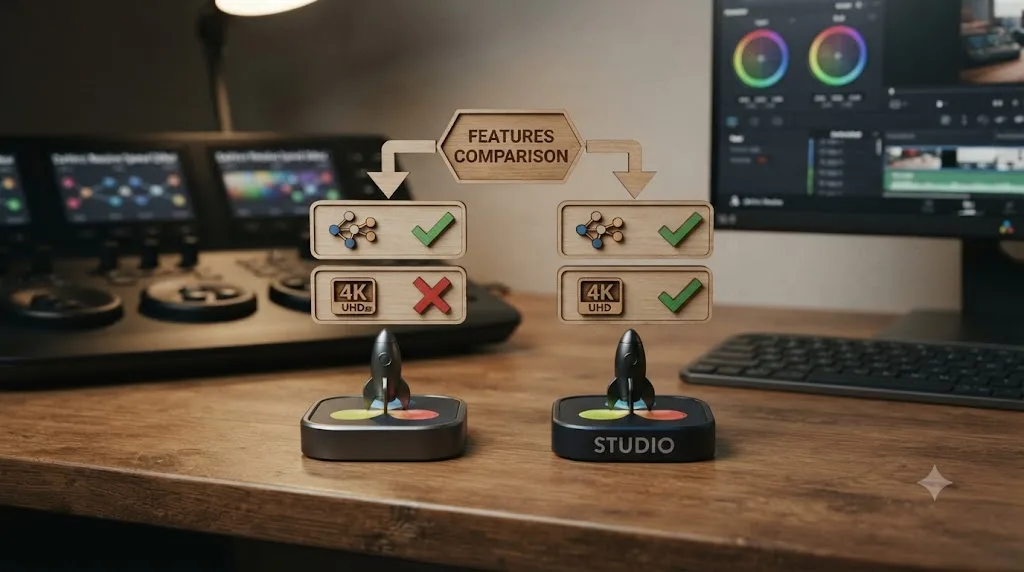
No. Both fixes work identically in the free version of DaVinci Resolve and in DaVinci Resolve Studio. Fusion's macro system, the Titles/Transitions/Effects/Generators template categories, and the render-to-video workaround all ship in the free download, since Blackmagic Design includes the full Fusion page, Fairlight audio, and Color page in the no-cost edition, not a trial or a feature-locked demo (Blackmagic Design).
Where Studio's $295 one-time purchase actually matters here is narrower than most editors assume: export resolution and frame rate. The free version caps output at Ultra HD (3840x2160) at up to 60fps in 8-bit, so if your rebuilt Fusion template or your rendered alpha clip needs to go out at a higher frame rate, a higher resolution, or in 10-bit, that's the one place you'd need Studio. Neither the alpha-channel workflow nor the macro system itself is gated behind Studio at all.
Compare that to the source side of this problem. After Effects has never had a free tier, and Adobe's own pricing page lists a single-app plan at $22.99 a month on an annual commitment or $34.49 a month with no commitment, with a Creative Cloud All Apps plan running $69.99 a month on an annual term (Adobe). If you're rebuilding a MOGRT in Fusion specifically to avoid keeping an After Effects subscription active just to open template files occasionally, that's a legitimate cost argument, not just a workflow preference.
Fusion's template system costs the same as everything else in the free edition of DaVinci Resolve: nothing. That's worth stating plainly, since a lot of editors assume anything that sounds like a "pro feature" must sit behind Studio's paywall, and this particular one doesn't.
What do CapCut, Allavio, and the Blackmagic forum get right, and what do they miss?
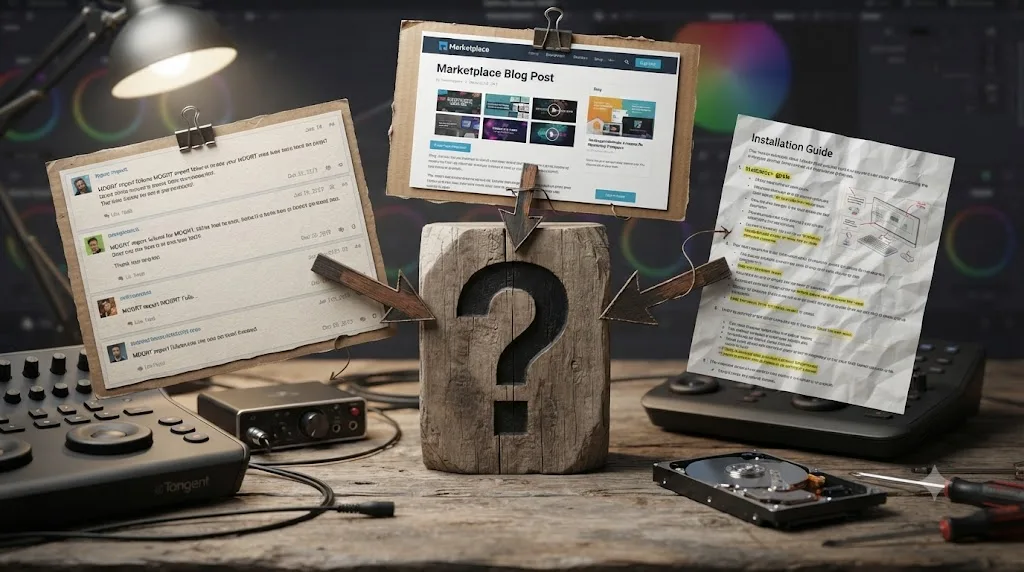
Each of the three most visible existing answers to this question gets one piece right and leaves out the rest, which is exactly why this remains a recurring, unresolved question in Resolve communities despite years of coverage.
CapCut's explainer correctly states that DaVinci Resolve doesn't natively support MOGRT files, but its own marketing framing elsewhere on the same domain contradicts that by describing .mogrt as offering "seamless integration within DaVinci Resolve," which simply isn't accurate (CapCut). It also doesn't walk through the alpha channel codec choice or the artifact fixes that determine whether the render-to-video workaround actually looks clean.
Allavio's install guide is genuinely useful, but it's solving a different, adjacent problem: installing pre-built Fusion-native templates that Allavio itself sells, not converting an existing .mogrt into something Resolve can use (Allavio). Its folder-drop steps for macOS and Windows are accurate and worth following if you're installing any third-party Fusion template pack, but it doesn't address the MOGRT compatibility question directly at all.
The Blackmagic Forum thread gets the core fact right, that MOGRT is Adobe-only and won't work in Resolve, but a forum thread is a snapshot from whenever it was posted, with no structured comparison of the render-to-video path against the Fusion-rebuild path, and no mention at all of the newer Lottie and OGraf support that shipped with version 21 (Blackmagic Forum).
None of the existing coverage on this question puts the "not supported" answer next to both real fixes in one place, with the actual codec, folder path, and artifact details spelled out. That gap, not a missing feature in Resolve itself, is why this question keeps resurfacing across forums, blog explainers, and template marketplace FAQs years after MOGRT first shipped.
Can you just buy Resolve-native templates instead of converting anything?
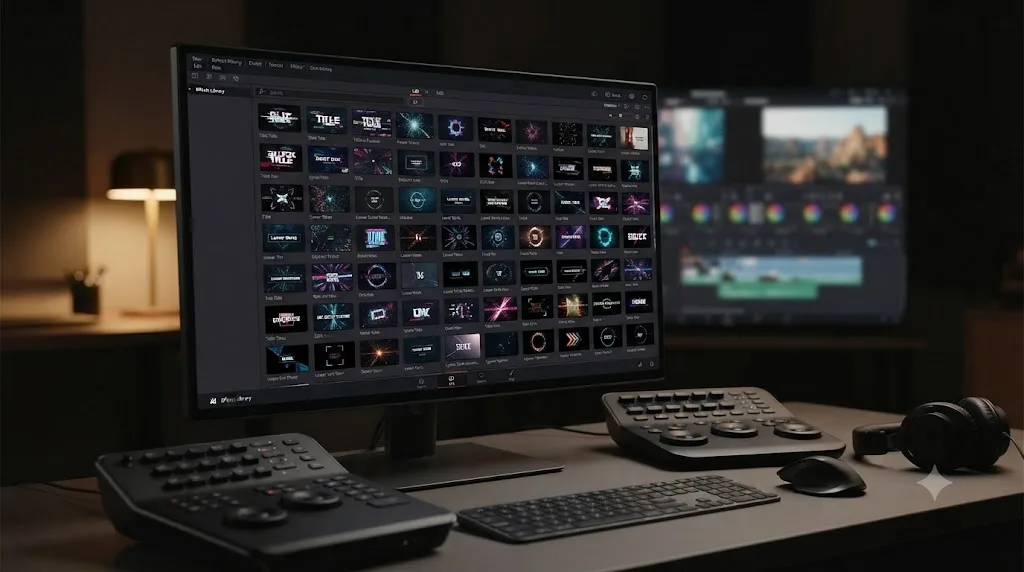
Yes, and for a lot of common graphics, buying a Fusion-native template outright is faster than either fix above, since someone else already did the macro-building work for you. Marketplaces like Motion Array and Envato Elements sell titles, lower thirds, and transitions built specifically as Fusion templates (.setting or .comp files, or pre-packaged macros dropped into the correct template folder), the same way they sell .mogrt files for the Adobe side of the market.
This matters most when the graphic you need is generic enough that a template pack already covers it: a standard lower third, a countdown transition, a simple title card. It matters less when you have a specific brand kit or a designer-built graphic you're contractually required to match exactly, since a marketplace template gets you something similar, not the identical asset a client already approved.
Our comparison of Fusion versus After Effects for motion graphics covers the honest state of that marketplace gap in more depth: the Fusion template library is real and growing, but it's still a fraction of the size of the Adobe-side MOGRT and template marketplace, purely because After Effects has had roughly two decades longer to accumulate that ecosystem.
Buying a Fusion-native template is the fastest fix of all, whenever the graphic you need doesn't have to be the exact one a client already signed off on. Check a marketplace first before you commit to a full Fusion rebuild from scratch. Someone may have already built the close-enough version you actually need.
Does this work the same on Windows, Mac, and Linux?
The MOGRT limitation itself is identical everywhere: DaVinci Resolve doesn't read .mogrt on any operating system, because the gap is architectural, not platform-specific. The two fixes differ only in file paths and codec availability, not in whether they work at all.
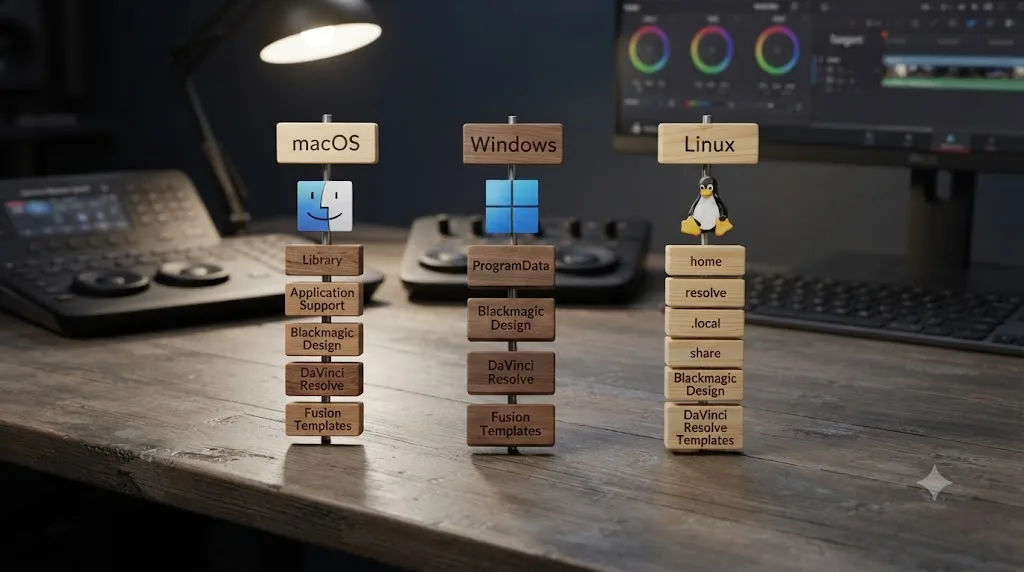
The Fusion template save locations differ by OS, and getting this exact path wrong is the single most common reason a saved macro doesn't show up in the Effects Library. For Titles specifically: macOS uses Macintosh HD/Users/username/Library/Application Support/Blackmagic Design/DaVinci Resolve/Fusion/Templates/Edit/Titles, Windows uses C:\Users\username\AppData\Roaming\Blackmagic Design\DaVinci Resolve\Support\Fusion\Templates\Edit\Titles, and Linux uses home/username/.local/share/DaVinciResolve/Fusion/Templates/Edit/Titles (Blackmagic Design manual, mirrored). Transitions, Effects, and Generators each sit in their own equivalent subfolder one level down from that same Templates/Edit path.
Codec availability for the alpha-render workaround has a real platform wrinkle. H.265 with alpha support depends on your specific hardware and Resolve build decoding it correctly, and older GPUs or older Resolve versions can behave inconsistently with it, which is exactly why ProRes 4444 remains the safer default when you're not certain about the receiving machine's setup, despite its much larger file size (Alli and Will). If you're rendering on one machine and importing on another, colleague's laptop, render farm, cloud project, confirm both ends handle the same alpha codec before you commit to H.265 over ProRes 4444.
Linux users hit one additional wrinkle worth naming directly: After Effects and Premiere Pro don't run on Linux at all, so if you're on a Linux-only workstation, you can't even open the original .mogrt to render it as video. Your only path on Linux is Fix 2, the native Fusion rebuild, since there's no Adobe app available to do the rendering step for you.
The fixes themselves don't change by platform. Only the exact folder path and your available render codecs do. Get those two details right for your specific OS and everything else in this guide applies identically.
What if you're switching from Premiere Pro entirely, not just borrowing one template?
If a single stuck MOGRT is actually a symptom of a bigger move away from Adobe, the fixes above solve today's graphic, but they don't solve the deeper pattern: every project you bring over will keep hitting the same wall on titles, transitions, and effects built the Adobe way. That's worth planning for up front rather than discovering fix by fix.
Export your Premiere Pro sequence as XML or AAF and import it through Resolve's Media Pool, and expect the cuts, clip positions, and basic audio levels to survive the trip cleanly. Expect grades, Premiere-native transitions, Essential Graphics templates, and any third-party plugin effect to not survive it at all, which is the same category MOGRT falls into. Our full walkthrough on switching from Premiere Pro to DaVinci Resolve covers the keyboard preset, the import steps, and a realistic timeline (most editors report one to two weeks to feel productive on basic cutting) for the rest of that transition.
The practical move for a team making this switch permanently is to budget real time for rebuilding your most-used graphics as Fusion templates once, rather than re-rendering the same handful of MOGRTs as video every single project. Every title, lower third, and transition your team reaches for constantly is worth the one-time Fusion rebuild from Fix 2. Anything used once, for one client, on one delivery, is better handled with the faster render-to-video path from Fix 1, and isn't worth Fusion build time you'll never recoup.
A permanent switch away from Adobe means budgeting for a template rebuild pass, not hoping a future Resolve update quietly adds MOGRT support. It won't, for the architectural reasons covered above, so plan the rebuild into your first month on Resolve rather than treating it as an ongoing surprise every time a new template shows up in your inbox.
What's the best AI tool to lean on while you rebuild a template like this?
It depends on what's actually slowing you down. A general chatbot can explain what a Merge node does or how Fusion's macro system works in the abstract, but it has no view of the specific node tree you're stuck on, which is exactly the moment editors tell us they get stuck rebuilding something like a tracked lower third from scratch.
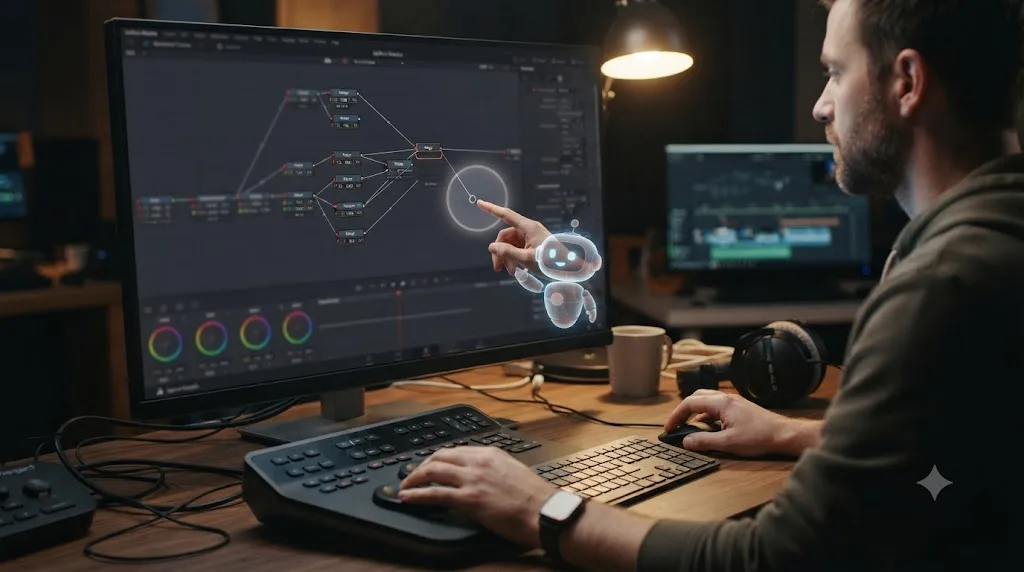
TryUncle is the on-screen assistant for DaVinci Resolve on macOS. Ask in plain words, and Uncle points at the exact control on your screen. If you're mid-macro wondering which parameter to expose in the Macro Editor, or which node input the accent bar's Center X connection is actually supposed to feed, that's a category of question a text-only chatbot answers blind, since it's never seen your comp.
It's worth naming the real alternatives honestly rather than pretending TryUncle is the only option in this space. Tools like Sottocut, PremiereCopilot, heyeddie.ai, and cutagent.ai automate edits or answer chat questions about your footage, genuinely useful for different jobs like silence removal or answering general editing questions. None of them watch your live Fusion node graph the way Uncle does, and none of them point at the specific control on your actual screen while you're stuck mid-build. TryUncle is a paid app, currently $39 a month, cancel anytime, and it's macOS-only with no Windows or Linux build, so if you're on a different platform or need a free option, Blackmagic's own free training guides and deliberate hands-on practice inside real projects remain the right starting point regardless.
If you're staring at your own half-built accent bar right now and can't remember which node input still needs a connection, Uncle can point at that exact spot on your own project while you keep working, instead of you pausing to describe your comp in words to a chatbot that's never seen it.
The verdict
DaVinci Resolve will not import a .mogrt file today, tomorrow, or in whatever version follows 21.0.3, because the format was built for a panel Resolve doesn't have and never will, and reverse-engineering it would mean chasing an undocumented target Adobe controls. That's not a gap worth waiting on. Render the graphic as an alpha video for anything you're delivering once, and rebuild it as a native Fusion template the moment you know you'll reuse it, and you've solved the actual problem faster than any future Blackmagic update ever will.
If you're commissioning new work from a designer instead of inheriting an old .mogrt, ask for Lottie output going forward and skip this whole workaround the next time around. And if you're the one stuck right now with a half-finished Fusion macro and a node input you can't place, that's exactly the kind of moment worth pointing an assistant at your own screen for, rather than guessing your way through it alone.
Frequently asked questions
- Can DaVinci Resolve open a .mogrt file at all?
- No. DaVinci Resolve has no code path that reads the .mogrt container, in any version up to 21.0.3. Drag one onto the Media Pool and Resolve either ignores it or reports an unsupported file, because .mogrt only unpacks inside Adobe's Essential Graphics panel, a component Premiere Pro and After Effects ship and Resolve doesn't.
- Is there a plugin or script that adds MOGRT support to DaVinci Resolve?
- Not a real one. No OFX plugin, no DaVinci Resolve scripting API call, and no Reactor script unpacks Adobe's proprietary Essential Graphics format, because .mogrt bundles compiled After Effects layer data, not an open, documented interchange format any third party could target. Anyone advertising a one-click MOGRT importer for Resolve is selling something that doesn't exist.
- What's the fastest way to get one specific MOGRT graphic into a DaVinci Resolve timeline?
- Open the .mogrt in After Effects or Premiere Pro, set your text and color overrides in the Essential Graphics panel, then render it out as a video with an alpha channel (ProRes 4444 or H.265 with Export Alpha checked). Drop that file on a track above your footage in Resolve. It's not editable inside Resolve afterward, but it's the fastest path for a single graphic.
- How do I make something reusable, the way a MOGRT is reusable in Premiere?
- Build it once in Fusion as a Title, Generator, or Transition template, right-click the finished node tree, choose Macro > Create Macro, expose the parameters you want editable, and save it into Resolve's Fusion Templates folder. It then appears in the Effects Library on the Edit page with its own editable controls, the same role a MOGRT plays in Premiere.
- Do Lottie or OGraf files solve this instead?
- For new graphics, often yes. DaVinci Resolve 21 added native drag-and-drop support for .lottie and OGraf (.json) files with alpha channels intact, treated as native media in the Media Pool. That doesn't convert an existing .mogrt, since Adobe's Essential Graphics panel doesn't export to either format, but it's a real cross-app template option going forward if the designer builds new work in Lottie instead of MOGRT.
- Does this behave differently in the free version of DaVinci Resolve versus Studio?
- No. Fusion's macro and template system, the render-to-video workaround, and native Lottie/OGraf support all work identically in the free version and Studio. The only place Studio matters is export resolution and frame rate ceilings if your rebuilt graphic needs to render above Ultra HD 60fps, since the free version caps there.
Sources
- Blackmagic Forum - Template and MOGRT in Resolve
- How to install motion graphic templates in DaVinci Resolve (Allavio)
- Mogrt File for DaVinci Resolve (CapCut)
- Create Motion Graphics templates with the Essential Graphics panel (Adobe, After Effects)
- About Motion Graphics templates (Adobe, Premiere Pro)
- Creating Fusion Templates (Blackmagic Design DaVinci Resolve Manual, mirrored)
- Saving a Title Macro (Blackmagic Design DaVinci Resolve Manual, mirrored)
- Building and Re-using Fusion Setups and Macros in DaVinci Resolve, by Jamie Dickinson (Mixing Light)
- Node-Free Motion Graphics in DaVinci Resolve and After Effects, by Tom Graham (Envato Tuts+)
- Best Way To Export Alpha Channels In DaVinci Resolve With Small File Sizes (Alli and Will)
- DaVinci Resolve 21 Final Release: New Photo Page, Expanded AI Toolset, Krokodove in Fusion, and Wide RAW Support (CineD)
- DaVinci Resolve 21 Expands Creative Horizons with Native Lottie and OGraf Support, by Justin Robinson (JayAreTV)
- DaVinci Resolve product page (Blackmagic Design)
- After Effects pricing (Adobe)
- Blackmagic Design releases DaVinci Resolve 21.0 (CG Channel)
- TryUncle
Learn by doing, not watching
Stop translating tutorials to your timeline.
TryUncle stays beside Resolve on Mac and Windows. When you ask, Uncle sees your screen and points at the exact control you need. No hunting through tabs, timestamps, or mismatched tutorials.
Meet TryUncleKeep reading
 ComparisonsJul 28, 202637 min read
DaVinci Resolve Fusion vs After Effects for Motion Graphics
Fusion is free and better for single-shot VFX. After Effects wins on templates, plugins, and tutorials. Full 2026 comparison with real numbers.
 GuidesJul 16, 202636 min read
How to Switch From Premiere Pro to DaVinci Resolve (Full Guide)
A complete walkthrough for editors moving from Premiere Pro to DaVinci Resolve: project import, keyboard presets, page layout, color, audio, Fusion, and export.
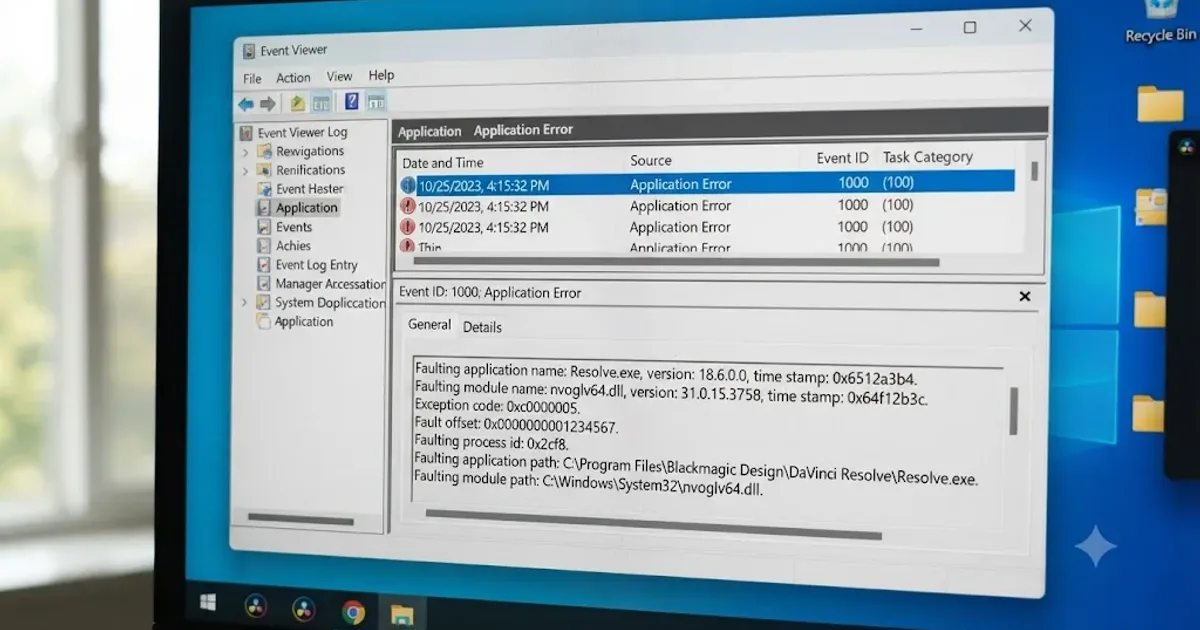 FixesJul 17, 202631 min read
DaVinci Resolve Plugin Not Found or Missing Effect: The Fix
Why DaVinci Resolve shows a plugin not found or missing effect error, and the install path, cache, and Video Plugins fixes that actually solve it.