
Learn / DaVinci Resolveupdated for DaVinci Resolve 21 (October 2026)
DaVinci Resolve Color Grade Not Applying to Clip? Fix It
Quick answer
If a DaVinci Resolve color grade is not applying to a clip, first select the intended timeline clip on the Color page, confirm you are in Clip mode, and check that an enabled node connects to the output. Then turn off grade bypass, inspect group and timeline grades, and compare the clip in the viewer. If only one shot differs, verify the correction was made on that shot's active version.
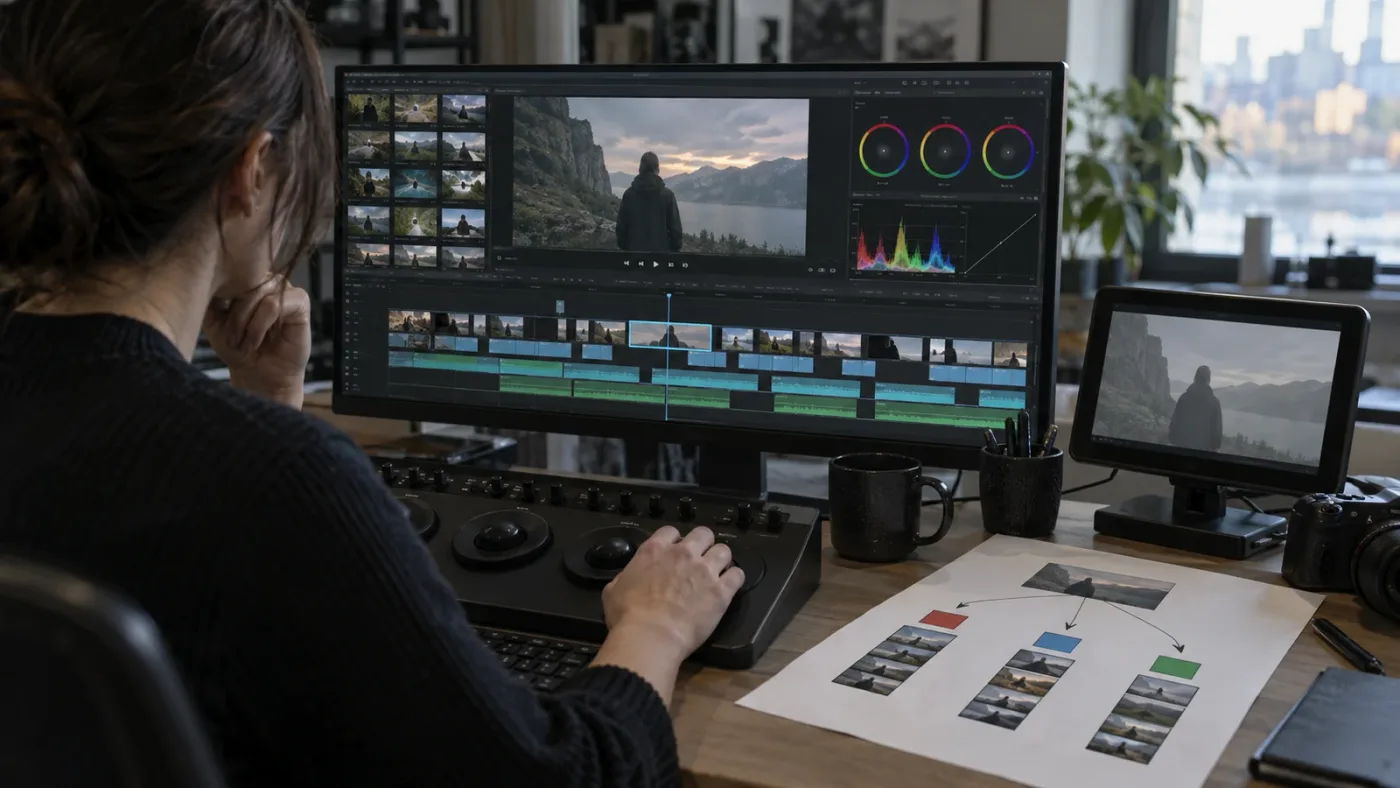
DaVinci Resolve can show a lively node graph while the shot in the viewer looks untouched. In our 100,000+ member editing community, that kind of stuck point often turns out to be a selection, node-routing, or bypass issue rather than a failed color tool. We have spent more than seven years on professional commercial editing, and this is the order we use to find the point where the grade stops reaching the picture.
As of October 2026, this guide covers the established Color page workflow in DaVinci Resolve 20 and 21. Blackmagic's current support page lists Resolve 21 and the Resolve 20.3.3 maintenance release; the controls discussed here are the core node and grade-level checks documented in the Resolve 20 manual. The newer major version adds features, but the diagnosis still begins with the selected clip, active grade level, node path, and bypass state.
Why is my DaVinci Resolve color grade not applying to a clip?
A grade that appears not to apply usually belongs to another clip or grade level, sits in a disabled or disconnected node, or is being bypassed. Start by selecting the exact timeline shot in the Color page, then check the clip's active version and the route from the node graph's input to its output.
Avoid changing several controls at once. If you toggle a bypass, rebuild nodes, change the group, and alter color management in one pass, you may make the picture move without learning what caused the fault. A controlled diagnosis changes one condition, checks the viewer and scopes, and reverses the change if it did not answer the question.
Blackmagic describes the node graph as an image path: the image enters from the left and passes through color correction or effect nodes until it reaches the output on the right. That gives you a useful first principle. A correction matters only if the selected image passes through the node where the correction lives and reaches the output without the grade being disabled. (Source: Blackmagic Design's Color page overview.)
A visible node is not proof that its correction reaches the viewer.
Use this quick map before touching the grade:
| What you see | First thing to check | Why it matters |
|---|---|---|
| Every clip looks ungraded | Viewer or timeline grade bypass | A global bypass can hide otherwise valid grades. |
| One shot ignores a visible node | Selected clip, active version, node enable state | The node may belong to a different shot or version. |
| A grade affects several shots unexpectedly | Group or Timeline grade level | Those levels are shared across more than one clip. |
| Node changes have no visible effect | Node connection and node order | The image must travel through a connected path to the output. |
| Viewer changes but render does not | Deliver page flat-pass and version settings | Render options can intentionally omit clip grades. |
| Color page and Edit page disagree | Viewer bypass, proxy, cache, or display pipeline | The two pages may not be showing the same processing state. |
The table is a triage guide, not a substitute for identifying the exact level that owns the correction. Resolve allows grades at clip, group, and timeline levels, and a shared correction can make one shot appear to defy a change made elsewhere. The fastest fix is often to name the symptom precisely: all shots, one shot, one node, or only the export.
How do I confirm I selected the clip I actually want to grade?
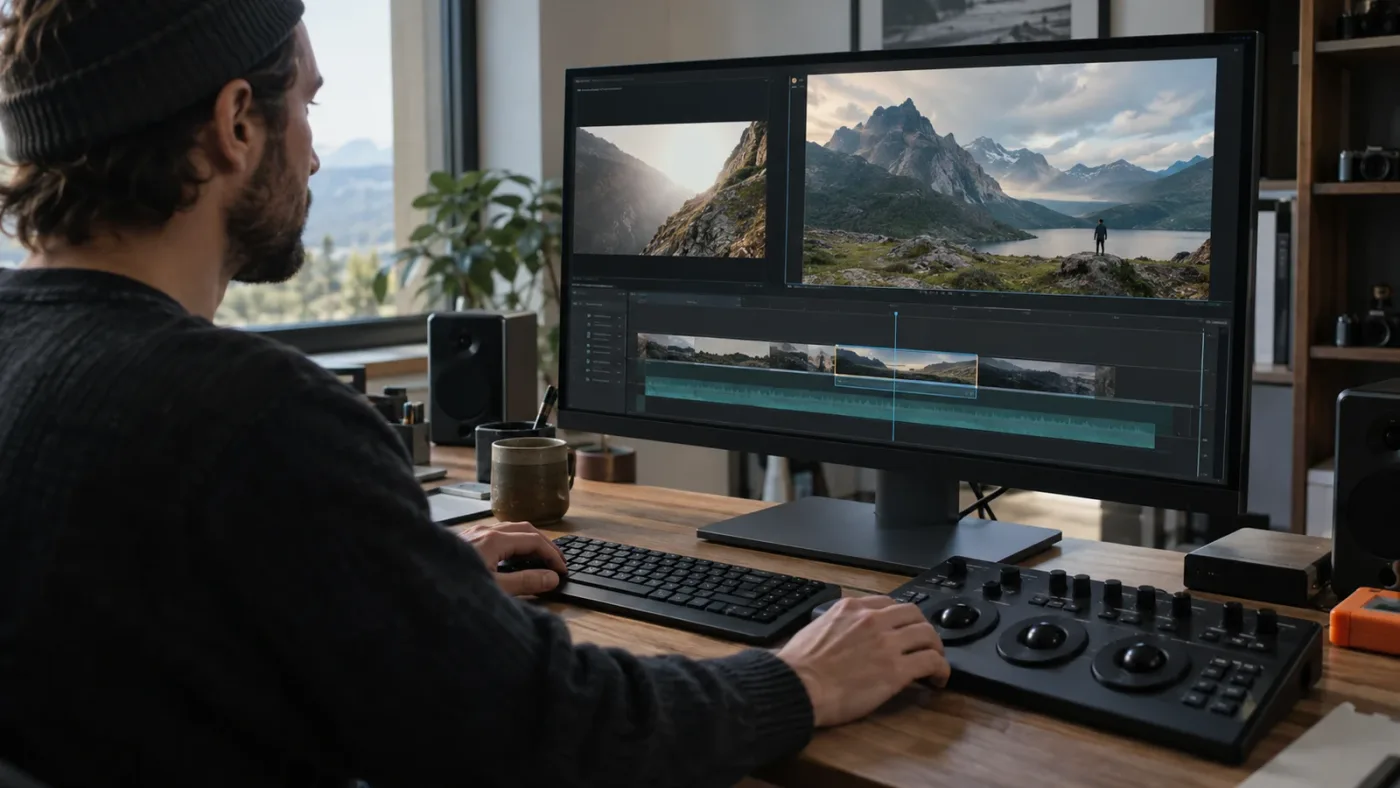
The Color page grades the clip selected in its timeline, so selecting the wrong thumbnail can make a correct adjustment appear to have no effect on the intended shot. Click the timeline thumbnail for the exact shot, confirm the viewer shows that shot, and then make a small reversible test adjustment.
This check sounds too simple to matter. It matters because the Color page has its own clip selection, while the Edit page has a playhead and timeline selection that can be easy to confuse. A timeline may contain repeated source media, a compound clip, a multicam angle, a nested timeline, or adjacent shots that look similar. The viewer can show a different image from the clip you think is selected.
Use a small diagnostic adjustment rather than a dramatic look. Raise or lower a primary control enough to see a clear temporary change, note which image changes, and undo the test. You are not trying to make the shot attractive yet. You are asking whether the selected node path affects the selected clip at all.
Check the following in order:
- On the Color page, click the timeline thumbnail for the target shot.
- Read the viewer image and timeline position. Does it match the shot you intend to grade?
- Make one temporary, obvious adjustment in an enabled node.
- Confirm whether that frame changes in the Color viewer.
- Undo the test adjustment before continuing if it changed the wrong image.
If clicking a thumbnail selects a neighboring shot, zoom the Color timeline or navigate to the target using the Edit page first. Then return to Color and verify the selected thumbnail again. A cut point can be only a frame away, and a playhead placed on an edit does not tell you which side of the cut is active for grading. Step one frame forward or backward to identify the intended side.
Compound clips and multicam timelines need extra care. A timeline item may represent a container rather than the original camera clip. If the outer item is selected, a correction may apply to the composite result; if you open the nested timeline or multicam angle, the source clip can have its own grade. Decide whether you mean to alter the container's appearance in this timeline or the camera source wherever it is used. Do not assume those are the same operation.
The same principle applies when a timeline contains an adjustment clip. An adjustment clip is a separate timeline item whose effects can influence clips beneath it, while a Color page clip grade belongs to a selected clip grade level. If an adjustment clip or another effect changes the image later in the processing chain, your correction can be present yet difficult to recognize. First isolate the clip grade, then inspect timeline-level effects.
If the image on the Color page is black or missing rather than merely unchanged, this may be a footage visibility issue, not a grade issue. See our guide to DaVinci Resolve's Color tab not showing footage for that separate symptom. Keep the diagnosis narrow: this post is for a visible shot whose color correction seems not to reach it.
Why does a grade show in the node graph but not the viewer?
A node only affects the image when it is enabled and connected into the active clip's route to the output. In the node graph, follow the image path from the input on the left through the correction nodes to the output on the right, then check whether a bypass hides the whole path.
In a basic serial tree, the signal travels through nodes in sequence. A node placed in the graph is not enough: it must connect into that path. If you create a node and then disconnect it, or if an output route is broken, the node can remain visible while contributing nothing to the final image. Blackmagic's Color page overview explains the left-to-right passage through correction and effect nodes. Its Resolve 20 Colorist Guide also demonstrates disabling a node with Command-D on macOS or Ctrl-D on Windows to compare an adjustment. (Sources: Color page overview, Colorist Guide.)
Inspect the node itself. A disabled node is commonly shown with a bypass indicator or dimmed appearance, depending on the interface state. Select the suspect node and use its enable toggle or node context menu to restore it. Do not toggle every node indiscriminately: identify one node, note its state, and test its effect. If enabling the node changes the picture, you found a disabled correction. If not, restore the state and continue down the graph.
Node order matters too. A later node may counteract an earlier adjustment, and a node that performs a transform or creates a key can change the image in a way that makes another correction appear ineffective. Temporarily disable later nodes one at a time to see whether one is undoing the expected look. Restore each node before proceeding to another. A neutral result after one node is not automatically a fault; two deliberate adjustments may cancel each other.
Parallel and layer mixer structures make the route less visually obvious than a simple serial chain. A parallel node can feed a mixer, and a layer node can combine inputs according to its compositing behavior. If the node is connected but appears ineffective, trace both its incoming connection and the mixer output. Confirm that the branch containing your adjustment reaches the final output and has a meaningful contribution. A disconnected branch can look like a complete grade while remaining outside the visible result.
Also distinguish a node correction from an effect that requires setup. A tracked window may not isolate the area you expect if its shape, key, or track is wrong. A qualifier can select none or nearly all of the image. That is different from a node that does not apply. If the whole picture changes but the intended object does not, check the mask, key, or tracking state before diagnosing output routing.
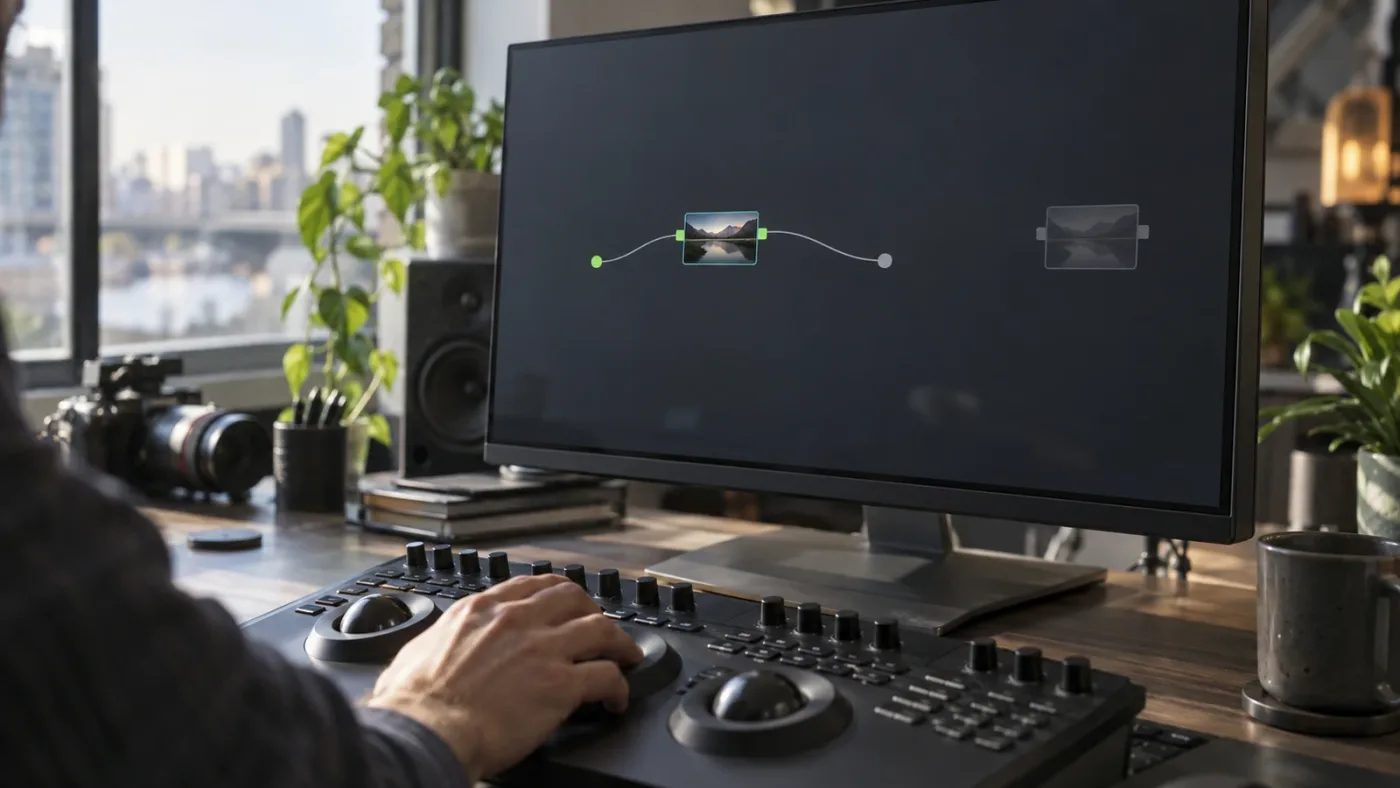
For a clean test, create or select one simple correction node in the active clip tree, make one visible primary adjustment, and watch the viewer. If this test node works, the pipeline is functioning and the fault belongs to the original node's state, mask, order, or routing. Undo or remove the test node once you have learned what you needed; don't leave diagnostic clutter in a finishing project.
How do I turn off DaVinci Resolve's grade bypass?
If every clip looks ungraded, check whether DaVinci Resolve is bypassing the clip's node tree or the viewer's color pipeline. The Resolve 20 Colorist Guide documents Shift-D for bypassing the entire node tree and describes a separate Bypass Color Grades and Fusion Effects button in the viewer toolbar.
The important distinction is scope. Shift-D compares the selected clip's whole grade with the source footage, while the viewer toolbar control bypasses color grades and Fusion effects more broadly. A global-looking symptom points toward the viewer control; a single selected shot points toward its clip grade bypass. If you are unsure which was toggled, inspect the button's state before pressing shortcuts repeatedly.
For DaVinci Resolve 20, Blackmagic's guide shows the node-tree comparison shortcut as Shift-D. It also documents Command-D on macOS or Ctrl-D on Windows to enable or disable a selected node. These shortcuts serve different purposes: one changes the whole tree's bypass state, the other changes a node. The guide's node-level example gives you a direct way to isolate one correction. (Source: The Colorist Guide to DaVinci Resolve 20.)
| Action | DaVinci Resolve 20 shortcut/control | What it tests |
|---|---|---|
| Toggle selected node | Command-D on macOS; Ctrl-D on Windows | Whether that one node is affecting the image |
| Toggle the selected clip's node tree | Shift-D | Whether the clip-level grade pipeline is being bypassed |
| Bypass color grades and Fusion effects | Viewer toolbar control | Whether a broader viewer pipeline bypass is active |
| Toggle selected clip or node state | Use the visible context menu when shortcuts are uncertain | Avoids confusion about modifier keys or focus |
Shortcuts can vary by keyboard mapping and version, and a keyboard focus in another panel can make a keypress appear to do nothing. If your key combination behaves differently, use the visible viewer control or node context menu and check the current manual for your installed version. Don't keep tapping Shift-D as a guess. It toggles state, so a second press can restore or reapply the bypass you were trying to diagnose.
The render pipeline has a separate setting worth checking when the viewer looks right but an export looks flat. The Colorist Guide describes an Enable Flat Pass option: with a flat pass set to Always On, clip grades are disabled for the render; with clip settings, the render follows the bypass state of each clip version. This is deliberate output behavior, not evidence that the correction failed. Check the Deliver page render settings before rebuilding a working grade. (Source: The Colorist Guide to DaVinci Resolve 20.)
A flat render can come from a flat-pass setting even when the viewer grade is correct.
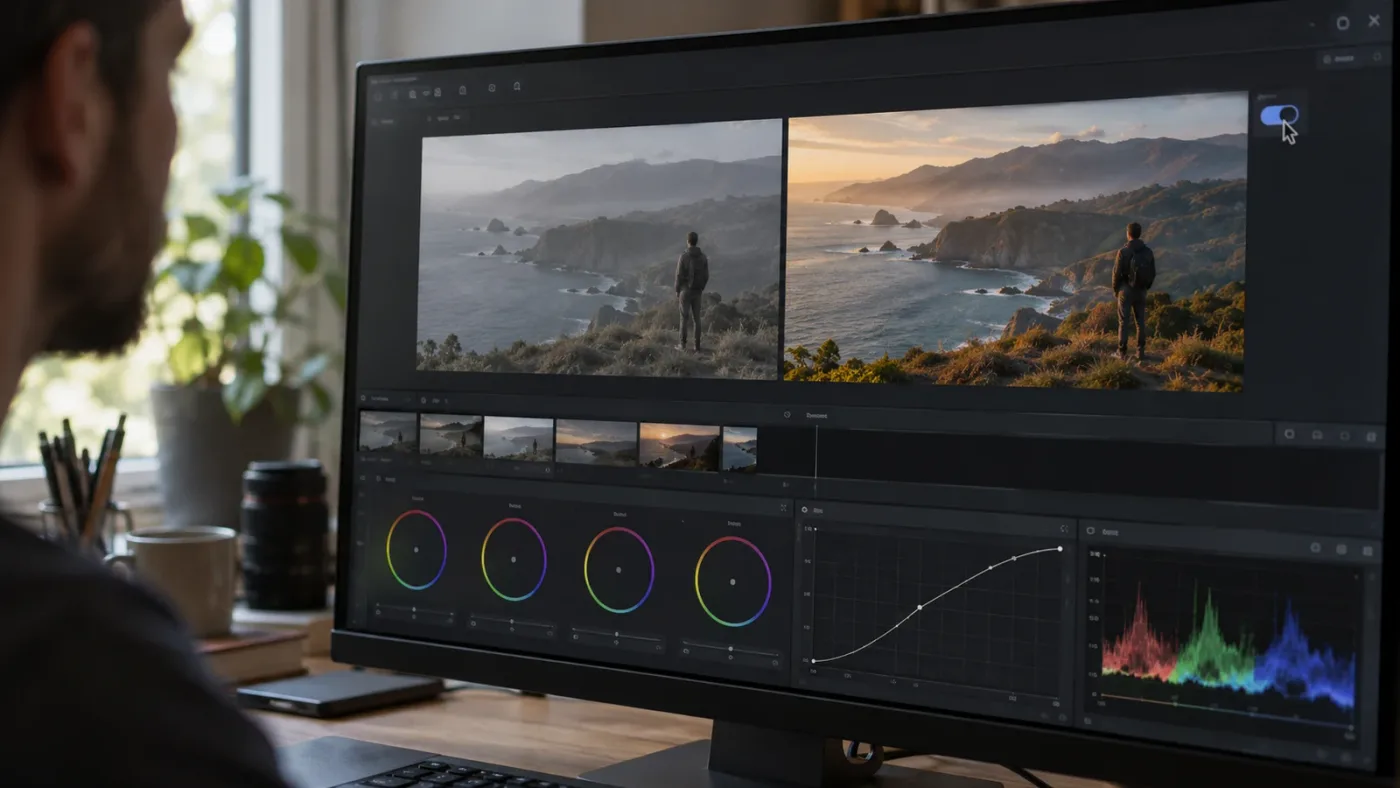
Finally, look for a bypass state that is attached to a version or clip. Resolve's manual distinguishes grades and versions; switching to another version can change which grade is displayed. A grade may be present in one version while a different active version remains ungraded. This is why it is safer to verify the version before duplicating, pasting, or rebuilding a grade.
Is the grade on Clip, Group Pre-Clip, Group Post-Clip, or Timeline?
The Color page's Node Editor can show different grade levels, and the selected level determines which image or images the nodes affect. Clip is specific to the selected clip, Group Pre-Clip and Group Post-Clip apply to members of a group at different stages, and Timeline affects the full timeline.
If a correction appears in the graph but not on the shot you expect, inspect the mode selector above the Node Editor. The selected level may be a group or timeline node tree rather than the clip tree. The grade can be working exactly as designed while you are looking at another scope of control.
The names describe where the shared operation sits relative to the individual clip grade. A Group Pre-Clip grade happens before the clip-specific grade. Group Post-Clip happens after it. Timeline sits at the timeline level. Blackmagic's Resolve training explains how node editor structures and color management fit into grading work; the Resolve manual details the controls and group workflow. (Sources: Blackmagic Design training, DaVinci Resolve 20 Reference Manual.)
Work through a level check without changing values:
- Select the target timeline shot.
- Open the Node Editor mode menu.
- Note whether it shows Clip, Group Pre-Clip, Group Post-Clip, or Timeline.
- Select Clip and see whether the expected shot-specific node tree appears.
- If shared treatment is intended, inspect the group assignment and the applicable group level.
- Return to the intended level before making a correction.
This check prevents a common mistake: adjusting a group grade when you intended to correct one camera angle, or adjusting one clip when you intended to establish a shared look across a scene. If you alter the wrong level, several shots may shift together or only one may move, giving the impression that Resolve ignored your work.
Groups have membership. A clip must belong to the group for that group's pre-clip or post-clip changes to affect it. If one similar shot responds and another does not, check whether both clips are in the same group. The second shot may be outside the group, or the grade may belong to a different group. Do not move clips into a group just to see what happens in a finishing timeline; inspect membership and use a reversible test on a duplicate project or version if the group logic is unclear.
The order of operations can explain why a shared grade looks different on two clips. A Group Pre-Clip correction can prepare a shared source treatment before each clip receives its own correction. A Group Post-Clip look can apply after the clip-level work. The two positions are not interchangeable in every workflow because subsequent corrections can change how a shared operation appears. If the grade seems weak or excessive, identify which stage should carry it rather than merely adding more gain or saturation.
Timeline grades are useful for a finishing adjustment that should affect the whole timeline, but they can obscure local diagnosis. Temporarily switch the Node Editor to Timeline to see whether a shared node is shaping every shot; then return to Clip to inspect the individual shot. Avoid disabling a timeline node until you understand which shots depend on it. A broad adjustment can make the targeted clip look correct while other clips become wrong.
When you actually intend to distribute a look to other shots, apply it deliberately. Our guide to copying a color grade to multiple DaVinci Resolve clips covers the transfer workflow. Copying is not a repair for a selection or level mismatch; first decide whether the correction belongs to an individual clip, a group, or the timeline.
Why does my grade affect one clip but not another?
When one shot changes and another does not, first compare the clips' grade levels, group membership, and active versions. A clip-level grade is not automatically shared with neighboring shots, even when they use the same source media or look similar in the timeline.
Start with a simple A/B check. Select the first shot and make a tiny reversible adjustment in Clip mode. Confirm it changes. Select the second shot and inspect its Clip tree. If the second tree differs, that is expected unless you copied the grade, placed the clips in a group, or used a timeline-level grade.
If you expect both shots to share treatment, ask what should be shared. Exposure matching may need shot-specific corrections, while a creative look may be shared across a scene. Grouping the clips can help with shared looks, but it does not make unlike source footage identical. A daylight shot and a tungsten shot can respond differently to the same group node because the images entering that node differ.
Check that both clips really belong to the same group. The Color page can display group modes when a clip belongs to a group. If one clip is not a member, a Group Pre-Clip or Group Post-Clip node cannot affect it. A group assignment can also be correct while the grade is on the wrong group's node tree. Inspect the group name and member selection instead of repeatedly adjusting a clip node.
Clip versions create another split. A shot can have more than one grade version, and the selected version determines the grade visible for that shot. Compare the version menu on both shots and confirm the intended version is active. If you have changed versions to try looks, don't assume the first grade you made remains the active one.
Still-based copying can also replace more than expected. Applying a saved still may transfer a grade to a selected clip, but the operation's scope and options matter. If you are troubleshooting because a copied grade failed, confirm the target clip is selected and verify whether the still is being applied to the clip's current grade or to a particular node. Use the dedicated copy-grade guide for the intended transfer, and keep a version before replacing an established tree.
Clip grades stay local unless you deliberately share them through a group, timeline, or grade-copy workflow.
Why does DaVinci Resolve's Color page look different from the Edit page?
If the grade appears in the Color viewer but not the Edit viewer, check whether the viewer-level bypass is enabled and whether both pages display the same clip, frame, and timeline. If the difference remains, inspect cache, proxies, and downstream timeline effects before altering color management.
First compare like with like. Put the playhead on a stable frame away from a cut, identify the selected clip, and ensure both viewers show the same frame. A one-frame offset can cross an edit or land on a different source frame. Then toggle the viewer bypass control only after reading its state, because it may override what you expect from the node graph.
If playback looks stale but scrubbing updates the image, render cache may be showing an older result. Clear or refresh the relevant cache through Resolve's playback/cache controls, then compare again. Cache behavior can differ with project settings and version, so use the menu label in your installed build rather than relying on an old shortcut from a tutorial. Do not delete cache folders manually as a first response; Resolve can manage its cache through project controls.
Proxy media and optimized media can affect the image you see during editing, especially when source and proxy color handling differ. Confirm whether the timeline is using proxy media and compare against the original source if the discrepancy suggests a media path issue. A proxy mismatch is more plausible when the shot's detail, metadata, or color appearance differs broadly, not when one node alone has no visible effect.
Next, inspect downstream effects. A clip-level grade can be followed by an adjustment clip, a timeline node, a compositing operation, or another effect that changes the result. Disable one downstream effect at a time, test the image, and restore it. If a later operation compresses contrast or changes saturation, a small upstream correction may look as if it vanished.
Display transforms and color management affect how the signal is presented, but they do not usually explain a completely inert correction node. Blackmagic's training describes color management as part of setting up the grading workflow, including input and output handling. If your controls visibly affect scopes and the image changes but looks unexpectedly flat, saturated, or washed out, investigate color space and monitoring. If nothing changes at all, return to selection, node enablement, routing, and bypass first. (Source: Blackmagic Design's color training.)
This distinction helps avoid a destructive detour. Don't change project color science, input color space, or output color space just because a node seems inactive. Those settings can alter every shot and may make the entire sequence harder to match. Confirm a signal change through the node path before changing the project's color pipeline.
Why does my grade disappear only after export?
If the grade looks correct in the viewer but the rendered file is flat, inspect the Deliver page's flat-pass and version settings before changing the grade itself. Resolve 20's Colorist Guide says an Always On flat pass disables clip grades in the timeline render, while With clip settings follows the bypass status of each version.
The preview and render can differ because they are not necessarily using the same grade inclusion settings. Reopen the render job settings, verify the selected timeline, and check whether a flat pass is enabled. If you intentionally render a flat pass for another stage, the ungraded export is expected. Change the option only when the deliverable is supposed to include the grade.
Also verify that the rendered timeline is the one you graded. Resolve projects can contain multiple timelines, and a job may be queued from an alternate timeline or use an older render preset. Compare timeline names, in/out points, and the clip at the same timecode. If the file is a few frames offset, you may simply be comparing a different shot or a transition frame.
If the render still differs, review the output color space, data levels, and player interpretation as a separate display problem. A file can contain graded values yet look different in a player because of color management or video-level interpretation. That is not the same as a grade being omitted. Use scopes or compare in a color-managed application to distinguish a flat-pass omission from a display mismatch.
Do not assume the free and Studio editions use different basic grade semantics. Blackmagic lists the Color page as a core Resolve feature; Studio adds other advanced features, but this symptom should first be diagnosed through the project state and output configuration. Consult the support page for the exact installed release notes if the behavior is reproducible in a clean project. Blackmagic's support center currently lists Resolve 21 and a Resolve 20.3.3 maintenance update as of the date checked. (Sources: DaVinci Resolve overview, Blackmagic Design support.)
What does the waveform or parade tell me when a grade seems inactive?
Scopes help determine whether a correction changes the image signal even when the viewer makes that change hard to see. Compare the scopes before and after one deliberate adjustment; if the trace moves, the grade is affecting the signal, and the remaining problem may be display, viewing conditions, or an opposing downstream correction.
Blackmagic's official Introduction to Color training includes reading scopes, balancing shots, and using primary and secondary grading tools in its 1 hour 33 minute course. The published duration is useful context: scope reading is a core part of the official training, not an obscure workaround. (Source: Blackmagic Design training.)
Colorist Dylan Hopkin describes the connection between creative intent and practical workflow this way: “My approach to grading animated feature films is very similar to how I work on traditional live-action features.” The quote comes from an interview about shaping light and color for animated features; the troubleshooting lesson is simple: identify the image and intended treatment before changing tools. (Source: Creative Bloq’s interview with Dylan Hopkin.)
Choose a control that should create an unmistakable scope change. A small lift adjustment should affect the low end of a waveform; a saturation change should affect chroma traces on a vectorscope. The exact appearance depends on the source image and the control, so use the same frame for both readings. A scope that does not move can indicate the wrong clip, a bypass, or an inactive node. A scope that moves while the viewer seems unchanged suggests the adjustment is working and the issue lies elsewhere.
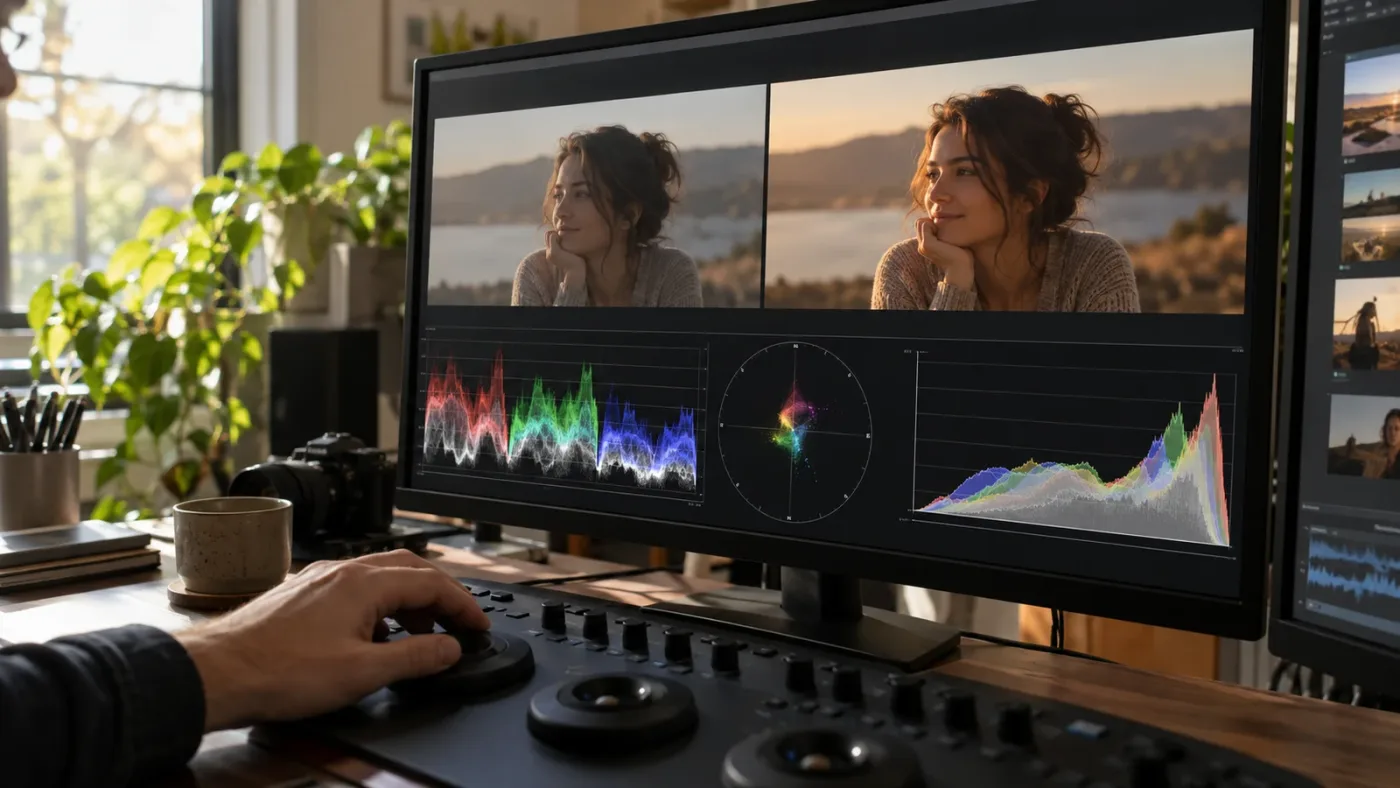
For matching shots, compare scopes on comparable image content and at the same point in the pipeline. A waveform measured before a transform is not directly equivalent to one measured after a transform, and a group pre-clip node does not see the same processed image as a group post-clip node. When comparing nodes at different grade levels, note the pipeline stage. Otherwise, differences in the scope may reflect where you measured rather than whether a correction applied.
What is the fastest safe order for fixing the clip?

The fastest safe fix is a short sequence: verify the selected shot, confirm the intended grade level and version, inspect node enablement and connections, clear bypass, then test the viewer and scopes. Save or preserve a version before changing shared group or timeline nodes.
Use this checklist when you need to return to editing quickly:
- Select the shot. Click the Color page thumbnail and confirm the viewer frame.
- Confirm the grade level. Set the Node Editor to Clip unless the correction is intentionally shared.
- Confirm the version. Check that the active clip version contains the grade you expect.
- Inspect the node path. Verify that the intended node is enabled and connected through to output.
- Check bypass. Inspect the viewer bypass control and use Shift-D once only if the clip tree appears bypassed.
- Make one test adjustment. Watch both the viewer and a scope, then undo it.
- Inspect shared processing. Check group membership, group nodes, timeline nodes, and downstream effects.
- Check output settings. If only the render is flat, inspect flat-pass and version options in Deliver.
This order moves from narrow and reversible to broad and project-wide. It protects a working grade while still covering the common failure modes. If the adjustment is supposed to affect one shot, do not begin by changing timeline color management. If every shot is affected, do not start by rebuilding a single clip's node tree.
After you identify the cause, remove test nodes and restore any temporary bypasses or disabled nodes. Save the project, then revisit the same frame and one neighboring shot. This catches accidental shared changes before they spread into a client review or final export.
If a node looks different in your installed release, check Blackmagic's current Resolve manual and release notes. Resolve 21 introduces new color workflows, including the Photo page and layer-list node graphs, while the core video diagnosis described above maps to the node and grade concepts in the Resolve 20 manual. Don't apply a Resolve 21 Photo page instruction to a video timeline unless the task is actually grading a still image. (Sources: What's new in Resolve, Blackmagic Design support.)
When should I use a tutorial, official training, or live help?
For a repeatable concept such as node order or scopes, Blackmagic's free official training is a strong structured reference; a focused tutorial can help when it matches your Resolve version and footage. When the menus on your screen don't match the lesson, use a live explanation tied to your current screen rather than guessing which control moved.
Blackmagic's training page offers downloadable guides and project files alongside its videos. Its Introduction to Color runs 1 hour 33 minutes and covers primary and secondary tools, scopes, and balancing shots; the Advanced Color course runs 57 minutes and covers color management, node structure, RAW media, and Magic Mask. Those are concrete ways to learn the underlying system, not merely quick fixes. (Source: Blackmagic Design training.)
TryUncle is the on-screen assistant for DaVinci Resolve on Mac and Windows — ask in plain words and Uncle points at the exact control on your screen. For a stuck grade, that format is most relevant after you have established whether the failure is clip selection, node routing, bypass, group scope, or export settings. It's an option for live, contextual help while you work, not a replacement for learning why the control changes the image. You can check TryUncle if seeing a control pointed out in your current Resolve screen would help.
What should I do if none of these fixes works?
If selection, grade level, version, node routing, bypass, and render settings all check out, reproduce the problem in a new test timeline before altering the original project. A minimal reproduction separates a project-specific interaction from a general Resolve issue and gives Blackmagic support or a community helper useful evidence.
Create a duplicate project or timeline using a short, non-sensitive clip. Add one serial node, make a visible primary adjustment, and compare the Color viewer, Edit viewer, and a short render. If the simple test works, add back one element at a time: group membership, versions, effects, adjustment clips, proxies, and output settings. Stop when the symptom returns. The last addition identifies the interaction to investigate.
Record the exact Resolve version and operating system, whether you are using the free or Studio edition, the source media type, the grade level, and whether scopes move. Include the selected node and connections in a screenshot if you seek help, but don't share confidential footage. Blackmagic's support center links current downloads, documentation, and release information; the official training and manual are the best first references for expected control behavior. (Source: Blackmagic Design support.)
If the issue began after a version update, check the current release notes before changing the project. Blackmagic's support page lists version-specific updates and compatibility information. Keep a copy of the project before opening it in a newer major version, and don't downgrade the only copy after a project library has been upgraded. The exact project-library behavior belongs to the version notes for your installed release, so confirm it there rather than relying on general advice.
When you report the bug, describe the smallest sequence that reproduces it. “My grade doesn't work” leaves too many unknowns. “In Resolve 21, Clip mode, one enabled serial node connected to output changes the waveform but not the Color viewer; the viewer bypass is off; the same test clip works in a new project” tells a support person what you already ruled out. Keep the description factual and avoid claiming a software bug until the minimal test demonstrates one.
Which diagnosis should I try first?
Match the symptom to the smallest relevant check: all clips point to bypass, one clip points to selection or version, group-wide differences point to grade level or membership, and a flat export points to render settings. Resolve's node graph is a route, so trace that route before changing the project's color science.
The safest Resolve troubleshooting change is the smallest reversible change that tests one cause.
Keep the diagnosis practical. Select the exact shot. Confirm Clip, Group, or Timeline mode. Check the active version. Trace an enabled node to output. Turn off bypass only after checking its state. Use scopes to distinguish a silent node from an image that merely looks unchanged. If the picture works in the viewer but not in the export, inspect flat pass and render setup. Those checks resolve most apparent “grade not applying” cases without disturbing the rest of the project.
When you are unsure where to click, Uncle can point to the relevant control in your own Resolve project while you work.
Frequently asked questions
- Why is my DaVinci Resolve color grade not applying to a clip?
- The most common causes are the wrong clip or grade level being selected, a disconnected or disabled node, a bypass control, or an alternate clip version. Select the timeline clip, switch the Node Editor to Clip, press Shift-D once to restore the grade pipeline, then inspect node connections.
- How do I turn color grading back on in DaVinci Resolve?
- Press Shift-D to toggle the selected clip's grade pipeline, and inspect the viewer's Bypass Color Grades and Fusion Effects control if the whole pipeline appears bypassed. Press Shift-D again only when you mean to compare against the ungraded image.
- Why does my grade show on one clip but not another in DaVinci Resolve?
- A Clip grade belongs to its selected clip, while Group Pre-Clip and Group Post-Clip grades affect clips in that group and Timeline grades affect the timeline. Confirm the grade level and whether the second clip belongs to the intended group.
- Why does DaVinci Resolve show my grade in the node graph but not the viewer?
- Check whether the node is disabled, disconnected, placed after a node that overrides its effect, or bypassed at the clip or viewer level. Also confirm that the viewer is showing the same timeline clip and frame you graded.
- How can I tell whether a color grade was applied to the wrong clip version?
- Open the Color page Versions menu for the selected clip and check which version is active. Resolve stores grades with clip versions, so switching versions can show a different grade even though the clip remains selected.
Sources
Learn by doing, not watching
Stop translating tutorials to your timeline.
TryUncle stays beside Resolve on Mac and Windows. When you ask, Uncle sees your screen and points at the exact control you need. No hunting through tabs, timestamps, or mismatched tutorials.
Meet TryUncleKeep reading
 GuidesJul 8, 202633 min read
DaVinci Resolve Color Tab Not Showing Footage: Every Fix
Why DaVinci Resolve's Color page shows an empty timeline instead of your footage, and the exact filter, track, timeline, and cache fixes that solve it.
 GuidesJul 8, 202639 min read
How to Copy a Color Grade to Multiple Clips in DaVinci Resolve
Every way to copy a DaVinci Resolve color grade to multiple clips: copy/paste, middle-click, Gallery stills, PowerGrades, Color Groups, and more.
 FixesOct 18, 202626 min read
DaVinci Resolve De-Esser Sounds Lispy? Fix the Dialogue
If the DaVinci Resolve de-esser sounds lispy, reduce its action, check the affected words, and compare the bypassed and processed dialogue at equal volume.