
Learn / DaVinci Resolveupdated for DaVinci Resolve 21 (October 2026)
DaVinci Resolve Change Speed Without Moving Clips
Quick answer
To change speed without moving later clips, select the clip, open Change Clip Speed, set the speed, and leave Ripple Sequence unchecked. Later clips keep their start positions, but the selected clip's duration changes inside its existing space. If the selected clip itself must keep an exact duration, set a target duration or use Fit to Fill, then review which source frames remain visible.
I know the sinking feeling: you adjust one shot, and the rest of the edit shifts. After more than seven years of professional commercial editing, we treat speed changes as a timing decision first and an effect second. As of October 2026, Resolve 21 gives you a direct choice about whether a speed change ripples the sequence.
How do I change speed in DaVinci Resolve without moving clips?
To keep clips later in the timeline from shifting, disable Ripple Sequence in the Change Clip Speed dialog before applying the new speed. Resolve changes the selected clip's playback rate and duration, but holds later timeline items at their existing positions.
- Go to the Edit page and select the clip you want to retime.
- Right-click the clip and choose Change Clip Speed. You can also open the Clip menu and choose the same command.
- Enter a value in Speed. A value above 100% plays faster; below 100% plays slower.
- Make sure Ripple Sequence is unchecked.
- Review Reverse Speed, Freeze Frame, and Pitch Correction only if those behaviors are part of your intent.
- Click Change and inspect the timeline from the retimed clip through the end of the sequence.
The speed dialog has two controls people often merge into one idea. The percentage determines how quickly source frames play. Ripple Sequence determines whether later timeline material moves to account for the clip's changed length. Turning ripple off answers “don't move the following clips”; it does not promise that the selected clip will keep its old duration.
That distinction is the fix. If a shot occupied five seconds and you double its speed, it may now occupy about half that timeline duration, subject to source in and out points and frame rounding. With Ripple Sequence off, the next clip stays where it was. The retimed clip no longer fills its former space, so a gap may appear or additional source frames may become visible, depending on the edit and available media.
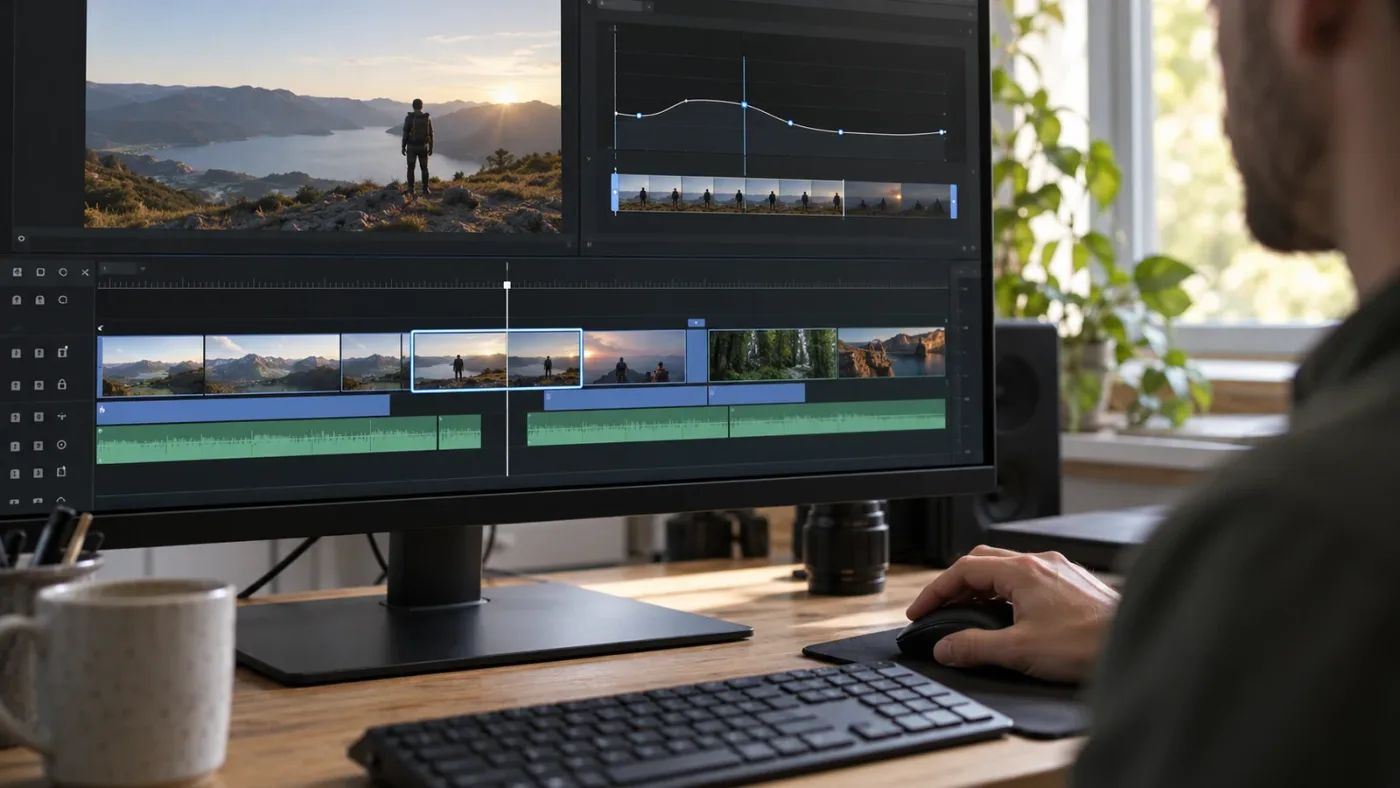
Disabling Ripple Sequence keeps later timeline items in place while the selected clip's duration changes.
If the clip appears to move even though Ripple Sequence is off, undo once and check which tool or control you used. The Change Clip Speed dialog, Retime Controls, a trim operation, and a ripple edit are related but distinct ways to change timing. They don't all use the same ripple rule.
DaVinci Resolve's speed-effects chapter says the dialog's Ripple Sequence checkbox pushes or pulls clips after the current one to accommodate its new size when enabled. The same chapter says retime controls behave differently: Selection mode doesn't ripple, while Trim mode does. The first diagnostic question is therefore “which speed-changing operation did I perform?” (Resolve 21 manual, Chapter 58).
Because this is a recurring question in our 100,000+ member professional editing community, we recommend duplicating the timeline or saving a version before testing a speed change on a dense edit. That precaution helps when the shot touches music, dialogue, titles, adjustment clips, or stacked B-roll. A clean test clip teaches the checkbox; a layered edit teaches what the checkbox does not control.
If you want Uncle to point at the exact speed control in your own Resolve project, the on-screen assistant can guide you while you work.
What does “Ripple Sequence” do when I change clip speed?
Ripple Sequence controls whether timeline material after the changed clip moves to absorb the new duration. It is not a “keep this clip's old length” switch, and it is not a command to ripple every track in every circumstance.
A ripple operation changes positions. When a clip gets shorter, downstream material can close the space; when it gets longer, later items can be pushed later. With Ripple Sequence disabled in the speed dialog, Resolve leaves downstream positions alone. The selected clip still changes its own duration according to the speed you set.
| Your goal | Change Clip Speed setting | What changes | What stays put |
|---|---|---|---|
| Change speed and let the edit close or expand | Ripple Sequence on | Selected clip duration and later timeline positions | Earlier material |
| Change speed but preserve later clip start times | Ripple Sequence off | Selected clip duration | Later timeline positions |
| Change playback rate but retain an exact slot | Set a target duration or use Fit to Fill, then inspect source range | Playback rate and possibly source in/out | Chosen timeline slot, if the operation is set to fit it |
| Speed up only one part of a shot | Retime Controls with speed points | Speed of selected segments | Depends on Selection or Trim mode and adjustment |
| Change an edit point without changing playback speed | Ripple or roll trim | Timeline boundary | Depends on trim type |
Resolve's manual defines the checkbox as changing following clips to fit the new size. Its separate Retime Controls section says that when you adjust speed with the Selection tool, the timeline won't ripple; with the Trim tool, it will. These distinctions matter in Resolve 21. If you use a different major version, inspect the wording and interface in that version's manual, because labels and timeline controls have changed over time.
A useful mental model is to imagine each clip as a card on a ruler. Speed changes how fast footage travels inside the card. Ripple Sequence decides whether Resolve slides the cards to the right to accommodate a card that grew or shrank. Turning ripple off fixes the later cards on the ruler; it doesn't make the current card's inside play at a new rate without affecting its duration.
This explains why tutorials can appear to disagree. One editor says a speed change “doesn't move anything,” while another shows the sequence shortening. Both can be accurate if they used different Ripple Sequence states, or if one demonstrated a retime drag in Selection mode and the other used Trim mode.
Resolve 20.2 adds a wrinkle, but it applies to ripple trimming, not necessarily to the Change Clip Speed checkbox. Blackmagic's 20.2 New Features Guide says the Edit page's redesigned ripple trim can preserve sync for clips before and after a ripple edit point when Auto Select is enabled; it can also cut clips on other tracks at the trim point. The guide describes Sync Lock as a way to leave particular tracks unchanged. Don't assume this separate ripple-trim change means every speed operation behaves the same way. (DaVinci Resolve 20.2 New Features Guide, pages 6-11).
Ripple Sequence controls downstream placement, not the speed percentage or the selected clip's fixed duration.
If you don't know which behavior you're seeing, do a reversible experiment in a duplicate timeline. Put a short clip before a gap and another clip after it. Note the second clip's start time, change the first clip's speed once with Ripple Sequence off, and compare. Undo, repeat with the checkbox on, then undo again. This controlled comparison shows the difference without risking a long assembly.
Why do clips move when I change speed in DaVinci Resolve?
Clips move because Ripple Sequence is enabled, because Retime Controls are being dragged in Trim mode, or because the operation is a ripple trim rather than a non-ripple speed change. The remedy depends on which control changed the timeline.
| What you did | Why later clips moved | What to do next |
|---|---|---|
| Right-click > Change Clip Speed | Ripple Sequence may be checked | Undo, reopen the dialog, turn off Ripple Sequence, apply again |
| Show Retime Controls and drag a retime edge | Resolve's Trim mode can ripple later clips | Switch to Selection mode, or use the dialog |
| Drag an edit boundary | You performed a trim; ripple trim shifts later material | Choose a non-ripple trim behavior or undo and use Change Clip Speed |
| Changed one linked audio or video component | Track selection, linking, or sync state may make the result seem partial | Inspect linked selection, Auto Select, and Sync Lock |
| Used a speed ramp or speed point | Retime segments have their own timing and audio behavior | Inspect the whole retimed clip and surrounding tracks |
Resolve 21's manual provides two ways to open the speed dialog: select a clip and choose Clip > Change Clip Speed, or right-click a timeline clip and choose Change Clip Speed. It also says multiple selected clips can be changed at the same time using the Inspector or dialog. For one clip and a predictable outcome, the context menu makes the target selection visible before the dialog opens. (Resolve 21 manual).
When using Retime Controls, tool mode matters. The manual says Selection mode won't ripple the timeline, while Trim mode will. If you want to drag a handle but preserve the positions of following clips, check the current mode first. If controls are hidden, select the clip and press Command-R on Mac. The Windows shortcut can be customized; use the Clip menu or right-click menu if your setup differs.
There's a less obvious case: a clip can appear to move because its visible content changed even though its timeline start did not. A speed-up makes source time pass faster, so more source frames can fit in a timeline span. If Ripple Sequence is off, Resolve might expose more of the selected clip's source range within its unchanged slot. Compare the clip's left edge, its start time, and the source frame shown in the viewer. Those are three different observations.
Track selection matters when multiple tracks are involved. Resolve 20.2 introduced independent controls for Sync Lock and Auto Select in the Edit page. Blackmagic's guide explains that these affect how tracks participate in ripple edits. This adds useful control, but it means a timeline can behave differently depending on each track's state. The guide describes ripple editing, so don't overgeneralize it to every speed-dialog operation. (Resolve 20.2 guide).
Before applying a second speed change to “fix” movement, undo the first operation. Repeating a retime on a duration that's already changed makes the result harder to diagnose, especially when the shot is split into several pieces. Return to the known state, identify the method, and change one setting at a time.
When Resolve shifts later clips, identify the operation before changing another speed setting.
How do I keep a clip's duration the same after changing speed?
A fixed clip duration is separate from keeping later clips in place. To keep both the selected clip's slot and downstream positions stable, use a target duration or fit the selected source to a defined timeline space, then verify which source frames remain visible.
Think in terms of three timing values:
- Source duration: how much media exists in the original file or selected source range.
- Timeline duration: how long the clip occupies in the edit.
- Playback speed: how quickly the source range plays during that timeline duration.
For a constant speed change, timeline duration and playback speed are connected. If the same source range plays faster, it takes less timeline time. If it plays slower, it takes more. If you ask Resolve to keep the duration fixed anyway, something else must change: source range, speed value, or frame sampling. There isn't a fourth option that preserves every frame, every duration, and the new speed simultaneously.
Resolve's manual describes speed parameters as editable by percentage, frame rate, or duration. This gives you a practical route when you need a specific duration: set or inspect the duration field alongside the speed field, then confirm the resulting source range and endpoint. A duration target can meet your timing requirement, but you still need to decide whether trimming source content is acceptable. (Resolve 21 manual, Speed Effects).
Another method is Fit to Fill. Blackmagic says Fit to Fill takes a marked portion of a clip and adds a speed change so it fits into the selected timeline space. This helps when a shot must land between two fixed edit points. Resolve calculates a speed to fill the slot, but the result may not be aesthetically right. Review the motion and make sure the chosen source range includes the frames you intended. (Blackmagic Design: Fit to Fill).
You can also preserve the slot by changing the source in and out points after the speed adjustment. If the faster clip ends early, choose a later source out point to fill the slot. If the slowed clip runs beyond the slot, trim its tail. That keeps downstream positions in place but may discard source action, so use it only when the cut can tolerate the change.
Use this decision tree:
- Must later clips remain fixed? Turn off Ripple Sequence or choose a non-rippling retime mode.
- Must this clip remain exactly the same duration? Set a duration or use Fit to Fill against a chosen slot.
- Must every source frame remain visible? A speed change will alter duration; accept that or revise the speed target.
- Must the cut still land on music, dialogue, or a cue? Protect the boundary and review sync after the operation.
A practical example is a four-second B-roll slot between two dialogue lines. The editor wants the action to feel slower but doesn't want the next line to start late. First decide whether the action can be shortened at the tail. If yes, slow the shot, leave Ripple Sequence off, and trim it to the slot. If no, preserve the full action and let the slot grow, then review dialogue timing. If the slot is fixed, fit the shot to it and accept that the playback speed may differ from the original request.
A new speed and an unchanged duration can coexist only if the source range or frame treatment changes too.
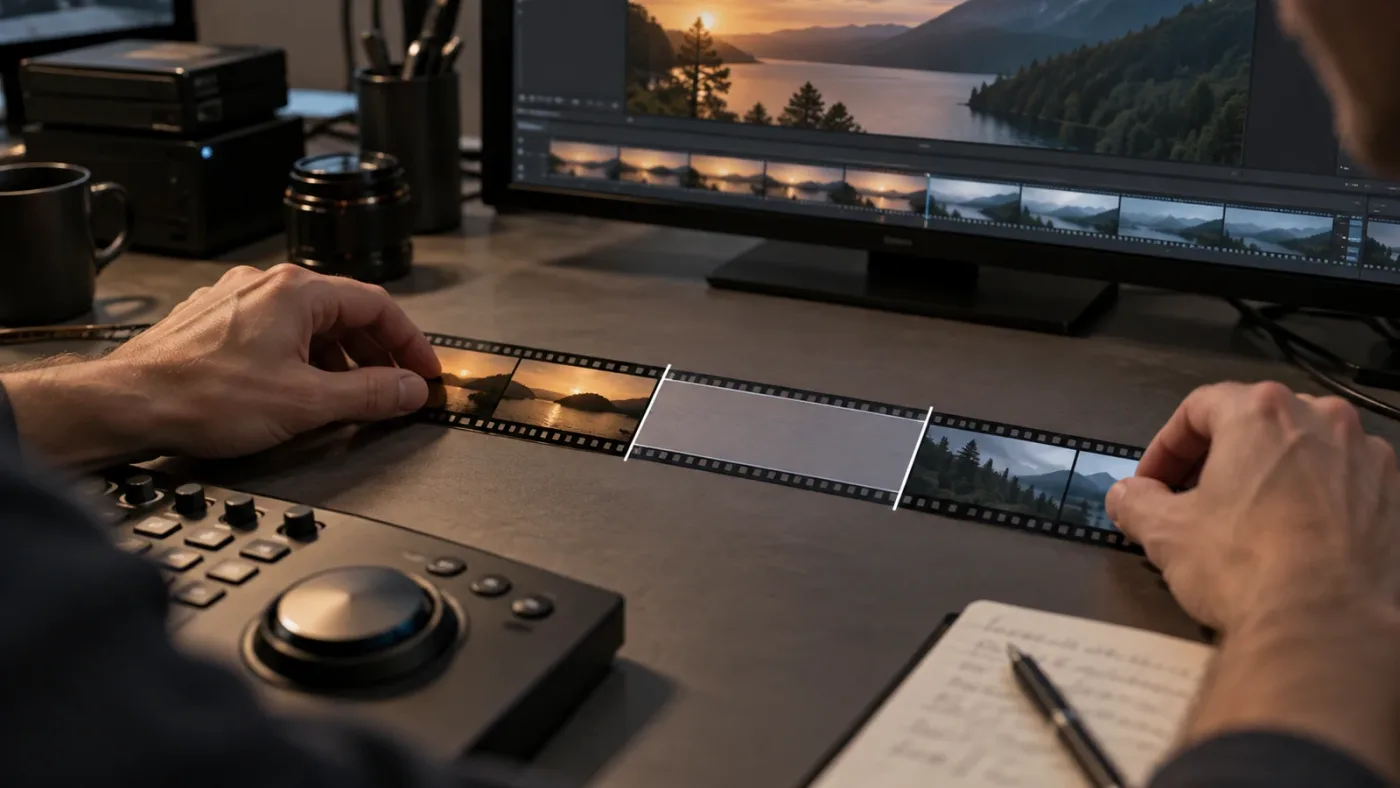
Don't confuse fixed duration with a freeze frame. Freeze Frame replaces motion with a held image. Resolve 21's manual documents a Freeze Frame command and the Shift-R shortcut; it freezes the frame under the playhead across the clip. That suits a deliberate hold, not ordinary slow motion. (Resolve 21 manual).
Should I use Change Clip Speed, Retime Controls, or Fit to Fill?
Use Change Clip Speed for a single constant speed, Retime Controls for speed changes within a shot, and Fit to Fill when a marked source range must occupy a known timeline slot. These tools solve different editing problems, even though all can alter clip duration.
| Method | Best for | Ripple behavior | Main trade-off |
|---|---|---|---|
| Change Clip Speed | Entering a constant percentage, frame rate, or duration | Explicit Ripple Sequence checkbox | Straightforward, but a chosen rate may not fit a target slot |
| Retime Controls | Adjusting speed in the timeline or creating speed points | Selection mode does not ripple; Trim mode does, per Resolve 21 manual | Flexible, but tool mode and segments need attention |
| Retime Curve | Shaping speed changes over time | Timing varies across the clip; inspect ripple behavior and audio | Fine control takes more setup |
| Fit to Fill | Fitting marked source into a selected timeline interval | Fits source to a defined space | Calculated speed may be too fast or slow creatively |
| Freeze Frame | Holding one chosen frame | Clip becomes a still over the selected duration | No moving picture during the hold |
Resolve's current speed-effects chapter groups constant speed changes, retime controls, Fit to Fill, and freeze frames as different operations. It describes variable-speed effects and speed curves separately. “Change speed” isn't one workflow: decide whether the goal is constant motion, changing motion, a fixed slot, or a still hold before choosing a tool. (Resolve 21 manual).
For a constant 150% speed change, the dialog is the direct route. Right-click, open Change Clip Speed, type 150%, leave Ripple Sequence off if downstream clips must stay still, then review the result. If the shot needs a custom ramp from slow to fast, use Retime Controls and add speed points where the change begins and ends.
Resolve 21 documents Command-R to show Retime Controls on Mac. The Windows mapping can be customized, so use the Clip menu or right-click menu if the shortcut differs. The manual says selecting a speed value opens the Change Speed submenu and Reset to 100% returns the clip to normal playback. (Resolve 21 manual).
Fit to Fill works for a cutaway whose start and end must fit between existing edits. Mark the source in and out, define the timeline space, and choose Fit to Fill. The speed is calculated from that duration. The creative question is whether the motion feels right. If the action becomes too fast or slow, revise the source selection or timeline slot. A mathematically exact fit can still be the wrong cut.
For a ramp, see the DaVinci Resolve speed ramp guide, which explains speed points and curves in more depth. Speed ramps can change the clip's duration and can mute accompanying audio for variable-speed effects, so separate the audio before you ramp when dialogue or production sound must remain intact. Resolve 21's manual explicitly notes that audio accompanying variable speed effects is muted. (Resolve 21 manual, Speed Effects and Audio).
What happens to audio when I change clip speed?
A constant linear speed change retimes attached audio along with picture, while variable-speed effects can mute the accompanying audio. Decide whether the sound should change with the image before applying a retime.
In Change Clip Speed, inspect Pitch Correction when attached audio must sound more natural after a speed change. Pitch correction doesn't make every extreme adjustment sound clean, so listen. If the sound is dialogue or sync audio that must remain at natural pace, unlink or separate it before changing picture speed, then realign it deliberately.
The Resolve 21 manual says linear speed effects retime audio along with video. It notes platform behavior for pitch correction in the speed-effects chapter and says audio accompanying variable-speed effects is muted. Because such details can vary by operating system and version, consult the manual matching the installed Resolve version when the sound result is critical. (Resolve 21 manual).
For dialogue, a safe process is:
- Duplicate the timeline or create a version before experimentation.
- Identify whether the audio is linked, grouped, or on a separate track.
- Decide whether sound should speed up with image, stay at normal pace, or be replaced.
- If the video alone should change, separate or unlink the audio as appropriate and confirm sync.
- Apply the speed change with Ripple Sequence set for the intended timeline behavior.
- Play from before the clip to after it, not only inside the retimed shot.
This matters for an interview insert. Slowing a reaction shot can add breathing room, but slowing spoken dialogue changes its duration and can alter pitch if correction is off. If dialogue must remain natural, preserve its original pace and retime only the picture insert, or choose another take.
Music presents a different choice. A short impact or designed riser may be intentionally retimed with the image. A continuous score usually shouldn't be stretched just because one shot needs to last longer. Keep the music bed independent, and use sync locks and track controls deliberately when performing ripple trims. Resolve 20.2's improved ripple trimming was designed to preserve sync in more cases, but Blackmagic explains that the operation may cut other clips at the ripple point to avoid overshooting; inspect and repair any intentional cut. (Resolve 20.2 guide).
If sound vanishes after a speed ramp, don't assume the media is offline. Check whether the effect is variable speed and whether that behavior muted the audio. For a constant speed adjustment, check pitch correction and version guidance. If sound must remain untouched, detach it from the speed operation and protect its timeline position.
Why does changing speed create a gap or overlap?
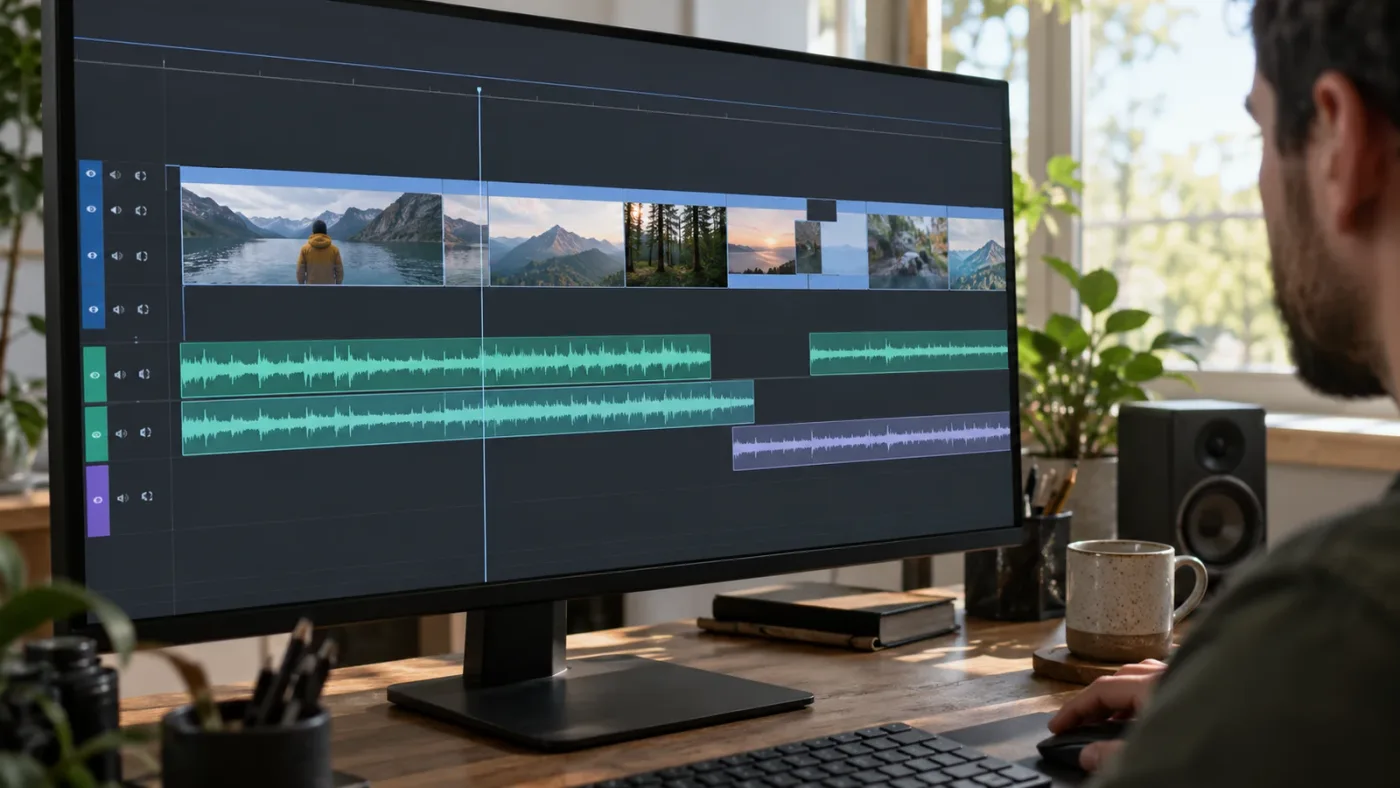
A gap or overlap appears when the selected clip's duration changes but downstream clips stay fixed, or when the clip expands into material that already occupies the same timeline region. Ripple Sequence off preserves later positions; it doesn't guarantee that the changed clip will fill its old space cleanly.
A speed-up often shortens the clip. With ripple off, that can leave empty space after it. A slow-down often lengthens it. With ripple off, it can overlap the next clip, be clipped by the next edit, or expose less source range, depending on the timeline. Read the timeline instead of assuming one universal outcome.
To handle a gap:
- If it's intentional, leave it and decide what should appear there: black, a still, a title, or another shot.
- If the next clip should close up, use a ripple operation after confirming which tracks should move.
- If the selected clip should fill its old space, adjust its source range or use a target duration or Fit to Fill.
- If the clip must end on a music beat, prioritize the beat and choose a speed that lands there, then review the motion.
To handle an overlap:
- If the retimed clip should cover the following shot, decide whether that overlap is intentional and which track should be visible.
- If the next shot must remain visible at its original time, shorten or fit the retimed clip to its slot.
- If downstream edits may move, undo and reapply with Ripple Sequence on, then check sync and total duration.
- If the viewer shows the wrong part of the shot, inspect source in and out points rather than moving the clip blindly.
A timeline gap differs from unused media inside a clip. A gap is empty timeline space. Unused source frames exist in the file but aren't visible in the current edit. A speed-up may reveal more source frames if the timeline slot stays the same, so the clip's displayed image can continue changing even when its rectangle hasn't changed length. A slow-down may exhaust the source range before the fixed slot ends. The viewer and clip boundaries tell you which problem you have.
If another track covers the gap, the viewer may not show black even though the retimed track has empty space. Check the track stack, not just the program viewer. A title, adjustment clip, or B-roll layer may sit above the primary video. When diagnosing a gap, inspect track contents and restore any temporarily disabled tracks after the check.
How do I change speed without breaking sync across multiple tracks?
Protect sync by deciding which tracks should move before the speed operation, then check Auto Select, Sync Lock, clip linking, and track contents afterward. A speed dialog checkbox doesn't replace a track-by-track sync plan.
A layered timeline can contain several kinds of relationships. Production audio may be linked to camera video. A music cue may align to a visual beat. A title may be timed to a line of dialogue. “Keep clips in place” means something different for each relationship: sometimes absolute timeline positions matter; sometimes linked elements should remain together even if the group shifts.
Before retiming, ask three questions:
- Which items must keep their absolute start time?
- Which items must stay synchronized with the changed shot?
- Which items may move if the shot becomes longer or shorter?
Then inspect the tracks that represent those answers. Resolve's Auto Select and Sync Lock controls help manage how edit operations affect tracks. In Resolve 20.2, Blackmagic says ripple trimming can preserve sync across clips before and after the edit point when Auto Select is enabled, and describes turning off Sync Lock on tracks that should not participate in that ripple trim. These controls belong to the Edit page's ripple-trim workflow. For a speed change, test the actual operation on your version rather than assuming the same track logic applies unchanged. (Resolve 20.2 New Features Guide).
Here's a practical example: a camera shot and its production audio are linked, while music and graphics occupy separate tracks. If the image must slow down but dialogue should remain natural, separating or unlinking sound may be right. If both picture and sound should slow together, keep them tied and use audio settings intentionally. If music is aligned to the original cut, decide whether it should hold its absolute position or follow the clip. There is no safe default for all three relationships.
After the change, inspect four checkpoints: the edited clip's start, its end, the first downstream event, and the sequence endpoint. Play through the edit with audio. Listen for a dialogue discontinuity, ambience jump, shifted music cue, title that no longer lands on a word, or gap beneath an upper track. These checks are faster than finding a sync problem after several edits.
A sync-safe speed change starts with deciding which tracks must move together.
Why did only one clip change, or why did a group change speed?
The selection when you opened the speed dialog determines which clips the command may affect. Resolve's manual says multiple selected clips can be changed together, so confirm selection before applying a shared percentage.
If only one clip changed when you intended a group, check whether all clips were selected or whether the command applied to the active clip. If several clips changed unexpectedly, undo and inspect the selection before opening the dialog again. Applying one percentage to mixed-rate clips can also produce different durations because each clip starts with its own frame rate and source range.
Resolve's manual documents changing multiple selected clips through the Inspector or Change Clip Speed dialog. That doesn't mean every mixed selection should be changed together. Three cutaways may share one intended rate; dialogue, a sound effect, and a freeze frame may each need separate choices. (Resolve 21 manual).
A dependable group workflow is:
- Select only the intended clips and confirm the timeline highlights.
- Note each clip's start time and duration if those values matter.
- Open Change Clip Speed and confirm the value and ripple state.
- Apply the change.
- Inspect every selected clip and compare downstream markers.
- Undo if the group contains an exception, then split the operation into smaller groups.
When clips are linked or grouped, selection can feel ambiguous. A video clip may highlight while linked audio is included or excluded based on linking and selection settings. Verify whether Resolve shows the expected components; don't infer selection only from the clip name in the Inspector.
If the goal is to preserve an exact arrangement, note more than clip start times. Transitions, keyframes, and compound clips have their own timing. A clip's visible boundary may remain fixed while content inside is retimed; a transition may overlap two clips; a title may be anchored to a timeline location. Inspect the edit at a useful zoom level and scrub across boundaries.
What should I check before and after a speed change?
Check the target clip, source range, ripple state, audio behavior, and downstream tracks before committing the edit. Then play across the affected region and compare the timeline positions you meant to preserve.
Before
- Duplicate the timeline or save a version if the edit is complex.
- Select the intended clip or group and no extras.
- Decide whether later clips must remain fixed or move to close a gap.
- Decide whether the selected clip must retain its duration.
- Check linked audio, music, subtitles, titles, and graphics.
- Confirm which method you're using: Change Clip Speed, Retime Controls, Fit to Fill, or a trim.
- Note start times or markers that matter to the edit.
After
- Confirm the selected clip has the intended percentage or retime segments.
- Compare its timeline duration with the target.
- Verify downstream clip start times if ripple was supposed to be off.
- Check for gaps and overlaps on every relevant track.
- Listen for pitch, timing, missing audio, or sync changes.
- Review the first edit after the retimed shot and the sequence endpoint.
- Save a new version when the result is approved.
If you make a speed change and then adjust several clips manually, you may lose the chance to undo the original timing change cleanly. Keep the operation isolated until you've checked it. In collaborative projects, use a named timeline version or project snapshot before altering a shared assembly, and tell collaborators which timing assumption changed.
The checklist can be shorter for a one-clip personal edit. At minimum, confirm Ripple Sequence is unchecked and review the next clip. The fuller list helps on a client timeline, multicamera cut, or music edit where a small displacement can matter beyond the shot you touched.
What does Resolve 20.2 change about ripple behavior?
Resolve 20.2 changed Edit page ripple-trim behavior to preserve sync in more cases, but its release guide doesn't say that Change Clip Speed's Ripple Sequence option was removed or redefined. Keep the speed dialog and ripple trim workflows separate when troubleshooting.
Blackmagic's 20.2 New Features Guide says redesigned ripple trimming can preserve sync for clips before and after a ripple edit point when Auto Select is enabled. The guide compares earlier behavior, where a ripple trim could leave music markers out of sync or allow another track's clip to cover the shot underneath, with the updated behavior, which can cut another track's clip at the edit point to preserve the relationship. The guide says that cut may need attention, but can be easier than resynchronizing the whole timeline. (Resolve 20.2 New Features Guide, pages 6-7).
Resolve 20.2 also added independent controls for Sync Lock and Auto Select in the Edit page, according to the same guide. Version matters if a tutorial from an earlier release shows a different-looking control or assumes track behavior that doesn't match your installation. Blackmagic's support page lists Resolve updates and links to current manuals. Use it to confirm available updates for your operating system, then consult the manual matching the installed version. (Blackmagic Design Support).
The central speed-change rule remains simple in Resolve 21's documented interface: the speed dialog has a Ripple Sequence checkbox that controls downstream movement. If you're on Resolve 20.2, the separate ripple-trim improvements can affect trims in ways that protect sync; they aren't evidence that speed-dialog ripple has changed. Check the specific version's full manual if you're on a later build or the interface wording differs.
Version-aware instruction matters because tutorials demonstrate a particular build. Resolve 20.2's guide describes a meaningful ripple-trim behavior change. Resolve 21's manual describes the speed dialog and Retime Controls. A precise answer should identify which operation and version it means instead of saying “ripple works this way” across every timeline action.
Is there a keyboard shortcut to change speed without moving clips?
The most reliable method is to open Change Clip Speed from the menu or context menu and turn off Ripple Sequence; shortcuts can vary, and the no-ripple decision is a dialog setting. Use shortcuts to reach Retime Controls only when that is the operation you intend.
Resolve 21's manual documents Command-R to show Retime Controls on Mac. Menu and context-menu routes are documented too, and avoid uncertainty about customized keyboard layouts. Command-R isn't a universal “change speed without moving clips” shortcut. It exposes retime controls, whose ripple behavior depends on Selection or Trim mode. (Resolve 21 manual).
For a precise constant speed, use the context menu because it opens the dialog where Ripple Sequence is visible. If you prefer keyboard access, open the Clip menu and check the shortcut shown in your installation. Keyboard mappings can be edited, and a shortcut in an older tutorial may not match your current setup.
Shortcut muscle memory helps after you know what the command does. When the problem is “don't move later clips,” the checkbox is the decision point. A shortcut that opens another mode can produce the wrong timing change if you drag without checking the tool state.
Why does the clip still look wrong after I turn off Ripple Sequence?
Ripple Sequence governs downstream timeline position; it doesn't guarantee a source frame, duration, audio treatment, or motion quality. If the result is wrong, diagnose the source range and retime behavior separately from timeline movement.
Check these issues in order:
- The action ends early. Faster playback uses source time more quickly. If the selected source range is short, it reaches its out point sooner. Choose another source range, lower the speed, or allow duration to change.
- The action seems to continue into the next shot. The slowed clip may be longer and overlap the next item. Fit it to a slot, trim the source range, or allow downstream items to ripple if appropriate.
- The viewer shows a different moment. A retime can change which source frame appears at a timeline position. Check source in/out points and playhead position.
- Motion looks choppy. The source frame rate may not provide enough unique frames for the chosen slow motion. Review retime quality controls available in your version and inspect playback.
- Sound is unnatural or disappears. Check Pitch Correction for linear changes, and remember variable speed effects may mute audio according to the manual.
- The next clip didn't move, but a title did. Track participation and placement differ. Inspect the title track and start time instead of assuming every item belongs to the same ripple group.
These checks address different layers. A source clip may be shorter than its new requirement; the timeline may preserve the next clip while the current one overlaps; retiming may change the image at a timecode; and generated motion may look poor even when timing is correct. Don't solve a motion-quality issue by shifting the timeline.
For slow motion, source frame rate matters. A 60 fps source played in a 24 fps timeline has more captured frames available for a smooth slowdown than a 24 fps source slowed to the same degree. That's a relationship between source and timeline frame rates, not a promise of any particular quality setting. Read the actual clip and timeline metadata instead of relying on a generic example.
Resolve has optical-flow and other retiming tools in some editions and versions, but the right method depends on source, motion, and installed version. This guide focuses on timeline placement. Confirm clip start positions and speed value first; refine interpolation afterward if the image needs it.
What's the safest way to practice a non-ripple speed change?
Practice on a duplicate timeline with one short clip, a visible downstream marker, and an undo point. This shows the effect of Ripple Sequence without risking titles, sound, or later cuts.
Try this exercise:
- Duplicate a timeline and place three clips in sequence with a visible gap between the second and third.
- Note the third clip's start time.
- Select the first clip and open Change Clip Speed.
- Set a moderate speed change and leave Ripple Sequence off.
- Apply it, then check the third clip's start time and the space after the first clip.
- Undo. Repeat with Ripple Sequence on.
- Compare both results, then undo back to the original.
Choose a value that makes the timing change visible, not a special value for a final edit. The purpose is to see which element changes when the checkbox changes, not to imitate a motion style.
Then test Retime Controls separately. Show the controls, use Selection mode, and adjust the clip. Undo and repeat with Trim mode if available in your layout. Resolve 21's manual states that Selection mode doesn't ripple while Trim mode does. This exercise separates that tool-mode rule from the dialog's checkbox rule.
Once you understand both cases, add complexity one variable at a time: linked production audio, a music cue, a title, or multiple selected clips. Note which track positions must remain fixed. A timeline with one video track teaches the basic behavior; a layered project teaches the consequences of track selection and sync settings.
Casey Faris, a Resolve instructor, describes ripple in a beginner Resolve 21 lesson this way: “if we uncheck that we can move it like this and it won't Ripple the other Clips down.” The line is about ripple editing in the Cut page, not the Change Clip Speed dialog, but it captures the idea that ripple determines whether neighboring clips follow a timing change. Read the full Resolve 21 course transcript for the surrounding demonstration; use Resolve's manual for exact speed-dialog behavior. (Casey Faris transcript).
A duplicate timeline turns a risky speed experiment into a reversible comparison.
What's the best way to learn DaVinci Resolve speed changes?
The best way to learn Resolve speed changes is to combine official training, a small practice edit, and a version-matched manual reference. Videos show the gesture; a controlled practice project shows what moved in your timeline.
Blackmagic Design offers official DaVinci Resolve training materials, including training books and lesson files. That's a strong starting point for a structured foundation. Casey Faris's YouTube lessons offer another way to see an editor demonstrate a task at normal pace. Reddit discussions can help when a specific interface behaves unexpectedly, but confirm advice against your installed version and a primary source when possible. (Blackmagic Design training; Casey Faris on YouTube).
TryUncle is the on-screen assistant for DaVinci Resolve on Mac and Windows, ask in plain words and Uncle points at the exact control on your screen. If a tutorial doesn't match your panel layout, an assistant that can see your current screen can help locate the relevant control. The TryUncle app is useful in that moment; Blackmagic training remains stronger for a complete curriculum, and a focused tutorial is useful when you want to watch a technique from beginning to end. TryUncle is paid, with current pricing and platform details on its main page.
| Learning route | Best use | Limitation |
|---|---|---|
| Blackmagic official training | Building a structured foundation from the software maker's materials | Covers broader workflows than the one control you may need today |
| YouTube lessons, including Casey Faris | Seeing a speed change demonstrated | Version and project context may differ from yours |
| Reddit and user forums | Finding edge cases and comparing diagnoses | Advice can be version-specific or incomplete; verify before changing a complex edit |
| Udemy or Coursera courses | Following a longer curriculum with a defined sequence | Less immediate when stuck on one setting in an open project |
| Practice timeline | Learning the relation between speed, duration, and ripple in your setup | Requires a safe test project and deliberate observation |
| TryUncle | Getting on-screen guidance while working in Resolve | A paid assistant complements practice and formal learning; it doesn't replace editing judgment |
We have taught more than 100,000 students on Udemy and are an official Udemy Business Partner. That experience is why we recommend practice with a specific question in mind: change one variable, observe one result, and write down what changed. For this topic, the learning target isn't memorizing a checkbox label. It's understanding the relation between speed, duration, and sequence position well enough to choose the right tool next time.
You can compare this workflow with our guide to editing faster in DaVinci Resolve, which covers broader editing habits around repetitive timeline work. Once the distinction is clear, return to your edit and make the smallest timing change that solves the shot.
How do I decide between Ripple Sequence on and off?
Choose Ripple Sequence off when downstream clips must keep their existing positions; choose it on when the sequence should expand or contract to accommodate the new duration. Then decide separately whether the selected clip itself must retain its duration.
| Situation | Recommended first choice | Why |
|---|---|---|
| A music cue or title after the shot must stay at the same time | Ripple Sequence off | The speed change should not shift downstream positions |
| The shot should become shorter and the next shot should close the gap | Ripple Sequence on | Later material can move to accommodate new duration |
| The shot should become longer and later dialogue can move with it | Ripple Sequence on after checking sync | The timeline needs room for the longer clip |
| The next clip must stay fixed, but the shot must fill its slot | Ripple Sequence off plus duration/source adjustment | Fixed positions and duration are separate requirements |
| Only one section of the shot should change speed | Retime Controls | Speed points define changing sections |
| A marked source range must land between fixed edit points | Fit to Fill | Resolve calculates speed to match the chosen space |
| Motion must stop on a particular frame | Freeze Frame | A still replaces motion for the hold |
Make the decision in this order: identify the event that cannot move, decide whether the retimed shot may change length, then choose the speed operation. Starting with a checkbox without naming the protected event may fix one relationship and break another.
For dialogue, absolute timing may matter more than the shot's original duration. For a social cutaway, filling a visual slot may matter more than preserving every source frame. For a music montage, the beat may be the non-negotiable point. The edit choice changes with the scene, but the control logic stays consistent.
The fast rule is: Ripple Sequence off protects later positions. A duration control protects a slot. When both matter, make both decisions, then review what source material remains visible.
What should I do next?
Start with one clip and one question: should later clips move, should this clip keep its duration, or should the shot hit a specific time? Set Ripple Sequence to answer the first question, then choose a duration method for the second. If the edit is layered, duplicate it before experimenting and inspect every track afterward.
For the immediate fix, right-click the clip, choose Change Clip Speed, enter the rate, and turn Ripple Sequence off. Check the next clip's start time. If it stayed fixed, the timeline-position part worked. Then decide whether any gap, overlap, or shortened source range is acceptable.
If the footage needs a speed ramp, use Retime Controls and remember that Selection and Trim modes have different ripple behavior. If it must fit an exact time slot, use a duration target or Fit to Fill and evaluate the resulting motion. If attached audio matters, listen as part of the test.
A good retime feels simple in the finished sequence because the editor made the timing decision before dragging anything. Resolve gives you the controls; your job is to protect the event that matters most in the cut.
Sources
- DaVinci Resolve 21 Reference Manual, Chapter 58: Speed Effects
- DaVinci Resolve 20.2 New Features Guide
- DaVinci Resolve Edit page features: Blackmagic Design
- DaVinci Resolve support: Blackmagic Design
- Making Videos in Resolve 21: Casey Faris course transcript
- DaVinci Resolve training: Blackmagic Design
- Casey Faris on YouTube
- How to Speed Ramp in DaVinci Resolve
Frequently asked questions
- How do I change speed in DaVinci Resolve without moving other clips?
- Right-click the timeline clip, choose Change Clip Speed, set the percentage, and turn off Ripple Sequence before clicking Change. Later timeline items keep their start positions while the selected clip changes duration.
- Why do clips move when I change speed in DaVinci Resolve?
- Ripple Sequence may be enabled in the Change Clip Speed dialog, or you may be adjusting Retime Controls in Trim mode. Turn off Ripple Sequence for the dialog method, or use Selection mode for a non-rippling retime.
- How do I change clip speed but keep the same duration?
- Set a target duration in Change Clip Speed, use Fit to Fill for a chosen timeline space, or adjust the clip's source in and out points after retiming. A fixed duration means the source range or frame treatment must also change.
- Does Ripple Sequence move clips on every track?
- Ripple Sequence accommodates the changed duration by shifting later timeline material, but track selection, links, gaps, and sync settings affect the result. Inspect all tracks after the operation.
- What is the best way to learn DaVinci Resolve speed changes?
- Use Blackmagic Design's official training for a structured foundation, then practice on a duplicate timeline with a short clip and visible downstream markers. For live help while working, TryUncle can point at the relevant control on screen.
Sources
- DaVinci Resolve 21 Reference Manual, Chapter 58: Speed Effects
- DaVinci Resolve 20.2 New Features Guide
- DaVinci Resolve Edit page features: Blackmagic Design
- DaVinci Resolve support: Blackmagic Design
- Making Videos in Resolve 21: Casey Faris course transcript
- Blackmagic Design: DaVinci Resolve training
- Casey Faris on YouTube
- How to Speed Ramp in DaVinci Resolve: The Complete Guide
Learn by doing, not watching
Stop translating tutorials to your timeline.
TryUncle stays beside Resolve on Mac and Windows. When you ask, Uncle sees your screen and points at the exact control you need. No hunting through tabs, timestamps, or mismatched tutorials.
Meet TryUncleKeep reading
 GuidesJul 11, 202635 min read
How to Speed Ramp in DaVinci Resolve: The Complete Guide
Every way to speed ramp in DaVinci Resolve: Retime Controls, speed points, the Retime Curve, Optical Flow vs Speed Warp, and what changed in Resolve 21.
 GuidesJul 15, 202638 min read
How to Edit Faster in DaVinci Resolve: A Workflow Guide
The workflow fixes that actually speed up DaVinci Resolve editing: proxy media, render cache, GPU/decode settings, hardware controllers, batch tools, and where AI helps.
 FixesOct 18, 202626 min read
DaVinci Resolve De-Esser Sounds Lispy? Fix the Dialogue
If the DaVinci Resolve de-esser sounds lispy, reduce its action, check the affected words, and compare the bypassed and processed dialogue at equal volume.