
Learn / DaVinci Resolveupdated for DaVinci Resolve 21.1 (October 2026)
DaVinci Resolve Audio Track Not Routed to Bus? Fix It
Quick answer
For a DaVinci Resolve audio track not routed to bus, open the Fairlight page, show the Mixer, and set the track's Bus Outputs assignment to the intended bus. Then verify that bus is routed onward to the monitored output or Main bus, and check the track and bus meters. In FlexBus projects, use Fairlight > Bus Assign to see the complete track-to-bus map.
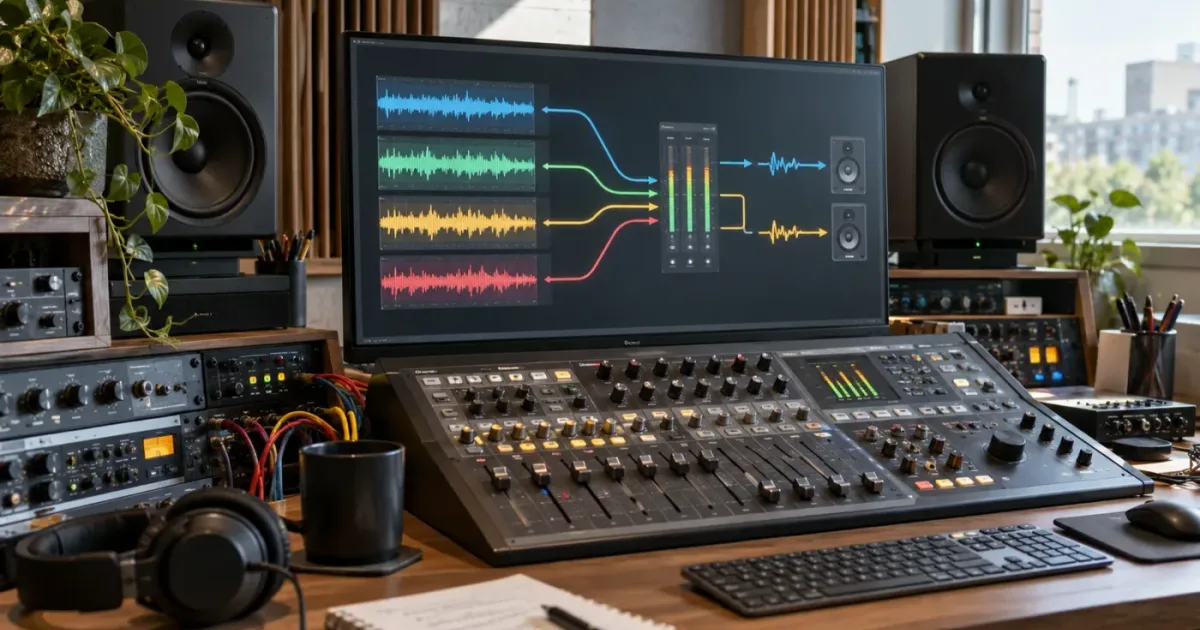
Your track meter moves, but the bus meter stays flat. Or the clip plays in the timeline and disappears as soon as you look at the Fairlight mixer. That is usually a routing problem, not a damaged audio file.
As of October 2026, the quickest fix in DaVinci Resolve 21.1 is to trace the signal in this order: audio track, Bus Outputs assignment, destination bus, monitored output. The labels can look different in FlexBus and fixed-bus projects, but the signal still has to travel through every link.
We built and run a 100,000+ member professional video-editing community, and we have spent 7+ years cutting commercial work. This is one of the recurring questions editors bring to that community because Fairlight can show activity on a track while sending nothing to the bus you expect.
Why is my DaVinci Resolve audio track not routed to bus?
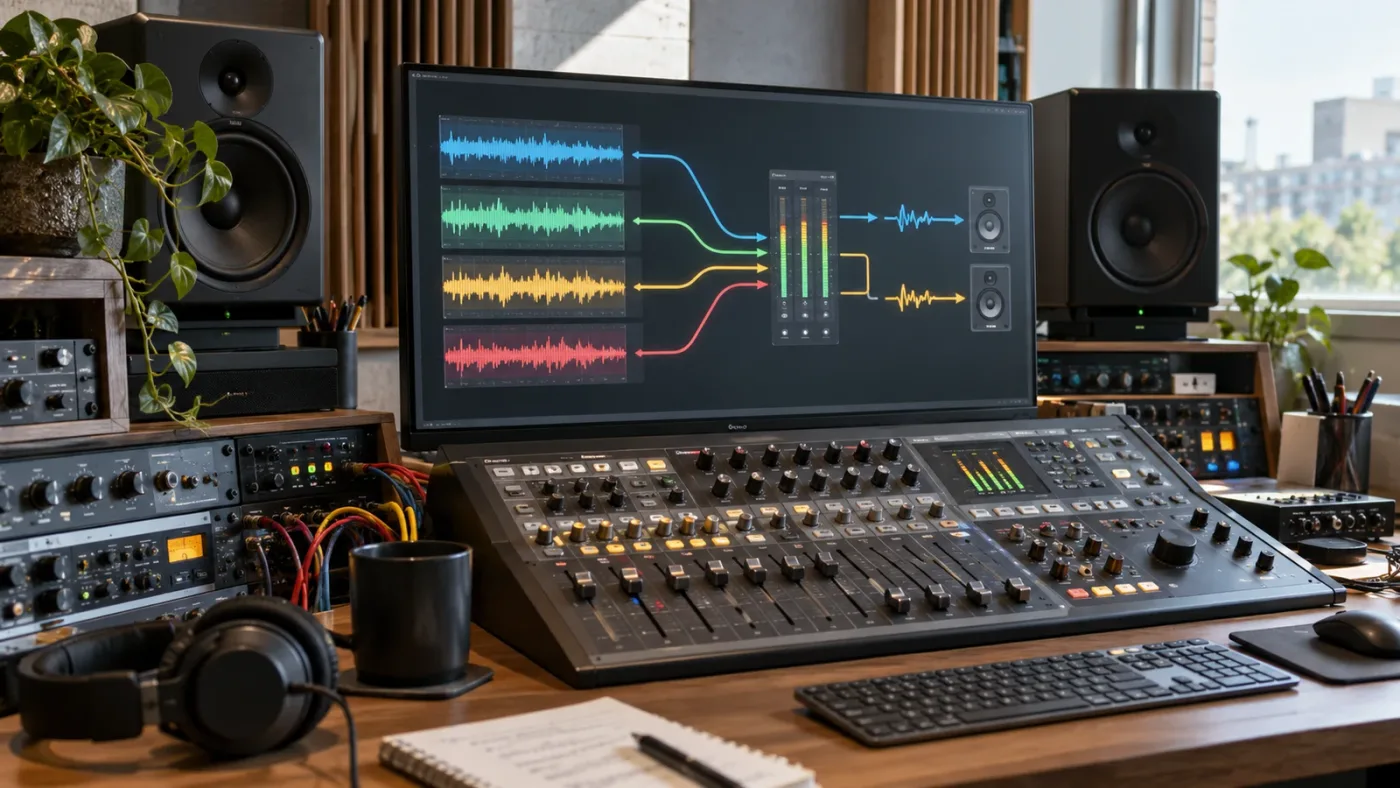
A DaVinci Resolve audio track is not routed to a bus when its Bus Outputs assignment is missing, points to another bus, or reaches a bus that is not connected to the output you are monitoring. The first repair is to inspect the track channel strip in the Fairlight Mixer and follow the signal forward.
Fairlight separates the source track from the bus that sums or processes it. That distinction matters. A track can have a waveform, a healthy clip level, and a moving track meter while the next bus remains silent. The track is alive. The connection after it is not.
Blackmagic describes FlexBus as a routing system in which tracks can send post-fader information to multiple bus sets. Its current Fairlight page lists up to 36 channels per bus, 20 bus sets, and up to 3 buses in each set, which adds up to 60 possible destinations for a track in the documented FlexBus model. Those are routing capabilities, not a reason to use a complicated layout for a simple voice track. Blackmagic Design documents the FlexBus limits here.
A moving track meter proves that the track has signal, not that the track reaches your monitored bus.
The practical model is simple:
audio clip
  -> audio track
  -> Bus Outputs assignment
  -> destination bus
  -> monitored output or Main bus
  -> hardware output
If the track meter moves and the destination bus meter does not, start at the track-to-bus link. If the bus meter moves and you still hear nothing, continue to the bus-to-output link and then to monitoring settings.
That last branch is important. A routing error and an output-device error can sound identical from the chair. The routing page tells you where the signal goes. Monitoring preferences decide where you listen. If the bus meter is active, this article's main fix is probably complete and the next check is your output device. The DaVinci Resolve monitor audio wrong output device guide covers that separate failure.
How do I route an audio track to a bus in DaVinci Resolve?
To route an audio track to a bus, open the Fairlight page, show the Mixer, locate the track channel strip, and choose the intended destination in Bus Outputs. Then play the timeline and confirm that the destination bus meter responds.
Use this short repair first:
- Open the timeline containing the silent track.
- Click the Fairlight page.
- Open the Mixer if it is hidden.
- Find the affected track channel strip, such as A1, Dialogue, Music, or SFX.
- Locate the Bus Outputs area on that strip.
- Select the bus that should receive the track, often a main mix bus or a named dialogue, music, or effects bus.
- Play a section where the track definitely has audio.
- Watch the track meter and the chosen bus meter.
- If the bus responds, trace that bus to the monitored output before changing anything else.
The Fairlight Audio Guide describes this same concept through the mixer. Its worked example identifies which tracks are assigned to dialogue, effects, and music buses, then uses the mixer to inspect the Bus Outputs controls. The official Fairlight guide explains the track and bus assignment workflow.
If the Bus Outputs control is not obvious, widen the channel strip or enlarge the mixer. Do not assume that a narrow mixer view means the assignment is missing. The control may be compressed, hidden below the visible part of the strip, or represented by a compact label rather than the full bus name.
For a normal stereo voice track, keep the first test boring. Route it to the main stereo bus that you already know feeds your output. Once audio returns, rebuild the more specific dialogue or effects layout one connection at a time. That avoids confusing a routing repair with a bus-design project.
The fastest DaVinci Resolve routing repair is a visible track-to-bus assignment followed by a meter check.
Why is the track meter moving but the bus meter silent?
When the track meter moves but the bus meter is silent, the track is producing signal but the selected bus is not receiving it. Check the track's Bus Outputs assignment first, then check whether you are watching the correct bus.
There are four common explanations:
| What you see | Most likely cause | What to check |
|---|---|---|
| Track meter moves, every bus meter is flat | The track has no Bus Outputs assignment | Select a destination on the track channel strip |
| Track meter moves, a different bus moves | The track is routed elsewhere | Follow the named bus that actually responds |
| Track and bus meters move, speakers are silent | Monitoring or output-device issue | Check the selected monitoring path and device |
| Bus meter moves only with some clips | Clip channel or track-format mismatch | Check clip attributes, track format, and channel mapping |
| Bus meter moves, but the wrong stem exports | Deliver page output track is different | Confirm the intended bus is selected for delivery |
Do not use the master fader as your first diagnosis. A lowered bus fader can reduce the signal, but it does not explain why the bus meter never moves. A meter that stays completely still points upstream.
Also check mute and solo states. A muted track can stop the expected path, while solo can make a different path appear healthy. Temporarily clear track, bus, and output solo states, then test one known-good section of the timeline. Restore the mix decisions after the route is confirmed.
The channel format can create a second kind of confusion. Fairlight supports track and clip channel mapping, including multichannel clips and adaptive tracks up to 36 channels, according to Blackmagic's current Fairlight documentation. A track may be routed correctly while the useful source channel is not mapped to the channel you are listening to. Blackmagic explains Fairlight channel mapping and adaptive tracks.
For example, a camera file may contain scratch audio on one channel and a microphone feed on another. The track meter can show activity because one channel is present, while your chosen bus or monitor layout makes the desired voice seem absent. Check channel mapping after you confirm the track-to-bus link.
If the problem is that no meter moves anywhere, use the DaVinci Resolve Audio Meters Not Moving troubleshooting guide. That is a broader input, clip, track, and playback diagnosis. This page starts from the narrower case where the track meter is already alive.
How do I use Fairlight Bus Assign when the mixer looks correct?
Use Fairlight > Bus Assign when you need a project-wide view of which tracks and buses are connected. The Bus Assign window is especially useful when the mixer shows compact labels, a project came from another editor, or several similarly named buses are present.
Open Fairlight > Bus Assign. The window presents buses and available tracks so you can inspect the mapping rather than guessing from one channel strip. In a FlexBus project, the assignment labels distinguish output and send relationships. The official guide describes lowercase s as a Bus Send assignment and lowercase o as an Output Bus assignment in the Bus Assign view. Read the documented Bus Assign notation in Blackmagic's Fairlight guide.
The repair workflow is:
- Identify the affected timeline track by name, not only by number.
- Find that track in Available Tracks.
- Look for an assignment to the intended output bus.
- If the assignment is absent, select the intended bus and assign the track.
- If the assignment points to a send, decide whether you need a send or a direct output.
- Inspect the destination bus and confirm its own output connection.
- Close Bus Assign and verify the result in the mixer meters.
A send and an output are not interchangeable decisions. A send is useful when the track should feed an effect or auxiliary path while retaining another route. An output assignment is the direct track-to-bus relationship you usually want for a simple dialogue, music, or effects track.
This is where projects copied from older templates can mislead you. Blackmagic forum guidance describes Bus Output in FlexBus as the equivalent of routing to a Main or Sub Bus in fixed-bus mode, and Bus Send in FlexBus as the equivalent of an Aux Send in fixed-bus mode. The Blackmagic forum's bus-display explanation compares the two models.
Do not change the project's busing mode just because the labels look unfamiliar. First repair the existing assignment. A mode change can alter the way the project represents its routing and can create a second problem while you are trying to solve the first.
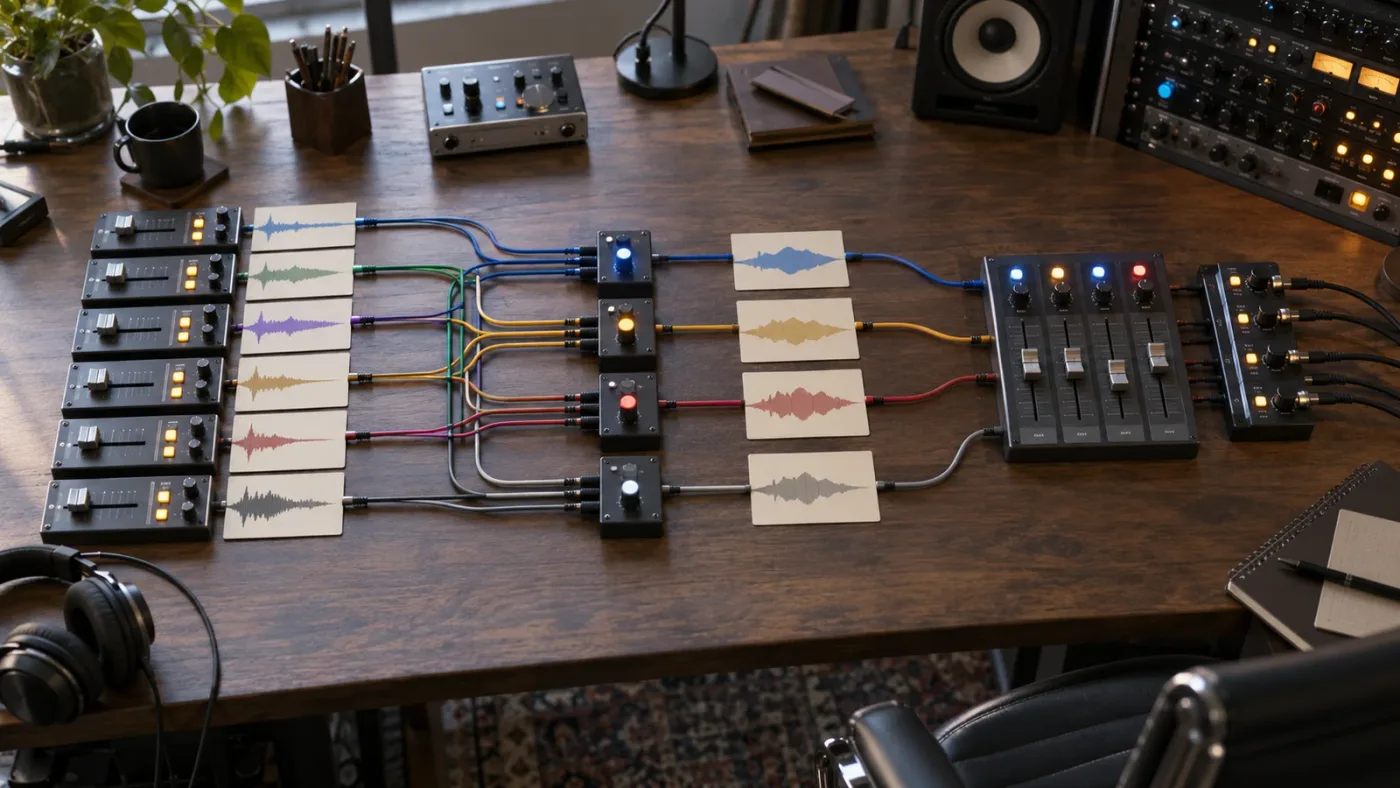
Why is my bus routed correctly but still silent in Resolve?
A correctly assigned bus can still be silent when it is muted, its fader is down, its source is silent, its channels do not match, or it is not routed onward to the output you are monitoring. Trace the bus as a second signal path instead of stopping at the first successful assignment.
Use this two-stage check:
Does the bus receive signal?
Play the timeline and watch the bus meter. If it stays flat, inspect the track assignments feeding that bus. If the track meter is active, select the bus assignment directly from the track and test again.
Does the bus reach the output?
If the bus meter moves, find the bus's own output assignment. A named Dialogue bus can feed a Main bus, an Output bus, another bus, or no monitored destination at all. Follow the chain until it reaches the output you have selected for monitoring.
This is the exact distinction that solves many imported-project mysteries. A forum answer from Andy Mees, responding to a question about an active track meter and a silent Bus 1 meter, says: “Simplest patching is handled directly in the Fairlight mixer window using the 'Bus Outputs' area on each track's channel strip to patch as needed.” He then recommends following the path from track to bus and bus to bus. Read Andy Mees's full Blackmagic forum answer.
That advice is useful because it treats routing as a chain, not a single checkbox. If your track feeds Bus 2 but you monitor Bus 1, you will hear the signal only if Bus 2 is routed directly or indirectly into Bus 1. The bus number is not a guarantee that it is the bus you are listening to.
Check the following in order:
- Track mute and solo.
- Bus mute and solo.
- Track fader and bus fader.
- Track Bus Outputs assignment.
- Bus-to-bus output assignment.
- Monitoring source or selected output.
- Physical output device and operating-system volume.
The current Blackmagic Fairlight page says its loudness meters are on the right side of the monitoring panel and describes color-coded meter states for the selected standard. Those loudness indicators are useful after the signal is reaching the monitor path, but they do not replace the track, bus, and output meter trace. Blackmagic's Fairlight page documents its monitoring meters.
A bus meter proves that a bus receives audio; it does not prove that your selected speakers receive that bus.
When the route is active but the wrong speaker or interface is silent, stop editing Bus Assign. Move to monitoring and device settings. That keeps a routing problem from turning into a needless rebuild of the mix.
Uncle can point at the exact routing control in your own Resolve project while you work through this path.
Does DaVinci Resolve 21 use FlexBus or fixed bus routing?
DaVinci Resolve 21 supports the current FlexBus workflow, but an individual project can present a different routing structure because it was created with fixed bus mapping or built from an older template. Identify the project model before interpreting labels or changing buses.
Blackmagic's current product page lists DaVinci Resolve 21 and DaVinci Resolve Studio 21. The same page presents FlexBus as the modern routing system, while Blackmagic's earlier Fairlight guides show both the newer flexible model and the older fixed-bus vocabulary. Check the current Resolve version listing and Fairlight feature description.
Here is the practical version decision:
| Project situation | What the editor may see | Safer action |
|---|---|---|
| New Resolve 21 project using FlexBus | Bus Outputs, Bus Sends, Output Buses, flexible bus-to-bus links | Follow the visible route and use Bus Assign for the map |
| Older project opened in Resolve 21 | Main, Sub, Aux, or legacy-looking relationships | Preserve the existing structure and repair the missing link |
| Template created with fixed bus mapping | More traditional main and sub bus layout | Use the matching bus control rather than forcing FlexBus terms |
| Imported project with unfamiliar names | Custom bus names and multiple destinations | Trace meters and names, not bus numbers alone |
| New test project | Minimal, known routing | Use it only to isolate a system issue, not to replace the original mix |
The support center currently identifies the DaVinci Resolve 20.3 reference manual and DaVinci Resolve 21.1 material among its Resolve resources, so version labels matter when you compare a tutorial with the controls on screen. Blackmagic's Support Center is the authoritative place to check the current manual and release material.
Do not copy a Resolve 17 screenshot-based instruction into Resolve 21 by position alone. Menus and routing views can move. Copy the concept, then locate the equivalent named control in the current mixer.
How do I fix a bus routing problem without damaging the mix?
Fix the smallest broken link, test it, and save a new project version before making broader bus changes. A track that needs one output assignment does not need a new bus architecture.
Use this conservative sequence:
- Save the project as a new version with a clear name such as
project-routing-check. - Write down the affected track name and the bus you expected it to feed.
- Watch the track meter while playing a known-good section.
- Assign the track to the intended bus in Bus Outputs.
- Watch the destination bus meter.
- If the bus responds, follow it to the monitored output.
- If it does not respond, inspect Bus Assign and channel mapping.
- Test one change at a time.
- Save the repaired version only after the route works in playback.
This procedure protects the useful behavior already in the project. Deleting buses, resetting the entire mixer, or switching between fixed and flexible modes can erase information that was not part of the original fault.
The same principle applies to a bus that was intentionally created for stem delivery. A dialogue stem may be routed correctly for mixing but absent from the output track selected on the Deliver page. The Fairlight documentation notes that a bounced mix uses a channel configuration matching its source bus, which is another reason to verify the source bus before changing delivery settings. Blackmagic documents bus-aware bounce behavior here.
If you need to export separate dialogue, effects, or music stems, treat that as a delivery decision after playback routing works. First prove the mix path. Then confirm the required output bus on the Deliver page and check the resulting channel layout.
What should I check when only one track is not routed?
When only one track fails, compare that track with a working track on the same timeline rather than rebuilding the whole project. Matching track format, mute state, Bus Outputs assignment, and meter behavior usually reveals the difference quickly.
Make a four-column comparison:
| Check | Working track | Silent track | Decision |
|---|---|---|---|
| Track meter | Moves during the same playback range | Moves, or stays flat | If flat, leave bus routing and inspect clip or track signal |
| Bus Outputs | Shows the expected destination | Empty or different | Assign the silent track to the intended destination |
| Track format | Matches the source and destination | Different channel layout | Review track format and clip mapping |
| Mute and solo | Normal | Muted or isolated | Clear the state and retest |
This comparison is faster than guessing because it gives you a control sample. If A2 works and A3 does not, inspect the differences between A2 and A3. If every track fails, look at the bus or output side instead.
Track names matter here. A1 may have been renamed to VO, while a second track named VO may belong to a different timeline or bus. Follow the exact channel strip visible in the active timeline. Fairlight's index can also help you locate tracks and change their states; Blackmagic describes the Fairlight index as a way to navigate clips, tracks, and markers. The current Fairlight documentation describes the index and track navigation.
If the track is a stereo or multichannel source, check whether the bus format can accept that channel configuration. Do not collapse a source to mono just because the bus seems silent. Channel mapping may be the right repair, especially when the source contains separate microphones.
For a left-only symptom, the separate DaVinci Resolve Audio Only Coming From Left Speaker diagnosis is the better path because it addresses channel balance and speaker-side behavior. A missing bus assignment can cause silence, but a one-sided signal often points to channel format or pan instead.
What if the track routes correctly but the Fairlight bus still sounds wrong?
If routing is correct and the bus meter moves, stop changing assignments and inspect processing, automation, channel mapping, and monitoring. A correct route can still produce a quiet, distorted, or one-sided result.
Check automation if the bus fader or track fader changes during playback. Fairlight exposes automation controls and track or bus processing in the mixer. If automation writes a lower level into the section you are testing, the route may be fine. The DaVinci Resolve Fairlight Automation Not Working guide is the better next step when the problem follows an automation mode or lane.
Check processing if the bus is receiving signal but the output sounds crushed, filtered, or silent. Bypass one plug-in at a time. Fairlight processes plug-ins in order from top to bottom, and Blackmagic documents clip, track, and bus processing as separate places where effects can live. Blackmagic describes Fairlight FX and processing order on its Fairlight page.
Check the output device if every meter looks healthy. A bus assignment cannot correct a disconnected interface, wrong operating-system output, muted monitor controller, or monitoring source that is not selected. Keep the diagnosis in the same order every time:
track meter -> bus meter -> output meter -> physical sound
Each arrow answers a different question. Is there signal? Is it assigned? Is it monitored? Can the hardware reproduce it?
The right fix is the first broken arrow in the track-to-speaker chain.
What is the best way to learn DaVinci Resolve audio routing fast?
The best way to learn DaVinci Resolve audio routing fast is to practice small signal paths inside a real project, then confirm each path with meters. Blackmagic's official Fairlight guides are the authority for terminology, while community answers are useful for seeing how experienced editors diagnose a silent bus.
We have taught 100,000+ students on Udemy, we are an official Udemy Business Partner, and we have taught and worked with Fortune 500 companies. That background changes the advice here: memorize the signal path, not the location of one screenshot.
Use this learning decision:
| Learning option | Best for | Limitation |
|---|---|---|
| Blackmagic official manuals and training | Correct Fairlight vocabulary and complete feature coverage | You still need to map the lesson to your project |
| YouTube demonstrations | Seeing a complete mixer workflow quickly | A different Resolve version or layout can make positions misleading |
| Forum troubleshooting | Edge cases and practical routing explanations | Advice may depend on the poster's version and project mode |
| A course with project files | Repeating a known workflow | Watching alone does not prove you can repair your own route |
| TryUncle with your project open | Finding the relevant control while you work | It is an assistant, not a replacement for understanding the signal path |
Guided practice inside Resolve beats watching courses about Resolve. Build three tiny exercises: one track to the main bus, two tracks to separate dialogue and music buses, and one bus feeding another bus. Mute one link at a time. Watch which meter stops. Then restore it.
TryUncle is the on-screen assistant for DaVinci Resolve on Mac and Windows — ask in plain words and Uncle points at the exact control on your screen.
When you are stuck inside a real project, you can check TryUncle for the current product details and platform availability. Keep the routing lesson in your head even when an assistant shows you the button: track, bus, output, monitor.
How do I know the DaVinci Resolve audio track is fixed?
The DaVinci Resolve audio track is fixed when the track meter moves, the intended bus meter moves, the downstream output meter moves, and the expected speakers or interface reproduce the sound during playback. Confirm all four conditions before closing the project.
Use this final checklist:
- The correct timeline is active.
- The affected track meter responds to a known-good clip.
- The track's Bus Outputs shows the intended destination.
- The destination bus meter responds.
- The destination bus is not muted or solo-isolated.
- The bus feeds the monitored output or Main bus.
- The output meter responds.
- The correct monitoring device is selected.
- The track and clip channel formats make sense together.
- The repaired project has been saved as a new version.
If the first four checks pass and you still hear nothing, you are no longer debugging the track-to-bus assignment. Move to monitoring and device output. If the first check fails, inspect the clip and track. If the track meter passes but the bus fails, repair Bus Outputs or Bus Assign. If the bus passes but the output fails, repair the onward bus or monitor path.
That decision tree is the whole fix. Fairlight gives you a large routing system, but your diagnosis only needs to find the first place where the meter stops.
The next time DaVinci Resolve shows an audio track not routed to bus, open Bus Outputs, follow the meters, and repair only the first broken connection.
Frequently asked questions
- Why is my DaVinci Resolve audio track not routed to bus?
- The track is usually unassigned in Bus Outputs, assigned to a different bus, or routed to a bus that is not connected to the monitored output. Open the Fairlight Mixer and trace the signal from track to bus to output.
- How do I route an audio track to a bus in DaVinci Resolve?
- In Fairlight, show the Mixer, find the audio track channel strip, open Bus Outputs, and select the target bus. If the project uses FlexBus, confirm the same relationship in Fairlight > Bus Assign.
- Why does my track meter move but the bus meter does not in Resolve?
- A moving track meter with a silent bus meter usually means the track has no Bus Output assignment or points to another bus. Assign the track to the bus you are watching, then verify the bus is not muted.
- How do I fix a DaVinci Resolve bus that has no sound?
- Check the bus mute and fader, confirm its input comes from the intended track or upstream bus, and make sure the bus is routed to the output you are monitoring. A bus can receive signal without feeding your selected monitor path.
- Does DaVinci Resolve 21 use FlexBus or fixed bus routing?
- Resolve projects can use FlexBus routing, while older or deliberately configured projects can use fixed bus mapping. The visible controls and labels differ, so identify the project mode before changing assignments.
Sources
Learn by doing, not watching
Stop translating tutorials to your timeline.
TryUncle stays beside Resolve on Mac and Windows. When you ask, Uncle sees your screen and points at the exact control you need. No hunting through tabs, timestamps, or mismatched tutorials.
Meet TryUncleKeep reading
 FixesJul 25, 202627 min read
DaVinci Resolve Audio Meters Not Moving: Every Fix
DaVinci Resolve's audio meters frozen or flat during playback? Here's every real cause, in check order: routing, patching, mute, and monitor style.
 FixesJul 23, 202623 min read
DaVinci Resolve Audio Going to the Wrong Output Device: The Fix
DaVinci Resolve sending sound to the wrong speakers, headphones, or HDMI monitor? Here's every setting that controls output routing, and the exact fix.
 FixesSep 20, 202637 min read
DaVinci Resolve Fairlight Automation Not Working? Fix It
Fix DaVinci Resolve Fairlight automation not working by checking the page, mode, enables, Preview, ranges, On Stop behavior, and track target.