
Learn / DaVinci Resolveupdated for DaVinci Resolve 21.0.2 and VEED.io's 2026 pricing tiers (July 2026)
DaVinci Resolve vs Veed.io for Beginners: Which One First?
Quick answer
For a total beginner, Veed.io gets a captioned social clip out faster with a browser and no install. DaVinci Resolve's free edition is more capable and genuinely free forever, but takes longer to learn. Pick Veed.io for quick, simple social clips; pick DaVinci Resolve if you want real editing skills and room to grow.
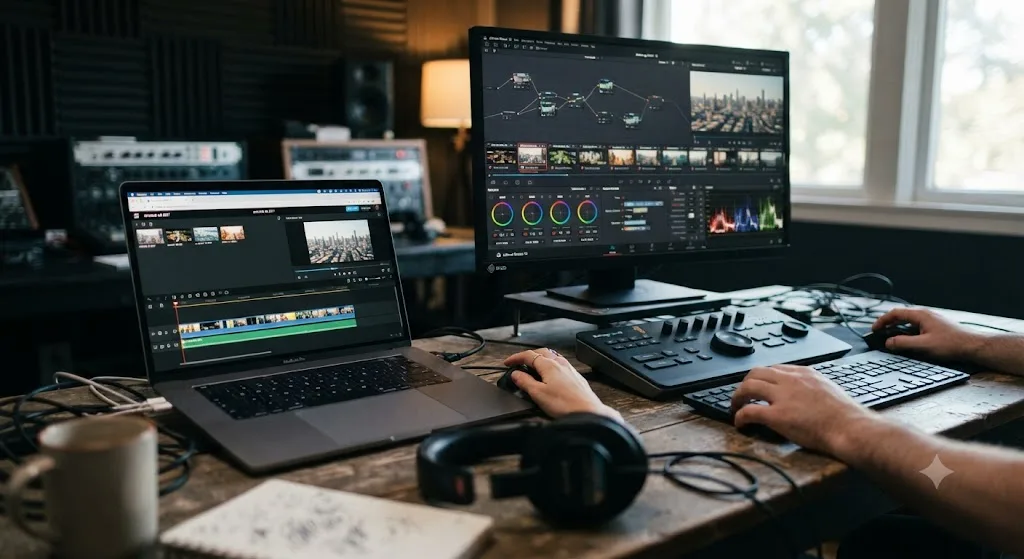
You typed "easiest video editor for beginners" into a search bar and Veed.io showed up next to DaVinci Resolve, and now you're stuck picking between a browser tab and a download that everyone online keeps calling "professional grade." That's not a fair fight on its face. One of these tools was built to get you posting today. The other was built to make you good at editing, eventually. Both of those are legitimate goals, and this guide picks between them honestly instead of pretending one just wins.
DaVinci Resolve vs Veed.io for beginners: the quick verdict
Here's the whole comparison in one table before the details. Every row gets its own section below, sourced.
| Category | Winner for beginners | Why |
|---|---|---|
| Time to first finished clip | Veed.io | Browser-based, drag-and-drop, no install, built specifically for one quick captioned post |
| True cost at zero budget | DaVinci Resolve | Free edition has no watermark and no time limit; Veed.io's free tier caps you at 10 minutes with a watermark |
| Captions and subtitles | Veed.io | AI auto-subtitles and translation are Veed.io's actual specialty, built in from the start |
| Color grading | DaVinci Resolve | Node-based Color page with real scopes; Veed.io has no equivalent |
| Audio tools | DaVinci Resolve | Fairlight is a full DAW; Veed.io offers basic level and noise tools only |
| Repurposing long footage into clips | Veed.io, for speed; DaVinci Resolve, for control | Veed.io's Magic Clips is faster for a rough pass; Resolve's marker system organizes more deliverables per source |
| Platform-ready exports for TikTok, Reels, Shorts | Veed.io | Built-in presets from the first export; Resolve needs a manual custom preset |
| Team collaboration and client review | DaVinci Resolve, on cost; Veed.io, on review tools | Resolve's shared bins ship free; Veed.io's comment tools need its priciest plan |
| Mobile editing | Veed.io | Dedicated iOS app exists; DaVinci Resolve has no mobile app at all |
| Skills that transfer to other software | DaVinci Resolve | Node-based color, multi-track audio, and Fusion compositing are industry-standard concepts; Veed.io's toolset doesn't map onto professional NLEs |
| Platform | Veed.io | Runs in any modern browser on Windows, Mac, Chromebook, or tablet |
| Long-term ceiling | DaVinci Resolve | Same app scales from a first Reel to a feature film; Veed.io stays a social/marketing clip tool |
Neither app is the wrong choice by default. What follows is why each row lands the way it does, so you can weigh the ones that actually apply to what you're about to make.
What is Veed.io, and who is it actually built for?
Veed.io is a browser-based video editor built around one core promise: professional-looking output without installing anything or learning a traditional timeline. According to a detailed look at Veed.io's browser-first architecture, the platform "set out to prove that professional-grade video editing could live entirely inside a web browser." Basic trims, crops, and filters run through WebAssembly at close to native speed, while heavier AI tasks, subtitle generation, translation, and avatar rendering, get offloaded to cloud servers. You open a tab, drop in a clip, and start cutting. Nothing installs on your machine unless you choose to add it as a browser app.
That architecture shapes exactly who Veed.io is for. It's aimed at marketers, podcasters, social creators, and course builders who need a captioned, on-brand clip published fast, not at colorists or narrative editors building a shot-by-shot grade. Its headline AI features, per Sonix's review of the platform, include automatic subtitle generation, AI avatars that read a typed script aloud in a chosen language, voice dubbing, and a "Magic Clips" feature that turns a long recording into a batch of short, captioned social clips automatically.
Veed.io is built to finish one video fast. DaVinci Resolve is built to make you a better editor. Neither statement is a knock on the other tool. They're a fair description of what each one optimizes for, and most of the disagreement in "which is better for beginners" arguments online comes from comparing the two against a job only one of them was actually designed to do.
DaVinci Resolve, by contrast, is Blackmagic Design's full production suite: seven distinct pages (Media, Cut, Edit, Fusion, Color, Fairlight, Deliver) covering everything from a rough assembly to a broadcast-grade color pass, mixed audio, and visual effects, all inside one project file, according to Blackmagic's own product page. It was built as color grading software first, expanded into a full NLE over two decades, and it shows in the depth available even outside its headline features.
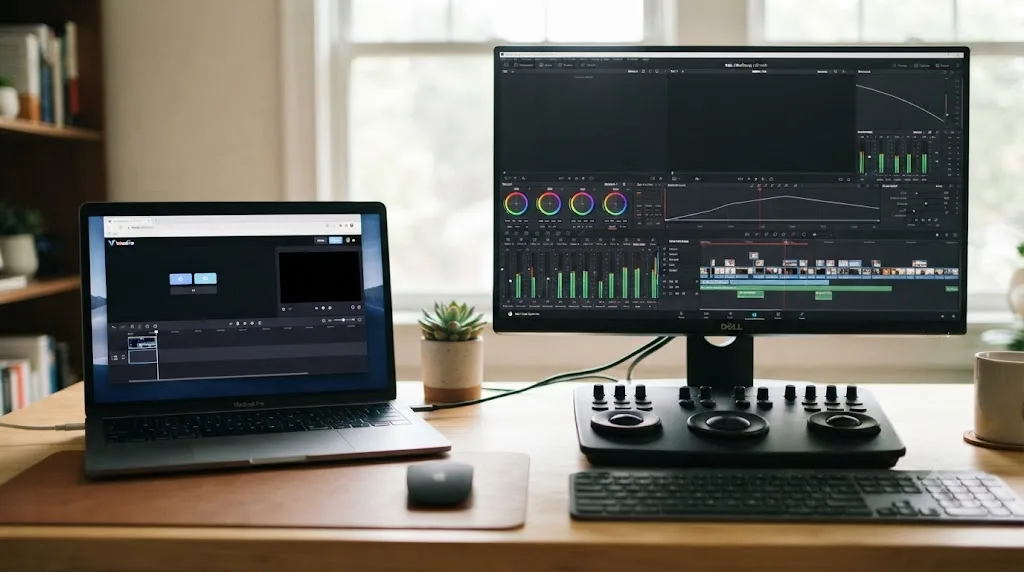
How much do DaVinci Resolve and Veed.io actually cost?
This is the row that decides the argument for a lot of beginners before anything else does, and it's also the row where "free" turns out to mean two different things.
DaVinci Resolve's free edition costs nothing, has no watermark, and never expires, per Blackmagic Design's own comparison and a detailed Toolfarm breakdown of what's actually missing from it. It caps export resolution at Ultra HD (3840x2160, up to 60fps) and leaves out multi-GPU acceleration, advanced noise reduction, and most Neural Engine AI tools. DaVinci Resolve Studio removes those caps for a single one-time payment of $295, with no subscription.
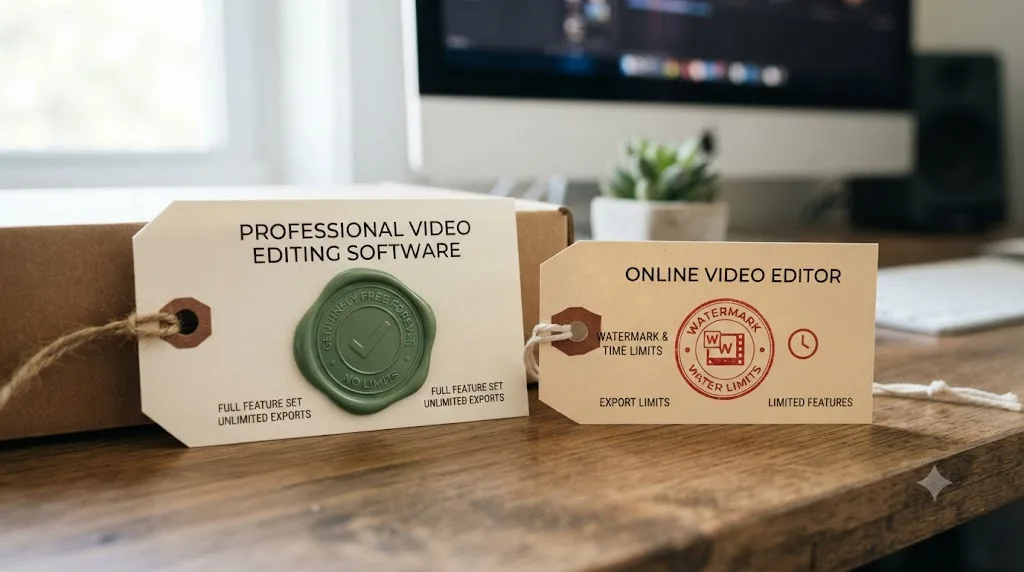
Veed.io's free plan looks similar on paper but works differently underneath. Per Costbench's breakdown of Veed.io's free-tier limits, the free plan exports at 720p only, watermarks every video, caps clips at 10 minutes, and gives you 2GB of storage. To get 1080p exports, no watermark, and unlimited auto-subtitles, you need at least Veed.io's next tier up, which Costbench lists starting around $12 a month billed annually, rising into the low $20s to $50s a month for Pro-tier 4K export and the full AI credit allowance, depending on billing cycle and which tracker you check. Veed.io's exact tier names and prices have shifted more than once across 2025 and 2026, so treat any specific number here as a snapshot, and check Veed's own pricing page for the current rate before you commit to a plan.
| Product | Price | Watermark on free tier? | Time/resolution cap on free tier |
|---|---|---|---|
| DaVinci Resolve (free) | $0 | No | Ultra HD (3840x2160), no time limit |
| DaVinci Resolve Studio | $295 one-time | N/A | None |
| Veed.io (free) | $0 | Yes | 720p, 10-minute max length |
| Veed.io (entry paid tier) | Roughly $12-19/month | No | 1080p, longer clip lengths, limited AI credits |
| Veed.io (Pro tier) | Roughly $21-55/month depending on billing | No | 4K export, larger AI credit allowance |
DaVinci Resolve's free edition costs nothing and has no expiration date, which makes it the only tool in this entire comparison that's actually free. Veed.io's free plan is a real, usable trial of the interface, but the watermark and 10-minute cap mean it's built to convert you to a paid tier, not to be a permanent no-cost option the way Resolve's free edition is.
That's not a criticism of Veed.io's business model. Cloud AI processing, the servers running your auto-subtitles and Magic Clips generation, costs real money per render, and a company giving that away unlimited and free forever isn't a sustainable pitch. DaVinci Resolve can afford a genuinely free tier partly because Blackmagic sells the hardware ecosystem (cameras, switchers, monitors) that surrounds it, and partly because the free edition is designed to build a pipeline of future Studio customers and colorists who standardize on the software professionally.
Which one is actually easier to learn in your first week?
Veed.io, without much argument, and reviewers who've used both kinds of tools consistently say so in almost identical language.
Jussi Hyvärinen, reviewing the platform directly, put it plainly: "Veed.io lets you add text captions and royalty-free music to your videos in minutes. What's particularly impressive is [Veed.io's] flat learning curve" (source: Jussi Hyvärinen's Veed.io review). Janine Heinrichs, reviewing the platform for Unite.AI after years of using professional tools, was even more direct about the contrast: "As someone who has spent countless hours navigating the complexities of Premiere Pro, I know how overwhelming video editing can be. Right off the bat, I loved how intuitive the interface was" (source: Janine Heinrichs, Unite.AI). Her conclusion on the learning curve specifically:
"The learning curve was practically nonexistent, allowing me to jump right into creating content without any frustration!"
That's a specific, credible claim from someone who'd already fought through a professional NLE's interface and knew exactly what she was comparing Veed.io against. It lines up with the platform's whole design premise: one continuous timeline, drag-and-drop clips, template-driven captions, and no separate pages to get lost in.
DaVinci Resolve's learning curve is steeper for a specific, structural reason: it's genuinely five distinct applications wearing one interface. Edit, Color, Fairlight, and Fusion are each deep enough to be their own dedicated software package in a different editor's world, and Resolve just puts all four behind one set of page tabs, plus a Cut page and a Deliver page on top. That's an advantage once you're past the beginner stage, since nothing round-trips between separate programs the way it would moving between, say, Premiere Pro and After Effects. But it's genuinely more surface area to absorb in the first session than Veed.io's single-timeline layout asks of you.
Learning to crop a clip to vertical in a browser tab is not the same skill as learning to grade color, mix audio, or composite a shot. That distinction matters more than either tool's marketing admits. Veed.io's flat learning curve is real, and it's real specifically because the tool does less. DaVinci Resolve's steeper curve buys you access to skills, node-based color correction, multi-track mixing, keyframed compositing, that show up identically in nearly every professional NLE on the market, because those concepts are the industry's shared vocabulary, not something Blackmagic invented in isolation.
| First-week experience | Veed.io | DaVinci Resolve |
|---|---|---|
| Time to first exported clip | Minutes | Tens of minutes, mostly spent finding where things live |
| Number of workspaces to learn | One continuous timeline | Up to seven pages, though a beginner only needs two or three |
| Skill transferability | Low; Veed.io's toolset is unique to Veed.io | High; concepts transfer to Premiere, Final Cut, Avid |
| What breaks first-timers | Rarely anything; the interface is deliberately shallow | Finding Project Settings, the Blade tool, or Scaling options |
DaVinci Resolve's own Cut page narrows that gap considerably. It's a simplified, single-track-first workspace built specifically for fast assembly, closer in spirit to Veed.io's simplicity than the full multi-track Edit page is. A beginner who starts there, rather than the Edit page, closes a meaningful chunk of the learning-curve gap in this section, which is exactly the advice our guide on whether DaVinci Resolve is overkill for simple social edits walks through in more depth.
Do you need to install anything, or does Veed.io just run in a browser?
Veed.io runs entirely in a web browser, and that's arguably its single biggest practical advantage over DaVinci Resolve for a total beginner, separate from any feature comparison.
Per the Flowith deep-dive on Veed.io's architecture, you can "start editing on a desktop and finish on a laptop or even a Chromebook," with your project synced automatically since nothing lives as a local file you have to move around. Veed.io also supports installation as a lightweight app-like experience on Chrome, Edge, and Safari for anyone who wants something that feels less like a browser tab, without the overhead of a full native download. There's a real tradeoff hiding inside that convenience: the same source notes that "if your connection drops during an export, you need to restart the render," and offline editing is limited, since rendering and AI features specifically require an internet connection even if basic timeline arrangement can tolerate a spotty connection. Cloud-based rendering also runs measurably slower than a comparable local render in some cases; that same analysis clocked a roughly 3.5-minute cloud export for a 1080p clip in Veed.io against approximately 2.1 minutes for the same job rendered locally in Premiere Pro.
DaVinci Resolve takes the opposite approach on every count. It's a full desktop application you download and install, and per Blackmagic Design's own product page, the same version runs natively on Windows, macOS, and Linux with an identical feature set and interface on all three, no browser tab, no upload step, and no internet connection required once it's installed and your media is local. Rendering happens on your own GPU, which means export speed depends entirely on your hardware rather than a shared cloud queue, for better or worse depending on what machine you own.
| Veed.io | DaVinci Resolve | |
|---|---|---|
| Install required | No (optional app-like install) | Yes, full desktop download |
| Works across Windows, Mac, Chromebook | Yes, any modern browser | Windows and macOS natively; Linux via Rocky Linux 8.6+ |
| Internet required to edit | Yes, for rendering and AI features | No, once installed |
| Where rendering happens | Cloud servers | Your local GPU |
| Project portability | Automatic, browser-based | Manual, via project files or Resolve's own cloud sync |
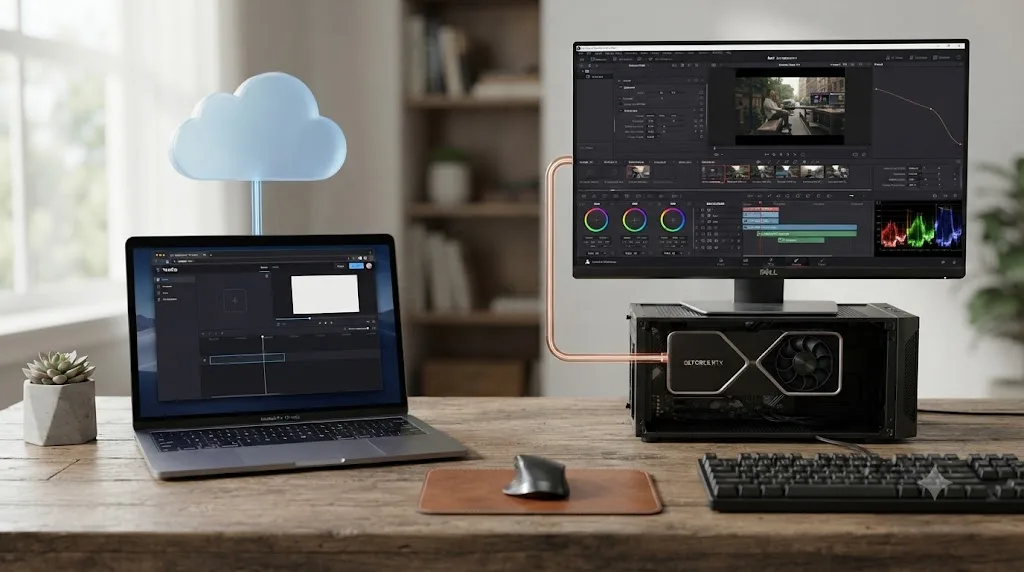
If your only computer is a school Chromebook or a work laptop you can't install software on, that single fact settles a lot of this comparison before you even look at feature depth. Veed.io simply works there. DaVinci Resolve, a genuine desktop application with real GPU demands, doesn't run inside a browser at all, and its system requirements call for a real GPU, a minimum of 8GB of RAM (16GB recommended for anything graphics-heavy), and a solid-state drive to avoid stutter on playback.
Can you edit on your phone with either tool?
That Chromebook question raises the next obvious one: what happens if your only device is a phone?
Veed.io has a dedicated iOS app built for exactly that. Per VEED's own mobile app page, it lets you shoot, edit, caption, and export without ever opening a laptop. Android support isn't there yet in the same shipped form: instead of a native Android app, Veed.io runs an open Android waitlist, so an Android user falls back to the full browser version in their phone's browser, which still works but isn't the tailored mobile experience iOS users get.
DaVinci Resolve has no mobile app of any kind, on either platform. It's a desktop-only application, full stop, and Blackmagic Design has never released even a companion viewing app the way some competitors do. If your workflow depends on shooting, captioning, and posting entirely from a phone, without ever touching a laptop, Veed.io's iOS app covers that job in a way DaVinci Resolve structurally can't.
| Veed.io | DaVinci Resolve | |
|---|---|---|
| iOS app | Yes | No |
| Android app | Waitlist only; browser version works | No |
| Fully phone-only workflow possible | Yes, on iOS | No |
A phone-only workflow is one of the few scenarios where DaVinci Resolve isn't a contender at all, not a slower option, an absent one. That's worth naming plainly instead of stretching Resolve's case past where it actually applies. If your whole editing life happens on an iPhone between commutes, this row alone might be the entire decision.
Which one handles captions and subtitles better?
Veed.io, and it's not close, because captions are the platform's actual specialty rather than a bolted-on feature.
Per Sonix's review of the platform, Veed.io generates auto-subtitles automatically from your audio track, exports them as SRT, VTT, or burned-in text, and supports translation into multiple languages for the same clip. Reviews on accuracy are genuinely mixed rather than uniformly glowing, which is worth naming honestly instead of overselling the feature. Some coverage reports 95%-plus accuracy on clear English speech with accuracy dropping for heavy accents or technical vocabulary, while Sonix's own review, which is worth reading with the awareness that Sonix is itself a transcription company with a competing interest, describes "inconsistent" quality with "frequent misheard words" and flags speaker identification as unreliable on overlapping dialogue. Both things are probably true at once: auto-captions that are good enough for a quick social post without much post-editing, and not reliable enough to skip a proofread pass if accuracy actually matters for your content.
DaVinci Resolve has a comparable feature, Create Subtitles from Audio, but it's gated to the Studio edition, not available on the free tier. The free edition can still add manual text titles and import an SRT file you generated elsewhere, but it has no built-in AI transcription of its own on the free tier the way Veed.io does on every tier, including the free one.
| Veed.io | DaVinci Resolve | |
|---|---|---|
| Auto-subtitle generation | Built in, every tier including free | Studio-only (Create Subtitles from Audio) |
| Translation into other languages | Yes, built in | No native equivalent |
| Manual caption styling | Template-driven, fast | Text+ titles, more manual control, more setup |
| Export formats | SRT, VTT, burned-in text | SRT import/export, burned-in text |
Veed.io is built around getting a captioned clip out fast, and captions are the one job it does better than DaVinci Resolve does out of the box. If your entire workflow is "record, caption, post," this row alone might settle the whole comparison in Veed.io's favor for you, regardless of how the rest of this guide shakes out.
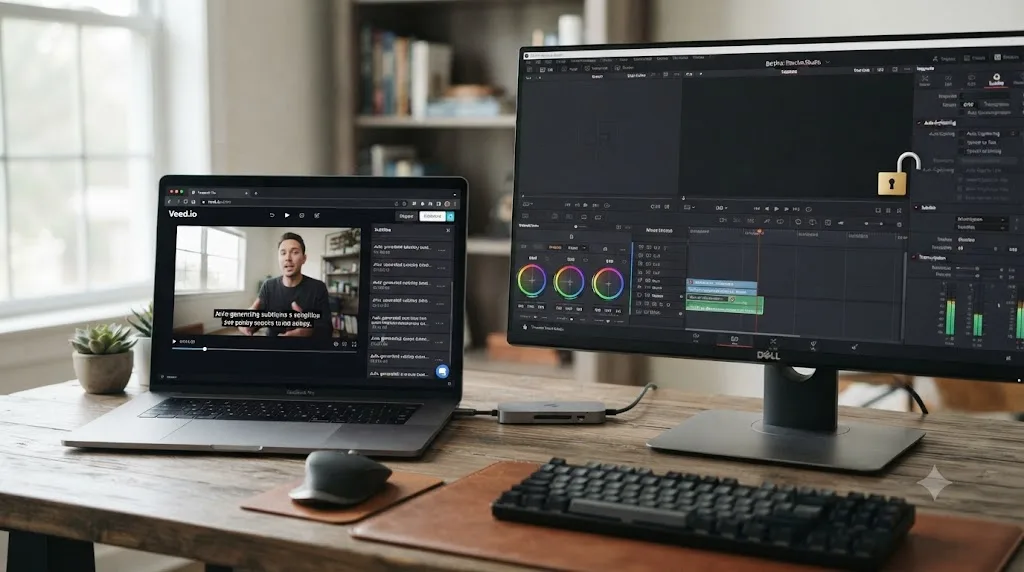
Can Veed.io do color grading like DaVinci Resolve?
No, and this is the row where the two tools stop feeling like the same category of software at all.
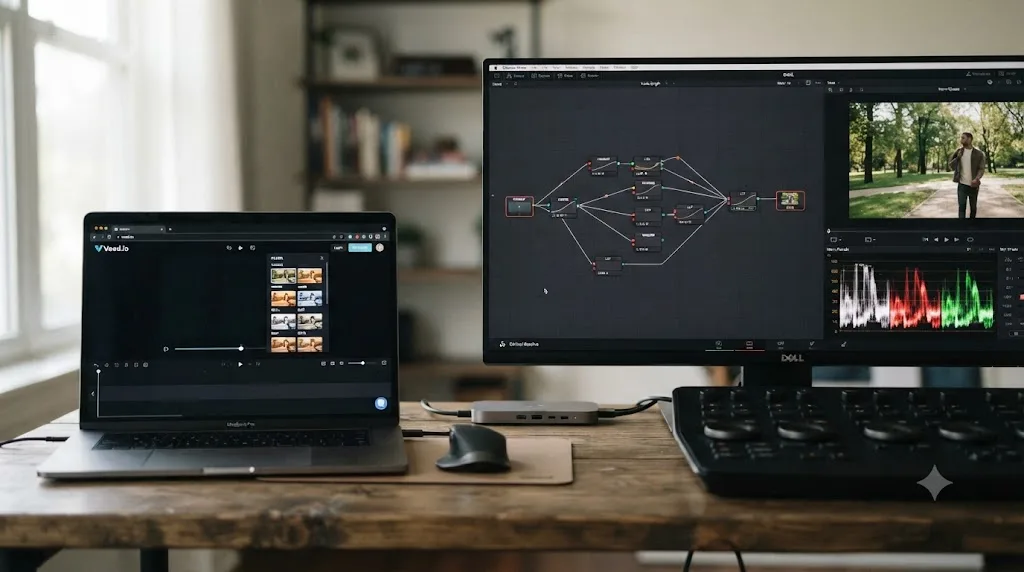
DaVinci Resolve's Color page is built entirely around nodes, discrete processing blocks you wire together in whatever order the shot needs: a primary correction feeding a power window feeding a qualifier feeding a parallel node for a separate look, all visible as a graph you can read at a glance. It ships with a full scopes suite, waveform, vectorscope, histogram, and parade, docked directly next to the node graph, and it was built as color-grading software before it was ever a general-purpose editor.
Veed.io has nothing structurally comparable. Its color tools are filter presets and basic brightness, contrast, and saturation sliders, similar in spirit to what you'd find in any consumer photo app, not a graded, node-based pipeline. That's not a gap in an otherwise complete feature set; it's simply outside the category of tool Veed.io was built to be. Nobody reaches for a browser-based social clip editor expecting broadcast-grade color science, and Veed.io doesn't pretend otherwise.
A node-based color page and a filter dropdown are not the same tool wearing different skins. One is designed to isolate, combine, and reorder individual corrections shot by shot. The other applies a single preset look uniformly across a clip. Neither is wrong for what it's aimed at, but only one of them is actually color grading in the sense a working colorist would recognize the term.
| Color capability | Veed.io | DaVinci Resolve |
|---|---|---|
| Filter presets | Yes | Yes, plus much more |
| Node-based primary/secondary correction | No | Yes |
| Scopes (waveform, vectorscope, parade) | No | Yes |
| Power windows / qualifiers | No | Yes |
| LUT support | Limited | Full, including custom LUT import |
For a beginner whose only goal is "make my clip look a little warmer and more contrasty before I post it," Veed.io's filter sliders genuinely get the job done in seconds. The gap only matters once you want to match footage shot on two different cameras, correct a shot with genuinely bad white balance rather than just stylize a good one, or build a consistent look across a series of posts that needs to survive more scrutiny than a quick filter provides.
Which one gives you a professional look without designing one yourself?
Color aside, both tools also sell you a shortcut to "looking finished" through templates, and that's a separate question worth its own answer.
Veed.io's template library covers caption styles, intro and outro sequences, and a shared Brand Kit for logos and brand colors, all built to be dropped onto a clip in a couple of clicks rather than assembled by hand, per VEED's own video collaboration page, which describes the Brand Kit as a central place to keep "logos and brand assets" consistent across every project a team touches.
DaVinci Resolve ships its own free template system for the same job, but it lives inside Fusion rather than a scrollable stock library. The free edition includes Text+ titles and Fusion Templates you install into the Effects panel via a folder drop, per a Motion Array walkthrough of building animated titles from Fusion templates, covering animated lower thirds, logo reveals, and opener sequences. Community-built starter packs extend that further with free downloadable title and transition sets, though most require manually copying files into Resolve's template folder rather than a one-click install inside the app itself.
Veed.io's templates are built to be found and used in seconds; DaVinci Resolve's are built to be customized once you find them, which takes longer to discover but survives being reused across more of your work. A caption template in Veed.io is genuinely faster for a single social post. A Fusion title template in Resolve is a node graph you can still tweak frame by frame if the built-in version doesn't quite fit your footage, which nothing in Veed.io's template system lets you do.
| Veed.io | DaVinci Resolve | |
|---|---|---|
| Built-in template library | Yes, browsable in-app | Limited; free Fusion Templates folder |
| Brand kit (logo, colors) sharing | Yes | No built-in equivalent |
| Customizable after applying | Limited, preset parameters only | Fully, via Fusion nodes |
| Installing new templates | Built into the app | Manual folder copy for most free packs |
Which one handles audio better?
DaVinci Resolve, and again, it's not particularly close once you look at what each tool actually offers underneath the surface.
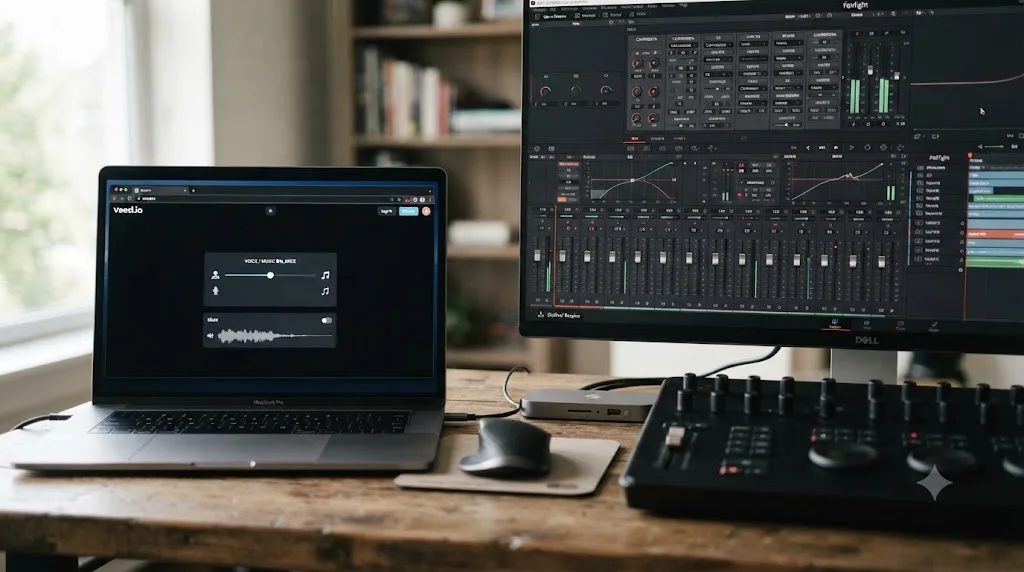
Resolve's Fairlight page is a genuine digital audio workstation built into the same app as the picture editor, supporting up to 2,000 tracks with realtime effects, a full channel-strip mixer with faders and panners, six effects slots per channel, and a built-in parametric EQ and dynamics processing on every track by default, per Blackmagic's own Fairlight page. It also includes dedicated ADR and Foley tools built for post-production sound work that most beginners will never touch, but which exist the moment you need them.
Veed.io's audio tools are considerably narrower by design: background noise removal, basic volume automation, and a music-and-voice balance slider, aimed squarely at the "keep the music from drowning out my voiceover" problem most social clips actually face. That's the correct scope for the job Veed.io is solving. It's a meaningfully smaller toolset than a real mixing console, and it was never meant to compete with one.
| Audio capability | Veed.io | DaVinci Resolve |
|---|---|---|
| Basic level balancing | Yes | Yes |
| Background noise removal | Yes, AI-based | Yes, Voice Isolation (Studio only) |
| Multi-track mixing console | No | Yes, Fairlight |
| ADR / Foley tools | No | Yes |
| Per-track EQ and effects | No | Yes, on every track by default |
For a single voiceover over a single music bed, which describes the overwhelming majority of beginner social content, neither tool's depth matters much; both get you to "the words are audible and the music isn't too loud" in a few minutes. The gap opens up the moment you're layering more than one voice, need real noise reduction beyond an automatic button, or want a proper mix bus rather than a single balance slider.
Which one is better for turning one long video into several short clips?
This depends on whether speed or organization matters more to your specific workflow, and both tools have a real, distinct answer here worth taking seriously.
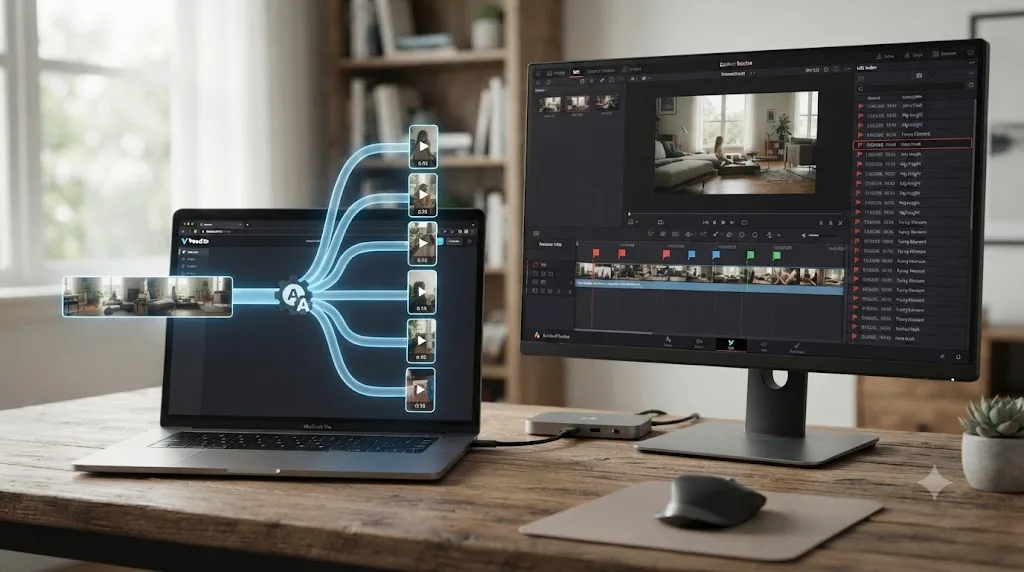
Veed.io's Magic Clips feature is built exactly for this job. Podcasters and webinar hosts describe it, per Sonix's coverage of the feature, as something that "changed their content strategy": you upload a full recording, run it through Magic Clips, and get back somewhere in the range of 10 to 15 vertical clips with captions already applied, ready for TikTok, Reels, or Shorts, in minutes rather than hours. That's a genuinely fast first pass, and for someone repurposing a weekly podcast into social content on a deadline, it's a real productivity win.
DaVinci Resolve has no equivalent single-button feature, but it has something Veed.io doesn't: a searchable organizational system built for exactly this kind of multi-output project. You import the full recording once, mark candidate moments with typed keywords as you watch, and use the Edit Index to search and shortlist those markers before building each short clip as its own timeline inside the same project. Our full walkthrough on turning a long video into short clips in DaVinci Resolve covers that process end to end. It's a slower first pass than Magic Clips, but every clip lives inside one searchable project alongside your full-length source, rather than as five to fifteen separate AI-generated outputs you still need to review, trim, and caption-check individually.
| Veed.io Magic Clips | DaVinci Resolve | |
|---|---|---|
| Speed of first pass | Minutes, fully automated | Slower, manual marking and cutting |
| Output quality control | Requires reviewing AI's clip picks | You choose every moment yourself |
| Organizational system for many outputs | Separate clips, limited shared structure | Markers, Edit Index, one searchable project |
| Best for | High-volume weekly repurposing on a deadline | Fewer, more deliberately chosen clips, or projects needing color/audio depth too |
Neither approach is strictly better. If you're publishing daily and reviewing AI-picked highlights is an acceptable tradeoff for speed, Veed.io's Magic Clips will get more content out the door per hour of your time. If you're being more selective about which moments actually deserve to become a post, or your repurposing work sits alongside a long-form YouTube upload from the same source, DaVinci Resolve's marker-and-search workflow scales better across that combined job. Our deeper comparison of DaVinci Resolve against Opus Clip for short-form repurposing specifically walks through this exact tradeoff against a tool built to be Magic Clips' direct competitor, if repurposing is your primary use case rather than a side task.
Which one makes it easier to get a clip ready for TikTok, Instagram, and YouTube specifically?
Once you've got a finished clip, the next question is how much work it takes to shape it for the platform you're actually posting to, and it's worth being precise about what each tool does and doesn't do here.
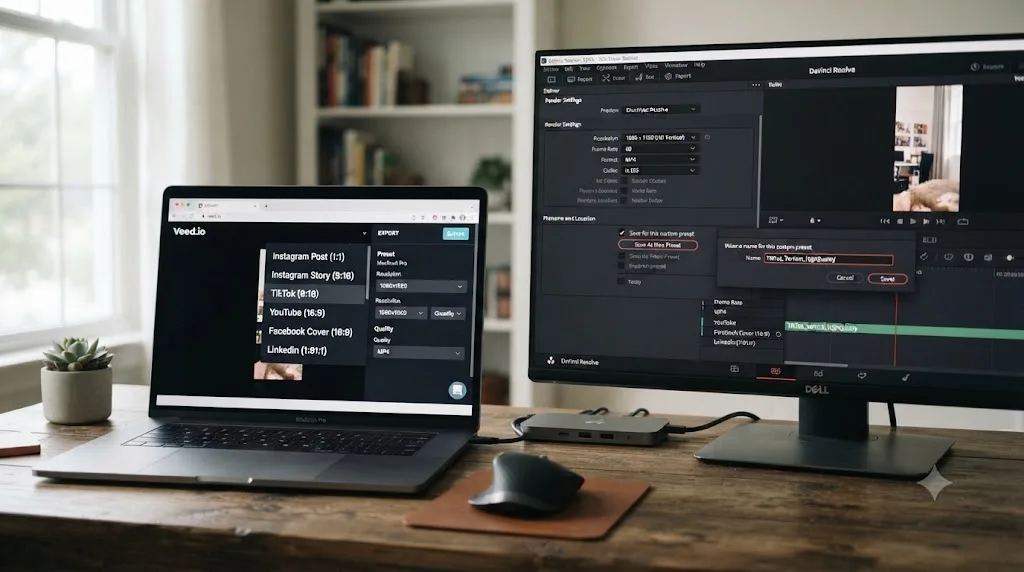
Veed.io's Size dropdown under Settings includes ready-made presets for Instagram Reels, TikTok, and YouTube Shorts, so switching a clip's aspect ratio and safe zones for a specific platform is a menu selection rather than manual math, per VEED's own TikTok repurposing tool page. It's worth naming exactly what that does and doesn't do: Veed.io resizes and exports a platform-ready file for you to download. It does not post to Instagram, TikTok, or YouTube on your behalf. You still upload the finished file yourself through each platform's own app, the same as with any other editor.
DaVinci Resolve's Deliver page ships with its own built-in presets, including YouTube and Vimeo at 720p, 1080p, or 4K, per a walkthrough of exporting from DaVinci Resolve to major platforms. There's no dedicated TikTok or Instagram Reels preset built in the way Veed.io offers, so a vertical export means manually setting a 1080x1920 timeline resolution before you render, the same step covered in the worked example below. Once you save that as a custom preset, though, it's a one-click export for every clip afterward, roughly the same speed Veed.io gives you by default from the first export.
| Veed.io | DaVinci Resolve | |
|---|---|---|
| Built-in TikTok/Reels/Shorts presets | Yes, from first export | No, requires a manual custom preset |
| Auto-posts to social platforms | No, download and upload yourself | No, download and upload yourself |
| Repeat-export speed after first setup | Fast by default | Fast, once a custom preset is saved |
Neither tool posts anything to social media for you; both hand you a finished file and leave the actual upload to you. The difference is entirely in how many clicks it takes to get a platform-shaped file in the first place, and that gap mostly disappears after your first custom Resolve preset is saved.
Which one is better for working with a client or a team?
Both tools also expect you might not be editing alone, and they solve that problem in genuinely different ways.
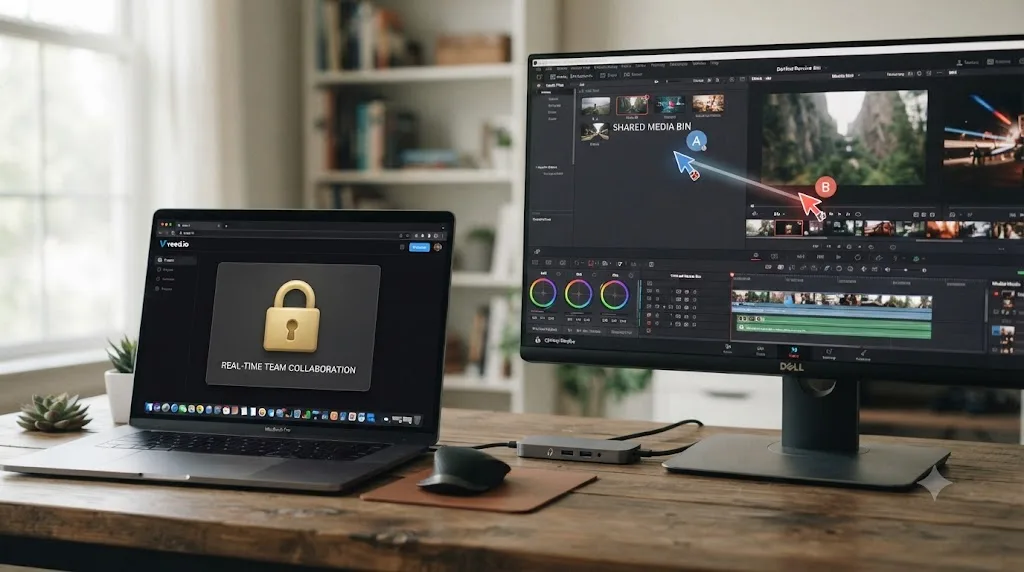
Veed.io's collaboration tools are built around review and feedback rather than simultaneous editing: time-stamped comments, freehand drawing directly on a frame, and role-based access that separates editors from reviewers, per VEED's own video collaboration page. That's a genuinely useful setup for an agency or a freelancer sending a rough cut to a client and collecting notes without emailing a huge file back and forth. It's gated behind a paid tier, though: team collaboration sits on Veed.io's higher-end Business plan, priced well above the entry tiers covered in the pricing section earlier, per Costbench's tier breakdown, not something a free-tier or entry-level paid user gets access to.
DaVinci Resolve's collaboration tools work differently and, more surprisingly for a comparison built around "which one is actually free," they're not gated behind Studio at all. Per Blackmagic Design's own collaboration page, DaVinci Resolve 21 supports shared bins, timeline comments, live save, and bin locking so two editors don't overwrite each other's work, plus a free Blackmagic Cloud ID that lets a small team share a project library over the internet without a shared local drive. None of that requires the $295 Studio license. A Blackmagic Cloud project library subscription costs extra if you want cloud-hosted storage specifically, a separate line item from Resolve itself, but the collaboration tools built into the app ship on the free edition.
| Veed.io | DaVinci Resolve | |
|---|---|---|
| Time-stamped comments / feedback | Yes, higher-end plan only | Yes, free edition |
| Simultaneous multi-editor work | Limited, plan-dependent | Yes, shared bins and bin locking, free |
| Cost to unlock | Business-tier subscription | Free (cloud project library storage optional and paid separately) |
DaVinci Resolve's real-time collaboration tools ship in the free edition; Veed.io's equivalent feature sits behind its most expensive plan tier. That's an unusual reversal of the pattern the rest of this guide follows, where Veed.io is consistently the cheaper, faster option. If working with another editor or collecting client feedback is a real, recurring part of your workflow rather than a one-off, that reversal is worth weighing on its own, separate from every other row in this comparison.
What do real reviewers and beginners actually say about each tool?
It's worth naming the honest consensus rather than picking the reviews that flatter whichever conclusion this guide is building toward.
On Veed.io specifically, the praise for ease of use is remarkably consistent across independent reviewers who don't appear to share an incentive to agree with each other. Janine Heinrichs, writing after extensive time in Premiere Pro, called the interface intuitive from the first session and said the learning curve was "practically nonexistent" (source: Unite.AI). Jussi Hyvärinen independently reached the same conclusion about the platform's "flat learning curve" for adding captions and music (source: Jussi Hyvärinen's review). That kind of independent agreement, from reviewers with no obvious reason to coordinate their language, is a stronger signal than any single glowing testimonial would be on its own.
On DaVinci Resolve's side, the recognized starting points for beginners are well established and worth naming plainly rather than pretending a new comparison guide is the only resource that matters. Blackmagic Design publishes a full free curriculum, six official training guides covering editing, color, Fairlight audio, and Fusion, written by the people who built the software. YouTube channels built specifically around Resolve, Casey Faris among the most consistently recommended for clear, non-hype walkthroughs, exist precisely because the software has genuine depth worth teaching in structured pieces rather than figured out by trial and error alone. Reddit's r/DaVinciResolve is a reliable place to troubleshoot one specific, reproducible problem, though it's a weaker fit for the broader "how do I even start" question this guide is answering, since a subreddit thread can't see your specific project or skill level.
The fastest editor for your first video and the best editor for your fiftieth video are rarely the same app. That's the pattern that falls out of comparing named, credible sources on both sides rather than picking a favorite upfront. Veed.io earns its praise for exactly the job it's built for. DaVinci Resolve earns its reputation for a different, longer game, and both reputations are accurate at the same time.
Is there an AI tool to learn DaVinci Resolve, or an app that helps while you're actually using it?
Yes, and it's worth being precise about which kind of AI help you're actually comparing here, since Veed.io's AI tools and this category of tool solve two different problems.
Veed.io's AI features, auto-subtitles, Magic Clips, AI avatars, voice dubbing, all generate or transform content for you. You give the platform a clip or a script, and it hands back captions, a shortened version, or a synthetic voiceover. That's genuinely useful automation, and it's exactly why Veed.io's learning curve is as flat as reviewers describe: you're rarely asked to understand a tool deeply, because the AI is doing the specific task on your behalf.
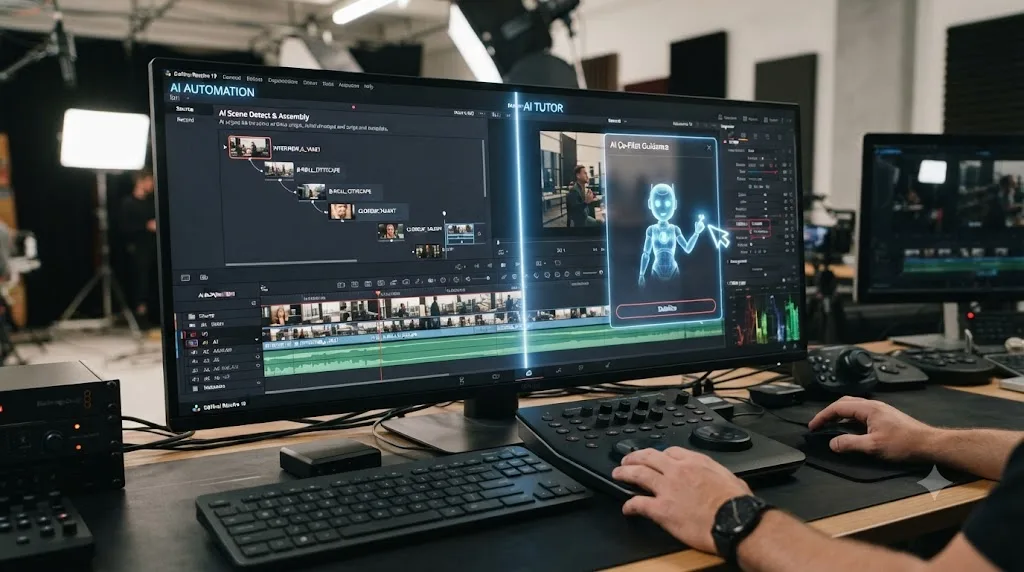
DaVinci Resolve has no equivalent built-in AI assistant on the free tier, and even its Studio-only Neural Engine tools (Magic Mask, Smart Reframe, Speed Warp) automate specific tasks rather than teaching you the software itself. That's the exact gap a different category of tool is built to close. TryUncle is the on-screen assistant for DaVinci Resolve on macOS, ask in plain words and Uncle points at the exact control on your screen. Instead of transforming your footage the way Veed.io's AI tools do, it watches your Resolve session and points directly at the panel, node, or setting you're asking about, live, inside your own project, on the Edit, Color, and Fusion pages.
That's a meaningfully different job from a category of AI tools growing up around DaVinci Resolve specifically, worth naming alongside Veed.io rather than pretending they don't exist. CutAgent, Sottocut, PremiereCopilot, and Eddie AI all read your active Resolve timeline or transcript and execute cuts, trims, or a rough assembly from a typed instruction, similar in spirit to what Veed.io's Magic Clips does for repurposing, but built specifically for Resolve's project structure rather than a browser timeline. That's real automation, and for someone who wants an AI to do the mechanical cutting work rather than learn to do it by hand, those tools are a legitimate answer.
| Tool category | What it does | Touches your timeline for you? | Teaches you Resolve? |
|---|---|---|---|
| Veed.io's built-in AI (subtitles, Magic Clips, avatars) | Generates or transforms content automatically | Yes, within Veed.io's own timeline | No, and it isn't trying to |
| CutAgent, Sottocut, PremiereCopilot, Eddie AI | Executes cuts inside DaVinci Resolve from a typed instruction | Yes, inside Resolve | No, it does the work instead of showing you |
| TryUncle | Watches your screen and points at the exact control you're asking about | No | Yes, that's its entire purpose |
An AI tool that edits the clip for you and an assistant that teaches you to edit it yourself solve two different problems. If you've read this far and decided DaVinci Resolve's depth is worth the learning curve over Veed.io's speed, the honest gap most beginners hit isn't understanding color theory or audio mixing in the abstract. It's the much smaller, much more common problem of not knowing which of Resolve's seven pages holds the button you need right now, which is precisely the friction Uncle is built to remove without touching your project for you.
Worth being upfront about what TryUncle is and isn't, the same way this guide has been upfront about Veed.io's tradeoffs. It's a paid subscription, not free, at $39 a month, cancel anytime, and it's macOS only, so it won't help a Windows-based Resolve beginner the way it helps someone on a Mac. Check TryUncle directly for the current rate. Our broader roundup of every AI tool people actually use to learn DaVinci Resolve breaks the whole category down in more depth, including where general chat tools like ChatGPT and Claude fit alongside dedicated assistants like this one.
Worked example: the same 60-second clip in Veed.io and DaVinci Resolve
Numbers make this concrete in a way a feature table can't, so here's a realistic walk-through of the same task in both tools: turning a 5-minute phone recording into a 60-second captioned vertical clip for Instagram.
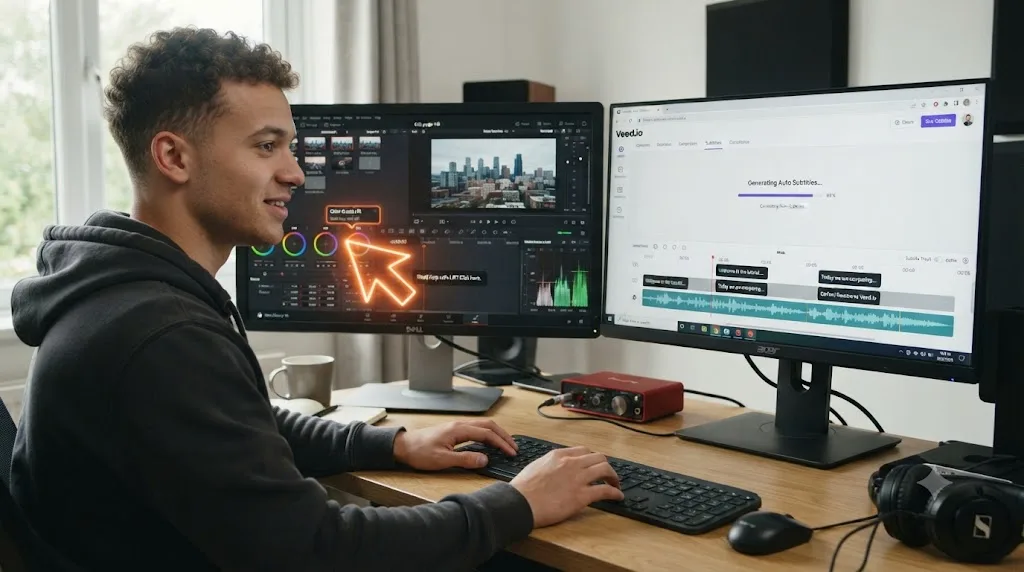
In Veed.io, starting from zero prior experience with the platform: open the browser tab and upload the clip (a minute or two depending on your connection and the file size), trim to the 60-second section you want using the timeline scrubber (a couple of minutes, since in and out points are visually obvious immediately), run auto-subtitles and let the AI generate captions (under a minute of processing, plus a proofread pass given the mixed accuracy reports covered earlier), apply a caption style template and adjust the crop to vertical if your source was horizontal (a few minutes), and export (roughly 3 to 4 minutes for a cloud-rendered clip at this length and resolution). Total: somewhere around 10 to 15 minutes for a first-timer, most of it spent waiting on cloud processing rather than doing hands-on editing work.
In DaVinci Resolve, for someone who has never opened the app before: install and launch (5 to 10 minutes the first time, essentially zero afterward), import the clip into the Media Pool on the Cut page (a minute or two while you find where the Media Pool lives), trim with the Blade tool (a couple of minutes once you know the shortcut, longer while you're hunting for it), duplicate the timeline and set it to vertical 1080x1920 in Project Settings (a few minutes the first time, since Project Settings isn't where a Veed.io user would intuitively look), manually adjust Scaling to fill the vertical frame and reposition your subject (a few minutes on the free edition, since there's no automatic reframe without Studio's Smart Reframe), add captions manually or via a third-party plugin since the free edition has no built-in AI transcription, and export from the Deliver page using a built-in platform preset (a couple of minutes). Total for a first-timer: realistically 30 to 40 minutes, most of it spent finding where things live rather than doing the edit itself.
| Step | Veed.io (first time) | DaVinci Resolve (first time) | DaVinci Resolve (fifth time) |
|---|---|---|---|
| Import footage | 1-2 min | 1-2 min | Under 1 min |
| Trim to length | 2-3 min | 2-3 min | 1 min |
| Convert to vertical | Built into crop tool | 3-5 min (manual Scaling/Position) | 1-2 min |
| Add captions | Under 1 min (auto), plus proofread | 5-10 min (manual or third-party) | 3-5 min |
| Export | 3-4 min (cloud render) | 2-3 min (built-in preset, local render) | 1-2 min |
| Total | ~10-15 min | ~30-40 min | ~10-15 min |
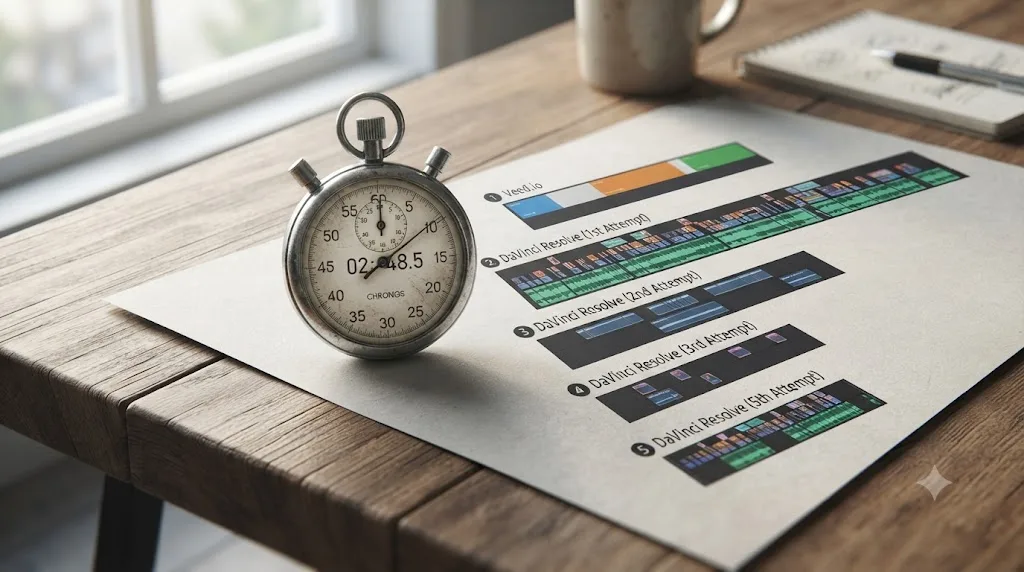
That gap closes faster than it looks. By clip five, DaVinci Resolve lands in roughly the same total time as a Veed.io session, once Project Settings, the Blade tool, and Scaling stop requiring conscious thought. What doesn't close is the structural difference underneath: Veed.io's time stays roughly flat because the tool does less per clip, while Resolve's time shrinks because you're getting faster at doing more.
When should a beginner actually pick Veed.io?
Here's where Veed.io is the right call, worked through as real scenarios rather than a generic recommendation.
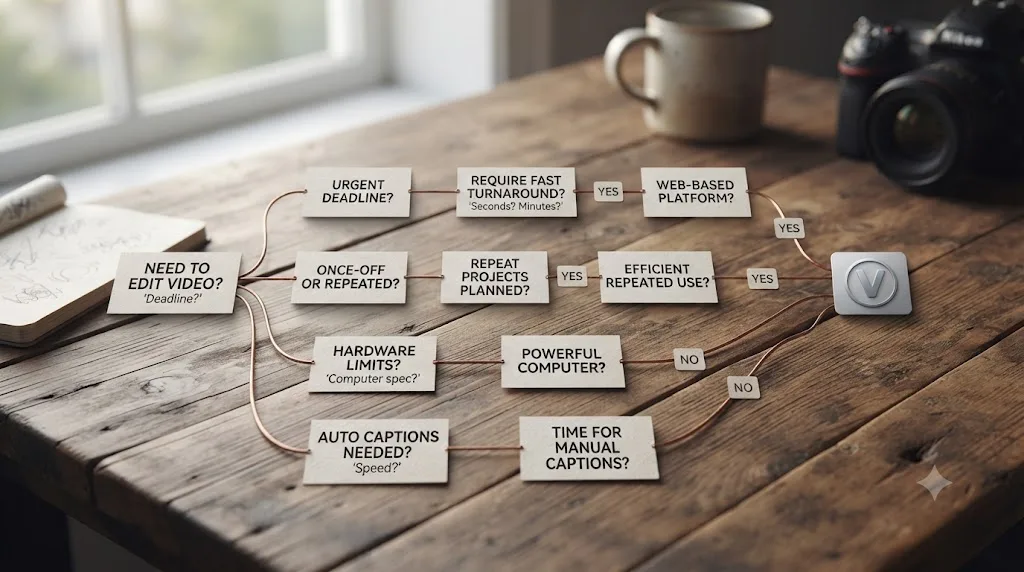
You need one captioned clip out today, and you're not sure you'll edit again. Veed.io wins outright. The setup cost of learning DaVinci Resolve's interface for a single, one-off video is real, and Veed.io is specifically designed to skip that cost entirely.
Your content is fundamentally caption-driven: talking-head clips, course snippets, or product demos meant to work with the sound off. Veed.io's auto-subtitle and translation tools are its actual specialty, and nothing about DaVinci Resolve's free edition matches that out of the box.
You're repurposing a weekly podcast or webinar into social clips on a tight deadline, and you're comfortable reviewing AI-picked highlights rather than choosing every moment yourself. Magic Clips genuinely saves real time here, and the tradeoff of reviewing rather than hand-selecting is a reasonable one for high-volume, deadline-driven work.
Your only computer is a Chromebook, a locked-down work laptop, a phone, or anything else you can't install desktop software on. Veed.io's browser-based architecture and iOS app simply work there. DaVinci Resolve doesn't, full stop, regardless of how good its features are on a machine that can actually run it.
You want a synthetic voiceover or a talking AI avatar without recording yourself. That's a category DaVinci Resolve doesn't touch at all, and Veed.io's AI avatar tools are built specifically for it.
When should a beginner skip Veed.io and go straight to DaVinci Resolve?
And here's the flip side, just as specific.
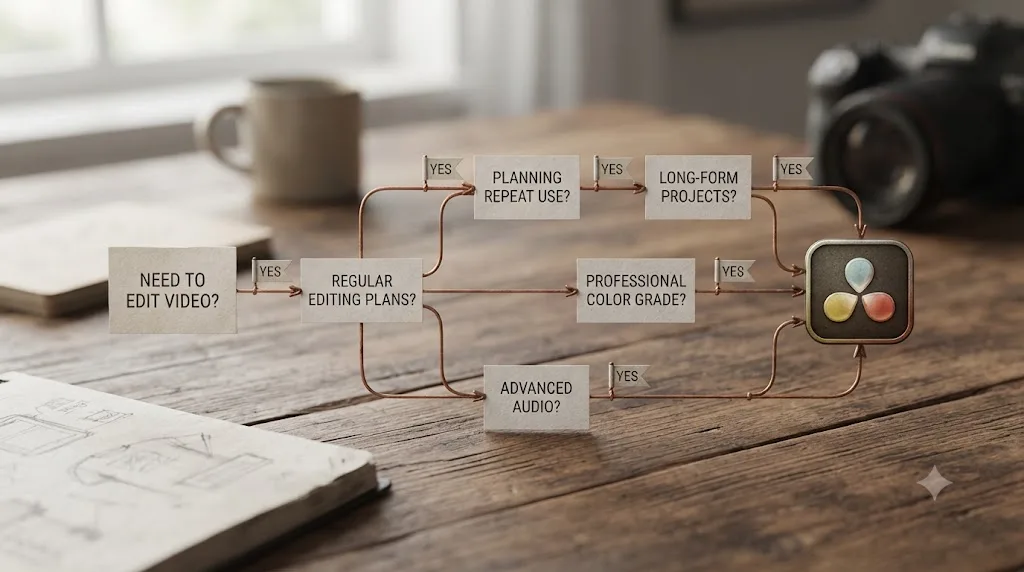
You expect to keep editing regularly, not just this one video. The Cut page's learning cost is fixed and mostly one-time. Veed.io's speed advantage per clip doesn't compound the same way, since there's nothing left to learn that makes clip fifteen meaningfully faster than clip one.
You want real color control, not a filter preset. Node-based grading, scopes, and LUT support are exclusively DaVinci Resolve's territory in this comparison. If brand-consistent color across a month of posts actually matters to you, Veed.io has no path to that at all.
Your projects involve more than one voice track, real noise reduction, or a genuine mix pass. Fairlight is a full DAW built into the same project. Veed.io's audio tools stop at "balance the music under the voice," which is fine until your work needs more than that.
You're budget-conscious and want a tool that's actually free forever, not free until you hit a cap. DaVinci Resolve's free edition has no watermark and no expiration date. Veed.io's free tier is a trial with a visible watermark and a 10-minute ceiling, useful for testing the interface, not for indefinite use.
You're working with a client or another editor and want to share a project without paying for a collaboration tier. DaVinci Resolve's shared bins and Blackmagic Cloud ID ship free on the free edition. Veed.io's equivalent feature sits behind its priciest plan.
You think you'll eventually want longer-form work alongside your social clips. A YouTube channel, client videos, or anything running past a couple of minutes sits well outside Veed.io's design center. Maintaining two separate editing skill sets, one for quick social clips and one for everything else, costs more over time than learning DaVinci Resolve once and using it for both.
You want skills that transfer if you ever freelance or work with a team. Node-based color, multi-track audio, and page-based project structure are concepts shared across nearly every professional NLE. Veed.io's toolset is genuinely its own thing, useful on its own terms, but it doesn't teach you anything that maps onto Premiere Pro, Final Cut, or Avid the way learning DaVinci Resolve does.
What happens if you start in Veed.io and later outgrow it?
This is worth naming honestly rather than treating the choice as risk-free in either direction, since it's a real cost some beginners hit a few months in.
There's no project file you can hand from Veed.io to DaVinci Resolve. Veed.io's projects live inside its own cloud account, in its own proprietary format, with no export path into an editable timeline another NLE can open. If you outgrow Veed.io and move to DaVinci Resolve later, you're not migrating a project, you're starting over: re-importing your original source footage, rebuilding your cuts from scratch, and redoing captions, since Veed.io's caption data doesn't transfer as an editable subtitle track either. It only comes out as a burned-in export or a plain SRT file, which imports into Resolve as static text rather than the styled captions you built.
That's not a reason to avoid Veed.io if it's genuinely the right tool for what you're making today. A single social clip doesn't need to survive a future migration. But it does change the math if you already suspect you'll want DaVinci Resolve's depth eventually. Every month spent building muscle memory and finished work inside Veed.io is a month that doesn't carry forward, where the same time spent learning DaVinci Resolve's Cut page from the start would have.
The reverse migration, DaVinci Resolve to Veed.io, is more common and much less painful, mostly because it's rarely a full migration at all. Beginners who learned Resolve first and later want Veed.io's fast captioning for a specific clip just export a finished cut from Resolve as a standard video file and drop it straight into Veed.io for captions or a quick vertical crop. That works because Veed.io accepts any standard video file as raw input; it was never designed to import someone else's editable project, only finished or source footage.
| Direction | What transfers | What you rebuild |
|---|---|---|
| Veed.io to DaVinci Resolve | Original source footage only | Cuts, captions, styling, timeline structure |
| DaVinci Resolve to Veed.io | Finished exported video file | Nothing; treated as new raw footage in Veed.io |
Moving into DaVinci Resolve from Veed.io costs you a rebuild; moving into Veed.io from DaVinci Resolve costs you nothing more than a normal export. That asymmetry is worth factoring into your first choice if you're genuinely unsure which tool you'll still be using in six months. It's not a reason to avoid Veed.io today, but it is a reason to start on Resolve's Cut page now if you already suspect you'll want the depth eventually.
A 60-second scoring quiz: which tool actually fits your next project?
If you've read this far and still can't decide, answer these five questions and add up your points.
- How many videos do you expect to make in the next three months? Just this one (0 points). A handful (1 point). Ongoing, weekly or more (2 points).
- Do you need color correction beyond a quick filter, matching footage from two different cameras, fixing bad white balance, or a consistent graded look across a series? No (0 points). Maybe eventually (1 point). Yes, now (2 points).
- Do you need more than a simple voice-and-music balance, multiple mic sources, real noise reduction, a proper mix bus? No (0 points). Maybe (1 point). Yes (2 points).
- What's your only available computer? A Chromebook, phone, or locked-down device you can't install software on (0 points, Veed.io only). A regular laptop or desktop (1 point).
- How much does it matter that the skills you learn transfer to other professional editors later, in case you freelance or join a team? Doesn't matter to me (0 points). Somewhat interested (1 point). Very important (2 points).
| Score | Verdict |
|---|---|
| 0-2 points | Veed.io is the clear right call for what you're making right now |
| 3-5 points | Genuinely close; lean toward whichever single row (color, audio, cost, or platform) matters most to your specific project |
| 6-9 points | Start with DaVinci Resolve's Cut page; the depth you're describing is exactly what it's built for |
A quiz like this can't account for everything, a Chromebook-only reader who scores a 7 still can't run DaVinci Resolve, but it's a faster gut check than re-reading every row above when you just want an answer for the clip on your desk right now.
DaVinci Resolve vs Veed.io: the full side-by-side comparison table
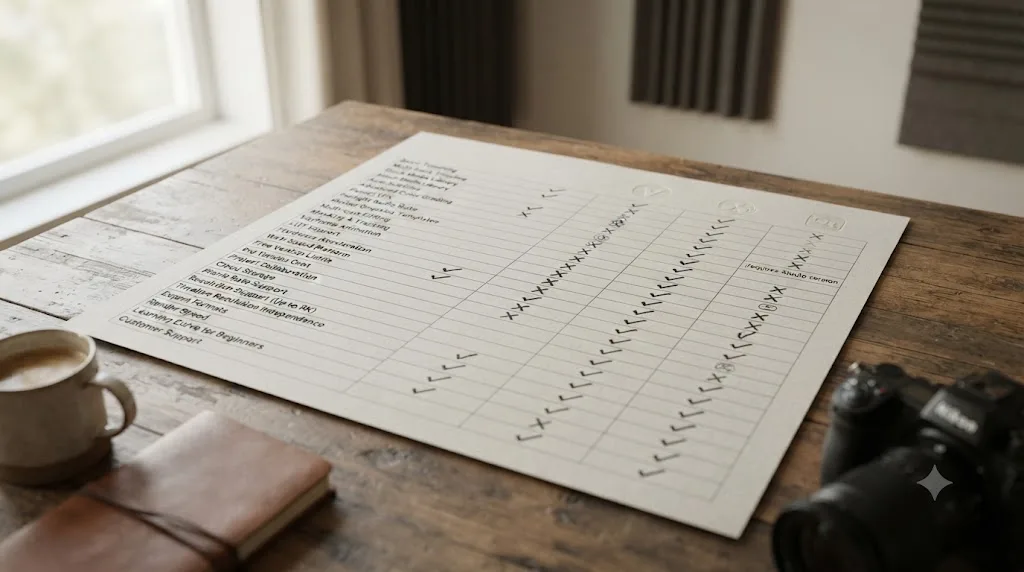
Here's every row from this guide in one place, so you don't have to scroll back through each section to compare two specific features.
| Feature | Veed.io | DaVinci Resolve |
|---|---|---|
| Install required | No, browser-based | Yes, full desktop application |
| Price (entry) | Free, watermarked, 720p, 10-min cap | Free, no watermark, no time limit, Ultra HD cap |
| Price (full-featured) | Roughly $12-55/month depending on tier and billing | $295 one-time (Studio) |
| Platforms | Any modern browser: Windows, Mac, Chromebook, tablet; iOS app | macOS, Windows, Linux (native desktop); no mobile app |
| Learning curve | Flat; described as "practically nonexistent" by reviewers | Steeper; 5 integrated apps behind one interface |
| Captions/subtitles | Built in, every tier, multiple languages | Studio-only Create Subtitles from Audio |
| Color grading | Filter presets and basic sliders | Node-based Color page with full scopes suite |
| Audio tools | Basic level balancing, AI noise removal | Fairlight, full DAW, 2,000 tracks |
| Titles and templates | In-app browsable library, Brand Kit | Free Fusion Templates, fully customizable |
| Long-video repurposing | Magic Clips, automated, minutes | Marker-based, manual, more organizational control |
| Platform-ready exports | Built-in TikTok/Reels/Shorts presets | Manual custom vertical preset, one-time setup |
| Team collaboration | Real-time comments, priciest plan tier only | Shared bins, bin locking, free edition |
| AI avatars / voice dubbing | Yes, built in | No native equivalent |
| Project portability to the other tool | None; no editable project export | Export as finished video, imports fine as new footage |
| Skills transfer to other NLEs | Low | High |
| Best for | One fast, captioned social clip | Repeated editing, color, audio, or long-term skill building |
So which one should you actually start with?
If you strip away both apps' marketing, the decision comes down to one honest question: is this the only video you'll ever make, or is it the first of many? For a single captioned clip you need out today, Veed.io's browser-based speed and built-in subtitles are the right call, and no amount of DaVinci Resolve's extra depth changes that math for a one-off post.
DaVinci Resolve's free edition costs nothing and has no expiration date, which makes it the only tool in this comparison that's actually free, and it's worth trying even if you're not sure you'll stick with it. If you expect to keep editing, want real color and audio control, or think longer-form work is somewhere in your future, the Cut page's learning curve is a one-time cost that starts paying you back by the fifth clip, in skills that transfer to nearly every professional editor you'll ever touch.
Plenty of creators reasonably use both: Veed.io for the caption-heavy social clip that needs to go out this afternoon, DaVinci Resolve for anything needing real color, real audio, or a project you expect to keep building on. Picking one tool forever was never actually the choice in front of you. Picking the right tool for the specific clip on your desk right now is, and now you've got the sourced comparison to make that call instead of guessing.
Frequently asked questions
- Is Veed.io good for beginners who have never edited video before?
- Yes, for a specific job. Reviewers consistently describe Veed.io's learning curve as close to flat, since it opens in a browser tab with drag-and-drop tools and no install. It's built for a single captioned social clip, not for learning transferable editing skills like color grading or multi-track audio, which is where DaVinci Resolve's steeper curve actually pays you back.
- Is DaVinci Resolve harder to learn than Veed.io?
- In the first session, yes, clearly. DaVinci Resolve splits into seven pages (Media, Cut, Edit, Fusion, Color, Fairlight, Deliver) where Veed.io is one continuous timeline. But DaVinci Resolve's Cut page alone is close to Veed.io's simplicity for a basic trim, and everything you learn on it transfers to more advanced work later, which nothing in Veed.io does.
- Can Veed.io do everything DaVinci Resolve can do?
- No. Veed.io has no node-based color grading, no multi-track audio mixing console, and no built-in compositing tool. It's an excellent captioning and quick-repurposing tool built around AI subtitles, translation, and short-clip generation. DaVinci Resolve covers all of that ground plus color, audio, and visual effects most people will never need for a single social post.
- What's the best way to learn DaVinci Resolve if Veed.io feels too limited?
- Skip the Edit page at first and start on the Cut page, which is built for fast, low-friction assembly closer to what a browser editor already feels like. Pair a short, targeted tutorial (Blackmagic's own free training or a channel like Casey Faris) with editing your own footage immediately instead of a demo clip, since the skill only compounds on real projects.
- Is there an AI tool to learn DaVinci Resolve, or an app that helps while you're using it?
- Yes. TryUncle is the on-screen assistant for DaVinci Resolve on macOS: ask in plain words and Uncle points at the exact control on your screen, live, inside your own project. That's different from Veed.io's built-in AI tools, which generate captions or clips for you rather than teaching you where anything lives in a professional editor.
- Does Veed.io work on Windows and Mac, or just one platform?
- Veed.io runs in a browser, so it works on Windows, Mac, Chromebooks, and tablets without installing anything, and it also offers an installable app-like version for Chrome, Edge, and Safari. DaVinci Resolve is a full desktop install and runs natively on Windows, macOS, and Linux, with the same feature set on all three.
- Is Veed.io free, and does the free plan have a watermark?
- Veed.io's free plan exports at 720p with a visible watermark, caps videos at 10 minutes, and gives you 2GB of storage. DaVinci Resolve's free edition has no watermark, no time limit, and exports up to Ultra HD, which makes it the only genuinely no-cost option between the two once you look past the sticker price.
- Should a total beginner start with Veed.io or DaVinci Resolve?
- Start with whichever matches your actual plan. If you're posting one captioned clip this week and don't know if you'll edit again, Veed.io gets you there in minutes. If you expect to keep editing, want color control, or think you'll eventually need real audio or multi-clip projects, learning DaVinci Resolve's Cut page now saves you a second migration later.
Sources
- DaVinci Resolve (Blackmagic Design product page)
- DaVinci Resolve Studio (Blackmagic Design)
- DaVinci Resolve Training (Blackmagic Design)
- DaVinci Resolve Collaboration (Blackmagic Design)
- In Depth: DaVinci Resolve Studio vs the Free Version (Toolfarm)
- Blackmagic Design releases DaVinci Resolve 21.0 (CG Channel)
- DaVinci Resolve System Requirements + Recommendations (Simon Says AI)
- How to export from DaVinci Resolve to YouTube, Instagram, Vimeo, TikTok (EasyEdit)
- Create Animated Titles with DaVinci Resolve Fusion (Motion Array)
- Is VEED.io Free? Free Plan Limits & Upgrade Triggers (Costbench)
- VEED.IO Pricing 2026 (Costbench)
- Veed.io Review: Pricing, Features, Alternatives & Comparison (Sonix)
- Veed.io Review: The Easiest AI Video Editor I've Ever Used, by Janine Heinrichs (Unite.AI)
- Veed.io Review, by Jussi Hyvärinen
- Veed.io: The Browser-Based Video Studio That Needs No Download (Flowith)
- Video Collaboration (VEED.IO product page)
- VEED Mobile App (VEED.IO product page)
- Repurpose TikTok Videos with AI (VEED.IO product page)
- CutAgent (product site: features, pricing, FAQ)
- Sottocut (product site)
- PremiereCopilot pricing
- Eddie AI for DaVinci Resolve (native integration workflow page)
- TryUncle
- TryUncle FAQ
Learn by doing, not watching
Stop translating tutorials to your timeline.
TryUncle stays beside Resolve on Mac and Windows. When you ask, Uncle sees your screen and points at the exact control you need. No hunting through tabs, timestamps, or mismatched tutorials.
Meet TryUncleKeep reading
 GuidesJul 19, 202638 min read
Is DaVinci Resolve Overkill for Simple Social Media Edits?
A quick TikTok or Reel trim doesn't need DaVinci Resolve's seven pages. Here's when it's overkill, when it isn't, and how it stacks up against CapCut.
 ComparisonsJul 15, 202628 min read
DaVinci Resolve vs Final Cut Pro in 2026: The Full Comparison
Pricing, ACES color, Fairlight vs Final Cut audio, Fusion vs Motion, collaboration, and 2026 Apple Silicon benchmarks, compared with real sources and one clear verdict.
 ComparisonsJul 11, 202626 min read
The Best AI Tools to Learn DaVinci Resolve in 2026
ChatGPT, Claude, Blackmagic's free training, Recut, and Resolve's Neural Engine compared for learning DaVinci Resolve, and the gap none of them close.