
Learn / DaVinci Resolveupdated for DaVinci Resolve 21.1 (September 2026)
DaVinci Resolve: Save a Custom Workspace Layout
Quick answer
To save a custom workspace layout in DaVinci Resolve, arrange the panels you want, then choose Workspace > Layout Presets > Save Layout as Preset and name it. Load it later from Workspace > Layout Presets. You can also update, export, or delete a named preset from that menu.
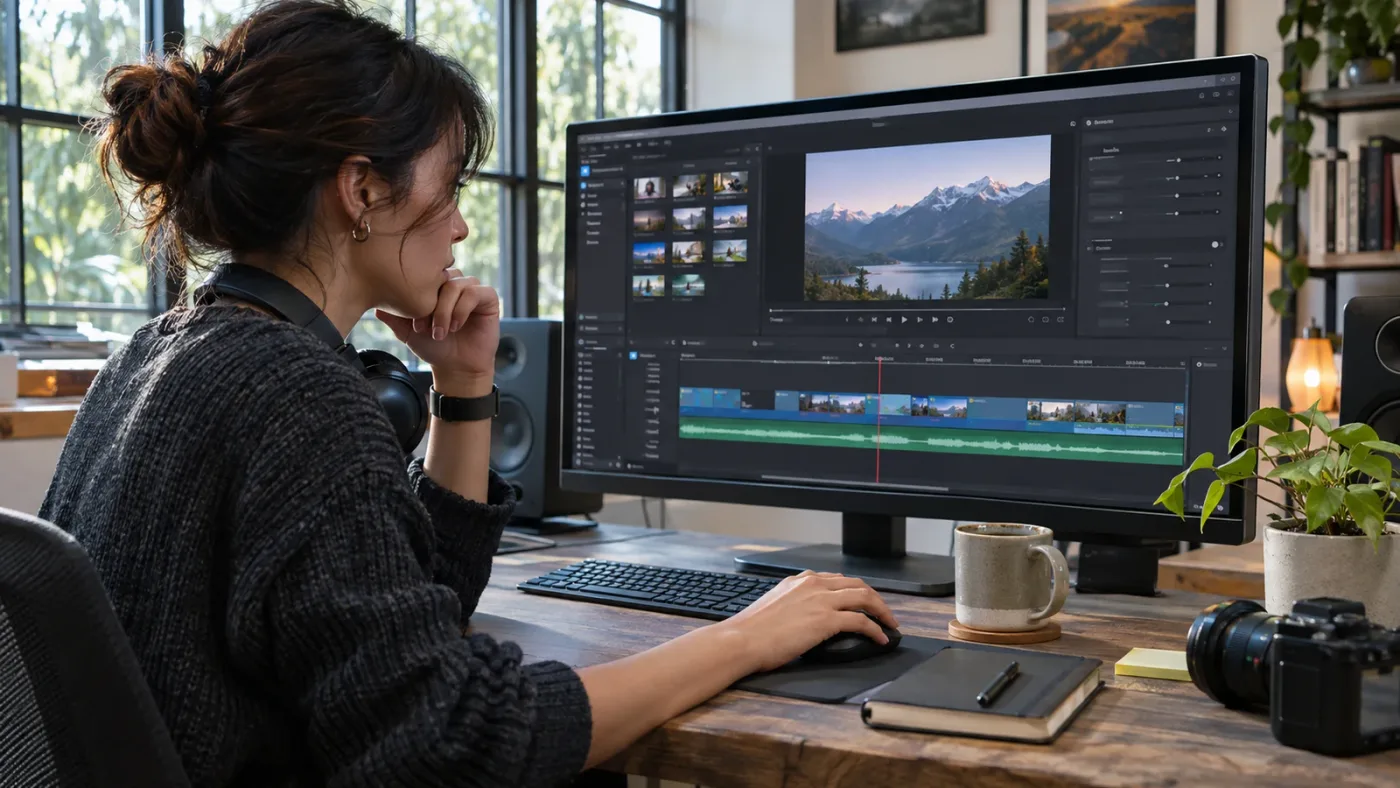
I want the panels I need to be there when I return to an edit. A custom layout preset gives you a named interface arrangement you can load again, instead of rebuilding it every time. As of October 2026, Blackmagic Design lists DaVinci Resolve 21.1, dated September 8, 2026, in its support materials. The menu steps below follow the documented desktop workflow; check your own menus if a later build changes a label.
How do I save a custom workspace layout in DaVinci Resolve?
To save a custom workspace layout in DaVinci Resolve, arrange the panels, then choose Workspace > Layout Presets > Save Layout as Preset. Give the preset a recognizable name and confirm the dialog. To recall it later, choose the saved layout from Workspace > Layout Presets.
The short answer matters because Resolve has several kinds of presets. A workspace layout preset concerns the arrangement of the interface. It isn't the same thing as a preset for project settings, a render preset, or a keyboard mapping. Giving the layout a clear name helps you pick the right one when you have more than one.
- Open the Resolve page you want to arrange, such as Edit, Color, or Fairlight.
- Show the panels that help with the task. Hide panels that get in the way.
- Resize the panels by dragging their dividers. If you use more than one monitor, decide which panels should remain in the main window and which should be available on another display.
- Move to the menu bar and choose Workspace > Layout Presets > Save Layout as Preset.
- Enter a short name that identifies the job the layout supports, such as
Edit - selectsorColor - scopes. - Confirm the dialog.
- Reopen Workspace > Layout Presets and choose the new preset to check that it loads.
Blackmagic Design's DaVinci Resolve Editor's Guide shows the Save Layout as Preset command in that menu path. The Resolve 19 Beginner's Guide also describes saving a customized layout from the Layout Presets menu. Those guides are older than Resolve 21.1, so the reliable check is the menu in your installed version. Don't assume every panel or display behavior is identical between releases.
A named layout preset is a reusable arrangement of Resolve's interface, not a saved edit or a backup of your project.
A simple test is better than trusting the dialog alone: after saving, select another layout or make a small visible change, then load the named preset. Check whether the panels return to the arrangement you intended. That tells you whether you saved the useful state, rather than merely completing a dialog.
If the save command is unavailable, first make sure the Resolve application is active and that you are looking under Workspace, not File, Project Settings, or Keyboard Customization. If the menu item still isn't where expected, search the current manual linked from Blackmagic Design's Support Center, because the exact menu labels may vary by version or context.
What should I arrange before saving a layout preset?
Arrange the interface around one repeatable task before you save a layout preset. Open the page and panels needed for that task, adjust their relative sizes, and close or hide distractions that don't help you work.
A preset works best when it answers a practical question: what do you need to see at the same time? A layout for sorting footage may prioritize a large Media Pool and viewer. A layout for detailed trimming may need more timeline height. A layout for color work may make room for scopes or the node graph. These are starting points, not universal recommendations. Your display size, preferred controls, and current Resolve version will shape the result.
Try this sequence before saving:
- Choose the job. Name a specific activity, such as reviewing footage, trimming an edit, balancing a grade, or mixing dialogue. Avoid trying to make one layout ideal for every task.
- Open the relevant page. Arrange the page you actually use for that activity. A saved arrangement cannot make a different page show the same controls.
- Show only useful panels. Open the Media Pool, Inspector, Mixer, scopes, or other controls you need. Hide panels that take space without helping with the task.
- Resize for the bottleneck. If you need to read the timeline, give it more room. If you are examining an image or waveform, make sure the viewer or relevant panel remains large enough to inspect.
- Check the whole screen. Look at the layout at the display resolution and window size you typically use. A layout that feels comfortable in a maximized window might feel cramped in a smaller one.
- Save under a task name. Name it after the job rather than the date, unless a dated version is important to your workflow.
- Load it once. Confirm that selecting the preset returns the parts of the interface that motivated you to save it.
This approach is more useful than saving a layout while you are still experimenting. If you don't know why a panel is open or why a divider sits at a certain point, the preset may simply preserve clutter. Take a moment to ask what you want to see first when you return to the task.
Blackmagic Design's certified trainer and educator Gedaly Guberek writes, “Different tasks may require different layouts.” The sentence appears in his guide to saving a UI layout as a preset. That's a useful rule of thumb: build presets around recurring work, not around every brief change of preference.
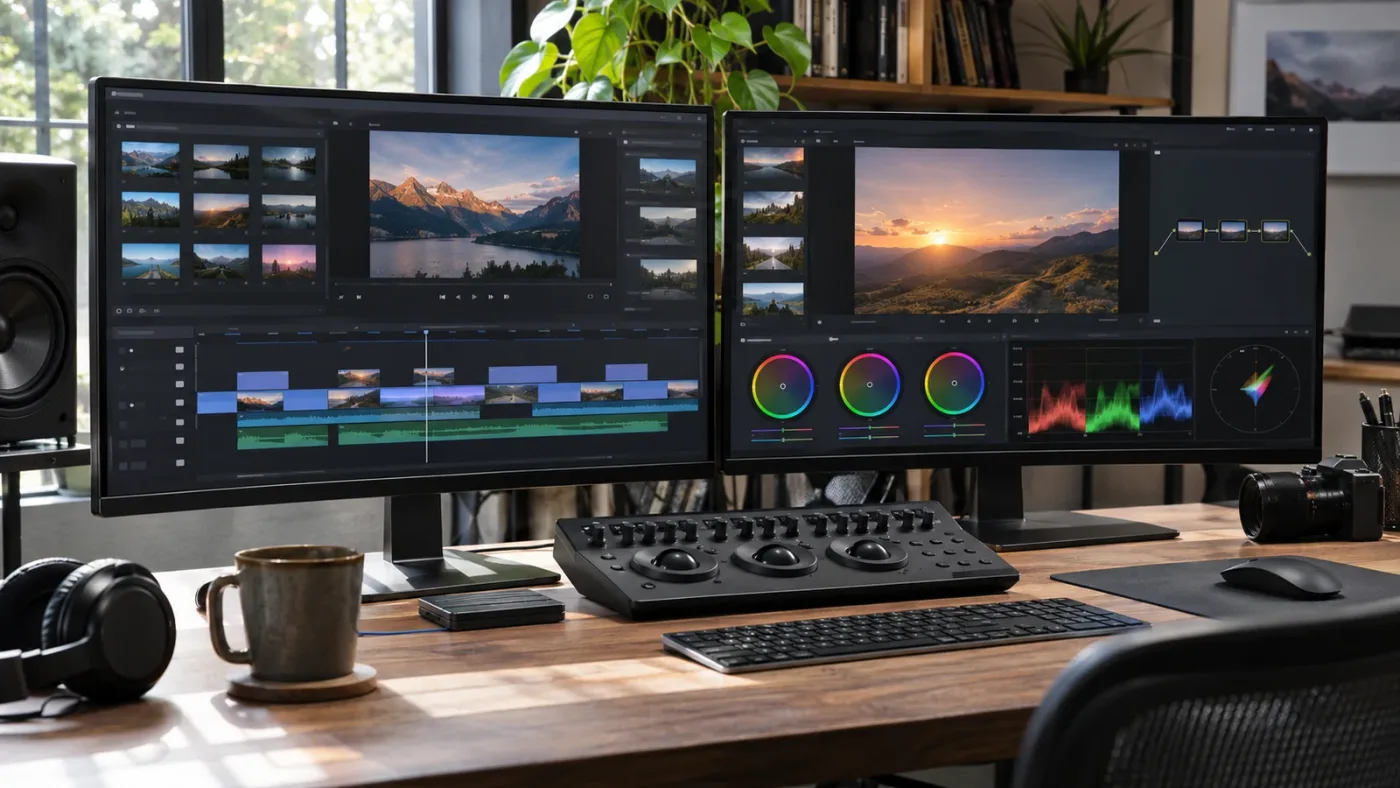
What does a DaVinci Resolve workspace layout preset save?
A workspace layout preset is for the interface arrangement you create in Resolve. Treat it as a way to return to a useful workspace, not as a container for your project's timeline settings, media, or export choices.
That distinction prevents a common misunderstanding. The word “preset” appears in several Resolve workflows, but it doesn't mean all presets store the same kind of information. A layout preset is managed under Workspace > Layout Presets. Project and timeline settings belong to project-level controls, while export choices belong to the Deliver workflow. Keep those jobs separate unless the current manual explicitly documents a combined feature for your installed version.
| If you want to preserve... | Use this mental model | What to check |
|---|---|---|
| The arrangement of interface panels | A workspace layout preset | Load the named preset and inspect the visible panels |
| Timeline dimensions or frame rate | Project or timeline settings | Open the relevant project settings and verify the values |
| Export format or delivery choices | A Deliver-page preset or render setup | Confirm the render settings before queuing a job |
| Keyboard commands | Keyboard customization and its presets | Check the active mapping separately |
| Media, edits, or grades | The project and its backups | Save and back up the project using the appropriate workflow |
The table is a decision aid, not a claim that every item is available in every edition or build. Resolve features and labels can change. Blackmagic's current Support Center points to the Resolve 21.1 reference manual, while the older Editor’s Guide documents the layout preset command. Consult the current manual before relying on a feature-specific behavior that isn't covered here.
A practical example: suppose you save an arrangement with a wide timeline and a visible Inspector, then expect the preset to switch your timeline to a different frame rate. Don't rely on the layout preset for that. Load the layout, open the correct project or timeline settings, and confirm the frame rate there. Likewise, a layout preset shouldn't be treated as a project archive. If your goal is to preserve the edit, media references, and project state, follow a separate project backup workflow.
This separation also helps when you teach or hand off work. You can explain “load my edit layout” without implying that the layout changes the project's contents. If someone opens the same project and sees different settings, check project configuration and the active timeline rather than assuming the workspace preset failed.
Which workspace layout should I save for editing, color, or audio?
Save separate layouts when recurring tasks need different panels or different amounts of screen space. A focused preset is easier to understand and adjust than one layout that tries to anticipate every job.
You don't need many. Start with a layout for the activity you repeat most. If you regularly switch between sorting footage, editing a timeline, grading, and mixing, you can decide whether each switch deserves a separate preset. Only add a preset when it saves you a meaningful setup step or keeps a panel arrangement easy to restore.
| Workflow | What you might keep visible | What to check before saving |
|---|---|---|
| Reviewing and organizing footage | Media Pool, viewer, and relevant clip information | Can you browse and inspect clips without squeezing the viewer too small? |
| Editing and trimming | Viewer, timeline, and controls you use while making edits | Is the timeline tall enough for the tracks you need to inspect? |
| Color correction | Viewer, grading controls, and scopes or node view when useful | Can you read the image and the analysis panels at once? |
| Dialogue or music work | Timeline and audio controls that support your current mix task | Are the track controls and waveform information visible at a workable size? |
| Finishing and delivery | The panels you need to review the timeline and prepare output | Are delivery settings still verified separately from the workspace? |
These are example arrangements, not Blackmagic's required layouts. You may prefer a large viewer, a larger timeline, or different visible panels. A one-monitor workspace can have different constraints from a multi-monitor setup. Keep the layout that helps you see the controls you actually use.
For example, an editor cutting a short interview might keep the viewer, timeline, and Inspector available. When the editor changes to a detailed audio pass, a taller timeline or a different arrangement of audio controls may matter more. The useful distinction is the task, not a claim that one layout is “correct.”
Keep names short and consistent. A naming pattern such as Edit - review, Edit - trim, and Audio - dialogue makes their purpose easier to scan. Don't use names that depend only on a temporary project title if you expect to reuse the preset on other work.
A layout should also leave room for the controls you may need unexpectedly. If a preset hides a panel you regularly need to reopen, reconsider whether that panel belongs in the saved arrangement. If it rarely helps, hiding it can make the main task easier. The best preset isn't the one with the fewest visible controls; it's the one that makes the next useful action obvious without hiding something important.
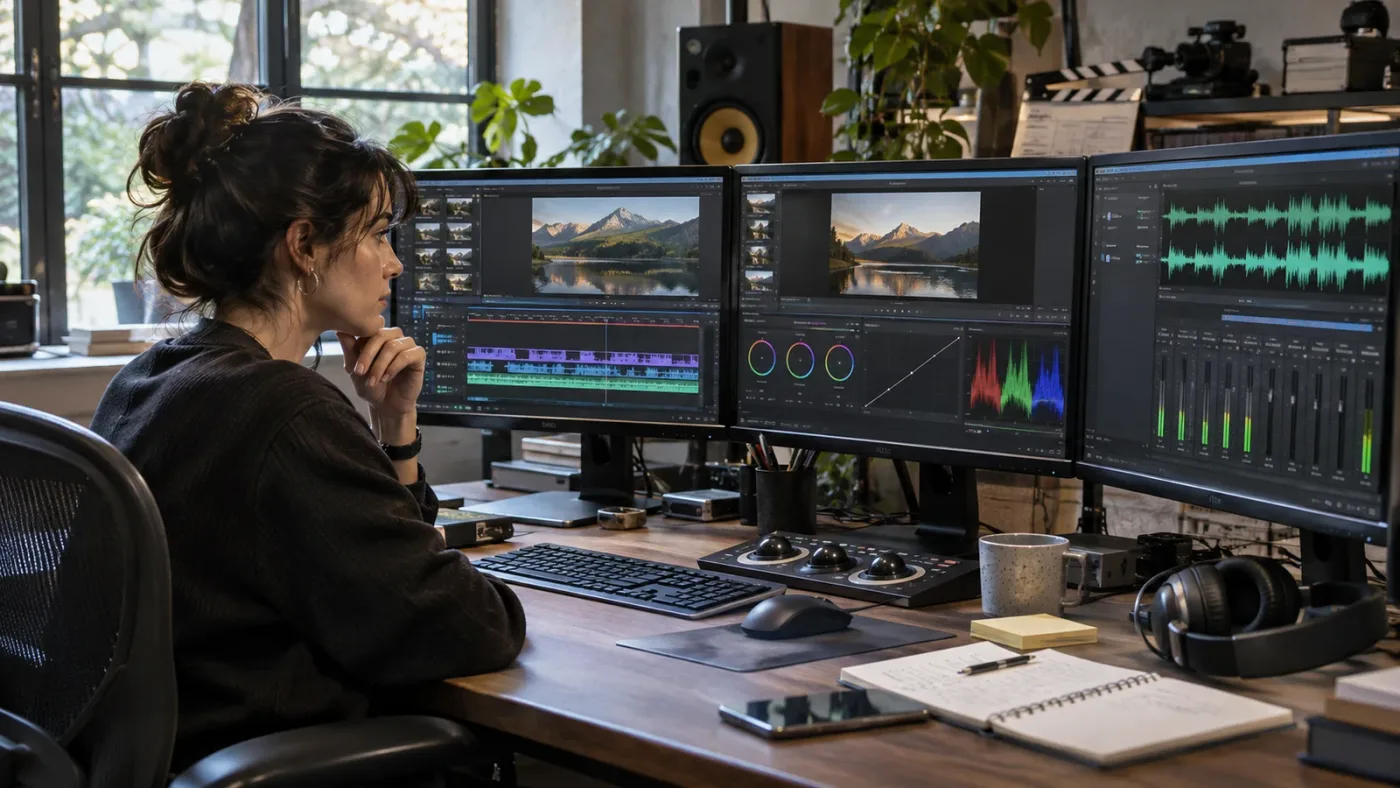
How do I load a saved DaVinci Resolve layout?
Load a saved DaVinci Resolve layout from Workspace > Layout Presets, then select the named preset. Check the visible interface immediately afterward so you can confirm that the preset loaded the arrangement you intended.
The preset name is your cue. If you have several, choose the one that matches the task you are about to do. Avoid selecting an unfamiliar preset simply because it sounds more comprehensive. If you don't recognize its purpose, load it only when you are ready to inspect the result and switch to another layout if it isn't useful.
A tidy verification routine looks like this:
- Open the relevant Resolve project and page.
- Choose Workspace > Layout Presets.
- Select the named layout you want to use.
- Check that the expected panels are visible and placed as you intended.
- If the arrangement isn't right, choose a different preset or use Workspace > Reset UI Layout to return to the default arrangement.
- Once you have a useful arrangement again, save it as a clearly named preset.
Don't judge a preset only by whether the menu item exists. Check the result on the current display and page. Your active workspace context can affect what you see, and a changed window size or monitor setup can make a once-comfortable arrangement feel different.
If a panel is missing, try reopening that panel using its page controls before you replace the whole layout. A full reset is a broader response than a single-panel toggle. If the interface is generally confused or several areas are out of place, Reset UI Layout is a useful recovery option documented in Blackmagic Design's Resolve manuals. Then rebuild just the panel arrangement you need and save a fresh preset.
How do I update, export, import, or delete a workspace preset?
Manage a named workspace preset from its entry under Workspace > Layout Presets. Depending on the operation you need, use that preset's submenu to update, export, or delete it; use the menu's import command to bring in a preset file.
Blackmagic's reference material documents options to update or remove a saved layout and to export and import presets. The menu is the safest place to perform those actions because it exposes the controls available in your installation. Avoid searching for and editing internal preference files by hand. A menu command is easier to verify and less likely to disturb unrelated preferences.
Update a preset after changing the layout
If the arrangement has changed and you want to keep the new version, first load the named preset and make the changes you want. Then open that preset's submenu and choose Update Preset, if that command is available in your version. Confirm the update.
Loading the preset first is a useful safeguard. It makes clear which saved layout you're changing. If you adjust the interface from a different starting arrangement and update the wrong preset, you may replace a useful layout with an unintended combination of panels.
Before updating, ask whether the change is permanent. If you're opening a panel briefly to inspect one clip, you may not want that temporary state saved as your standard layout. If the new arrangement is useful every time you do a certain job, updating the matching preset makes more sense.
Export a preset for another Resolve installation
Use Export Preset from the named layout's submenu when you want to carry the preset to another installation. Save the exported file somewhere you can identify later, such as a clearly labeled project handoff folder or a personal configuration backup location.
Then, on the other installation, use Workspace > Layout Presets > Import Layout as Preset, if that command appears in your version. Select the exported file and give the resulting preset a recognizable name if Resolve asks for one. Load it and confirm the interface on that system.
Exporting a preset is not a substitute for transferring the project, its media, or other settings. It addresses the layout preset. Treat project handoff and workspace transfer as separate tasks, and verify each separately.
Delete an obsolete preset
Choose Delete Preset from the named preset's submenu only when you're sure you no longer need that saved arrangement. If the name is unclear, load it first and inspect what it does before deleting it. A quick rename or a fresh, clearly named preset may be a better choice than removing a layout you might need later.
Keep a small set of useful presets rather than accumulating many nearly identical ones. A long list with names like New, New 2, and New final creates the same uncertainty the presets were meant to remove. Use names that tell you what task the layout serves.

Why did my custom workspace layout not save?
If a custom workspace layout doesn't appear to save, check that you used Save Layout as Preset, confirmed the name, and then selected the new preset from Workspace > Layout Presets. If the menu command is missing or the loaded arrangement differs, check your current version, page, window size, and display setup before rebuilding the layout.
Work through the problem in order. That keeps a small menu or visibility issue from turning into an unnecessary reset.
The preset isn't listed
First, open Workspace > Layout Presets and look for the exact name you entered. If it isn't there, repeat the save command and confirm the dialog. Make sure you are looking at the layout preset menu, rather than keyboard presets or project settings.
If you do see the preset, select it once and inspect the interface. A layout may have saved successfully even if its name is easy to overlook among other entries. Rename the next preset with a task label that stands out from your existing names.
The wrong panel arrangement appears
Load the preset and look at the page and panels that matter. If the result is the wrong arrangement, return to the intended state and save a new preset with a distinct name. Before using an update command, check that you have loaded the preset you meant to change.
Don't update a useful preset just to test whether the command works. Save a separate test layout if you need to diagnose the behavior. Once you confirm the process, you can delete the temporary preset from its submenu.
A panel seems to have disappeared
Check the controls for the current page and reopen the panel you need. The missing panel may be hidden rather than lost. If several areas look unfamiliar, use Workspace > Reset UI Layout to restore the default arrangement, then reopen the panels and save a clean preset.
A reset changes the interface arrangement; it isn't a general repair for a project with missing media, a damaged timeline, or an incorrect export. Use the smallest fix that addresses the visible problem. If only the Inspector is hidden, reopen the Inspector instead of resetting the whole interface.
The layout changes when you switch screens
A preset arranged for one monitor setup may not feel the same after you disconnect a display, change resolution, or move the application window. Restore the screen setup you intend to use, load the preset, and check where the panels appear. If you routinely work with different display setups, consider making and naming separate arrangements for those situations.
Don't assume a preset file contains every operating-system display preference or all details of your workstation. The documented workflow is to save and load the layout preset inside Resolve. For monitor-specific problems, verify your operating-system display arrangement and Resolve's current workspace controls as separate steps.
The menu label doesn't match this guide
This guide follows the documented Workspace > Layout Presets > Save Layout as Preset wording. If your installed build presents a different label, consult the current reference manual from Blackmagic Design's Support Center. The support listing identifies the DaVinci Resolve 21.1 manual, dated September 8, 2026.
Resolve 21 adds a Photo page, according to Blackmagic Design's current product and support materials. If you're working on that page or on a newer build, don't assume an older tutorial's page controls look identical. The general idea remains to use the Workspace layout preset controls, but verify the exact command in the current version.
The preset works on one machine but not as expected on another
Export the preset from the first installation and import it through the Layout Presets menu on the other. Then load it and inspect the arrangement on the receiving display. If the second installation has a different version, page, or monitor setup, compare those conditions before concluding the preset is broken.
A shared preset does not necessarily make two workstations identical. Resolution, monitor count, application window size, user preferences, and available panels can differ. If the exported arrangement is no longer suitable, adjust it on the new machine and save a local version with a name that distinguishes it from the original.
When troubleshooting, note your Resolve version, operating system, number of connected displays, active page, and the exact menu command you used. Those details make a support question more useful than “the layout is broken.” Blackmagic Design directs users to its support resources and forum through the Support Center.
If you need the exact control identified while working in your own project, Uncle can point you toward the relevant button on your screen.
Should I use one layout or several?
Use one layout if you do most of your work in the same page and rarely change the panel arrangement. Save several when you repeatedly switch between tasks that benefit from distinctly different views.
More presets aren't automatically better. Every extra layout creates another choice, and poorly named choices slow you down. Start with one arrangement that solves a real annoyance. Add another only when you can name the task it supports and explain what changes between the two.
A quick decision test:
- Keep one layout if you mainly edit in one page and only make occasional panel changes.
- Create a second layout if switching tasks repeatedly means reopening or resizing the same panels.
- Create task-based layouts if the work clearly changes, such as moving from timeline edits to color or audio.
- Export a layout if you need to carry that interface arrangement to another Resolve installation.
- Reset the UI if the whole interface is difficult to recover, rather than if one panel is simply hidden.
A worked example: say you edit interviews on one display and occasionally do a dedicated audio pass. Your first preset might keep the viewer, timeline, and editing controls easy to reach. Your second might give more room to the timeline and the audio controls you use during the mix. Those arrangements are examples, not measured productivity improvements or required settings. Test them on your own system and keep only the one that actually helps.
If you're building a repeatable editing routine beyond panel placement, the guide to moving the timeline up in DaVinci Resolve covers a related workspace adjustment. If your main concern is seeing more of the image, use the troubleshooting guide for a DaVinci Resolve viewer zoomed in too far.
What if a tutorial shows a different DaVinci Resolve layout?
A tutorial may show a different DaVinci Resolve layout because the creator has resized panels, opened different controls, chosen another page, or used a different version. Compare the page and control names before you try to copy the arrangement exactly.
A saved layout can help you return to your own preferred setup, but it can't make every tutorial match your screen. A video recorded in another release may use older labels or show a different arrangement. Blackmagic Design's training page includes separate Resolve learning material for editing, color, Fairlight, and Fusion, and its training videos have different runtimes. For example, the official page lists an Introduction to Editing video at 1 hour 9 minutes and an Introduction to Color video at 1 hour 33 minutes. Those are separate lessons for different work, not evidence that every user needs the same interface layout.
When you follow a tutorial, try this:
- Identify the page the instructor is using.
- Look for the control by its name, not only by its position.
- Reopen the relevant panel if it is hidden.
- Use a layout preset when you want to return to your own preferred arrangement afterward.
- Check the manual for your Resolve version if a control is missing or the menu label differs.
The official training materials are a good place to learn the named features and page workflows. A custom layout preset solves a different problem: it saves an interface arrangement you want to revisit. It doesn't replace training, supply a missing control, or guarantee the tutorial's screen will match yours.
If you're stuck because the panel arrangement itself is confusing, TryUncle is the on-screen assistant for DaVinci Resolve on Mac and Windows — ask in plain words and Uncle points at the exact control on your screen.
How do I keep my layout easy to maintain?
Keep the preset list small, give each layout a task-based name, and review it when your work setup changes. A saved layout is useful when you can recognize it and trust what it will show.
A few habits help:
- Use plain names.
Edit - reviewis easier to understand thanLayout 3. - Separate temporary experiments. Save a test arrangement under a temporary label rather than overwriting a preset you rely on.
- Check after an update. When Resolve changes version, load the layout and verify the panels you depend on.
- Review after changing displays. A different monitor arrangement can change how useful a preset feels.
- Keep project safety separate. Back up projects and media using their own workflow; a layout preset is not a project backup.
- Export deliberately. If you want the same arrangement on another installation, export and import the preset using Resolve's menu commands.
These checks take less effort than rebuilding an interface from memory, but don't turn them into busywork. If you use one layout every day and it still works, leave it alone. If you rarely use an old preset and don't remember what it does, load and inspect it before deciding whether to update or delete it.
The most important habit is verifying the result after any change. Save the layout, load it, and confirm the interface is useful for the next task. If it isn't, adjust the workspace and save a better-named version.
Save the arrangement you want to reuse, then load it once to verify it works on your screen.
Frequently asked questions
How do I save a custom workspace layout in DaVinci Resolve?
Arrange the panels you want, then choose Workspace > Layout Presets > Save Layout as Preset. Name the layout and confirm. To use it later, choose it from Workspace > Layout Presets.
Where does DaVinci Resolve save workspace layout presets?
Use Workspace > Layout Presets to manage a saved layout. The preset's submenu provides available actions such as loading, updating, exporting, or deleting it. To use the arrangement on another installation, export the preset and import it there.
Can a DaVinci Resolve layout preset save project settings too?
Treat the layout preset as an interface arrangement. Verify project, timeline, and delivery settings separately in the controls for those tasks rather than assuming a workspace layout includes them.
How do I restore the default DaVinci Resolve workspace?
Choose Workspace > Reset UI Layout to return the interface to its default arrangement. If just one panel is hidden, try reopening that panel before resetting the whole layout.
A custom DaVinci Resolve workspace layout is easiest to trust when it has a clear task name and you’ve confirmed it loads as expected.
Frequently asked questions
- How do I save a custom workspace layout in DaVinci Resolve?
- Arrange the panels and page layout you want, then choose Workspace > Layout Presets > Save Layout as Preset. Enter a name, confirm, and load it later from the same Layout Presets menu.
- Where does DaVinci Resolve save workspace layout presets?
- Use Workspace > Layout Presets to load, update, export, or delete a named preset. If you need to use it on another installation, export it from that menu and import the preset there.
- Can a DaVinci Resolve layout preset save project settings too?
- Treat a layout preset as an interface arrangement, not as a project-settings preset. Set project or timeline properties separately and verify those settings in the project where you need them.
- How do I restore the default DaVinci Resolve workspace?
- Choose Workspace > Reset UI Layout to return the interface to its default arrangement. This is a layout reset, so use it to recover the interface, not as a way to change project media or timeline content.
Sources
Learn by doing, not watching
Stop translating tutorials to your timeline.
TryUncle stays beside Resolve on Mac and Windows. When you ask, Uncle sees your screen and points at the exact control you need. No hunting through tabs, timestamps, or mismatched tutorials.
Meet TryUncleKeep reading
 FixesSep 28, 202643 min read
DaVinci Resolve Viewer Zoomed In Too Far? Fix It
Is your DaVinci Resolve viewer zoomed in too far? Reset Fit, separate viewer zoom from clip Transform, and fix crop and aspect-ratio causes.
 GuidesSep 28, 202638 min read
How Do I Move the Timeline Up in DaVinci Resolve?
Move the DaVinci Resolve timeline higher, resize its tracks, or move clips up to another track with the right drag and keyboard shortcut.
 GuidesNov 24, 202627 min read
How to Learn DaVinci Resolve With Five Hours a Week
A practical 12-week DaVinci Resolve learning plan built around five focused hours a week, one finished project, and repeatable practice.