
Learn / DaVinci Resolveupdated for DaVinci Resolve 21.1 (October 2026)
DaVinci Resolve Blade Tool Cuts Wrong Track? Fix It
Quick answer
If the DaVinci Resolve blade tool cuts the wrong track, the blade usually split the clip directly under the pointer, not the clip you meant to target. Zoom in, move the pointer into the intended clip body, confirm the correct timeline and track, then click. To cut every intersecting clip at the playhead, use the playhead split command instead.
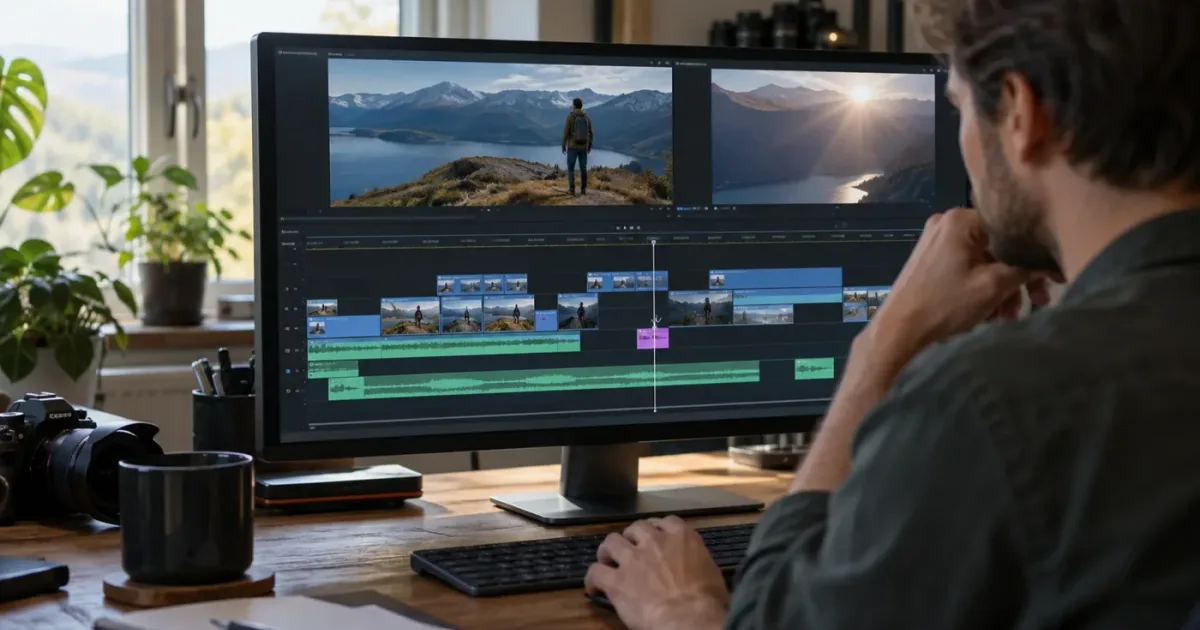
If the DaVinci Resolve blade tool cuts the wrong track, the first thing to check is where the blade cursor actually landed. In Blade Edit Mode, clicking a clip splits the clip under the pointer. It does not mean “cut whichever track I have selected,” and it does not automatically mean “cut every track at the playhead.” As of October 2026, Blackmagic Design lists DaVinci Resolve 21.1 as the current release, and the core blade workflow remains a pointer-targeted edit.
We built and run a 100,000+ member professional video-editing community, and timeline targeting is one of the recurring questions editors bring when stacked footage and audio stop behaving as expected. The useful habit is to identify the command before changing settings: a blade click, a playhead split, a ripple delete, and a trim-to-playhead operation do different jobs. This guide separates them so you can undo safely, find the cause, and make the cut you intended.
Why does the DaVinci Resolve blade tool cut the wrong track?
The DaVinci Resolve blade tool cuts the clip under the blade cursor, so a pointer that drifts onto an adjacent track can split that track instead. The red playhead is a time reference, while the mouse pointer identifies the clip for a blade click.
Blackmagic's training guide describes the tool plainly: with Blade Edit Mode selected, “anywhere you click in the timeline will divide that clip.” The wording matters. The blade is not a track-selection mode. It is a cursor mode that acts on the clip the click hits. In another official guide, Blackmagic shows the Blade Edit Mode shortcut as B, then instructs the reader to put the pointer on the intended interview clip and click to add the edit point. (Sources: Blackmagic Design's Editor's Guide to Resolve 17 and Resolve 18 Editor's Guide.)
That explains a common “wrong track” report. A video clip is on V1, a music bed is on A1, and perhaps a voice-over is on A2. If you press B and click inside the visible music clip, Resolve has no reason to infer that you meant the video above it. The click location is the instruction. The cursor can look close to the clip you intend, especially when track heights are small or the interface is scaled, but a few pixels can put the point inside a different track's clip.
Blade Edit Mode cuts the clip beneath the pointer, not the clip you happen to be thinking about.
The playhead creates a second source of confusion. It is a vertical line crossing the timeline, so editors often expect a blade click near it to cut all clips it intersects. But the pointer click and the playhead split are separate operations. The Resolve 17 training guide demonstrates clicking an audio clip at the playhead to split only that clip. Casey Faris explains the same distinction in his 2026 Resolve 21 course: “wherever I click, that's going to split whatever clip I click on.” He then contrasts that with using the keyboard command to split at the playhead. (Sources: Blackmagic Design's Resolve 17 Editor's Guide and Casey Faris's Resolve 21 course transcript.)
If the blade seems to cut a different track only sometimes, look for a local cause before assuming the tool is inconsistent. Perhaps the clips overlap vertically, the track header is compressed, the target clip begins or ends near the click, or a linked audio component splits together and makes the result look like a track-selection error. Those are different conditions with different fixes.
The shortest safe test is to undo the cut, enlarge the timeline vertically, and click near the center of the intended clip rather than near its edge. If the correct clip splits, the problem was pointer placement. If another clip splits, zoom farther and inspect the cursor tip, not just the blade icon. If more than one linked component changes, test Linked Selection separately. If the cut occurs at a different time than the click, check whether you used a playhead command or a custom shortcut instead of a plain blade click.
This is why the phrase “wrong track” needs a little diagnosis. It can describe at least four outcomes: the wrong clip was split; the right video and its linked audio both split; every track was split at the playhead; or the clip was cut correctly but a later ripple operation changed other tracks. The fix depends on which outcome you see, so pause after one test cut and inspect the timeline before making several more.
How do I undo the wrong blade cut without damaging the edit?
Undo once immediately after an unintended blade cut, before moving, deleting, or trimming anything else. One undo reverses the most recent edit and preserves a clean point from which to inspect the cause.
If the playhead or pointer is still near the cut, use the application’s Undo command once. Then check whether the split disappeared from the intended clip, the unintended clip, or both. Do not start by deleting the new edit point: deleting a cut can mean removing a clip segment, and that is a different operation. If you have already made several changes since the cut, do not repeatedly press Undo without looking. Resolve will reverse each intervening action too.
The inspection is simple. Did the clip become two adjacent pieces with no gap? Did a linked waveform or video thumbnail split at the same time? Did the timeline shift? Did a gap appear? A blade cut normally creates an edit point without shortening the overall timeline. A ripple delete or ripple trim can move downstream material. That visible difference helps identify whether the original action was really a blade click or whether a keyboard command or follow-up edit also ran.
Before trying again, make a small, reversible test on a duplicate or expendable timeline if the project is complex. For a short edit, duplicate the timeline from the Media Pool or create a version using the project’s existing backup workflow. This is especially helpful when the project contains multicam clips, synced audio, nested timelines, or many tracks with different sync roles. Do not create a duplicate merely to fix a single obvious misclick in a simple timeline; undo is enough.
Use the following quick record if the problem repeats. It prevents the common habit of changing several controls at once and losing the clue:
| What changed after the click? | Most likely cause to inspect first | Safe next check |
|---|---|---|
| Only a clip on the adjacent track split | Pointer landed on that clip | Zoom in and target the center of the intended clip |
| Video and its linked audio split together | Linked Selection or linked media behavior | Undo, then toggle Linked Selection for a controlled test |
| Several clips split on the same vertical line | Playhead split command or a multi-clip blade operation | Check the command name and shortcut used |
| Timeline content shifted after the cut | Ripple delete, ripple trim, or another downstream operation | Undo the ripple action and inspect track Auto Select participation |
| Nothing happened on the intended track | Track may be locked, clip may not be under pointer, or wrong timeline may be active | Confirm track lock, page, timeline tab, and cursor position |
Keep the test narrow. Change only one variable, make one cut, inspect it, then undo. If you toggle Linked Selection and also alter track selectors, change zoom, and switch pages before testing, a successful result will not tell you which change mattered.
Undo first, diagnose second, and make the next blade test on one clearly visible clip.
How do I cut only one track in DaVinci Resolve?
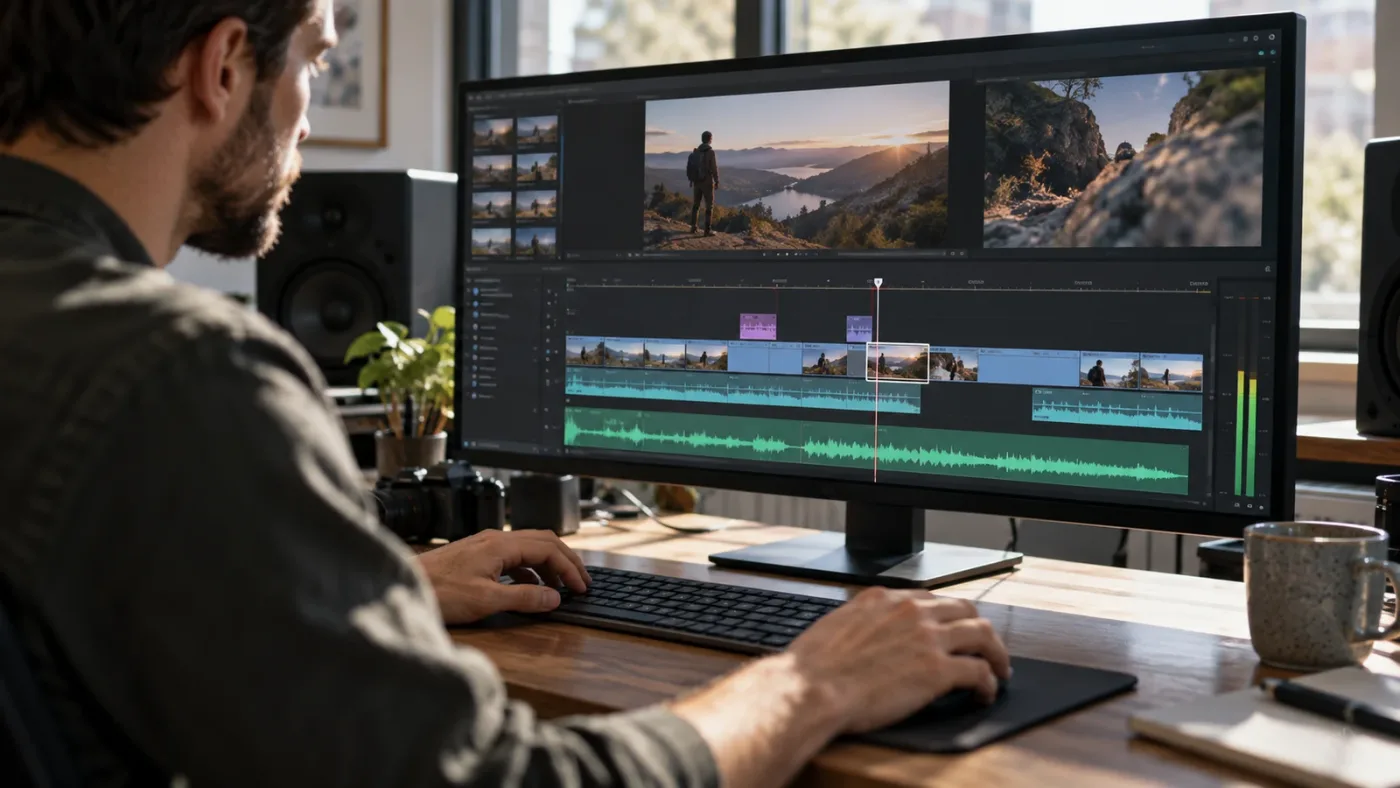
To cut only one track with Blade Edit Mode, press B, place the blade cursor inside the intended clip on that track, and click once. A blade click targets the clip under the pointer; it is not a command to split every clip crossing the playhead.
Start in the Edit page if you want the conventional multitrack timeline view. Confirm the correct timeline tab is active. Press B and pause. Move the cursor over the body of the clip you mean to split, away from the track boundary and away from the clip's first or last few frames. When the cursor is clearly inside the target clip, click once. Then press A to return to the normal selection tool, or choose the Selection Mode button in the timeline toolbar. Inspect the new edit point before you continue.
For a video-only cut, aim at the video clip itself. For an audio-only cut, aim at the waveform or audio clip body on the audio track. A linked audio-video source can create an extra wrinkle: depending on selection and linkage behavior, clicking one component may split both linked components. That can be intended when maintaining sync, but it can look like the tool cut the wrong track when you expected an isolated video edit.
The easiest way to remove pointer ambiguity is to change the timeline view temporarily. Increase the target track's height by dragging its divider in the track header area. Zoom in horizontally with the timeline zoom control or keyboard/mouse method you already use. Make the clip taller and wider in the interface, not longer in time. The goal is not to alter the edit; it is to create a larger safe click area.
Aim for the center of the clip body. Avoid clicking on a track header, a clip boundary, a transition, a keyframe overlay, or the narrow gap between stacked clips. If a track contains many short edits, zoom until you can distinguish the individual clip bodies. If you are working with a very short sound effect or a one-frame edit, use a playhead-based command with a known time position rather than trying to click a tiny target.
The track header is still useful, but for a different reason. It tells you which lane is V1, V2, A1, A2, and so on, and it contains controls such as lock and Auto Select. Blackmagic's Edit page overview specifically describes track targeting, locking, and sync tools in timeline headers as controls for managing complex multitrack edits. Those controls are not interchangeable with the blade cursor's clip target. (Source: Blackmagic Design's Edit page overview.)
If a clip is stacked directly above another and both have identical in and out points, it is easy to mistake a one-track cut for a multi-track cut. Temporarily solo or mute tracks only if that helps you identify the visible item, and restore those monitoring states afterward. Muting or hiding a track is not a substitute for locking it, and neither is a substitute for placing the blade over the intended clip.
For editors who prefer keyboard work, use a command that names the intended action rather than assuming the blade cursor is track-aware. Resolve lets you customize and save keyboard shortcuts; Blackmagic documents the Keyboard Customization window and says the interface lists available commands and current assignments. Search there for “Blade Edit Mode,” “Split Clip,” and “Razor” to see the actual key assignments in your preset. Do not copy a shortcut from a tutorial until you know whether the instructor uses the DaVinci Resolve preset or a different preset. (Source: Blackmagic Design's shortcut documentation.)
Resolve 21.1 is the version listed by Blackmagic Support as of October 2026. The basic pointer-versus-playhead distinction is demonstrated in the official Resolve 17 and 18 guides and in a Resolve 21 course, so the explanation is relevant across those documented versions. If an interface label or shortcut differs in your installation, use the menu command name and the Keyboard Customization window as the authority for your own preset. (Sources: Blackmagic Support and Casey Faris's Resolve 21 course.)
When you need to cut a single music bed but keep the dialogue intact, do not simply assume that the playhead will isolate the selected audio track. Put the playhead at the desired frame, use the blade cursor on the music clip, and confirm the dialogue clip did not split. If the dialogue must remain continuous and a split would create avoidable edit points, choose an audio trim or automation approach instead of cutting. A cut is useful only if you need a boundary for a later edit.
When you need to cut a single video layer while preserving a continuous sound bed, click the video clip, inspect the audio, and only then proceed. If linked audio splits too, that can be useful for a synchronized picture edit. If the bed is music or separately recorded narration, it may not belong to the linked source and should remain untouched. The right workflow depends on how the media is linked and what you intend to move later.
When you are cutting a multicam sequence, first identify whether the timeline contains an unflattened multicam clip or separate angle clips on multiple tracks. A cut to one multicam wrapper is not the same as a cut across every separately flattened angle. The multicam editing workflow for interviews is a focused companion if you are specifically editing several camera angles.
If you can reproduce the wrong-track cut on a single clearly visible clip, stop and inspect the cursor location. If you cannot reproduce it, the original timeline may have been too dense to target reliably or the click may have landed near a boundary. The fix is usually better targeting, not a global setting change.
How do I split every clip at the playhead instead of clicking one track?
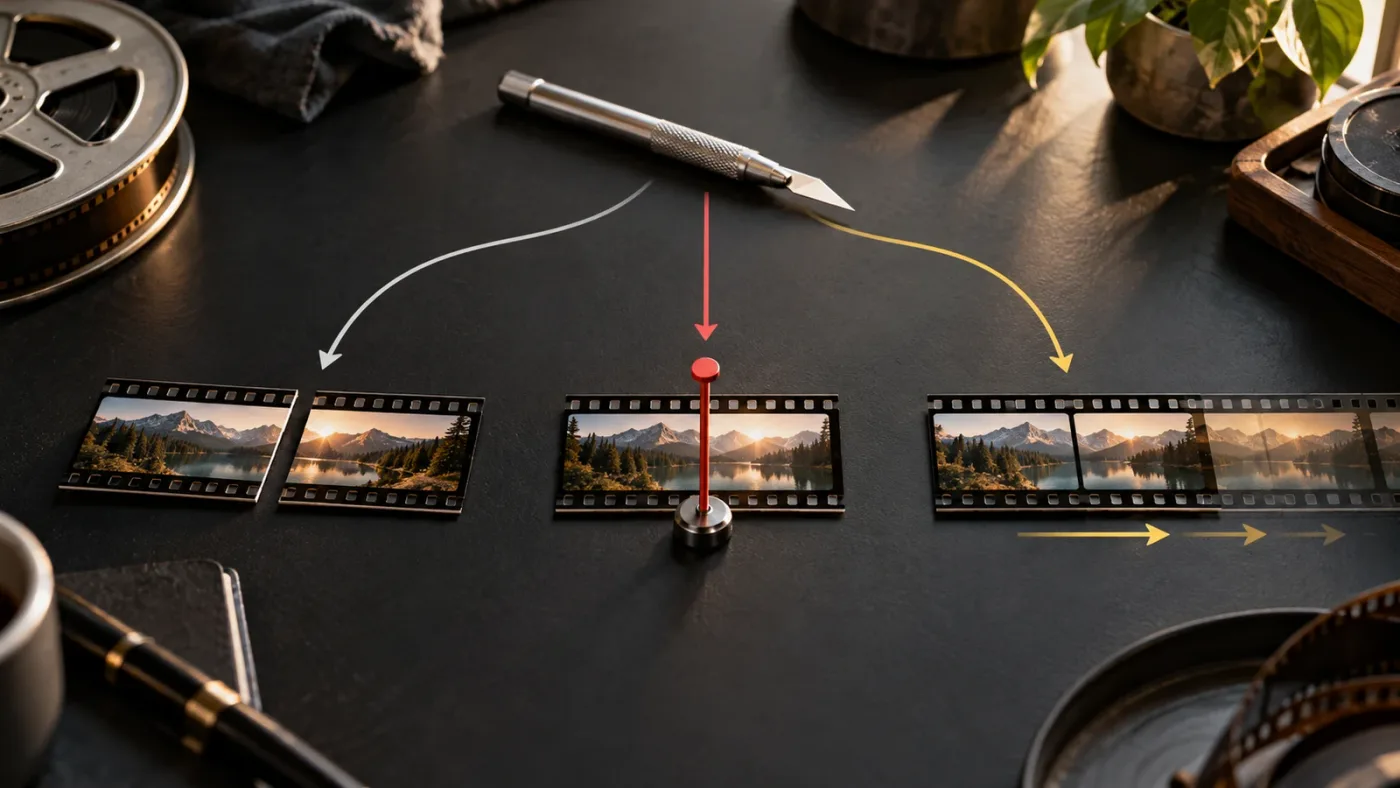
Use a playhead split command when you want clips crossing the playhead divided at that time; use Blade Edit Mode when you want to click a particular clip. The correct command and shortcut can vary with the selected keyboard preset or a custom mapping, so confirm it in Resolve before relying on a remembered key combination.
Move the playhead to the exact frame, confirm the intended timeline is active, and choose the Split Clip command from the menu or the shortcut shown in Keyboard Customization. In some common DaVinci Resolve presets, the command is assigned to a Control-plus-backslash combination, but custom presets can differ. Casey Faris demonstrates that default in his Resolve 21 beginner course and contrasts it with a click in Blade Edit Mode, which divides the clip under the cursor. Check the assignment in your own installation before using it. (Source: Casey Faris's Resolve 21 course transcript.)
“Every clip” also needs qualification. A split command may affect clips on eligible tracks that intersect the playhead, but track locks and command-specific targeting rules affect what can be changed. If your goal is to cut video and its synchronized production audio at the same moment, confirm which tracks should participate and inspect the result after the command. If your goal is to cut just one voice-over or a music track, use the blade cursor on that clip instead of a broader playhead command.
Do not use Auto Track Select as a guess for “cut all.” Auto Track Select is a track-participation control used by operations that select, move, or ripple material across tracks. Community replies in the Blackmagic forum describe Auto Track Select as affecting which clips are selected for operations such as selection follows playhead. The official Resolve 17 guide also explains that Auto Select affects ripple deletion across tracks, including whether downstream audio remains in sync. That is useful evidence about track participation, but it is not a reason to assume that an ordinary blade click will ignore the pointer. (Sources: Blackmagic Design forum discussion and Resolve 17 Editor's Guide.)
If only some tracks split at the playhead, inspect the lock icons and track participation controls. A locked track should not be edited in the same way as an unlocked track, but unlocking every lane just to force a cut creates risk. Enable only the tracks that should be affected by the operation, make the split, and verify. If the interface is unfamiliar, a controlled copy of the timeline can help reveal the behavior without changing the working cut.
There are three different requests that people often compress into “cut at the playhead”:
- Split this one clip at the playhead. Select or target the clip, then use the command that splits the selected clip at the playhead. Check the command name in your shortcut list.
- Split each relevant clip that crosses this time. Use the timeline split command and confirm the target tracks are eligible.
- Cut only the clip beneath my pointer at the playhead. Use Blade Edit Mode and click that clip while the pointer snaps to or sits on the playhead.
The third operation can appear to combine the first two because the blade cursor snaps to the red playhead. Snapping controls where the click lands in time; it does not necessarily broaden the operation to every track. The pointer still supplies the clip target.
Which method is safer for dialogue, music, and B-roll?
For dialogue, cut the linked camera and production audio together when the edit needs to preserve sync, then check the result in playback. For music, usually cut only the music clip when you are building a fade or removing a section. For B-roll, cut the visual layer you intend to replace while leaving the underlying interview audio untouched.
These are starting points, not universal rules. A documentary interview may use separately recorded audio and need a deliberate multicam or sync workflow. A music video may require picture and beat-synchronized audio cuts. A B-roll insert may be linked to its own camera scratch audio, but that scratch track may not be part of the final mix. The correct track set follows the edit's purpose, not the order in which tracks appear.
Before a broad playhead split, ask: “Which items must share this edit point?” Name the video angle, the production audio, any scratch audio, music, narration, and graphics. If you cannot name a reason for cutting a lane, leave it out of the operation and make a narrower edit.
A playhead split is for aligned edits; a blade click is for the clip under the pointer.
Does Auto Track Select control which track the blade cuts?
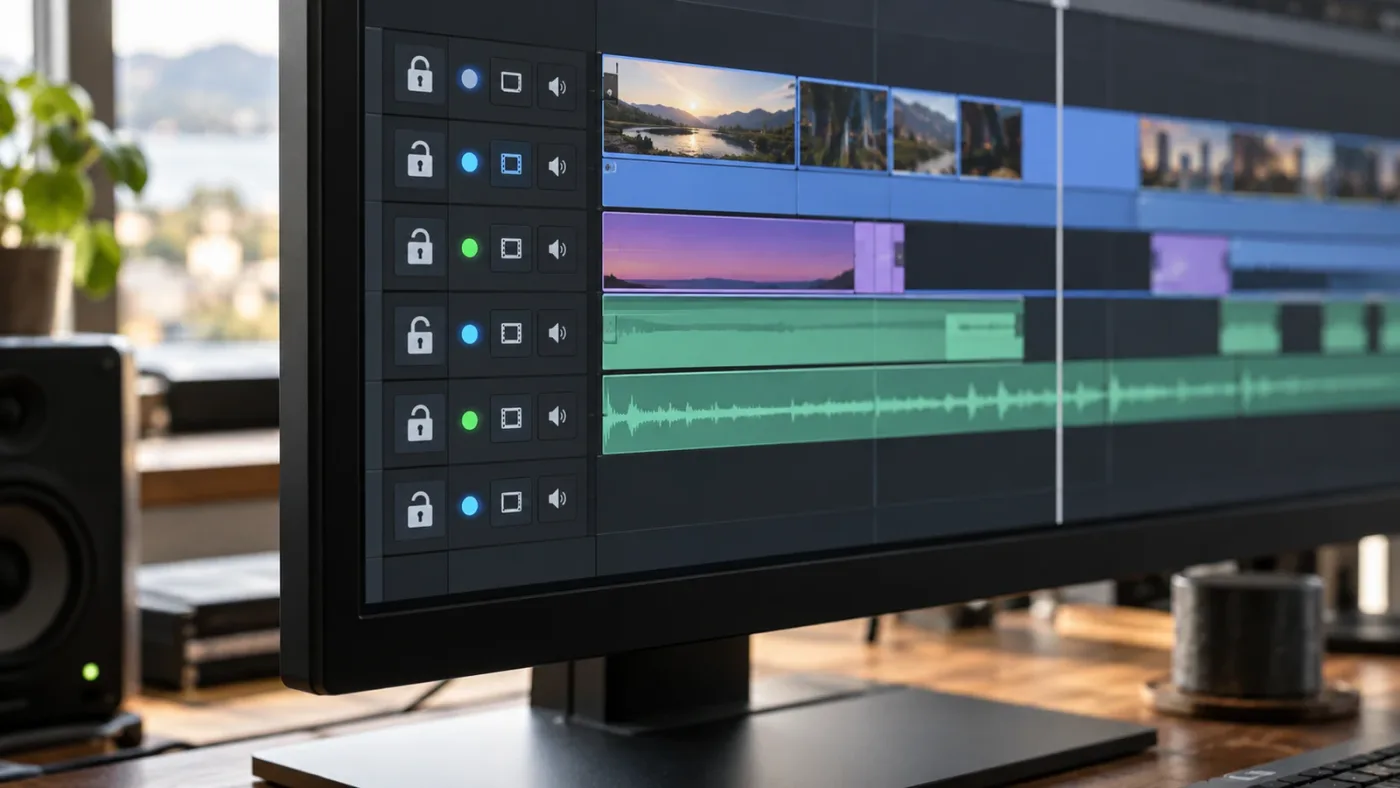
Auto Track Select chiefly controls which tracks participate in selection and timeline operations; it does not replace the blade cursor's pointer target. When an edit appears to affect the wrong lane, inspect Auto Track Select after you identify the actual command used.
Resolve's track header contains several distinct controls. Track lock protects a track from edits. Auto Track Select marks a track for certain selection and timeline operations. Track enable or output controls can affect whether media is active or visible. Mute and solo change audio monitoring. These are not equivalent switches, and changing one will not necessarily correct a cursor that was placed over the wrong clip.
Why do people connect Auto Track Select to the blade? Because the wrong-track symptom often appears after a cut followed by another edit. The blade splits an intended clip, then a ripple delete removes a section and downstream material moves on tracks the editor did not expect. The original blade cut may have been correct; the ripple operation may have included tracks based on their Auto Select state. Blackmagic's Resolve 17 guide explicitly shows a ripple delete and explains that the audio remains in sync because Auto Select is enabled on the tracks. It then instructs the learner to disable Auto Select on Audio 1 and repeat the action to see the difference. (Source: Blackmagic Design's Resolve 17 Editor's Guide.)
That is a consequential difference. A blade cut creates a new boundary. A ripple delete removes a section and closes the resulting duration by moving later material. Auto Select matters to the second kind of operation, not as a substitute for deciding which clip your blade click hits. If your symptom is “the cut is correct, but the audio or other tracks moved afterward,” diagnose Auto Select and the ripple command. If the wrong clip itself split, diagnose pointer placement first.
The Blackmagic forum can be useful for seeing how editors reason about Auto Track Select, but treat forum posts as user reports rather than definitive version documentation. A forum participant describes unselecting Auto Track Select on clips they do not want selected and notes the separate audio-track behavior. That supports the idea that the control affects selection-related operations. It does not establish every blade-tool rule for every version. (Source: Blackmagic Design forum discussion.)
To test Auto Track Select without risking an edit, use a small timeline copy or a harmless section near the end. Keep the same playhead position and command. Toggle only one track's Auto Select state, repeat the operation once, and compare. Undo after each trial. Do not infer that a setting fixes the blade if the only thing you changed was a downstream ripple behavior.
If you intentionally want a ripple edit to preserve sync, the relevant audio and picture tracks usually need to participate together. If you want to ripple only one isolated audio track, keep the other tracks out of that operation and verify the result. The exact arrangement depends on whether your project uses linked clips, sync locks, nested sequences, or manually aligned media. Use the controls to express the desired edit, then check the start time of clips downstream.
One useful diagnostic is to inspect a clip after the operation but before playback. If the edit point appears in the right place and no clip has moved, the blade stage worked. If downstream clips have changed position, the follow-up command is the likely culprit. If the visible cut itself landed on a different lane, Auto Select is less likely to be the direct cause than pointer position, track overlap, or a different shortcut than you intended.
Why did the blade cut linked audio and video together?
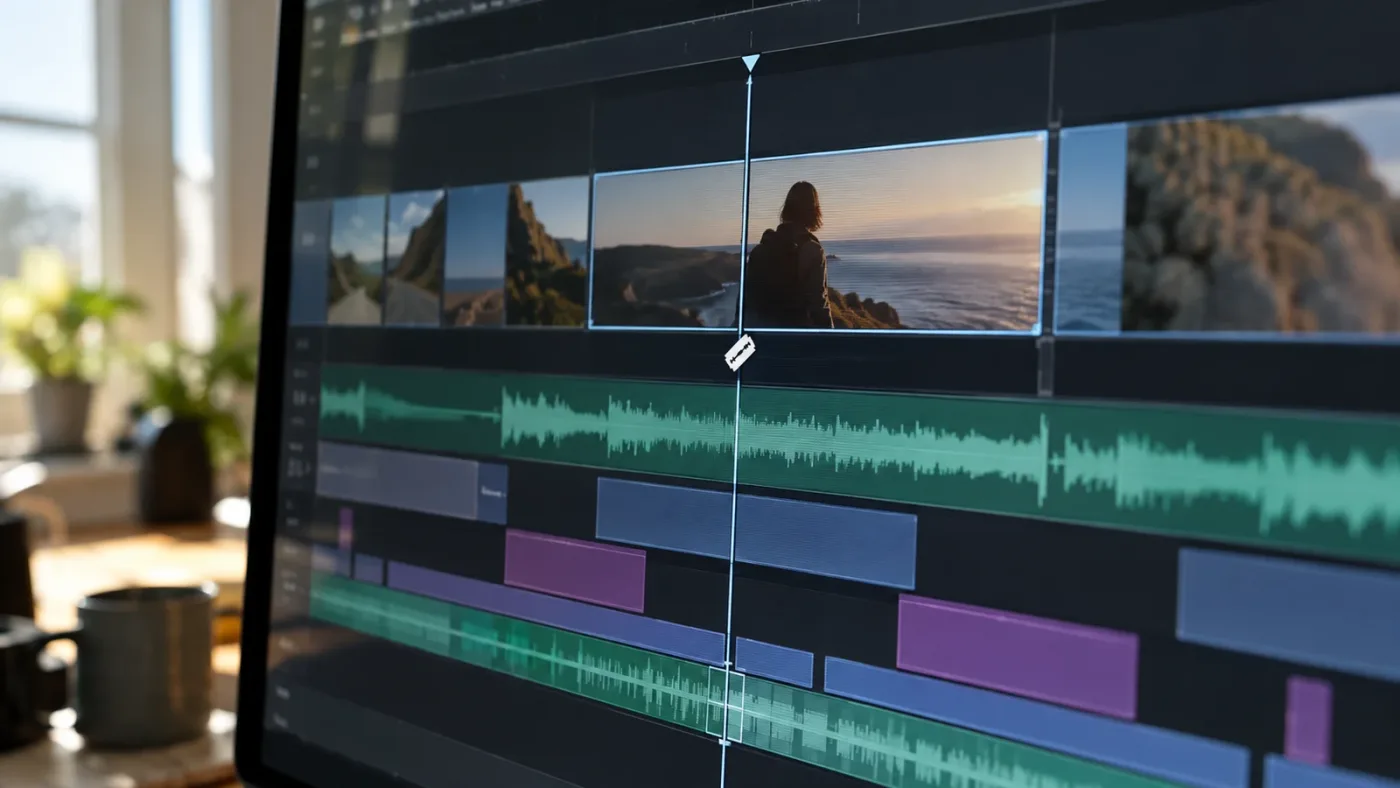
Linked Selection can make linked audio and video behave together during selection and editing, so one apparent video cut may also create an audio edit point. That can be correct for synchronized camera media, but it is not the same as the blade selecting a different track.
The first question is whether the audio and video are linked. If they are linked, Resolve can treat them as related components so they stay together during common editing actions. The chain-shaped Linked Selection control in the timeline toolbar is the control to inspect. Its exact visual state can be subtle, so hover for the tooltip or check the menu command rather than guessing from a small icon.
If you want a video-only cut for a J-cut, L-cut, or picture replacement, undo the combined edit and temporarily disable Linked Selection, or use the appropriate unlink or track-specific operation for your workflow. Then make the cut on the video clip and inspect the audio. Re-enable Linked Selection afterward if you rely on it for later synced edits. Do not leave it disabled by accident and then move a camera clip without its corresponding audio.
If you want the audio and video to split together, leave the linked relationship active and make the cut where you intend. A synchronized interview, documentary sync clip, or camera original with scratch sound may benefit from a joint edit. You still need to place the blade over the correct linked item. Linked Selection cannot make a pointer target accurate when multiple clips are stacked under the cursor.
Selection and linkage are easy to conflate because both can change which objects respond. Think of Linked Selection as a relationship between related clips. Think of the blade pointer as the location of the operation. Think of Auto Track Select as eligibility for certain track-level operations. Think of track lock as protection. Keeping those four ideas separate resolves many “Resolve cut the wrong track” puzzles.
Why did only one side of a linked clip split?
If only one component split, the media may not be linked, Linked Selection may be off, or the components may be separate clips that only happen to line up visually. Check for the chain indicator or select the clip and inspect whether its audio and video components select together.
Do not relink separate media as a quick fix unless you understand the sync relationship. The clips may have intentional offsets, independent trims, or different source ranges. If they were recorded separately, a sync operation or group may be more appropriate than linking after the fact. For a synchronized interview or multicam timeline, verify sync before altering relationships.
If the chain indicator is on but one side still behaves differently, check whether the cursor clicked a separate overlapping item, whether the clip has been trimmed independently, or whether you are on the Cut page with a different interaction. Reproduce the behavior in a simple test sequence with one linked clip. This will distinguish a project-specific relationship from an assumed global blade rule.
What if I want to cut video but leave its source audio attached later?
If the video and source audio are linked but must be edited independently, temporarily turn off Linked Selection for the single operation, make the video cut, and restore the setting. This prevents the click from treating the linked pair as one selected unit while leaving the underlying media available for later sync decisions.
For deliberate dialogue edits, however, cutting picture while leaving production audio continuous is often part of a J-cut or L-cut workflow. The resulting timeline may have audio extending beyond the video clip edge. That is intentional. Do not “fix” it by forcing every audio and video component to share every edit point. A timeline can be in sync while containing different clip boundaries.
If you need to make this kind of edit frequently, consider a repeatable sequence: create the picture edit, confirm the audio boundary, then refine the audio separately in Trim mode or Fairlight. Blackmagic's Edit page description notes that Resolve supports separate audio or video-only controls for multicam editing and tools for refining trim points. (Source: Blackmagic Design's Edit page overview.)
Linked clips can split together by design, while a blade still targets the clip beneath the cursor.
Why does the blade cursor cut the clip above or below the one I point at?
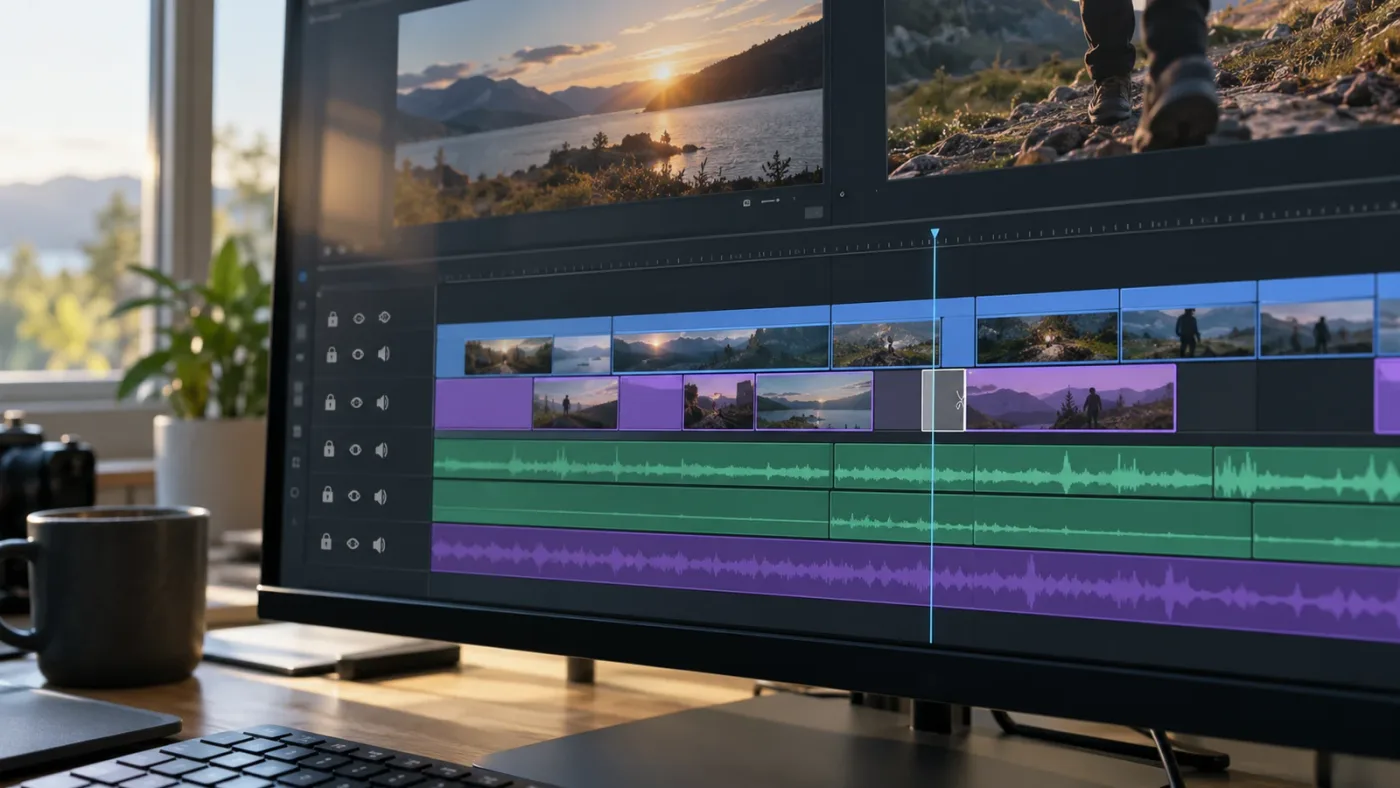
When the blade seems to hit a clip above or below the visible cursor, zoom the timeline and inspect the pointer tip, track height, clip boundaries, and overlapping items. A small target or crowded track layout can make the actual hit area hard to judge.
Start by increasing track height. Drag the divider between the target track and the next one so the clip occupies more vertical space. If your timeline is zoomed out, increase horizontal zoom until you can see the clip's boundaries clearly. Then move the blade pointer to the center of the clip body. Avoid selecting a point directly on a track divider or an edit boundary.
High-DPI displays, interface scaling, remote desktop sessions, and screen-sharing compression can make thin horizontal track boundaries hard to see. Those conditions do not prove that Resolve has a blade bug; they make it harder to position the pointer precisely. In a remote session, the displayed pointer may lag behind the actual input position. Stop playback, wait for the pointer to settle, zoom in, and make one controlled test.
If the timeline has overlapping clips on V1, V2, and V3, the topmost visible image in the viewer is not necessarily the item under your pointer. The viewer composites tracks, while the timeline hit target is local to the lane where the pointer rests. A clip on V2 may cover the image from V1 in the viewer, but the V1 clip still exists and can be cut if you click in its lane. Conversely, clicking the visible top image in the viewer is not the same as clicking a clip in the timeline unless you use a viewer-specific edit operation.
The same applies to audio. A waveform that appears continuous in the viewer area may represent multiple adjacent clips. A blade click over one segment creates an edit point on that segment. If the waveform lane is very short, expand it. If multiple audio tracks are stacked tightly, label the tracks and increase their heights until A1 and A2 are unambiguous.
Check timeline zoom and scroll position too. When you scroll vertically, you may be looking at a different group of tracks than you think. Track names and numbers in the headers are the reliable reference. A project can contain many video and audio tracks, and vertical scrolling may hide the upper or lower lanes. Before the next cut, read the track label at the same vertical level as the intended clip.
What if the cursor snaps to the wrong edit point?
If the cut lands at the wrong time but on the right track, inspect snapping and nearby edit points. Snapping can pull the pointer to a nearby cut or playhead, which changes the time of the edit without changing which clip is targeted.
The magnet-shaped snapping control can make the blade align to the playhead, markers, or nearby edit points. This is often useful when you want an exact shared frame. It can be surprising when you intend to cut a frame or two away from an existing boundary. Toggle snapping for a controlled test or zoom in enough to understand what the cursor is snapping to. Restore snapping when you are done if it is part of your normal workflow.
Snapping explains a wrong-time cut, not normally a wrong-track cut. If the cut appears on a nearby track too, inspect linked selection, a multi-track playhead split, or an additional command. Diagnose time and track separately: first ask whether the edit point is on the intended lane, then ask whether it is at the intended frame.
What if I am on the Cut page instead of the Edit page?
Confirm which page is active before following a tutorial. Resolve's Cut and Edit pages both support timeline work, but their layouts and controls are not identical. A guide's pointer instructions may refer specifically to the Edit page toolbar.
The official Resolve 17 Editor's Guide lesson for an audio-only blade split shows the Edit page timeline and instructs the reader to choose Blade Edit Mode, press B, and click the audio track. The Resolve 18 guide also documents the same Blade Edit Mode workflow. The overall principle remains useful, but page-specific interface placement and shortcut behavior should be checked against your installed version and keyboard preset. (Sources: Resolve 17 Editor's Guide and Resolve 18 Editor's Guide.)
If a tutorial says “click the clip” but its timeline shows only one track, translate that instruction carefully to a multitrack project. On a simple one-track timeline, almost any click on the clip body hits the intended clip. In a layered project, you must explicitly aim at the correct lane. The simpler demonstration has not established that a blade click automatically finds the selected track.
Why did my blade cut the right clip but change the wrong track afterward?
If the blade created a correct cut but other tracks moved later, the follow-up operation is the likely cause. A ripple delete, ripple trim, or synchronized move can affect track participants differently from a plain blade click.
Replay the edit sequence one action at a time. Undo until the timeline returns to before the unexpected movement, then repeat the blade cut alone. If the cut stays correct, perform the next action and inspect again. This isolates the command that moved the content. The blade itself may be innocent.
Ripple operations deserve special care because they close a gap by moving material after the removed section. If picture and sound should stay aligned, relevant tracks must participate as intended. If a music bed should remain fixed while picture ripples, that track should not be swept into the same operation. The track participation state is not something to set once and forget across every workflow; it depends on the edit you are making.
The Resolve 17 guide demonstrates this directly. In its lesson, a ripple delete removes a dialogue section and later clips move up; the guide notes that the audio and video remain in sync because Auto Select is enabled on all tracks. It then asks the learner to disable Auto Select on Audio 1 and repeat the action. That is a documented example of a later operation affecting tracks according to Auto Select state. (Source: Blackmagic Design's Resolve 17 Editor's Guide.)
If a clip shifted but its edit point did not, inspect the timing of the shift. Did every clip after the cut move left by the same amount? Did just one track move? Did a gap open or close? Did the audio drift relative to picture? Those clues reveal whether the action was a ripple, a slip, a linked move, or an accidental drag. A blade cut alone should create a boundary at a chosen time; it does not by itself shorten the sequence.
For safer ripple work, lock tracks that must remain fixed, set Auto Select intentionally on the tracks that should participate, and use a small section to verify. But do not lock tracks indiscriminately. A locked production audio track can prevent a required sync edit, while an unlocked music track can move when you intended it to stay anchored. Decide track by track.
Before applying a ripple deletion to interview footage, decide whether the sound should ripple with the picture. For a tight dialogue edit, the answer is often yes. For a montage with music underneath, you might want the music to continue across the gap without shortening. For a voice-over that must remain synchronized with picture, keep its timing relationship explicit. The right result depends on the story and the edit, not a default setting.
If a ripple edit has already caused drift, stop and undo rather than dragging one clip until it looks right. A visual alignment at one point may conceal a growing sync offset elsewhere. If the action is several steps back, use the project's timeline backup or an earlier version rather than repeatedly shifting tracks by eye. Resolve 21's New Features Guide documents timeline backup comparison, which can help compare a current timeline with an earlier saved state when available. (Source: DaVinci Resolve 21 New Features Guide.)
How can I cut safely on a dense interview or multicam timeline?
On a dense interview or multicam timeline, first identify whether you are editing one unflattened multicam clip, separate camera angles, or a conventional set of linked audio and video clips. Those structures respond differently to a cut, and a single visible blade action may represent a different unit of media in each structure.
An unflattened multicam clip behaves as a container for camera angles. A cut to that timeline item can divide the multicam segment as a whole. After flattening, the angles may appear as separate clips on separate tracks, and a cut may need to be repeated across the relevant angles to maintain matching boundaries. The TryUncle filler-word guide describes that distinction and recommends making the dialogue cleanup before flattening when the same edit should apply across angles. (Source: TryUncle's multicam filler-word explanation.)
Do not assume that every track visible in a multicam timeline represents an active camera angle. Some may contain audio, graphics, room tone, or a manually inserted shot. Before using a playhead split across the stack, identify the active multicam clip and the independent tracks around it. If you only need to divide the wrapper clip, click that item. If the sequence has been flattened and every angle must receive matching edit points, use a method that explicitly targets the intended angle tracks and verify each one.
For a two-person interview with isolated microphones, the edit may require a cut on only one speaker's audio. A single voice track can be edited without splitting the guest's video or audio if the tracks are independent and your command is narrow. Conversely, if a pause is removed from the shared multicam wrapper using a ripple operation, all camera angles may move together, which can be exactly what you want. The same edit can be harmful if one track is a continuous music bed or a room-tone bed meant to bridge the cut.
The safest workflow is to label tracks before the fine cut. Use names such as “Cam A,” “Cam B,” “Guest lav,” “Host lav,” “Music,” “Room tone,” and “Titles,” when those labels match the project. Then decide which lanes should receive the cut and which should move if you later ripple. Track names turn an abstract stack into a readable edit plan.
If you are trimming dialogue, waveform visibility helps. Blackmagic's training material teaches editors to inspect waveforms for dialogue and gives editing lessons for interviews, multicam footage, and audio layers. Its training catalog includes an “Introduction to Editing” video and a 32-minute Multicam Editing lesson, plus a dedicated Editor's Guide. Those are useful sources for learning the larger workflow after this immediate cut is fixed. (Source: Blackmagic Design's training catalog.)
When an edit must preserve sync across several cameras, make one change and inspect all visible angles at the same playhead position. If each angle shows the same boundary, the cut is aligned. If one remains continuous, determine whether it was excluded intentionally, locked, or simply not included in the command. Do not rely on the viewer alone; a multicam viewer may show one active angle while the timeline contains several underlying tracks.
When a cut must affect one isolated track, use the blade click on that clip and do not add a ripple operation unless you want downstream clips to shift. When a cut must affect a group of aligned tracks, use the playhead split or grouped edit method that your preset exposes, with track participation set deliberately. There is no safe universal “always cut all tracks” rule because projects contain different sync and timing needs.
What should I check if the cut still lands on the wrong track?
If a controlled blade click still cuts an unexpected lane, verify the active timeline, page, track lock, clip overlap, cursor position, shortcut mapping, and project structure in that order. Change one condition at a time and repeat the same test.
- Confirm the active timeline tab. Resolve can display multiple timelines in tabs or a stacked layout. The pointer may be over the timeline you were previewing rather than the one you intended to edit. Blackmagic documents tabbed and stacked timelines as ways to switch between sequences, so verify the active tab before cutting. (Source: Blackmagic Design's Edit page overview.)
- Confirm the page. Make sure the Edit or Cut page is active and that your instructions match its layout. The same keyboard key can be assigned differently in a custom preset.
- Inspect the track label beside the clip. Read V1, V2, A1, or the custom track name at the same vertical position as the pointer. Do not infer the lane from what you see in the viewer.
- Increase track height and zoom. Make the target clip large enough to click in its center. A one-frame boundary or thin audio lane is a poor target.
- Check lock state. A locked track should not accept ordinary edits. If a locked track appears to change, verify that you are looking at the correct lane and that the change is not an adjacent unlocked clip.
- Check Linked Selection. If linked components change together, decide whether that is intended before disabling the control.
- Check the exact command. Open Keyboard Customization and search for Blade Edit Mode, Split Clip, and Razor. Use the menu to confirm which command a shortcut invokes.
- Check for a second action. If tracks move after a cut, replay the sequence and identify whether a ripple delete or trim followed.
- Check the media structure. Determine whether the clip is a multicam wrapper, a compound clip, a nested timeline, or independent tracks.
- Test in a clean sequence. If the problem persists, create a small temporary timeline with one video clip on V1 and one audio clip on A1, then test each command without changing the original project.
The clean-sequence test is especially useful when a project has nested timelines or complex linked groups. Place one clip on V1 and one on A1. Press B and click the video clip. Undo. Click the audio clip. Undo. Then move the playhead over both and use the split command from the menu. The first two tests should reveal pointer targeting; the final test reveals the behavior of the playhead command and current track eligibility.
Do not make the test sequence a new source of confusion. Use media that can be safely discarded or a temporary timeline inside a test project. Avoid experimenting on the only copy of a client deliverable. If a clean sequence behaves correctly, the cause is likely project-specific: the active timeline, track state, clip linkage, multicam structure, or a custom preset. If the clean sequence also behaves unexpectedly, record the Resolve version, operating system, keyboard preset, exact command, and a short sequence of steps before seeking help.
When reporting a reproducible issue, describe the action rather than only the result. For example: “In DaVinci Resolve 21.1 on the Edit page, I pressed B, moved the pointer into the center of the V1 clip at 01:00:12:08, and clicked once. The V2 clip split instead. Linked Selection was off and V2 was unlocked.” That gives another editor enough detail to separate pointer behavior from track participation. Do not claim a version bug until you can reproduce the same behavior in a simple timeline and confirm the exact command used.
If you cannot tell which setting or button matters while the project is open, TryUncle is the on-screen assistant for DaVinci Resolve on Mac and Windows - ask in plain words and Uncle points at the exact control on your screen. For this specific problem, Uncle can point at the blade cursor, track header, or timeline control in your own project while you work. The TryUncle assistant is for editors who want help in the application instead of pausing to search for a tutorial that may show a different timeline layout.
Is a blade click or a playhead split the better method?
Choose a blade click when you want to divide one clip by aiming at it; choose a playhead split when you want a time-based edit across eligible clips. The safer method is the one that names the scope you intend and makes that scope easy to verify.
| Editing need | Best starting method | Why it fits | Main risk to check |
|---|---|---|---|
| Divide one video clip and leave other tracks alone | Blade click on that clip | The cursor targets the clip beneath it | Pointer can land on an adjacent lane |
| Divide one isolated audio clip | Blade click on the waveform clip | The click is limited to the targeted item | Small track height can make targeting hard |
| Add aligned edit points at the playhead | Split command from the menu or confirmed shortcut | The playhead supplies the time | Track locks and eligibility may exclude lanes |
| Keep linked camera audio and video together | Blade or split method appropriate to the structure | The linked relationship can preserve paired edits | Linked Selection may also affect components you meant to isolate |
| Remove a gap and move later clips | Ripple delete or ripple trim after a deliberate cut | Ripple operations close the gap | Auto Select and track state can move unexpected clips |
| Edit an unflattened multicam segment | Cut the multicam wrapper intentionally | One timeline object represents the multicam section | Flattened and unflattened timelines behave differently |
| Make a J-cut or L-cut | Separate picture and audio edits | Different clip boundaries are part of the transition | Linked selection can hide that the components need separate timing |
Blackmagic's official guides are the best place to confirm the built-in procedure and page-specific controls. Its Resolve 17 Editor's Guide demonstrates a blade cut on only the audio track, and the Resolve 18 guide demonstrates Blade Edit Mode with the B key. The newer Resolve 21 course by Casey Faris explains the cursor-targeted click and the playhead split shortcut as distinct actions. Together, they support a practical choice: click a clip to divide that clip; use a split command when the playhead defines the edit. (Sources: Blackmagic Resolve 17 Editor's Guide, Blackmagic Resolve 18 Editor's Guide, and Casey Faris's Resolve 21 course.)
Blackmagic's free training is also a strong route if the issue is part of a broader editing gap. Its official catalog includes lessons for editing, multicam, Fairlight audio, and a Resolve 20 Editor's Guide. The site lists a 32-minute multicam lesson and an introduction to editing that runs 1 hour and 9 minutes. Those are structured learning resources, not instant diagnoses of the layout in your current project. (Source: Blackmagic Design's training catalog.)
Casey Faris's YouTube training is another familiar option for a visual demonstration. His Resolve 21 course transcript shows the blade cursor landing on a clip, then contrasts the click with a playhead split. That is useful when you want to see the interaction at normal speed. The trade-off with any prerecorded tutorial is context: its keyboard preset, page, track layout, and project structure may not match yours.
Community answers can help when the symptom is unusual, especially if you include your Resolve version and a short reproducible example. But forum advice is a conversation, not a guarantee that the same controls apply in every version or project. Treat a suggestion about Auto Select or track locking as a hypothesis to test, not a global cure.
An on-screen assistant can be useful when a tutorial's layout does not match the open project. TryUncle is positioned around live, contextual guidance in Resolve, while Blackmagic's manuals and training remain the primary references for the product's documented behavior. TryUncle does not replace the manual or make the cut automatically; it can help identify the control on screen as the editor performs the operation. The product is paid, and its current terms and platform details belong on its landing page. The resource here remains the fix: identify pointer targeting, command scope, and track participation before changing settings.
For a single-track cut, the blade click is precise only when the pointer target is precise.
What is the fastest safe checklist before the next cut?
Before the next cut, confirm the timeline, track, pointer, command, and expected scope. A five-second pause is faster than repairing a ripple edit or recreating a synchronized section.
Use this checklist:
- Timeline: Is the intended timeline tab active?
- Page: Are you on the Edit or Cut page used in the instructions?
- Track: Does the header label match the lane you mean to cut?
- Pointer: Is the blade tip clearly inside the clip body, not on an edge?
- Time: Do you want the click position or playhead position to define the cut?
- Scope: Should one clip, linked audio and video, or several eligible tracks split?
- State: Is the track unlocked, and are Linked Selection and Auto Select set intentionally for this operation?
- Verification: After the click, did only the intended edit point appear?
For a one-track blade cut, the answer is usually: correct timeline, correct track, pointer in the clip, one click, inspect. For a multi-track playhead split, the answer is: correct timeline, playhead at the exact frame, eligible tracks unlocked, split command confirmed, inspect every lane. For a ripple edit, add a separate check: which tracks should move after the gap closes?
This distinction matters more than memorizing a long list of shortcuts. Shortcuts are useful once the command is understood. A shortcut can speed up a repeatable workflow, but it also hides the command name and may have been customized. The Resolve Keyboard Customization window lets you inspect and change assignments, and Blackmagic says the interface lists the available commands and assigned keys. If a tutorial's key does something different, search for the command name and confirm your preset before editing around it. (Source: Blackmagic Design's Edit page overview.)
The same principle applies to learning. Blackmagic's official training is free and useful for building a broad foundation. YouTube tutorials can show the cursor movement clearly. Community discussions can help with edge cases. A live on-screen assistant can make sense when the editor is stuck in a particular project and needs the exact visible control identified. Choose based on the work in front of you, not a claim that one source replaces all others.
If the cut lands on the wrong track again, undo once, write down what changed, and test one cause at a time. If the intended clip splits correctly after you enlarge the track and target its center, the issue was placement. If linked media changes together, inspect the linkage. If later clips move, inspect the ripple operation and Auto Select. If the playhead command splits more or fewer tracks than expected, check locks and command scope.
The Resolve 21.1 manual is the current reference point listed by Blackmagic Support as of October 2026. Blackmagic's Resolve 17 and 18 learning guides still illustrate the core blade-versus-playhead distinction, while Resolve 21 course material confirms that the same distinction is taught in the current generation. Keep version-specific claims limited to interface labels and shortcut assignments you have verified in your own installation. (Sources: Blackmagic Design Support, Resolve 17 Editor's Guide, Resolve 18 Editor's Guide, and Casey Faris's Resolve 21 course.)
The immediate fix is usually small: undo, zoom, aim, click once, and inspect. If you wanted a synchronized cut at the playhead, select that operation explicitly. If a later ripple moved material, diagnose that operation separately. The timeline becomes predictable when each command has one clear target and one clear scope.
What are the common DaVinci Resolve blade tool questions?
Why is my DaVinci Resolve blade tool cutting the track below?
The pointer is probably landing inside the lower track's clip. Increase the track height, zoom in, and place the blade cursor in the center of the intended clip before clicking. The red playhead does not by itself tell Blade Edit Mode which track you mean.
How do I cut one clip without cutting the audio underneath it?
Press B, click inside the video clip itself, and inspect whether its audio is linked. If linked audio splits too, undo and test with Linked Selection disabled for that edit. Keep the audio continuous when the edit calls for a J-cut, L-cut, or separate sound edit.
How do I cut all tracks at the same time in Resolve?
Put the playhead at the target frame and use the Split Clip command shown in your Keyboard Customization window. Check that every track you expect to change is unlocked and eligible, then inspect each lane. The exact shortcut depends on the active preset and custom mappings.
Does the B key cut at the playhead?
The B key switches to Blade Edit Mode in the documented Blackmagic training workflow. Clicking with the blade splits the clip under the pointer; to split at the playhead, use a playhead split command instead. Verify shortcuts in your own keyboard preset.
Why did my other tracks move after I used the blade?
The blade may have created the cut, then a ripple delete or trim moved later clips. Undo one step at a time and inspect when the movement begins. Check Auto Select and track locks for the ripple operation, not just the blade click.
Frequently asked questions
- Why does the DaVinci Resolve blade tool cut the wrong track?
- Blade Edit Mode acts on the clip beneath the pointer. If the pointer overlaps another track, the cut lands there; move it into the intended clip body and zoom in before clicking.
- How do I cut only one track in DaVinci Resolve?
- Press B, place the blade cursor inside the specific clip on the track you want, and click once. Do not use a playhead split command when you want only that one clip divided.
- How do I cut all tracks at the playhead in DaVinci Resolve?
- Put the playhead at the cut point and use the Split Clip command, after checking its current shortcut in DaVinci Resolve's Keyboard Customization window. This is different from clicking with Blade Edit Mode.
- Does Auto Track Select control which track the blade cuts?
- Auto Track Select mainly controls track participation in selection and timeline operations such as ripple edits. For a mouse blade cut, first check the pointer position, clip overlap, track lock, and timeline page.
- Why did my linked audio get cut when I bladed the video?
- Linked Selection can make linked audio and video behave as a group for selection and editing. If both components split, undo once, check the chain-shaped Linked Selection control, and use an audio-only or video-only workflow when appropriate.
Sources
- DaVinci Resolve 21.1 Reference Manual and Support
- The Editor's Guide to DaVinci Resolve 17, Lesson 5
- The Editor's Guide to DaVinci Resolve 18
- DaVinci Resolve Edit page features
- DaVinci Resolve training
- Casey Faris, Making Videos in Resolve 21, full course transcript
- Blackmagic Design forum: Selection follows playhead and track auto selection
- How to Edit Out Filler Words and Pauses in DaVinci Resolve
- DaVinci Resolve 21 New Features Guide
Learn by doing, not watching
Stop translating tutorials to your timeline.
TryUncle stays beside Resolve on Mac and Windows. When you ask, Uncle sees your screen and points at the exact control you need. No hunting through tabs, timestamps, or mismatched tutorials.
Meet TryUncleKeep reading
 GuidesJul 29, 202640 min read
How to Edit Out Filler Words and Pauses in DaVinci Resolve
How to edit out filler words and pauses in DaVinci Resolve: ripple delete, Text-Based Editing, Fairlight Remove Silence, and Smooth Cut to hide jump cuts.
 GuidesJul 16, 202640 min read
DaVinci Resolve Multicam Editing Workflow for Interviews
A full DaVinci Resolve multicam workflow for interviews: camera and audio setup, syncing, live cutting, keyboard shortcuts, color matching, and fixes.
 FixesOct 18, 202626 min read
DaVinci Resolve De-Esser Sounds Lispy? Fix the Dialogue
If the DaVinci Resolve de-esser sounds lispy, reduce its action, check the affected words, and compare the bypassed and processed dialogue at equal volume.